
Claude Code Auto Mode Guide: Safer Permissions, Faster Sessions, and Team Guardrails
Claude Code Auto Mode is meant to remove routine permission prompts without removing safety. This guide explains what Auto Mode actually changes, how permission rules still win, how teams should define trusted infrastructure, and how to keep agentic coding fast without letting convenience outrun review.
Claude Code Auto Mode: Quick Answer for Busy Developers
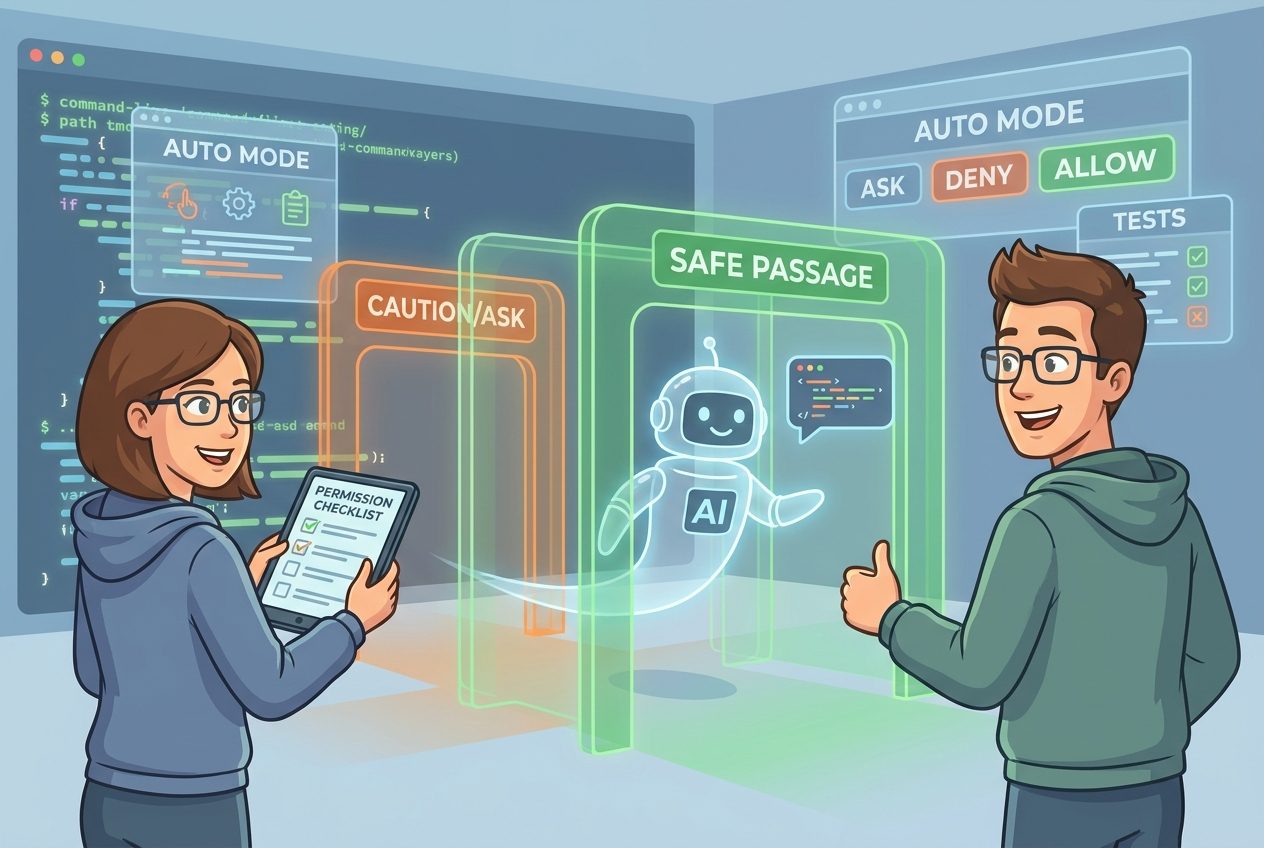
Claude Code Auto Mode is a permission mode that reduces routine approval prompts by sending tool calls through a safety classifier. Instead of asking you about every normal file edit, command, or internal action, Claude Code can decide whether an action looks safe enough to run, risky enough to ask, or unsafe enough to block. The important detail is that Auto Mode is not the same as “anything goes.” Anthropic’s documentation says explicit deny and ask rules are evaluated before the classifier, and the classifier is designed to block irreversible, destructive, or out-of-environment actions.
The useful way to think about it is this: Manual Mode makes the human approve many actions one by one; Auto Mode lets the system approve routine work while preserving checkpoints for sensitive work. That can make Claude Code feel much faster during normal development, especially when it is reading files, making small edits, running tests, or iterating on a narrow bug. But it also raises a new responsibility for developers and teams. If you do not define trusted repositories, cloud buckets, domains, branches, and security boundaries clearly, Auto Mode may either block too much and feel frustrating or approve more than your team is comfortable with.
This guide is written for developers, technical founders, platform teams, security reviewers, and engineering managers who want the productivity gain without turning Claude Code into an unsupervised production operator. It combines the official Claude Code docs with practical examples, a rollout model, and internal AI Feature Drop resources on permissions, hooks, plugins, statuslines, and context control.
Why Auto Mode Matters More as Claude Code Gets More Capable
Claude Code is no longer just a terminal chat assistant that suggests a patch and waits. The current Claude Code documentation describes an agentic coding tool that reads codebases, edits files, runs commands, integrates with development tools, works in IDEs, connects to Chrome, runs on desktop, supports web sessions, handles remote control, coordinates subagents, and can participate in code review workflows. That growth is exciting, but it also means the permission model is now part of the product experience rather than a small setup detail.
When an agent can only answer questions, permissions are mostly about file access. When an agent can edit files, run shell commands, use browser tooling, call MCP servers, operate in cloud sessions, and work across a team, permissions become workflow architecture. Too many prompts create fatigue. Developers start approving without reading because the tool interrupts them constantly. Too few prompts create risk. Teams may discover that a helpful coding agent can touch resources that were never meant to be in scope.
Recent Claude Code changelog entries also show why developers are searching for better explanations. Anthropic has been updating Auto Mode behavior, command visibility, organization policy reporting, permission handling, model configuration, skill diagnostics, prompt-cache messages, and Remote Control reliability. Those are not isolated release notes. They are signals that agentic coding is becoming more autonomous, more configurable, and more team-oriented. A practical guide is useful because the official docs explain each piece, while developers need the operating model that connects them.
For AI Feature Drop, this topic fits a clear search and content gap. Analytics show that practical AI coding explainers perform better than generic AI news. Google Search Console has surfaced early impressions around coding-agent permissions and operational questions, and the site already has a strong Claude cluster covering Claude Code permissions, Claude Code hooks, Claude Code plugins, statusline monitoring, data scope, and usage limits. What was missing is a central Auto Mode pillar that explains when to trust automation and when to force review.
How Claude Code Auto Mode Works in Plain English
Auto Mode sits between full manual prompting and dangerous blanket approval. In manual workflows, Claude Code asks before actions such as modifying files or running most shell commands. That protects the user, but it can slow down safe loops like edit, test, inspect, fix, test again. In Auto Mode, a classifier evaluates the action. If the action looks routine within the trusted environment, it can proceed. If it looks sensitive, surprising, destructive, irreversible, or aimed outside the trusted environment, it can ask or block.
Anthropic’s Auto Mode configuration docs describe the default trust boundary as the working directory and the current repository’s configured remotes. That default is intentionally conservative. A normal edit inside the active repo is very different from writing to a production bucket, pushing to a release branch, calling an unfamiliar domain, or running a command that could destroy local files. The configuration layer lets a user or organization define the environment more explicitly so Auto Mode understands what is normal for that team.
The key phrase is “trusted infrastructure.” A repository, branch, package registry, internal domain, cloud bucket, or deployment target should not become trusted merely because it exists. It should become trusted because your team has decided Claude Code may interact with it under a known policy. That policy can be permissive for local tests and strict for production operations. The safest teams do not ask “Can Auto Mode run this?” They ask “Should this class of action ever be silent?”
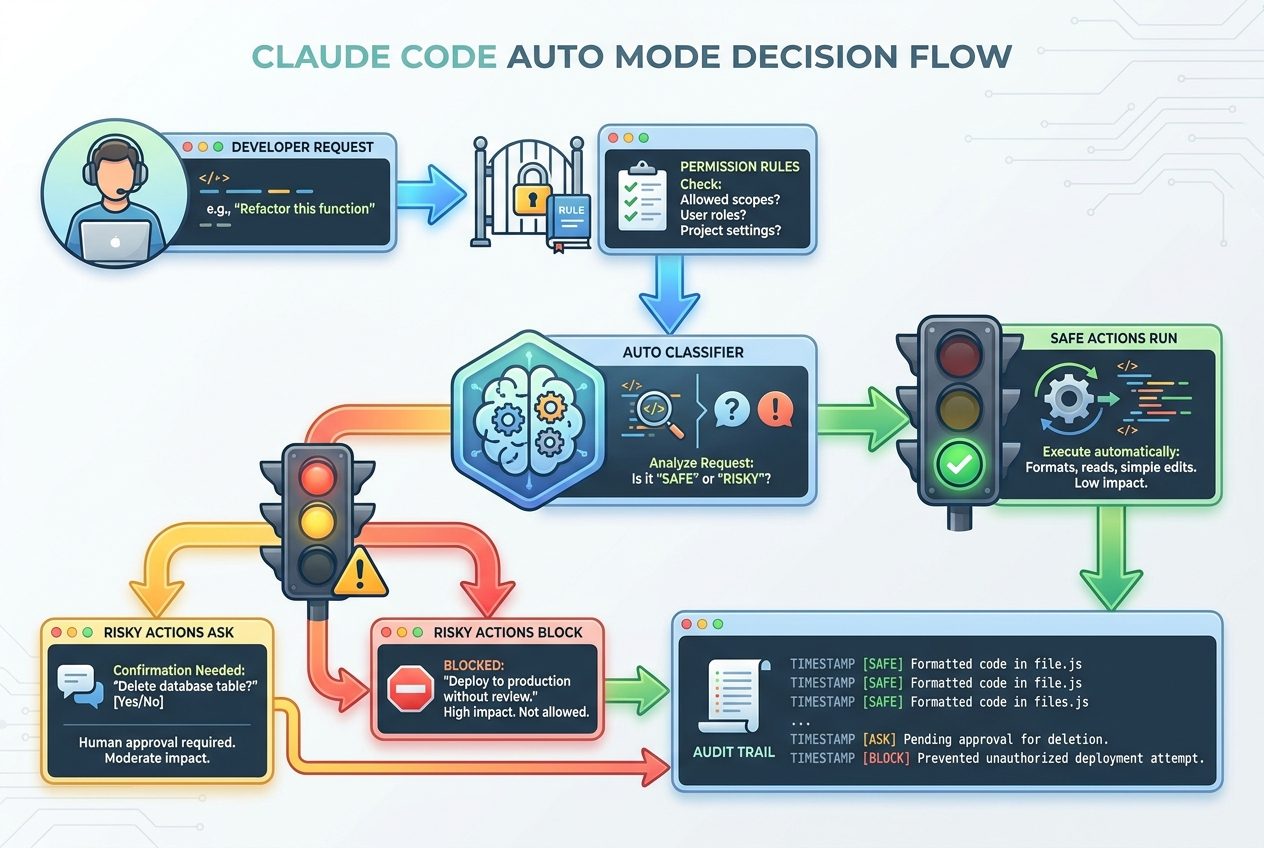
One subtle but important point: Auto Mode should reduce interruption, not accountability. If a coding agent edits files, runs tests, or creates a pull request, the developer still owns the result. You still inspect diffs, run meaningful verification, watch for secrets, and confirm that the change matches the intended scope. Auto Mode changes the approval path for routine actions; it does not change the engineering responsibility for shipped code.
Permission Rules Still Matter: Deny, Ask, Allow, Then Auto
The most common misconception is that Auto Mode ignores permission rules. Anthropic’s permission docs state the opposite: permission rules are evaluated by precedence. Deny rules block first. Ask rules prompt next. Allow rules can permit matching actions. Auto Mode’s classifier then handles the actions that remain in its lane. This order is the reason Auto Mode can be used safely in teams. You can keep human checkpoints for sensitive operations while letting routine local work continue with fewer prompts.
| Layer | What it means | Practical example | Recommended use |
|---|---|---|---|
| Deny | The action should not run. | Commands that remove production data, print secrets, or send private files to unknown domains. | Use for hard security boundaries and actions that should never be delegated. |
| Ask | The action may be valid, but a human must approve it. | git push, pull request creation, deployment commands, database migrations, dependency publishing. | Use for accountability checkpoints and actions that leave the local machine. |
| Allow | The action is safe enough under a defined scope. | Running tests, formatting code, reading project files, writing inside a feature branch. | Use sparingly and specifically; prefer scoped rules over broad permissions. |
| Auto classifier | Claude Code judges routine vs risky action inside the configured environment. | Small edits, local test commands, safe inspection, ordinary internal repo activity. | Use to reduce prompt fatigue after deny and ask boundaries are clear. |
The best permission setup is boring. It should make safe work easy and risky work obvious. A developer should not have to wonder whether Claude Code can deploy to production silently. A security reviewer should not have to audit hundreds of one-off approvals to understand team policy. Good rules turn permission prompts from noise into signal.
For a single developer, the simplest starting point is to keep Auto Mode on for local development, but add ask rules around pushing, publishing, opening pull requests, writing outside the repository, and any command that changes remote state. For a team, the starting point is stronger: define repository rules, branch rules, cloud-resource boundaries, MCP server policy, allowed documentation domains, and a review process for changes to those rules. If your project already has a CLAUDE.md, use it for project conventions and behavioral instructions, but use durable permission settings for boundaries that must survive compaction or session restarts.
Team Rollout Plan for Claude Code Auto Mode
Rolling out Auto Mode across a team should feel closer to rolling out CI permissions than enabling a convenience toggle. The tool is helpful because it can take actions. That is also why it needs a clear operating model. A lightweight rollout plan prevents the two classic failures: a locked-down setup that nobody uses, or an open setup that creates security anxiety after the first risky action.
1. Inventory the workflows developers actually want
Start with real workflows rather than abstract permissions. Do developers want Claude Code to fix tests, refactor components, update docs, run linters, inspect logs, create pull requests, respond to code review comments, or debug browser UI? Each workflow implies different tool access. A test-fix workflow may only need local file edits and test commands. A cloud-debugging workflow may need logs and internal dashboards. A release workflow may need strict ask rules even if it is technically easy to automate.
2. Define trusted infrastructure deliberately
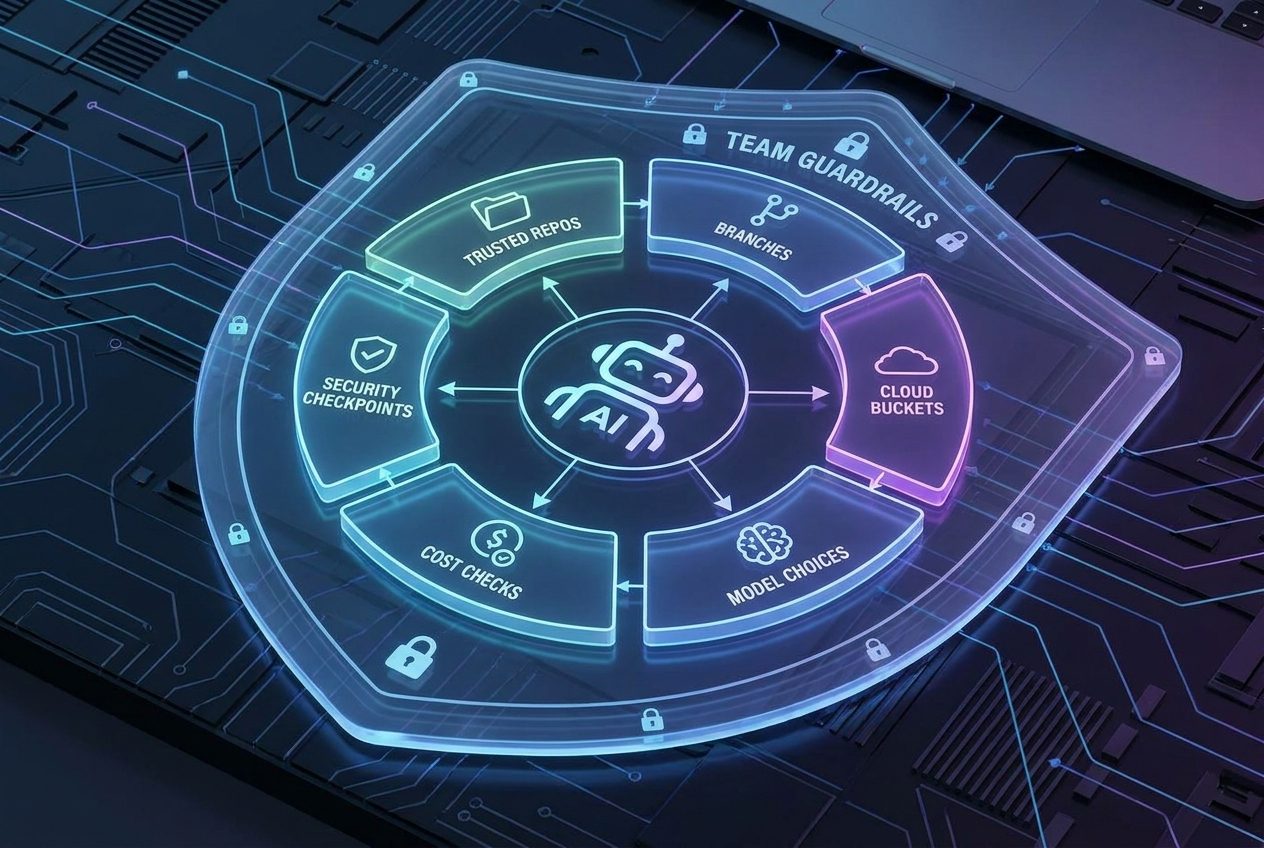
Trusted infrastructure should include only resources that Claude Code may interact with under your policy. That may mean the current repository, selected internal remotes, approved package registries, non-production cloud buckets, documentation domains, and staging environments. It should not automatically include production databases, customer-data exports, payment dashboards, secret managers, personal directories, or random URLs from a bug report.
3. Add human checkpoints before external state changes
Auto Mode can make local iteration smooth, but external state changes deserve more friction. Ask before pushes, pull requests, deployments, package publishing, migration runs, bulk file moves, external uploads, and actions involving credentials. Even if your team eventually relaxes some of those rules, starting with review creates trust. Developers learn what the agent wants to do, and platform teams see which actions are actually common.
4. Pair permissions with monitoring
Permission rules prevent some bad actions, but observability explains what happened. Claude Code statusline patterns, usage views, cost messages, git-state indicators, and logs can help teams notice long sessions, unusual command patterns, model switches, or repeated failed tool calls. Our Claude Code statusline guide and statusline permission alerts guide explain how visibility can reduce blind approval.
5. Review the policy after real use
Do not expect the first Auto Mode policy to be perfect. Developers will hit false blocks, surprise prompts, and missing trusted domains. Treat the first two weeks as a calibration period. Collect denied actions, prompted actions, and developer complaints. Then adjust rules intentionally. The goal is not zero prompts. The goal is prompts that show up at the moments where human judgment really matters.
Practical Examples: When Auto Mode Should Run, Ask, or Block
Auto Mode becomes easier to understand when you stop debating the feature in general and classify specific actions. The same agent can be low-risk in one context and high-risk in another. Editing a test fixture in a feature branch is not the same as changing authentication logic and pushing directly to a production branch. A good Auto Mode policy acknowledges that difference.
Example: fixing a broken unit test
A developer asks Claude Code to fix one failing test. Claude reads the related files, proposes a small patch, runs the test command, and updates the patch. This is the kind of loop Auto Mode was built to improve. The action is local, scoped, reversible through git, and easy to verify. The developer still checks the diff, but the agent does not need to interrupt every minute.
Example: updating a GitHub Actions workflow
Changing CI is more sensitive. A workflow file can expose secrets, publish artifacts, or run commands on future pull requests. Auto Mode might be fine for editing the file locally, but pushing that change or enabling a new external integration should ask. Teams should treat CI changes as policy changes, not ordinary formatting.
Example: adding an MCP server
MCP can extend Claude Code into external tools. That is powerful and risky. A server that reads local docs is very different from one that can access production tickets, cloud resources, or customer records. Use allow rules only after reviewing the server, its permissions, its transport, and its data exposure. Our Claude Code plugin components guide is useful background because plugins, hooks, MCP servers, agents, and monitors can all affect the trust boundary.
Example: asking Claude to “clean up the repo”
This is a bad Auto Mode prompt. It is vague, broad, and likely to cause unnecessary exploration. A better prompt is: “In src/components only, remove unused imports, run the formatter, run the component tests, and summarize every file changed before stopping.” Auto Mode is safest when the human scopes the work before delegation.
SEO and Analytics Context Behind This Topic
This article was selected through the site’s fixed category rotation. The previous pillar article used the OpenAI label, so the next label in sequence is Claude. Within the Claude category, recent source research pointed to Claude Code Auto Mode and permission configuration as the strongest pillar opportunity because it combines official product changes, high practical importance, and weak explainers in search results.
GA4 data for the most recent complete 28-day window showed 649 active users, 718 sessions, 779 page views, 408 engaged sessions, and an average session duration of roughly 49.6 seconds. Search Console showed low-volume but relevant impressions around coding-agent operation queries. That matters because AI Feature Drop is not winning by publishing generic product news. It wins when an article turns a confusing product feature into a practical workflow: what it means, who should use it, what can go wrong, and how to configure it safely.
The internal-link map also made this a strong topic. AI Feature Drop already has Claude pages on permissions, hooks, plugin installs, plugin troubleshooting, data scope, statusline alerts, Opus model choices, dynamic workflows, and usage limits. A pillar guide on Auto Mode can connect those cluster articles into a clearer topical hub. That improves reader navigation and gives search engines a stronger signal that the site covers Claude Code operations in depth.
Claude Code Auto Mode Setup Checklist
Use this checklist before you make Auto Mode the default for serious work. It is intentionally practical. You can apply it as a solo developer or turn it into a team runbook.
| Checklist item | Why it matters | Owner |
|---|---|---|
| Confirm working directories and repositories | Auto Mode needs a clear local boundary before it can classify actions sensibly. | Developer or platform team |
| Add ask rules for pushes and pull requests | External state changes should remain visible until your team intentionally relaxes them. | Team lead |
| Deny destructive shell patterns | Some actions should never be silently attempted, even by a helpful agent. | Security or platform team |
| Define trusted domains and buckets | Reduces false blocks while preventing accidental uploads to unknown locations. | Platform team |
| Review MCP and plugin scope | Extensions can expand what Claude Code can see or do. | Developer experience and security |
| Use statusline or usage visibility | Developers need to see cost, context, git state, and risk signals during long sessions. | Developer |
| Document project-specific rules in CLAUDE.md | Project conventions improve agent behavior, but hard boundaries still belong in permission settings. | Repo maintainers |
| Schedule a policy review | The first setup will need calibration after real use. | Team lead |
Common Mistakes to Avoid
The first mistake is using Auto Mode to compensate for vague prompting. Auto Mode makes execution faster, so unclear instructions become risky faster too. Scope the task before the agent starts. Name the files, the branch, the expected tests, and the stopping condition. A clear prompt is still the most important safety control.
The second mistake is treating allow rules like convenience shortcuts. Broad allow rules feel good for a day and become confusing later. If you allow too much, you lose the audit value of permission prompts. If you deny too much, developers will route around the tool. Use the narrowest rule that supports the workflow.
The third mistake is ignoring model choice and cost visibility. Auto Mode is about permission flow, but autonomous coding also depends on model selection, context size, and long-session behavior. Stronger models can be worth it for complex refactors and architecture decisions, while lighter models are enough for small edits. Connect Auto Mode policy with usage reporting so teams understand both risk and spend.
The fourth mistake is trusting every third-party example. Search results for fast-moving AI coding features often include outdated screenshots, copied snippets, and thin posts that do not explain failure modes. Prefer Anthropic docs, official changelogs, and tested team runbooks. When a link is not clearly relevant, verifiable, or safe, leave it out of your setup guide.
Final Recommendation: Use Auto Mode as a Guardrailed Speed Layer
Claude Code Auto Mode is worth using, but it should not be treated as a magic safety switch. The right mental model is a guardrailed speed layer. Let it remove repetitive approvals for scoped local development. Keep explicit ask rules for actions that change shared state. Use deny rules for dangerous actions. Configure trusted infrastructure deliberately. Watch usage and status signals during long sessions. Review the policy after developers have used it on real work.
If you are an individual developer, start small. Use Auto Mode for a single repository, keep git clean, inspect diffs after every meaningful run, and add ask rules around pushes. If you are a team lead, write a one-page policy before rollout. Decide what Claude Code may do silently, what must ask, what is denied, and who can change those settings. If you are a security reviewer, focus less on whether the agent is “AI” and more on normal access-control questions: what can it read, what can it write, where can it send data, and who reviews changes before they affect users?
The future of AI coding is not fewer controls. It is better controls that stay out of the way until they matter. Claude Code Auto Mode is a useful step in that direction when teams configure it with the same care they bring to CI, cloud permissions, and production access.
Keep Learning on AI Feature Drop
- Claude Code Permissions Guide — understand safer hooks, subagents, and permission rules.
- Claude Code Permission Rules Explained — go deeper on rule design and developer speed.
- Claude Code Hooks Permission Gates — stop risky tool calls before they run.
- Claude Code Plugins Guide — evaluate skills, hooks, MCP servers, and plugin permissions.
- Claude Code Data Scope Guide — avoid leaking context into the wrong workflow.
- Claude Code Statusline Guide — monitor context, cost, git state, and agent workflows.
- Claude Code Usage Limits — compare Auto Mode with plan limits and rate behavior.
Sources and References
- Anthropic Claude Code Docs: Configure Auto Mode
- Anthropic Claude Code Docs: Configure Permissions
- Anthropic Claude Code Changelog
- Anthropic Claude Code Docs: Model Configuration
- Anthropic Claude Code Docs: Security Guidance Plugin
Claude Code features and permission behavior can change. Always verify your installed version, organization policy, and current Anthropic documentation before changing production workflows.
FAQ: Claude Code Auto Mode
What is Claude Code Auto Mode?
Claude Code Auto Mode is a permission mode that uses a classifier to decide whether routine tool actions can run without asking, while risky or out-of-scope actions can still ask or block.
Is Auto Mode the same as bypassing permissions?
No. Auto Mode is designed to reduce routine prompts while preserving safety checks. Explicit deny and ask rules still matter and are evaluated before the Auto Mode classifier.
Should teams enable Claude Code Auto Mode by default?
Teams should enable it only after defining trusted repositories, external systems, ask rules, deny rules, and review expectations. It is best rolled out gradually with monitoring.
What actions should still ask in Auto Mode?
Pushes, pull requests, deployments, package publishing, migrations, cloud-resource changes, CI changes, and sensitive-data workflows are good candidates for explicit ask rules.
What should be denied instead of asked?
Actions that expose secrets, delete broad data, bypass security checks, upload private files to unknown domains, or modify production without review should be denied outright.
Does Auto Mode make Claude Code faster?
It can make scoped local development faster because fewer routine actions interrupt the developer. The speed gain is safest when prompts are clear and tasks are reversible.
How does Auto Mode relate to CLAUDE.md?
CLAUDE.md is useful for project conventions and behavioral guidance. Hard safety boundaries should also be implemented as permission rules or managed settings so they are durable.
How do I know if my Auto Mode setup is too broad?
If Claude Code can change external state, touch production-like resources, or use sensitive integrations without a visible checkpoint, your setup is probably too broad.
Post a Comment