
Codex Import Troubleshooting: Fix Missing Import, MCP Auth, Hooks, and Chats
If Codex import completed but your setup feels broken, or the import command is missing before you even start, this guide gives you a practical repair path for CLI sessions, desktop imports, MCP servers, hooks, plugins, skills, recent chats, and permission boundaries.
Quick Answer: How to Fix Codex Import Problems
Codex import troubleshooting starts with one question: did the import flow fail to appear, fail to copy items, or copy items that now behave differently? Those are three different problems. If the /import command is missing in Codex CLI, first confirm you are in a fresh local session, not inside a running task, not connected to a remote session, and not attached to a local app-server daemon. OpenAI’s import documentation says those states can make the command unavailable. If the import appears but items are missing, check whether you selected user-level setup, project-level setup, project folders, and recent chats. If items imported but now fail, inspect permissions, MCP authentication, plugin authorization, hooks, slash commands, and file-path assumptions one layer at a time.
The fastest repair pattern is: restart clean, import selectively, review the imported configuration, reconnect any plugin or MCP item that needs authorization, disable risky hooks, run a tiny reversible test, then expand to real work only after Codex behaves predictably. Do not keep clicking import until something works. Repeated bulk imports usually create duplicate memories, stale chats, and contradictory instructions that make the new workspace harder to trust.
This cluster article supports our broader Codex CLI import guide. The pillar explains what import is and how to think about migration from Claude Code or Cursor. This page goes narrower: what to do when the command is unavailable, imported MCP servers do not connect, hooks fire at the wrong time, imported chats are noisy, or permissions no longer match how you want Codex to work.
The topic is also grounded in current AI Feature Drop analytics. In the latest 28-day report, Codex setup content led the site: the ChatGPT desktop app Codex guide had 240 page views, Codex pricing and limits had 59, Codex banked resets had 44, and Codex Windows setup had 34. Search Console impressions are still small, but the visible queries cluster around Codex computer-use, Windows, remote control, and setup. That pattern favors practical Codex troubleshooting content over another broad “what is Codex” article.
Why Codex Imports Break Even When the Import Succeeds
OpenAI’s import page describes a helpful capability: bring supported setup and recent work from another agent into ChatGPT or Codex. The desktop app can import from Claude Code, Claude Cowork, or Cursor. Codex CLI can import from Claude Code or Cursor. The imported set can include instruction files, settings, skills, plugins, project folders, Claude Code memories, recent chats, MCP server configuration, hooks, slash commands, and subagents where supported. That is a lot of surface area. It also explains why troubleshooting matters.
An import can succeed at the file or metadata level while still failing at the workflow level. A skill may copy across but mention tool names that Codex does not use. A hook may still exist but rely on shell interpolation that behaves differently. An MCP server may appear in configuration but need a fresh sign-in, a custom header, a transport setting, or a path that only existed in the old shell. A plugin may be listed but blocked by workspace policy until you finish setup. Recent chats may import, but they can contain stale decisions that pull the agent in the wrong direction.
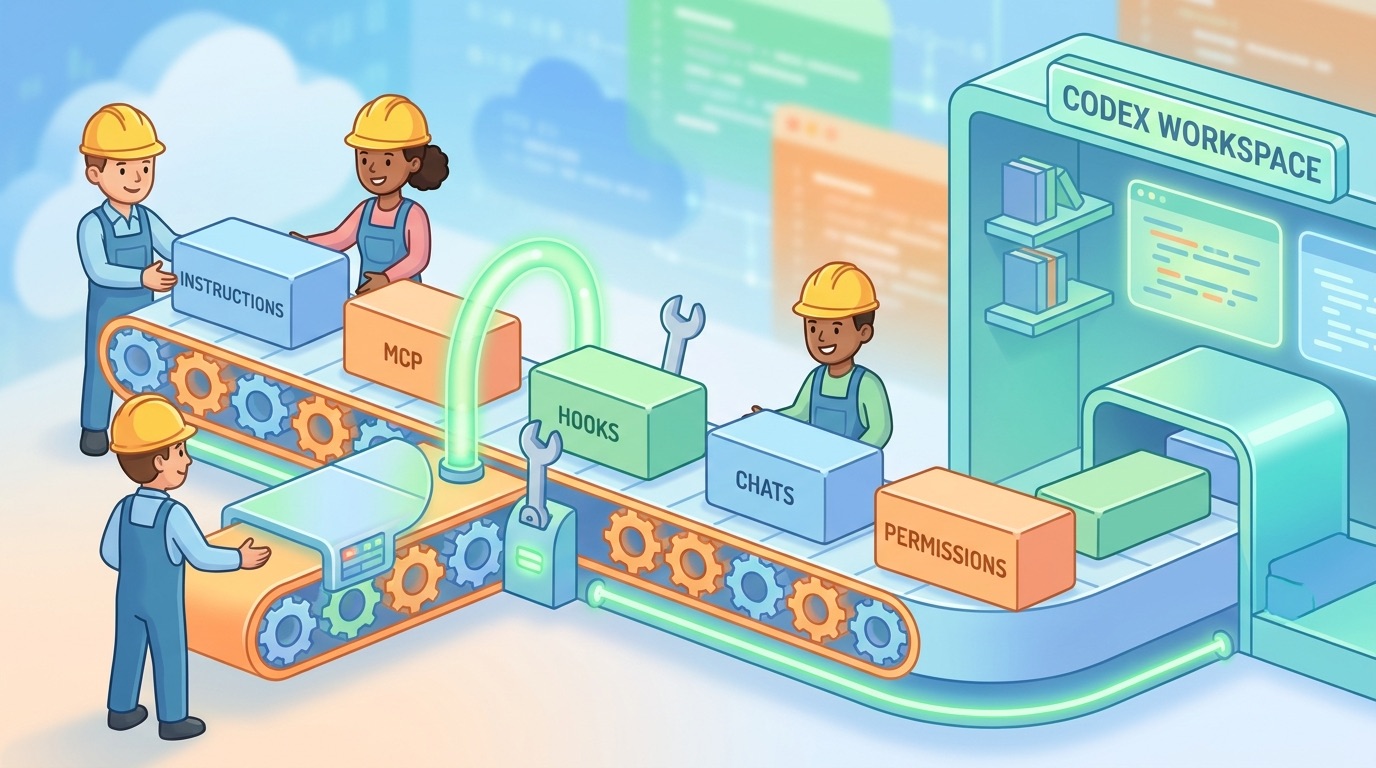
Think of import as moving a workshop, not cloning a machine. The boxes may arrive, but you still need to plug in the tools, throw out broken parts, label the drawers, and test the safety switches. The more mature your previous agent setup was, the more useful import becomes. The messier your old setup was, the more you should use import as a discovery tool and then rebuild the final Codex setup manually.
| Symptom | Likely cause | First fix |
|---|---|---|
/import is not available | Running task, remote session, app-server connection, or unsupported surface | Start a fresh local Codex CLI session from the project root |
| Expected projects are missing | Project-level setup was not selected or source folders were not detected | Re-run import selectively and choose the relevant project folders |
| MCP server imported but fails | Auth, headers, transport, environment variables, or executable path changed | Test one server manually and reconnect credentials |
| Hooks behave unexpectedly | Tool-specific assumptions, timing differences, or broad command permissions | Disable imported hooks and re-enable one at a time |
| Imported chats create noise | Too many stale threads came over | Keep only current decisions and active work |
| Codex edits too broadly | Imported instructions conflict with new permission expectations | Rewrite instructions and tighten approval rules |
Fix 1: The Codex CLI Import Command Is Missing
If you type /import and nothing useful happens, do not assume your account is broken. OpenAI’s documentation names specific cases where the command is not available: during a running task, in a remote session, or while connected to a local app-server daemon. In plain language, import needs a clean local CLI context. It is not meant to be triggered in the middle of an active coding run or from every Codex surface.
Start from the project root
Open a fresh terminal session in the repository you actually want to migrate. This matters because user-level setup and project-level setup are different. User-level setup comes from files on your machine. Project-level setup comes from repositories and folders you select. If you start from a random directory, Codex may not see the same project structure you intend to work in after import.
Make sure no task is running
Import first, code second. If Codex is currently planning, editing, reviewing, or running commands, finish or cancel that task before import. Mixing migration with active code edits makes troubleshooting painful because you cannot tell whether the problem came from import, instructions, or the task itself.
Check local versus remote mode
Codex remote and cloud workflows are powerful, but the CLI import command is documented for a local session. If you launched a remote task or are connected through a different surface, switch back to a normal local CLI session and try again. For users who primarily work in the desktop app, use Settings > Import or the General setting for importing another agent setup.
Use desktop import when the CLI surface is wrong
The ChatGPT desktop app import path is broader in one important way: it can import from Claude Code, Claude Cowork, or Cursor, while Codex CLI imports from Claude Code or Cursor. If your source is Claude Cowork, use the desktop app. If your work spans projects, chats, plugins, and browser-like context, the desktop import flow may be easier to repair because it can show status cards for items that need attention.
Fix 2: Use a Layer-by-Layer Triage Map
When a migrated setup fails, most developers jump straight to the loudest error message. That is natural, but it is not the safest path. Codex imports several layers, and an error in one layer can look like a failure in another. A broken MCP server may cause a skill to look broken. A stale chat may make Codex ignore clean instructions. A hook may run too early and make an otherwise good import feel unstable.
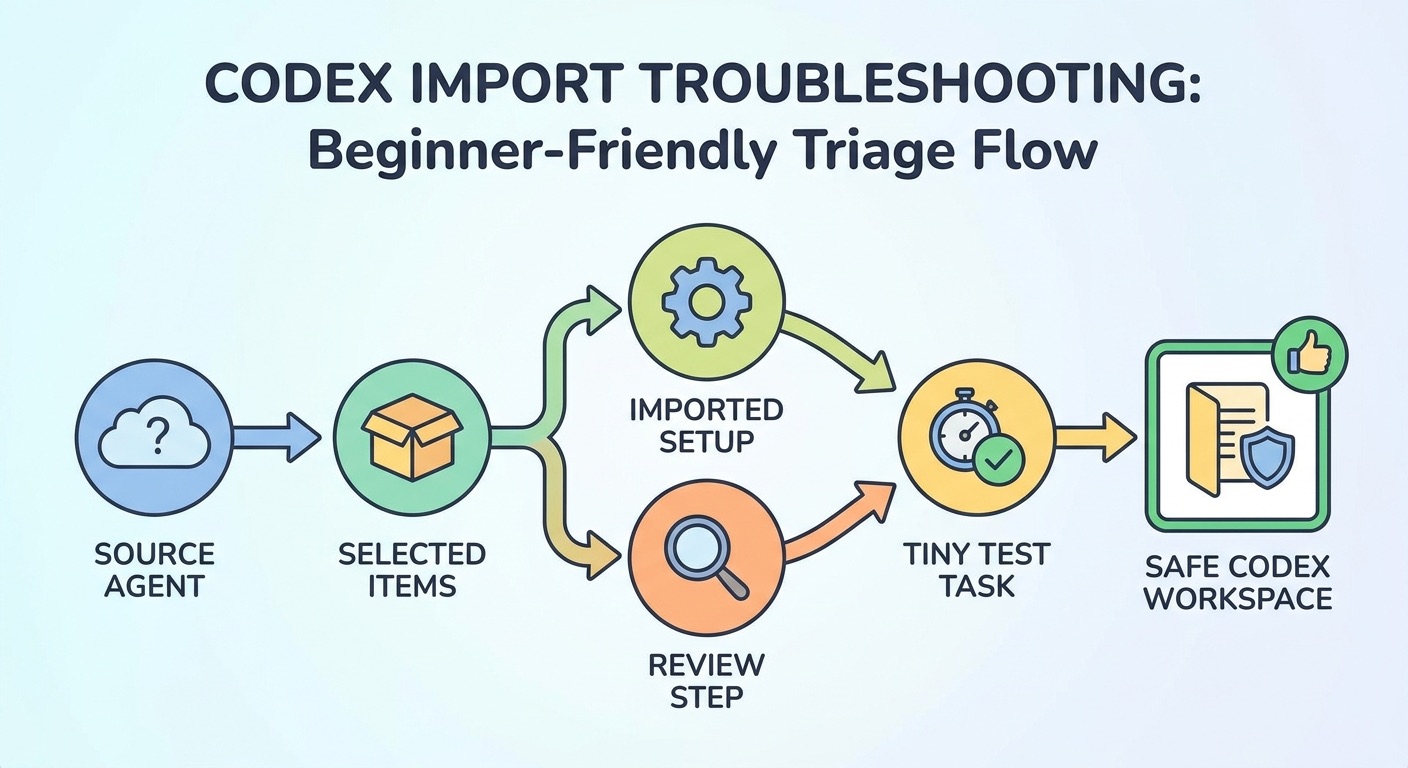
Use this order instead: instructions, settings, permissions, plugins, MCP, hooks, commands, skills, chats, subagents, then test tasks. Instructions come first because they shape everything else. Permissions come before tools because you need to know what Codex is allowed to do before you judge tool behavior. MCP, hooks, and commands come after that because they are powerful, environment-sensitive, and the easiest places to accidentally preserve an old assumption.
This map is intentionally conservative. The goal is not to make every imported feature work at once. The goal is to isolate the smallest broken layer and repair it without creating new risk. If you run a full repository task before this review, Codex may combine stale instructions, disconnected tools, and broad permissions in ways that are hard to inspect afterward.
Fix 3: Repair Imported MCP Servers Without Guesswork
MCP configuration is one of the most useful things Codex can import and one of the easiest things to break. A working MCP setup can connect Codex to local tools, internal systems, docs, databases, issue trackers, or custom workflows. But MCP often depends on the exact environment where the old agent ran. That includes local executable paths, shell profiles, environment variables, custom headers, transport choices, account sessions, and workspace policy.
OpenAI’s import documentation specifically tells users to review MCP server settings that use custom authentication, headers, environment variables, or transports. That warning is not boilerplate. It describes the common failure path. The import may preserve the configuration, but Codex may not inherit the same login, shell, or path assumptions. A relative executable path that worked from one folder may fail from another. A token loaded by an old terminal profile may be absent in the new session. A server that used stdio may be configured differently from a remote HTTP server. A team policy may allow the old tool but not the new plugin surface.
Test one MCP server at a time
Do not try to fix five servers at once. Pick the one that matters most, preferably a low-risk local documentation or read-only tool. Confirm whether Codex can see it, connect to it, call a harmless tool, and recover cleanly from failure. Only then move to another server. If a server touches production data, payment systems, customer records, secrets, or deployment controls, keep it disabled until a human owner reviews the configuration.
Verify the path and launch environment
Many MCP problems are boring path problems. The old setup may have used a relative executable path, a package manager shim, or an environment variable loaded by a specific shell. The Codex changelog recently called out reliability fixes around relative MCP executable paths on macOS and remembered MCP approvals scoped to the selected app account. That tells you where to look: account context, remembered approvals, and the exact path used to launch the server.
Separate authentication from permission
Authentication means the server can connect. Permission means Codex should be allowed to use it for this task. Those are different. After import, you may need to sign in again or finish setup for a connection. Even after it connects, you should still decide whether it is safe for Codex to use automatically. Imported setup should not silently grant broad access just because the previous tool had it.
| MCP check | What to inspect | Safe action |
|---|---|---|
| Executable path | Absolute path, relative path, package manager shim, working directory | Replace fragile paths with documented stable paths |
| Environment | Required variables, shell profile, local secrets manager | Load values through approved config, never visible instructions |
| Authentication | OAuth, token, custom headers, account session | Reconnect through the official setup flow |
| Transport | stdio, local server, remote endpoint | Use the narrowest transport that matches the use case |
| Tool scope | Read-only, write access, external network, production impact | Start read-only and require approval for sensitive actions |
Fix 4: Disable Imported Hooks and Slash Commands Before You Trust Them
Hooks and command-style prompts are useful because they automate routine work. They are risky because they can hide assumptions. A hook that ran safely in Claude Code or Cursor may fire at a different point in Codex. A slash command may depend on positional arguments, path placeholders, shell interpolation, or prompt variables that do not translate cleanly. OpenAI’s import documentation calls out hooks and prompt templates as items to review after import, especially when they depend on arguments, shell interpolation, or file-path placeholders.
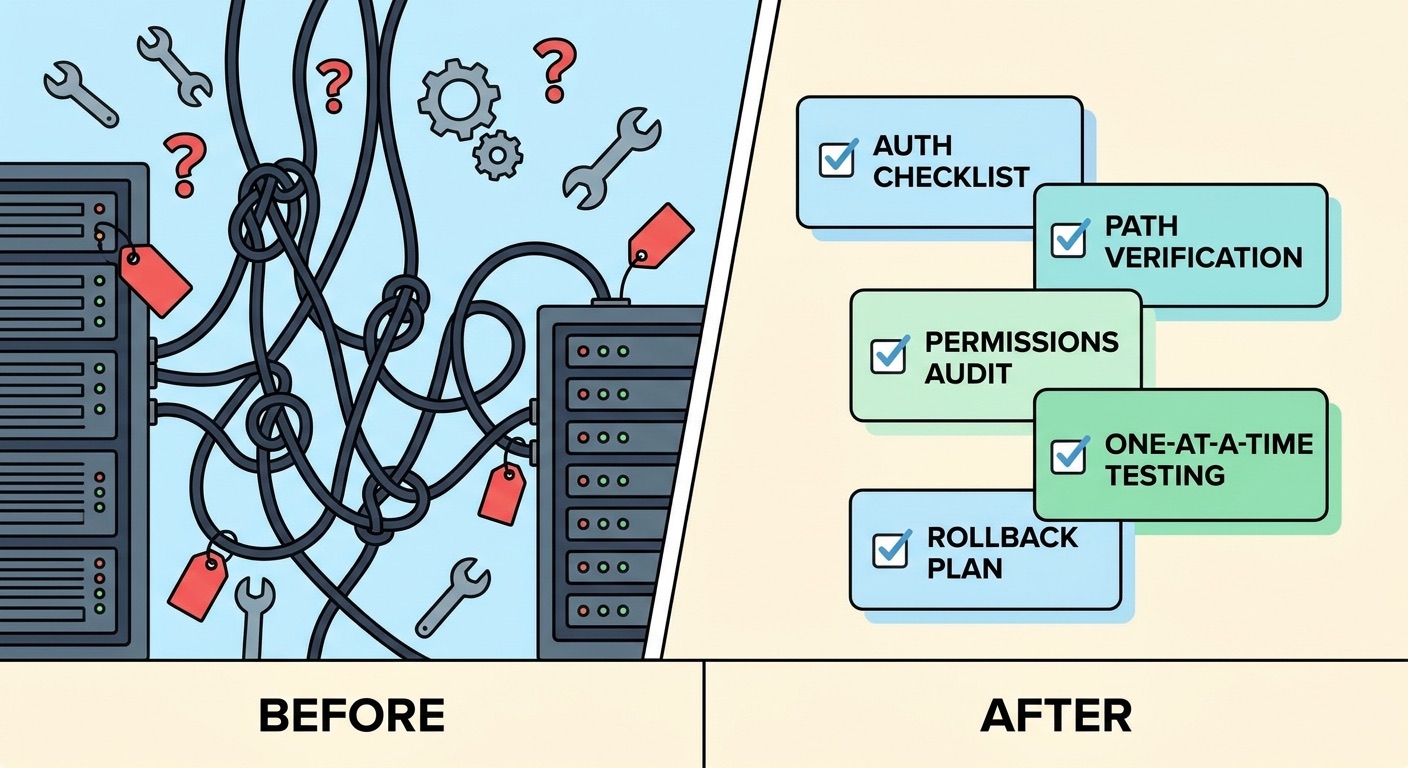
The safe default is simple: disable imported hooks until you understand them. Then re-enable one at a time. For each hook, write down when it should run, what command or action it performs, what files it can touch, what external services it can call, and how you roll it back. If you cannot explain a hook in one short paragraph, it should not run automatically in the new Codex setup.
Convert clever slash commands into maintainable skills
Many older agent setups accumulate clever command strings. They work until they do not. A better Codex-native pattern is to turn important commands into reusable skills or clear instruction files. A skill can explain the workflow, prerequisites, allowed tools, verification steps, and failure behavior. That is easier to audit than a compact prompt full of placeholders.
Look for dangerous verbs
During review, search imported instructions and commands for verbs such as deploy, delete, reset, overwrite, migrate, rotate, publish, email, invoice, scrape, and install. These are not always bad, but they deserve explicit approval rules. If a command can leave the machine, modify production systems, send data externally, or destroy work, it should not be inherited casually.
Use a toy repository for hook testing
Do not test imported hooks on your most important codebase. Use a toy repo or a harmless branch. Trigger the hook intentionally, inspect logs, and verify the diff. A hook that formats code or runs tests may be fine. A hook that makes network calls, edits many files, or invokes other agents needs stricter boundaries.
Fix 5: Clean Imported Chats, Memories, and Subagents
Codex CLI can import up to 50 chats from the last 30 days, according to OpenAI’s import page. That sounds helpful, and it can be. Recent chats may contain active debugging context, migration notes, architectural decisions, or a working plan you do not want to rewrite. But imported chats can also make a fresh Codex workspace noisy. If you bring over every stale thread, the useful decisions get buried under abandoned experiments.
Use three buckets: continue, summarize, archive. Continue chats that are still active and accurate. Summarize chats that contain durable decisions but too much step-by-step noise. Archive chats that were temporary, wrong, obsolete, or tied to an old tool. If a chat contains secrets, private logs, or customer data, do not use import as a way to spread that context across surfaces. Handle sensitive material according to your team policy.
Memories and subagents deserve the same review. A memory that says “this project uses React Router” is useful only if it is still true. A subagent designed for another tool may have a different model assumption, permission profile, or working directory expectation. Do not judge imported subagents by whether they have nice names. Judge them by whether their responsibilities are narrow, their tools are appropriate, and their outputs are verifiable.
Keep
- Current debugging threads with active errors and confirmed fixes.
- Architecture decisions that still match the codebase.
- Reusable review checklists and project conventions.
- Subagents with narrow responsibilities and safe tools.
Remove or rewrite
- Old experiments that failed or were abandoned.
- Chats full of outdated logs and obsolete stack traces.
- Memories that refer to old paths, old services, or old owners.
- Subagents that assume broad shell, network, or production access.
Fix 6: Reset Permission Expectations After Import
One subtle import problem is permission drift. The previous agent may have been configured to ask before every command, or to run tests automatically, or to avoid network access, or to edit only a specific workspace. Codex has its own permission modes and approval surfaces. After import, do not assume the old boundary survived exactly. Open Codex permissions, inspect the current sandbox and writable roots, and decide what should require approval for the next task.
For individual developers, the default should be practical: allow safe local reads, allow small edits inside the repository, ask before package installs, network calls, destructive commands, deployments, credential operations, or anything touching production data. For teams, write this down as policy. A shared Codex import process should define which MCP servers are allowed, which hooks are approved, which skills are team-owned, and which actions require human review.
This is especially important when importing from a tool you used casually. Personal agent setups often contain shortcuts that were fine for a weekend project but wrong for a team repository. The migration moment is the perfect time to remove them.
Safe Post-Import Test Routine
The final test is not “does Codex answer a question?” The final test is whether Codex uses the imported setup safely on a tiny task. Use a test that is reversible, visible, and low-risk. A README typo, a test explanation, a small comment improvement, or a plan-only task is better than a multi-file refactor.
- Plan-only prompt: ask Codex to summarize what it imported and name any setup that needs attention. Do not edit files yet.
- Instruction check: ask Codex what repository rules it sees. Confirm that old tool names, stale paths, and broad permissions are gone.
- Tool check: ask for available tools or MCP servers, then test only one harmless read-only call if appropriate.
- Micro edit: make one small reversible edit on a branch or clean working tree.
- Review diff: inspect exactly what changed. If Codex edits unrelated files, stop and repair instructions.
- Run verification: use the project’s smallest meaningful test, lint, typecheck, or direct inspection step.
- Document result: note what imported cleanly, what needed setup, and what was disabled.
If the tiny test passes, expand gradually. If it fails, do not keep prompting around the problem. Go back to the layer map. Remove stale instructions, reconnect only the required tools, disable hooks, and try again with less imported state.
When to Re-Import, Rebuild, or Give Up on Old Setup
Re-import when the first attempt clearly missed selected items and the source setup is still clean. Rebuild manually when the old setup is cluttered, risky, or too tool-specific. Give up on a piece of old setup when it only worked because of hidden behavior in the previous agent. Migration is not a moral obligation. Sometimes the safest import is no import.
A good Codex-native setup is usually smaller than the old setup. It has a clear instruction file, a few reusable skills, documented MCP servers, explicit permissions, and recent chats that are genuinely useful. If import gives you that foundation faster, use it. If import brings chaos, use it only to identify what mattered, then write the clean version yourself.
This is where the latest pillar article and this troubleshooting cluster work together. The pillar helps you understand the import feature. This guide helps you recover when the imported environment does not behave. Together, they create a practical migration path: understand, import, inspect, repair, test, and standardize.
Keep Learning on AI Feature Drop
- Codex CLI Import Guide — the broader pillar for moving Claude Code or Cursor setup into Codex.
- ChatGPT Desktop App Codex Guide — setup, PR review, and desktop workflow basics.
- OpenAI Codex Skills Guide — build reusable instructions that survive migrations.
- Codex SKILL.md Template — turn fragile slash commands into maintainable skills.
- Codex Skills Troubleshooting Guide — fix skill conflicts and broken migrated workflows.
- OpenAI Codex Pricing and Usage Limits — understand usage boundaries before long agent runs.
- Claude Code Subagent Permissions — useful context when migrating subagent ideas into Codex.
Sources and References
- OpenAI ChatGPT Learn: Import from another agent
- OpenAI ChatGPT Learn: Codex CLI
- OpenAI ChatGPT & Codex changelog
- OpenAI Codex repository on GitHub
- OpenAI product release notes
Product surfaces, import support, plugin behavior, permissions, and documentation can change. Verify your active Codex CLI version, ChatGPT desktop app settings, workspace policy, and official documentation before migrating sensitive projects.
FAQ: Codex Import Troubleshooting
Why is the Codex CLI import command unavailable?
OpenAI’s import documentation says the CLI import command is not available during a running task, in a remote session, or while connected to a local app-server daemon. Start a fresh local Codex CLI session from the project root and try again.
Can Codex CLI import from Claude Cowork?
The documented CLI import sources are Claude Code and Cursor. The ChatGPT desktop app can import from Claude Code, Claude Cowork, or Cursor, so use desktop import if Claude Cowork is the source.
Why did my imported MCP server stop working?
MCP servers often depend on authentication, custom headers, environment variables, transport settings, executable paths, and account context. Reconnect credentials through the official setup flow and test one server at a time.
Do imported hooks behave exactly the same in Codex?
Not necessarily. Hooks may depend on timing, shell interpolation, paths, or tool-specific behavior. Disable imported hooks first, inspect them, then re-enable only the ones you understand.
How many chats can Codex CLI import?
OpenAI’s import page says Codex CLI can import up to 50 chats from the last 30 days. Keep only active and useful chats so stale context does not clutter the new workspace.
Should I re-import if something is missing?
Re-import only when you know what was missed and the source setup is clean. If the old setup is cluttered, manually rebuild the important instructions, skills, and MCP configuration instead.
What is the safest first test after import?
Start with a plan-only prompt, then a tiny reversible edit on a branch or toy repo. Inspect the diff and run the smallest meaningful verification step before using Codex on larger work.
Does import delete my old Claude Code or Cursor setup?
No. OpenAI’s documentation says importing does not change or delete the existing agent setup. You should still back up important configuration before migration.
Post a Comment