
OpenAI Dots Guide: Setup, Pricing, Permissions, Privacy, and Safe Delegation
OpenAI Dots turn ChatGPT from a tool you prompt into an always-on agent that can keep work moving between conversations. This guide explains who can use a dot, what counts against usage, how cloud and local computer access work, what it can remember, and how to set boundaries before you delegate real work.

OpenAI Dots: The Quick Answer
OpenAI Dots are persistent, always-on agents inside ChatGPT. A dot is powered by GPT-6 Astra, has its own cloud computer and browser, can work with the apps you choose to connect, and can continue making progress after you leave the conversation. You can message it from ChatGPT and, where available, supported channels such as Slack or Teams. It can also run scheduled work, research connected information, coordinate Work or Codex tasks, and ask for your judgment when an action needs approval.
The important distinction is that a dot is not merely a renamed chat. A normal ChatGPT conversation waits for your next message. A dot can carry an ongoing responsibility, preserve selected context, check for changes, and bring results back. That makes it more useful for continuous work—and more important to configure carefully.
OpenAI began rolling out Dots on September 29. At launch, personal access is for eligible Pro users over 18 outside the European Economic Area, the United Kingdom, and Switzerland. Business Premium is rolling out more broadly, while Enterprise workspaces must have the beta enabled by an administrator. Rollout is gradual, so plan eligibility does not guarantee the feature appears immediately.
Conversations with your dot do not count toward normal ChatGPT usage limits. However, when the dot starts or manages deeper work in ChatGPT Work or Codex, those tasks count toward the applicable Work and Codex usage limits. This distinction explains much of the launch-week confusion: talking to the dot and delegating a compute-heavy agent task are not the same billing event.
Why OpenAI Dots Matter—and Why This Guide Exists
OpenAI’s product direction has been moving from answers toward completed work. ChatGPT Work can take a multi-step task from instructions to a finished artifact. Codex can investigate a repository, edit files, run tests, and prepare a change. Dots add continuity: one agent can stay aware of ongoing responsibilities, communicate across channels, wake up when work changes, and coordinate deeper tasks instead of forcing you to reopen the same context every time.
That promise created immediate search demand, but the questions are unusually practical. People are asking why Dots are absent from their region, whether a Pro subscription really includes one, what “does not count toward limits” means, how app connections interact with memory, whether the cloud browser stays signed in, what the local-computer toggle exposes, and how to stop the agent from sending or changing something unexpectedly.
AI Feature Drop’s live analytics point in the same direction. During the 30-day period ending October 3, the existing OpenAI Codex pricing and usage limits guide was the strongest article page by pageviews. Other practical pieces about ChatGPT desktop workflows, Codex banked resets, computer use, and permissions also attracted traffic. Readers consistently prefer guides that translate plan language and agent capabilities into a safer operating routine.
The current search results still leave that job unfinished. Official documentation is accurate but distributed across setup, access, controls, memory, computers, connected apps, and security pages. Early independent coverage often focuses on the launch announcement, the Pro price, or a comparison with another agent. A useful pillar needs to connect all of those pieces without pretending the first week of a gradual rollout is already stable.
What Is an OpenAI Dot?
An OpenAI dot is an always-on agent associated with your ChatGPT account or workspace. OpenAI describes it as an agent that can take ongoing responsibility, keep making progress between conversations, and bring results back for review. The first dot is your primary personal agent. OpenAI has also previewed specialist dots for organizations, but those are a different enterprise concept with organization-controlled identities, credentials, systems, and responsibilities.
A dot’s continuity is its defining feature. Suppose you tell it to monitor a launch project. It can keep track of the plan, check connected information, notice when a dependency changes, prepare updated material, and tell you only when a decision or risk needs attention. You do not need to reconstruct the project from scratch in every conversation.
Continuity does not mean perfect memory. A dot uses the current conversation, relevant ChatGPT memory, and its own saved notes about preferences, decisions, and ongoing work. Those notes are not a complete transcript. New delegated threads receive the instructions and context chosen for that work; they do not automatically inherit every conversation you have ever had. Treat important constraints as written operating instructions, not assumptions the agent will always recall.
A dot can also be proactive. Official documentation says it may research connected information and keep private notes to identify helpful next steps. That proactive research is deliberately restricted: the research tools cannot send messages, change app content, or control a browser or computer. If you authorize an assigned or scheduled task that includes an action, the task follows its own permissions and approval rules.
OpenAI Dots Pricing, Plans, Regions, and Rollout
There is no separate standalone “Dot subscription” at launch. Your first dot is included with an eligible Pro or Business Premium plan at no extra charge. Enterprise users, including eligible Edu and Healthcare workspaces, can participate in the beta when an administrator enables it. The word “included” still needs context: dot conversation is separate from deeper Work or Codex usage, and OpenAI says the plan includes an allowance for deeper work with extended limits during the first launch month.
| Plan or workspace | Dot access at launch | Important conditions |
|---|---|---|
| Pro 100, Pro 200, Pro 500 | Gradual rollout | User must be over 18 and outside the EEA, UK, and Switzerland at launch. The feature may take several days to appear. |
| Business Premium | Rolling out worldwide across supported ChatGPT regions | Workspace rules and connected-app permissions still apply. |
| Enterprise, Edu, Healthcare | Beta available in eligible workspaces | Dots are off by default and require an administrator to enable them. Additional compliance exclusions may apply. |
| Free, Go, Plus | Not included at launch | OpenAI says it plans to expand Dots to more users, but no general date should be assumed. |
| Mobile web | Not supported | Create the dot on desktop web or in the desktop app. Mobile-app access depends on the supporting update. |
The region rule has generated particularly strong user frustration. Personal Pro rollout excludes the EEA, UK, and Switzerland at launch, while Business Premium has broader regional availability. That does not mean a VPN is a supported workaround. Account eligibility, billing region, workspace policy, identity, and rollout status are separate checks. Trying to bypass a geographic restriction may create account, privacy, tax, or terms problems and does not solve workspace eligibility.
If you upgraded and still cannot create a dot, the most likely explanation is gradual rollout rather than a setup mistake. Confirm the exact plan, account age requirement, region, desktop surface, and workspace policy. Then wait for the rollout rather than repeatedly changing account settings. Early Reddit threads show users seeing access arrive hours later, but those anecdotes are not a promise about your account.
How to Set Up Your First OpenAI Dot
Create your dot in the ChatGPT desktop app or on ChatGPT from a desktop browser. You cannot create one on mobile web. After setup, you may be able to continue messaging the same dot in the mobile app when the supporting mobile update is available. The setup flow lets you name the dot, select its appearance, review available app connections, and—inside the desktop app—decide whether to connect your computer.
Write a single sentence describing the ongoing result you want. “Keep our product launch checklist current and flag deadlines at risk” is better than “help with everything.” The first version should have one domain, one audience, and one clear success condition.
Use the ChatGPT desktop app or desktop browser. Give it a recognizable name. Appearance is optional; the operational instructions matter more. Let the introductory conversation establish what the dot should handle, what it should ignore, and when it should interrupt you.
Connect only the information sources required for the first responsibility. A launch coordinator may need the planning document and a specific Slack channel. It probably does not need every drive, mailbox, repository, and calendar on day one.
Your dot already has a cloud computer. Local access is optional and starts disabled. Prove the workflow in the cloud first. Connect a local computer only when the responsibility genuinely depends on local files, local skills, installed apps, or a browser session unavailable in the cloud environment.
Tell the dot which updates are routine, which changes deserve a message, and which decisions must wait for you. Explicitly require review before sending external messages, changing shared content, purchasing anything, deleting records, merging code, or publishing.
Use a small task with non-sensitive information and an outcome you can inspect. Ask the dot to prepare a draft, summarize a controlled source, or update a disposable checklist. Review Activity, check the source trail, and correct its behavior before expanding access.
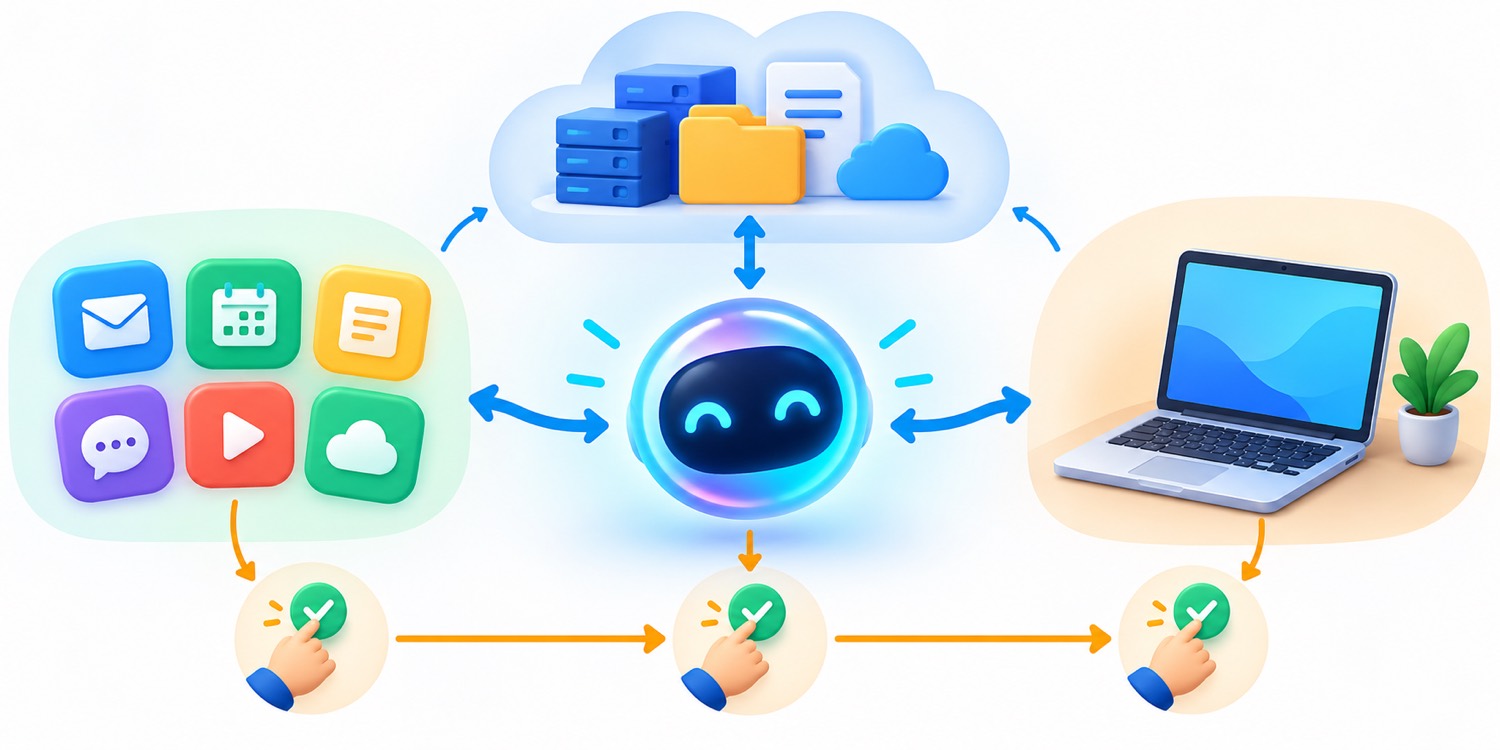
Cloud computer versus your local computer
The dot’s cloud computer is designed for work that can continue while your devices are off. You can open that computer, inspect what the agent is doing, take over for a step, and return control. This is the safer starting point because it separates the agent’s working environment from your everyday machine.
Local computer access is different. When you connect a computer and confirm access, the dot can use permitted files and work on that computer from its supported messaging channels. The computer must be online with the ChatGPT app open for steps that need it. Official ChatGPT Learn documentation says one personal computer can be connected at a time. The connection persists between tasks until you revoke it.
Local access can allow the dot to create Work or Codex tasks, use local skills, and use the local browser when the cloud browser is blocked. That is powerful, but it broadens the blast radius. Before enabling it, read our Codex computer use guide and computer-use permissions checklist. The same principle applies: access should match the task, not your entire digital life.
Connected Apps, Messaging, Scheduled Tasks, and Memory
Connected apps and plugins
A dot can use supported plugins installed and enabled for your account, subject to the connected account’s permissions. These connections are shared with other ChatGPT surfaces. If Gmail, Google Drive, GitHub, or another supported service is already connected, the dot may be able to use that connection within its granted scope.
Connecting a messaging channel does not automatically connect the rest of your apps. Adding the dot to Slack lets you talk to it there; it does not silently grant access to your drive or local computer. Likewise, adding it to a Slack channel does not automatically instruct it to monitor that channel. Tell it which channels and events matter and what to do when a relevant change appears.
OpenAI says plugin permissions are shared across Dots, ChatGPT, ChatGPT Work, and Codex. That convenience can become a surprise. Audit existing connections before setup. A plugin you connected months ago for a one-time chat may become available to the dot. Remove stale connections, reduce scopes where possible, and use separate service identities when your workspace supports them.
Scheduled work versus proactive research
A scheduled task runs at a fixed time or supported event you define. Give it four ingredients: what to check, when to run, which changes deserve notification, and where to deliver the result. “Every weekday at 9 AM, check the launch tracker; notify me in ChatGPT only if a critical deadline moved or an owner is missing” is operationally clear.
Proactive research is different. A dot can use information it is allowed to read to identify helpful next steps, but the research tools are restricted from sending messages, changing app content, or controlling browsers and computers. Treat a proactive suggestion as a lead, not a verified conclusion. Ask for the source and decide whether follow-up action is warranted.
Memory and deletion
Your dot uses relevant ChatGPT memory and maintains its own notes about ongoing work. Switching between ChatGPT, Slack, and Teams does not create a separate dot or reset those notes. Visible conversations remain separate, and the ability to use private context does not automatically grant permission to repeat it to a broader audience.
Disconnecting an app stops future use of that connection, but it does not necessarily delete information the dot already obtained. OpenAI’s setup guidance says resetting the dot deletes the dot, including conversations, saved memories, and scheduled tasks. Reset is therefore the cleanest fresh start, but it is destructive. Review the deletion notice, export anything you need, and understand that reset returns you to a new ChatGPT chat where you create a new dot.
Do OpenAI Dots Use Your ChatGPT, Work, or Codex Limits?
This is the most important billing distinction in the product. Official documentation says conversations with your dot do not count toward your ChatGPT usage limits. If you ask the dot to start or manage a task in ChatGPT Work or Codex, that deeper task counts toward the relevant Work or Codex limits as usual.
| Activity | How to think about usage | Practical advice |
|---|---|---|
| Talking with your dot | Does not count toward normal ChatGPT usage limits according to launch documentation. | Use conversation for clarification, prioritization, status, and judgment. |
| Background proactive research | Part of the dot experience, with restricted read-only tooling for that research. | Ask for sources; do not confuse a suggestion with an authorized action. |
| Dot starts ChatGPT Work | The Work task counts toward shared Work/Codex usage under your plan. | Scope the task and define a finish line before delegation. |
| Dot starts Codex | The Codex task counts toward Codex/Work usage as usual. | Use an appropriate model and inspect the created task rather than assuming it is free. |
| Additional credits or higher plan | Depends on current plan terms and live pricing. | Review actual usage before buying more capacity. |
This means a dot is not an unlimited substitute for Codex. A long conversation can help it understand what you want, but a repository-wide implementation still needs a coding agent task. The dot can coordinate that task, watch its progress, or bring you the result, yet the underlying Codex work remains metered.
Early Reddit posts show some users surprised when usage changed after a dot launched deeper work. The confusion is understandable because the same conversation can move from “talking to my dot” into “my dot created a Work or Codex task.” Watch the task surface, not only the conversational surface. If a new visible thread or delegated run appears, assume product-specific usage rules apply.
If Codex is a major part of your workflow, compare the live plan terms with our Codex pricing and usage limits guide and Codex banked resets explainer. Dots can make delegation more convenient, but they do not erase the value of scoping, model selection, checkpoints, and usage monitoring.
OpenAI Dots Permissions, Approvals, and Custom Rules
Dots combine several layers of control. Connected-app permissions decide what information and actions a plugin exposes. Computer access decides whether the dot can work on a local machine. Built-in action policies decide which steps can proceed, which need approval, and which require you to take over. Custom Rules let you add ongoing boundaries for supported actions. Auto-review evaluates certain planned actions against your instructions, rules, and safety requirements.
OpenAI’s controls documentation describes four useful behaviors for custom rules: take action without asking, take action when pre-approved, ask before taking action, and hand off to you. “Pre-approved” does not mean a permanent blank check. It means the action is explicitly included in the scope you requested.
| Control level | Example | Recommended default |
|---|---|---|
| Act without asking | Read a public status page and update a private draft checklist. | Use only for reversible, low-impact work inside a narrow source set. |
| Act when pre-approved | Prepare a recurring report from specified dashboards and store it in a designated folder. | Define exact sources, destination, schedule, and failure behavior. |
| Ask before action | Send a message, modify a shared document, open a pull request, or update a customer record. | Use for external communication and changes affecting other people. |
| Hand off to you | Change a password, transfer money, approve a legal commitment, or complete identity verification. | Keep consequential and identity-sensitive steps human. |
Automatic review helps, but it is not perfect. Official documentation explicitly says Dots can make mistakes. Approval does not turn an unreliable task into a reliable one, and a user approval cannot override core safety requirements. Review the underlying facts, recipient, destination, and scope—not merely the presence of an approval dialog.
Activity View is the operational dashboard. Use it to see ongoing and delegated tasks, status, steps, files, results, and requests waiting for a decision. You can add context, correct a misunderstanding, redirect the work, or ask it to stop. A completed status only means the run ended; it does not prove the business outcome was achieved. Verify delivery, accuracy, and side effects yourself.
OpenAI Dots Privacy, Data Use, and Security
A persistent agent creates a different privacy question from a normal chat because it can combine connected apps, memory, ongoing work, and multiple channels. The safest mental model is not “the dot knows everything.” It is “the dot can use selected information under several overlapping controls, and some of that information may persist in conversations or notes until you delete the dot.”
For personal ChatGPT plans, data-control settings determine whether eligible conversation or task information may be used to improve models. OpenAI says it does not train directly on proactive background research or the dot’s private notes. If information from that research is brought into an eligible conversation or task, its use can depend on your settings. Business, Enterprise, and Edu workspace content is not used to improve models by default according to OpenAI’s launch materials.
Security safeguards include model refusals, app permissions, Custom Rules, Auto-review, and monitoring for potentially harmful behavior. Sensitive actions can require approval or direct takeover. OpenAI also describes protection against prompt injection, where a website, document, or email tries to trick the agent into treating untrusted content as an instruction.
No safeguard eliminates risk. Prompt injection can be subtle, app permissions can be broader than intended, recipients can be confused, and a correct action can still be based on an incorrect fact. Consequential tasks should combine technical controls with a clear human review point.
Safer defaults
- Begin with the cloud computer and a disposable test.
- Connect only the apps required for one responsibility.
- Keep proactive research read-only and source-led.
- Require approval before external messages or shared edits.
- Use separate work accounts or service identities when available.
- Inspect Activity and verify the final destination.
Risky patterns
- Connecting every personal and business account during onboarding.
- Turning on local access before the cloud workflow is proven.
- Giving vague instructions such as “handle my inbox.”
- Letting one rule cover unrelated recipients or actions forever.
- Assuming a completed task means the outcome is correct.
- Using a persistent agent for data that your policies prohibit in cloud systems.
Enterprise teams have additional concerns. Official ChatGPT Learn documentation notes that Dots are a beta with specific residency and compliance limitations. Some workspace configurations, including certain data residency, EKM, FedRAMP, or inference-residency requirements, may be incompatible. Administrators should review the current eligibility, retention, audit, Compliance API, and local-access documentation rather than treating general ChatGPT availability as proof of compliance.
A Safer OpenAI Dots Delegation Framework
The easiest way to get value from a dot is to turn a vague role into a bounded operating contract. A strong contract answers six questions: what result is the dot responsible for, which sources may it use, which actions may it take, which actions require approval, when should it notify you, and how will you verify completion?

1. Name a responsibility, not a personality
“Be my amazing executive assistant” sounds friendly but says almost nothing about scope. “Maintain the launch risk register using the planning page and the #launch-status Slack channel; notify me when a blocker has no owner for 24 hours” is actionable. Personality can improve communication, but responsibility determines safety.
2. Separate reading, drafting, and acting
Use a three-stage ladder. First let the dot read approved sources. Then let it prepare private drafts. Only after those stages are reliable should you allow selected actions. This gives you evidence about source interpretation before the agent can affect other people or systems.
3. Define the sources of truth
Tell the dot which document, database, repository, or channel wins when sources disagree. Without that rule, an always-on agent may combine stale and current information. Ask it to cite the source and timestamp for high-impact updates.
4. Define stop conditions
A good agent knows when not to continue. Stop when credentials fail, a source conflicts with policy, a recipient is ambiguous, a deadline or price exceeds the threshold, required information is missing, or an irreversible action is next. The dot should ask a precise question instead of improvising.
5. Keep a review cadence
Review Activity daily during the first week. Look for unnecessary delegation, repeated failures, excessive notifications, weak source selection, or work that would be better done by a deterministic automation. Tighten the instructions and permissions. A dot should become quieter and more predictable as the operating contract improves.
6. Prove the value
Track outcomes rather than novelty. Useful measures include avoided missed deadlines, fewer manual status checks, faster preparation time, reduced handoff delay, and the percentage of drafts accepted with minor edits. Do not invent productivity gains. Compare the workflow with your previous process over several weeks.
OpenAI Dots Use Cases That Fit the Product
Launch and project coordination
A dot can watch approved project sources, keep a private status view current, prepare meeting briefs, and flag missing decisions. It is a better fit for coordination than autonomous commitment. Let it summarize changes and draft follow-ups; require approval before altering shared plans or messaging stakeholders.
Customer feedback triage
Connect a restricted support source and ask the dot to cluster recurring requests, identify examples, and prepare a weekly product brief. Do not let it promise fixes or disclose customer information. Use the result as an input to product judgment, not an automatic roadmap.
Content operations
A creator or editorial team can ask a dot to notice new transcripts, draft show notes, identify potential clips, and prepare social copy. Keep publishing and rights-sensitive decisions human. A persistent agent is valuable because it can carry style feedback forward, but the editor still checks factual claims and context.
Engineering coordination
A dot can watch a defined issue source, collect reproduction details, open a scoped Codex task, and bring back a patch with tests for review. This is where the handoff to Codex matters. The dot coordinates responsibility; Codex performs the deeper coding work under its own usage and permission model. Our OpenAI Agents API guide explains a related developer pattern for durable agent sessions.
Recurring personal administration
A personal user might ask a dot to review a calendar, prepare a weekly priorities brief, or remind them about a recurring responsibility. Be careful with sensitive financial, health, legal, and identity information. The product may be capable of reading it, but capability is not the same as appropriate use.
Research monitoring
A dot can monitor a small set of trusted sources, maintain notes, and report when new evidence changes a conclusion. Require links, dates, and a distinction between source facts and agent inference. Proactive research is especially useful here because its restricted tooling reduces the chance of background actions while still surfacing new information.
OpenAI Dots vs ChatGPT Chat vs Work vs Codex
The names can blur together because one dot can coordinate other ChatGPT surfaces. The easiest comparison is to ask what kind of continuity and action each surface is designed for.
| Surface | Best for | Persistence and action |
|---|---|---|
| ChatGPT Chat | Questions, brainstorming, explanation, and conversational help | Primarily responds when you message. Memory may help, but the chat is not an always-on responsibility owner. |
| ChatGPT Work | Longer multi-step work that should end in a finished artifact or result | Agentic task execution with tools and permissions; usage is shared with Codex under current plan rules. |
| Codex | Technical work such as code investigation, implementation, testing, and repository workflows | Runs technical tasks locally or in cloud environments, with coding-specific tools and controls. |
| OpenAI Dot | Ongoing responsibility, cross-channel coordination, recurring work, and deciding when to call other surfaces | Always-on continuity with a cloud computer, selected connected apps, scheduled work, private notes, and the ability to coordinate Work or Codex tasks. |
The dot does not make Work or Codex obsolete. It gives you a persistent coordinator that can decide when a deeper task is needed and bring the result back into the ongoing responsibility. If your work is a one-off coding change, start in Codex. If your work is “keep this project moving and initiate technical work when a verified issue appears,” a dot may be the better front door.
For a broader workflow comparison, see our ChatGPT desktop Work and Codex guide and desktop Codex setup guide.
OpenAI Dot Readiness Checker
This independent helper does not check your account or predict official eligibility. It helps you decide whether a responsibility is ready for persistent delegation. Choose the closest answers and use the result as a planning prompt.
OpenAI Dots Not Showing or Not Working: Practical Checks
Your dot is not available
Confirm that your account is on an eligible plan, you are over 18, your personal Pro account is outside the launch-excluded regions, and you are using desktop web or the desktop app. For Enterprise, ask whether the workspace administrator enabled the beta. If all conditions match, gradual rollout may be the answer. Do not assume an upgrade produces immediate access.
Mobile creation does not work
Create the dot on a desktop surface first. Mobile web is not supported. Mobile-app conversation access depends on the supporting update and rollout, so the absence of the feature on one mobile device does not necessarily mean the desktop account is ineligible.
The cloud browser cannot finish a task
Some websites block cloud browsers, require a direct takeover, or need an authentication step the model cannot complete. Open the dot’s computer, inspect the current state, and take over when appropriate. If the task truly depends on your existing local session, consider local computer access only after evaluating the data and permission risks.
The dot keeps asking for approvals
Repeated approvals may mean the task scope is too vague, the required action is sensitive, the permission is missing, or a built-in safety requirement applies. Do not solve approval fatigue by broadly authorizing everything. Create a narrower Custom Rule for a repeatable low-risk action or redesign the workflow so the dot prepares drafts instead of acting.
The dot is slow or unreliable
Launch-week Reddit users reported latency, computer-use failures, and cloud-browser limitations. Treat those as anecdotal signals, not universal performance data. Break the work into smaller observable stages, check whether a delegated Work or Codex task is waiting for input, provide the missing app connection, and verify service status. If the workflow remains unreliable, move the responsibility back to a normal chat, Work task, Codex task, or deterministic automation.
The dot used the wrong context
Correct the instruction in the active work, identify the source of truth, and remove ambiguous connected sources. If the problem comes from persistent notes or accumulated context, consider resetting the dot after saving anything you need. A reset deletes conversations, saved memories, and scheduled tasks, so use it deliberately.
Limitations and Early User Feedback
Dots are new, gradually rolling out, and still shaped by beta constraints. OpenAI’s own materials say Dots can make mistakes and that users should review consequential work. Some capabilities vary by plan, region, client, workspace setting, plugin support, and administrative policy. Enterprise residency and compliance support is not identical to other ChatGPT surfaces.
Early Reddit feedback is mixed. Some users value the persistent voice and cross-device concept. Others report slow responses, unreliable computer use, unclear allowance behavior, cloud-browser friction, and disappointment that the feature is unavailable on lower-cost plans or in personal accounts across parts of Europe. These reports are useful for identifying questions, but they are not a controlled benchmark.
The product also creates a management cost. A dot needs instructions, source boundaries, permissions, reviews, and correction. If the responsibility can be handled by a simple calendar rule, webhook, database trigger, or deterministic script, the simpler automation may be cheaper and more reliable. Use a dot when interpretation, changing context, cross-tool coordination, and human judgment are central to the work.
Our recommendation
Try one narrow, reversible responsibility for one week. Keep local computer access disabled, connect the minimum apps, require approval for external action, and review Activity daily. Expand only if the dot consistently uses the right sources, asks good questions, produces verifiable results, and reduces work rather than creating supervision debt.
Related AI Feature Drop Guides
- OpenAI Codex Pricing and Usage Limits — understand the usage that delegated coding work can consume.
- Codex Banked Resets Explained — learn how flexible usage windows affect longer work.
- OpenAI Codex Computer Use Explained — plan safer browser and desktop workflows.
- Codex Computer Use Permissions — review screen, accessibility, and app access.
- ChatGPT Desktop Work and Codex Guide — choose the right surface for the task.
- OpenAI Agents API Guide — compare product delegation with developer-managed durable agents.
Sources and References
- ChatGPT Learn: Meet dots
- ChatGPT Learn: Dots tasks and memory
- ChatGPT Learn: Control your dot
- ChatGPT Learn: Local computer access for Work Cloud and dots
- OpenAI Help Center: Getting started with your dot
- OpenAI Help Center: Dots privacy, security, and safety FAQs
- OpenAI: Introducing dots
- Reddit: early user-reported reliability feedback
- Reddit: launch-region and plan discussion
Plan eligibility, limits, app support, safety controls, and regional availability can change. Official OpenAI documentation is the source of truth for current product behavior. Community links are included only as clearly labeled user feedback.
FAQ: OpenAI Dots
What are OpenAI Dots?
OpenAI Dots are always-on agents in ChatGPT. A dot has a cloud computer and browser, can use approved connected apps, can maintain context for ongoing responsibilities, and can continue working between conversations before bringing results or decisions back to you.
Which plans include OpenAI Dots?
At launch, Dots are rolling out to eligible Pro users, Business Premium users, and Enterprise beta workspaces. Personal Pro access excludes the EEA, UK, and Switzerland at launch. Enterprise access is off by default until an administrator enables it.
Why is OpenAI Dots not showing in my account?
Check your exact plan, age, region, desktop surface, and workspace policy. Rollout is gradual, so an eligible account may not receive access immediately. Mobile web cannot create a dot.
Do conversations with my dot use ChatGPT limits?
OpenAI says conversations with your dot do not count toward normal ChatGPT usage limits. When the dot starts or manages a ChatGPT Work or Codex task, that task counts toward the applicable Work and Codex limits as usual.
Can a dot use my computer?
Yes, if you explicitly connect one personal computer through the desktop app and allow access. Local access starts off. The computer must be online with the ChatGPT app open for local steps. Keep access disabled unless the responsibility genuinely needs local files, apps, skills, or a local browser.
Can a dot work while my computer is off?
Yes, cloud work can continue on the dot’s own cloud computer while your devices are off. Steps that require a connected local computer need that machine online and the ChatGPT app open.
Can a dot send messages or change apps without asking?
Behavior depends on app permissions, your instructions, Custom Rules, built-in policies, and automatic review. Sensitive actions may require approval or direct takeover. Proactive research itself is restricted from sending messages, changing app content, or controlling browsers and computers.
How does a dot use memory?
A dot can use relevant ChatGPT memory and maintain its own notes about preferences, decisions, and ongoing work. Those notes are not a complete transcript. Switching messaging channels does not create a separate dot or automatically authorize disclosure to a different audience.
How do I stop or delete my dot?
You can pause the dot from its profile when you want ongoing work to stop temporarily. Reset deletes the dot, including its conversations, saved memories, and scheduled tasks. Review the deletion notice before confirming.
Is OpenAI Dots worth the Pro price?
It is most valuable when you have a recurring responsibility that needs interpretation across changing information and connected tools. It is less compelling for one-off chats or workflows that a simple deterministic automation can handle. Test one narrow responsibility and measure whether it reduces work.
What is the difference between Dots, Work, and Codex?
A dot is the persistent responsibility owner and coordinator. ChatGPT Work handles multi-step general work to a finished result. Codex handles technical and coding work. A dot can start or manage Work and Codex tasks, but those delegated tasks follow their own usage and permission rules.
Post a Comment