
How to Build a Microsoft Copilot Autopilot in Foundry: Blueprint, Approval, and Hiring
To build a Microsoft Copilot Autopilot in Foundry, you do not create one finished agent and hand it to users. You publish a reusable blueprint, route it through tenant approval, and let eligible managers create governed instances. This guide walks through that full path, including the roles, permissions, validation evidence, and failure modes that the quickstart leaves scattered across several documents.

Build Microsoft Copilot Autopilot in Foundry: The Quick Answer
The official route has four human handoffs and three technical layers. An Azure administrator prepares the Foundry environment and role assignments. A developer uses a Foundry hosted-agent sample to provision infrastructure, build an agent blueprint, and submit it for Microsoft 365 approval. A tenant administrator reviews the requested scopes, sets the hiring audience, grants consent, applies policy, and activates the blueprint. Finally, an eligible manager creates—Microsoft calls this “hiring”—an instance in Teams or the Copilot agent store.
That instance is not merely a chat shortcut. Microsoft’s model gives each hired Autopilot an agent identity plus an agent user account, which can provide a mailbox, Teams presence, an organizational position, and a manager. The blueprint defines the role and the maximum capabilities. The instance receives its actual audience and business-resource access during onboarding.
This tutorial assumes you are working with the Microsoft Frontier preview and accept that names, role labels, screens, and limits can change. If you first need the broader product picture—including how Autopilot compares with Chat, Cowork, and Code—read our Microsoft Copilot Autopilot setup, credits, permissions, and safe-rollout guide. This article stays focused on the Foundry build-to-hire path.
Understand the Blueprint, Instance, and Fleet Before You Build
The phrase “build an Autopilot” is convenient, but technically incomplete. Microsoft’s current Foundry documentation says you build a blueprint. After approval, people in the hiring scope can create one or more instances from that blueprint. Agent 365 then gives the tenant administrator a fleet view across those instances.
This one-to-many shape matters operationally. Updating a blueprint can affect every instance after the new version is rolled out. Blocking one instance is a team-level response. Blocking or deleting a blueprint can affect the full fleet. A developer therefore owns more than code quality: the developer is defining an operating envelope that downstream administrators and managers trust.
The official Autopilot lifecycle separates responsibility across Azure administrator, developer, tenant administrator, and manager. That separation is not bureaucracy added after the build. It is part of the security model. The person who can write the agent should not silently decide which teams may hire it, grant tenant-wide consent, and give the resulting identity unrestricted business data.
| Actor | Primary decision | Minimum task in this guide | Evidence to retain |
|---|---|---|---|
| Azure administrator | What platform resources run the blueprint and who may build. | Provision supported-region resources and assign Foundry plus registry roles. | Resource group, region, role assignments, model deployment, registry, and logging destinations. |
| Developer | What the blueprint does and its maximum capability. | Inspect the sample, build, publish, version, test, and document the operating envelope. | Source commit, manifest, tool list, requested scopes, version, test results, and publish response. |
| Tenant administrator | Whether the blueprint may operate in the tenant and who may hire it. | Review the request, choose audience, apply policy, grant consent, and activate. | Approval record, consented scopes, policy template, hiring scope, and activation state. |
| Manager | Whether one instance should exist and what team resources it receives. | Create the instance, set manager details, onboard access, monitor work, and offboard when value ends. | Instance identity, resource memberships, audience, source-of-truth list, review cadence, and stop owner. |
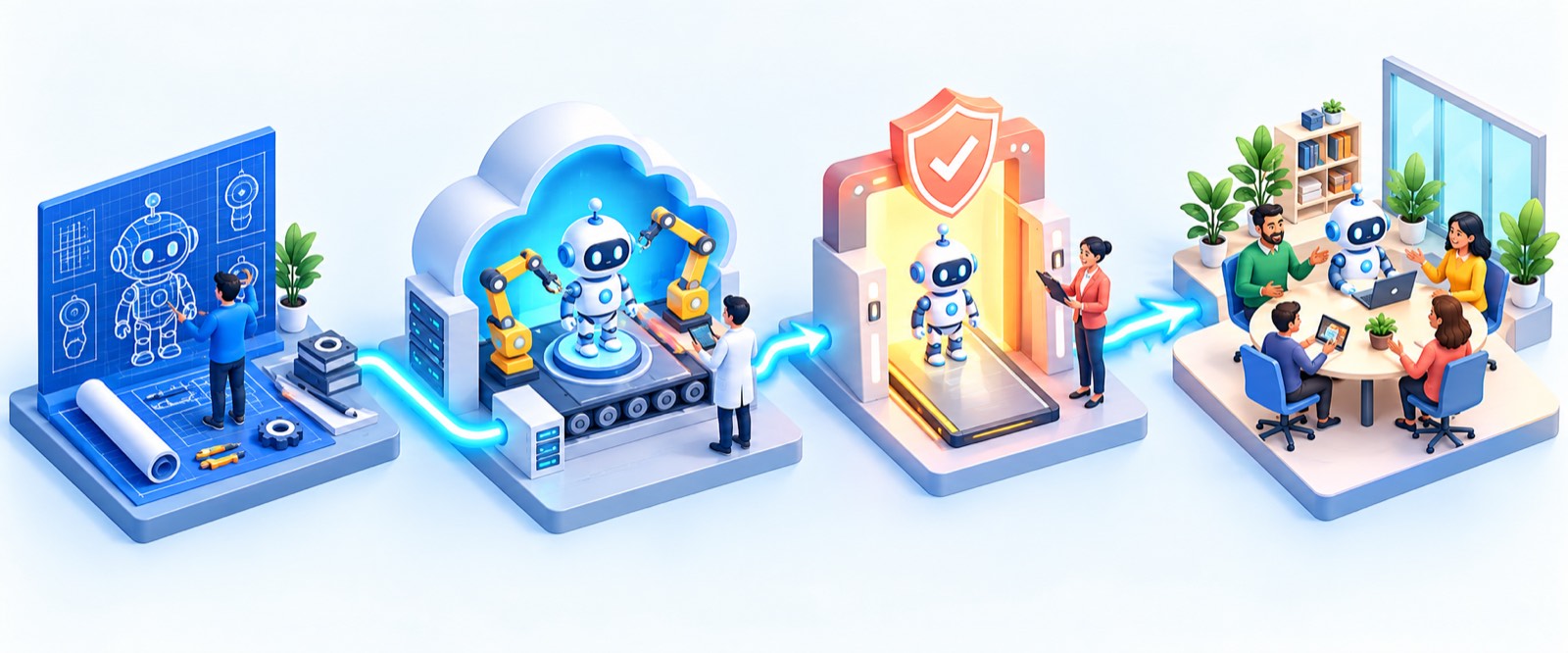
The durable mental model: build one blueprint, approve its ceiling, then hire and onboard each team instance separately.
Prerequisites for a Microsoft Foundry Autopilot
Do not begin by cloning code. Begin by proving that the tenant, licensing, region, people, and approval path exist. The official quickstart warns that a build can complete and still fail at instance creation when no Frontier seats are available. It also notes that the administrator who approves the blueprint may be a different person from the Azure administrator who provisions infrastructure.
Tenant and license prerequisites
- Enroll the organization in the Frontier preview program.
- Have an authorized administrator accept the Microsoft Agent 365 preview terms.
- Confirm the tenant has at least one Microsoft 365 Copilot or qualifying Microsoft Agent 365 license.
- Confirm that an Agent 365 Frontier license seat is available for each instance you plan to hire. Microsoft’s current quickstart describes a 25-seat preview allocation for eligible tenants, but preview entitlements can change; verify your admin center rather than treating that number as permanent.
- Choose an Azure region that supports Foundry hosted agents.
- Identify the tenant administrator who can approve before you publish. A Global Administrator or AI Administrator is required for the documented approval path; reader roles can inspect but cannot complete approval.
Tool prerequisites
The official sample flow uses Azure CLI, Azure Developer CLI, and Docker. Those tools perform different jobs. Azure CLI authenticates and works with Azure resources. Azure Developer CLI interprets the sample’s infrastructure and deployment configuration. Docker builds the hosted-agent container that is pushed to the configured registry.
az version
azd version
docker version
Confirm Docker is actually running, not merely installed. Confirm the two CLIs are authenticated against the same intended tenant. In multi-tenant environments, a successful login to the wrong directory is a dangerous success because the later failure can look like a missing role, missing approval request, or missing license.
Role prerequisites
| Stage | Documented role | Why it is needed |
|---|---|---|
| Provision infrastructure | Owner, or Contributor plus Role Based Access Control Administrator, at resource-group scope | The deployment creates role assignments. Contributor alone cannot do that. |
| Build blueprint | Foundry User at project scope, plus AcrPush or Container Registry Repository Writer at registry scope | The developer builds the hosted agent and pushes its container image. |
| Publish blueprint | Foundry User at project scope | The blueprint is submitted to Microsoft 365 for approval. |
| Approve blueprint | Global Administrator or AI Administrator | The administrator controls activation, consent, policy, and hiring scope. |
| Create instance | Membership in the configured hiring scope | Only allowed users or groups can hire an instance. |
Microsoft recently renamed several Foundry RBAC roles. You may still see older “Azure AI” names in parts of the portal or inherited documentation while the newer Foundry labels roll out. Match role IDs and actual permissions, not only display names.
Step-by-Step: Build and Publish the Autopilot Blueprint
Choose the official Python or C# sample
Microsoft provides equivalent Autopilot samples for Python and C#. Choose the language your team can own after the demo. The sample is not merely a snippet: it includes agent code, infrastructure templates, container configuration, and publishing scripts. Review all of it before deploying because the sample’s requested permissions, network behavior, model choice, storage, and tool manifest become part of your blueprint’s operating envelope.
Use the official Python Autopilot sample or the official C# Autopilot sample. Clone the repository through your organization’s normal source-control process. Pin a reviewed commit instead of silently following the repository’s moving default branch in a production automation.
Document the operating envelope
Before changing the instructions, write down what the blueprint is designed to do, where it may act, when it must remain silent, which actions require human approval, what data classes are excluded, which tools are necessary, and how the team will recognize failure. This is the technical equivalent of a job description plus runbook.
A useful first blueprint is narrow: collect status from approved workstream owners, maintain an internal workback plan, and draft a weekly report. It should not also purchase services, modify production infrastructure, send external email, approve contracts, and manage personnel. Persistent agents magnify scope errors because they can repeat behavior over time.
For broader pilot design, the source Autopilot pillar guide includes a safe-rollout sequence. If your workflow depends on organizational context, pair that with our Work IQ context-control guide before deciding which sources belong in the instance.
Sign in to the intended tenant
From the sample directory, sign in with both CLIs and specify the tenant explicitly. Replace the placeholder with the target tenant ID. Do not paste secrets or access tokens into shared logs.
az login --tenant <tenant-id>
azd auth login --tenant-id <tenant-id>
If the Azure Developer CLI asks for additional consent, follow the sample README and grant only the documented Foundry, Microsoft Graph, and Azure Resource Manager scopes required for the operation. Treat an unexpected scope request as a review stop, not as a prompt to click through.
Provision, build, and submit
The documented quickstart uses a single command:
azd provisionThat command hides three meaningful stages: provisioning Azure resources and role assignments, building the agent into a container-backed hosted agent, and publishing the result as an Autopilot blueprint request. A green command exit is necessary but not sufficient. Capture the resource group, Foundry project, container registry, agent name, blueprint ID, version, and publish response.
After provisioning, print the deployment values so troubleshooting does not depend on memory:
azd env get-valuesThe expected evidence includes an agent name, agent version, and blueprint ID. Store these in an approved deployment record. Do not place tokens or client secrets in that record.
What makes the publish request an Autopilot?
A hosted agent can be published to Microsoft 365 without becoming an Autopilot. The current publish API distinguishes the Autopilot blueprint with four important fields: publishAsAutopilot is true; publishScope is tenant; useAgenticUserTemplate is true; and agenticUserTemplate describes the template used to create an agent user account for each instance.
The sample handles this request for you, but you should still understand it. The blueprint is one design from which many instances may be hired. The agentic user template is what lets those instances act as themselves in Microsoft 365 instead of being indistinguishable from a person’s delegated identity.
Administrator Approval: Audience, Policy, Consent, and Activation
Publishing does not make the blueprint available to everyone. It creates a pending request in the Microsoft 365 admin center. This is the deliberate handoff from developer ownership to tenant governance.
- Sign in to the Microsoft 365 admin center with a Global Administrator or AI Administrator role.
- Open Agents, then All agents, and find the request in the pending or requests view.
- Confirm the blueprint identity, version, publisher, requested permissions, host products, and intended business owner.
- Set the activation or hiring scope to none, all users, or specific users and groups. For a pilot, use a small named group.
- Apply the appropriate policy template and verify the number of available Autopilot license seats.
- Review every requested permission before granting admin consent.
- Complete the publish or activation step.
- Verify that the blueprint appears in the registry with an available state.
Do not collapse hiring scope and data access into one decision. Hiring scope answers, “Who may create an instance from this approved design?” It does not answer, “Which SharePoint site, mailbox, channel, project, or external service will that instance reach?” Those grants belong to onboarding.
The two-gate permission model
Gate one: token capability
The blueprint declares scopes and the administrator consents to them. This sets the classes of calls the identity may be able to make. Think of it as the outer ceiling.
- Reviewed during blueprint approval.
- Enforced through Microsoft Entra and the agent identity.
- Widening scopes should re-enter approval.
- Does not automatically grant a team’s data.
Gate two: resource access
The hired instance receives group memberships, roles, workspace access, and source-of-truth locations. This determines which real data and systems allowed calls can reach.
- Configured during instance onboarding.
- Enforced by each resource.
- Should start at least privilege.
- Must be reviewed as teams and projects change.
This separation explains why an approved blueprint can exist without reaching meaningful business content, and why an instance can still fail after successful approval. It also protects administrators from a misleading all-or-nothing choice. They can approve a design while restricting who may hire it; the manager can then onboard one instance into one curated workspace.
If you need a deeper grounding review before connecting Microsoft 365 data, our Microsoft 365 Copilot Search and Chat guide explains source checking and oversharing risk. For external tools, adapt the inventory-and-allowlist method from our GitHub Copilot MCP allowlist guide.
Hire an Autopilot Instance in Teams or Microsoft Copilot
After the blueprint is available, a person inside the hiring scope can create an instance. In Teams, look under Apps and the agents available for your team. In Microsoft Copilot, use the organization’s agent store or “Agents for your team” area. Select the Autopilot and choose Create instance.
During creation, set the instance name, alias, domain, and manager. Microsoft’s current quickstart documents a maximum name length of 32 characters. Choose a name that conveys the function without impersonating a person. “Supplier Review Coordinator” is clearer than a human first-and-last name. Record which blueprint version the instance uses.
Creating the instance consumes an available seat and creates its agent identity plus agent user account. The creator becomes the manager. Creation is asynchronous, so the new teammate may take several minutes to become searchable in Teams. Do not repeatedly create new instances because the first one did not appear instantly.
If the Create instance action is absent or disabled, check the conditions in order: tenant Frontier enrollment, blueprint activation, your membership in the hiring scope, a free qualifying seat, and propagation time. That ordered check is faster than changing code because the code stage has already completed.
Onboard the Instance Without Giving It the Whole Tenant
Hiring creates an identity, not a useful job. Onboarding gives the instance its audience, listening scope, messaging scope, access, and source of truth. This is where many teams accidentally turn a controlled blueprint into an overprivileged teammate.
1. Start with the manager as the only audience
Test direct interactions before adding a project team. Confirm the instance can state its role, prohibited actions, escalation path, and current source of truth. A user outside the configured audience should be blocked before the model is called.
2. Add one curated workspace
Create a dedicated SharePoint site, Teams channel, project, or test workspace containing only the information needed for the pilot. Prefer a clean boundary over a sprawling historical site. Review inherited permissions and public links before adding the agent account.
3. Grant read before write
Let the instance retrieve approved material and draft outputs. Add write access only to controlled destinations after observing performance. External messages, financial changes, deletion, approval, and system-of-record updates should remain human-gated during the pilot.
4. Define the source of truth
Tell the instance which status board, decision log, schedule, or policy repository outranks casual chat. If two sources disagree, require the agent to surface the conflict rather than silently choosing one. Our agent workflow guide with graphs and human approval offers transferable patterns for making state and review gates explicit.
5. Add standing work gradually
Begin with one routine, such as preparing a Friday status draft. Validate it over multiple cycles before adding reminders, meeting preparation, and follow-up. Persistence should be earned by observed reliability, not assumed from a successful demo.
6. Create a stop owner and fallback
The manager is accountable for stopping a malfunctioning instance even when the underlying defect belongs to the developer, administrator, or access manager. Document how to block the instance, revoke resource membership, pause usage, and return open work to a human.
The same durability lesson appears across platforms. Our durable cloud agents guide explains why state, verification, and recovery matter whenever an agent continues after the original request.
Validate the Autopilot Before You Trust It
A successful deployment is not “the chat opened.” Validate identity, boundaries, evidence, behavior, observability, cost, and recovery. Run these checks in a non-production pilot workspace.
| Validation | Test | Pass condition | Owner |
|---|---|---|---|
| Blueprint traceability | Locate blueprint, version, publisher, and instances in Agent 365. | Every instance maps to the reviewed version. | Developer and tenant administrator |
| Identity attribution | Perform one harmless action and inspect logs. | The action is attributed to the agent identity, not an unrelated human. | Administrator |
| Audience boundary | Message the instance from an allowed and disallowed account. | Allowed user works; disallowed user is blocked before model execution. | Manager |
| Resource boundary | Ask for content inside and outside the curated workspace. | Approved content is available; excluded content remains unavailable. | Access manager |
| Approval gate | Ask for a restricted external or irreversible action. | The instance drafts, refuses, or requests approval as designed. | Manager and developer |
| Source evidence | Request a status summary with references. | Claims map to approved sources and uncertainty is explicit. | Business owner |
| Observability | Trigger a test run and inspect telemetry. | Expected activity arrives without exposing unnecessary conversation content. | Platform team |
| Cost visibility | Review the relevant usage-based billing dashboard after test work. | Consumption can be attributed sufficiently for the pilot’s budget process. | FinOps or administrator |
| Stop path | Block the instance in a planned exercise. | Work stops, the owner is notified, and the human fallback takes over. | Manager |
Agent 365 registry sync is automatic for published Foundry agents, but hosted-agent activity collection requires the documented SDK and permissions configuration. The Agent 365 integration guide also warns that Foundry and Agent 365 follow different residency models: Foundry data follows the Azure resource region, while Agent 365 governance data follows the Microsoft Entra tenant geography. Compliance teams should review that flow before enabling collection.
Monitor usage without pretending activity equals value. Count accepted outputs, correction time, exceptions, missed deadlines, and stopped actions. Use the Microsoft 365 cost-management view for supported usage-based experiences, and keep the more general measurement discipline from our GitHub Copilot usage metrics API guide: attribute work, compare outcomes, and investigate outliers instead of celebrating raw volume.
Troubleshooting Microsoft Copilot Autopilot Builds
The fastest diagnostic method is to identify the last stage with valid evidence. If Azure resources never completed, stay in provisioning. If the hosted agent exists but no pending request appears, inspect publishing. If the blueprint is available but the instance action is missing, inspect tenant scope and licensing. If the instance exists but cannot reach data, inspect onboarding rather than consent.

Treat troubleshooting as a staged factory: permissions, region, container, version, and seat capacity each have a different owner and fix.
| Symptom | Likely cause | What to check | Responsible role |
|---|---|---|---|
azd provision fails while assigning roles | Contributor lacks permission to create role assignments. | Use Owner, or Contributor plus Role Based Access Control Administrator at the resource-group scope. | Azure administrator |
| Hosted-agent or model deployment reports unsupported location | The selected Azure region lacks required support. | Choose a region listed for Foundry hosted agents and confirm model availability there. | Azure administrator |
| Container build or push fails | Docker is stopped, or the developer lacks registry push permission. | Run docker version; verify AcrPush or Container Registry Repository Writer. | Developer and Azure administrator |
azd auth login requests more consent | The sample needs additional documented scopes. | Compare the request with the official sample README; authenticate to the correct tenant. | Developer |
| Publish fails with “version already exists” | The blueprint version was already published. | Create a new agent version, update deployment metadata, and publish once. | Developer |
| No approval request appears | Publishing did not finish, the wrong tenant was used, or the viewer lacks the correct admin context. | Inspect publish output, tenant IDs, blueprint ID, and admin-center Requests view. | Developer and tenant administrator |
| Administrator can see but not approve | The account has a reader role rather than Global Administrator or AI Administrator. | Use the least-privileged supported approving role. | Tenant administrator |
| Create instance is missing | Frontier is not enabled, blueprint is not activated, user is outside hiring scope, or propagation is incomplete. | Verify enrollment, available registry state, group membership, and wait a few minutes. | Tenant administrator and manager |
| Hiring fails with a license error | No free qualifying Frontier seat remains. | Check seat availability; offboard an unused instance or request the correct entitlement. | License administrator |
| Instance opens but cannot read team data | Blueprint consent exists, but the instance lacks resource membership or role. | Inspect the agent user account’s group, site, project, and mailbox grants. | Access manager |
| Instance does not appear in Teams search | Asynchronous creation is still propagating. | Confirm the instance exists in Agent 365, wait, then search again instead of rehiring. | Manager |
| Telemetry is missing | Agent 365 is not enabled, terms are not accepted, qualifying license is absent, or observability permissions were not configured. | Review Agent 365 enablement, SDK instrumentation, Entra permissions, and resource collection settings. | Platform and tenant administrators |
Why code examples sometimes become unreadable in Blogger
Blogger themes often apply inline code styling inside a dark pre block, creating a separate pale bar behind every line. This article includes a specific pre code reset so the inner code remains transparent, inherits the preformatted color, uses zero padding, and preserves whitespace. If you reuse the article CSS, keep that reset intact.
Update, Block, Retire, Offboard, and Delete Safely
Building the first instance is only the beginning. A persistent agent needs a lifecycle plan before it gets durable work.
Update with a new blueprint version
When the developer changes behavior, tools, or instructions, create a new version. Test it against the original operating envelope and known failure cases. If the version asks for wider scopes, send it back through administrator consent. Monitor by version during rollout so a regression can be traced.
Block when behavior is unsafe
Blocking is a reversible emergency control. Managers and people close enough to observe a problem should know how to stop an instance. Tenant administrators can block the blueprint when the defect is systemic. Microsoft’s lifecycle model intentionally separates the ability to stop from the ability to restart.
Offboard one instance when its job ends
Offboarding removes the agent user account, memberships, and access for that instance. Microsoft documents it as irreversible. Export only the records your retention policy requires, reassign open work, then offboard. Other instances created from the same blueprint remain.
Retire the blueprint when you want no new hires
Retirement stops future instances without immediately deleting existing ones. This is useful when a replacement version exists or a business process is winding down. Track the remaining instances until each manager offboards.
Delete the blueprint only with fleet-level intent
Deleting a blueprint removes the design and can cascade to every instance created from it. It is not cleanup equivalent to removing Azure resources. The Foundry quickstart explicitly notes that azd down removes the Azure resources created by the sample but does not automatically remove hired instances. Coordinate Azure cleanup with Agent 365 lifecycle actions.
azd downAutopilot Build Readiness Checker
This local widget does not contact Microsoft and does not estimate cost. It identifies the next gate your team should clear before running the official sample.
Final Recommendation
The safest way to build a Microsoft Copilot Autopilot in Foundry is to treat the process as an accountable handoff, not a single developer deployment. Prove the tenant and seats exist. Name the administrator who will approve. Write a narrow operating envelope. Review the official sample. Authenticate to the correct tenant. Run azd provision. Capture the agent name, version, and blueprint ID. Then make the administrator inspect audience, policy, scopes, and hiring scope before activation.
After hiring, onboard one instance into one curated workspace. Grant read access before write access. Test an excluded user, an excluded resource, an approval-gated action, a source-backed summary, telemetry, cost visibility, and the stop path. Only then add more teammates, routines, or resource access.
The larger Copilot Autopilot guide explains when this persistent model is appropriate. The build tutorial answers the next question: how to move from an approved idea to a traceable blueprint and one governed instance without letting convenience erase ownership.
Related AI Feature Drop Guides
- Microsoft Copilot Autopilot Guide — the broader pillar on setup, credits, permissions, use cases, and safe rollout.
- How to Control Work IQ in Microsoft Copilot Chat — choose context, inspect sources, and protect organizational data.
- Microsoft 365 Copilot Search and Chat Guide — grounding, evidence, and data-scope practices.
- Copilot Cowork Skills and Plugins — understand bounded delegated work before choosing persistence.
- GitHub Copilot MCP Allowlists Guide — a practical tool-inventory and permission-control method.
- GitHub Copilot Usage Metrics API Guide — measurement principles for agent adoption and cost visibility.
- OpenAI Agents API Guide — durable cloud-agent state, recovery, and review patterns.
- Google ADK Workflows Guide — graphs, dynamic logic, and human approval for reliable agent workflows.
Sources and Further Reading
- Microsoft: Introducing the new Copilot with Home, Code and Autopilot
- Microsoft Learn: Build your first Autopilot
- Microsoft Learn: What is an Autopilot in Microsoft Foundry?
- Microsoft Learn: Autopilot lifecycle in Microsoft Foundry
- Microsoft Learn: Microsoft Agent 365 integration with Foundry
- Microsoft Learn: Connect an existing agent to Agent 365
- Microsoft Learn: Manage AI experiences enabled by usage-based billing
- Microsoft Learn: Set up Microsoft Copilot and assign licenses
Autopilot, Agent 365, Frontier, role names, limits, and admin screens are preview-sensitive. Verify the linked official documentation and your tenant before production use. No exact Autopilot per-task credit estimate is presented because Microsoft has not published a stable universal meter for all Autopilot workloads.
FAQ: Building Microsoft Copilot Autopilot in Foundry
Do I build an Autopilot directly in Microsoft Foundry?
No. You build and publish an Autopilot blueprint from a supported Foundry hosted agent. After a tenant administrator approves and activates the blueprint, eligible managers create individual instances from it.
Which licenses are required to build and hire an Autopilot?
The current quickstart requires Frontier preview enrollment, accepted Agent 365 terms, a qualifying Microsoft 365 Copilot or Agent 365 license in the tenant, and an available Agent 365 Frontier seat for the hired instance. Preview entitlements can change, so verify the current tenant license view.
Which roles are required?
Provisioning needs Owner or Contributor plus Role Based Access Control Administrator at resource-group scope. Building needs Foundry User plus registry push permission. Approval needs Global Administrator or AI Administrator. Hiring needs membership in the configured hiring scope.
What does azd provision do in the official sample?
It provisions the required Azure infrastructure, builds and deploys the hosted agent, and publishes an Autopilot blueprint request for Microsoft 365 administrator review. Confirm the expected result at each stage instead of treating one successful exit code as complete verification.
Does administrator consent give the Autopilot access to team data?
No. Consent governs which classes of calls the agent identity may make. The hired instance still needs resource-specific access such as group membership, SharePoint permission, or a project role before those calls can reach business data.
Why is Create instance missing?
Common causes are incomplete Frontier enrollment, an unactivated blueprint, a user outside the hiring scope, no free qualifying seat, or normal propagation delay. Check them in that order before modifying the agent code.
Why does publishing fail with version already exists?
Blueprint versions are unique. Create a new agent version and publish it. Do not reuse the old version number or erase history to work around the error.
Can the Autopilot work while my laptop is closed?
Microsoft describes Autopilot as cloud-hosted, so its persistent work does not depend on a user laptop remaining open. Service, policy, tool, permission, budget, and preview limitations can still interrupt it.
How do I stop one misbehaving Autopilot?
Block the instance, revoke risky access, pause its work, and hand open tasks to the named human fallback. The manager is accountable for stopping it even if another team ultimately owns the defect.
What is the difference between retiring and deleting a blueprint?
Retiring stops new hires while current instances can continue until offboarded. Deleting is destructive and can remove every instance created from the blueprint. Resolve the full fleet before deletion.
Does azd down remove hired Autopilot instances?
No. The official quickstart says Azure cleanup does not remove instances already hired from the blueprint. Coordinate resource cleanup with the manager and tenant administrator’s Agent 365 lifecycle actions.
How should I measure a pilot?
Track accepted outcomes, correction time, exception rate, missed commitments, human review effort, cost visibility, and stop-path performance. Message volume and the number of generated documents are activity measures, not proof of value.
Post a Comment