
Microsoft Copilot Chat can help people move from finding work information to acting on it. The useful skill is not simply writing a clever prompt. It is deliberately choosing when organizational context belongs in the task, checking the evidence behind the answer, and respecting the permissions and sharing rules that already protect the business.

Quick Answer: Treat Work Context as a Deliberate Choice
Work IQ is Microsoft’s language for the organizational context that can make Copilot more useful at work. In practical terms, a Copilot response can be more relevant when the task depends on information you are already authorized to use: a project document, a thread in Teams, meeting material, email, a SharePoint site, or an approved connected source. But that extra relevance should never become an excuse to be vague about what Copilot is being asked to inspect, summarize, or transform.
The simplest rule is this: use work context when the answer genuinely needs authorized work information; use a general or public question when it does not. Before you act on a result, inspect its citations or linked material, confirm that the evidence supports the conclusion, and treat the output as a draft rather than a source of truth.
Microsoft’s documentation says that Copilot works with Microsoft Graph content that a user has permission to access. It also says prompts, responses, and Graph data accessed through Microsoft Copilot are not used to train foundation large language models. Those are important protections, but they do not remove the need for ordinary information hygiene. If someone already has access to a sensitive file, a broad prompt can still surface a sensitive summary. Copilot inherits the quality of the data, permissions, labels, and sharing habits around it.
Product terminology is also changing. Microsoft documentation notes a transition from “Microsoft 365 Copilot” to “Microsoft Copilot,” and from “Microsoft 365 Copilot Chat” to “Microsoft Copilot Chat.” Your tenant, license, and interface may still show either wording. This guide focuses on the decision framework rather than assuming a particular button, toggle, or rollout state.
What “Work Context” Means in Microsoft Copilot Chat
Work context is not a magic switch that makes every answer correct. It is the set of authorized organizational signals Copilot can use to ground a task. Microsoft describes Copilot as coordinating large language models, Microsoft Graph content such as emails, chats, and documents that the user has permission to access, and the Microsoft 365 apps people use every day. That combination is why a work-oriented request can be more useful than a generic chatbot prompt.
For example, “What are the open decisions for the launch?” is ambiguous without context. In a work-aware environment, Copilot may be able to connect the question to authorized meeting notes, status documents, messages, and files. A better request still explains the boundaries: “Summarize the unresolved launch decisions from the approved project status document and the latest meeting notes. List the source for each decision and flag anything that is not explicit.” The second prompt gives the model a job, a bounded evidence set, and a clear way to signal uncertainty.
Microsoft Copilot Search is designed as a unified organizational search experience. Microsoft says it can search across Microsoft 365 and connected third-party sources, interpret natural-language questions, and allow people to transition from Search to Chat for deeper follow-up work. That makes Search useful for discovery and Chat useful for analysis, drafting, or clarification. It does not mean that every search result should become a basis for a decision without review.
It helps to separate two questions that people often merge. The first is, “Can Copilot access this information for me?” The second is, “Should I ask Copilot to use it for this purpose?” Permissions answer the first question. Business judgment, classification, policy, and audience answer the second.
This is especially relevant when teams move quickly. A broad query can feel efficient: “Tell me everything about this customer,” “summarize all HR discussions,” or “find anything related to an acquisition.” But broad prompts are hard to audit, hard to reproduce, and more likely to produce a result that mixes relevant material with incidental information. A narrow request is usually more useful because it gives the person reviewing the answer a real chance to validate it.
Choose Work Context or a Public Question Before You Prompt
The best starting point is not an interface setting. It is a short decision check. Ask what information the answer needs, who is allowed to see the result, and how consequential the result will be. If the task is low-risk and does not require internal information, keep it general. If it needs internal facts, use the smallest work context that can answer it.
| Task | Best starting context | Why | Safe next move |
|---|---|---|---|
| Explain a public concept or compare general approaches | Public/general | No internal evidence is necessary. | Ask for assumptions and links to reputable public sources. |
| Find a project file or recent decision you are authorized to see | Work context | The answer depends on organizational material. | Ask for source names and open the originals. |
| Draft a status update from one approved document | Work context with a named source | A defined document limits scope and makes review easier. | State that it should not infer missing facts. |
| Prepare sensitive legal, HR, health, finance, or security content | Restricted; follow policy | High impact and special handling may apply. | Use approved processes and a qualified reviewer. |
| Research a market or competitor using public sources | Public/general | Organizational data adds little and may complicate the task. | Separate public evidence from internal opinion. |
| Combine a public brief with internal project plans | Deliberately split the task | Different sources need different checks. | Ask for two labeled sections and cite each source type. |
Use the smallest useful evidence set
There is a difference between asking Copilot to “look through my work” and asking it to use a specific approved document, folder, thread, or meeting recap. The second approach makes it easier to identify whether Copilot misunderstood the source or whether the source itself is outdated. It also reduces the temptation to treat a polished synthesis as if it were a complete record.
A good work-context request usually names a timeframe, project, source type, and output format. Instead of “What is happening with the migration?” try: “Using the latest approved migration plan and the weekly status update, list completed milestones, blockers, owners, and decisions needed this week. Link each item to its source. If the sources conflict, show the conflict rather than resolving it.”
Separate discovery from decision-making
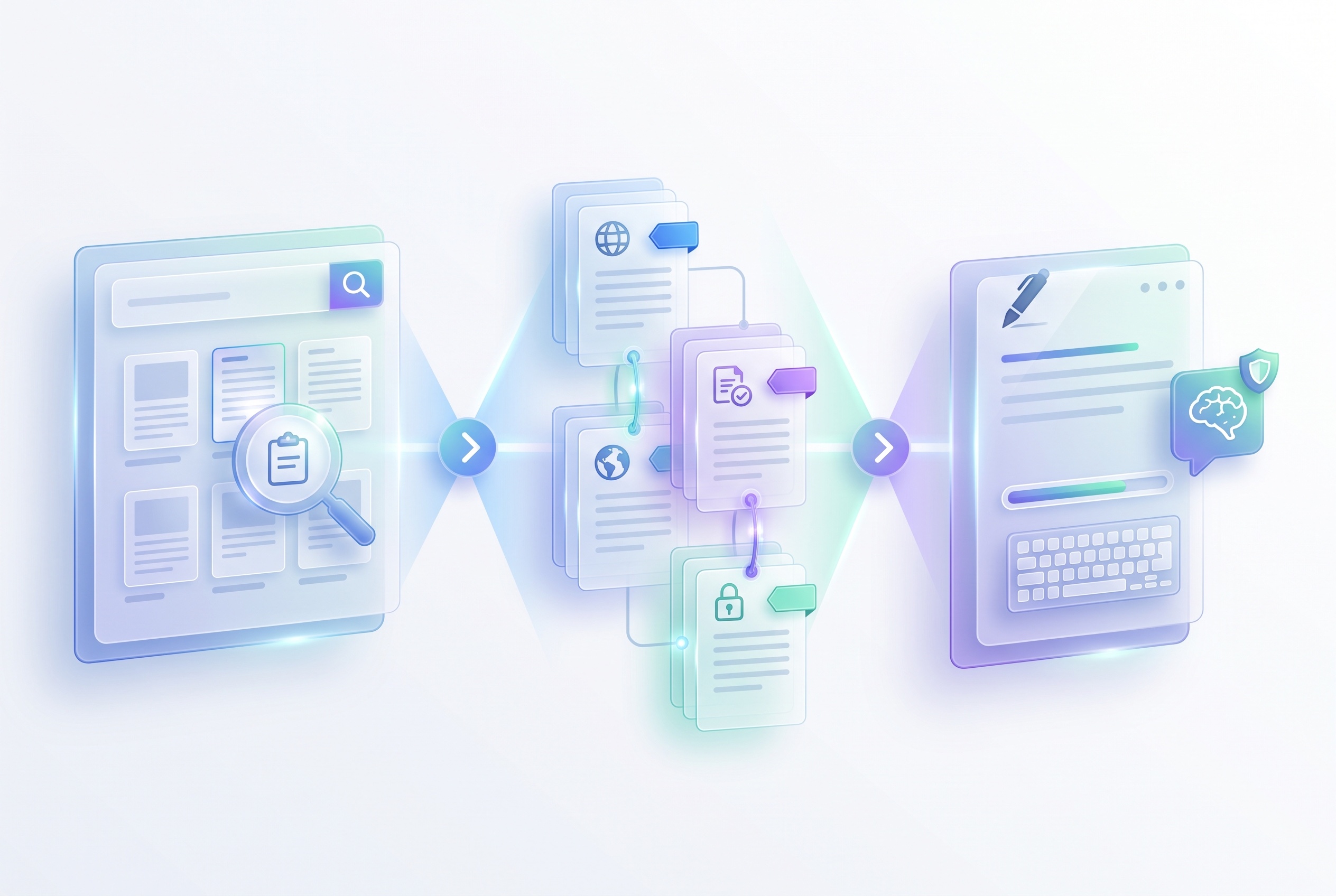
Copilot Search can help locate relevant organizational material, while Chat can help turn that material into a draft, explanation, or task list. This is a useful flow because it keeps the trail visible: search, open the results, then ask for a bounded follow-up. Our Microsoft 365 Copilot Search Chat guide covers this Search-to-Chat pattern in more depth, including why keeping evidence beside the answer matters.
Do not collapse those steps when the stakes are high. Discovery is about finding candidate sources. Decision-making is about checking them, identifying gaps, and applying human judgment. A source-aware AI response can accelerate both stages, but it should not quietly replace either one.
Prompt Wording That Keeps Work Context Clear
Good prompting is less about secret formulas than it is about making the task reviewable. The prompt should show what Copilot may use, what it should produce, what it should avoid assuming, and how uncertainty should appear. These details are useful because Copilot’s result may otherwise sound more complete than the evidence warrants.
- “Use these named sources or this approved workspace.”
- “Separate confirmed facts from suggested next steps.”
- “Include source links or names for every factual claim.”
- “Flag missing, conflicting, or stale information.”
- “Draft for this audience and do not include confidential details beyond what they need.”
- “Tell me everything.”
- “Find all sensitive information about this person or team.”
- “Make this sound certain.”
- “Use any files you can find.”
- “Turn this into an email and send it” without reviewing the content and recipients.
A practical prompt pattern
A reliable pattern is: goal + allowed evidence + output shape + confidence rule + audience boundary. For example: “Create a one-page briefing for the project sponsor. Use the approved launch plan and the most recent decision log. Give three sections: confirmed progress, open risks, and decisions needed. Cite each point by source title. Do not infer dates or commitments that are not stated. Keep customer-identifying information out of the draft.”
This wording does several useful things at once. It tells Copilot that the user wants a briefing rather than raw search results. It limits the evidence to a known set. It encourages citations. It says what not to invent. It also establishes an audience rule that helps the human reviewer catch unnecessary details before sharing.
Ask Copilot to expose uncertainty
AI-generated prose tends to be smooth, even where evidence is incomplete. Counter that tendency directly. Ask for an “unknowns” section, an “evidence conflicts” section, or labels such as “confirmed,” “inferred,” and “requires owner confirmation.” This is not a guarantee of correctness; it is a practical way to make review faster and more disciplined.
For a sensitive draft, ask Copilot to produce a neutral outline first. Review the scope and sources. Then ask for a full version. The extra step is small compared with the cost of circulating a polished but overbroad summary.
Keep developer-tool habits consistent
The same principle applies beyond Microsoft 365. When an AI coding assistant can inspect a repository, call tools, or connect to external systems, define the scope before you delegate. AI Feature Drop’s guides to GitHub Copilot custom agents in Visual Studio and GitHub Copilot MCP tools make the parallel clear: instructions, permissions, tool boundaries, and verification are what turn powerful automation into a dependable workflow.
How to Check Copilot Sources Before You Rely on an Answer
A citation is a starting point, not a stamp of approval. When Copilot provides source links, file names, snippets, or references, open the important items and check them in their original context. The right review depth depends on the consequence of the decision. A low-stakes meeting recap may only need a quick check. A customer commitment, policy statement, staffing decision, or financial claim deserves a fuller review.
Use a three-part source check
First, confirm relevance. Does the source really answer the question? A file may mention a project but not contain the decision Copilot attributes to it. Search results are candidates, not automatically authoritative records.
Second, confirm recency and ownership. A document can be accurate yet obsolete. Check its date, status, version, and owner. For a project decision, a newer meeting decision log may outweigh an old planning deck. For a policy question, the approved policy owner matters more than a copied excerpt in a slide.
Third, confirm the claim. Read the surrounding paragraph, table, email chain, or meeting note. Look for qualifiers Copilot may have compressed away: “proposed,” “pending,” “subject to approval,” “pilot,” or “only for this region.” Those small words often change the action someone should take.
When sources conflict, do not ask Copilot to quietly pick a winner. Ask it to show the disagreement and identify the source dates, owners, and exact conflicting statements. A human can then determine whether one source is superseded, whether the situation changed, or whether the organization has a documentation problem to fix.
It is also worth checking whether a result is a summary of a source or a direct claim from it. A summary can be helpful, but a person may need the original exact wording for compliance, contractual, personnel, or operational reasons. Ask Copilot to quote short relevant passages where permitted and point to the underlying item, rather than relying on a paraphrase for a consequential decision.
Use source checks to improve the underlying workspace
Repeated source confusion is often a signal that the organization’s information architecture needs work. Multiple outdated plans, unlabeled final documents, inconsistent folder names, or overly broad sharing can make any search tool less reliable. Copilot is not the cause of those conditions, but it can make their effects more visible.
Teams can improve outcomes by naming approved documents clearly, retiring or labeling superseded material, assigning owners, and capturing final decisions in a known location. The payoff is larger than AI quality: people also spend less time debating which file is current.
Protect Data by Understanding Permissions and Sharing
Microsoft states that Copilot uses content from Microsoft Graph that the signed-in user has permission to access. That means Copilot is not meant to grant someone a new permission just because they can phrase a clever prompt. However, existing access can still be broad, stale, or inappropriate for the task at hand. Copilot makes information easier to discover and summarize, which makes permission hygiene more important, not less.
Think of permissions as the floor, not the complete policy. If you can open a file, Copilot may be able to use it in an authorized work-context experience. But you should still ask: is this material necessary for the prompt? Is the intended audience permitted to receive the output? Does a label, retention rule, contract, or internal policy impose additional handling requirements? Will a concise summary reveal more than the audience needs?
| Risk area | What to check | Helpful habit |
|---|---|---|
| Overbroad access | Who can see the source folder, site, team, or mailbox? | Review sharing regularly and remove access that no longer matches a role. |
| Unclear audience | Will the draft be shared internally, externally, or in a mixed group? | State the intended audience in the prompt and review recipients before sending. |
| Sensitive content | Does it involve personal, legal, financial, health, security, or confidential information? | Use the organization’s approved handling process and obtain human review. |
| Connected sources | Which non-Microsoft systems are connected, and what permissions do they expose? | Confirm connectors and their governance with the administrator or data owner. |
| Stale documents | Could an old deck, file, or chat mislead the summary? | Prefer approved current sources and label older material clearly. |
Keep the prompt proportional to the task
Use the minimum necessary data. If a project update only needs milestones and risks, do not ask for all customer communications. If a manager needs a template, use a fictional or sanitized example rather than a live personnel record. If a team needs a public-facing explanation, start with a general draft and add approved facts after review.
This approach helps both privacy and quality. Smaller, well-defined source sets are easier for a person to verify. They reduce the chance that irrelevant names, side conversations, or confidential details are folded into a summary merely because they were adjacent to the topic.
Review the output as work content
Once Copilot creates a draft, treat it as normal organizational content. It may need editing, classification, approval, and appropriate storage. Check whether the draft includes internal names, customer details, or source fragments that should not travel to the target audience. Verify that a concise summary has not accidentally changed the meaning of a sensitive statement.
For teams building reusable AI workflows, the same rule applies to extensions and automations. Our Copilot Cowork skills and plugins guide is a useful companion because connected capabilities can extend what an assistant can do, but they should be enabled with clear ownership and a defined use case.
Troubleshoot Confusing Scope, Missing Sources, or Unexpected Results
Copilot experiences can differ between organizations and over time. Licensing, tenant settings, connected sources, application versions, regional availability, device differences, and interface changes may affect what appears in your Chat or Search experience. Do not assume that a colleague’s screen, a video tutorial, or an older article maps exactly to your tenant.
“Copilot used the wrong context”
Start by narrowing the request. Name the document, project, date range, or source type. Ask Copilot to list the sources it used before asking it to create a final answer. If the answer still feels broad, split the job: use Search to find the right material, open it yourself, then ask for a summary of the specific approved sources.
Also check the language in your prompt. “What is the plan?” invites a broad interpretation. “From the approved operating plan and this week’s status note, list the next three committed milestones” is auditable and constrained.
“The source is missing, stale, or does not support the answer”
Do not repair the output by guessing. Ask Copilot to identify whether the statement is directly supported, inferred, or unresolved. Then find the current source or the accountable owner. If this happens frequently, improve document status labels and decision records rather than trying to prompt around poor source quality.
“I cannot see a feature another person has”
Check the basics with the organization’s administrator: your eligible license, account type, whether the feature is enabled for the tenant, and whether the connected source is configured. Microsoft’s Copilot documentation and support hub are better references than social posts for current availability. The product naming transition can also make older instructions appear inconsistent with the labels in your interface.
“I want to turn off or limit organizational context”
Do not rely on a generic claim that every interface has the same control. The available choices can vary by tenant and product experience. Start with the task itself: use a general question when work information is unnecessary, avoid naming work sources in the prompt, and follow your organization’s documented configuration and policy. For a persistent concern about data access, connectors, retention, or tenant-wide behavior, involve the Microsoft 365 administrator, security team, or data owner.

Know the Boundary Between User Decisions and Admin Controls
Users and administrators have different responsibilities. A user decides whether a work-context request is needed, chooses a narrow prompt, checks cited material, and reviews what they share. An administrator or governance owner handles organizational configuration, eligibility, connector choices, identity and access controls, data protection policies, and guidance for higher-risk use cases.
Neither side can do the other’s job through a prompt. A careful individual cannot fully compensate for unmanaged permissions or a poorly governed connector. Conversely, a well-configured tenant cannot stop someone from forwarding an unreviewed summary to the wrong audience. Good Copilot use is a shared operating practice.
A practical team standard might be simple: factual claims in an AI-assisted status update need a linked source; customer-facing content needs a human owner; sensitive topics follow existing escalation paths; and broad access is periodically reviewed. These rules are not glamorous, but they make Copilot easier to use confidently.
Microsoft’s privacy documentation is clear that commercial Copilot protections coexist with an organization’s existing security and compliance commitments. It also emphasizes that Copilot uses the data a person is already permitted to access. That makes foundational hygiene—least privilege, accurate labels, current source ownership, and careful sharing—the durable control layer.
A Repeatable Work-Context Checklist
Use this checklist before relying on a Copilot Chat answer that involves organizational information:
- Define the decision. What must this answer help you do?
- Choose the smallest necessary context. Is public knowledge enough, or do you need named work sources?
- Bound the prompt. Specify the timeframe, project, source set, and intended audience.
- Require evidence. Ask Copilot to cite or name the source for factual statements.
- Open the originals. Check relevance, recency, ownership, qualifiers, and conflicts.
- Check permissions and sensitivity. Ensure the source and output are suitable for the task and audience.
- Review before sharing. Remove unnecessary details and confirm the tone, claims, and recipients.
- Escalate uncertainty. Bring in the source owner, manager, administrator, or specialist when the decision is high-impact.
The goal is not to make Copilot slow. It is to use its speed where it is genuinely helpful: locating information, comparing known sources, drafting a first pass, and identifying questions that deserve human attention. The fastest workflow is often the one that avoids a later correction, data mishandling incident, or decision made from an outdated summary.
Use Work IQ to Make Evidence Easier to Use, Not Easier to Ignore
Microsoft Copilot Chat is most useful when organizational context is intentional. Choose work context because a task needs authorized business information, not because more context always seems better. Use Search to discover candidate material, Chat to work through a bounded question, citations to inspect the evidence, and ordinary permissions and sharing discipline to protect the people behind the data.
The practical standard is straightforward: make the scope visible, keep sources close to the answer, and let the original record—not generated prose—carry the final authority. When a tenant setting, license, interface, or policy is unclear, verify it with your administrator and current Microsoft documentation rather than assuming a universal control exists.
Official Sources and Further Reading
- Microsoft Copilot Search documentation — Microsoft’s overview of organizational search, natural-language queries, connected sources, and the transition from Search to Chat.
- Data, Privacy, and Security for Microsoft Copilot — Microsoft’s documentation on Graph permissions, commercial data protections, and foundation-model training statements.
- Microsoft Copilot help and learning — Official support starting point for current product guidance.
- Microsoft 365 Copilot Search Chat guide — Related AI Feature Drop pillar article on keeping work context and evidence together.
FAQ: Controlling Work IQ in Microsoft Copilot Chat
Does Microsoft Copilot only use data I can access?
Microsoft states that Copilot works with Microsoft Graph content, including emails, chats, and documents, that a user has permission to access. Existing permissions are still crucial. If access is too broad, Copilot can make that broadly accessible information easier to find and summarize.
Are Copilot prompts, responses, and Graph data used to train foundation models?
Microsoft’s commercial Copilot privacy documentation says prompts, responses, and data accessed through Microsoft Graph are not used to train foundation large language models. Review the current Microsoft documentation and your organization’s policies for the specific product experience you use.
When should I choose work context instead of a public or general question?
Choose work context when the answer depends on authorized organizational information such as internal documents, meetings, email, chat, or connected business systems. Use a public or general question when internal context is not needed. The smallest useful context is usually the easiest to verify.
Why does Copilot sometimes give an answer that seems too broad?
The prompt may be underspecified, sources may be stale or inconsistent, or the product experience may be using a different scope than expected. Narrow the task, name the sources and timeframe, ask for citations, and verify the originals.
Can a user control every work-context setting in Copilot Chat?
No universal answer applies to every organization. Tenant settings, eligible licenses, connected sources, policies, and interface changes can affect available choices. Use task-level boundaries first, then consult your administrator for configuration or governance questions.
What should an administrator review before enabling connected organizational sources?
Administrators should follow the organization’s governance process for identity and access, source permissions, data classification, connector scope, compliance requirements, auditing, and user guidance. A connector should have a clear business purpose and accountable owner.
Post a Comment