
Copilot Cowork Skills and Plugins: Practical Guide for Microsoft 365 Workflows
Copilot Cowork is Microsoft’s clearest move from AI chat toward delegated work. Instead of asking Copilot for advice and then doing every step yourself, Cowork is designed to take a task, work through the steps, use Microsoft 365 context, and return a finished outcome that you can inspect.
That shift matters because many teams already know how to prompt an AI assistant. The harder question is how to turn repeatable work into a reliable process: prepare the weekly customer update, research an account before a sales call, organize a messy inbox, create a meeting follow-up document, or build a first draft of an analysis from existing files. Microsoft’s May 5, 2026 update adds two pieces that make Cowork more practical for those jobs: reusable Skills and plugins that connect Cowork to more tools and data.
This guide explains what Copilot Cowork does, how Skills and plugins fit together, who should try it first, where the preview limits matter, and how to adopt it without turning every business process into an uncontrolled AI workflow.
What Is Copilot Cowork?
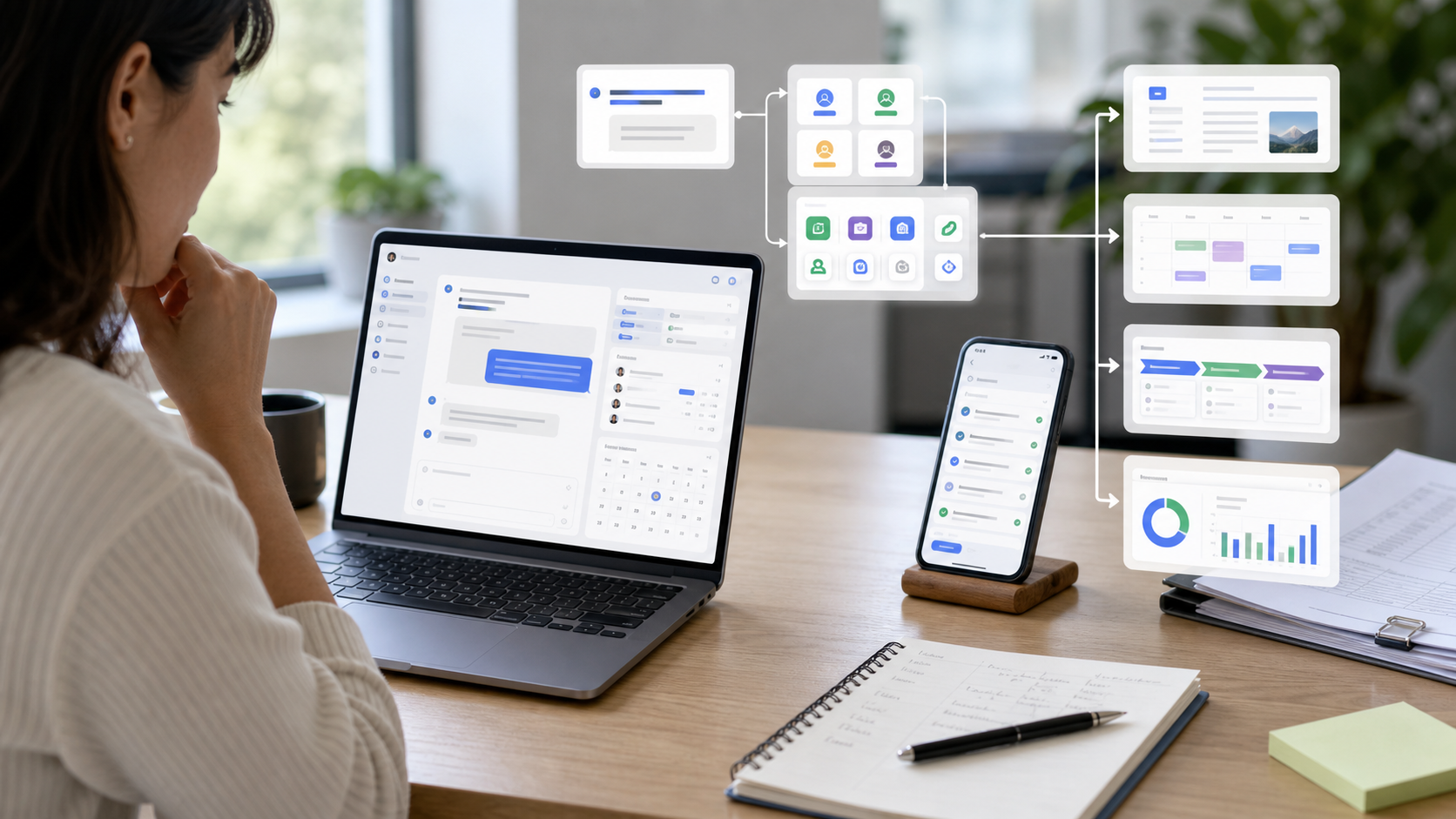
Copilot Cowork is a Microsoft 365 Copilot experience for delegating work. Microsoft describes it as a way for Copilot to carry out tasks on your behalf across Microsoft 365, including email, meetings, documents, Teams messages, calendar work, and search across organizational resources. The important distinction is action. A normal assistant can suggest what to do. Cowork is built to work through the task while showing progress and asking for input when needed.
Microsoft first positioned Cowork as a way to move Copilot beyond answers into execution, and the current release is available through the Frontier program. In the May 5, 2026 Microsoft 365 announcement, Microsoft said Cowork is built on Work IQ, the Microsoft intelligence layer that understands work data, tools, and organizational context. That grounding is central to the pitch: Cowork should not behave like a public web assistant guessing at your business. It should operate with the same work context that makes Microsoft 365 useful.
In practice, Cowork sits somewhere between a personal AI assistant, a workflow runner, and an enterprise agent. You describe the outcome, attach or reference relevant context, watch the work progress, pause or cancel when needed, and approve actions before they happen. That makes it especially relevant for teams that have many recurring tasks inside Microsoft 365 but do not want to build custom automation for every process. If the use case needs a product-grade custom agent outside Microsoft 365, compare the approach with the OpenAI AgentKit guide.
What Changed in the Latest Cowork Update?
The May 2026 update added three adoption signals worth paying attention to. First, Cowork is expanding to iOS and Android, so delegated work is not limited to a desktop session. Microsoft’s argument is that Cowork already runs in the cloud, so a task can continue while the user moves between devices. For busy managers and founders, that means a useful Cowork request might start between meetings and finish later without keeping a laptop open.
Second, Microsoft introduced Cowork Skills. A skill is a reusable set of instructions that tells Cowork how to complete a task or workflow. Instead of writing the same long prompt every week, a team can capture the structure, tone, process, and expected output once, then reuse it. Microsoft says built-in skills are coming across Microsoft 365 for common workflows such as creating documents, coordinating meetings, and conducting research, while users can also create custom skills for team processes and recurring work.
Third, Microsoft expanded Cowork plugins. Plugins let Cowork use skills and connectors that extend what it can do. Microsoft Learn describes a Cowork plugin as a package distributed through the Microsoft 365 App Store that can contain prompt-based skills and connectors to external data sources or services. That matters because most real work is not contained in one app. Sales, finance, legal, operations, product, and support teams all depend on different systems, and plugins are the path for bringing more of that work into Cowork.
How Cowork Skills Work
The simplest way to think about a Cowork Skill is “a repeatable work recipe.” A good skill does not just say what the user wants. It describes how the task should be done. For example, a weekly customer update skill might define the sources to check, the sections to include, the tone to use, the facts that require citations, and the questions that should be escalated to the account owner.
That is useful because many knowledge-work tasks fail when the process is implicit. One person knows how to write the report, another knows where the data lives, and a third knows which caveats matter. If all of that stays in people’s heads, AI output varies wildly. Skills give teams a way to encode a process without forcing everyone to rebuild it from scratch in every conversation.
Microsoft’s Cowork user documentation also shows that Cowork can use specialized skills while a task is running, and the interface can show which skill is being prepared or used. That visibility matters. If a delegated task produces a weak result, the team needs to know whether the problem was the user request, the source material, the skill instructions, the plugin connection, or the final review step.
What Makes a Good Cowork Skill?
A useful skill is specific, repeatable, and reviewable. It should have a clear trigger, defined inputs, expected output, and quality checks. “Help with meetings” is too broad. “Prepare a pre-read for a customer renewal meeting using the account notes, recent support cases, open opportunities, and last meeting transcript” is much stronger.
Teams should also treat skills as shared process assets, not private prompt hacks. If a skill improves how a team prepares a board update or handles customer escalations, it should be named clearly, documented briefly, tested on past examples, and improved when it produces weak output. The long-term value is not one clever prompt. It is consistent execution of work that the team already understands.
How Cowork Plugins Fit In
Skills tell Cowork how to do work. Plugins expand what Cowork can access or perform. Microsoft’s plugin management documentation says Cowork plugins can contain skills and connectors, and that administrators control which plugins are available, how they are deployed, and who can use them. The same documentation notes that plugins use the Microsoft 365 app package format used by Teams apps, Copilot agents, and Office add-ins.
That administrative layer is important. Without governance, plugins can become a messy expansion of AI access to business data. With governance, they become a controlled way to connect Cowork to systems that matter. A finance team may need a plugin that supports analysis workflows. A legal team may need research workflows. A sales team may need CRM context. An operations team may need project, ticketing, or planning tools. The right plugin strategy starts with specific work, not a long list of integrations.
Microsoft also makes clear that this is still a Frontier preview area. Organizations need Microsoft 365 Copilot licensing for users who use Cowork plugins, and admins must verify access through the Frontier program. Preview features can change, so teams should avoid building a fragile operating process around undocumented behavior.
Practical Workflow Examples
1. Weekly leadership update
A founder or operations lead could ask Cowork to prepare a weekly leadership update from calendar events, meeting notes, project documents, and recent team messages. A custom skill could enforce the output structure: wins, risks, blockers, decisions needed, and follow-up owners. A plugin could connect additional project or CRM data if approved by the organization. The human still reviews the final update, but the tedious first pass becomes delegated work.
2. Sales account preparation
A sales team could use Cowork to prepare for a renewal meeting. The skill defines the research process: summarize the customer’s recent interactions, list open support issues, pull relevant account notes, draft discovery questions, and create a short call plan. This is the kind of workflow where Cowork’s connection to Microsoft 365 context can matter more than a generic web search.
3. Inbox and follow-up cleanup
Managers often lose hours converting emails into next steps. Cowork can help organize an inbox, draft responses, identify urgent requests, and prepare follow-up actions. A skill can define how to classify messages and when to ask for confirmation. This is a good early use case because the work is repetitive, high-volume, and easy for a human to review before anything is sent.
4. Research-to-document workflow
A product marketer, analyst, or founder could delegate a research task that ends in a structured document. The skill defines sources, outline, tone, and evidence standards. Plugins or Microsoft 365 connectors provide access to the right internal material. Cowork’s value is not that it writes prose; it is that it can help move from scattered work context to a reviewable artifact.
5. Meeting planning and coordination
Cowork can assist with meeting preparation, scheduling, agenda drafting, and follow-up work. A team could create a skill for customer calls, hiring loops, project reviews, or board meetings. The repeatable part is the template and process. The variable part is the current context, attendees, documents, and decisions needed.
An Adoption Framework for Teams
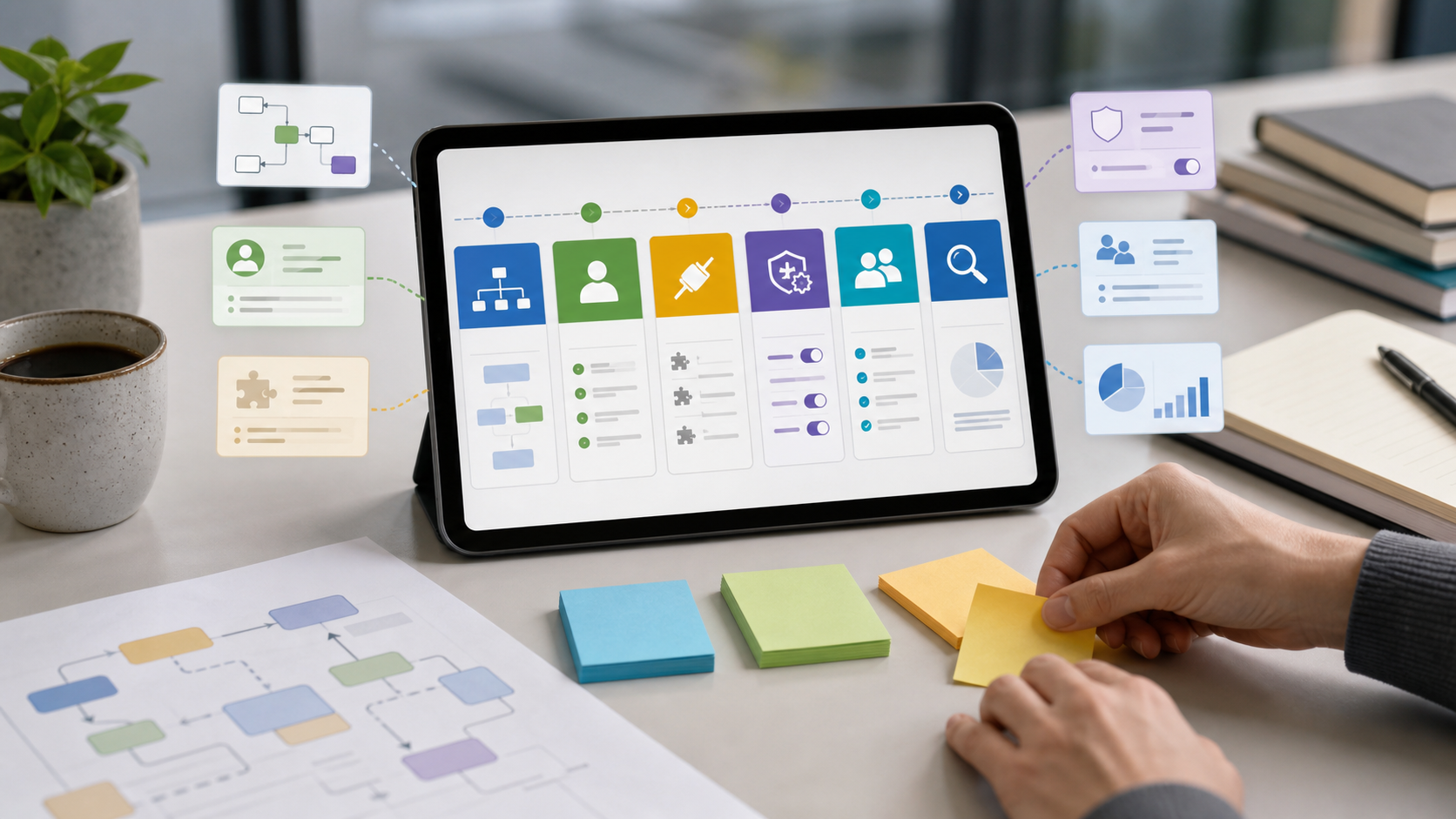
1. Choose a workflow that already exists
Do not start with a vague goal like “make the team more productive.” Start with a real workflow that people already perform every week. Strong candidates have clear inputs, repeated steps, reviewable outputs, and obvious time cost. Weak candidates are ambiguous, political, legally sensitive, or dependent on judgment that the team cannot clearly explain.
2. Write the process before writing the skill
Before creating a skill, write the process in plain language. What sources should Cowork inspect? What should it ignore? What output format is expected? What decisions require human approval? What are examples of a good result and a bad result? If the process cannot be written clearly, the skill will probably be unreliable.
3. Decide which plugins are actually needed
Teams should avoid installing plugins simply because they are available. Start with the minimum set of connections required for the workflow. If a weekly update only needs Outlook, Teams, and files in Microsoft 365, do not add extra systems. If a sales prep workflow genuinely needs CRM context, add that plugin through the proper admin path and document why it is needed.
4. Keep approvals close to risky actions
Cowork is most useful when it can draft, organize, summarize, and prepare work. Higher-risk actions should still require review. Sending external emails, changing customer records, sharing files, posting to a large Teams channel, or making commitments on behalf of a company should be handled with explicit approval rules. The goal is delegated work with human agency, not blind automation.
5. Pilot with real examples
Test the skill on actual work from the last few weeks. Compare the output with what a capable team member would have produced. Look for missing context, wrong assumptions, weak summaries, incorrect tone, and places where Cowork should have asked for clarification. A pilot should produce edits to the skill and plugin setup, not just a yes-or-no decision.
6. Measure outcomes, not novelty
Good Cowork metrics are practical: time saved per workflow, percentage of drafts accepted after light editing, missed-context rate, number of escalations handled correctly, user satisfaction, and reduction in manual coordination. Avoid measuring only usage. A team can use Cowork often and still create low-quality work if the skills are poorly designed.
Strengths of Copilot Cowork
The first strength is context. Cowork is designed for Microsoft 365 work, so it fits naturally where email, meetings, files, Teams, documents, and calendars are already the operating layer. That gives it an advantage over a disconnected assistant for internal business workflows.
The second strength is repeatability. Skills turn a useful prompt into a reusable process. That matters for teams because quality usually depends on consistency. A founder may tolerate one rough AI draft. A sales leader needs every account-prep workflow to follow the same standard. A finance lead needs outputs to follow the same structure every month.
The third strength is governance. Plugins are controlled through Microsoft 365 administrative paths, and Microsoft Learn emphasizes admin control over availability, deployment, and user access. That does not remove all risk, but it gives IT and security teams a familiar place to reason about it.
Limits and Risks
The biggest limit is preview status. Microsoft Learn labels Cowork materials as prerelease documentation and notes that Frontier preview capabilities can change. Teams should treat early Cowork adoption as a controlled pilot, not as a permanent business-critical system without fallback.
The second risk is process ambiguity. Cowork can only follow a repeatable process if the team understands the process. If no one agrees on what a good customer update, renewal prep, or leadership memo should look like, a skill will encode confusion.
The third risk is over-connection. Plugins make Cowork more powerful, but every additional connection increases the need for access review, data boundaries, and admin oversight. The best plugin strategy is boring and deliberate: add only what the workflow needs, assign access carefully, and review outputs before broad rollout.
The fourth risk is premature autonomy. Cowork can help complete work, but teams should not rush to let it take irreversible actions. Early rollouts should emphasize drafts, summaries, plans, and recommendations. Expand autonomy only after the team has evidence that the workflow is reliable.
Who Should Try Cowork First?
Founders should try Cowork when their company already lives in Microsoft 365 and spends time on recurring coordination work. Good first projects include investor updates, customer follow-ups, meeting prep, hiring coordination, and weekly operating reviews.
Developers and AI builders should pay attention because Cowork shows where enterprise AI is heading: not just agents as custom code, but agents packaged into governed productivity experiences. If your product integrates with Microsoft 365, the plugin model is worth watching closely.
IT and operations leaders should start with controlled teams that have clear pain and responsible owners. A sales operations team, executive admin team, customer success team, or project management office can provide better feedback than a broad all-company rollout.
FAQ
Is Copilot Cowork generally available?
No. Microsoft describes Cowork as available through the Frontier program, and the Microsoft Learn pages for Cowork currently identify the documentation as prerelease. Organizations should verify access and licensing before planning a rollout.
What is a Copilot Cowork Skill?
A Cowork Skill is a reusable set of instructions that guides Cowork through a task or workflow. It can capture the structure, tone, process, and output expectations for recurring work so users do not need to start from scratch each time.
What is a Copilot Cowork plugin?
A Cowork plugin is a Microsoft 365 app package that can contain skills and connectors. Plugins extend what Cowork can do and what data or services it can use, while giving administrators control over deployment and access.
Do Cowork plugins require Microsoft 365 Copilot licenses?
Microsoft’s plugin management documentation says users who use Cowork plugins must have Microsoft 365 Copilot licenses assigned. Teams should confirm current licensing and Frontier access with their Microsoft administrator.
What is the best first Cowork workflow?
The best first workflow is frequent, structured, and easy to review. Weekly updates, meeting prep, sales account research, inbox cleanup, and document drafting are better starting points than broad autonomous workflows with unclear success criteria.
Conclusion
Copilot Cowork is important because it pushes Microsoft 365 Copilot toward delegated execution. Skills make work repeatable. Plugins make Cowork more connected. Mobile access makes delegation more natural outside the desktop. Together, those changes make Cowork one of the more practical enterprise AI features to watch in 2026.
The right adoption path is narrow and disciplined. Pick one recurring workflow, write the process, create or use the right skill, connect only the plugins that matter, keep approvals around risky actions, and measure whether the output actually saves time. If Cowork can make one real workflow faster and more consistent, then it has earned the right to expand.
Internal link suggestions: - Existing OpenAI pillar: "OpenAI AgentKit Guide: Build Better AI Agents with Agent Builder, ChatKit, and Evals" - Future Copilot cluster: "How to create a Copilot Cowork Skill for weekly team updates" - Future Copilot cluster: "Copilot Cowork plugins explained: admin controls, connectors, and safe rollout" - Future comparison: "Copilot Cowork vs OpenAI AgentKit: delegated work vs custom agent workflows" Hook evaluation: - Headline option 1: "Copilot Cowork Skills and Plugins: Practical Guide for Microsoft 365 Workflows" | Virality: 8/10 | CTR: 8/10 | Retention: 9/10 - Headline option 2: "Copilot Cowork Is Microsoft’s Move From AI Chat to Delegated Work" | Virality: 9/10 | CTR: 8/10 | Retention: 8/10 - Headline option 3: "How Copilot Cowork Skills Turn Prompts Into Repeatable Microsoft 365 Workflows" | Virality: 8/10 | CTR: 8/10 | Retention: 8/10 - Selected headline reason: option 1 keeps the primary keyword exact, names both fresh features, and promises a practical workflow guide without clickbait. - Opening score after revision: Virality: 8/10 | CTR: 8/10 | Retention: 9/10 Image prompts: - Hero prompt: modern realistic editorial image showing Microsoft 365 Copilot Cowork as delegated work moving from conversation to completed tasks across business apps; no logos or readable text. - Inline prompt: realistic tabletop planning scene visualizing a Cowork adoption framework: choose workflow, define skill, connect plugin, set governance, run pilot, review outcomes; no logos or readable text. Sources checked: - Microsoft 365 Blog, "Copilot Cowork: From conversation to action across skills, integrations, and devices", published May 5, 2026, https://www.microsoft.com/en-us/microsoft-365/blog/2026/05/05/copilot-cowork-from-conversation-to-action-across-skills-integrations-and-devices/ - Microsoft Learn, "Use Copilot Cowork (Frontier)", checked May 9, 2026, https://learn.microsoft.com/en-us/microsoft-365/copilot/cowork/use-cowork - Microsoft Learn, "Manage plugins for Cowork (Frontier)", last updated May 5, 2026, https://learn.microsoft.com/en-us/microsoft-365/copilot/cowork/cowork-manage-plugins - Microsoft Learn, "Copilot Cowork overview (Frontier)", checked May 9, 2026, https://learn.microsoft.com/en-us/copilot/microsoft-365/cowork/
Post a Comment