
Gemini API File Search Multimodal RAG: Practical Guide for Developers
Gemini API File Search is becoming a more serious option for teams that want retrieval-augmented generation without owning every piece of retrieval infrastructure. The important May 2026 change is not that Google added another document upload feature. It is that File Search now supports multimodal retrieval, custom metadata filtering, and citations that can point back to document pages or referenced image chunks.
That matters because real RAG applications rarely live inside neat text files. Product teams have PDFs, screenshots, reports, diagrams, spreadsheets, policy documents, decks, support exports, medical images, invoices, catalogs, research figures, and internal notes. A useful assistant needs to find the right evidence across that material, narrow the search by context, and show where an answer came from. If it cannot do those three things, users end up trusting a fluent answer instead of inspecting evidence.
This guide explains what Gemini API File Search does, what changed in Google’s latest update, how multimodal retrieval fits into a production RAG workflow, when to use it instead of a custom vector database, and where the limits still matter.

What Is Gemini API File Search?
Gemini API File Search is Google’s managed retrieval layer for Gemini applications. Instead of building every RAG step yourself, you create a File Search store, upload or import files, let the service chunk and index those files, and then pass the store as a tool when generating an answer. Gemini can retrieve relevant chunks from the store and use them as context for the response.
Google’s Gemini API File Search documentation describes the core flow clearly: File Search imports, chunks, indexes, and retrieves user data so Gemini can answer with more relevant context. The store holds processed embeddings, while the raw files uploaded through the Files API are temporary. That distinction is important for developers. You are not just attaching files to one prompt. You are creating a persistent retrieval resource that can be reused across queries until you delete it.
The practical value is speed. A small team can build a grounded assistant without choosing a vector database, implementing a chunking pipeline, managing embedding jobs, creating retrieval APIs, and wiring citations from scratch. You still need product judgment, source hygiene, evals, and access control.
What Changed in the May 2026 Update?
Google announced the latest File Search expansion on May 5, 2026. The official Google Developers post highlights three upgrades: multimodal support, custom metadata filtering, and page-level citations. Together, those features move File Search closer to the messy shape of real business data.
The first change is multimodal retrieval. File Search can now process text and images together when the store is configured with the multimodal embedding model. That means a query can retrieve evidence from visual material as well as text material. For applications that work with product catalogs, research PDFs, technical diagrams, slides, screenshots, or visual QA records, this is the feature that changes the design space.
The second change is custom metadata. Developers can attach key-value metadata to files and use metadata filters during retrieval. That lets an app narrow the search space before generation. Instead of asking across every document in a store, you can filter by customer, product line, region, author, year, policy type, department, content status, or another field that matters to your workflow.
The third change is better citation support. File Search responses can include grounding metadata that identifies retrieved context. For paged documents such as PDFs, responses may include page numbers. For image chunks, responses may include media identifiers so the application can trace the visual evidence used. That is a major product feature, because users do not only need an answer; they need a path back to the source.
How Multimodal File Search Works
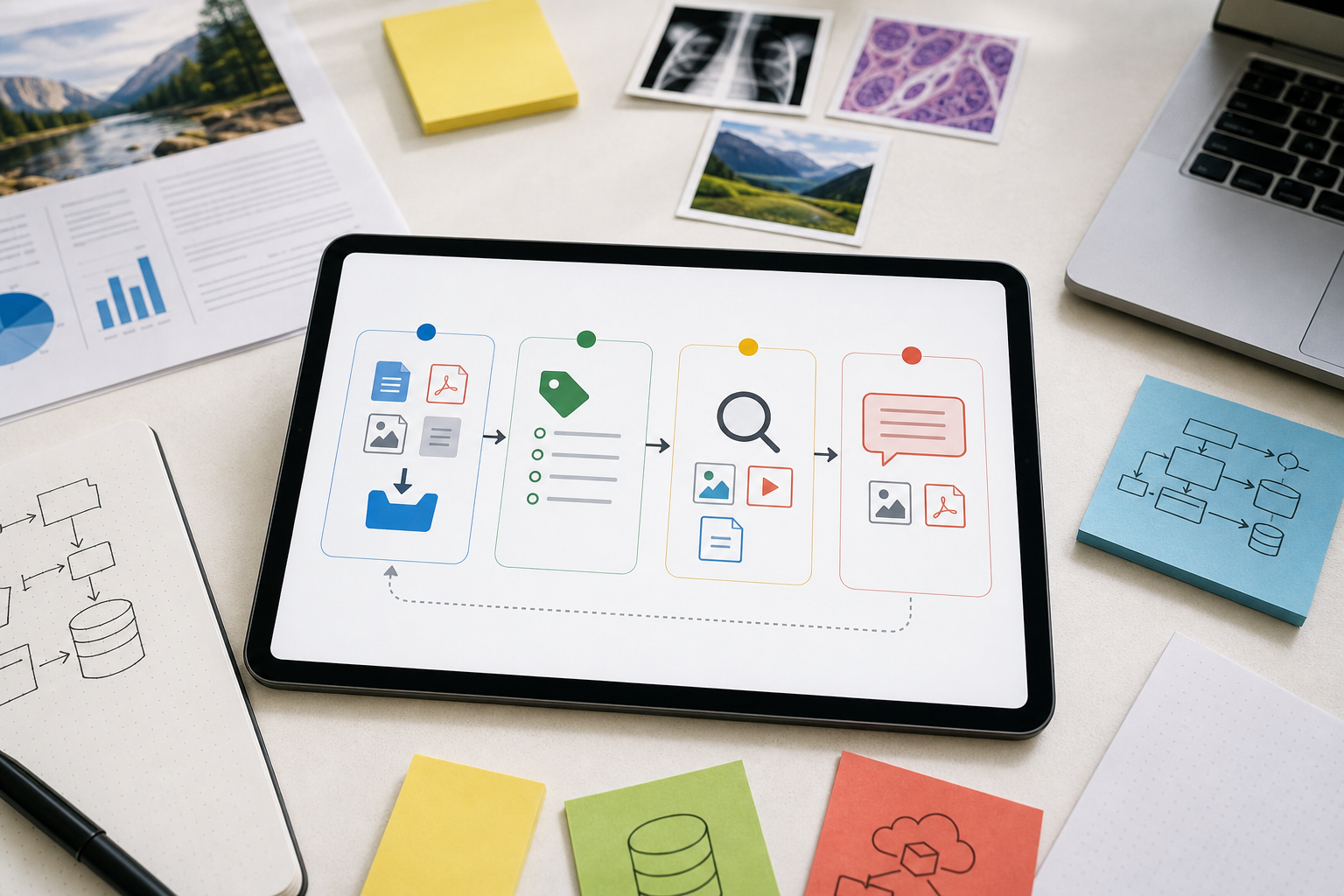
At a high level, the workflow has four stages. First, create a File Search store. Second, upload or import files into that store. Third, configure the store and retrieval behavior, including a multimodal embedding model when you want image support. Fourth, call Gemini with File Search enabled as a tool and inspect the grounding metadata returned with the response.
Google’s docs say that when you create a File Search store for multimodal use, you must configure it with models/gemini-embedding-2 so it can process text and images. The same docs say uploaded image files must be PNG or JPEG and at most 4K by 4K pixels. Audio and video are not currently supported by File Search, so “multimodal” here should be understood as text plus image retrieval, not every media type.
That shape is still useful. Many teams call their knowledge base “documents,” but their most important facts are in screenshots, charts, forms, tables, diagrams, scans, and product photos embedded in those documents. Traditional text-only RAG often misses those details unless a separate OCR or image-captioning pipeline extracts them well. Multimodal File Search reduces that gap by letting image evidence participate directly in retrieval.
What the Developer Still Controls
Managed File Search does not remove every design decision. Developers still decide how to organize stores, which files to include, what metadata to attach, when to refresh content, how to filter retrieval, how to display citations, and how to evaluate answers. The managed layer handles much of the indexing and retrieval work, but the product layer still determines whether the assistant is trustworthy.
The most important design choice is store structure. A single giant store is simple, but it can make access control, latency, filtering, and debugging harder. Multiple stores by customer, product, workspace, or document family may fit better.
Why Metadata Filters Matter
Metadata filters sound like a small backend feature, but they are often the difference between a demo and a usable RAG product. Retrieval quality is not only about semantic similarity. It is also about scope.
The File Search docs show custom metadata attached to imported files, then used through a metadata_filter value during generation. The examples are simple, but the product implication is broad. Metadata lets your app treat documents as operational assets with attributes, not as an undifferentiated pile of chunks.
Good metadata fields are boring and practical. Useful examples include customer_id, workspace_id, region, document_type, effective_date, status, product, department, language, and confidentiality_level. Avoid metadata that sounds clever but is not used in real retrieval decisions. Every field should either improve relevance, enforce scope, or help the UI explain where evidence came from.
Why Page and Media Citations Matter
RAG systems fail when users cannot verify the answer. A citation that says “source: handbook.pdf” is better than nothing, but it is still weak when the document has 180 pages. Page citations make review faster. A product manager can jump to the cited page in a requirements doc. A support lead can inspect the exact policy page. A researcher can check whether the answer used the relevant figure or a nearby but unrelated section.
Google’s File Search documentation says response grounding metadata may include page numbers for paged documents and media identifiers when the model references image chunks. That gives developers enough structure to build a better user experience: highlighted citations, source panels, page previews, media previews, and “open evidence” buttons. Those interface details matter because trust is not a feeling; it is a workflow.
Do not hide citations in a debug drawer. If your app is answering from private files, citations should be visible where the user makes a decision.
Practical Workflow Examples
1. Product catalog assistant
A retailer or marketplace can upload product sheets, images, warranty documents, compatibility charts, and merchandising notes. A user might ask which products support a specific use case or which replacement part fits a device shown in an image. Multimodal retrieval can pull visual and text evidence, while metadata filters narrow results by region, brand, availability, or product category.
2. Technical support knowledge base
Support teams often have troubleshooting guides with screenshots, diagrams, release notes, and customer-specific configuration docs. A Gemini File Search app could retrieve the relevant section of a guide, a screenshot of the affected UI, and the current policy. Page citations help agents verify the answer before sending it to a customer.
3. Research document review
Researchers and analysts work across PDFs with figures, tables, charts, and appendices. A multimodal RAG workflow can retrieve both text passages and visual evidence. That is useful when the answer depends on a graph, microscopy image, architectural diagram, or experimental setup that a text-only retrieval pipeline might ignore.
4. Internal policy assistant
Companies can organize policy documents by department, country, effective date, and status. Metadata filters prevent stale or wrong-region documents from entering the answer. Page citations make it easier for HR, legal, finance, and operations users to inspect the exact policy basis before acting.
5. Founder due diligence workspace
A founder reviewing a potential acquisition, vendor, or enterprise customer may collect decks, financial documents, screenshots, contracts, notes, and public filings. File Search can support a focused workspace for grounded questions and cited evidence.
A Practical Adoption Framework
1. Pick an evidence-heavy workflow
Do not start with “build a chatbot over our files.” Start with a workflow where better evidence retrieval changes the outcome. Good candidates include answering customer support questions, searching a product catalog, reviewing policies, preparing sales answers from approved collateral, or analyzing research documents. Weak candidates are vague, low-value, or mostly conversational.
2. Inventory the file types
List the sources users actually need: PDFs, images, docs, spreadsheets, slides, Markdown files, CSV exports, screenshots, diagrams, and scanned forms. Then check whether File Search supports those formats and whether image constraints apply. If the workflow depends heavily on audio or video retrieval, File Search is not enough today because the docs say those formats are not currently supported.
3. Design metadata before upload
Metadata should be planned before indexing, not added as an afterthought. Decide which fields will be used for access boundaries, relevance filters, freshness, and UI explanation. A support assistant might need product, version, region, and status. A policy assistant might need department, country, effective_date, and owner.
4. Build citation-first UI
The interface should treat citations as part of the answer. Show cited document names, page numbers when available, and media previews when the answer references image evidence. For high-stakes workflows, let users open the source before accepting the answer. If users cannot verify the output quickly, they will either ignore the assistant or trust it too much.
5. Evaluate retrieval, not just generation
Most teams test whether the final answer sounds right. That is not enough. Test whether the right files were retrieved, whether filters excluded the wrong files, whether page citations point to useful evidence, whether image references are relevant, and whether stale documents are avoided. A beautiful final answer built on the wrong source is still a failure.
6. Start managed, customize only where needed
Use File Search when managed retrieval is good enough and speed matters. Move to a custom retrieval stack only when you need specialized ranking, hybrid search, cross-store orchestration, unusual storage controls, deep observability, or retrieval behavior File Search does not expose. If retrieval is only one step in a broader multi-agent workflow, use the OpenAI AgentKit guide to plan the workflow, guardrails, and eval layer.
Gemini File Search vs. a Custom Vector Database
Gemini File Search is best when you want a managed path from files to grounded Gemini answers. It removes a lot of setup work: chunking, embedding, indexing, and retrieval integration are handled inside the Gemini API flow. For prototypes, internal tools, founder workflows, and focused production apps, that can be a strong tradeoff.
A custom vector database is better when retrieval itself is a core product capability. If you need custom ranking, hybrid lexical and vector search, multi-tenant isolation patterns, complex access rules, strict storage location requirements, vendor portability, or detailed retrieval analytics, a dedicated retrieval stack may be worth the extra engineering. The extra control also means extra work: ingestion pipelines, embedding jobs, re-indexing, monitoring, citation plumbing, and failure handling.
The practical choice is not ideological. If your app needs to answer from a focused set of files inside a Gemini-based workflow, File Search is a faster starting point. If retrieval is the product, benchmark it against a custom stack.
Limits and Risks
The first limit is media coverage. File Search supports multimodal retrieval for text and images, but the docs explicitly note that audio and video formats are not currently supported. If your knowledge base depends on call recordings, demos, surveillance video, or training videos, you will need another pipeline for transcription or frame extraction.
The second limit is tool combination. Google’s docs say File Search is not currently supported in the Live API and cannot be combined with tools such as Google Search or URL Context at this time. That shapes product design. If your app needs live web grounding plus private file retrieval in one answer path, you will need to design around that limitation rather than assuming all tools can be mixed freely.
The third limit is scale and latency planning. The docs list a 100 MB maximum per document, tier-based total store limits, and a recommendation to keep each store under 20 GB for optimal retrieval latency. That does not prevent useful apps, but it means store design matters. Throwing everything into one store is rarely the best long-term plan.
The fourth risk is trust theater. Citations are useful only when they are exposed, tested, and treated as part of the answer. A RAG app can still retrieve the wrong evidence, miss important context, or answer from outdated sources. Teams should build review workflows and eval sets around real failure cases, not just happy-path examples.
Who Should Use It First?
Developers should try Gemini API File Search when they need to build a grounded assistant quickly and the source material includes images or PDFs where visual evidence matters.
Founders should consider it when the product needs a practical knowledge assistant but the team cannot afford months of retrieval infrastructure work. A good first launch might be a support copilot, customer onboarding helper, research workspace, product catalog assistant, or internal policy search tool.
AI power users should pay attention because this is part of a broader shift: RAG is moving from custom backend pattern to managed model tool. That does not make every custom stack obsolete, but it changes the default.
FAQ
Is Gemini API File Search the same as RAG?
It is a managed way to build RAG inside Gemini API applications. It handles core retrieval steps such as importing files, chunking, embedding, indexing, and retrieving relevant context. You still need to design the product workflow, metadata, access boundaries, citations, and evaluation process.
What is new about multimodal File Search?
The May 2026 update adds native image retrieval alongside text retrieval when the store uses models/gemini-embedding-2. That lets applications retrieve evidence from images, diagrams, screenshots, and visual material as well as text documents.
Does File Search support audio and video?
No. Google’s current File Search documentation says audio and video formats are not currently supported. If those sources matter, use a separate transcription, summarization, or frame extraction pipeline before indexing the relevant text or images.
Can File Search return citations?
Yes. File Search responses can include grounding metadata. For paged documents, this may include page numbers. For image references, the API may return media identifiers that let the application trace the referenced visual evidence.
Should I replace my vector database with Gemini File Search?
Not automatically. File Search is compelling when you want managed retrieval for Gemini apps. Keep or build a custom retrieval stack when retrieval behavior, storage control, ranking, analytics, vendor independence, or complex multi-tenant access is a core requirement.
Conclusion
Gemini API File Search is worth watching because it makes multimodal RAG feel less like a custom infrastructure project and more like a developer primitive. The May 2026 update adds the pieces many practical apps need: image-aware retrieval, metadata filters, page citations, and media citations. Those features do not guarantee trust, but they give developers better tools for building verifiable answers from real files.
The best way to adopt it is to start with one evidence-heavy workflow. Define the sources, design metadata, organize stores, expose citations clearly, and evaluate retrieval quality before scaling. If managed File Search is enough, you can ship faster. If it is not enough, the exercise will still teach you what your custom retrieval stack actually needs to do.
Internal link suggestions: - Link from the Copilot Cowork pillar where it discusses enterprise workflow agents: anchor "managed AI workflow tools" to this Gemini File Search guide. - Link from the OpenAI AgentKit pillar in the retrieval/tools section: anchor "multimodal RAG retrieval" to this Gemini File Search guide. - Future Gemini cluster ideas: "How to Design Metadata Filters for Gemini File Search", "Gemini File Search vs Custom Vector Databases", and "Build a Citation-First RAG UI with Gemini". Hook evaluation: - Selected headline: "Gemini API File Search Multimodal RAG: Practical Guide for Developers" | Virality 8 | CTR 8 | Retention 9 - Opening angle: "not another upload feature; a practical evidence layer for messy multimodal data" | Virality 8 | CTR 8 | Retention 9 Sources: - Google Developers Blog, "Gemini API File Search is now multimodal: build efficient, verifiable RAG", 2026-05-05, https://blog.google/innovation-and-ai/technology/developers-tools/expanded-gemini-api-file-search-multimodal-rag/ - Google AI for Developers, "File Search", last updated 2026-05-07 UTC, https://ai.google.dev/gemini-api/docs/file-search
Post a Comment