
MCP tools can make GitHub Copilot agent mode far more useful, but only if you connect the right context, limit permissions, and review every important action. This guide explains the workflow in plain English.
GitHub Copilot MCP Tools: Quick Answer
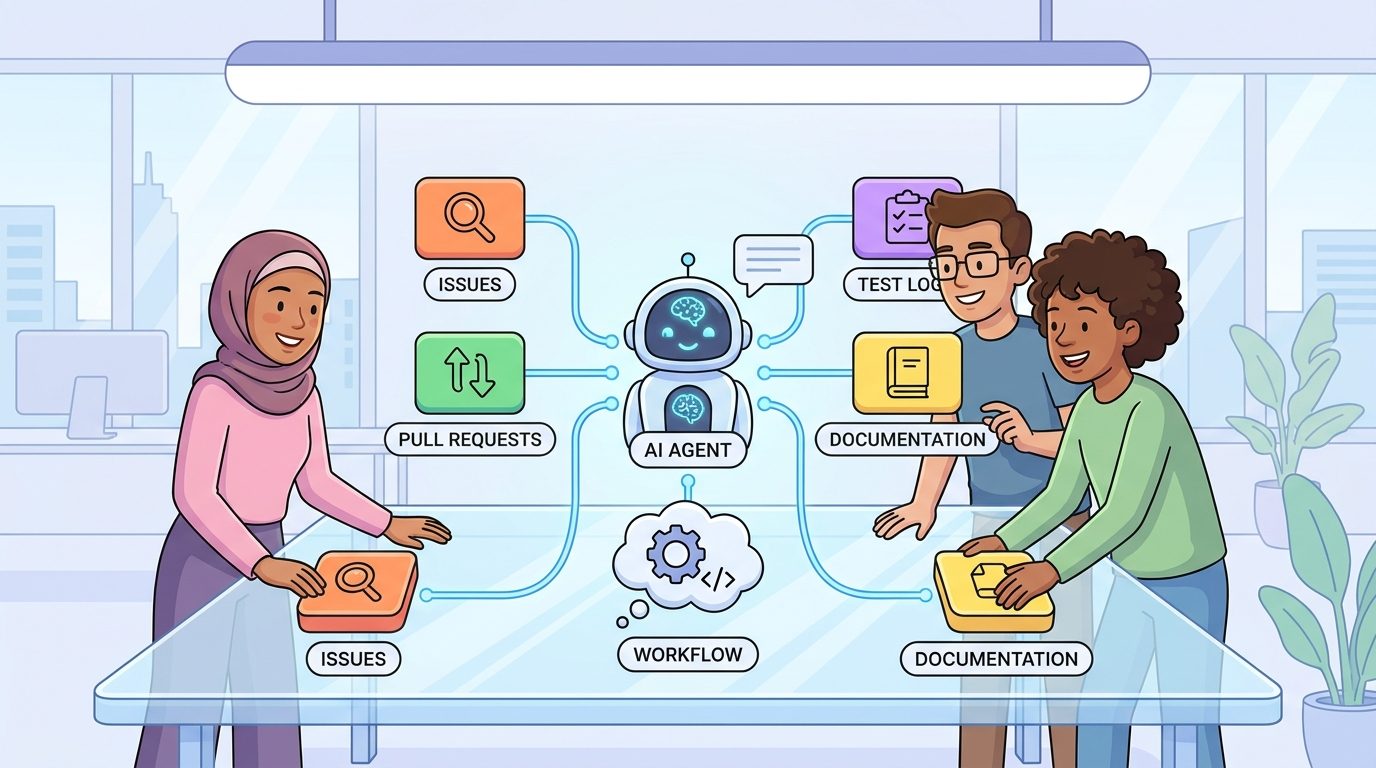
GitHub Copilot MCP tools are approved connections that let Copilot agent mode work with context outside a single chat prompt. Instead of pasting logs, issue descriptions, pull request notes, test failures, and documentation snippets by hand, a developer can expose selected tools through the Model Context Protocol so the agent can inspect relevant information and act more intelligently.
The key phrase is approved connections. MCP should not be treated as a magic permission slip for an AI agent to roam through every system your team owns. It is better understood as a tool boundary: you decide which servers are available, what each server can see, and which actions still require human review. Used well, MCP gives Copilot better context and reduces copy-paste work. Used carelessly, it can make an agent noisy, overconfident, expensive, and too close to sensitive systems.
This topic deserves a focused guide because official docs usually explain where to put configuration, while developers are really asking a more practical question: “Which tools should I connect, and how do I keep the agent useful without giving it too much control?” That is the gap this pillar article fills.
What Are MCP Tools in GitHub Copilot?
MCP stands for Model Context Protocol. It is an open protocol for connecting AI assistants to external context and tools in a consistent way. In the Copilot world, MCP matters because agent mode is not just answering a question. Agent mode can plan, inspect files, make edits, respond to errors, and iterate toward a goal. The better the agent understands your project state, the better chance it has of producing useful work.
Without MCP, a developer often has to manually paste details into chat: a failed build log, a GitHub issue, a database schema excerpt, an API contract, or a pull request comment. That works for small tasks, but it becomes tedious and incomplete when the task spans several systems. MCP provides a cleaner pattern. A server exposes a specific resource or action. Copilot sees that tool in the approved tools list. The agent can then request relevant context during a task, rather than relying only on whatever the developer remembered to paste.
Microsoft’s Visual Studio changelog described MCP server support as a way for Copilot to access context and data from the development environment, including logs, test results, pull requests, and issues. That framing is important. MCP is not only for exotic enterprise automation. It is directly useful for everyday development: debugging failed tests, preparing a pull request, summarizing issue history, checking release notes, and keeping code changes aligned with documentation.
A helpful mental model is to separate three layers. First, there is the model, such as the Copilot model selected in your IDE. Second, there is the agent, which plans and performs a multi-step coding task. Third, there are tools, exposed through MCP, that let the agent fetch information or perform limited actions. The quality of the final result depends on all three, but the tool layer is where teams have the most safety responsibility.
Why Copilot MCP Tools Matter for Developers
Copilot started as an autocomplete experience, then expanded into chat, code review, agent mode, and cloud-connected workflows. Each expansion changed what developers expect from the product. Autocomplete helps with a line of code. Chat helps with a question. Agent mode helps with a goal. MCP tools help the agent understand the systems around that goal.
That difference sounds small until you try a real task. Imagine asking Copilot to fix a failing integration test. If the agent only sees the current file, it may guess. If it can also read the test failure, inspect related files, understand the linked issue, and compare the intended API behavior, it can make a more targeted change. The task becomes less like “generate code from a prompt” and more like “assist with a real development workflow.”
There is also a productivity reason. Developers already spend a surprising amount of time moving context between tools: copying stack traces from terminal output, pasting issue requirements from GitHub, summarizing pull request comments, and explaining project conventions repeatedly. MCP can reduce that context tax. It allows the agent to fetch the context when needed, which can make prompts shorter and reduce the temptation to paste huge unstructured blobs into chat.
But there is a tradeoff. More connected context can increase complexity. A tool-enabled agent may use more tokens, touch more files, or ask for more iterations. That connects this topic to AIFeatureDrop’s existing coverage of GitHub Copilot AI Credits and how to reduce Copilot AI credit usage. Good MCP workflows are not only safer; they are usually cheaper because they are scoped and intentional.
How the Copilot MCP Setup Model Works
The exact setup differs by IDE and product surface, but the working model is consistent: you define MCP servers, Copilot detects them, and the agent can use them when you are in a tool-enabled agent workflow. Microsoft’s Visual Studio documentation points to an mcp.json style configuration and notes that Visual Studio can detect MCP configurations, including some project configurations used by VS Code. In practice, that means teams should treat MCP configuration as part of their development environment, not as a random personal experiment hidden on one laptop.
A good configuration starts with a clear inventory. List the systems the agent might need: repository files, issue tracker, pull requests, test results, build logs, documentation, package metadata, local scripts, or internal APIs. Then separate them into read-only, write-capable, and sensitive categories. A read-only documentation server is lower risk than a server that can modify issues, open pull requests, trigger deployments, or query production data. This sounds obvious, but many AI tool accidents start because teams blur “helpful context” and “operational power.”
For a first setup, choose one or two low-risk tools. A documentation server and a test-output context tool are usually safer than a broad tool that can access every system. Run a small task: explain a test failure, summarize a linked issue, or propose a change plan. Watch which tools the agent asks to use. If the agent repeatedly calls irrelevant tools, your scope is too broad. If it cannot find key context, your tool description or project instructions may be too weak.
| Setup choice | Safer default | Risky default |
|---|---|---|
| Tool scope | Expose only the repository, docs, logs, or issue data needed for the current task. | Expose every connected system because the agent “might need it.” |
| Permissions | Start read-only and require approval for write actions. | Allow create, update, delete, or deploy actions before reviewing behavior. |
| Secrets | Block secrets, tokens, private customer data, and production credentials from tool responses. | Let tools return raw environment variables, logs, or private records. |
| Review | Inspect plan, diff, tests, and tool calls before merging. | Let the agent run several iterations and merge from confidence alone. |
| Ownership | Version and document approved MCP configurations for the team. | Depend on undocumented local setups that only one developer understands. |
If your team already uses project instruction files, reusable prompts, or agent skill documents, MCP should connect to that system rather than replace it. For example, our OpenAI Codex Skills guide explains how reusable instructions reduce repeated prompting. The same principle applies here: MCP supplies context and tools, while project instructions define how the agent should behave with them.
Safe Permission Rules for Copilot MCP Tools
Safety is the most important part of this guide because MCP makes AI coding agents feel more capable. Capability is useful, but it also increases the cost of a bad instruction. A normal chat answer can be wrong in text. A connected agent can make wrong edits, call the wrong tool, summarize stale data, or expose information that did not belong in the prompt.
The first rule is to keep secrets out of tool responses. Do not expose raw tokens, private keys, customer records, unreleased financial information, or production credentials through MCP. If a log source may contain secrets, sanitize it before the agent sees it. If a tool connects to an issue tracker with private customer data, consider a filtered view rather than full access. Copilot does not need everything to solve most development tasks.
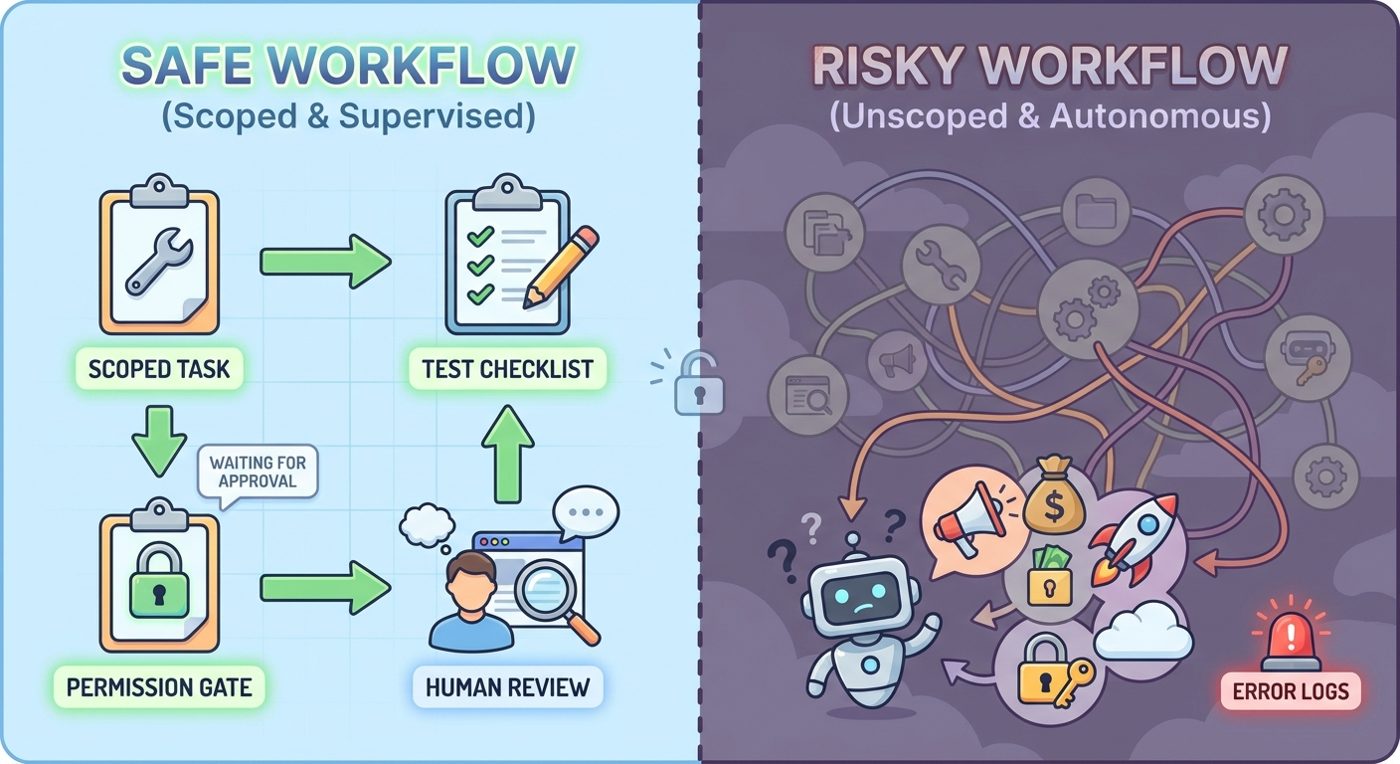
The second rule is to separate read and write actions. Read tools help the agent understand. Write tools change the world. Many teams can get most of MCP’s value from read-only access to docs, issues, tests, and pull requests. Write actions should be narrow, reversible, and visible. For example, “draft a pull request description” is safer than “merge the pull request.” “Create a branch with proposed changes” is safer than “push directly to main.”
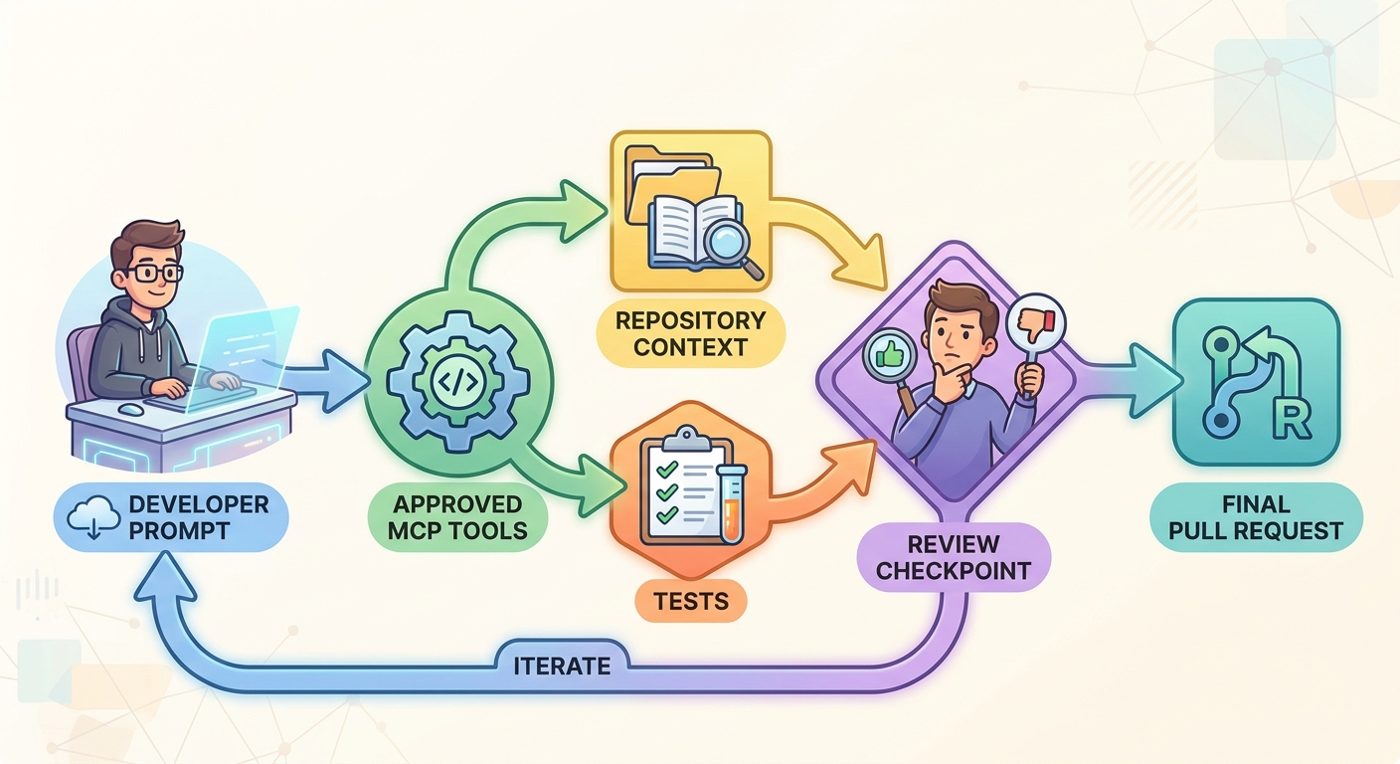
The third rule is to require review checkpoints. Before the agent edits files, ask for a plan. After the agent edits files, inspect the diff. Before accepting a fix, run tests. Before publishing or deploying, require human approval. This mirrors the permissions mindset in our Claude Code permission rules guide: an AI coding assistant is most useful when it has enough access to help, not enough access to surprise you.
Good MCP permission habits
- Use read-only tools first.
- Limit tools to the task and repository.
- Sanitize logs and issue data before model access.
- Require approval for writes, network actions, and external changes.
- Keep tool descriptions clear so the agent knows when not to use them.
- Review tool calls as part of code review for important changes.
Risky MCP habits
- Connecting every available server by default.
- Letting tools expose secrets or private customer data.
- Allowing write actions without a human checkpoint.
- Running vague prompts against large repositories.
- Trusting agent summaries without checking source context.
- Ignoring cost and usage impact from repeated agent loops.
Practical GitHub Copilot MCP Workflows
The best MCP workflows are boring in the right way: they are scoped, repeatable, and easy to verify. Below are practical examples that fit common developer work without turning the agent into an uncontrolled automation layer.
Workflow 1: Fix a failing test with output context
Start with the failing test name, the error message, and the files most likely involved. Let an MCP tool provide test output or build logs. Ask Copilot for a plan before edits: what failed, what files it wants to inspect, and what change it expects to make. After the edit, run the test again and require the agent to explain the diff. This is one of the highest-value uses because the agent has a narrow target and a measurable success condition.
Workflow 2: Turn a GitHub issue into a small implementation plan
Connect issue context and repository docs, but do not immediately ask for code. First ask Copilot to restate the acceptance criteria, identify ambiguous requirements, and propose a file-level plan. This prevents the agent from prematurely coding around a misunderstood issue. If the issue is too broad, split it before writing code.
Workflow 3: Prepare a pull request summary
Copilot can use the diff, linked issue, test output, and internal release note template to draft a pull request description. This is lower risk than asking the agent to merge or approve its own work. The developer still checks the summary, removes anything speculative, and ensures the testing notes are truthful.
Workflow 4: Debug build logs without pasting everything
Build logs are often too long for clean chat prompts. An MCP tool can expose the relevant section, while the developer asks Copilot to identify the first meaningful error, not every downstream failure. This reduces context noise and improves the odds of a precise fix.
Workflow 5: Documentation updates after a feature change
After code changes are reviewed, ask Copilot to inspect the changed files and suggest documentation updates. This can work well with a docs MCP server or repository documentation context. Keep the write action separate: suggestions first, edits second, final human review last.
Workflow 6: Safer dependency migration
For a library upgrade, expose package metadata, migration notes, and failing tests. Ask for a migration checklist, then apply changes in small batches. Do not ask the agent to “upgrade everything” across the repository in one run. MCP helps most when the task has a defined source of truth and an obvious verification path.
Limitations and Common Mistakes
MCP tools do not make Copilot omniscient. They only expose the context and actions your servers provide. If a tool returns stale data, vague summaries, or too much irrelevant information, the agent can still make poor decisions. Tool quality matters as much as model quality.
A common mistake is over-connecting. Developers see that Copilot can use tools and immediately connect issue trackers, docs, logs, package managers, browser tools, internal APIs, and deployment systems. That may feel powerful, but it creates a noisy action space. The agent has more choices, more context to process, and more chances to chase the wrong lead. Start narrow, observe behavior, then expand.
Another mistake is skipping project conventions. MCP can fetch context, but it does not automatically know how your team wants commits structured, tests run, errors handled, or pull requests written. Put those conventions in project instructions, repository docs, or reusable agent guidance. Then use MCP tools to provide live context. The combination is stronger than either piece alone.
Cost is also a limitation. Tool-enabled agent work can involve longer context, multiple tool calls, and repeated edits. If your organization tracks Copilot usage, monitor MCP-heavy workflows. The goal is not to avoid agent mode; the goal is to spend it on work where the saved developer time is obvious. This is especially important for teams already concerned about AI credit consumption or usage-based billing.
Finally, remember that agents can produce persuasive explanations for wrong changes. A clean summary does not prove the code is correct. Tests, diff review, security checks, and source verification still matter. MCP should reduce busywork, not reduce professional judgment.
Copilot Chat Context vs Agent Mode vs MCP Tools
Developers often mix these terms together, so here is the simplest comparison.
| Mode | Best for | Risk level | Recommended habit |
|---|---|---|---|
| Inline completion | Small code suggestions while typing. | Low, because changes are local and visible. | Accept selectively and keep tests running. |
| Copilot Chat | Questions, explanations, focused edits, and lightweight debugging. | Low to medium depending on context size. | Paste only relevant context and ask for concise reasoning. |
| Agent mode | Multi-step goals across files. | Medium, because the agent plans and edits more autonomously. | Ask for a plan, limit scope, inspect diffs, and verify tests. |
| Agent mode with MCP tools | Multi-step goals that need issues, PRs, logs, docs, or external context. | Medium to high depending on tool permissions. | Use approved tools, read-only defaults, secrets filtering, and human checkpoints. |
If you are evaluating other tool-enabled agent systems, compare this with our GitHub Copilot browser tools guide. Browser tools and MCP tools solve related but different problems. Browser tools help an agent inspect web app behavior. MCP tools connect the agent to structured systems and development context. Many teams will eventually use both, but they should not enable both everywhere by default.
Copilot MCP Tools Checklist Before You Enable a Server
- Define the job: What task will this server help Copilot perform better?
- Choose the minimum scope: Which repository, docs, logs, issues, or PRs are actually needed?
- Start read-only: Can the tool provide value without changing external systems?
- Block secrets: Are tokens, keys, customer data, and production credentials filtered?
- Name tools clearly: Will the agent understand when to use each tool and when not to?
- Add project rules: Have you documented coding standards, test commands, and review expectations?
- Set checkpoints: Who reviews the plan, diff, tests, and any write actions?
- Monitor usage: Will you check Copilot consumption if MCP-heavy workflows become common?
- Document ownership: Who maintains the MCP configuration when systems change?
- Practice rollback: If the agent makes a bad change, can you revert quickly?
This checklist may feel conservative, but it helps keep MCP boring and productive. The highest-performing AI coding workflows are rarely the most autonomous ones. They are the workflows where the human sets a clear goal, the agent gathers the right context, and the team verifies the result before trust expands.
Keep Learning on AI Feature Drop
- GitHub Copilot AI Credits Explained — understand the cost side of heavier Copilot workflows.
- How to Reduce GitHub Copilot AI Credits — practical habits for controlling agent usage.
- GitHub Copilot Browser Tools Guide — related guidance for web app testing with agents.
- OpenAI Codex Skills Guide — reusable instruction patterns for agent workflows.
- Claude Code Permission Rules Explained — safety principles that transfer well to MCP-enabled agents.
Sources and References
- GitHub Blog Changelog: Visual Studio June release with agent mode and MCP tools support
- Microsoft Learn: Copilot agent mode in Visual Studio
- Microsoft Learn: MCP servers in Visual Studio
- GitHub Docs: GitHub Copilot documentation
- Model Context Protocol documentation
Product behavior, model availability, and plan details can change. Verify your active IDE version, Copilot plan, organization policy, and MCP server documentation before connecting sensitive tools.
FAQ: GitHub Copilot MCP Tools
What are GitHub Copilot MCP tools?
They are approved tool connections exposed through the Model Context Protocol so Copilot agent mode can access selected context such as logs, tests, issues, pull requests, or documentation during a coding task.
Do MCP tools work only in agent mode?
In Visual Studio’s described workflow, MCP integrations are tied to agent mode because the agent needs tool access to plan and act across multiple steps. Check your IDE documentation for the exact surface you use.
Is MCP safe for private repositories?
It can be safe when configured carefully, but it is not automatically safe. Use read-only defaults, filter secrets, limit scope, and require human review for write actions or sensitive systems.
What should go in an mcp.json file?
An MCP configuration should define only the servers and tool access needed for your development workflow. Keep it documented, scoped, and reviewed like other project configuration.
Which MCP tools should developers enable first?
Start with low-risk read-only context: project documentation, test output, build logs, issue details, and pull request metadata. Add write-capable tools only after review rules are clear.
Can MCP tools increase Copilot usage or costs?
Yes, tool-enabled agent tasks can use more context and more iterations. Monitor usage, scope tasks tightly, and reserve broad agent workflows for work that saves meaningful developer time.
How is this different from pasting context into chat?
Pasting context is manual and can be stale or incomplete. MCP lets approved tools provide structured context when the agent needs it, which can reduce copy-paste and improve task accuracy.
Should Copilot be allowed to write through MCP tools?
Only cautiously. Read access should come first. Write actions should be narrow, reversible, logged, and reviewed by a human before they affect important systems.
Post a Comment