
Microsoft 365 Copilot Search Chat Guide: Keep Work Context, Check Sources, and Protect Data
Microsoft 365 Copilot Search Chat puts a conversational workspace beside enterprise search results. Used well, it lets you move from finding a file, email, meeting, or connected record to asking a focused follow-up—without treating a generated answer as a substitute for the underlying evidence.

Microsoft 365 Copilot Search Chat: the quick answer
Microsoft 365 Copilot Search Chat is most useful when search finds the evidence and Chat helps you understand, compare, or act on it while that search context remains in view. Microsoft’s release notes say that Copilot Chat is available in a right-hand pane during Copilot Search for Microsoft 365 Copilot users with the AI SKU. The August 25 release is designed to let people browse universal search and engage Chat without changing pages or losing context.
The practical rule is simple: use Search to locate the original items; use the side pane to ask a bounded question about what you found; then open and inspect the cited result before you reuse an answer in a decision, customer message, status update, or policy document. The layout reduces navigation friction. It does not remove the need for judgment.
This guide separates product behavior from safe habits. It explains why the new pane matters, how to keep a useful chain of evidence, how the Work IQ choice changes the kind of context you may be asking Chat to use, and what employees and administrators should verify when the experience is unavailable or unexpected.
What changed in Copilot Search and why the side pane matters
Microsoft describes Copilot Search as an AI-powered universal search experience for an organization. It is available as a dedicated Search module in the Microsoft Copilot app and can find relevant material across Microsoft 365 and, where configured, connected sources. Its documentation frames Search as the place to find results and Chat as the place for deeper exploration or follow-up work.
The August 25 release note makes that handoff more direct. For users with the qualifying Microsoft 365 Copilot AI SKU, a Chat pane appears on the right while they are using Copilot Search on Windows and the web. Rather than navigating away from a result set, a user can engage with Chat alongside it. That matters because the evidence is no longer hidden behind a page switch: you can see the search task, the result list, and the conversational follow-up in one working area.
That is a modest interface change with an important workflow implication. People often lose track of why they opened Chat, which source supported a claim, or whether a summary came from a current document rather than an older draft. Keeping results visible makes it easier to ask narrow questions such as “compare the two latest project plans,” “show the source that states the approval date,” or “which meeting note introduced this risk?” It also makes it easier to notice when a cited item does not actually support the conclusion.
| Use the surface for | Best question style | What to verify before acting |
|---|---|---|
| Search | Find a named file, person, phrase, email, meeting, or record. | Title, owner, date, location, and whether the item is the intended version. |
| Copilot Answer in Search | Get a concise orientation to a specific natural-language question. | References, scope, and whether web or connected sources were involved. |
| Chat side pane | Compare, explain, draft follow-ups, or refine a question while results stay visible. | Every material statement, especially dates, commitments, amounts, and decisions. |
| Original item | Read the document, message, meeting record, or business system entry. | Authority, completeness, current status, permissions, and audience suitability. |
Microsoft says Copilot Search can work across Microsoft 365 and third-party data sources, with access shaped by the organization’s configuration. That breadth is useful, but it is also why precise search language helps. “Find the final vendor renewal decision in the account team’s materials” is easier to inspect than “What are we doing with the vendor?” The first request gives you an evidence trail; the second invites a broad synthesis that may merge material with different owners, dates, or purposes.
A repeatable Search-to-Chat workflow that preserves context
The durable way to use this feature is not to begin with a sweeping prompt. Start with an information need that can be checked. The following workflow works for project status, policy research, account preparation, handover notes, and internal investigation. It is deliberately conservative: it favors traceability over the fastest-looking answer.
- State the decision or task. Write down what you need to know and what you will do with it. For example: “Prepare a status note for the launch meeting” or “find the approved retention rule for this data set.” This prevents Chat from becoming a general brainstorming session when you need evidence.
- Search for primary material first. Use names, dates, project terms, and document types. Start with the owner’s latest update, the approved brief, the relevant meeting record, or the authoritative system entry. Search can interpret natural language, but exact terms are valuable when a title or identifier matters.
- Inspect the result list before asking for synthesis. Look for duplicates, stale files, similarly named projects, and unexpected repositories. If the list is messy, refine the search instead of asking Chat to guess which result is right.
- Open the Chat pane and ask a constrained follow-up. Mention the desired output and the evidence standard. Example: “Using the results currently shown, list the three stated launch blockers, identify the source and owner for each, and flag anything that is not explicit.”
- Ask for references, not confidence. A good follow-up is “Which result supports that sentence?” or “Quote the relevant passage and link me to the item.” Avoid treating a fluent answer as proof that the retrieval was complete.
- Open the material claims. Confirm each claim in the original document, email, meeting note, or connected system. Check whether the source is final, whether it is within the relevant time range, and whether it is authoritative for the audience.
- Separate fact, interpretation, and draft language. Facts should have a source. Interpretations should be labeled as your assessment. Draft text should be reviewed for tone, confidentiality, and missing context before it leaves the team.
This approach also improves prompts. Once you have narrowed the result set, the right-side pane can help you compare alternatives or produce a usable structure without asking it to search the entire organization from scratch. For a related look at extending Copilot workflows, see our guide to Copilot Cowork skills and plugins; the same discipline applies when a workflow has more tools and more possible data paths.

How to check Copilot Search sources before you rely on an answer
Search-generated answers and Chat responses can be a useful orientation layer, but the original material remains the evidence. Microsoft’s Copilot Search documentation says that Copilot Answers may include references and information from external sources, including optional connected cloud-backed services and the web. It also says their grounding is consistent with the grounding enabled for Copilot Chat. In practice, that means a source check has two jobs: establish what supports the statement and understand which environment supplied it.
Use a three-part source check
For a status request, do not stop at “the answer looks plausible.” Open the references and check whether the answer combined a last-week planning note with a newer decision. For an HR, legal, security, or finance question, go further: find the governing policy or approved counsel guidance and confirm it applies to your situation. Copilot can help locate and summarize; it should not become the unofficial policy owner.
It is especially helpful to ask Chat to show uncertainty. Try prompts such as “What is explicitly stated, and what are you inferring?”; “Which result has the latest confirmed date?”; “List conflicting values with their sources”; or “Do not draft a conclusion until you identify the authoritative record.” These questions turn a vague answer into an inspectable research task.
Keep the evidence trail in the work product. A short status note can say “Based on the approved plan and the latest steering meeting notes” and link to them where appropriate. This is more useful than copying a long Chat answer because it lets the next reader verify the same material without reverse-engineering a conversation.
Work IQ in unified chat: choose work context deliberately
Microsoft’s release information also introduces a Work IQ toggle in unified chat. The feature is worth understanding as a context choice rather than a magic accuracy switch. Work IQ is Microsoft’s term for the intelligence layer that helps Copilot use organizational context. When a chat experience offers a Work IQ control, users should pause before selecting it and ask what kind of answer they need: one grounded in their work context, one based on other enabled grounding, or a general drafting and reasoning response.
The safe default is intent-led. If you are asking about a specific workstream, need to locate materials you are already entitled to access, or want help connecting meeting, email, and document context, work grounding may be appropriate. If you are polishing generic prose, developing a public-facing outline, or reasoning about information that does not require internal context, do not add work context simply because it is available.
Microsoft’s privacy documentation explains that Copilot can access content and context through Microsoft Graph, including organizational material that a user has permission to access. It also says Copilot only surfaces organizational data to which the individual user has at least view permissions. That is an important boundary: Copilot is not a permission bypass. But it is not a reason to ignore existing oversharing. If a user already has access to a broadly shared folder, poor permissions in that folder can still affect what is discoverable.
| Question you are asking | Context choice to consider | Safe habit |
|---|---|---|
| Where is the approved launch plan? | Work context is likely relevant. | Check the returned document owner, version, and access level. |
| Summarize the discussion in my recent meeting. | Work context may be necessary. | Verify attendance, date, and whether the meeting record is complete. |
| Improve the tone of this public announcement. | Work context may not be needed. | Paste only the approved draft and review the output before publishing. |
| What is our policy for sensitive customer data? | Work context can help locate policy. | Read the official policy; do not rely on a summary for a compliance decision. |
| Compare vendor options from multiple internal sources. | Work context may help retrieve evidence. | Check access, recency, procurement ownership, and confidentiality before sharing. |
For administrators, this is a training opportunity. Explain the difference between “Copilot can help retrieve what I can access” and “this is safe to forward anywhere.” An answer may contain sensitive business context even when it was retrieved correctly. The intended recipient, classification, contractual restrictions, and meeting confidentiality still matter after the answer appears.
Protect data by fixing permissions, prompts, and sharing habits
Microsoft says prompts, responses, and data accessed through Microsoft Graph are not used to train foundation LLMs used by Microsoft Copilot. It also states that Copilot Search follows the same data protection, privacy, and security configurations as Microsoft Copilot. These are meaningful platform commitments, but they do not eliminate day-to-day data governance responsibilities. Secure AI use begins with correctly governed source content and ends with careful handling of the output.
Start with the permissions you already have
Copilot respects the access model; it does not create a separate permission universe. That makes existing Microsoft 365 housekeeping more visible. Review SharePoint and Teams sharing, reduce broad “everyone” access where it is not intended, confirm external sharing settings, and assign clear owners to high-value repositories. If sensitive material is discoverable because a group was granted access too broadly, the retrieval is behaving consistently with those permissions—not revealing a new flaw in Chat.
Keep prompts proportional to the task
A concise prompt can be safer and easier to audit than a broad request. Ask for a specific policy name, account, project, date range, or artifact. Do not paste confidential material into a generic task when a reference to the approved internal file will do. Avoid asking Chat to assemble a sweeping profile of a person or customer unless your role, policy, and business purpose clearly support it.
Handle the output as work content
Generated text can contain confidential details, mistaken joins between sources, or language that is too strong for a particular audience. Before forwarding it, check the recipient list, classification, and source links. For sensitive scenarios, draft in a restricted channel, have an accountable reviewer confirm the facts, and send the underlying documentation rather than a detached summary when the reader needs to make a decision.
Know when connected sources change the answer
Microsoft notes that Copilot Search can use optional connected cloud-backed services and the web where enabled. When an answer is important, determine whether it came from organizational content, an external connector, web grounding, or a mixture. An external page may be current but not authoritative for internal policy; an internal document may be authoritative but out of date. The right source depends on the question.
Good habits to standardize
- Search for a primary source before requesting a conclusion.
- Ask for sources, dates, owners, and uncertainty.
- Open material citations before acting on consequential claims.
- Use Work IQ only when work context is truly relevant.
- Review sharing permissions and source ownership regularly.
Habits to avoid
- Assuming an answer is complete because it sounds precise.
- Forwarding generated summaries without their evidence trail.
- Using broad prompts where a named file or period is enough.
- Confusing existing access with permission to redistribute information.
- Treating Copilot as an authority for policy, legal, or financial decisions.
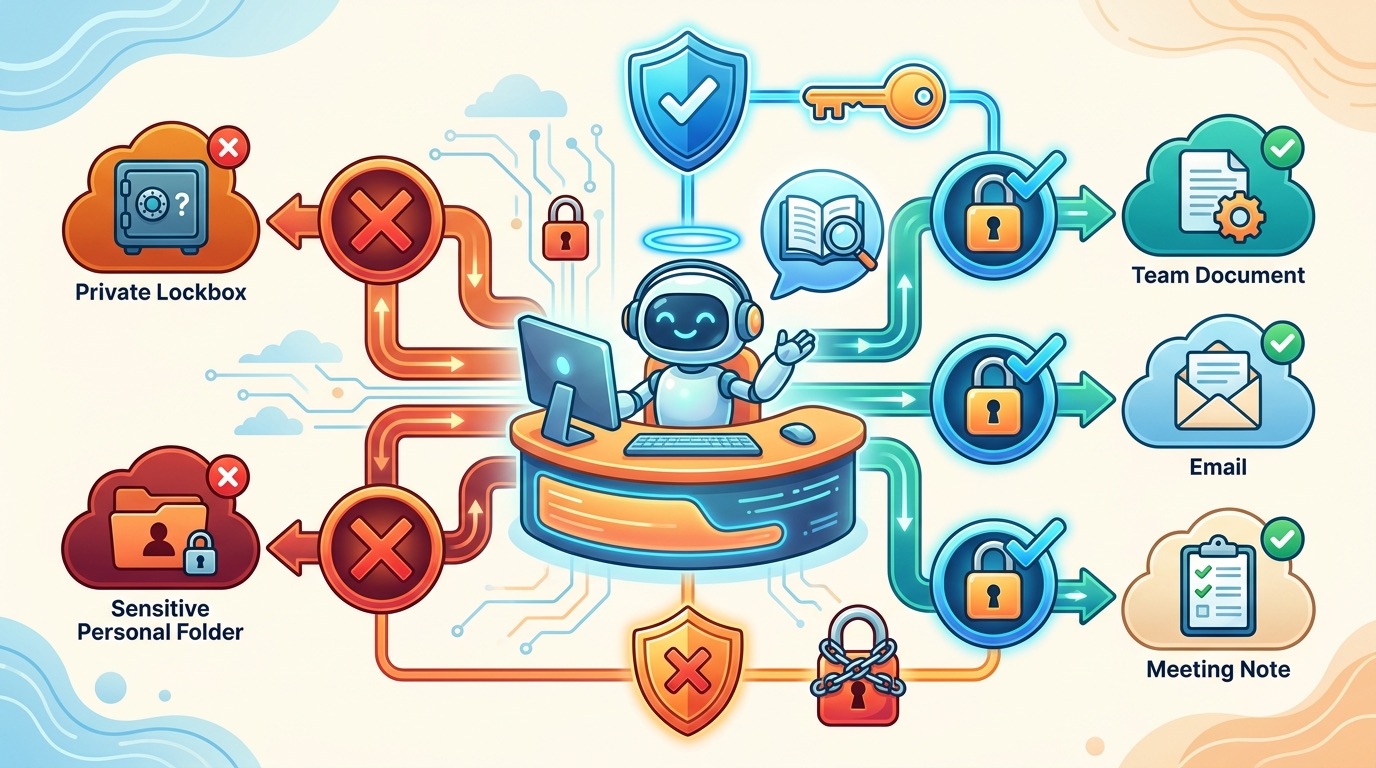
Quick check: should this question use work context?
This small decision helper is not a security control or a substitute for your organization’s policy. It is a prompt to slow down before adding work context or sharing a generated answer.
Why the Chat side pane may be missing or behave differently
Do not assume the feature is absent because you missed a button. Microsoft uses a safe deployment model for Microsoft 365 Copilot features, gradually rolling them out to a subset of users within a tenant before broader expansion. The August 25 note specifically associates the side-pane experience with Microsoft 365 Copilot users who have the AI SKU. Availability can therefore depend on licensing, account type, rollout state, and the surface you are using.
- Confirm the location. Start in Copilot Search inside the Microsoft Copilot app. The release note describes the side pane during Search, rather than a universal Chat layout in every Microsoft 365 surface.
- Check the account. Use the intended work or school account. Personal and work contexts can have different entitlements and available data.
- Check eligibility with the admin. The qualifying Microsoft 365 Copilot AI SKU is a licensing requirement in the release note. An administrator can verify assignment without guessing from the interface.
- Allow for rollout. A release note is not a guarantee that every tenant sees a feature at the same moment. Ask the admin to check the organization’s rollout and service communications.
- Review application and browser state. Sign out and back in to the correct account, refresh the app or web page, and make sure a browser extension or stale session is not altering the experience.
- Check data access separately. Seeing the pane does not mean every expected item will be retrievable. Confirm that the source itself is in scope, correctly shared, and supported by the organization’s configuration.
When reporting a problem, include the platform, the account type, the exact Search query category, whether the user has the qualifying license, and a screenshot that does not expose sensitive content. This gives support or the Microsoft 365 admin enough evidence to distinguish rollout and licensing issues from permissions or content-discovery issues.
The same source-first mindset applies beyond Microsoft 365. If you are building workflows that let AI tools call external systems, our GitHub Copilot MCP tools and agent mode guide is a useful companion for thinking about tool boundaries, approval, and review.
What employees and admins should agree on before scaling the workflow
Employees need a simple operating standard: search, verify, and share responsibly. Administrators need a matching governance standard: license intentionally, maintain permissions, understand connectors and grounding, train people on context choices, and provide a route for reporting unexpected results. Neither group can solve the whole problem alone.
A practical employee standard might require a source link for material claims in project updates, a human check before external use, and extra review for personal, financial, security, legal, or regulated content. A practical admin standard might include routine access reviews, clarity on which connectors are enabled, guidance for web grounding, and training that explains the difference between retrieval permission and redistribution permission.
Microsoft’s documentation is the place to validate current product behavior, not a blog post or a remembered interface. The product changes quickly. Before setting a formal policy, consult the current Copilot Search overview, privacy documentation, release notes, and the documentation for the organization’s own configuration. That keeps governance tied to evidence rather than assumptions.
Final recommendation: keep the evidence beside the answer
The value of the Copilot Search Chat side pane is not simply that it saves a page switch. Its real value is that it can keep the question, the results, and the follow-up conversation close enough together for a user to inspect the path from evidence to answer. Use that proximity well: begin with primary material, prompt for sources and uncertainty, open the cited items, and share a conclusion with its evidence.
Work IQ and organizational grounding can make Chat more relevant for real work, but relevance is not permission to be careless. Use the minimum context needed, respect your organization’s access and sharing rules, and keep accountable owners involved in consequential decisions. When the side pane is missing, verify eligibility and rollout before assuming a fault. This is the practical way to gain speed without losing control.
Official Microsoft sources
- Microsoft Learn: Microsoft 365 Copilot release notes — the August 25 entry describes Copilot Chat in the right-hand pane during Copilot Search for users with the AI SKU.
- Microsoft Learn: Microsoft Copilot Search overview — explains Search, Chat handoffs, access, answer types, connectors, and grounding.
- Microsoft Learn: Data, privacy, and security for Microsoft Copilot — covers Graph-based organizational context, permission trimming, and foundation-model training commitments.
- Microsoft Learn: Microsoft 365 Copilot documentation — documentation hub for current product guidance.
- Microsoft Learn: Microsoft 365 Copilot connectors gallery — reference for connected data sources.
- Microsoft Learn: Privacy and protections in Microsoft Copilot — information on web search grounding and protections.
Feature availability, licensing, connected sources, and tenant configuration can change. Confirm the current Microsoft documentation and your organization’s policies before relying on a workflow for consequential work.
FAQ: Microsoft 365 Copilot Search Chat
What is Copilot Chat in Copilot Search?
It is a Chat experience available in a right-hand pane while using Copilot Search in the Microsoft Copilot app. Microsoft says the layout lets eligible users engage Chat while browsing universal search without changing pages or losing context.
Who can use the Copilot Search Chat side pane?
Microsoft’s August 25 release note ties the experience to Microsoft 365 Copilot users with the AI SKU. Rollout can be gradual, so confirm your account, platform, licensing, and tenant status with your Microsoft 365 administrator.
Does Copilot Search let Chat see everything in my organization?
No. Microsoft says Copilot only surfaces organizational data an individual user has at least view permissions to access. Results can also depend on the organization’s configured sources and connectors.
Should I trust a Copilot Search answer without opening the sources?
No. Use it as a starting point. Open cited material and check relevance, authority, currency, scope, and whether a newer record supersedes it before relying on consequential claims.
What is the Work IQ toggle in unified chat?
It is a control associated with work-context use in unified chat. Use it deliberately when organizational context is necessary for the task, and avoid adding work context when a generic drafting or reasoning task does not need it.
Are prompts and work data used to train Copilot foundation models?
Microsoft states that prompts, responses, and data accessed through Microsoft Graph are not used to train the foundation LLMs used by Microsoft Copilot. Consult Microsoft’s current privacy documentation for the full scope and your organization’s controls.
Why do I see an unexpected result in Copilot Search?
First confirm that the item is one you can access and that the source is configured for Search. Then check existing sharing permissions, ownership, source recency, and any connected-service setup with the appropriate administrator.
Can I send a Copilot-generated summary to an external recipient?
Only after you verify the source material, apply your organization’s classification and sharing rules, and confirm the summary is appropriate for that audience. Correct retrieval does not automatically authorize redistribution.
Post a Comment