
Gemini Connected Apps on Android: Set Up Useful Integrations Without Giving Away Too Much
Connected Apps can make Gemini genuinely useful on an Android phone: finding a detail in Gmail, creating a calendar event, calling someone, controlling a home device, or using a supported service in the right moment. They also change what information Gemini can use. This guide shows how to make careful, reversible choices.
Quick answer: should you turn on Gemini Connected Apps?
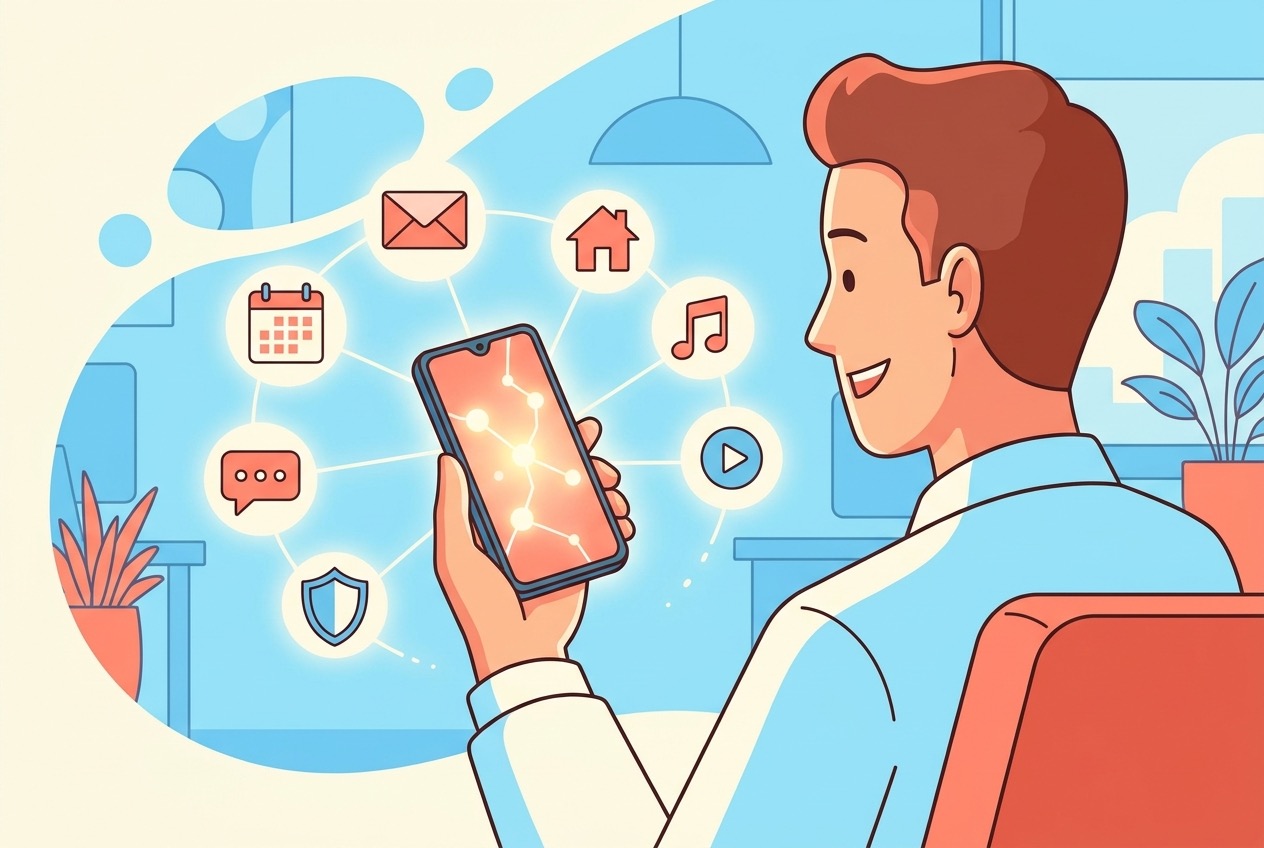
Yes—selectively. Gemini Connected Apps are most useful when a request needs one clear service you already use. You might ask Gemini to find a travel detail from Gmail, create a calendar event, send a message, play music, or help operate a supported Google Home device. The important word is selectively: turn on an app because you can name a specific benefit, not because a long list of toggles looks impressive.
Google describes Connected Apps as services Gemini can use to complete a request or provide a more helpful response. With permission, some can also support actions in another app. That is different from ordinary web search. A prompt that uses your own mail, calendar, contacts, photos, or workplace files has a different information boundary than a question answered from public web results. Treat the connection screen as a product decision, not a harmless setup chore.
This is a focused follow-up to our guide on switching from Google Assistant to Gemini on Android without losing your routine. That article helps you decide whether Gemini should be your phone’s primary assistant. This one answers the next, narrower question: once Gemini is on your phone, how do you connect services without turning a convenient assistant into an over-broad data shortcut?
Availability is not identical for everyone. Google says the list of Connected Apps and supported actions can vary by account type, country, language, device, and Gemini surface. A missing option does not prove that your phone is broken. It may mean the app is not offered to your account, the relevant setting is off, or an organization controls your work account.
What Gemini Connected Apps can do—and what they cannot
Connected Apps is the current name you may see where older articles and videos say “Gemini extensions.” The name matters less than the behavior: Gemini can use a supported app or service in a request when that app is available to your account. In the Gemini mobile app, the most direct way to specify a service is to type @ and choose an app. If it is not connected, Gemini can ask for permission or guide you through a connection.
Google’s Android help lists examples across several categories. For productivity, Gemini can help summarize Gmail, create events in Calendar or supported third-party apps, and search content in available productivity tools. For everyday tasks, it can work with supported media services, calls and messages, Google Home, and Android device assistance. The exact app does not automatically receive unlimited capability merely because it appears in a list; supported and unsupported actions are shown on that app’s detail page in Connected Apps settings.
| Goal | Useful request shape | Boundary to check first |
|---|---|---|
| Find a detail | “@Gmail find the email about the dentist appointment and tell me the date.” | Confirm the right Google Account is signed in; verify the cited source before acting. |
| Create a plan | “@Calendar add a 30-minute block tomorrow titled project review.” | Read the confirmation and calendar before assuming it was added. |
| Contact someone | “Use my default messages app to draft a note to Sam.” | Check recipient, wording, attachment and send confirmation; never let a voice assistant guess sensitive content. |
| Control a device | “Turn off the kitchen lights.” | Make sure the device is correctly named and separately controllable in Google Home. |
| Get workplace context | “@Google Drive summarize the project brief named launch plan.” | Use the correct work account and inspect the organization’s policy and admin controls. |
There are two principles behind the table. First, a connected app is better for a narrow task than a vague request. Second, Gemini can make mistakes, return an outdated item, or misunderstand a name. Google’s work-account documentation explicitly advises users to check cited sources because Gemini Apps can hallucinate or surface older information. That advice is sensible for personal accounts too: a helpful response is a starting point, not proof that a meeting, message, setting, or file has been changed exactly as intended.
Connected Apps are not a universal automation engine
It is tempting to see an AI assistant and assume it replaces all of Android’s or Google Home’s automation. It does not. A conversational request is useful for an occasional task; a dependable, repeated household action should remain in the tool designed for it. For example, keep an important bedtime light sequence in Google Home automations and use Gemini as an optional way to ask about or trigger supported controls. For a deeper explanation of that distinction, see Gemini Routines on Android: what replaces Google Assistant automations and what needs a workaround.
The same separation applies to phone settings and messages. Gemini can make a request feel natural, but the underlying Android app, permission, confirmation, and account rules still govern what happens. This is good: it keeps one chat interface from silently becoming the only control plane for consequential actions.
How to set up Connected Apps on Android, one useful app at a time
Before connecting anything, open Gemini while signed in to the account you actually intend to use. This sounds obvious, but Android phones often contain a personal account, a work account, or both. A connection may look unavailable simply because Gemini is running in a different account context from the mail, calendar, or Home setup you expect.
Step 1: find the Connected Apps screen
- Open the Gemini mobile app on your Android phone or tablet.
- Open the menu or your profile picture/initial.
- Select Connected Apps. If that item is not visible, Google says you may first see Personal Intelligence, then Connected Apps.
- Review the app cards available to your current account and device. Tap Learn more on an app card before enabling it.
The detail view is more useful than a generic app name. It can describe supported actions, unsupported actions, and example prompts. Read it. A connection should answer the practical question, “What can I do with this?” rather than the vague question, “Could this make Gemini smarter?”
Step 2: choose one task and one app
Start by naming a task that occurs often enough to matter but is harmless if the result needs correction. Good first tests include finding a non-sensitive email, creating a personal calendar block, playing a playlist, or asking Gemini to identify a photo you already expect to find. Avoid beginning with financial details, health information, confidential client material, legal conversations, personnel files, or a message you would regret sending to the wrong person.
Turn on the relevant app’s control in Connected Apps. Follow any on-screen instructions, which can vary by app. Then begin a new chat and use @ to select the app explicitly. This reduces ambiguity: Gemini knows which service you are asking it to use, and you can see the scope before you submit.
Step 3: test, verify, and decide
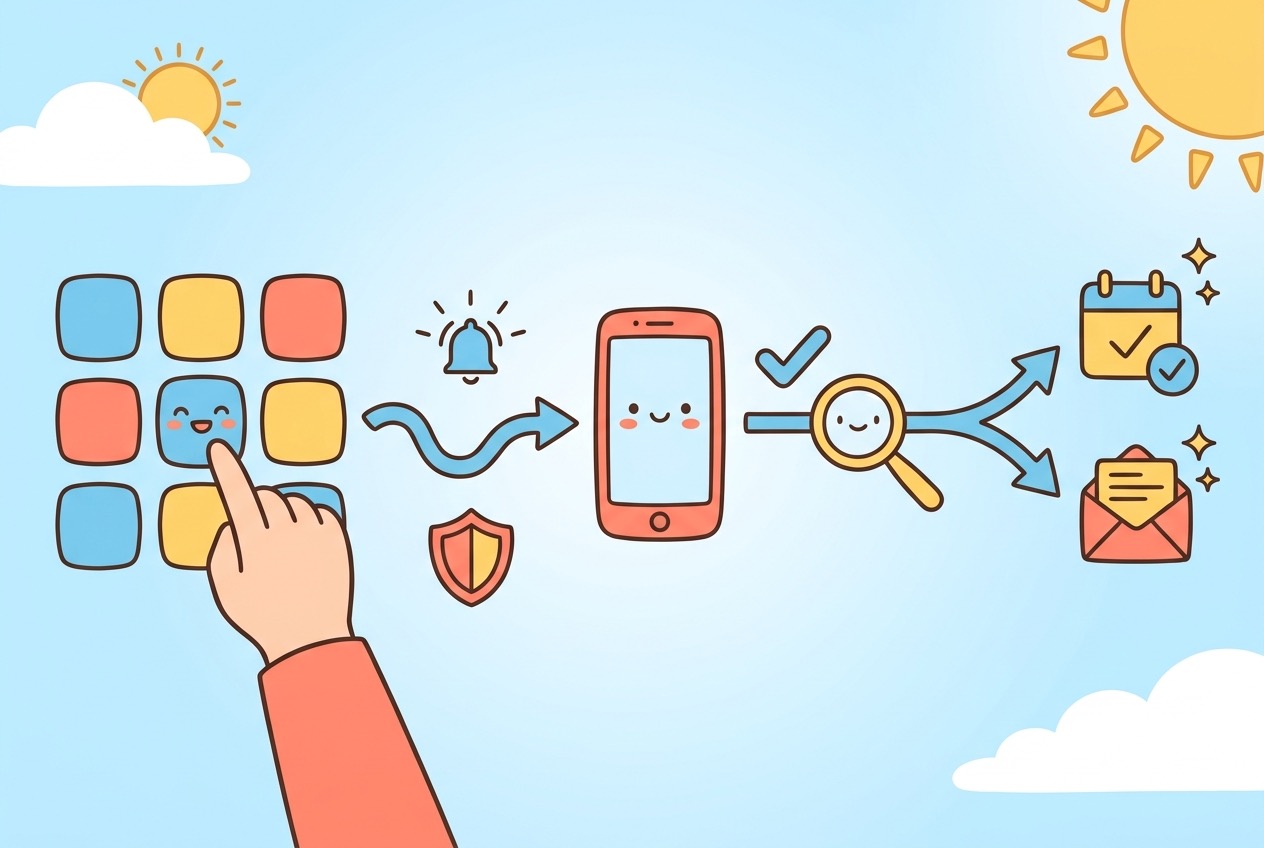
Run the request. If Gemini retrieves or summarizes information, open the listed source or check the underlying app. If it proposes an action, read the confirmation. A calendar event should appear in Calendar; a device control should be visible in Google Home; a message should remain a draft until you choose to send it. The goal is not to catch Gemini out. The goal is to build a habit of independent verification for anything that affects another person, a schedule, a purchase, a device, or private data.
Step 4: disconnect what you do not use
Connected Apps settings are not a one-way door. In the same area, find the app and turn it off to disconnect it, then follow any additional prompt. Revisit the list occasionally—especially after trying a feature for a few days. If an app did not earn its place in your daily workflow, removing that connection reduces complexity and limits the chance that you share information through a capability you no longer remember enabling.
Keep Activity changes the Connected Apps experience
One setting causes a disproportionate amount of confusion: Keep Activity, which you may encounter through Gemini Apps Activity. Google’s current help says that when Keep Activity is off, Connected Apps are not available on gemini.google.com, iOS devices, or smart watches. On Android, only Device assistance, Phone, Messages, and WhatsApp remain available in that state. In other words, turning the setting off can make a broader connected-app list disappear even though Gemini itself still opens normally.
This is not a bug. It is a trade-off worth understanding before you change the setting. The privacy preference may be right for you, but the product consequence is that many Connected Apps will not be available. The surviving Android options are oriented around immediate phone assistance rather than broad retrieval from personal services.
| Preference | What it supports | What you should do |
|---|---|---|
| Keep Activity on | The fuller eligible Connected Apps experience, subject to your account, country, language and device. | Connect only the apps you need; review Gemini activity and connected-app permissions periodically. |
| Keep Activity off | On Android, Google documents access to Device assistance, Phone, Messages and WhatsApp; broader Connected Apps are unavailable. | Expect missing integrations; use the underlying app directly for mail, calendar and other tasks. |
| Unsure | A reversible, limited test. | Read Google’s current Gemini privacy guidance, test one connection, then revisit the setting with real experience rather than assumptions. |
Do not treat this as an instruction to switch the setting on. It is a decision point. If the benefit of a calendar or mail connection is modest, you may reasonably prefer to leave Keep Activity off and use the original app. If you find that a few source-checked summaries save meaningful time, you may choose the fuller experience while accepting the related data handling described in the Gemini Apps Privacy Hub.
Also keep two different actions separate: disconnecting an app and managing saved activity. Removing a connection stops future use of that app through Gemini, but it is not a substitute for reviewing activity settings or deleting prior activity where appropriate. Conversely, changing an activity preference can affect feature availability without necessarily undoing every account permission. Visit the relevant Google control rather than relying on an old screenshot or a single toggle’s label.
Connected Apps with a work or school account: useful, but not a personal setting
A work or school Google Account introduces another layer: your administrator can determine whether Connected Apps are enabled. Google says you need a qualifying Google Workspace edition, Keep Activity enabled, and administrator permission to connect apps in Gemini. That means a user cannot always fix a missing workplace connection by changing a phone setting. In a managed account, absence can be an intentional policy decision.
When the organization permits it, Google documents examples such as finding information in Gmail, summarizing Drive documents, using Google Chat, creating or viewing Tasks, working with Keep, creating or editing Calendar events, and using supported Classroom features. The workflow should still be explicit. In a new conversation, type @, select the app, and use keywords from the content you want Gemini to reference. Google notes that follow-up questions can continue in context, but starting with an explicit app selection helps users see what service is involved.
There are documented limits. For example, Google’s work-account help says Gemini Apps cannot create an email draft or delete Gmail messages through the Connected App; cannot access comments or images in Gmail; cannot access images and videos in Drive through that connection; and cannot create, draft, or delete files in Docs, Sheets, or Slides through it. These are not minor footnotes. They tell you when to stop prompting and open the original Workspace app instead.
A safe workplace pattern
- Ask your administrator whether Connected Apps are approved for the data class you plan to use.
- Use the work account only for material the organization permits in Gemini.
- Start with retrieval or summarization of a non-sensitive, clearly named document.
- Check Gemini’s cited sources and compare the answer with the original document, email, or calendar.
- Do final edits, sends, file moves, and sensitive approvals in the underlying Google Workspace app.
This pattern respects both reliability and governance. It also avoids a common mistake: assuming that an AI chat can safely become the place where you make final decisions about an older email, a policy document, or a client file. Gemini can accelerate the first pass. The original system of record remains the place to verify facts and complete consequential work.
Privacy checklist: connect by purpose, not by curiosity
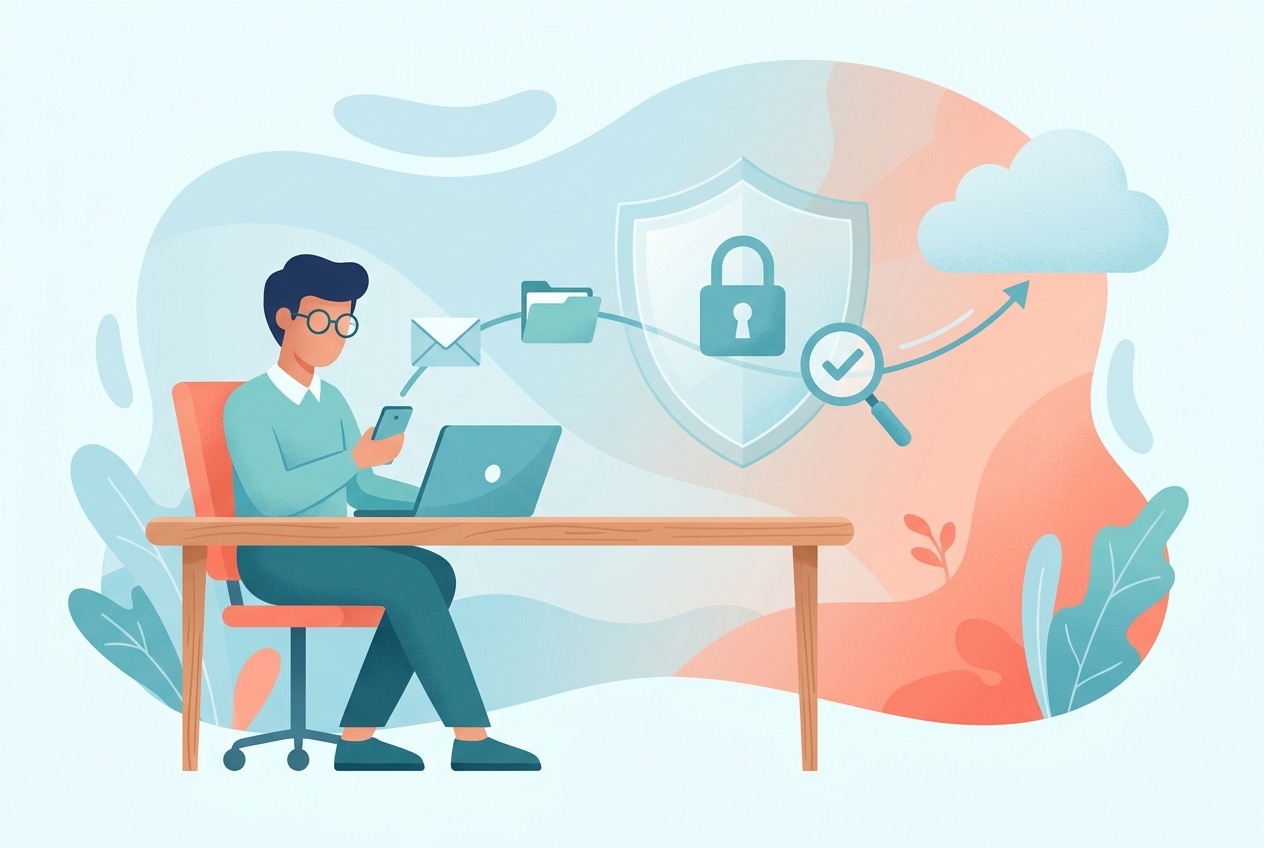
The privacy question is not “Is Gemini private?” in the abstract. The more useful question is, “What information will this particular request require, what benefit will it produce, and do I accept that exchange?” Google’s help says that Connected Apps can use information to fulfill a request and points users to the Privacy Hub for data-handling details. The connection screen is therefore only the beginning of the decision.
Smart-home access deserves special care because it can feel mundane until it is wrong. Confirm that device names are unambiguous, retain the Google Home app as a manual fallback, and test a simple control before relying on a larger household scene. Do not expose a home’s security-sensitive details in a broad assistant conversation. The same rule applies to calling and messages: a helpful draft is not consent to send, and a voice transcription error can change a message’s meaning.
Good uses for Connected Apps
- Finding a detail you can independently verify in a known email or calendar event.
- Creating a low-stakes personal plan after reviewing the confirmation.
- Calling, messaging, playing media, or operating a clearly named device with a manual fallback.
- Summarizing an approved work document while checking the sources and final output.
Times to use the original app instead
- You need certainty about a payment, legal term, medical record, or account security event.
- The task involves confidential client, personnel, or regulated data without clear organizational approval.
- You need to delete, move, share, or materially alter documents and messages.
- The result is unclear, the app is missing, or Gemini cannot show a trustworthy source.
For the broad Android-assistant privacy and rollback choices that come before Connected Apps, return to our Google Assistant-to-Gemini migration guide. If your interest is instead building with Google AI products, our Google AI Studio and Android app-building guide covers a distinct developer workflow. Keeping these use cases separate prevents a consumer assistant setup from being confused with an app-development architecture.
Gemini Connected Apps not showing or not working: safe fixes
“I cannot find Connected Apps.”
First, update the Gemini app and make sure you are signed in. In the mobile app, check the menu or profile area; Google says that if Connected Apps is not visible, it may be nested under Personal Intelligence. If it still is not there, check whether your account, location, language, device, or Gemini surface is eligible. Do not assume an option seen in a video must be available to every account.
“My connected apps disappeared.”
Check Keep Activity before changing anything else. Google documents that when it is off, broader Connected Apps are unavailable, with only Device assistance, Phone, Messages, and WhatsApp available on Android. If you intentionally turned the setting off, that behavior may be expected. If you did not, verify the account and activity setting carefully, then decide whether restoring the broader capability is a privacy trade-off you actually want.
“Gemini does not use the app I meant.”
Begin a new chat, type @, and explicitly choose the app. Use a specific prompt with a title, name, date, or keyword. “Find the note about the trip” creates ambiguity; “@Gmail find the email from Jordan with ‘Kyoto hotel’ in the subject and tell me the check-in date” creates a testable request. Review sources before relying on the answer.
“A work app is missing.”
For work and school accounts, ask your Workspace administrator whether your edition, Keep Activity configuration, and app access are enabled. Google says administrators control Connected Apps access for these accounts. Do not move sensitive work material to a personal account to bypass that policy. That creates a bigger security and compliance problem than a missing convenience feature.
“A Google Home or phone action failed.”
Check the underlying app first. Can you control the device in Google Home? Can you place the call or send the message manually? If not, fix the original app, device name, connection, permission, or account problem before blaming Gemini. If the underlying service works, retry a short, explicit request and watch for a confirmation screen. If a feature is not available, use the original app rather than repeating the same prompt.
“Gemini gave an answer that does not match my source.”
Open the cited mail, document, calendar item, or other source. Look for an older thread, a similar title, a different account, or a missing detail. Google warns work-account users that Gemini can hallucinate or use older information; the practical repair is source checking, not asking the model to sound more certain. For decisions that matter, state the source in your own words and verify it in the system of record.
Official sources and further reading
- Google Gemini Apps Help: Use and manage Connected Apps on Android
- Google Gemini Apps Help: Connected Apps with a work or school Google Account
- Google Gemini Apps Privacy Hub
- Google Gemini Apps Help: Get started with the Gemini mobile app on Android
Google changes available apps, supported actions, account requirements, and country or language availability over time. Check the live official help page for your exact account and Android device before relying on a feature.
FAQ: Gemini Connected Apps on Android
What are Gemini Connected Apps?
They are supported apps and services that Gemini can use to help answer a request or, where supported, help take an action. Examples include eligible productivity, media, calling, messaging, smart-home, and device-assistance services.
Are Gemini extensions and Connected Apps the same thing?
Many older guides use the term “extensions.” Google’s current help uses “Connected Apps.” Use the Connected Apps settings in Gemini to see the services and actions available to your account.
Why are Gemini Connected Apps missing on my Android phone?
Availability can depend on your Google Account type, country, language, device, Gemini surface, and Keep Activity setting. Work and school accounts may also require administrator enablement.
Does Keep Activity affect Connected Apps?
Yes. Google says that with Keep Activity off, broader Connected Apps are unavailable; on Android, Device assistance, Phone, Messages, and WhatsApp remain available. Consider the feature and privacy trade-off before changing the setting.
Can Gemini access my Gmail or Drive automatically?
Use the Connected Apps settings and explicit @ selection to understand which app you are asking Gemini to use. Google says public information from some Google services can be used automatically, but personal information or content requires permission. Always review sources for consequential answers.
Can I use Connected Apps with a work account?
Possibly. Google says you need a qualifying Workspace edition, Keep Activity on, and administrator enablement. Your organization may limit which apps are available and what Gemini can do with them.
Can I disconnect an app later?
Yes. In Gemini’s Connected Apps settings, find the app and turn it off, then follow the on-screen steps. Review activity settings separately if you also want to manage stored Gemini activity.
Should I use Gemini for important messages or calendar events?
Use it as assistance, then check the recipient, text, date, and confirmation in the underlying app. Do not rely on an AI response alone for a consequential send, meeting, purchase, or security action.
Post a Comment