
Google AI Studio can now turn prompts into native Android apps, not just web prototypes. This guide explains how Build mode works, what Kotlin and Jetpack Compose output means, how emulator and device testing fit in, and where human review still matters before you trust a vibe-coded app.
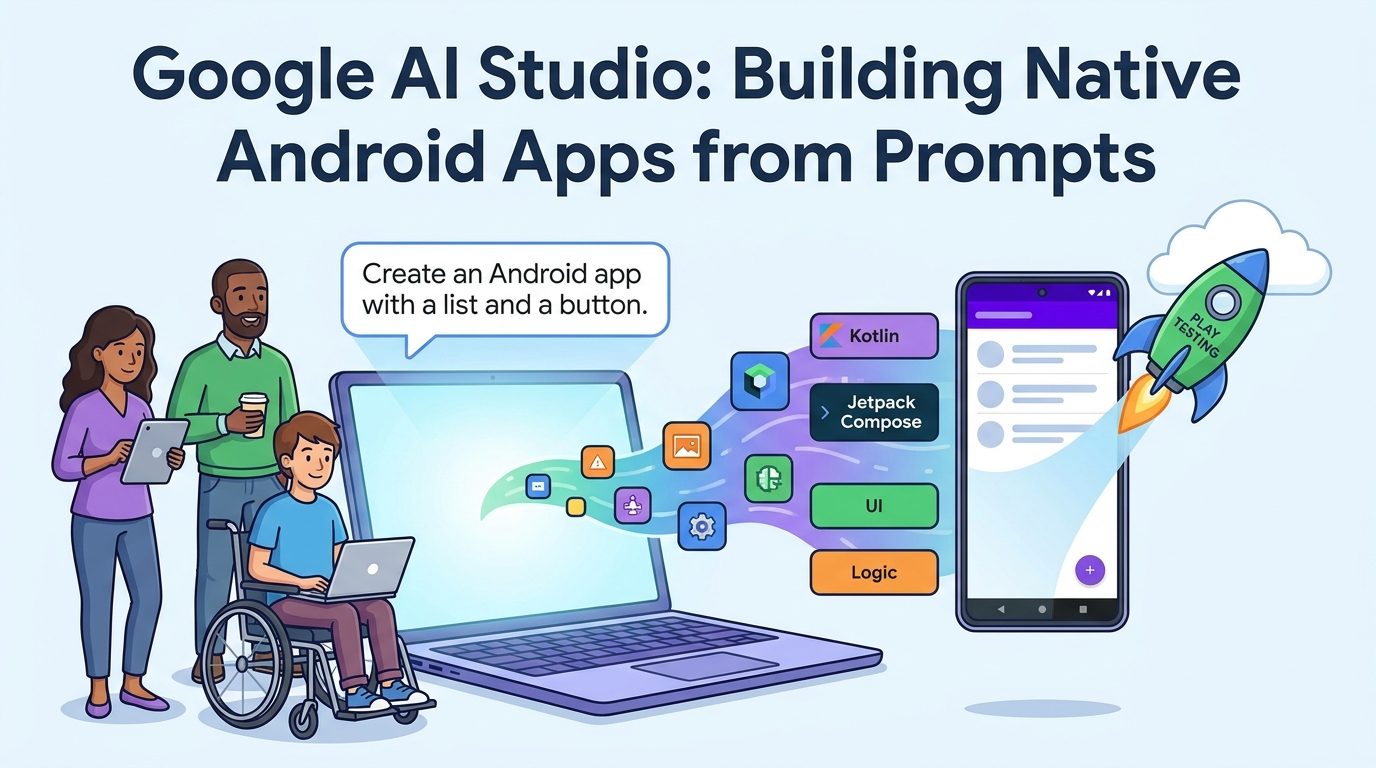
Google AI Studio Android App Builder: Quick Answer
Google AI Studio Android app builder is the native Android option inside Google AI Studio Build mode. Instead of asking you to install Android Studio, configure SDKs, create a Gradle project, and wire a blank app by hand, AI Studio lets you describe an app in plain language and generates a Kotlin and Jetpack Compose project you can preview in a browser-based Android emulator.
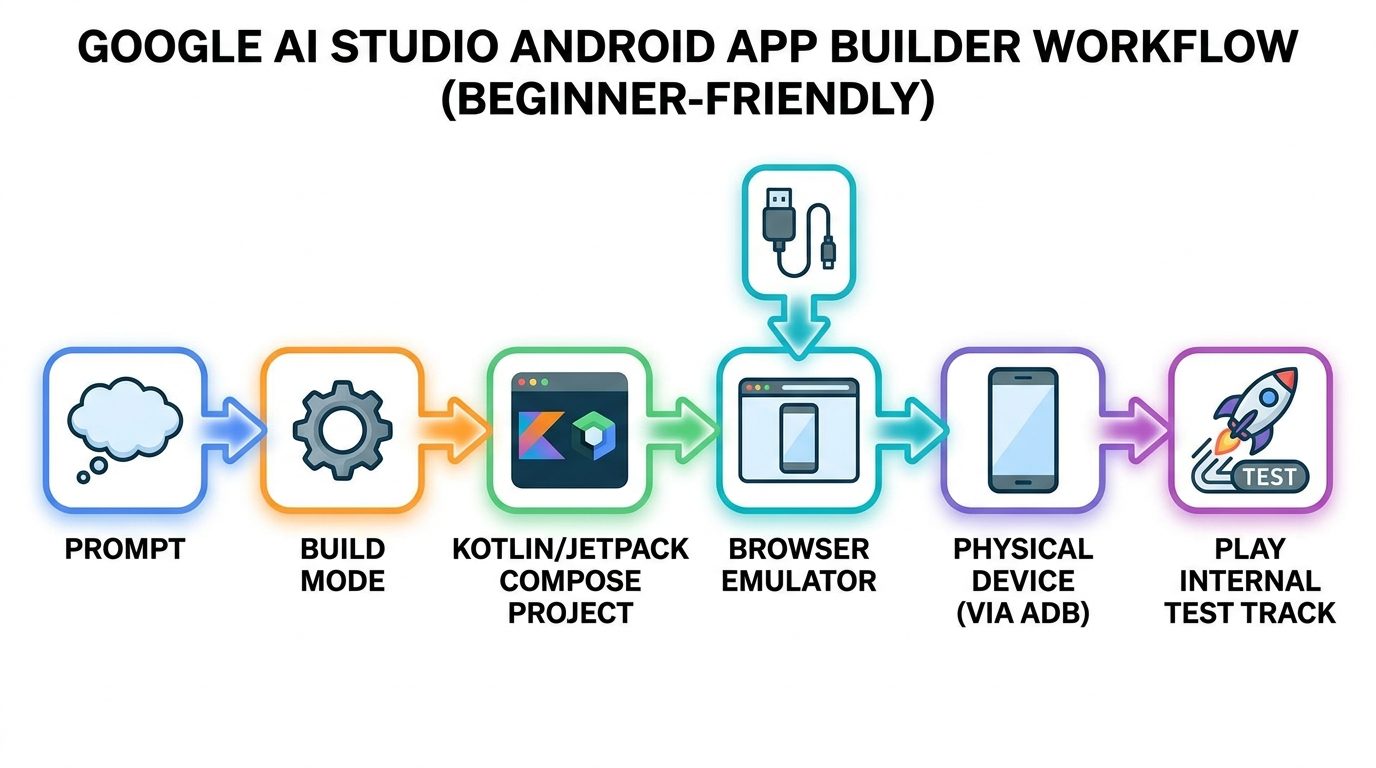
The important detail is the word native. This is not simply a website wrapped in a phone-shaped preview. Google’s official documentation says AI Studio can generate native Android apps using Kotlin and Jetpack Compose, show the generated files in the Code tab, preview the app in an emulator, install it on a physical Android device with Android Debug Bridge, and publish it to Google Play’s Internal Test Track when a Play Developer account is connected.
This is a strong feature because it removes the most annoying early setup steps for new builders. It is also risky if people confuse “it runs in an emulator” with “it is safe to ship.” The best workflow is prompt, inspect, test, revise, export or continue in a fuller development environment, then publish only after real QA.
Why This Topic Matters for AI Feature Drop Readers
AI Feature Drop analytics show that practical product explainers outperform vague AI news. In the latest 28-day window, GA4 recorded 252 active users, 317 sessions, 710 page views, and Organic Search as the second-largest channel after Direct. Pages about concrete workflows, credits, local AI tools, and coding-agent behavior are drawing the most useful engagement. GoogleAI content is already present through Google Flow, Veo, NotebookLM, AI Edge Gallery, and Google Workspace Studio articles, but the site does not yet have a pillar guide on AI Studio’s new Android app-building workflow.
That gap is useful because search results for this feature currently lean toward Google’s official announcement, Google’s docs, short videos, and news coverage. Those sources confirm the feature, but they do not fully answer the practical builder question: “If I describe my app to AI Studio, what exactly happens next, what should I test, and when should I switch to a traditional Android workflow?” This article is designed to answer that in one place.
The research also surfaced recent community interest around vibe coding Android apps. A recent Reddit thread in the vibe-coding community asked whether anyone had vibe coded an Android app and attracted dozens of comments. YouTube tutorials appeared soon after Google’s announcement. That is a classic search-gap signal: people are curious, the feature is new, and the first wave of content is often demo-heavy rather than workflow-complete.
What Is Google AI Studio Build Mode for Android?
Google AI Studio Build mode is a prompt-to-app environment for experimenting with Gemini-powered applications. Before the Android update, many people used it mostly as a fast way to build web apps, test prompts, wire Gemini features, and share demos. The new Android path extends that idea into mobile: choose the Android app option, describe what you want, and let AI Studio generate a native Android project.
According to Google’s I/O announcement, the Android experience includes production-quality native code, Kotlin, Jetpack Compose patterns, a browser-based Android emulator, ADB support for physical-device installs, and a path to publish to the Google Play Internal Test Track. That combination matters because it addresses several early bottlenecks at once: project setup, UI scaffolding, local tooling, preview, and first testing distribution.
There are also related AI Studio updates that make the builder more interesting. Google announced Workspace integrations for apps built in AI Studio, export to Google Antigravity for deeper local development, custom asset generation using Nano Banana, preview annotation tools, and a mobile app for AI Studio. Put together, AI Studio is moving from “prompt playground” toward a lightweight app factory for prototypes and internal tools.
| Capability | What it means in practice | Why builders care |
|---|---|---|
| Native Android generation | AI Studio can create Kotlin and Jetpack Compose app files from a natural-language prompt. | You can prototype Android app ideas without starting from a blank IDE project. |
| Browser emulator | You can preview the generated app in a phone-like environment inside the browser. | Fast feedback without installing Android Studio or SDKs first. |
| ADB install | You can install the app on a physical Android device through Android Debug Bridge. | Real-device testing catches issues that emulators miss. |
| Play Internal Test Track | With a Play Developer account, AI Studio can push a test version for internal distribution. | Teams can share early builds without immediately going public. |
| Antigravity export | Projects can move to Google’s agentic development environment with files and secrets. | Useful when a prototype needs deeper code work and collaboration. |
How the AI Studio Android App Builder Workflow Works
The workflow is simple on the surface, but the best results come from treating it like a product brief instead of a magic prompt box. A vague prompt such as “make me a fitness app” will usually produce a generic demo. A structured prompt with screens, user roles, data model, offline behavior, permissions, and design preferences gives AI Studio a much better target.
Step 1: Start in Build mode
Open Google AI Studio and choose Build mode. Google’s docs describe several starting points: write a prompt from scratch, use an “I’m Feeling Lucky” project idea, or remix an existing gallery project. For serious work, start from your own prompt. Gallery remixes are useful for inspiration, but your app will be stronger if you state your use case clearly.
Step 2: Select the Android app path
Use the platform picker to build a native Android app. This choice matters because the default web-app path creates a different kind of project, usually with web frontend and server-side runtime pieces. Android mode is the one aimed at Kotlin and Jetpack Compose output.
Step 3: Describe the app like a mini product spec
Good prompts define the app’s audience, main screens, data fields, navigation, visual style, permissions, and edge cases. For example, instead of “build a habit tracker,” ask for a habit tracker for students with a today screen, weekly calendar view, streak cards, local-only storage, no sign-in, calming blue-green design, offline support, and empty-state copy for new users.
Step 4: Review the generated code and preview
AI Studio generates files and shows a live preview. Use the preview for obvious interaction problems, but also open the Code tab. Even non-experts can look for clues: hardcoded API keys, confusing file names, missing error states, placeholder strings, fake sample data, or permissions the app does not actually need.
Step 5: Iterate with precise fixes
After the first build, give targeted revision prompts. Say “make the add-habit button accessible with a larger touch target,” not “make it better.” Say “store the habit list locally and show a clear empty state,” not “improve the app.” AI app builders reward specificity.
One useful mental model is to treat AI Studio like a junior mobile prototyper that works incredibly fast. It can create a useful first version, but you still need to manage requirements, inspect the output, and decide when the project needs a senior developer or a full Android toolchain.
What Does AI Studio Actually Create?
For Android apps, Google’s documentation says AI Studio creates a Kotlin and Jetpack Compose project. Kotlin is the modern programming language most associated with Android development, and Jetpack Compose is Google’s declarative UI toolkit for building Android interfaces. That means the generated project is closer to a real Android app than a basic mockup.
The generated app may include screens, UI components, navigation, state handling, sample data, and Gemini-powered features depending on your prompt. If you add AI Chips or ask for Gemini functions, it may wire AI capabilities into the project. If your prompt asks for maps, image generation, speech, or Workspace-connected behavior, AI Studio may attempt to include those capabilities too, depending on what is supported in the builder.
Still, “production-quality code” should not be read as “production-finished product.” In AI product writing, this distinction matters. Production-quality patterns can mean the output follows modern code structure, uses the right framework, and is not merely pseudocode. Production-ready requires much more: real data storage decisions, privacy review, crash handling, accessibility, localization, performance testing, release signing, dependency review, legal compliance, and support planning.
This is why AI Studio is especially strong for idea validation, teaching, prototypes, internal demos, and early product discovery. It is less ideal as the only environment for a complex consumer app with payments, accounts, regulated data, or large-scale backend logic.
Testing: Browser Emulator, ADB, and Play Store Internal Test Track
The most exciting part of this update is not just code generation. It is the testing path around the generated app. Google’s announcement highlights three important testing layers: browser emulator preview, ADB installation on a physical Android device, and Play Store Internal Test Track publishing.
Browser emulator preview
The browser emulator is the fastest feedback loop. Use it to check layout, navigation, button behavior, obvious crashes, empty states, and whether the app concept feels coherent. This is where AI Studio shines: you can revise a prompt and see changes quickly without waiting for a local Gradle build.
Physical device install with ADB
Real devices matter. A browser emulator cannot fully represent touch feel, performance, battery behavior, keyboard differences, camera interactions, Bluetooth, sensors, low-memory behavior, or how the app feels in a real hand. If your app uses hardware features, location, NFC, notifications, media, or offline behavior, install it on a physical device before trusting the prototype.
Internal testing through Google Play
The Play Store Internal Test Track is useful when you want a small group to try the app without publishing it publicly. This is not a shortcut around quality. It is a controlled distribution path. Use it for team feedback, stakeholder review, and early user testing after you have already checked the app yourself.
If you are building AI-powered apps, testing should include model behavior too. Check whether prompts can leak hidden instructions, whether outputs are safe for your audience, whether API failures are handled clearly, and whether the app explains when AI-generated content may be wrong.
Limitations and Risks of Vibe Coding Android Apps
Vibe coding is useful, but it can hide complexity. Android development looks simple when the app is small. It becomes more demanding when you add accounts, push notifications, app permissions, background tasks, offline sync, payments, store policies, accessibility, localization, and device compatibility. AI Studio can reduce setup friction, but it does not remove the need to think like a product owner and tester.
| Risk | Why it happens | How to reduce it |
|---|---|---|
| Generic app output | The prompt did not include a clear audience, workflow, or design system. | Write prompts like mini product briefs with screens, data, and constraints. |
| Hidden security issues | Generated code may handle secrets, permissions, or network calls poorly. | Inspect code, avoid hardcoded secrets, and review permissions before testing. |
| False confidence from emulator | The app appears to work in a controlled preview. | Test on physical devices and collect feedback from real users. |
| Messy iteration history | Repeated vague prompts can create inconsistent architecture. | Use scoped revisions and export when the app needs structured development. |
| Play Store readiness gap | A test-track build is not the same as a polished store release. | Review policies, privacy forms, signing, screenshots, support, and QA. |
Another limitation is maintainability. A generated prototype can impress in a demo, but someone must maintain it. If you cannot understand the code at all, you may struggle when a dependency breaks, a store policy changes, or a user reports a bug. For no-code founders, the answer is not to avoid AI Studio. The answer is to document what the app does, keep prompts and generated versions organized, and bring in technical review before public release.
Developers should also avoid the opposite mistake: dismissing the tool because it is beginner-friendly. Fast app scaffolding is useful even for experienced teams. The trick is knowing when to use it. AI Studio is great for quick prototypes, UI exploration, internal apps, and proof-of-concept builds. Android Studio, CI/CD, manual architecture, and mature testing still matter for durable products.
Best Use Cases for Google AI Studio Android Build Mode
The best early use cases are focused, testable, and low-risk. If the app idea can be described in a few screens and validated quickly, AI Studio is a good fit. If the app requires regulated data, deep backend complexity, or advanced device integration, use AI Studio for discovery but plan for a more formal engineering workflow.
Strong fit
- Learning Android concepts without installing a full toolchain.
- Prototype apps for hackathons, demos, and pitch decks.
- Internal utilities for small teams.
- AI-powered micro tools with simple data flows.
- UX experiments where speed matters more than perfect architecture.
- Student projects and founder idea validation.
Weak fit
- Banking, health, legal, or safety-critical apps.
- Apps with complex account systems and payments.
- Large production apps with many developers.
- Hardware-heavy apps that need extensive device testing.
- Products where you cannot review code or hire review help.
- Apps that must meet strict enterprise compliance from day one.
Example prompt: simple Android habit tracker
“Build a native Android habit tracker for students using Kotlin and Jetpack Compose. Include a Today screen, Add Habit screen, weekly progress view, local-only storage, no sign-in, calming blue-green visual style, large accessible buttons, empty states for new users, and a simple settings screen. Do not request permissions. Show sample data only when demo mode is enabled.”
Example prompt: field checklist app
“Build a native Android inspection checklist app for a small facilities team. It should let users create a checklist, mark items pass/fail, add notes, save drafts locally, and export a plain text summary. Use high-contrast UI, offline-first behavior, and clear error messages. Avoid cloud accounts in the first version.”
Notice that both prompts include scope boundaries. They say what the app should do, but also what it should not do. That reduces the chance of the builder inventing unnecessary sign-in, storage, or permissions.
Google AI Studio vs Android Studio vs Other AI Coding Tools
AI Studio Android Build mode is not a replacement for every Android workflow. It is a new front door. Android Studio remains the professional environment for deep Android work. Cursor, Claude Code, OpenAI Codex, GitHub Copilot, and Google Antigravity can all help with code, but they sit at different points in the workflow.
| Tool | Best for | Not ideal for |
|---|---|---|
| Google AI Studio Android builder | Prompt-to-native prototype, quick preview, beginner-friendly setup, early test builds. | Long-term maintenance as the only development environment for complex products. |
| Android Studio | Full Android engineering, debugging, Gradle control, profiling, release signing, mature app builds. | Fast idea validation for non-developers who do not want setup friction. |
| Google Antigravity | Continuing an AI Studio project in a deeper agentic development environment. | Users who only need a quick prototype and do not want a fuller coding workflow. |
| Claude Code / Codex / Copilot | Code reasoning, refactors, tests, multi-file edits, and developer-centric workflows. | One-click Android preview and Play test-track flow inside the same app-builder environment. |
If you want the fastest path from concept to Android demo, AI Studio is compelling. If you want a production Android team workflow, you still need the discipline around version control, code review, build pipelines, testing, release management, and observability. The smart path is often hybrid: generate a first version in AI Studio, validate the idea, export or recreate the architecture in a professional workflow, and then use AI coding tools for targeted improvements.
This mirrors other AI coding patterns we have covered on AI Feature Drop. In Google AI Edge Gallery on Mac, the value is local experimentation before committing to heavier infrastructure. In GitHub Agentic Workflows, the value is scoped automation with security boundaries. In Claude Code Permission Rules, the key lesson is controlling what an agent can touch. AI Studio Android apps need the same mindset: move fast, but keep boundaries clear.
Pre-Publish Checklist for AI Studio Android Apps
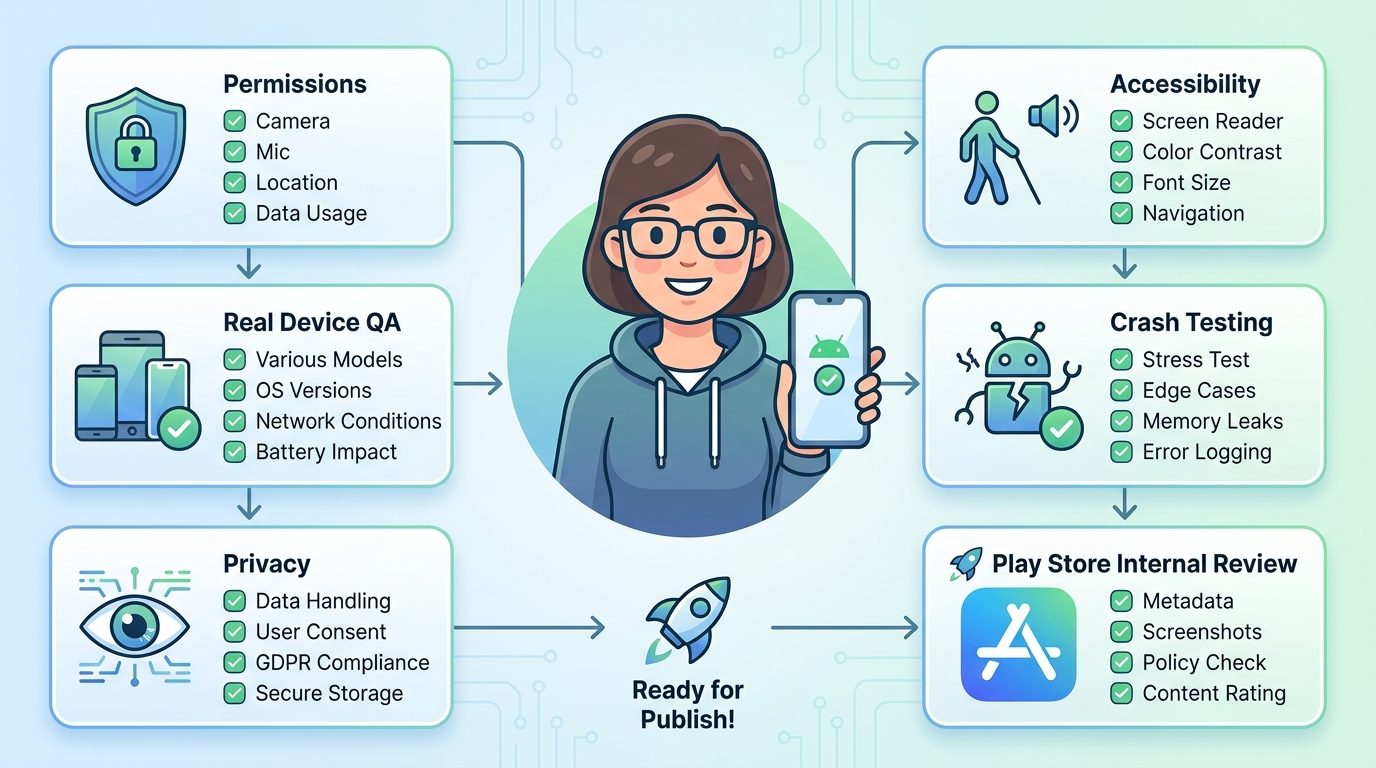
Before you share an AI Studio Android build beyond a small internal test group, run through a basic checklist. This is especially important for non-developers, because AI-generated app demos can feel finished before they actually are.
Technical checks
- Open the generated code and identify every permission request.
- Remove permissions that are not needed for the first version.
- Check whether any API keys, secrets, or tokens are visible in code.
- Test empty states, loading states, error states, and offline behavior.
- Try the app on at least one real Android device, not only the emulator.
- Confirm that generated sample data cannot be confused with real user data.
Product checks
- Write a one-paragraph app purpose statement.
- List the audience, core user journey, and top three risks.
- Make sure the app explains AI-generated outputs when relevant.
- Review accessibility: text size, contrast, touch targets, and screen-reader labels.
- Collect feedback from testers before adding more features.
Release checks
- Use Internal Test Track before public release.
- Prepare privacy policy and data safety answers if the app collects data.
- Verify signing, package name, versioning, screenshots, support email, and store listing text.
- Keep a backup or export of the project before major AI-generated revisions.
Search Gap and Content Strategy Notes
This article targets Google AI Studio Android app builder because it combines a recent official product update with tutorial demand and weak practical coverage. The primary search intent is not just news. It is “Can I use this, how does it work, and what should I watch out for?” That is why the article includes workflow, comparison, testing, examples, limitations, and a release-readiness widget rather than simply summarizing Google’s announcement.
The internal linking plan also supports topical authority. This article connects with existing GoogleAI content about Google Flow and Veo 3 credits, Google Workspace Studio loops, and Google AI Edge Gallery privacy, while also connecting to coding-agent content for readers comparing AI development tools.
For future cluster articles, the best follow-ups are “Best prompts for AI Studio Android apps,” “AI Studio Android app vs Android Studio,” “How to publish AI Studio apps to Internal Test Track,” and “How to test AI-generated Android apps before release.” Those long-tail topics are more likely to match specific search questions than broad Google AI news posts.
Final Recommendation: Use AI Studio for Fast Android Discovery, Not Blind Shipping
Google AI Studio’s Android app builder is genuinely useful. It lowers the barrier for people who have app ideas but do not want to spend their first day installing SDKs, fixing Gradle errors, and staring at a blank project. It also helps experienced developers explore UI ideas and small utilities faster than a traditional setup-first workflow.
The safest way to use it is to separate discovery from release. In discovery mode, move quickly. Prompt, preview, revise, and test ideas. In release mode, slow down. Review generated code, test on devices, check permissions, validate data handling, and use Play’s internal testing path before public launch. If the app touches sensitive data, bring in technical review early.
AI Studio is not removing Android development skill. It is changing where that skill is needed. Less time goes into starting a project. More attention should go into product judgment, testing, privacy, maintainability, and deciding when a prototype deserves a proper engineering workflow.
Keep Learning on AI Feature Drop
- Google AI Edge Gallery on Mac Explained — run Google models locally for private workflows.
- Is Google AI Edge Gallery Private? — understand local-model privacy limits.
- Google Flow and Veo 3 Credits Explained — compare Google’s AI creation workflow costs.
- Google Workspace Studio Loops Explained — learn another Google no-code AI automation workflow.
- GitHub Agentic Workflows Explained — compare agentic coding workflow patterns.
- Claude Code Permission Rules Explained — think clearly about AI tool access boundaries.
Sources and References
- Google Keyword: Bring any idea to life with Google AI Studio at I/O
- Google AI Developers: Build apps in Google AI Studio
- Gemini API release notes
- The New Stack: Google AI Studio Android apps coverage
- The Verge: Google AI Studio native Android apps
- Google AI Developers Forum: AI Studio topics
Feature availability, supported models, publishing behavior, and Google Play requirements can change. Verify the current AI Studio docs, Google Play Console rules, and your account settings before relying on any production workflow.
FAQ: Google AI Studio Android App Builder
Can Google AI Studio build native Android apps?
Yes. Google says AI Studio Build mode can create native Android apps using Kotlin and Jetpack Compose, with browser emulator preview, ADB install support, and a path to Play Store Internal Test Track testing.
Is an AI Studio Android app the same as a production-ready app?
No. It can be a strong prototype or starting point, but production release still requires code review, device testing, accessibility checks, privacy review, Play policy compliance, and maintainability planning.
Do I need Android Studio to start?
Not for the first AI Studio workflow. The point of the builder is that you can generate and preview an app without managing local SDK setup. For serious production development, Android Studio may still be needed.
What language does AI Studio use for Android apps?
Google’s docs describe Android app generation with Kotlin and Jetpack Compose, which are modern Android development technologies.
Can I test the generated app on my phone?
Google’s announcement mentions Android Debug Bridge support, which allows installing builds on a physical Android device. Physical-device testing is strongly recommended before wider sharing.
Can AI Studio publish directly to Google Play?
Google says AI Studio can connect to a Google Play Developer account and publish to Google Play’s Internal Test Track. Internal testing is not the same as public production release.
Who should use AI Studio Android Build mode?
It is useful for founders, students, designers, product managers, developers, and creators who want to validate an Android app idea quickly. Teams building sensitive or complex apps should use it as a prototype step, not the full engineering process.
What should I include in a good Android app prompt?
Include the audience, main screens, data fields, navigation, visual style, permissions, offline behavior, empty states, and constraints. Clear boundaries usually produce better generated apps.
Post a Comment