
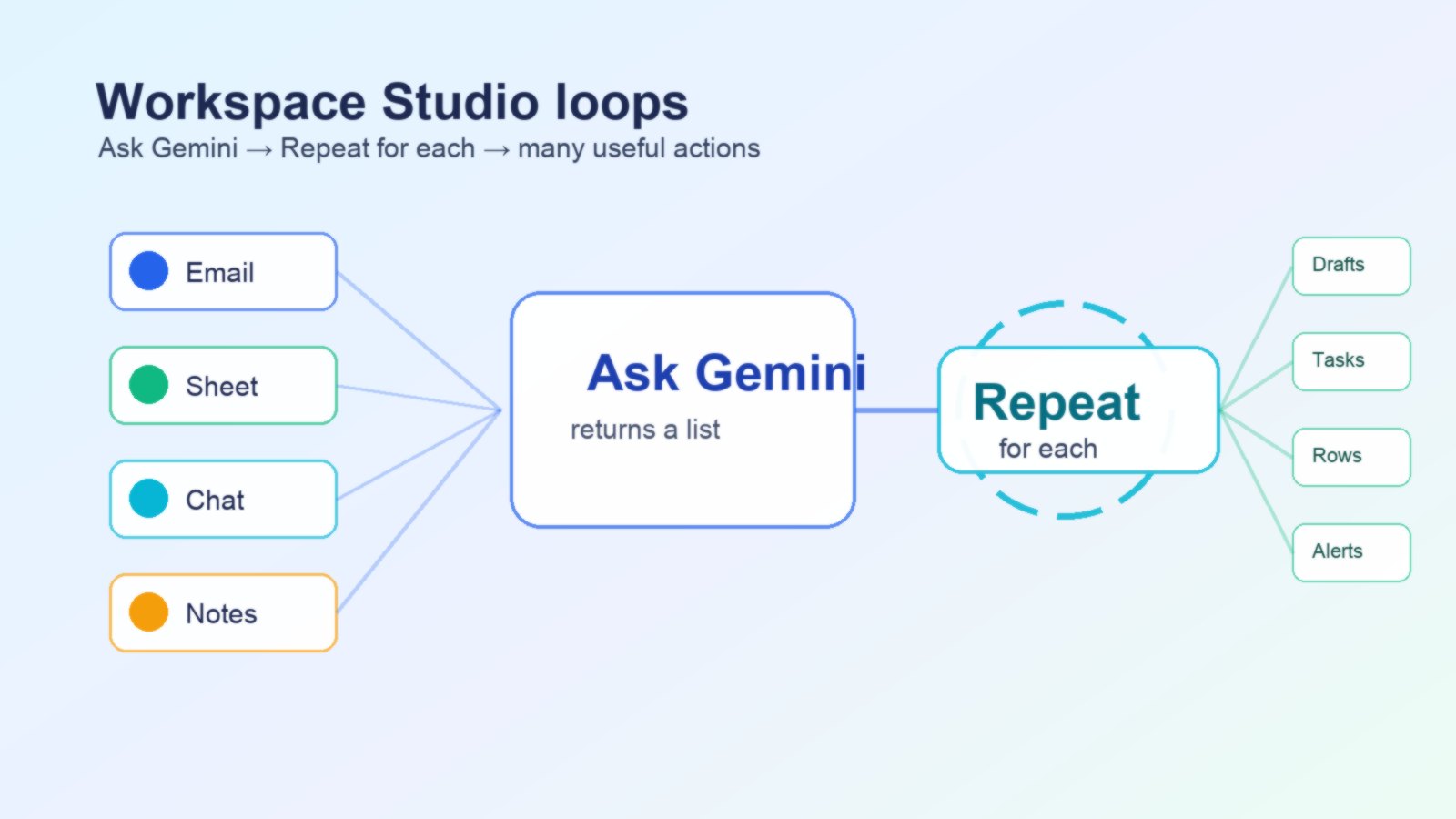
Google’s newest Workspace Studio loop feature turns Gemini from a one-response assistant into a workflow step that can process many items: one task, email, row, action item, or customer follow-up at a time.
What changed in Workspace Studio
This is a small-looking update with a big practical effect. Before loops, many Workspace Studio automations were best for single events: summarize this email, notify me about this chat message, draft one response, or create one task. With list output and Repeat for each, the flow can take one messy input and turn it into many structured actions.
Imagine pasting meeting notes into a flow. Gemini identifies five action items. The loop creates five Google Tasks, sends five owners a Chat message, or drafts five follow-up emails. Or imagine a Sheet of leads. The loop can move through each row and prepare a customized outreach draft based on the row’s company, role, and context.
That is why this topic matters for AIFeatureDrop readers: the feature is not just another Gemini prompt box. It is a practical bridge between generative AI and repeatable office automation.
How Workspace Studio loops work
A Workspace Studio flow has a starter and one or more steps. The starter is the event that launches the flow, such as a schedule, a new email, a Chat message, or a mention. The steps are the actions that happen after the starter fires.
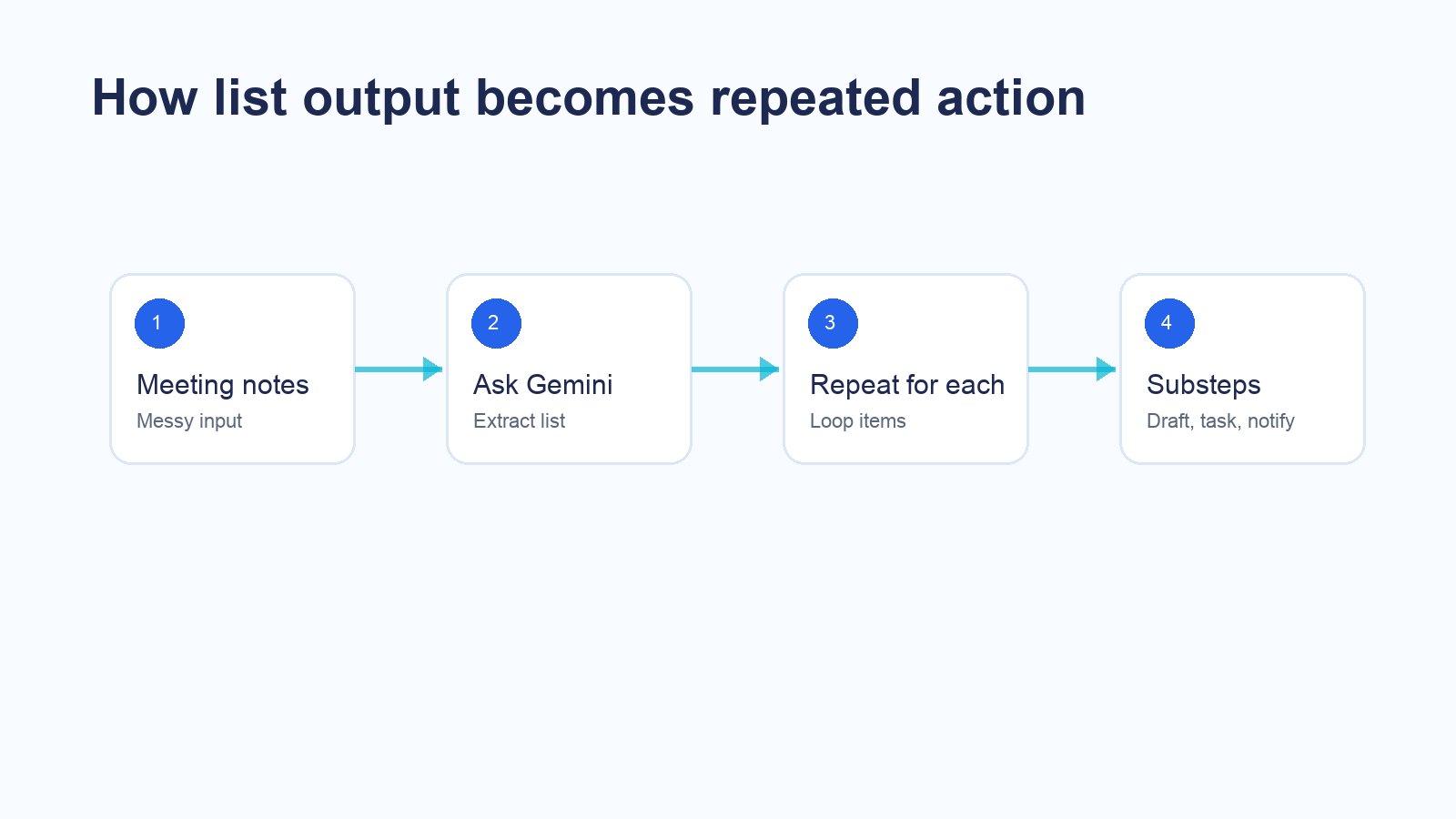
The most important new setting is the response format inside Ask Gemini. If you choose text, Gemini returns a normal response. If you choose list, the output becomes loop-ready. Then the Repeat for each step uses that list as its input and performs a set of actions for every item.
Google’s official example includes creating a task for each meeting action item and drafting an email for each sales lead based on a Google Sheet. Those examples are useful because they show both sides of the feature: Gemini-generated lists and structured spreadsheet rows.
Practical automations worth building
Meeting notes to task list
Use a scheduled or manual flow to process notes after a meeting. Ask Gemini to extract action items as a list with owner, deadline, and short description. Repeat for each action item and create a task or send a Chat reminder. Add a review step if the notes contain sensitive client details.
Lead sheet to draft emails
Connect a Sheet where each row contains a lead name, company, role, and context. Repeat for each row. Ask Gemini to draft a short email using the row data, then save the draft rather than sending automatically. This keeps human approval in the loop while removing repetitive first-draft work.
Support messages to triage queue
Use a Chat or email starter for incoming support-like messages. Ask Gemini to classify items into a list of issues, urgency, and owner. Repeat over the list to create tasks, notify the right channel, or append rows to a Sheet for tracking.
Event attendees to personalized follow-ups
For webinars, office hours, or product demos, loop through attendee rows and draft follow-ups based on segment, question, and next best action. This is safer when the flow drafts messages but does not send them without review.
Setup checklist for a clean loop
Pick the event that should launch the flow. If timing matters, use a schedule. If the workflow begins with a new email or Chat message, use the relevant starter and keep filters narrow.
Tell Gemini exactly what each list item should contain. For example: owner, task, due date, priority, and source sentence. A vague prompt creates vague loop output.
In the Ask Gemini step, choose list format when the output needs to feed Repeat for each. Use text format only when the result is meant to be a single summary or draft.
Map the loop input to the Gemini list or Sheet rows. Keep the first version simple: one output list, one loop, one or two substeps.
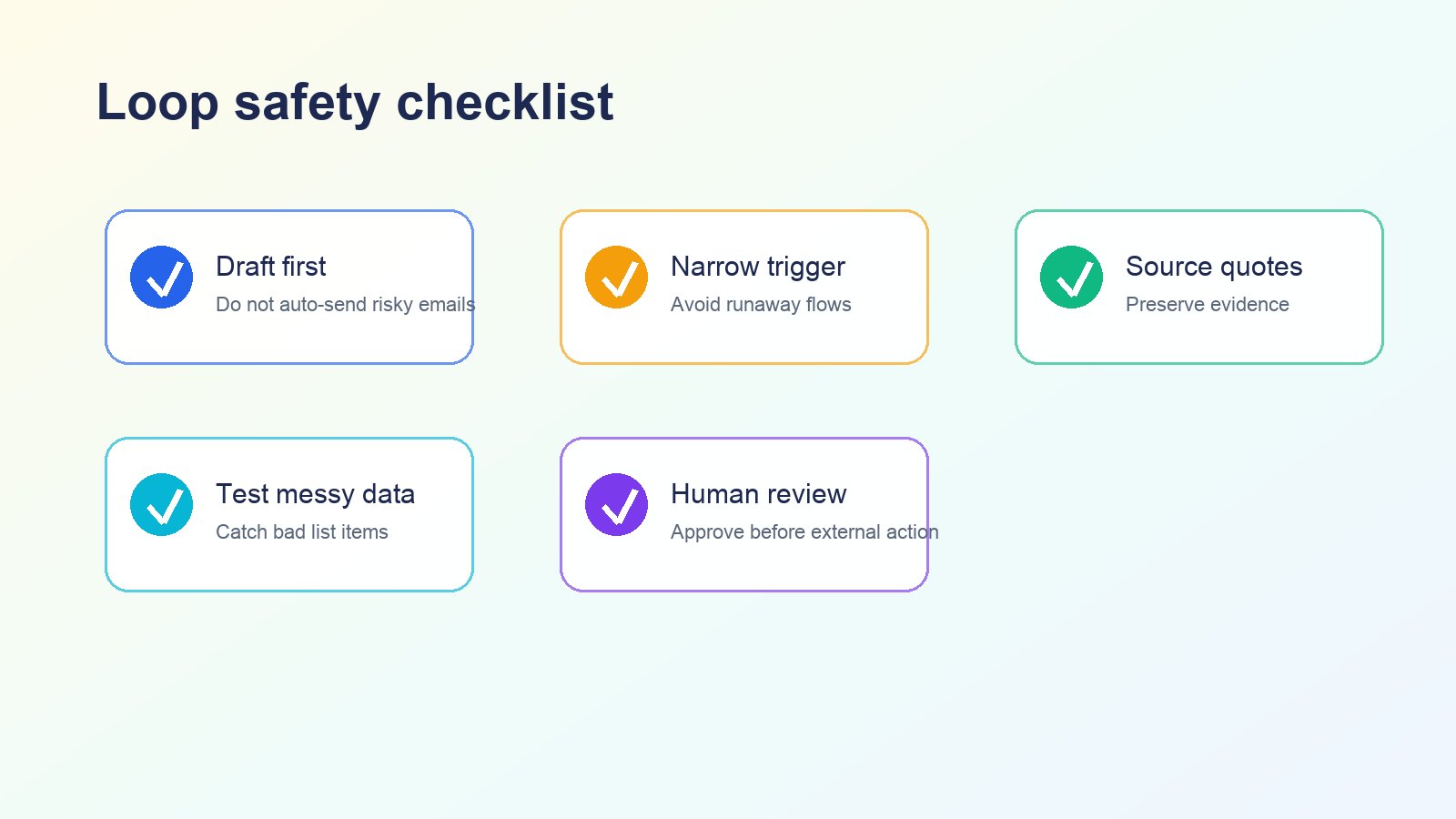
If the flow writes emails, changes records, or notifies customers, draft first. Automatic sending should come only after careful testing and clear guardrails.
Try notes with missing owners, duplicate tasks, vague deadlines, and irrelevant text. The loop should handle imperfect inputs gracefully.
Limits, admin controls, and safety concerns
- Availability can vary. Workspace Studio and specific steps may depend on Google Workspace edition, rollout schedule, and admin settings.
- Generated lists need validation. Gemini can misunderstand messy notes or infer missing details. Ask it to preserve source quotes when accuracy matters.
- Watch for recursive flows. Google’s help content notes that some starters avoid events created by flows by default. Keep that protection unless you have a specific reason to include flow-created events.
- Gmail filters may be limited. Workspace Studio Help says some starter filters do not support every Gmail search operator or custom label behavior. Test your exact trigger.
- Protect sensitive data. Do not route confidential content into broad Chat spaces or mass email drafts without clear review.
Workspace Studio loops vs other automation options
| Option | Best for | Tradeoff |
|---|---|---|
| Workspace Studio loops | No-code Workspace automations where Gemini extracts, classifies, drafts, or summarizes many items. | Availability and step options depend on Workspace setup; complex logic may feel constrained. |
| Google Apps Script | Custom code, advanced conditions, API integrations, and precise control. | Requires coding and maintenance. |
| Zapier or Make | Cross-app automations with many third-party services. | Can become expensive or harder to govern at scale. |
| Manual Gemini prompting | One-off analysis, brainstorming, and drafts. | No repeatable loop, trigger, or structured workflow unless you copy results manually. |
If your workflow lives mainly inside Gmail, Sheets, Chat, Drive, and other Workspace tools, Workspace Studio loops are now much more attractive. If you need advanced APIs, strict business logic, or custom error handling, Apps Script still matters.
Internal links for deeper reading
If you are exploring Google’s AI productivity stack, these related AI Feature Drop guides fit naturally with this topic:
FAQ
What is Repeat for each in Google Workspace Studio?
Repeat for each is a loop step. It runs substeps once for every item in a list, including an Ask Gemini list output or data from Google Sheets rows.
Can Ask Gemini create the list used by Repeat for each?
Yes. Google added a response format setting to Ask Gemini. Choose list format when the output should feed a loop.
Should I let the loop send emails automatically?
For most teams, start with drafts. Automatic sending is safer only after testing, approvals, clear prompt rules, and strong filters.
Is Workspace Studio replacing Apps Script?
No. Workspace Studio is better for no-code, Gemini-assisted business workflows. Apps Script is still better for custom logic, advanced integrations, and code-level control.
Why is this update important?
Because it lets Gemini handle many items inside one workflow. Instead of producing one summary, a flow can create multiple tasks, drafts, rows, or notifications based on a generated or spreadsheet-backed list.
Final takeaway
Google Workspace Studio loops make Gemini more useful for real business workflows because they connect AI reasoning to repeated action. The best early use cases are not fully autonomous agents. They are reviewable, narrow automations: action-item extraction, lead follow-up drafts, support triage, and row-by-row productivity work.
Start small, keep humans in the approval path, and design your list output carefully. That is how Workspace Studio’s Repeat for each feature becomes a practical assistant instead of a noisy automation machine.
Post a Comment