
How to Use Google Workspace Studio with Google Sheets Row Loops
Workspace Studio’s new Repeat for each step can process Google Sheets rows one by one. Here is how to turn a spreadsheet into reviewable Gemini-powered drafts, tasks, and follow-ups without creating an automation mess.
Quick answer: what a Sheets row loop does
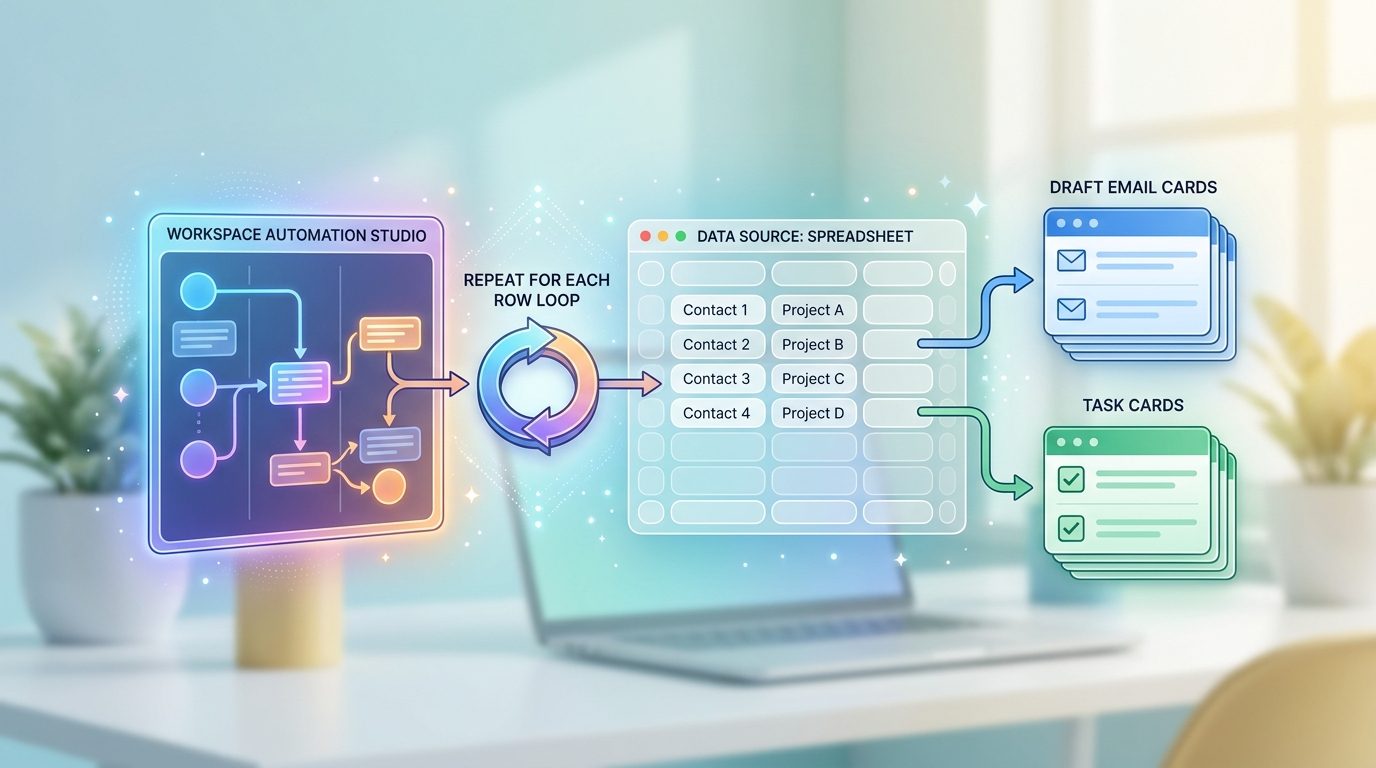
Repeat for each, the flow can run substeps for every row, such as asking Gemini to draft an email, create a task, classify a lead, or write a short follow-up note.Google’s official Workspace Updates post says the new Repeat for each step can loop over a list of items in Workspace Studio. It also says the same step can loop over Google Sheet data row by row and run substeps. That is the key detail many users will care about: you are no longer limited to one single Gemini response or one single action per flow.
This article is a focused cluster guide for readers who already understand the broader feature. If you want the big-picture explanation first, read our pillar guide on Google Workspace Studio loops, Repeat for each, and Ask Gemini lists. Then come back here for the practical spreadsheet workflow.
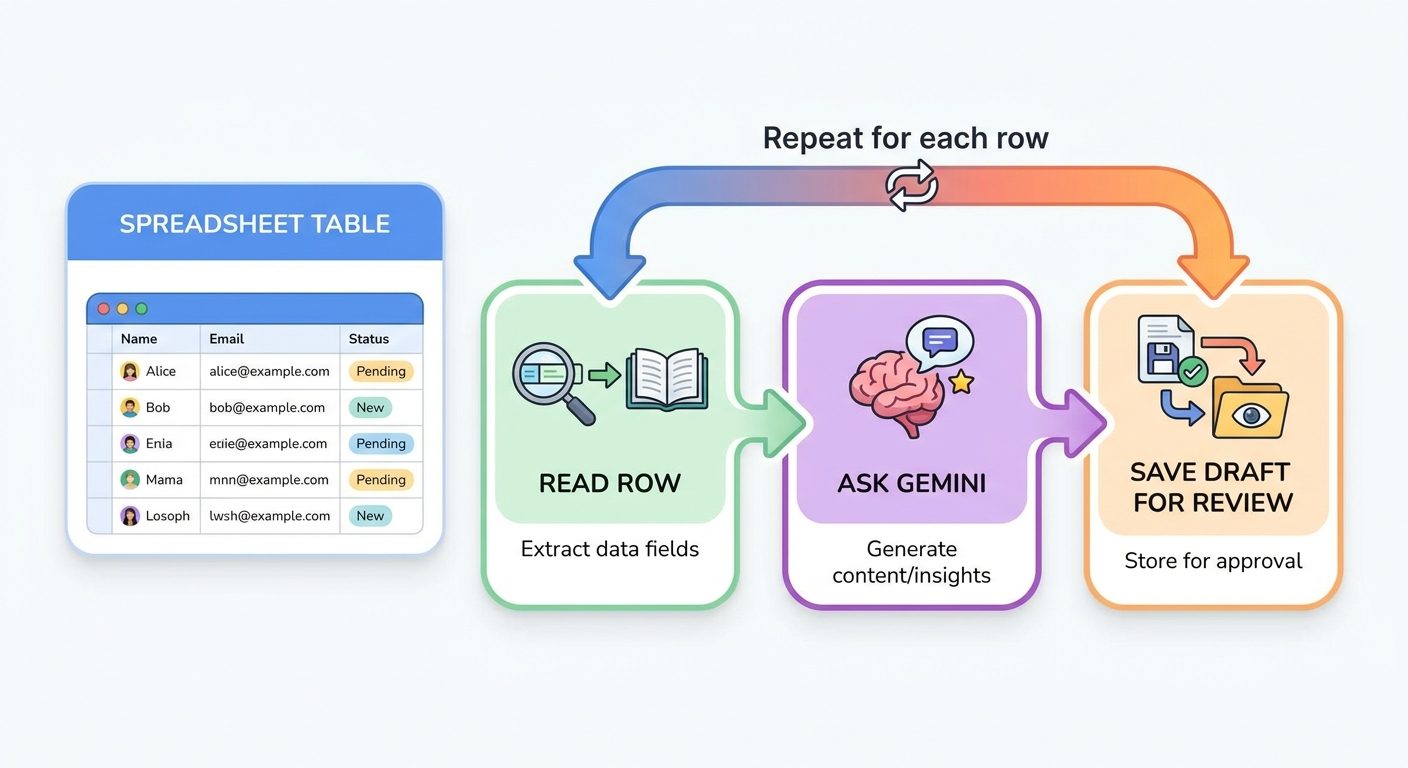
The most useful beginner pattern is not “send hundreds of emails automatically.” A safer first pattern is: read each row, ask Gemini to create a draft or recommendation, save it somewhere reviewable, and let a human approve the final action.
When Google Sheets row loops are worth using
Use row loops when your work already lives in a spreadsheet and each row needs a similar but customized action. If every row requires a different decision, message, or task, Gemini can help personalize the output while the loop handles repetition.
Good row-loop workflows have three traits. First, the spreadsheet has clean columns. Second, the action can be repeated with a consistent prompt. Third, the output can be reviewed before it affects customers, candidates, partners, or internal records.
Bad row-loop workflows are vague and risky. If your Sheet has inconsistent columns, missing names, duplicate rows, or unclear owners, the loop will multiply those problems. Gemini can compensate for messy language, but it should not become the only quality-control layer.
Set up the Google Sheet before building the flow
Your Sheet is the source of truth for the loop. Treat it like a lightweight database, not a scratchpad. The clearer the row structure, the better your Workspace Studio flow will behave.
| Column | Why it helps | Example |
|---|---|---|
| Name | Identifies the person, account, task, or item. | Priya Shah |
| Context | Gives Gemini the reason for the follow-up. | Asked about Gemini automation for sales ops |
| Desired outcome | Keeps the generated output focused. | Invite to a short workflow review |
| Tone | Prevents inconsistent messages. | Friendly, concise, professional |
| Status | Lets you avoid rows already processed. | Ready, Drafted, Reviewed, Sent |
| Notes for reviewer | Captures edge cases and warnings. | Do not mention pricing yet |
Add a status column before you automate. It gives the flow a way to separate rows that are ready from rows that need cleanup. It also gives your team a visible audit trail after the loop runs.
For outreach workflows, avoid storing sensitive personal details you do not need. A row loop should use the minimum context required to produce a useful draft. If the message needs a human relationship, account history, or legal nuance, keep the output as a draft only.
How to build a Workspace Studio row-loop flow
The exact Workspace Studio interface can vary by rollout, account, and admin controls, but the planning pattern stays the same. Start with a narrow trigger, map the Sheet rows, run a loop, and save outputs for review.
Use a schedule for batch work, such as every weekday morning. If your flow should run when a Sheet changes, make the conditions narrow. Avoid broad triggers until you know the flow is safe.
Choose the Sheet and range that contains only rows you want processed. If possible, filter by status so the loop does not repeatedly process old rows.
Use the row data as the loop input. Each loop pass should represent one row. Keep the first version simple: one row, one Gemini step, one output action.
Give Gemini the row fields and a strict output format. Ask it to avoid inventing missing information and to flag incomplete rows.
For email workflows, create drafts or write generated text back into a review column. For task workflows, create tasks with clear source-row references.
After the substeps run, update the row to Drafted or Needs review. This prevents duplicate processing and makes failures easier to spot.
Prompt examples for Ask Gemini inside the row loop
The best prompt for a row loop is boring, specific, and constrained. It should tell Gemini what row fields mean, what output you want, and what to do when information is missing.
Sales lead email draft prompt
You are drafting a short follow-up email for review.
Use only the row data below. Do not invent facts.
Name: {{Name}}
Company: {{Company}}
Role: {{Role}}
Context: {{Context}}
Desired outcome: {{Desired outcome}}
Tone: {{Tone}}

Write:
1. Subject line
2. Email body under 120 words
3. One reviewer note if any information is missing

If Context is empty, return "Needs review: missing context" instead of drafting.
Task creation prompt
Turn this spreadsheet row into one clear internal task.
Item: {{Item}}
Owner: {{Owner}}
Due date: {{Due date}}
Priority: {{Priority}}
Notes: {{Notes}}

Return a task title, task description, and risk flag.
If owner or due date is missing, mark the risk flag as "Needs human review."
Notice the guardrails. The prompt says “use only the row data,” sets a word limit, asks for reviewer notes, and tells Gemini what to do when fields are empty. Those small constraints matter because the loop may run the prompt dozens or hundreds of times.
Three practical row-loop workflows
1. Sales tracker to draft follow-up emails
This is the example closest to Google’s official announcement. Each Sheet row contains a lead, context, and next step. The loop drafts one email per row. The safer version writes the draft into Gmail or back into the Sheet for review instead of sending automatically.
2. Meeting action log to Google Tasks
After a meeting, paste action items into a Sheet with owner, due date, and source note columns. The loop creates one task for each row and marks incomplete rows as Needs review. This is useful when meeting notes are already structured but still repetitive to process.
3. Support issue list to triage summaries
For customer support or internal operations, each row can contain an issue, source, customer tier, and urgency. Gemini summarizes the problem and suggests a priority. The flow writes the summary to a review column or sends a Chat notification to the responsible team.
Common mistakes and limitations
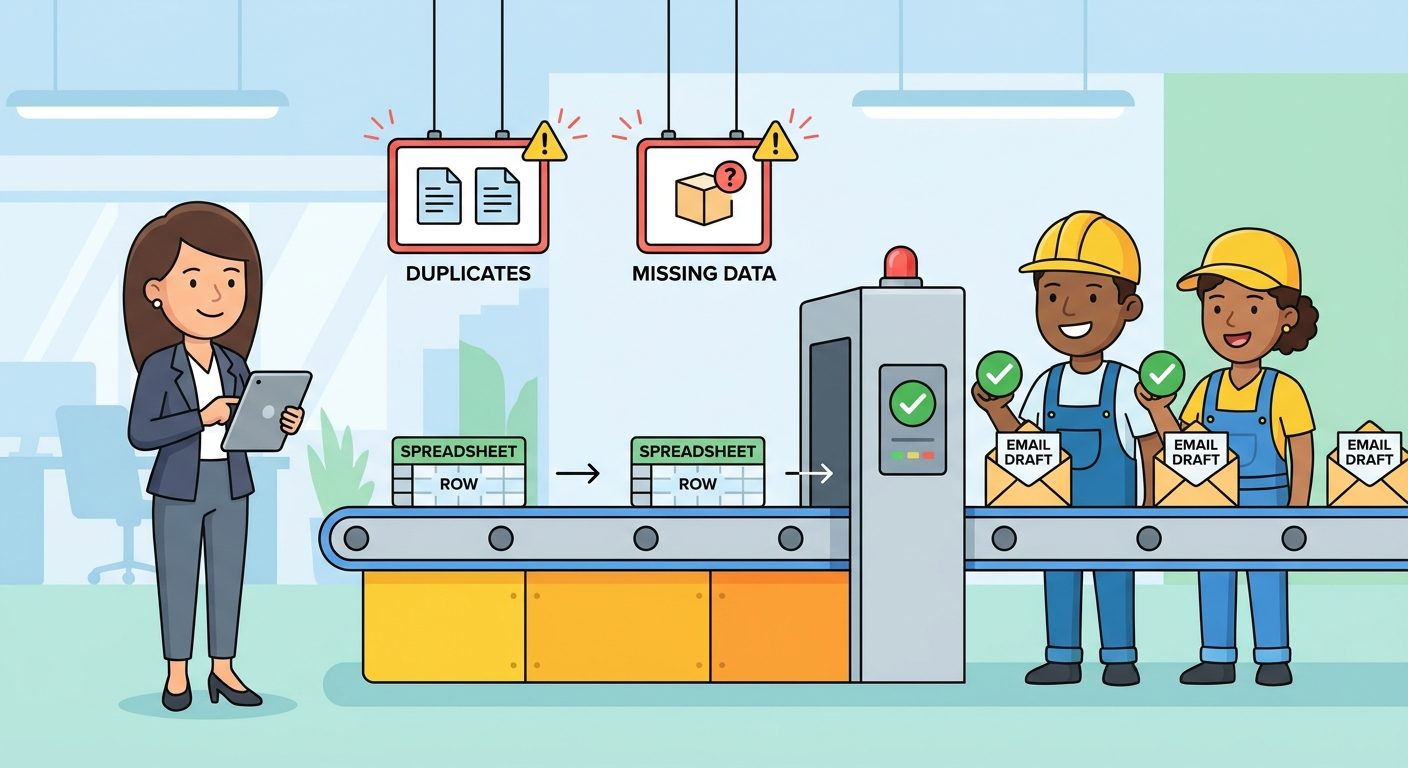
- Processing every row every time. Add a status field or filtered range so old rows are not looped again.
- Letting Gemini fill in missing facts. Tell it to flag missing context rather than guessing.
- Skipping human review. Row loops are powerful because they repeat actions. That also means they repeat mistakes.
- Using messy Sheets. Merged cells, inconsistent labels, duplicate names, and vague notes reduce output quality.
- Forgetting admin controls. Workspace Studio access, starters, and steps can depend on Workspace edition, rollout timing, and admin settings.
- Creating trigger loops. Google’s help documentation notes that some starters ignore flow-created events by default to prevent loops. Keep that protection unless you have a clear reason not to.
If your workflow needs advanced branching, strict API behavior, or detailed error handling, Google Apps Script may still be the better tool. Workspace Studio row loops shine when the task is understandable, repeatable, and reviewable inside Workspace.
Internal links for the GoogleAI cluster
This guide supports the broader Workspace Studio pillar and connects to other GoogleAI workflow articles on AIFeatureDrop:
FAQ
Can Google Workspace Studio loop through Google Sheets rows?
Yes. Google says Repeat for each can loop over Google Sheet data row by row and run substeps for each row.
What should I build first with Sheets row loops?
Start with a low-risk review workflow: draft one email per lead, create one task per action item, or write Gemini recommendations back into a review column.
Should Workspace Studio send emails automatically?
Not at first. Draft-and-review is safer. Automatic sending should come only after testing, clear row filters, approval rules, and confidence that the prompt handles missing data correctly.
Do I need Ask Gemini for every row?
No. But Ask Gemini is helpful when each row needs a customized message, summary, classification, or next-action recommendation.
How is this different from Apps Script?
Workspace Studio is no-code and Gemini-assisted, which makes it easier for business users. Apps Script is better when you need custom code, advanced API logic, or precise error handling.
Final takeaway
Google Workspace Studio row loops make spreadsheets feel less like static trackers and more like controlled workflow queues. The smart way to use them is not to automate everything immediately. Start with one Sheet, a small set of rows, a strict Gemini prompt, and a review-first output.
Once the loop consistently creates useful drafts or tasks, expand carefully. That is how Workspace Studio’s Repeat for each feature becomes a practical business automation tool instead of a fast way to create repetitive mistakes.
Post a Comment