
Google Workspace Studio Repeat for Each Not Working: Fix List Output, Sheet Rows, and Loop Mistakes
When a Workspace Studio loop works, it feels like a small AI teammate: it can read a list, repeat an action for each item, draft messages, update Sheets, and move routine work forward. When it fails, the failure is usually annoyingly vague: the loop has no items, Gemini returns the wrong shape, rows get skipped, or an email action repeats more times than expected.
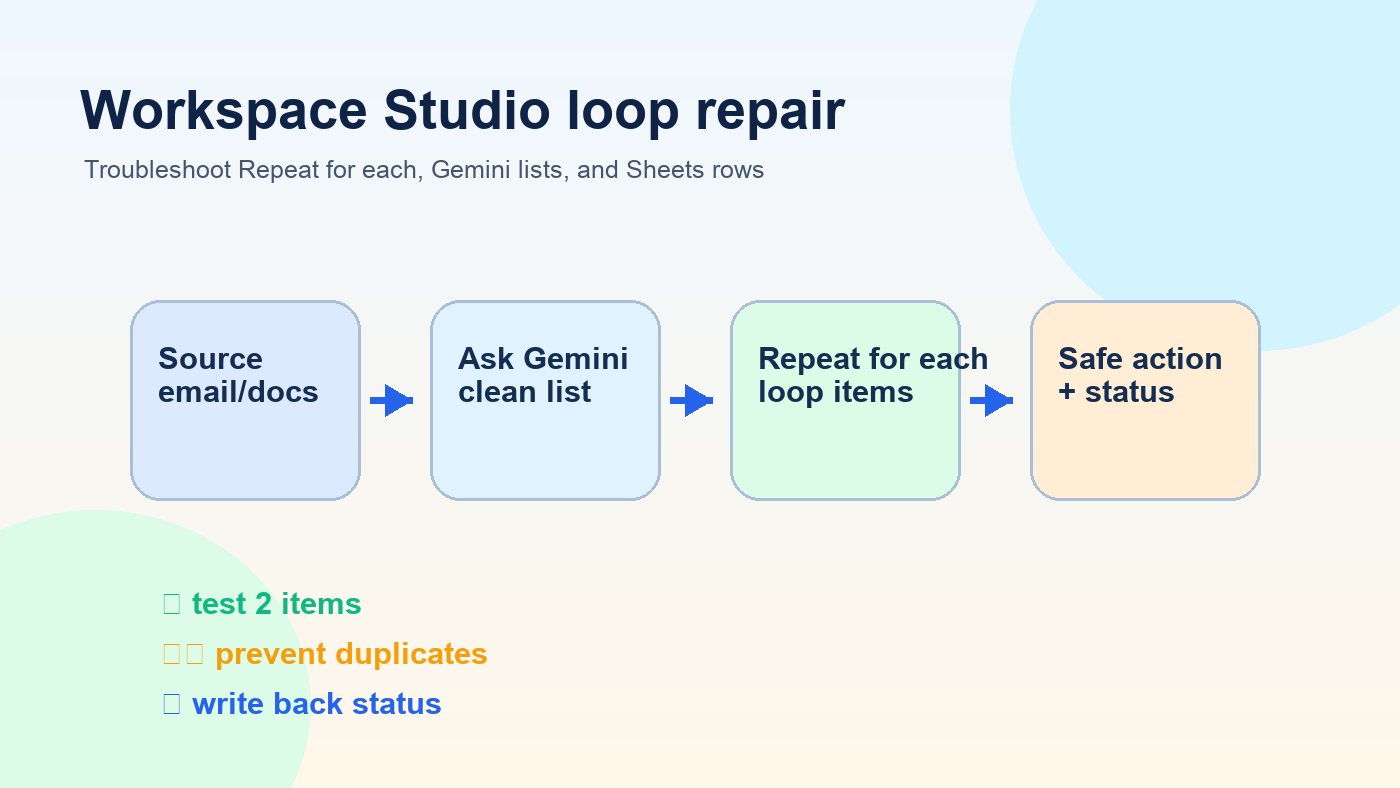
Start here: the five-minute loop repair path
If Repeat for each is not working in Google Workspace Studio, do not rebuild the whole automation first. Most broken loops come from one of five issues: the input is not a list, the list items are inconsistent, the Sheet range includes messy rows, the action inside the loop has no idempotency check, or the workflow is trying to do too much in one pass.
1. Confirm the loop input
The step before the loop must expose a repeatable list. If it produces a paragraph, summary, or table-looking block, the loop may have nothing reliable to iterate.
2. Test two items only
Run the workflow on two rows, two messages, or two list items. If two items work, your logic is likely fine and your issue is messy source data or scale.
3. Add a status field
For email, Sheets, Drive, or task workflows, write back processed, skipped, or needs review. That one field prevents most duplicate runs.
Why this topic matters right now
AIFeatureDrop’s newest GoogleAI pillar, Google Workspace Studio Loops Explained, covers how Repeat for each and Ask Gemini list output fit into broader Workspace automations. The next practical search gap is narrower: people do not only need to know what loops are; they need to fix loops when the output shape, row data, permissions, or action logic breaks.
The opportunity is supported by current site data and live SERP checks. GA4 shows GoogleAI pages and label archives are already receiving visits, with the Workspace Studio row-loop cluster freshly published. Search Console data is still thin for the domain property, so this article uses GA4 page behavior plus browser-verified SERP evidence: a recent Google Workspace Developers video result about looping over a list appeared, while exact support-style searches for Workspace Studio and “Repeat for each” had weak direct documentation coverage. That makes a focused troubleshooting guide useful and non-duplicative.
Problem 1: Repeat for each has no items
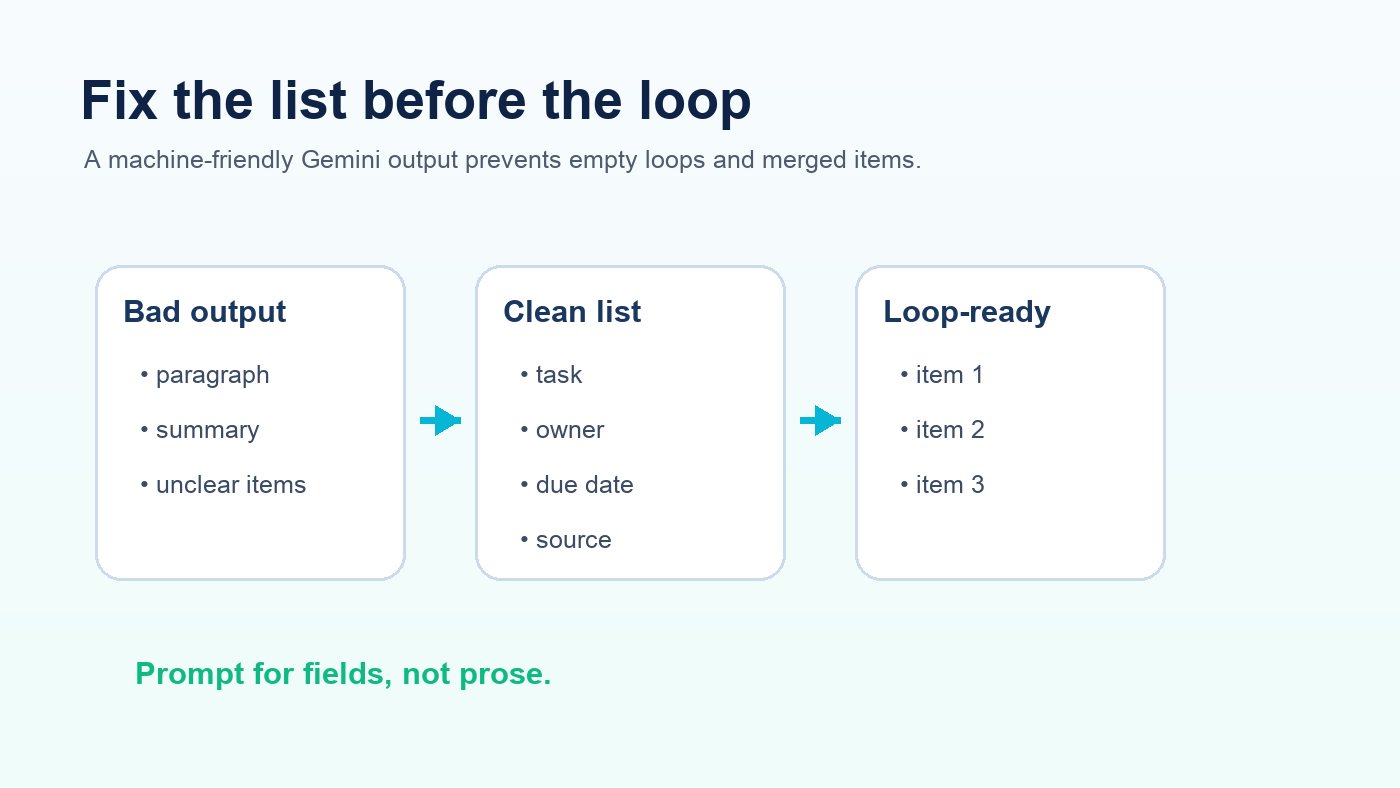
The classic failure mode is simple: your workflow reaches the loop, but the loop does not run. In many cases, the previous step returned text that looks like a list to a human but is not cleanly usable as a list by the workflow.
Weak Gemini instruction
“Read this email and list the action items.”
This can produce bullets, paragraphs, headings, or explanations. It may be readable, but the loop may not receive stable item fields.
Better Gemini instruction
“Return only a numbered list of action items. Each item must include owner, task, due date, and source sentence. If there are no tasks, return an empty list.”
This gives the loop predictable item boundaries and fields.
Use a structured list prompt
Extract tasks from the source text.
Return a clean list only.
For each item include:
- task
- owner
- due_date
- priority
- original_source_sentence
If no tasks exist, return no items.
You are not trying to make Gemini sound polished here. You are trying to make its output boring, repetitive, and machine-friendly. That is exactly what a loop needs.
Problem 2: Google Sheets rows are skipped or merged
Sheets row loops are powerful because they turn a spreadsheet into a lightweight work queue. They are also fragile when the sheet is treated like a scratchpad instead of a data source. Blank rows, merged cells, inconsistent column names, and hidden filters can make a loop behave unpredictably.
| Sheet issue | What it causes | Fix |
|---|---|---|
| Blank rows inside the data range | The loop stops early or includes empty items | Remove blank rows or filter to rows where a required column is not empty |
| Merged cells | Values appear in the wrong row or column | Unmerge cells and repeat the value on each row |
| Changing header names | Fields disappear from later steps | Use stable lowercase headers such as email, status, draft |
| No status column | Duplicate emails or repeated actions | Add status, last_run_at, and result |
| Large unfiltered range | Slow runs and accidental bulk actions | Start with a filtered view or a small test sheet |
For a full setup walkthrough, use the companion guide: How to Use Google Workspace Studio with Google Sheets Row Loops. This article focuses on diagnosing what went wrong after the basic flow exists.
Problem 3: the loop sends duplicate emails or repeats actions
Duplicate actions are the most expensive Workspace Studio mistake because they can reach real people. The safest pattern is to make every loop item check its own state before doing anything external.
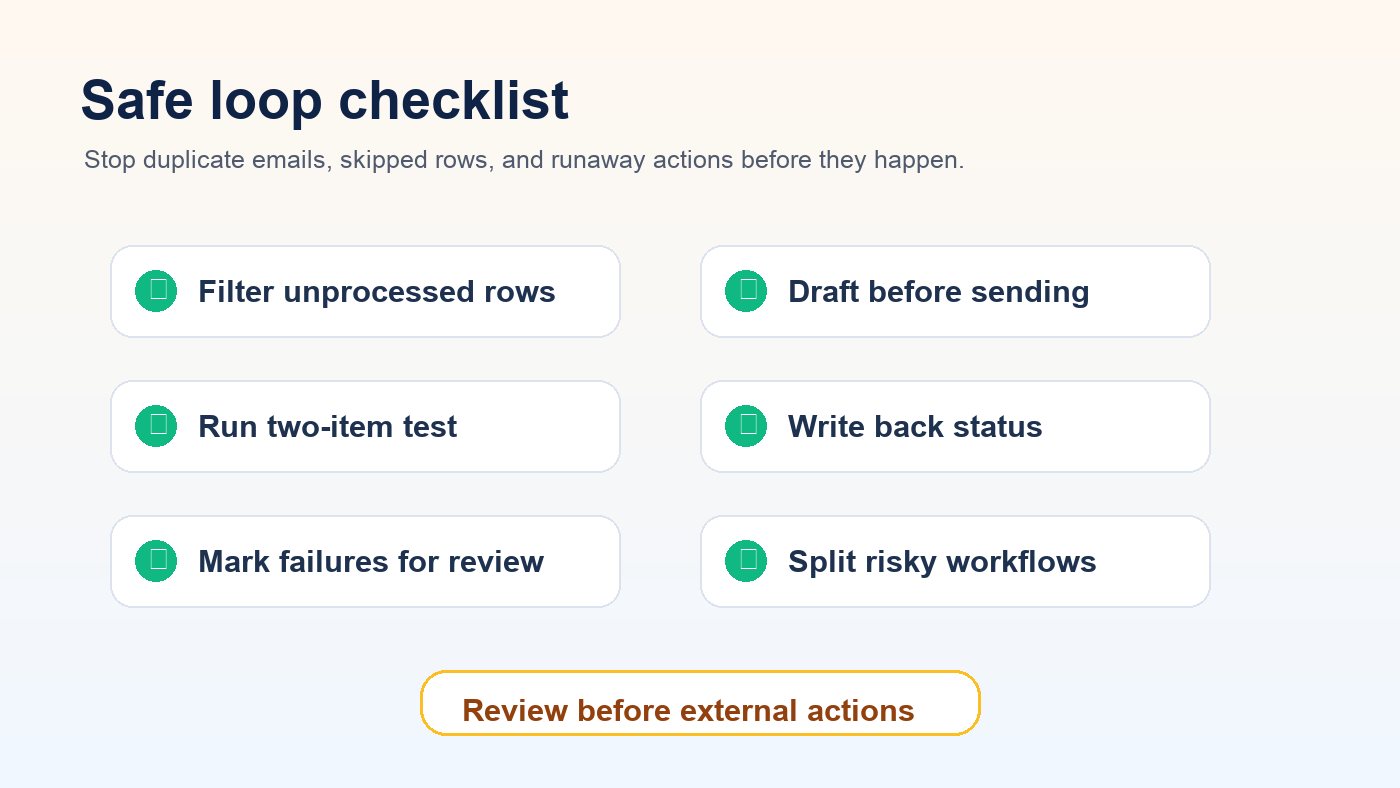
Filter before the loop
Only include rows where status is blank, ready_to_send is yes, or reviewed is true. Never loop over the entire sheet if only some rows need action.
Draft before sending
For Gmail workflows, create drafts first. Review the first few outputs manually before enabling any send-like action.
Write back after each item
After an action succeeds, update the row with processed, a timestamp, and any returned link or note. If it fails, write needs review instead of retrying silently.
Keep the source sentence
When Gemini extracts tasks, carry the original source sentence into the loop. It helps reviewers see why the task or email was created.
Problem 4: the workflow is too broad for one loop
Workspace Studio is best for practical business automations across Gmail, Drive, Docs, Sheets, and related Workspace surfaces. It is not a replacement for a full integration platform, a custom Apps Script project, or an enterprise job runner. If one automation tries to classify messages, enrich leads, draft emails, update Sheets, create Drive folders, and notify a team in one pass, debugging becomes painful.
Split risky loops into stages
Use one workflow to extract and prepare data, another to review or enrich it, and a final carefully filtered workflow to perform external actions. This makes errors easier to inspect and reduces the chance of a bad Gemini output triggering a bulk action.
| Use Workspace Studio when… | Use Apps Script or another automation tool when… |
|---|---|
| The workflow lives mostly inside Google Workspace | You need complex branching, APIs, custom retry logic, or database-style operations |
| A human can review drafts or results | The automation must run unattended at high volume |
| The input list is small and visible | The input is a large production data pipeline |
| Gemini judgment is useful for classification or summarization | You need deterministic calculations or strict compliance logging |
Three practical repair examples
Example 1: meeting notes to task rows
Symptom: The loop creates one giant task instead of separate tasks. Cause: Ask Gemini returned a paragraph summary. Fix: Change the prompt to return only task items with owner, due date, and source sentence. Then loop through those items and append each one as a row.
Example 2: lead list to personalized Gmail drafts
Symptom: The workflow drafts emails for old leads again. Cause: The loop uses every row, including rows already processed. Fix: Add a status column, filter to blank statuses only, and write back draft_created with the draft link after each item.
Example 3: support inbox to triage sheet
Symptom: Gemini labels some messages inconsistently, so the loop routes them to the wrong category. Cause: The categories were not constrained. Fix: Give Gemini a closed set of labels such as billing, bug, feature_request, account_access, and other. Ask it to choose exactly one.
A safe test checklist before you run the full workflow
- Use a copy of the Sheet or a two-row test sheet.
- Make the first loop action write a log row instead of sending anything.
- Check whether the loop count matches the expected item count.
- Inspect the first two Gemini outputs for field consistency.
- Add a human review step before external actions such as Gmail sends.
- Write back a status after each item so reruns are safe.
- Keep a “dry run” mode by using draft creation or a test recipient.
- Document what each column means so future edits do not break the loop.
Internal links for the Workspace Studio cluster
This troubleshooting guide supports the broader Google Workspace Studio loops pillar. If you are still designing the workflow, start there first. If your main source is a spreadsheet, continue with the Google Sheets row-loop tutorial. You can also browse more GoogleAI workflow coverage in the GoogleAI archive.
FAQ
Why is Repeat for each empty in Google Workspace Studio?
The previous step probably did not return a true list. Rewrite the Ask Gemini prompt so it returns clean, separate items with consistent fields. Avoid paragraphs, markdown tables, or mixed explanatory text.
Can Workspace Studio loop through Google Sheets rows?
Yes. Keep the Sheet simple: one header row, no merged cells, no blank rows inside the range, and a status column for processed items. Test with two rows before using the full sheet.
How do I prevent duplicate emails?
Filter to unprocessed rows only, create drafts before sending, and write back a processed status immediately after each successful item. If the action fails, mark the row as needs review instead of retrying blindly.
Should I use Ask Gemini inside or before the loop?
Use Ask Gemini before the loop when you need to extract a list from a document, email, or notes. Use Gemini inside the loop when each item needs a separate classification, summary, or draft.
What is the best first test for a broken loop?
Replace the real action with a harmless logging action, run two items, and confirm the loop count, item fields, and output values. Once those are correct, reconnect the real action.
When should I use Apps Script instead?
Use Apps Script or another automation tool when you need complex code, API calls, custom retries, large-volume processing, or deterministic calculations. Workspace Studio is better for accessible Workspace-native workflows with reviewable outputs.
Sources and references
Final takeaway
When Google Workspace Studio Repeat for each is not working, fix the shape of the data before blaming the workflow. A clean list, a tidy Sheet, a status column, and a two-item test run solve most problems. Once the loop is predictable, you can safely scale it into useful Workspace automations without creating duplicate drafts, skipped rows, or confusing Gemini output.
Post a Comment