
Google Workspace Studio Gmail Approval Workflow: Build Multi-Item Reviews with Ask Gemini Lists
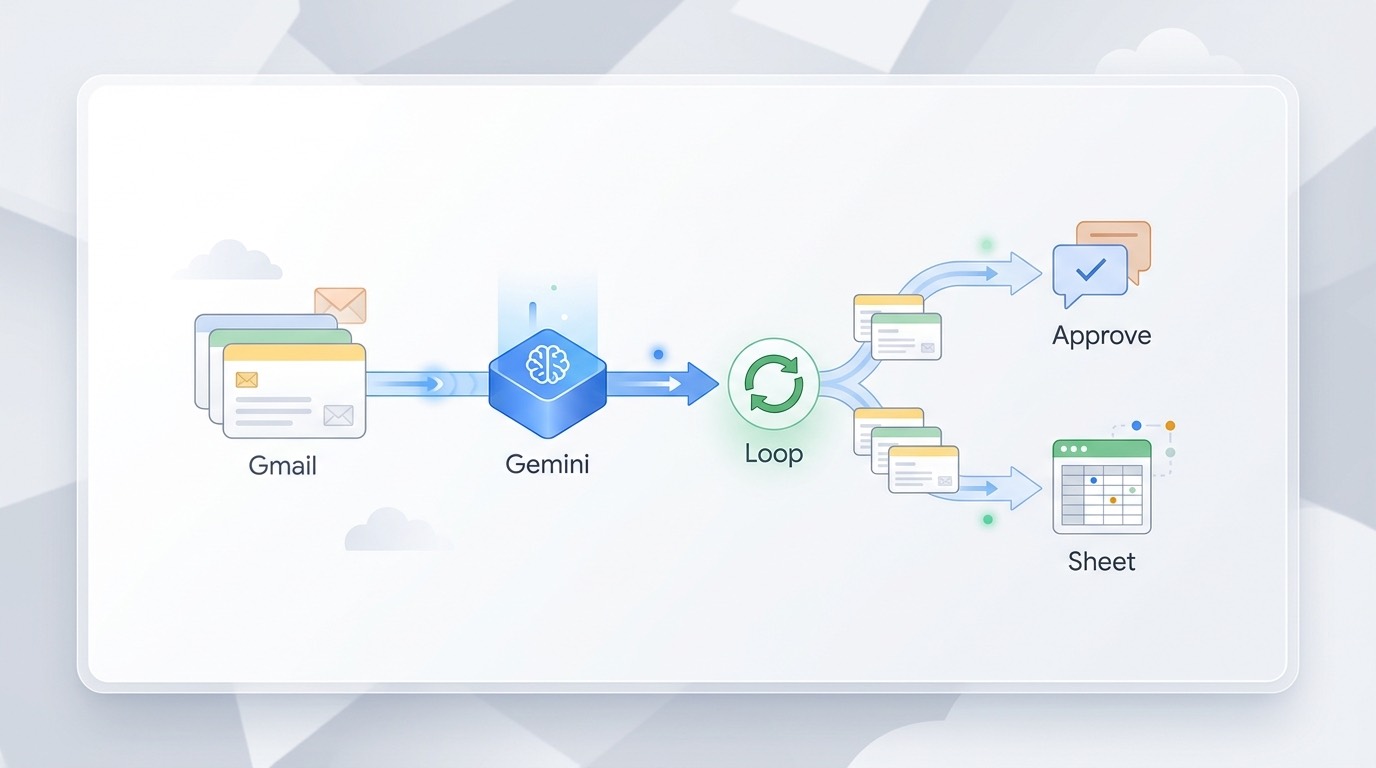
If one Gmail message contains five approval requests, a basic automation treats it like one task. A better Workspace Studio flow asks Gemini to turn the email into a list, then uses Repeat for each to review, route, and log every item separately.
Quick answer: the workflow pattern
The cleanest Google Workspace Studio Gmail approval workflow uses this pattern:
Email received in Gmail
→ Ask Gemini: extract approval items as a List
→ Filter list: keep only valid approval items
→ Repeat for each item
→ Check if: route by amount, owner, risk, or category
→ Notify reviewer in Chat or draft Gmail approval message
→ Add each item to Google Sheets for audit tracking
This article is intentionally narrower than the broader Google Workspace Studio loops guide. That pillar explains loops in general; this cluster article focuses on a practical Gmail approval flow where the hard part is getting Gemini to produce a reliable list and then processing each item without duplicates.
Expense approvals, vendor requests, access requests, procurement notes, policy exceptions, multi-item client emails.
Google Workspace Studio Gmail approval workflow
Ask Gemini response format set to List, then Repeat for each.
Why Gmail approval workflows need lists, not summaries
Many approval emails are messy. A manager forwards a single message with three expense lines. A client asks for two access changes and one deadline exception. A vendor sends one email containing several invoice questions. If your flow only summarizes the email, you still have one blob of text. That is not enough for routing.
The useful automation move is to convert the email into structured items. Google’s Workspace Studio Help describes Ask Gemini as an AI step that can generate text or transform information from earlier steps. It also documents a Response format option where Gemini can return either Text or List. When the response is a List, each item can be used one by one with a Repeat for each step.
That small response-format choice is the difference between “AI wrote me a summary” and “AI created a queue of reviewable work items.”
Before you build: decide what counts as an approval item
Do this before touching the flow builder. A vague prompt creates a vague list, and a vague list makes the loop unreliable.
| Decision | Good setup | Risky setup |
|---|---|---|
| Item boundary | One approval item equals one requested decision. | One item equals one paragraph or one sender thought. |
| Required fields | Requester, item, amount or impact, due date, suggested reviewer, confidence. | Only a summary sentence. |
| Invalid items | Exclude greetings, context, signatures, and non-actionable notes. | Let Gemini include every bullet in the email. |
| Audit trail | Log the original subject, sender, extracted item, reviewer, status, timestamp. | Only send a chat message and hope someone remembers. |
If your use case involves spreadsheet rows, pair this guide with the Workspace Studio Google Sheets row loops tutorial. It shows the same list-and-loop idea from the Sheets side.
Step-by-step Gmail approval workflow
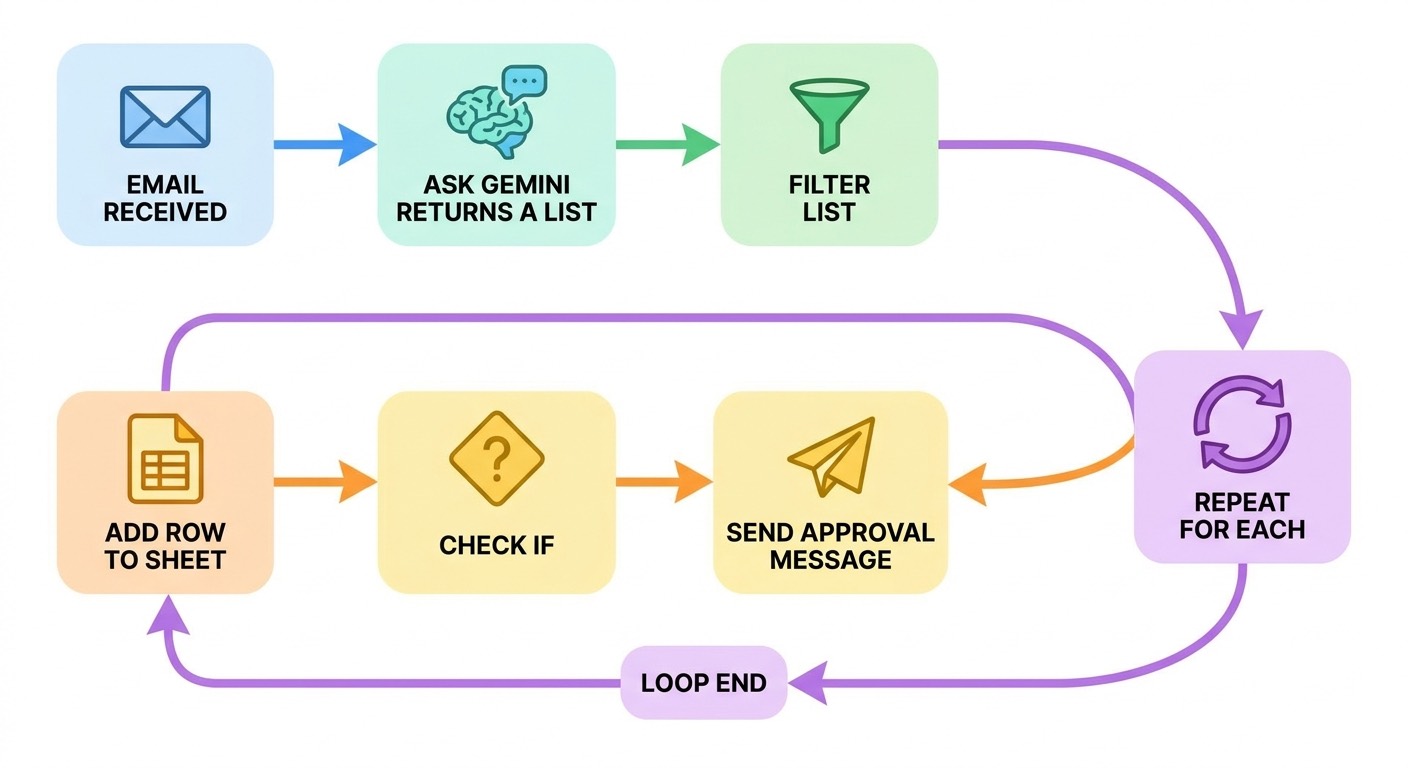
- Create the starter: When I get an email. Use a targeted mailbox, alias, subject phrase, sender, attachment condition, or default Gmail label. Google’s help notes that the email starter can be filtered with fields such as From/To, Has the words, Subject has, attachment, size, and default email labels. Keep the starter narrow so normal email does not flood your flow.
- Add Ask Gemini. Choose the incoming email body, subject, sender, and attachment context if available as variables. Ask Gemini should extract only approval items, not write an essay.
- Set Ask Gemini response format to List. This is the key step. If the output is Text, Repeat for each cannot reliably process individual items. If the output is List, the next step can loop through each extracted item.
- Add Filter a list. Filter out low-confidence items, empty items, signatures, repeated disclaimers, or anything that does not require approval.
- Add Repeat for each. Select the filtered list as the input. Everything inside this loop should operate on the current item, not on the whole email.
- Add Check if conditions. Route items by amount, risk, department, requester, product area, or deadline. For example: if amount is above a threshold, notify a manager; otherwise send it to the project owner.
- Notify the reviewer. Use Google Chat for fast internal approvals or draft a Gmail reply when the approval needs email context. For sensitive approvals, prefer a draft or notification over auto-sending a final decision.
- Log to Sheets. Append a row for every looped item: email subject, sender, item text, extracted fields, reviewer, status, and link to the original message or file if available.
Copy-paste Ask Gemini prompt for approval item extraction
Use this as a starting prompt and replace the bracketed variables with the variables available in your Workspace Studio flow.
You are preparing approval work items from one inbound email.

Email subject: [Subject]
Email sender: [Sender]
Email body: [Body]

Return a LIST. Each list item must represent exactly one approval decision requested in the email.

For each item, include:
- request_summary: one sentence
- requester: person or team asking
- approval_type: expense, access, vendor, deadline, policy, document, other
- amount_or_scope: amount, system, file, project, or impact if mentioned
- due_date: date or "not specified"
- suggested_reviewer: role or person if clear
- risk_level: low, medium, or high
- confidence: high, medium, or low

Rules:
- Do not include greetings, signatures, background context, or FYI notes.
- If the email contains no approval request, return an empty list.
- If one sentence contains two separate approval decisions, split it into two list items.
- Do not invent missing amounts, names, or dates.
The “do not invent” line matters. Approval automation is a trust workflow. A confident hallucinated amount is worse than an empty field.
Routing examples inside Repeat for each
Inside the loop, think like an operations designer. Every item should either route to a reviewer, be logged for manual review, or be discarded because it is not actually an approval request.
| Condition | Action | Why it helps |
|---|---|---|
| risk_level is high | Send Chat notification to manager and log as “needs review.” | Keeps sensitive decisions away from automatic approval. |
| approval_type is access | Notify IT owner with requester, system, and scope. | Access requests usually need owner-specific review. |
| confidence is low | Draft a clarification email instead of routing for approval. | Prevents reviewers from wasting time on unclear items. |
| amount_or_scope is missing | Add to Sheets with status “missing details.” | Creates an audit queue without blocking the whole email. |
Common mistakes that break Gmail approval loops
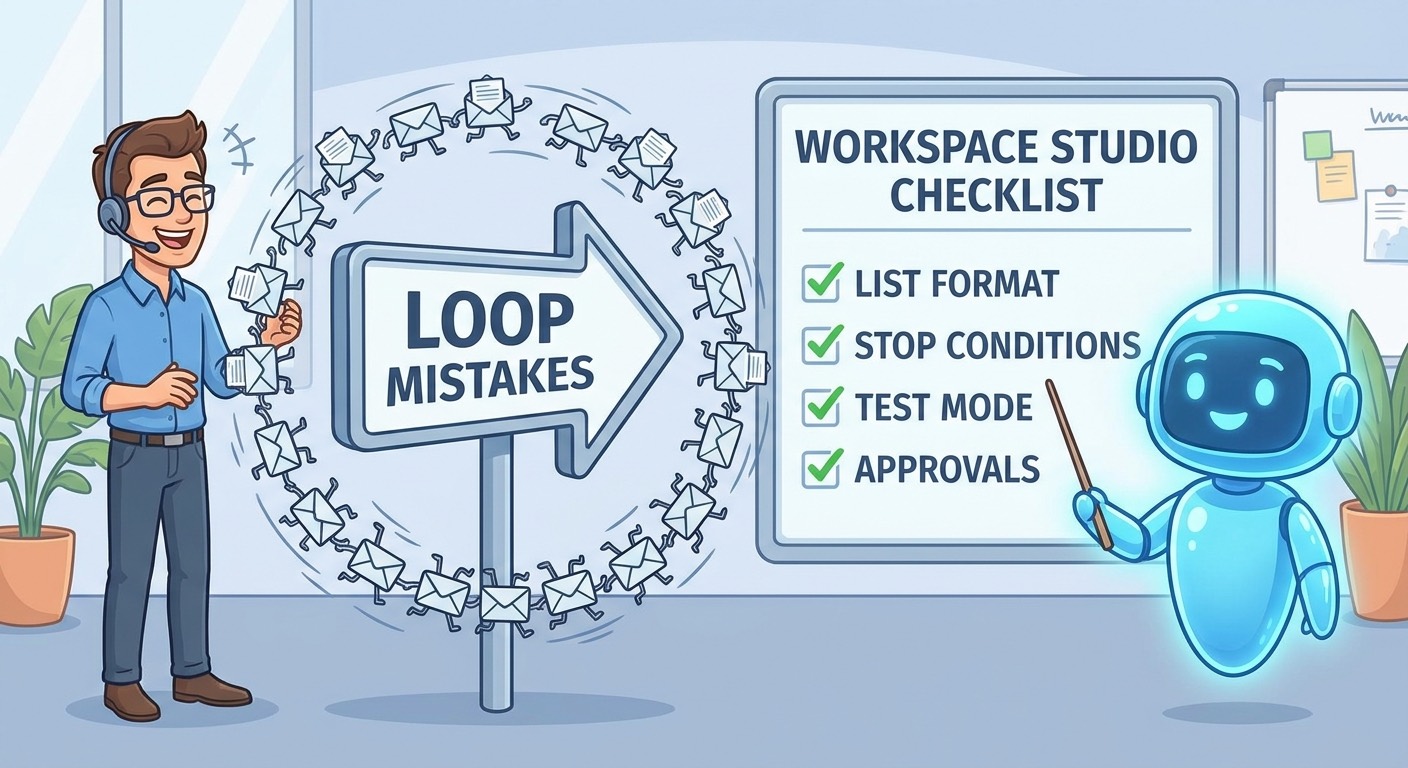
1. Asking Gemini for a summary instead of a list
A summary reads nicely but loops poorly. Make sure Ask Gemini uses the List response format and your prompt says “return a LIST.”
2. Looping over the original email
Repeat for each should process the list from Ask Gemini or the filtered list. If you accidentally point the loop at the wrong variable, every iteration can repeat the entire email context.
3. Skipping Filter a list
Filtering is your safety buffer. It removes empty outputs, low-confidence items, and accidental signature fragments before they become reviewer notifications.
4. Auto-sending approvals too early
For new workflows, start with drafts or Chat notifications. Once the extraction quality is proven, you can decide whether any low-risk path deserves automatic action.
5. Forgetting audit logging
A good approval workflow is not only fast; it is traceable. Sheets logging gives you a recovery path when someone asks, “Why did this approval happen?”
If your loop is already misbehaving, use the troubleshooting checklist in Google Workspace Studio Repeat for Each Not Working.
Testing checklist before going live
- Test an email with zero approval requests. The flow should return an empty list or safely stop.
- Test one email with one approval request. It should create exactly one reviewer notification and one log row.
- Test one email with three approval requests. It should create three separate loop actions, not one combined message.
- Test messy signatures, forwarded threads, and quoted replies.
- Test missing fields such as amount, owner, or due date.
- Test whether flow-created emails can trigger another flow. Keep that off unless you explicitly need it.
- Check Sheets logs for duplicates before enabling wider routing.
When this workflow is a bad fit
Workspace Studio approval loops are useful for lightweight business processes, but they are not a replacement for a formal procurement, finance, compliance, identity governance, or ticketing system. Avoid using this pattern as the final authority for high-risk financial approvals, regulated access changes, legal signoff, medical decisions, or anything that requires strict role-based controls beyond the current Workspace flow.
The safer approach is to use Workspace Studio as an intake, extraction, notification, and logging layer. Let humans or dedicated systems make the final call where the risk is material.
FAQ
Can Workspace Studio process multiple approval items from one Gmail message?
Yes, if Ask Gemini returns a List and Repeat for each is pointed at that list. The flow can then process each extracted item individually.
Should I use Gmail or Chat for approvals?
Use Chat for fast internal review and Gmail when the reviewer needs email context or an external-facing draft. For sensitive decisions, avoid automatic final approvals during early testing.
Why is my Repeat for each loop sending duplicate messages?
The most common causes are looping over the wrong variable, including quoted email threads in the extraction prompt, not filtering the list, or allowing flow-created emails to retrigger another flow.
Can I log every approval item to Google Sheets?
Yes. Add a Sheets step inside the loop and write one row per current item. Include the original email subject and sender so the log remains traceable.
What is the best first approval workflow to build?
Start with low-risk internal requests: document review, small expense triage, policy exception intake, vendor question routing, or team task approvals. Prove extraction quality before using it for critical approvals.
Bottom line
A reliable Google Workspace Studio Gmail approval workflow is not just “Gmail plus Gemini.” The winning pattern is Gmail starter, Ask Gemini List output, Filter list, Repeat for each, conditional routing, and Sheets logging. That gives you speed without losing review control.
Next, read the broader Workspace Studio loops pillar if you want to adapt this pattern for Sheets, Drive, forms, or meeting follow-ups.
Post a Comment