
Google AI Studio can now take an Android app from prompt to a Play Console internal test. That is exciting, but it also creates a new trap: publishing too quickly. This guide explains the safe workflow, what AI Studio handles, what Play Console still expects, and how to test a vibe-coded Android app before real users see it.
Quick Answer: Can Google AI Studio Publish Android Apps to a Play Store Internal Test?
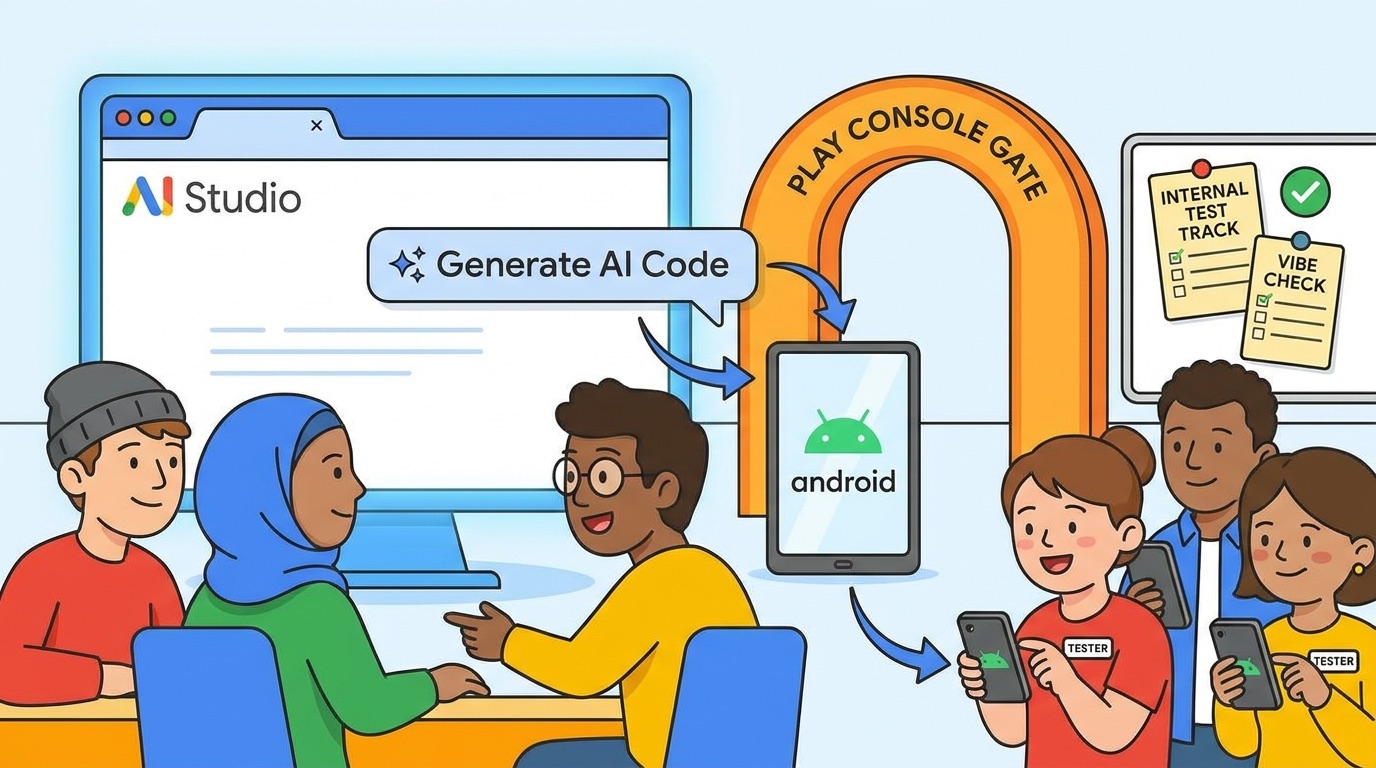
Yes, Google AI Studio can help publish a generated native Android app to a Google Play Internal Test Track, but you should treat that as a controlled testing handoff, not a production launch button. Google’s Android Developers announcement says AI Studio can create an app from a prompt, preview it in a browser-based Android Emulator, install it on a physical Android device through browser ADB, and use a connected Google Play developer account to package and upload the app to an internal testing track.
The important phrase is internal testing. An internal test is meant for a small group of trusted testers, teammates, clients, or your own devices. It is where you catch crashes, bad layouts, unnecessary permissions, confusing copy, broken flows, policy problems, privacy mistakes, and AI-generated shortcuts before the app reaches a wider audience. The Play Store Internal Test Track is useful because it gives you a realistic install and update path, but it does not magically make generated code safe, compliant, polished, or scalable.
This cluster guide supports our broader pillar, Google AI Studio Android App Builder Explained. The pillar covers what the Android app builder is. This article focuses on the narrower question many builders will ask next: “How do I publish my AI Studio Android app to Play Store testing without accidentally treating a prototype like a launch-ready product?”
Why This Feature Matters for Vibe-Coded Android Apps
Prompt-to-app tools used to stop at demos. You could generate a web prototype, click around in a preview pane, maybe download code, and then face the real work somewhere else. Google AI Studio’s Android workflow changes the feel of that process because the output is a native Android project, generated with Kotlin and Jetpack Compose, and the testing path sits much closer to the same browser workflow where the app was created.
That is a meaningful product shift. The Android Developers Blog describes AI Studio as a way to build an entire Android app from a prompt, with no local software installation or library configuration required at the start. It highlights native Android strengths such as device integration, offline support, background services, and hardware sensors. It also describes an end-to-end workflow: create and iterate in the cloud, preview in an embedded Android Emulator, install to a device through ADB, and publish to a Play Store internal testing track using a Google Play developer account.
For creators, founders, students, and non-mobile developers, that removes a lot of friction. You can move from “I have an idea for a habit tracker” to “my teammate can install a test build” much faster than a traditional Android setup. For experienced developers, it is a rapid prototyping lane: use AI Studio to explore product shape, then export to Android Studio, GitHub, Antigravity, or another local workflow when the project needs deeper engineering.
But lowering the barrier also lowers the natural pause points that used to protect beginners. When Android Studio, Gradle, signing, device testing, Play Console, privacy policy pages, and release tracks were separate steps, you had many chances to slow down. In AI Studio, the path feels smoother, which is great for experimentation and risky for discipline. The safer mental model is simple: AI Studio accelerates app creation; internal testing slows you down just enough to make the app worth sharing.
The SEO gap behind this topic
Search results around this feature currently lean toward official announcements, short news summaries, and videos showing that the workflow is possible. That leaves a practical gap. A builder does not only need to know that AI Studio can publish to an internal test; they need to know what to check before doing it, what Play Console still controls, how internal testing differs from emulator testing, and when to leave AI Studio for a traditional Android workflow.
Our GA4 data also supports this angle. Recent AIFeatureDrop performance shows durable interest in practical AI workflow posts, especially coding-agent and product-feature explainers. Organic Search delivered meaningful engaged sessions, while GoogleAI and developer workflow pages continue to create internal linking opportunities. The site already has coverage around AI Studio Android apps, Google AI Edge Gallery, Workspace Studio loops, GitHub agentic workflows, and Claude/Codex coding limits. A narrow internal-testing article strengthens the GoogleAI cluster without duplicating the pillar.
Emulator, ADB Install, or Internal Test Track: Which One Should You Use?
AI Studio’s Android workflow gives builders multiple testing layers. They are related, but they are not interchangeable. If you use the wrong layer for the wrong job, you either slow yourself down too early or share the app before it has earned that trust.
| Testing path | Best for | What it catches | What it does not prove |
|---|---|---|---|
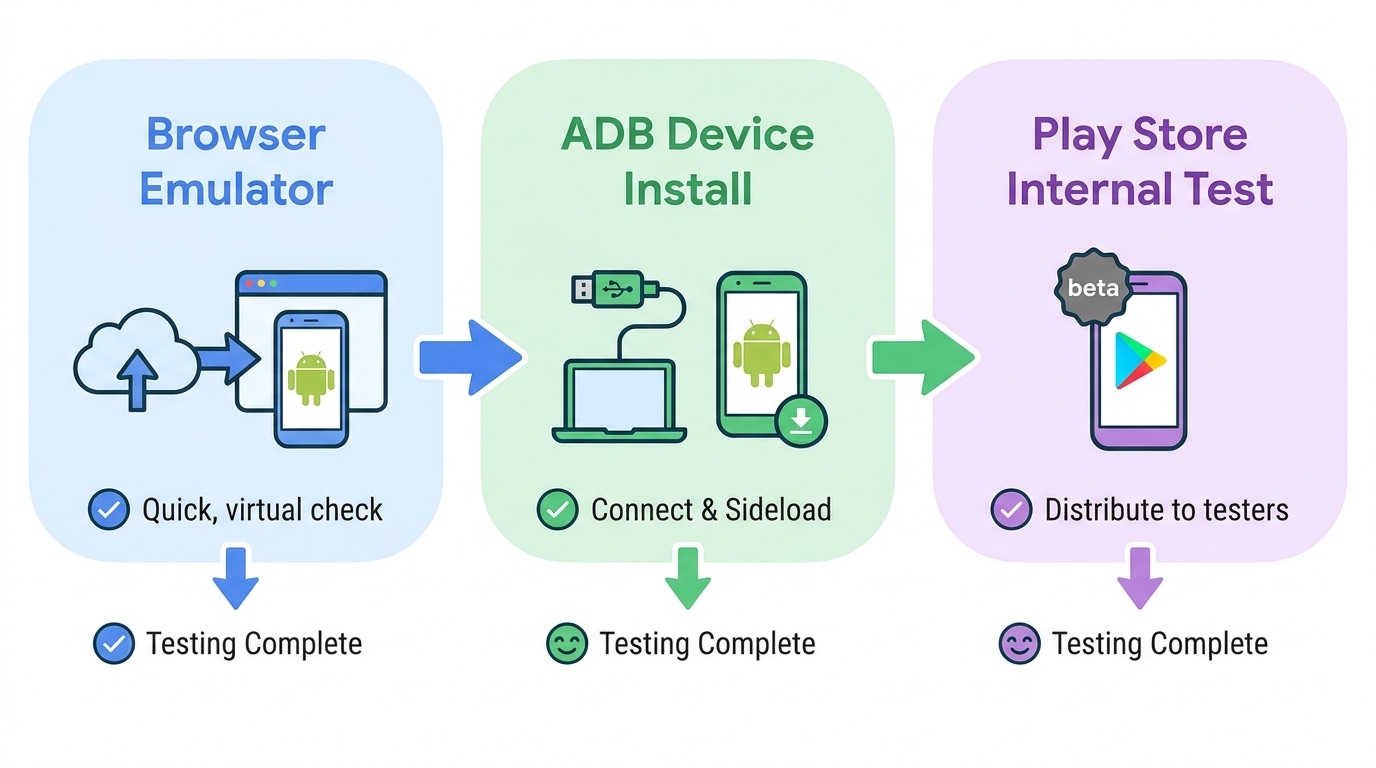
| Browser-based Android Emulator | Very early iteration while the app is still changing rapidly. | Basic layout, navigation, visible crashes, obvious prompt misunderstandings, simple flows. | Real device behavior, Play distribution, tester access, store metadata, policy readiness. |
| ADB install on physical device | Checking touch feel, hardware behavior, performance, offline behavior, and device-specific issues. | Camera/location/Bluetooth behavior, real screen density, battery/performance surprises, permission prompts. | Play Console track setup, update flow, tester enrollment, production compliance. |
| Play Store Internal Test Track | Trusted tester distribution before wider release. | Install/update path, tester feedback, account-specific behavior, release packaging, practical QA loops. | That the app is production-ready, fully policy-safe, accessible, secure, or commercially ready. |
A good rule is to move outward in rings. Start in the emulator because it is fastest. Install on your own Android phone when the app has enough shape to feel real. Use Internal Test Track only when you want other people to install it, update it, and tell you what breaks. Do not skip from a first prompt to an internal release unless the app is intentionally trivial.
Internal testing is not the same as “private production”
Because the words “Play Store” appear in the workflow, beginners can misunderstand the status of the build. An internal test is a controlled release track. It is not the same as launching publicly. Google Play Help explains that open, closed, and internal tests are ways to test with selected groups or wider groups before production, and that feedback from test users does not affect the public rating. It also notes that links and changes may take time to become available. In other words, the track is a testing system, not a guarantee that the app should be promoted.
This matters even more for AI-generated apps. AI can write plausible Kotlin and Compose code quickly, but plausibility is not the same as product reliability. You still need to know what data the app touches, which permissions it requests, how it behaves when offline, whether it handles empty states, what happens when a network call fails, and whether its Gemini API usage or third-party services are configured safely.
Prerequisites Before Publishing an AI Studio Android App to Internal Testing
Before you click anything that sends your AI Studio app toward Play Console, pause and confirm the prerequisites. Some are technical. Some are product decisions. Some are policy basics. The goal is not to make the first internal test perfect; the goal is to make it honest enough that tester feedback is useful.
Google Play Help also flags that personal developer accounts created after November 13, 2023 have specific testing requirements before production access. That does not mean every internal test is blocked, but it is a reminder that a Play Console account is not just a file upload box. It has account-level and policy-level rules. If you are building for a company, client, classroom, or startup, make sure the correct account owns the app from the beginning. Moving an app later can be messy.
What to ask AI Studio before publishing
A useful pre-publish prompt is not “publish this.” It is a review prompt. Ask AI Studio to list app permissions, external calls, local storage, generated files, navigation paths, possible crash points, and any policy-sensitive behavior. Ask it to explain where user data goes. Ask it to create a manual QA checklist for the exact app. Then verify the answer yourself. AI-generated self-review is not a substitute for human review, but it often surfaces things you forgot to inspect.
Step-by-Step Workflow: From AI Studio Build to Play Store Internal Test
The exact UI may change as Google updates AI Studio, but the safe workflow should stay stable. Think in terms of checkpoints rather than buttons. Each checkpoint should answer one question: is this app ready for the next testing ring?
1. Start with a constrained Android prompt
Write a prompt that describes a small app, not a fantasy product. AI Studio can generate a lot, but internal testing works best when the first app has a narrow purpose. For example: “Build a Kotlin Jetpack Compose habit tracker with three screens: Today, History, and Settings. Store habits locally. Do not include login, cloud sync, ads, or paid features. Use Material design components and include empty states.”
That prompt is better than “build a productivity app like Notion.” It reduces unnecessary permissions, lowers policy risk, and creates something testers can evaluate in one session. If you need Gemini API integration, describe exactly what user input is sent, what the model returns, and what should happen when the request fails.
2. Iterate in the browser emulator first
Use the embedded Android Emulator to click through every screen. Do not only inspect the happy path. Try blank inputs, long names, rotation if available, weird navigation order, repeated saves, offline-like errors, and back-button behavior. Ask AI Studio to fix the smallest issue at a time. Broad “make it better” prompts tend to create churn. Specific “the save button allows empty habit names; disable it until text is entered” prompts are easier to verify.
3. Install on a physical device with ADB
Once the app survives basic emulator testing, install it on a real Android device using the AI Studio ADB path described by Google. This step catches problems the browser may hide: touch targets that feel too small, keyboard overlap, slow startup, device permissions, sensors, camera behavior, Bluetooth behavior, battery impact, and unexpected screen-size issues. If the app is meant for a foldable, tablet, watch, or Pixel-specific experience, this step becomes more important.
4. Save or export the project before publishing
Before connecting the app to Play Console, create a backup habit. Download the ZIP, export to GitHub if available, or move the project to Android Studio if you need deeper review. AI Studio is a fast creative environment, but version history matters. You want to know what build you tested, what changed after tester feedback, and where the source lives if you need to debug.
5. Connect the correct Play developer account
Use the account that should own the app long term. For a business app, that usually means the organization’s Play Console account, not an employee’s personal account. For a client project, clarify ownership before upload. AI Studio can streamline packaging and upload, but it cannot solve governance problems caused by the wrong account or unclear app ownership.
6. Publish to Internal Test Track, not production
Follow the AI Studio handoff for internal testing. Based on Google’s announcement, AI Studio can create the app record, package the bundle, and upload to an internal testing track. After that, expect Play Console to remain relevant for tester management, track configuration, policy fields, and app details. Google has said direct tester invitation management from AI Studio is coming soon, which implies that some track management may still happen in Play Console during the early feature window.
7. Give testers a focused feedback script
Do not simply say “try the app.” Give testers tasks. Ask them to install, create a sample item, navigate all screens, change settings, close and reopen, try poor network conditions if relevant, and report the device model. Ask for screenshots or screen recordings when something breaks. Internal testing is most valuable when feedback is specific enough to reproduce.
8. Patch, update, and retest intentionally
Google’s post says the internal test path can support updating the app as you continue development. Use that carefully. Maintain a simple changelog: what changed, why it changed, which tester reported it, and what needs retesting. If you ask AI Studio to make five changes at once, you may not know which change broke the build. Keep iterations small until the app is stable.
Launch-Readiness Checklist Before You Invite Testers
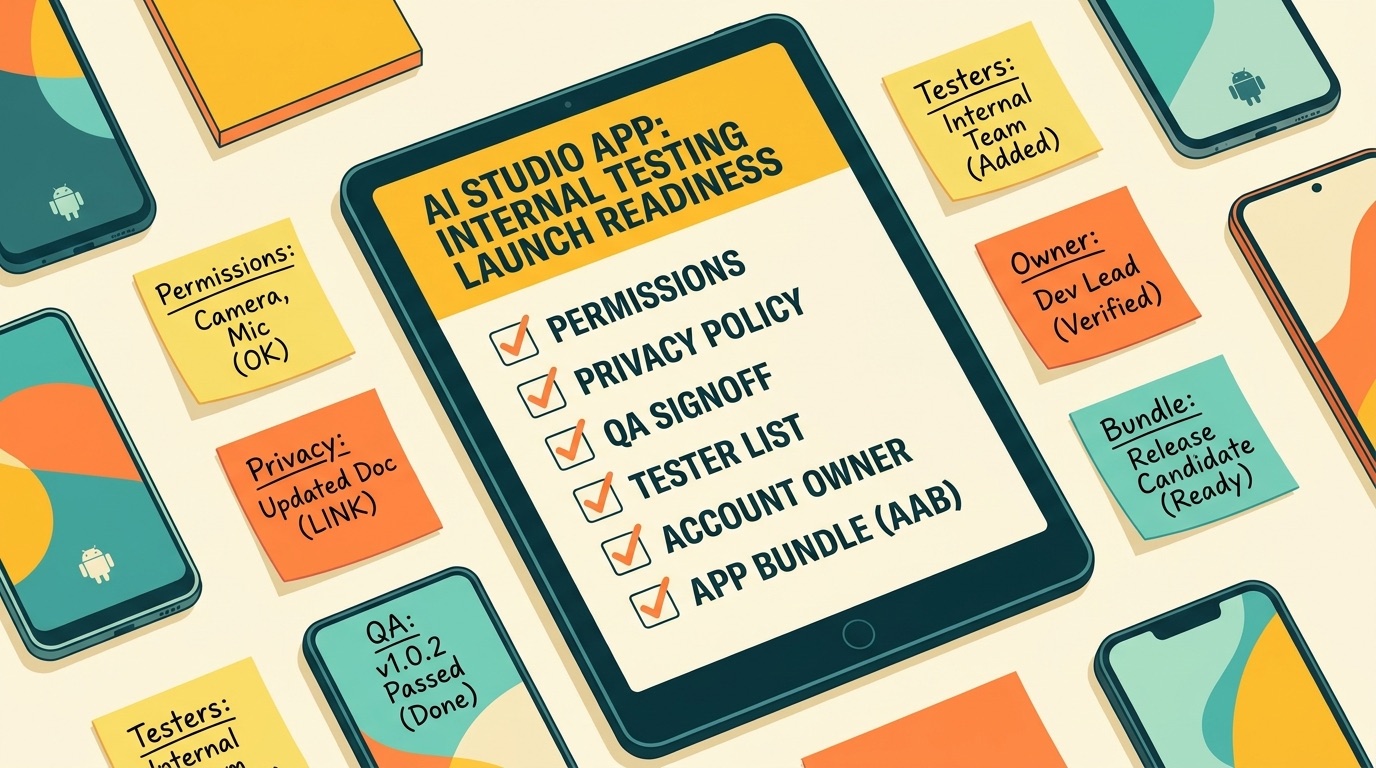
Use this checklist before sending the internal test link. It is intentionally practical and slightly conservative. A vibe-coded app can be impressive in a demo and still fail when a real tester uses it with messy inputs, different devices, slow networks, or unclear expectations.
| Area | What to verify | Why it matters |
|---|---|---|
| Core task | The app does one clear thing and the main flow works twice in a row. | Tester feedback is useless if the app’s purpose is unclear. |
| Permissions | Every requested permission has a product reason and appears at the right moment. | Unnecessary permissions can create trust and policy problems. |
| Data | You know what data is stored locally, sent to APIs, or shared with Gemini. | Privacy mistakes are common when AI generates code quickly. |
| Failure states | The app handles empty fields, no network, denied permissions, and API errors. | Real users rarely follow the perfect demo path. |
| Device coverage | You tested at least one emulator and one physical Android device. | Native apps depend on real-device behavior. |
| Accessibility | Buttons are readable, touch targets are usable, and contrast is acceptable. | Generated UI can look fine while still being hard to use. |
| Branding | The app does not use misleading names, fake logos, or unauthorized assets. | Internal tests should still respect trademark and content rules. |
| Tester instructions | Testers know what to try, where to report issues, and what not to share. | Good testing needs clear expectations. |
This widget is not a compliance tool. It is a forcing function. If the app uses sensitive data, hardware permissions, external APIs, accounts, payments, or children’s content, the first internal test should be smaller and more deliberate. If the app is a local-only calculator or study timer, you can move faster, but you still need to check the basics.
Common Mistakes When Publishing AI Studio Android Apps to Internal Testing
Mistake 1: Treating generated code as reviewed code
AI Studio can produce useful Kotlin and Jetpack Compose output, but code generation is not code review. Generated code may be verbose, brittle, or too trusting of happy-path assumptions. Review navigation, permissions, API calls, persistence, and error handling before inviting testers. If you are not comfortable reviewing the code yourself, keep the test small and ask a mobile developer to inspect it before broader distribution.
Mistake 2: Skipping physical-device testing
The browser emulator is convenient, but physical devices reveal friction. Touch targets, keyboards, orientation, performance, sensors, Bluetooth, camera flows, notifications, and battery behavior can differ from the emulator. If AI Studio’s app uses hardware-level Android features, do not rely on the emulator alone.
Mistake 3: Inviting too many testers too early
Internal testing should start with a small, trusted group. Five thoughtful testers are often more useful than fifty people who click once and leave vague comments. Expand only after the app survives the first feedback cycle.
Mistake 4: Forgetting Play Console ownership
Make sure the right person or organization owns the Play Console app record. A personal account may be fine for a hobby experiment, but a startup, agency, or client app should be created under the appropriate organization account. Fixing ownership later can create avoidable administrative work.
Mistake 5: Publishing before privacy and policy review
Even internal testers are real users. If the app collects data, accesses location, sends content to AI models, stores photos, or includes user-generated content, write down the data flow before sharing. Avoid pretending that “it is only a test” means privacy does not matter.
Mistake 6: Asking AI Studio for huge rewrites between builds
After testers report issues, patch one small group of problems at a time. Large AI rewrites can fix visible bugs while breaking invisible assumptions. Keep a changelog, export the project, and compare behavior between builds.
What AI Studio is great for
- Fast Android concept exploration from a prompt.
- Generating Kotlin and Jetpack Compose starter apps.
- Previewing and iterating before local setup.
- Quick device installs and early Play internal-test handoff.
- Helping non-mobile developers understand app shape quickly.
What it does not replace
- Human review of generated code and permissions.
- Play Console policy, account, and tester management discipline.
- Security, privacy, accessibility, and release QA.
- Android Studio or local tooling for complex production apps.
- Clear product ownership and tester communication.
Practical Example: A Safer Internal Test Plan for a Vibe-Coded App
Imagine you use AI Studio to build a simple guitar practice companion. The app has a fretboard screen, a library of practice exercises, local progress tracking, and an optional Gemini-powered prompt that suggests a short practice routine. It looks good in the emulator after two rounds of prompting. You are tempted to publish it to internal testing and send it to every musician friend you know.
A safer plan is narrower. First, remove any feature that is not needed for the first test. If account login, cloud sync, subscriptions, social sharing, and audio generation are not essential, keep them out. Next, test the app on your own Android phone. Check orientation, text input, navigation, audio behavior, local storage, and what happens when the Gemini request fails. Then export the project or save the current version so you can compare future builds.
Only after that should you publish to Internal Test Track. Invite three to five testers. Give them tasks: install the app, create a practice routine, use it for ten minutes, close and reopen, try a blank prompt, deny any permission request, and send feedback with device model. After the first round, patch only the highest-impact issues. If testers cannot understand the app’s purpose, the problem may be product design, not code.
This is where AI Studio shines. It can compress the time between idea and feedback. But feedback is still the product loop. The Play Store internal test is valuable because it turns a private demo into a controlled real-world build without pretending the app is ready for public release.
When to Move from AI Studio to Android Studio, GitHub, or a Team Workflow
Stay in AI Studio while the app is small, experimental, and changing quickly. Move out when the project needs stronger engineering practices. The Android Developers announcement mentions handoff options such as downloading a ZIP file, exporting to GitHub, using Android Studio, or continuing with specialized agentic workflows. That handoff is not a failure. It is the point where the prototype becomes a software project.
Move to Android Studio or a team workflow when you need structured version control, CI, release signing discipline, deeper Gradle configuration, Firebase rules, crash reporting, analytics, accessibility testing, localization, large-screen support, subscriptions, authentication, or a multi-developer review process. AI Studio can start the app; Android development practice still hardens it.
If you are building a startup prototype, the best pattern is often hybrid. Use AI Studio to discover the interface and first working flow. Use Internal Test Track to collect early reactions. Then export to GitHub and continue in Android Studio once the product direction is clearer. That lets you benefit from speed without locking your production workflow inside a prompt-only loop.
Keep Learning on AI Feature Drop
- Google AI Studio Android App Builder Explained — the pillar guide for the broader native Android Build mode feature.
- Google AI Edge Gallery on Mac Explained — private local AI workflows and Gemma model setup.
- Is Google AI Edge Gallery Private? — offline limits and local model safety context.
- Google Workspace Studio Loops Explained — another GoogleAI workflow guide for builders.
- GitHub Agentic Workflows Explained — compare AI-assisted software automation patterns.
- Claude Code Usage Limits Explained — useful context for AI coding-agent planning and limits.
Sources and References
- Android Developers Blog: Build native Android apps in Google AI Studio
- Google Keyword: Bring any idea to life with Google AI Studio
- Google AI for Developers: AI Studio Build mode documentation
- Google Play Console Help: Set up an open, closed, or internal test
- Android Studio documentation hub
Product features, account requirements, and Play Console policies can change. Verify your active AI Studio interface and Play Console account before publishing any test build.
FAQ: Google AI Studio Play Store Internal Testing
Can Google AI Studio publish directly to Google Play production?
This guide focuses on the Internal Test Track. Google’s Android Developers announcement describes AI Studio creating the app record, packaging the bundle, and uploading to an internal testing track. Treat that as a testing workflow, not a public production launch shortcut.
Do I need a Google Play developer account?
Yes, you need access to a Play developer account for Play Console testing. Make sure the correct person or organization owns the app record before you connect the workflow.
Is an internal test better than installing with ADB?
It is different. ADB is best for checking the app on your own physical device. Internal testing is better when selected testers need to install, update, and send feedback through a more realistic distribution path.
Can I invite testers directly from AI Studio?
Google’s announcement says tester management from AI Studio is coming soon. During the early feature window, expect Play Console to remain important for tester and track management.
Are AI Studio Android apps real native apps?
Google describes the Android output as Kotlin-based and built with Jetpack Compose, with preview in a browser-based Android Emulator and options to install on physical devices or hand off to Android Studio.
What should I check before sending an internal test link?
Check the core flow, app permissions, data handling, error states, physical-device behavior, accessibility basics, branding, tester instructions, and whether the app belongs under the correct Play Console account.
Can I use Internal Test Track for a client app?
Yes, but clarify account ownership first. A client or company app should usually live under the client or organization Play Console account, not a developer’s personal account.
When should I move the project to Android Studio?
Move to Android Studio or a team workflow when you need deeper code review, CI, release signing, Firebase configuration, crash reporting, analytics, accessibility testing, subscriptions, authentication, or long-term maintenance.
Post a Comment