
Codex Computer Use on Windows: Setup, Remote Control, Limits, and Safe Workflows
OpenAI’s Codex Computer Use is no longer just a Mac story. The May 29 Codex update brought Windows desktop control and Windows remote access into the same practical conversation as Mac Appshots and locked use. This guide explains what changed, how to set it up, when to use it, and how to avoid the risky “let an agent control my PC” mistakes.
What changed for Codex Computer Use on Windows?
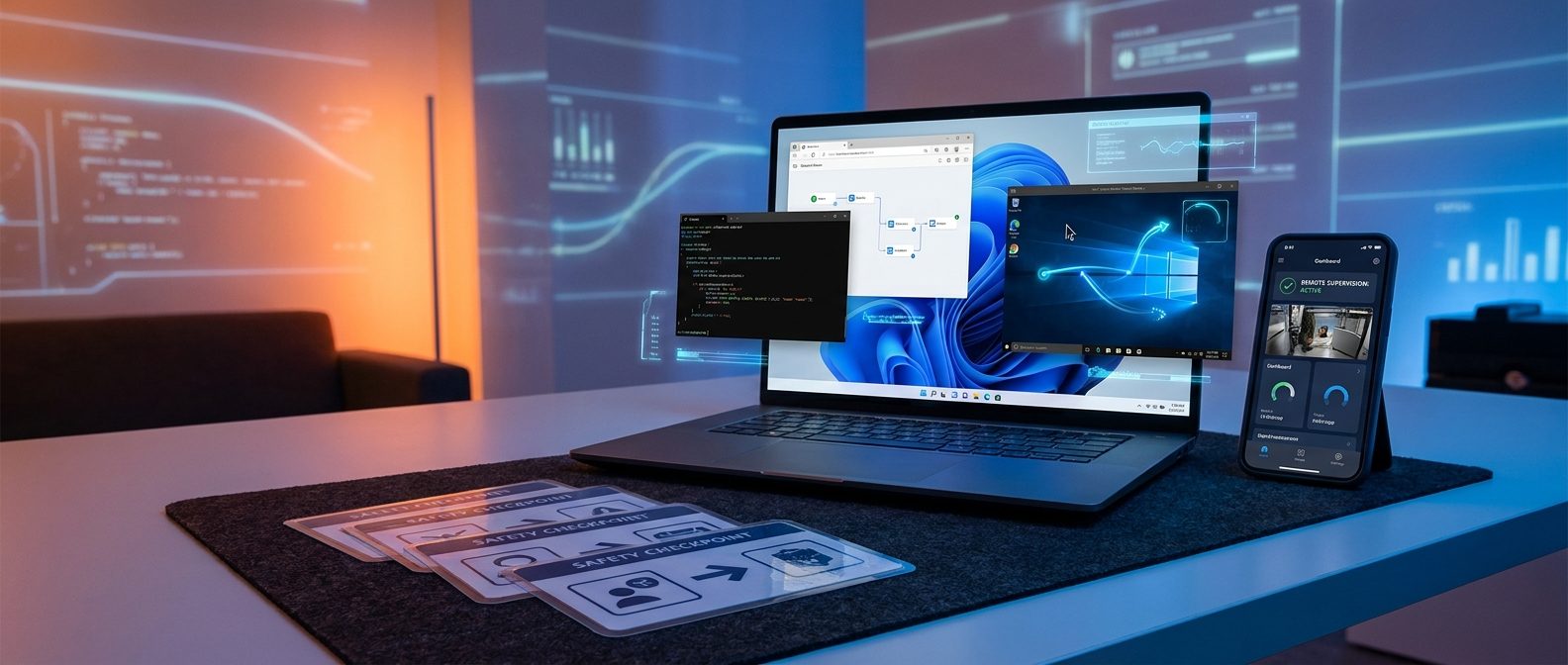
OpenAI’s Codex changelog lists a May 29, 2026 update titled Computer use and mobile access on Windows 26.527. The practical change is simple but important: Codex can now operate Windows desktop apps by seeing, clicking, and typing in the foreground while it works. The same update says remote control now supports Windows devices, so users can start or check Codex work on a Windows device from ChatGPT on mobile or from a Mac running Codex.
That creates a fresh search gap because most early Codex Computer Use explainers focused on macOS permissions, Appshots, and locked use. Windows users now need a separate guide because the operating model is different: Windows foreground control is useful, but it is not the same as macOS locked background use.
Codex Computer Use on Mac vs Windows: the important differences
The biggest mistake is assuming the Mac and Windows versions behave identically. They do not. OpenAI’s Computer Use docs say Windows runs on the active desktop, while macOS can support a more background-friendly pattern and locked computer use after you explicitly enable it.
| Area | macOS | Windows |
|---|---|---|
| How Codex controls apps | Uses Screen Recording and Accessibility permissions to see and interact with approved apps. | Operates apps on the active desktop by seeing, clicking, and typing in the foreground. |
| Background work | Can be useful for scoped background tasks, and locked use exists for a narrow Mac-only case. | Expect foreground takeover. Codex may move the pointer and type while the task runs. |
| Remote progress checks | Supported through connected devices and Codex remote workflows. | New May 2026 support lets Windows devices participate in remote control workflows. |
| Best safety pattern | Grant only needed app approvals, avoid sensitive visible windows, review Always allow choices. | Use a spare Windows machine, VM, or dedicated desktop session when possible. |
If you want the broader foundation first, read the pillar guide on OpenAI Codex Computer Use, Appshots, locked use, permissions, and safer Mac automation. This cluster article narrows the focus to the new Windows side and remote-control workflow.
Windows setup checklist for Codex Computer Use
OpenAI’s docs describe the Computer Use plugin as the starting point. On Windows, the practical setup is less about granting macOS-style Screen Recording permission and more about keeping the target app visible, choosing a safe environment, and limiting the task scope.
Before you start
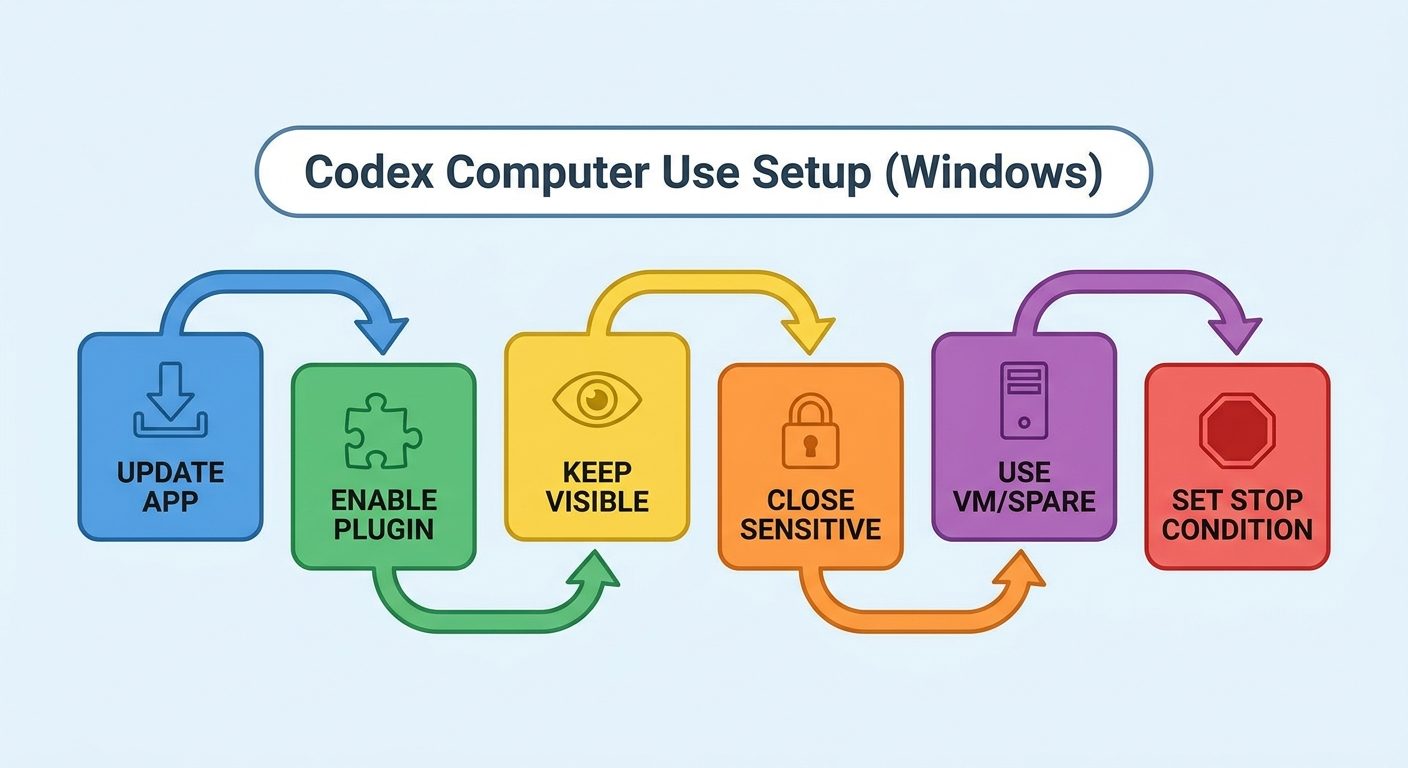
- 1 Update the Codex app to a build that includes Windows Computer Use support.
- 2 Open Codex settings and install or enable the Computer Use plugin if prompted.
- 3 Place the target app on the active desktop where Codex can see it.
- 4 Close unrelated sensitive apps: password managers, banking tabs, private chats, admin dashboards, and personal documents.
- 5 Decide whether this should run on your main PC, a VM, or a secondary Windows machine. For risky workflows, use a VM.
- 6 Prepare a stop condition: what should Codex do before it pauses for your review?
For Mac-specific permission details such as Screen Recording, Accessibility, app approvals, Always allow, and revocation, use the related cluster guide: Codex Computer Use permissions explained.
How Windows remote control changes the workflow
Remote control does not mean “ignore the task and hope.” It means you can start Codex work on a Windows device and check progress from another trusted device. This is useful for longer GUI checks, but only if the work is scoped enough that Codex can proceed without guessing through sensitive screens.
A practical remote-control flow
- Start locally with context. Explain the exact Windows app, window, account state, and success condition.
- Ask Codex to narrate checkpoints. Example: “Before changing settings, tell me what you see and wait.”
- Step away only after the safe part begins. Do not leave Codex at a login screen, billing page, credential prompt, or destructive confirmation.
- Check from mobile or another Codex device. Look for screenshots, summaries, errors, and proposed next actions.
- Approve narrow next steps. Approve a specific click or test flow, not a vague “do whatever is needed.”
- Review the final state on the Windows machine. Confirm files, settings, commits, browser state, and app changes before calling it done.
This is where Windows support is genuinely useful: you can use a dedicated Windows desktop as the “agent workbench” while you supervise from elsewhere.
Best use cases for Codex Computer Use on Windows
The best Windows Computer Use tasks are visual, bounded, and reversible. If a CLI, API, browser automation tool, plugin, or test runner can do the work more deterministically, use that instead. Computer Use should fill the gaps where the GUI itself matters.
1. Reproduce a Windows-only desktop bug
Ask Codex to open the app, follow a short reproduction path, capture what happens, then inspect the likely code path. This is stronger than pasting vague bug reports because Codex sees the actual UI state.
2. Verify an installer or settings flow
Installers, preference panels, and Windows-specific prompts often cannot be fully tested through files. Codex can click through a scripted path and report where the flow breaks.
3. Check browser behavior in a real Windows session
For layout bugs, auth redirects, file downloads, or local web app flows, a visible Windows browser can reveal issues that unit tests miss.
4. Operate a data source without an integration
If a business app has no API or plugin, Codex can inspect the screen. Keep the task read-only unless you are present for each change.
For long-running coding tasks that do not need GUI interaction, a safer option may be Goal Mode. See the Codex Goal Mode prompt template guide for scoped long-running coding prompts.
Limits, complaints, and gotchas Windows users should expect
Recent community interest is already forming around Windows remote access and foreground control. That makes sense: it is exciting, but it also creates confusion. Here are the issues to plan around before publishing your first serious Windows Computer Use workflow.
1. Foreground takeover is real
On Windows, expect Codex to move the pointer, type, and use the active desktop. Do not use the same session casually while Codex is working. If you need to keep working, run Codex in a VM or on a spare machine.
2. Remote control is supervision, not full autonomy
You still need meaningful checkpoints. A good remote workflow says what Codex may do without asking, what requires approval, and what must stop the task immediately.
3. Sensitive screens are risky context
Computer Use can process visible app content. If a password manager, private chat, customer record, or payment page is visible, treat it as potentially shared context. Close it unless it is required.
4. GUI automation can be slower than structured tools
Clicking through a UI is often more brittle than using a plugin, API, shell command, or test harness. Use Computer Use for the parts only the GUI can answer.
5. Plan and usage limits still matter
Computer Use is part of a broader Codex workflow. If you are budgeting usage, combine this guide with OpenAI Codex pricing and usage limits so GUI checks do not become open-ended agent sessions.
Decision matrix: when should Windows teams actually use it?
A good Windows Computer Use workflow starts with a simple question: does the agent need to see and manipulate the graphical interface, or are we only using the GUI because it feels convenient? If the answer is convenience, stop and use a structured tool instead. If the answer is visual state, Windows Computer Use can be the right tool.
| Scenario | Use Windows Computer Use? | Why |
|---|---|---|
| Checking whether a Windows-only dialog appears after an installer step | Yes | The visual prompt and click path are the work. |
| Running unit tests, formatting code, or inspecting logs | No | CLI tools are faster, safer, and easier to repeat. |
| Verifying a local web app checkout flow with test data | Maybe | Use browser tests first; use Computer Use if the real browser state matters. |
| Changing production account settings | Only with live supervision | This is sensitive and should require explicit approvals at each step. |
| Watching a long UI import, export, or rendering process | Yes, if scoped | Remote progress checks are useful when Codex only needs to observe and report. |
For teams, the best rollout pattern is to create a small “agent desktop” policy before the first real task. Define approved apps, test accounts, blocked apps, maximum unattended time, and the exact actions that require human approval. That policy matters more than the prompt style because it prevents the agent from learning bad habits in a messy personal desktop session.
Copy-paste prompt templates for Windows Computer Use
These templates are intentionally narrow. Replace the bracketed parts before use.
Template 1: Windows app bug reproduction
Use Computer Use on my Windows desktop to reproduce this bug in [APP NAME].
Target window: [WINDOW OR APP].
Steps:
1. Open [SCREEN].
2. Click [CONTROL].
3. Enter only this test data: [SAFE TEST DATA].
4. Observe the result.
Do not change settings, delete data, send messages, purchase anything, or use credentials.
Before any destructive or account-level action, stop and ask.
After reproducing, summarize what happened and suggest the smallest code area to inspect.
Template 2: Remote-supervised browser verification
Use Computer Use on Windows to verify [LOCAL OR STAGING URL] in [BROWSER].
Goal: confirm [SPECIFIC FLOW] still works after my changes.
Allowed actions: navigate, click test buttons, use test account [ACCOUNT], record visible errors.
Not allowed: changing billing, sending real emails, modifying production data, saving passwords.
Checkpoint: pause before submitting any form that affects real data.
Final output: list pass/fail, screenshots or observations, and exact reproduction steps for failures.
Template 3: Safe remote progress check
I may check this task remotely. Keep the workflow resumable.
Every 5-10 minutes, summarize:
- current screen or app state
- what you already tried
- next intended action
- whether you need approval
If the Windows session shows a sensitive prompt, credential screen, payment page, private message, or destructive confirmation, stop immediately.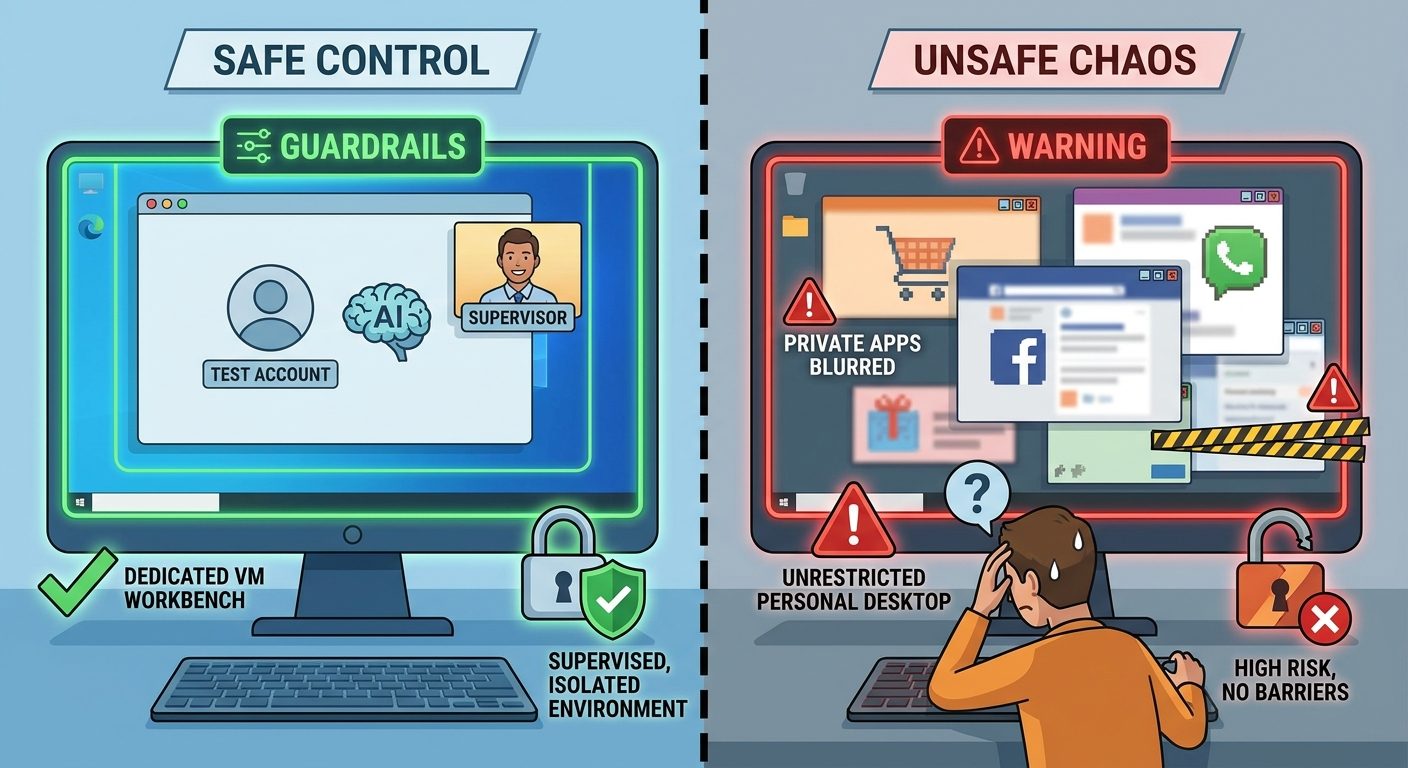
Troubleshooting: Codex Computer Use on Windows is not working
Codex cannot see the app
Bring the target app to the active desktop and avoid minimized, hidden, or virtual-desktop-separated windows. If the task is browser-based, start with the specific browser and tab visible.
Codex clicks the wrong thing
Stop the task, reset the window layout, zoom level, and target screen. Then restart with a smaller prompt: one app, one flow, one success condition.
Remote control does not connect
Check that the Windows device is online, the Codex app is running, and you are using the same trusted account/device flow. If connection is unreliable, keep the task local until you can supervise it.
Codex gets stuck at login or permissions
Do not ask Codex to improvise around credentials. Log in yourself, provide a test account, or switch to a safer mock environment.
Why AIFeatureDrop chose this cluster topic
Analytics showed OpenAI label pages and Codex articles are among the strongest early engagement areas for AIFeatureDrop, while Search Console data for the verified domain is still sparse and partially polluted by unrelated domain-property rows. The recent May 29 Codex changelog created a timely long-tail opportunity: Windows Computer Use and remote control are new enough that search results are still thin, while community threads are already discussing the update. This article supports the broader Codex Computer Use pillar without duplicating the existing Mac permissions cluster.
FAQ: Codex Computer Use on Windows
Can Codex Computer Use control Windows apps?
Yes. OpenAI’s May 29, 2026 Codex changelog says Computer Use now works on Windows and can operate Windows desktop apps by seeing, clicking, and typing in the foreground.
Can Codex use my Windows PC while I keep working?
Not comfortably in the same session. OpenAI’s docs say Windows Computer Use operates on the active desktop, so expect foreground interaction. Use a VM or secondary Windows device if you need to keep using your main PC.
Is locked computer use available on Windows?
No. OpenAI’s Computer Use docs describe locked use as a macOS feature. Windows Computer Use works in the foreground.
What is the safest first Windows Computer Use task?
Start with a low-risk read-only verification: open a test app, reproduce a UI bug, inspect a settings screen, or verify a local browser flow using test data.
Should I use Codex Computer Use instead of tests or APIs?
No. Prefer tests, APIs, plugins, MCP servers, and command-line tools when they are reliable. Use Computer Use when the visual GUI state is the thing you need to inspect or operate.
Can I supervise Windows Codex tasks remotely?
OpenAI’s May 29 update says remote control now supports Windows devices. Treat it as supervision: check progress, approve narrow next steps, and keep sensitive actions gated.
Bottom line
One more practical rule: do not measure success by whether Codex “did a lot.” Measure success by whether the Windows session ended in a state a human can audit. A good run leaves behind a short transcript, the exact UI path tested, any files changed, and a clear list of actions Codex deliberately avoided. That makes the workflow repeatable instead of mysterious.
Codex Computer Use on Windows is a meaningful expansion because it brings OpenAI’s coding agent into real desktop workflows, not just terminals and browsers. The winning pattern is not broad autonomy. It is a dedicated Windows workbench, one visible app, test data, clear stop rules, and remote supervision when the task is long enough to justify it.
Next, read the broader OpenAI Codex Computer Use guide if you want the full Mac/Appshots/locked-use picture, or use the templates above to run your first safe Windows GUI verification.
Post a Comment