
OpenAI Codex Computer Use Explained: Appshots, Locked Use, Permissions, and Safer Mac Automation
Codex is no longer only a terminal, IDE, or cloud coding agent. With Computer Use, Appshots, and locked use, it can understand what is on your Mac screen and operate selected apps. That is powerful — and exactly why you need a practical safety-first workflow before you turn it loose.
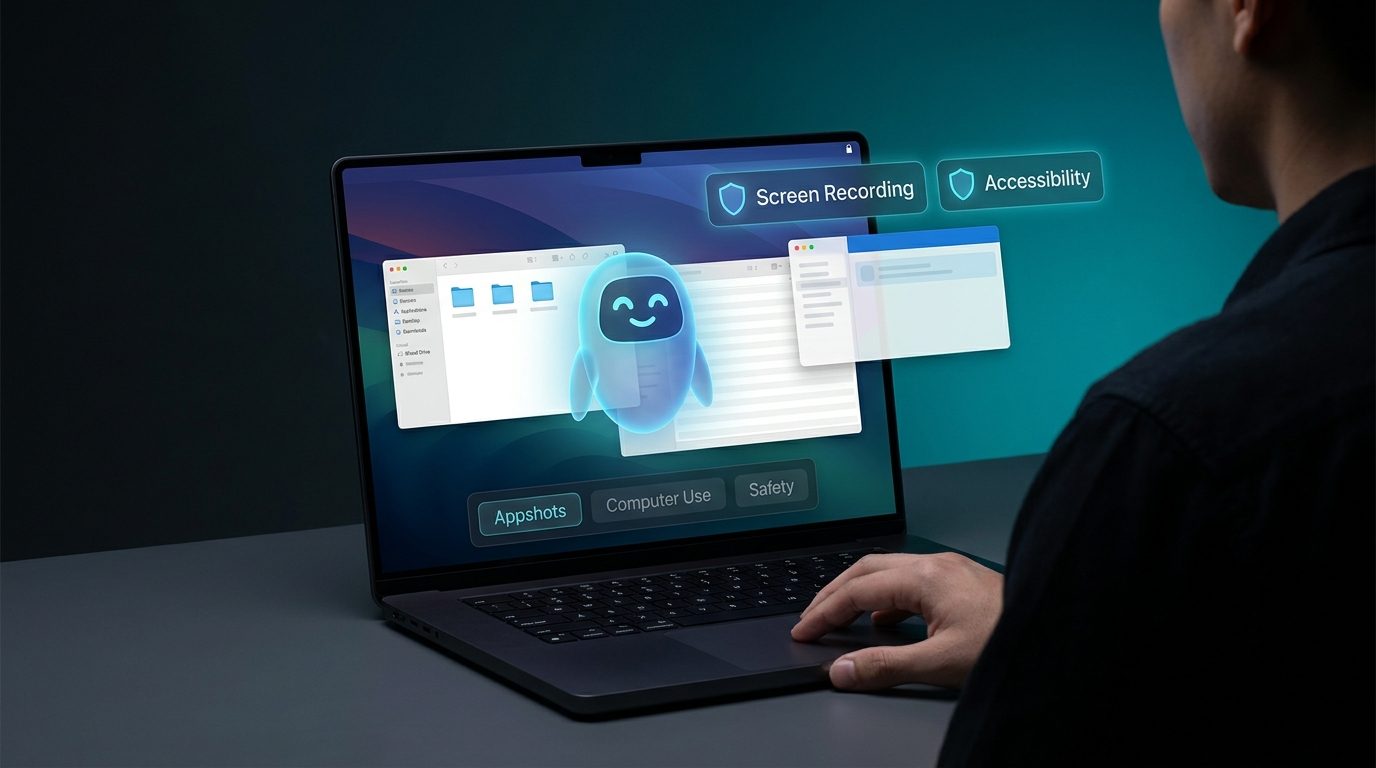
Why Codex Computer Use is a bigger deal than another coding-agent feature
Most AI coding tools are strongest when the work is visible in files: edit this component, run this test, explain this trace, open a pull request. Real software work is messier. Bugs appear only in a simulator. A checkout button fails only in the browser. A setting lives three panels deep in a desktop app. A design review depends on what the preview window looks like, not just what the code says.
That is the gap OpenAI Codex Computer Use is trying to fill. According to OpenAI’s Codex documentation, Computer Use lets Codex see and operate graphical user interfaces on macOS after the user installs the Computer Use plugin and grants the required macOS permissions. In the same ecosystem, Appshots let a user send the frontmost Mac app window into a Codex thread as context, and locked computer use lets an active, trusted Computer Use turn continue after the Mac locks under narrow safeguards.
The search demand is already visible. Google results for Codex Computer Use surface recent official videos, beginner tutorials, Appshots coverage, and People Also Ask questions such as whether Codex is safe, how to use it, and whether it can control a computer. That means readers are not just looking for a feature announcement. They want a grounded decision guide: what to enable, when to use it, how to avoid risky prompts, and what to do when permissions fail.
AIFeatureDrop’s own analytics support this practical angle. Recent traffic has performed best on hands-on AI feature explainers around pricing, usage limits, coding-agent workflows, and setup decisions. Google Search Console data is still young for the site, but GA4 shows engaged sessions on workflow-style OpenAI and coding-agent content. So this pillar focuses on the question users actually have: how do I use Codex Computer Use without creating a security or productivity mess?
What is OpenAI Codex Computer Use?
OpenAI Codex Computer Use is a Codex app capability for macOS that allows Codex to view and interact with graphical apps. Instead of only reading files or running shell commands, Codex can use the user interface: windows, menus, browser pages, settings screens, and app flows that are otherwise hard to verify from code alone.
OpenAI’s documentation positions it for situations where command-line tools or structured integrations are not enough. Examples include checking a desktop app, using a browser, changing app settings, working with a source that is not available as a plugin, reproducing a graphical bug, or running a scoped workflow across apps.
It can see
Screen content in apps you allow, including visual state that might not exist in files or logs.
It can act
With Accessibility permission, it can click, type, navigate menus, and interact with windows in the target app.
It still needs boundaries
File edits and shell commands continue to follow Codex sandbox and approval settings, but GUI actions can affect app state directly.
The important shift is not “Codex can click things.” The important shift is that Codex can now close the loop between code and visual behavior. If it builds a UI, it can inspect the UI. If a bug appears only after a manual flow, it can repeat the flow. If a browser session contains signed-in state that a headless test cannot access, Codex may be able to use that browser — with your explicit app permission and supervision.
Codex Appshots: the lightweight way to share app context
Appshots are different from full Computer Use. An Appshot is a snapshot of the frontmost Mac app window that you send to a Codex thread. OpenAI says an appshot can include an image of the visible window and available text from that window, including text the app exposes outside the visible scroll area.
You take an Appshot from the Codex app on macOS by pressing both Command keys, or a custom Appshots hotkey. By default, Codex starts a new thread. If you interacted with a Codex thread in the last 60 seconds, it can add the appshot to that recent thread instead. Consecutive appshots can be added to the same thread.
| Use Appshots when… | Use Computer Use when… |
|---|---|
| You only need to show Codex the current app state. | Codex must click, type, navigate, or verify a flow. |
| You want help interpreting an error, design preview, API page, email, or settings screen. | You want Codex to reproduce a UI bug, test a browser flow, or change a scoped setting. |
| You prefer a lower-risk context-sharing workflow. | The task requires repeated interaction with the app. |
Appshots are often the right first move. If you can solve the problem by showing Codex the window and asking for advice, do that before allowing it to control the app. It is the same principle as sending a screenshot to a colleague before handing over your keyboard.
Locked computer use: useful, narrow, and easy to misunderstand
Locked computer use sounds dramatic, but the official description is intentionally narrow. It lets Codex use Computer Use after your Mac locks only after you enable it, and only for active trusted Computer Use turns. OpenAI says it installs an Apple authorization plug-in that participates in the macOS unlock flow.
It is not a general remote-unlock feature for your Mac. It does not allow arbitrary apps or local processes to unlock the computer. When Codex temporarily unlocks the Mac for an active computer-use task, it checks whether the unlock attempt belongs to a trusted turn, covers displays while the desktop is temporarily unlocked, and relocks if it detects local keyboard or pointer input.
How to set up Codex Computer Use on Mac
The exact UI may change, but the core setup flow is straightforward:
- Install or open the Codex app on macOS. Computer Use is a Codex app feature, not something the CLI creates by itself.
- Open Codex settings and find Computer Use. Install the Computer Use plugin from the app settings.
- Grant Screen Recording permission. This lets Codex see the target app window.
- Grant Accessibility permission. This lets Codex click, type, and navigate inside allowed apps.
- Start with one app and one clear task. Mention the target app or ask Codex to use Computer Use for a specific flow.
- Review app permission prompts. Allow only the app needed for the task. Use “Always allow” only for apps you genuinely trust Codex to operate in future tasks.
- Optional: enable locked computer use. Do this only if you understand the safeguards and need tasks to continue after the Mac locks.
For Appshots, open the target window and press both Command keys or your configured hotkey. If permissions are missing, check macOS Privacy & Security settings for Codex Computer Use.
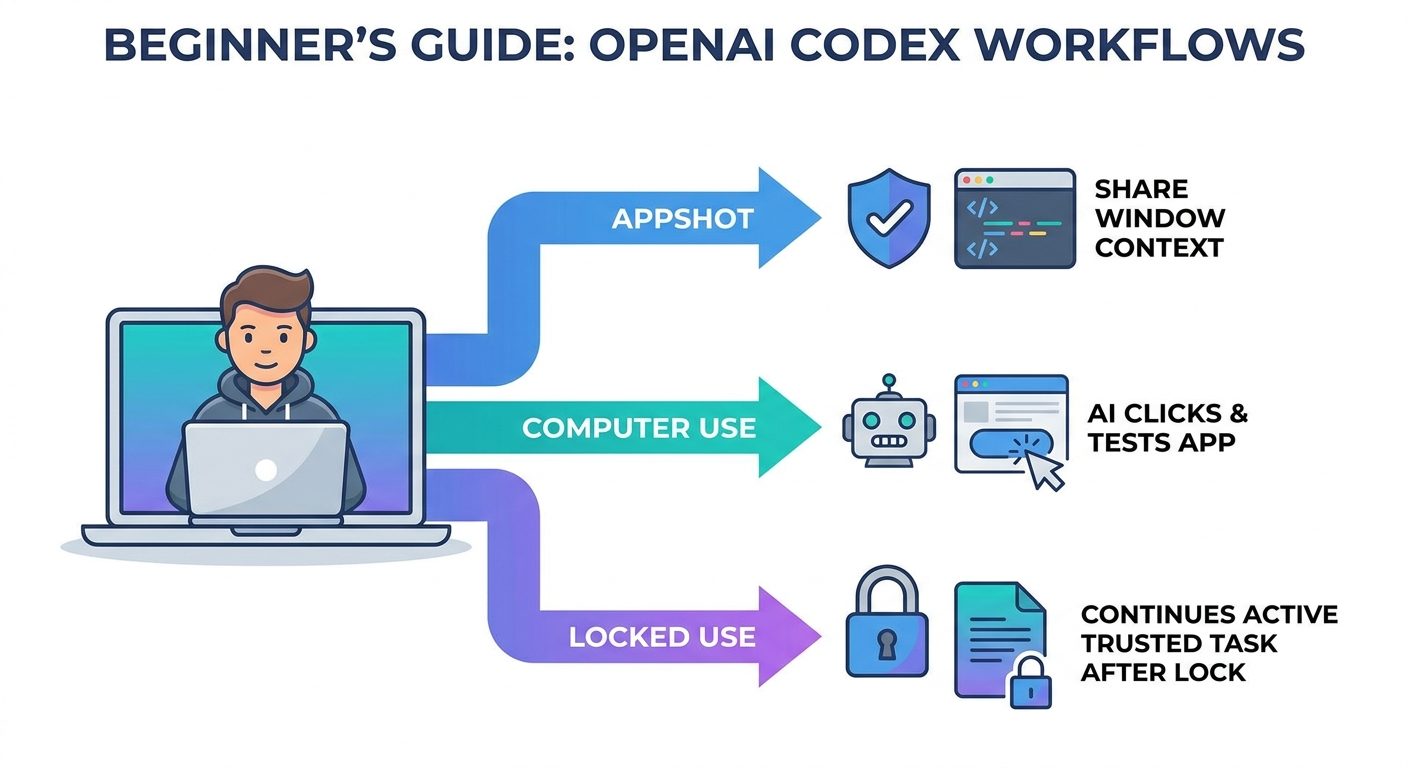
When should you use Codex Computer Use?
The best Computer Use tasks have three qualities: they are visual, scoped, and reviewable. If the task can be completed safely through files, command output, an API, a plugin, or an MCP server, prefer that structured route. Computer Use is best when the graphical app is the source of truth.
| Scenario | Use Computer Use? | Why |
|---|---|---|
| Reproduce a bug in a Mac app or iOS simulator | Yes | The failure depends on visible interaction and app state. |
| Verify a web checkout page still renders after a code change | Usually | Browser behavior is the test target; keep payment steps supervised. |
| Read an API reference page and write code from it | Appshot first | A screenshot/context share may be enough. |
| Rotate a production secret in an admin console | No, unless fully supervised | High-risk credential/account action. |
| Change a harmless app preference for a test | Maybe | Fine if scoped and reversible. |
| Click through a banking, payroll, payment, or legal workflow | No | Too sensitive for unsupervised GUI control. |
A good prompt is specific: “Open Chrome, go to the local checkout page, add one sample item, verify the discount banner appears, and stop before any payment or account step.” A risky prompt is vague: “Use my browser and fix whatever is wrong.”
Practical Codex Computer Use workflows
1. Reproduce and fix a GUI-only bug
Ask Codex to open the target app, reproduce the exact steps, capture what goes wrong, then edit the smallest code path and re-run the same flow. This is where Computer Use can shine because it turns manual QA into a repeatable agent loop.
2. Validate a browser experience after code changes
If your app requires a signed-in local browser state, a normal headless test may not capture the real experience. Codex can use a permitted browser to verify layout, visible errors, console behavior, or navigation. Keep destructive actions out of scope.
3. Convert visual context into implementation steps
Use an Appshot of a design, preview, or settings panel. Ask Codex to identify what changed, propose code edits, or write a checklist. Only escalate to Computer Use if the task requires interaction.
4. Inspect a data source with no clean API
Sometimes the source of truth is a desktop app, a legacy admin panel, or a browser UI. Computer Use can inspect it, but you should still define boundaries: which screen, what fields, what not to click, and where to stop.
5. Long-running but low-risk Mac app checks
Locked computer use may help when a safe task needs to continue while the Mac locks. Use it for reviewable flows, not for hidden account operations. The user should still be able to stop the task or take over.
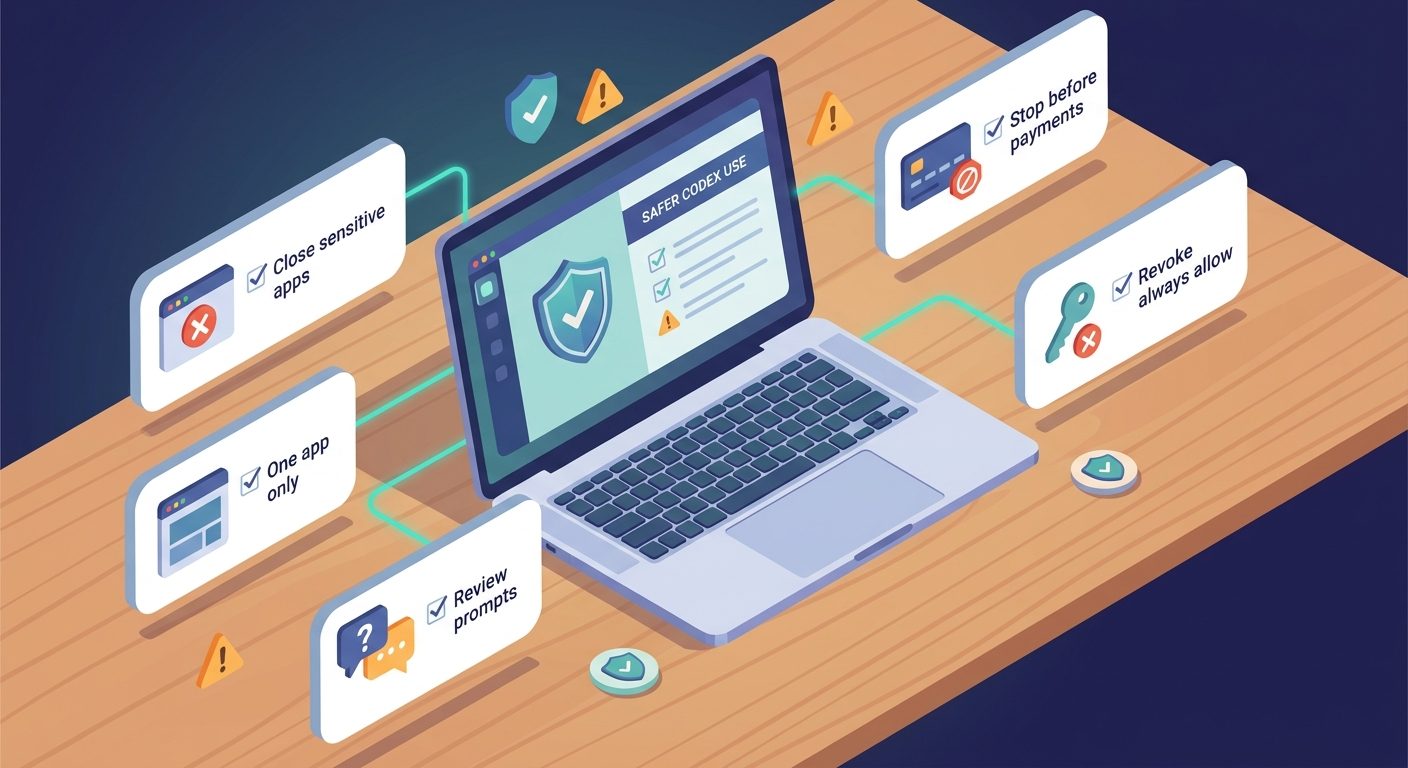
Safety checklist before you let Codex control an app
Before starting
- Close unrelated sensitive apps.
- Use a test account where possible.
- State the exact app, window, and stopping point.
- Prefer Appshots for context-only tasks.
While running
- Review each app permission prompt.
- Watch sensitive browser sessions.
- Stop if Codex targets the wrong window.
- Do not let it handle payments or secrets unsupervised.
After finishing
- Review changed files and app settings.
- Revoke “Always allow” for apps you do not want reused.
- Confirm no sensitive tabs or documents remain open.
- Save only the artifacts you intended to create.
Remember the web risk: if Codex uses your signed-in browser, websites may treat approved clicks and form submissions as actions from your account. Web pages can also contain misleading or malicious content. Give Codex the same caution you would give any assistant using your computer.
Troubleshooting Codex Computer Use and Appshots
Codex can see the app but cannot click or type
Check Accessibility permission for Codex Computer Use in macOS Privacy & Security. Screen Recording lets it see; Accessibility lets it operate.
Codex cannot see the target window
Check Screen Recording permission, restart Codex, and make sure the intended app is frontmost or explicitly allowed. If you are using Appshots, retake the appshot after focusing the right window.
Google Docs, Gmail, Sheets, or Slides context is incomplete
OpenAI notes that some apps and websites may provide only the visible screenshot and not full off-screen text. If a structured plugin exists for that content source, prefer the plugin.
Computer Use is unavailable
OpenAI’s docs describe Computer Use as available on macOS at launch with regional exclusions. If you do not see it, check app version, region availability, and whether the plugin is installed.
Codex starts interacting with the wrong app
Stop the task immediately. Then restart with a narrower prompt: exact app name, exact window, exact first action, and a clear stop condition.
Locked use does not continue after the Mac locks
Confirm locked computer use is enabled in Codex settings and that the task is an active Computer Use turn. It is not a general background automation permission.
Codex Computer Use vs CLI, IDE, Cloud, browser, and plugins
Computer Use should not replace every other Codex mode. It should sit at the end of a decision tree.
| Mode | Best for | Prefer over Computer Use when… |
|---|---|---|
| Codex CLI | Terminal-first editing, testing, scripts, repo workflows | The task is fully represented in files and commands. |
| IDE extension | Editor-aware coding and review | You need code context, not desktop-app control. |
| Codex Cloud | Remote repo tasks and environment-contained changes | No local GUI state is needed. |
| In-app browser | Local web app verification | The browser task is inside Codex’s controlled browser. |
| Plugins/MCP | Structured access to apps and data sources | A reliable API/plugin exists. |
| Computer Use | GUI-only verification, desktop apps, signed-in visual flows | Use only when the app UI is necessary. |
SEO-backed content angle: why this topic belongs on AIFeatureDrop
This article was selected because it combines three signals. First, AIFeatureDrop analytics show readers engage with practical explainers around AI feature limits, pricing, setup, and workflow risk. Second, recent live SERP results show a burst of Codex Computer Use and Appshots tutorials, including official OpenAI videos and fresh third-party coverage. Third, the current SERP still separates the information: official docs explain the features, news pages explain the launch, and tutorials show excitement — but readers need one complete safety-first guide.
That information gain is the article’s core value. The goal is not to repeat “Codex can control your Mac.” The goal is to help a developer, founder, marketer, or Mac power user decide whether to enable it, how to structure the first task, where Appshots are safer, and what to avoid.
Recommended first prompt templates
Safe browser verification
Use Computer Use in Chrome to open my local app at localhost:3000, go to the pricing page, verify the plan cards render correctly, take no account or payment actions, and stop after reporting what you see.
GUI bug reproduction
Use Computer Use in the iOS Simulator to reproduce this onboarding bug: open the app, tap Continue twice, choose the free plan, and stop when the error appears. Then inspect the code and propose the smallest fix.
Appshot-only context
I’m sending an Appshot of a settings panel. Explain which settings matter for this integration and draft a step-by-step checklist. Do not use Computer Use unless I ask.
FAQ: OpenAI Codex Computer Use
What is OpenAI Codex Computer Use?
It is a Codex app feature that lets Codex see and operate graphical user interfaces on macOS after you install the Computer Use plugin and grant Screen Recording and Accessibility permissions.
What are Codex Appshots?
Appshots let you send the frontmost Mac app window to a Codex thread as context. They can include the visible window image and available text from that window.
Can Codex control my Mac?
It can control apps you allow through Computer Use. It cannot freely control everything by default, and it still requires app permissions and user oversight. Sensitive actions should stay supervised.
Is Codex Computer Use available on Windows?
The official Computer Use documentation describes the feature for the Codex app on macOS at launch. Check OpenAI’s Codex docs for the latest platform availability.
What permissions does Codex Computer Use need?
Screen Recording lets Codex see app content. Accessibility lets Codex click, type, and navigate. Appshots may also require screen/system audio recording and Accessibility permissions for capture and available text.
Should I enable Always allow for apps?
Only for apps you trust Codex to use automatically in future tasks. For browsers, admin consoles, finance tools, email, or sensitive apps, one-time approval is usually safer.
Does locked use mean Codex can unlock my Mac anytime?
No. Official docs describe locked use as narrow and scoped to active trusted Computer Use turns, with short-lived authorization and safeguards such as covered displays and relocking on local input.
When should I use Appshots instead of Computer Use?
Use Appshots when Codex only needs to understand what is on screen. Use Computer Use when Codex must interact with the app to complete or verify the task.
Conclusion: powerful, but only with a narrow task
OpenAI Codex Computer Use is one of those features that can feel magical on the first demo and risky on the second thought. Both reactions are fair. A coding agent that can inspect and operate real Mac apps can save time on GUI testing, browser verification, bug reproduction, and messy cross-app workflows. It can also create problems if you give it vague instructions, sensitive windows, or broad permission to click through your signed-in life.
The practical rule is simple: start with Appshots, escalate to Computer Use only when interaction is necessary, keep tasks narrow, and stay present for anything sensitive. If you treat Codex like a capable junior teammate at your keyboard — useful, fast, but not unsupervised around secrets or irreversible actions — Computer Use becomes a genuine workflow upgrade rather than a security gamble.
Post a Comment