
Codex Computer Use Permissions: Screen Recording, Accessibility, App Approvals, and Safe First Setup
Codex Computer Use can operate Mac apps, but the permission model is easy to misunderstand. This guide explains what each prompt means, what to allow, when to avoid “Always allow,” and how to troubleshoot the classic “Codex can see but not click” problem.
Why Codex Computer Use permissions deserve their own guide
The broad story is simple: OpenAI Codex can now use graphical Mac apps when command-line tools, files, or structured integrations are not enough. The practical story is more delicate. A coding agent that can inspect a browser, click through a desktop app, or reproduce a simulator bug needs permissions that touch your real screen and real signed-in sessions.
That is why this cluster article narrows in on permissions rather than repeating the full feature overview. The related AIFeatureDrop pillar, OpenAI Codex Computer Use Explained, covers Appshots, locked use, Mac automation, safe workflows, and use cases. This page answers the next search-intent question: what exactly should I allow when Codex asks for access?
AIFeatureDrop analytics also point toward practical how-to content. In the last 28-day reporting window, hands-on OpenAI and coding-agent explainers generated engagement, while Google Search Console data for the young domain remains sparse. That makes permission setup a smart cluster topic: it is narrow, useful, high-intent, and directly connected to the site’s growing OpenAI Codex topical authority.
Most mistakes happen because users treat every prompt as the same kind of permission. They are not the same. macOS Screen Recording, macOS Accessibility, Codex app approvals, Appshots capture permissions, and locked computer use all solve different problems. If you understand the layers, you can enable the feature without handing over more access than the task needs.
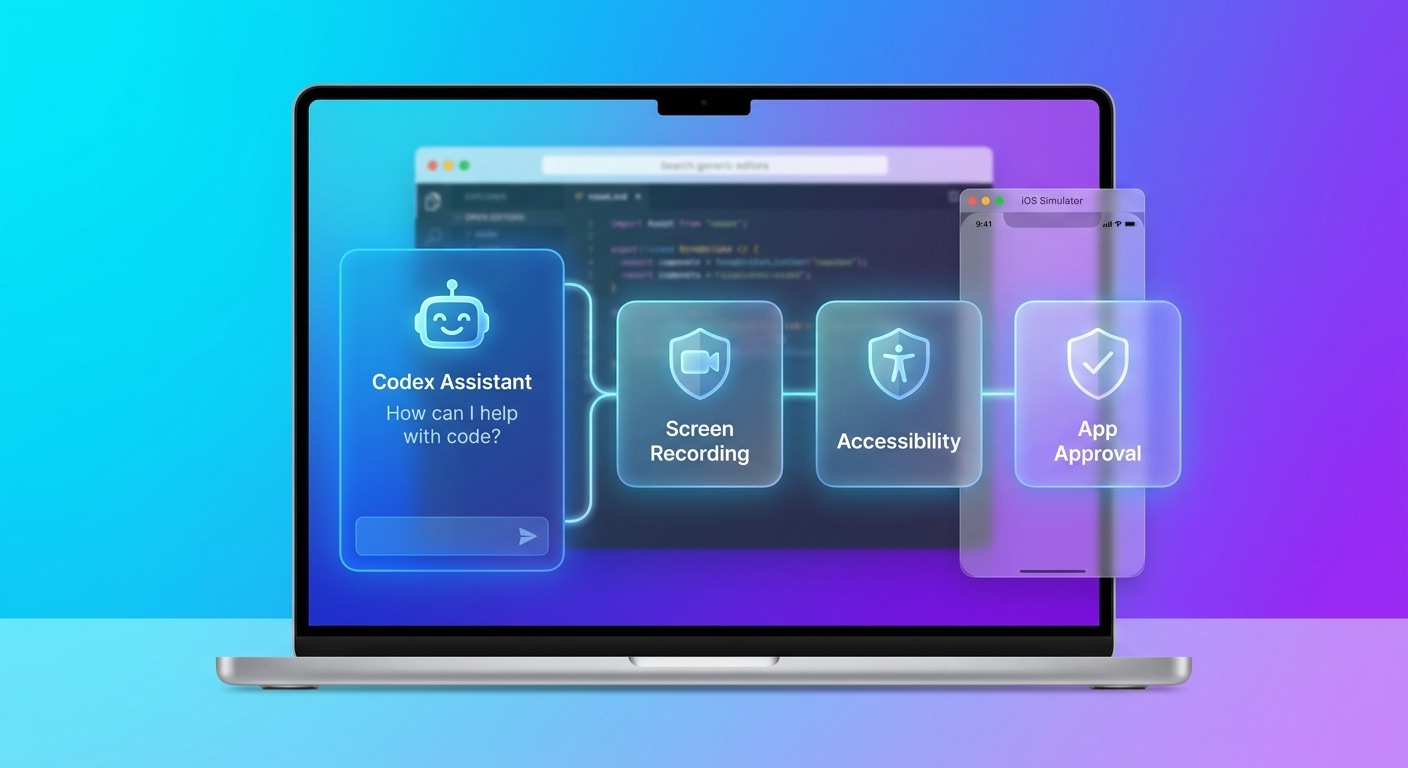
The three permission layers: see, act, and approve the app
OpenAI’s Computer Use documentation separates system permissions from Codex approvals. That distinction matters more than almost anything else in this setup.
Lets Codex see the target app window and screen content. This is the “eyes” layer.
Lets Codex click, type, select menus, and navigate. This is the “hands” layer.
Lets Codex use a specific app during the task. This is the “which app are you allowed to touch?” layer.
File reads, file edits, and shell commands still follow Codex sandbox and approval settings. But GUI actions can affect app state outside the project folder. A browser click, a changed desktop-app setting, or a submitted form may not show up in a code diff. That is why permission decisions should be task-specific.
Screen Recording permission: what Codex can see
Screen Recording is the permission that lets Codex inspect the target app visually. Without it, Codex may not know what is on screen. For Computer Use, that can break browser verification, GUI bug reproduction, settings-panel navigation, and simulator testing.
OpenAI says Computer Use can view screen content, screenshots, windows, menus, keyboard input, and clipboard state in the target app while the task runs. That does not mean Codex has magical unlimited access to every app by default; it means visible content in approved target contexts should be treated as content Codex may process.
Allow Screen Recording when
- Codex needs to inspect a browser page, simulator, desktop app, preview window, or settings screen.
- You are reproducing a bug that only appears visually.
- You are using Appshots and need to send the frontmost window image.
- The task is low-risk and you have closed unrelated sensitive windows.
Be careful when
- Your desktop contains private documents, personal messages, financial dashboards, customer data, or credentials.
- The target app includes signed-in browser sessions with account privileges.
- The task could be completed through a structured integration, plugin, MCP server, API, test, or file review instead.
A simple rule helps: before granting Screen Recording, ask, “Would I be comfortable sending a screenshot of this window to a teammate?” If the answer is no, close or isolate the sensitive content first.
Accessibility permission: what Codex can do
Accessibility is the action permission. It allows Codex to click buttons, type text, use menus, move between fields, and operate the approved app. If Screen Recording is eyes, Accessibility is hands.
This is why the common troubleshooting symptom is: Codex can see the app but cannot click or type. In that case, Screen Recording may be allowed, while Accessibility is missing, disabled, stale, or not granted to the right Codex component.
Allow Accessibility when
- The task requires Codex to interact with the app, not just understand it.
- You have defined exactly where Codex should click or navigate.
- The action is reversible, test-only, or easy to review.
- You are present for account, security, privacy, payment, production, or credential-related steps.
Do not rely on Accessibility for
- Approving macOS privacy prompts. OpenAI says Codex cannot approve security and privacy permission prompts for you.
- Authenticating as an administrator. OpenAI’s docs say Computer Use cannot authenticate as admin.
- Automating terminal apps or Codex itself, which could bypass security boundaries.
- Unsupervised actions in banking, payroll, domain registrar, cloud admin, email, or password-manager workflows.
The safest first Computer Use prompt is not “use my Mac.” It is a narrow instruction like: Use Computer Use in Chrome to inspect the local checkout page, verify the coupon banner appears, do not submit forms or payment steps, and stop after reporting what you see.
Codex app approvals: one-time access vs Always allow
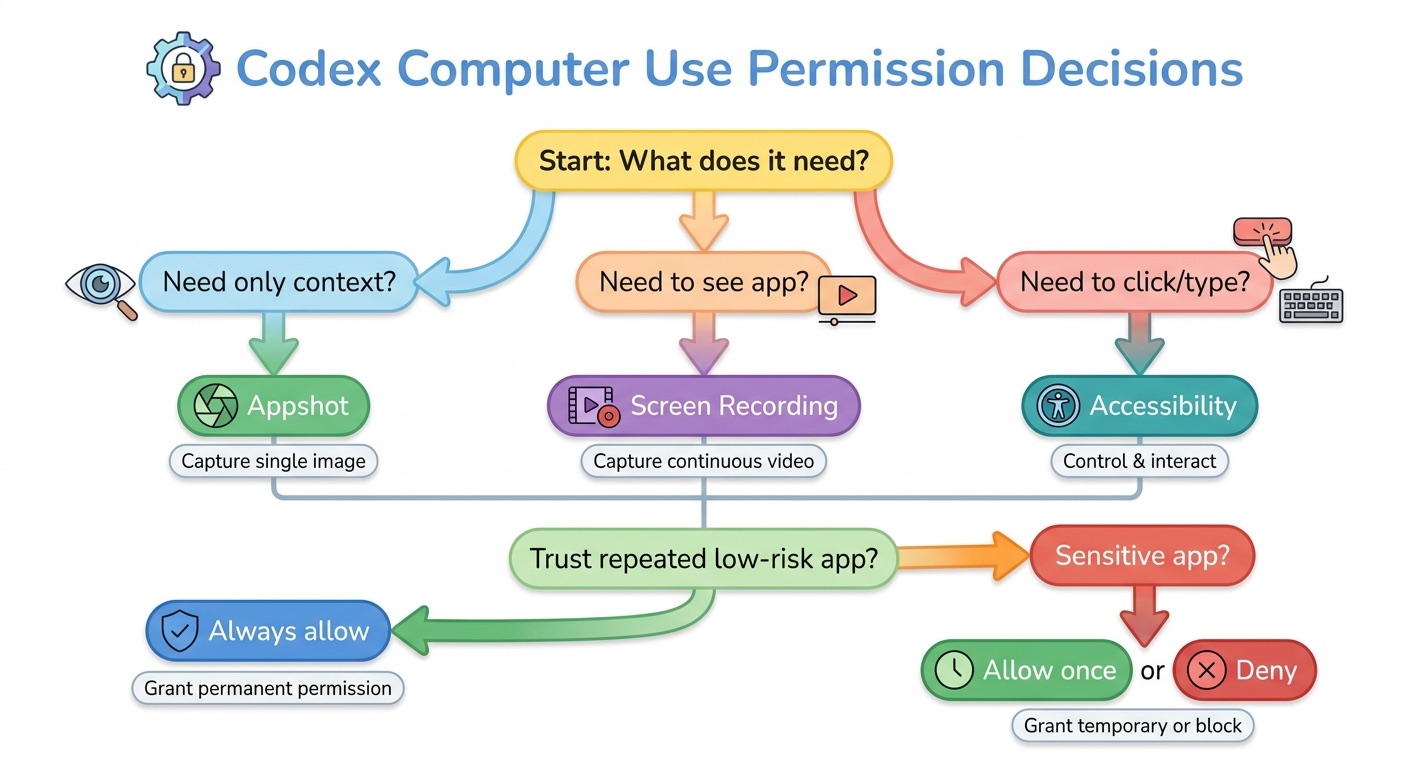
macOS permissions answer whether Codex can technically see and operate apps. Codex app approvals answer whether Codex is allowed to use a particular app in the current task. During a Computer Use task, Codex can ask before using an app. You may also see an option like “Always allow,” which lets Codex use that app in future tasks without asking again.
“Always allow” is convenient, but it is also where over-permissioning creeps in. The right choice depends on the app and the risk of actions inside it.
| Approval choice | Best for | Avoid for |
|---|---|---|
| Allow once | First-time setup, sensitive apps, browsers, admin consoles, unfamiliar workflows | Repeated low-risk tasks where prompts become noise |
| Always allow | Low-risk tools such as a test browser profile, simulator, local preview app, design preview, or sandbox utility | Email, finance, password managers, cloud admin, production dashboards, personal messaging, legal or HR tools |
| Deny | Wrong app, vague task, sensitive content visible, or Codex appears confused | Tasks where GUI access is actually required and safe |
If you accidentally grant broad approval, remove it from the Computer Use section of Codex settings. If you want to go further, revoke macOS Screen Recording or Accessibility access in System Settings > Privacy & Security.
Safe first setup checklist for Codex Computer Use
Use this sequence the first time you enable Computer Use. It is intentionally conservative.
Computer Use is described as a Codex app feature on macOS at launch, with regional exclusions. If you do not see it, check app availability, region, and version.
OpenAI’s setup flow starts in Codex settings under Computer Use.
Close personal messages, financial pages, private documents, credential notes, and unrelated browser tabs.
If you only need advice from a visible app, try an Appshot first.
A test browser profile, local preview, simulator, or sandbox app is better than your main browser full of signed-in accounts.
Do not start with “Always allow.” Let Codex prove it can follow narrow instructions first.
Tell Codex where to stop: before payment, before account changes, before deleting, before submitting, or after reporting what it sees.
Check changed files, app state, browser state, and the Always allow list.
Appshots permissions: safer context before full control
Appshots are the lighter-weight option. They let you send the frontmost Mac app window to a Codex thread. OpenAI says an Appshot can include an image of the visible window and available text from that window, including text the app makes available outside the visible scroll area.
For Appshots, Codex may ask for Screen & System Audio Recording to capture an image of the frontmost window and Accessibility to read available text. The key difference is intent: Appshots share context; Computer Use performs actions.
Use Appshots when
- You want Codex to explain a settings screen.
- You are sharing an error, design preview, API page, or email draft.
- You need a checklist, summary, or code suggestion.
- You do not want Codex clicking inside the app.
Escalate to Computer Use when
- Codex must reproduce a visual flow.
- The task requires clicking, typing, or navigating.
- You need it to verify a UI after code changes.
- A structured plugin or API is not available.
OpenAI notes that for some apps and websites, including Google Docs, Gmail, Google Sheets, and Google Slides, Codex may receive only the visible screenshot and not the full document or off-screen text. If a plugin exists for that source, use the plugin when you need complete structured content.
Permission matrix: what to allow by app type
| App type | Recommended approval | Why | Example safe prompt |
|---|---|---|---|
| Local dev browser profile | Usually okay; consider Always allow after testing | Useful for app verification with limited account risk | Inspect localhost:3000 and stop before any external login. |
| Main personal browser | Allow once, supervised | Signed-in pages can act as your account | Read the visible error only; do not click account, payment, or submit buttons. |
| iOS Simulator or desktop test app | Usually okay | Good fit for visual bug reproduction | Reproduce onboarding bug and stop at the error screen. |
| Email/calendar | Prefer Appshot; allow once only if needed | High privacy and accidental-send risk | Use this Appshot to draft a reply; do not send anything. |
| Cloud admin or production dashboard | Supervised one-time only, if at all | Irreversible infrastructure and billing risk | Observe the visible status and report; do not change settings. |
| Password manager, banking, payroll | Deny for Computer Use | Secrets and high-impact account actions | Use manual handling, not Computer Use. |
Troubleshooting Codex Computer Use permissions
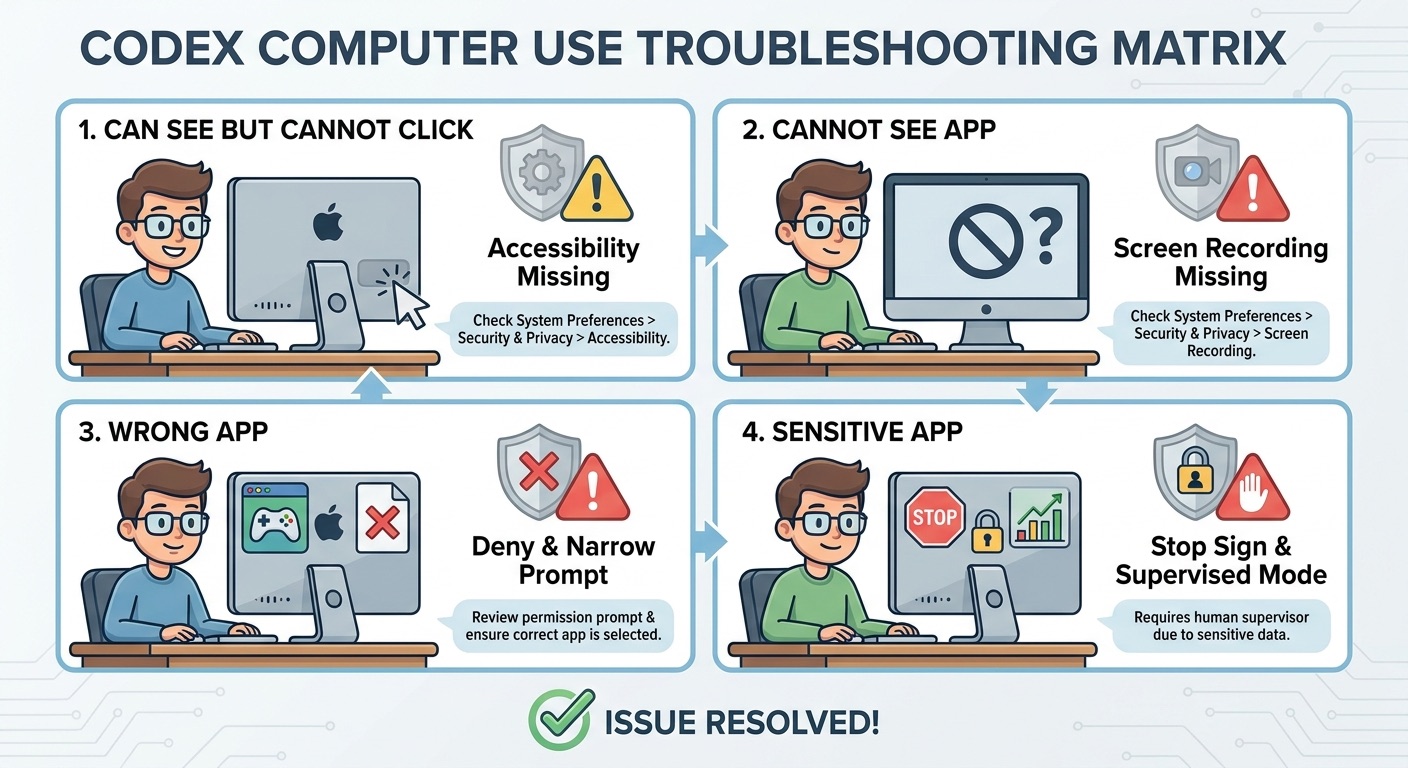
Codex can see the app but cannot click or type
Check Accessibility permission in macOS System Settings > Privacy & Security. Screen Recording may be enabled, but Accessibility is required for interaction. Restart Codex after changing permissions if the app still behaves as read-only.
Codex cannot see the app
Check Screen Recording permission. Make sure the target app is visible, the right window is frontmost, and Codex has been approved to use that app in the current task. If you are using Appshots, retake the Appshot after focusing the correct window.
Codex asks to use the wrong app
Deny the prompt. Then rewrite the task with the exact app name, window, first action, and stopping point. Vague prompts often cause broad app-selection mistakes.
Codex cannot approve a macOS privacy prompt
That is expected. OpenAI says Computer Use cannot authenticate as an administrator or approve security and privacy permission prompts. You need to approve those yourself.
Codex cannot operate a terminal app
OpenAI says Computer Use cannot automate terminal apps or Codex itself because doing so could bypass Codex security policies. Use Codex’s normal shell/tool approvals instead.
Appshots capture less text than expected
Some apps and websites expose only the visible screenshot rather than full off-screen text. Google Docs, Gmail, Sheets, and Slides are specifically called out in OpenAI’s Appshots docs. Use a structured plugin if available.
You clicked Always allow by mistake
Open Codex settings and remove the app from the Always allow list in the Computer Use section. If you want to fully disable the capability, revoke Screen Recording and Accessibility in macOS Privacy & Security.
Safe first-task prompt templates
Browser check with stop condition
Use Computer Use in my test browser profile to open localhost:3000/pricing, verify the plan cards and CTA buttons render, do not log in or submit forms, and stop after reporting visible issues.
Simulator bug reproduction
Use Computer Use in the iOS Simulator to reproduce the onboarding bug: launch the app, tap Continue twice, choose the free plan, and stop when the error appears. Then inspect the code and propose a minimal fix.
Appshot-first settings help
I am sending an Appshot of a settings panel. Explain which options matter for this integration and write a checklist. Do not use Computer Use unless I explicitly ask.
Sensitive app boundary
You may inspect the visible dashboard status only. Do not click buttons, open settings, change account details, submit forms, copy secrets, or continue past any prompt without asking.
How this supports the broader Codex topic cluster
This article is deliberately narrower than the pillar. The pillar explains what Codex Computer Use, Appshots, and locked use are. This cluster page targets a specific high-intent setup query: Codex Computer Use permissions. It should internally support the pillar while also linking readers to related workflows.
For broader context, read the AIFeatureDrop guides to OpenAI Codex pricing and usage limits, Codex Goal Mode and Appshots, and OpenAI AgentKit. Together, these pages help users choose not just whether Codex is powerful, but how to use it with scope, cost control, and safety.
FAQ: Codex Computer Use permissions
Why does Codex Computer Use need Screen Recording permission?
Screen Recording lets Codex see the target app window and visual state. Without it, Codex may not be able to inspect the browser page, desktop app, simulator, or settings screen needed for the task.
Why does Codex need Accessibility permission?
Accessibility lets Codex click, type, select menus, and navigate in approved apps. Screen Recording lets it see; Accessibility lets it act.
Should I click Always allow for Codex?
Use Always allow only for low-risk apps you trust Codex to operate repeatedly, such as a test browser profile or simulator. For sensitive apps, choose one-time approval or deny.
Can Codex approve macOS privacy prompts?
No. OpenAI’s Computer Use documentation says Codex cannot approve security and privacy permission prompts or authenticate as an administrator. You handle those prompts yourself.
How do I revoke Codex Computer Use permissions?
Remove approved apps from the Computer Use section of Codex settings. To revoke system-level access, open macOS System Settings > Privacy & Security and disable Codex under Screen Recording and Accessibility.
Is Appshots safer than Computer Use?
Appshots are usually lower-risk because they share context from the frontmost window without asking Codex to operate the app. They still share captured image/text with Codex, so avoid sensitive content unless necessary.
Can Codex use my signed-in browser?
If you approve the browser for Computer Use, Codex can interact with pages where you are signed in. Treat approved clicks and submissions as actions from your account, and stay present for sensitive flows.
What if Codex starts using the wrong window?
Stop or deny the task immediately. Then restart with a more specific prompt naming the exact app, window, action, and stop condition.
Conclusion: grant the smallest useful permission
Codex Computer Use is valuable because it can operate where code-only agents struggle: browsers, simulators, desktop settings, visual bugs, and messy cross-app workflows. But the same capability makes permission hygiene non-negotiable.
The safest mental model is simple. Use Appshots when Codex only needs context. Use Computer Use when it truly needs to interact. Grant Screen Recording for visibility, Accessibility for action, and app approval for the specific target app. Prefer one-time approval until an app has proven low-risk. Keep sensitive windows closed. Add a stop condition to every first task.
Sources and references
- OpenAI Developers: Computer Use – Codex app
- OpenAI Developers: Appshots – Codex
- OpenAI Developers: Codex changelog
- OpenAI: Get started with Codex
Editorial note: This article uses official OpenAI documentation and AIFeatureDrop analytics from 2026-05-01 to 2026-05-28. GSC query data is limited because the domain property is young.
Post a Comment