
Codex Computer Use Remote Control: Start Windows Tasks from Phone or Mac Safely
OpenAI’s May 29 Codex update brought Computer Use to Windows and added remote control support for Windows devices. That sounds simple, but the practical question is bigger: when should you let Codex take over a Windows desktop from your phone or Mac, and how do you keep that session safe, visible, and easy to recover?
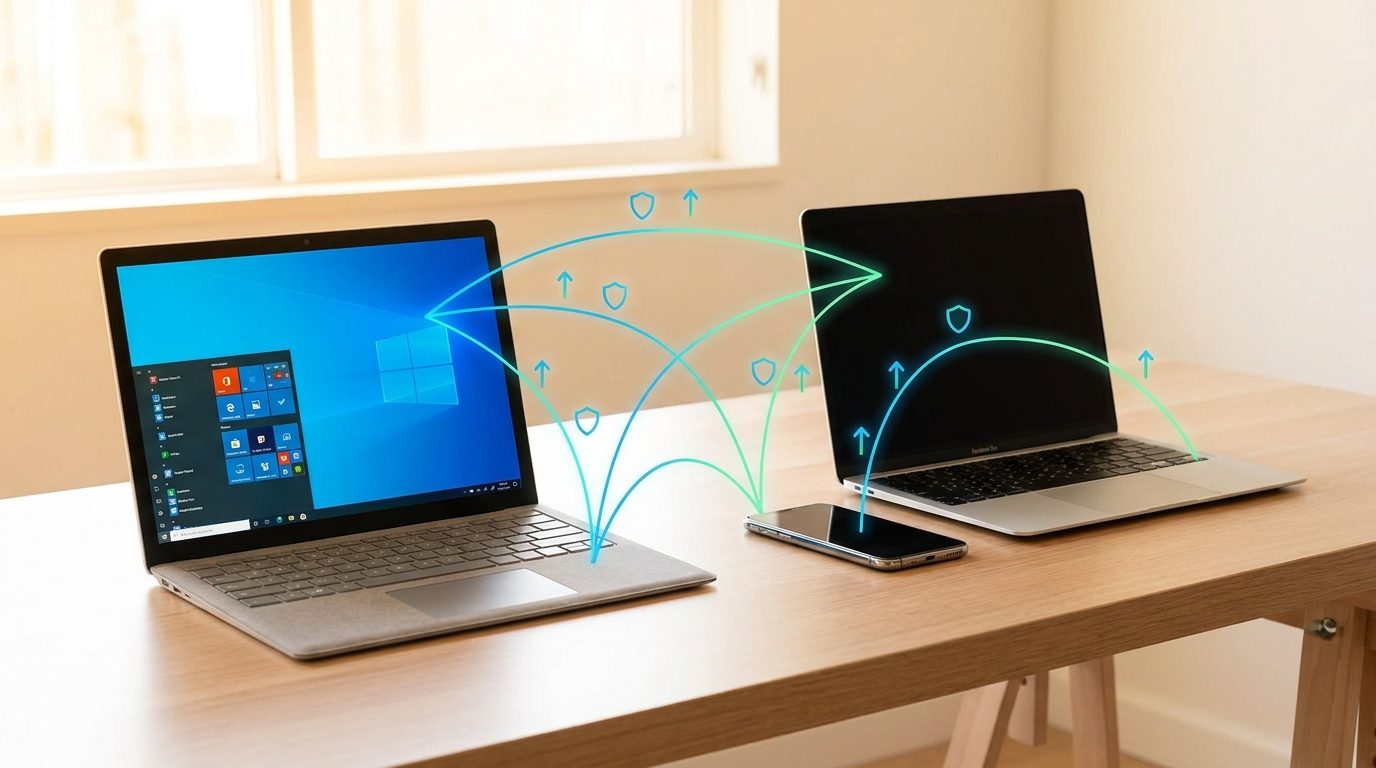
Why Codex remote control is the next practical gap after Windows Computer Use
On May 29, 2026, OpenAI’s Codex changelog said Computer Use now works on Windows and that remote control supports Windows devices. The official Computer Use documentation explains the key limitation: on Windows, Codex works on the active foreground desktop. It can see, click, and type, but it does not quietly run behind your normal Windows session the way a cloud job might.
That makes remote control useful, but also easy to misunderstand. It is not the same as macOS locked computer use. It is not the same as a headless CI job. It is a way to supervise a visible Windows desktop task from another place, such as ChatGPT on iOS or Android, or from a Mac running Codex. Readers who already saw our broader OpenAI Codex Computer Use guide need a narrower playbook for this exact scenario.
AIFeatureDrop’s early analytics also point in this direction. Since GA4 tracking began on May 9, the site has recorded 101 active users, 157 sessions, and 1,055 page views, with OpenAI label pages and Codex explainers among the strongest early content. Search Console data is still sparse, so the opportunity here comes from a fresh official feature, visible interest in practical Codex setup content, and a clear gap between broad Computer Use explanations and day-one remote-control workflows.
What Codex Computer Use remote control actually means
Codex Computer Use lets the Codex app operate graphical interfaces on macOS or Windows after the Computer Use plugin is installed and the user approves the target apps. On Windows, OpenAI says the app must remain visible on the active desktop while the task runs. Remote control adds a supervision layer: you can start or monitor work on that Windows device from another supported device instead of sitting directly in front of the machine the whole time.
Codex sees and interacts with desktop apps by clicking, typing, and reading visible UI state.
You supervise or continue the task from ChatGPT mobile or another Codex device when the Windows machine is online.
Codex uses the active desktop. Expect pointer movement, typing, and visible app switching.
This distinction matters because many users will search for “remote Codex Windows” expecting an autonomous background desktop. The safer mental model is closer to handing a trusted junior teammate your unlocked test machine while you watch from your phone. Codex can help, but you should define the room, the task, and the stop sign before it starts.
Before you start a remote Codex task on Windows
Do this setup once before relying on remote control for real work. It prevents most “Codex cannot see the app,” “Codex is typing in the wrong place,” and “I lost track of the session” problems.
- Install and update the Codex app on the Windows device. Use the latest build because Windows Computer Use support landed as a fresh Codex app update.
- Install the Computer Use plugin. In Codex settings, open Computer Use and complete the install flow.
- Sign in with the right account. Use the same work or personal account that has Codex access and the plan limits you expect.
- Keep the target app visible. Windows Computer Use runs in the foreground, so put the app, browser, simulator, or settings window where Codex can operate it.
- Close risky windows. Hide password managers, banking tabs, production admin panels, private chats, and unrelated documents.
- Prepare a reversible task. Start with inspect, reproduce, summarize, or test. Avoid irreversible changes until you trust the flow.
- Decide how you will stop it. Keep the device reachable and know where the session appears in Codex or ChatGPT mobile.
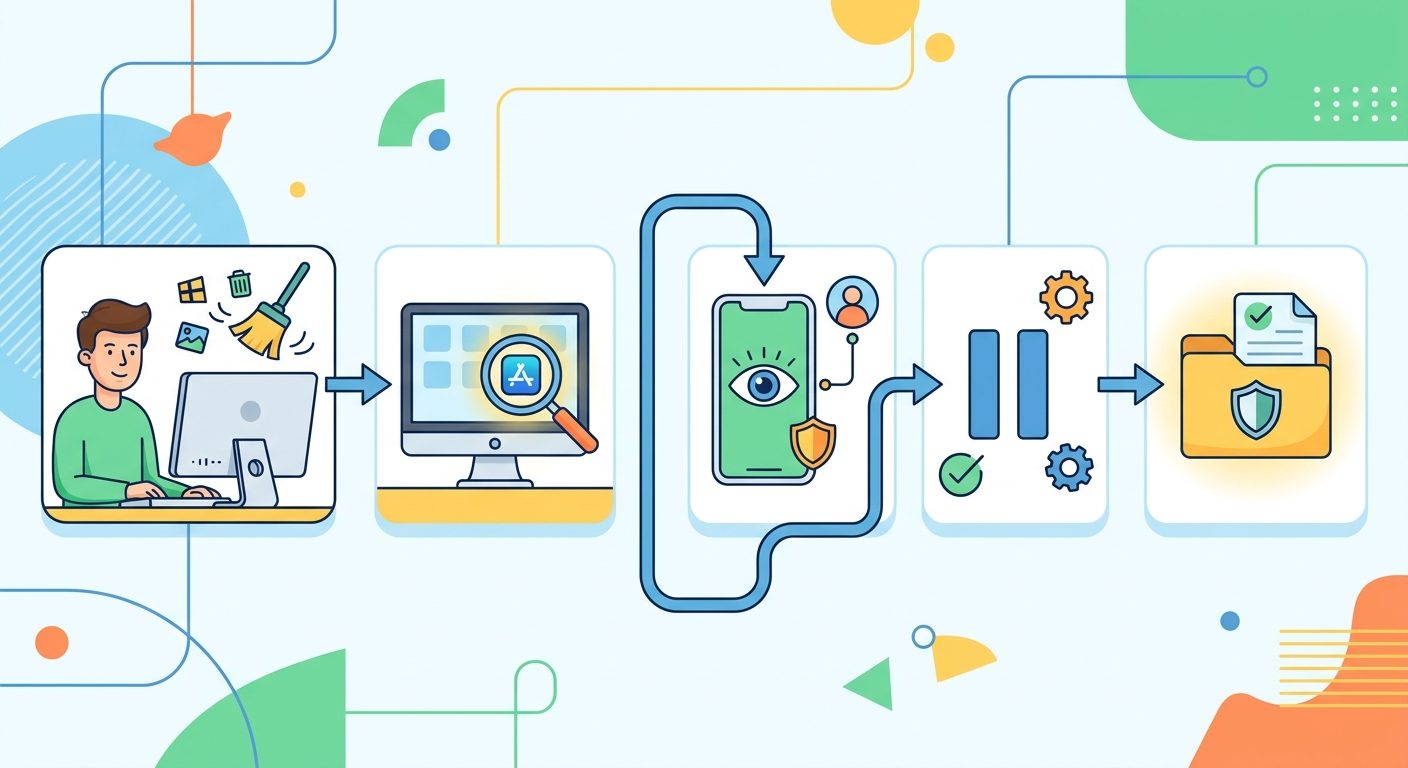
A safe workflow for starting Codex Windows tasks remotely
1. Start with an observation-only pass
Before Codex clicks anything, ask it to describe what it sees and repeat the intended plan. This is especially important on Windows because the active desktop might contain more than one window, notification, or modal dialog.
2. Give a narrow task, not a broad mission
“Fix the app” is too broad for foreground desktop control. “Open the Settings dialog, reproduce the export bug with this sample file, and stop after you capture the error message” is much safer.
3. Use checkpoints every few minutes
Remote access is most useful when you are away from the keyboard, but it should not become unsupervised high-risk operation. Ask Codex to pause after key transitions: before changing settings, before submitting forms, before saving files outside the project folder, and before closing windows.
4. Prefer test environments
Use local dev apps, staging accounts, sample documents, sandbox data, and virtual machines whenever possible. The official docs themselves suggest a Windows VM if you do not want Codex taking over your main desktop session. That is excellent advice for first-time remote control tests.
5. End with a written summary
When the task finishes, ask Codex to summarize what it opened, changed, saved, failed to do, and where you should review the result. This makes remote sessions auditable instead of relying on memory.
Copy-paste prompt templates for Codex remote control
These are written for practical Windows Computer Use sessions. Replace the bracketed details and remove anything that does not apply.
Safe first-run prompt
Remote bug reproduction prompt
Mobile supervision prompt
Windows VM prompt
Limits, risks, and what not to automate
| Scenario | Use remote control? | Why |
|---|---|---|
| Reproducing a UI bug in a local app | Yes | The task is visible, reversible, and benefits from GUI interaction. |
| Checking a staging web flow | Yes, with checkpoints | Good fit if test accounts and dummy data are used. |
| Production billing, refunds, or payments | No | Too much irreversible financial risk for remote desktop automation. |
| Password manager or MFA setup | No | Secrets and account-security changes should stay human-controlled. |
| Changing app preferences | Maybe | Safe if scoped and reversible; pause before applying changes. |
| Long unattended desktop work | Usually no | Windows foreground use needs visibility and recovery. Consider CLI, plugin, MCP, CI, or a VM. |
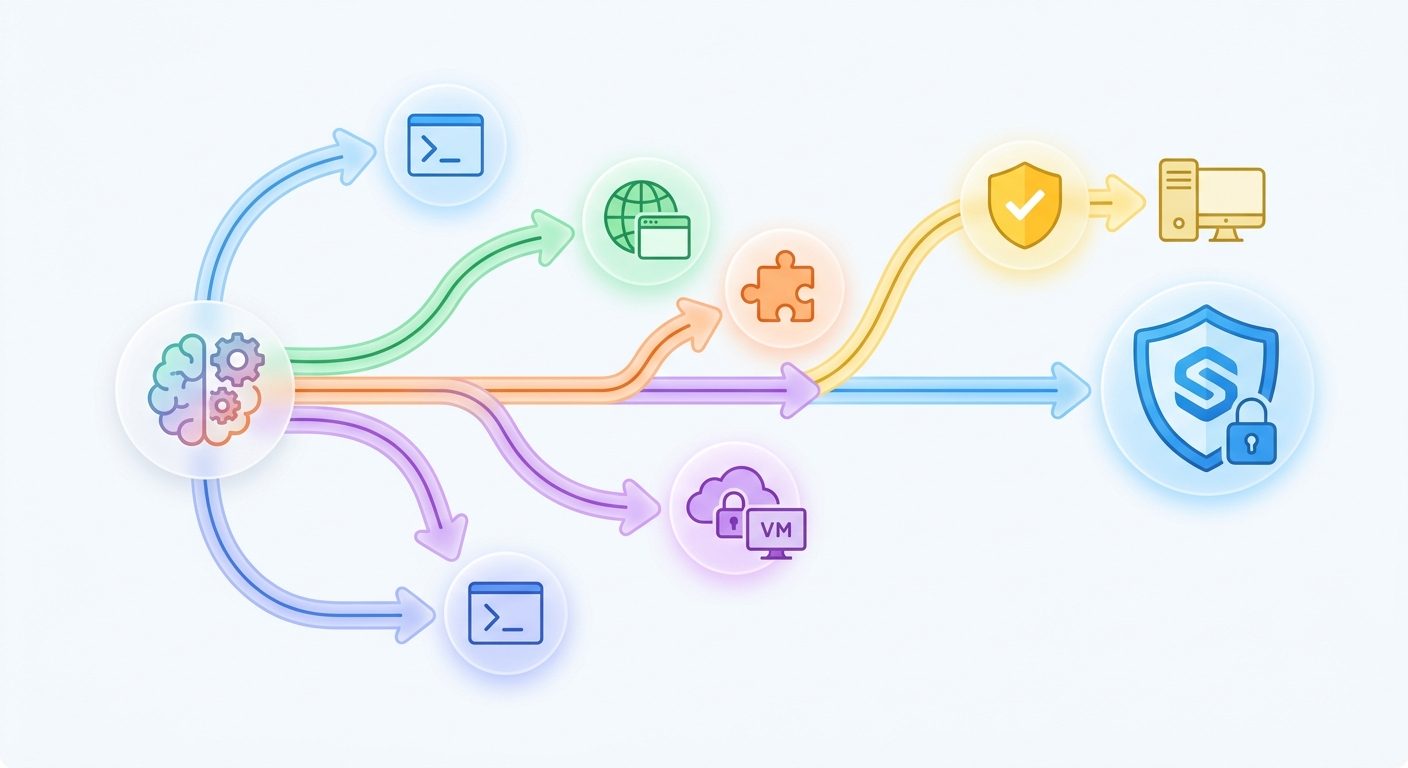
Also remember that Computer Use is only one Codex interface. If a task can be done through files, terminal commands, a structured plugin, an MCP server, or the in-app browser for local web apps, those options are often more repeatable and easier to audit than a visual desktop session.
Troubleshooting Codex remote control on Windows
Codex cannot see the right app
Bring the app to the foreground on the Windows device. If multiple monitors or virtual desktops are involved, simplify the setup: one display, one desktop, one target window. Ask Codex to describe what it sees before continuing.
Codex is controlling the wrong place
Stop the turn, restore the correct window focus, and restart with a narrower prompt. Do not try to “steer through” a confused foreground session if sensitive apps are visible.
The task stops when the PC locks
That is expected for many Windows workflows. The Computer Use documentation says Windows runs in the foreground, while locked use is macOS-specific. Keep the Windows device unlocked for the duration of the task, or use a dedicated VM/test machine.
Remote mobile control is hard to follow
Ask for checkpoint summaries in short structured updates. Mobile supervision works best when Codex reports current app, latest action, next action, and whether approval is needed.
Permissions or access look different from the docs
OpenAI’s rollout details can change. Check the Codex changelog, Computer Use settings, and your region/account availability inside the app. At launch, OpenAI’s Computer Use docs excluded the European Economic Area, the United Kingdom, and Switzerland.
How this fits into the broader Codex Computer Use cluster
This article is the remote-control layer. If you are still deciding whether to enable the feature at all, start with our OpenAI Codex Computer Use pillar guide. If you are setting up a Windows machine for the first time, read Codex Computer Use on Windows. If you are on Mac and need to understand Screen Recording, Accessibility, Appshots, or app approvals, use the Codex Computer Use permissions checklist.
The bigger pattern is simple: Codex is becoming more useful in the messy parts of software work where the answer is visible on screen, not only in a repo. But usefulness rises with scope, and risk rises with scope too. The best operators will treat remote control as a narrow, supervised workflow with explicit boundaries.
FAQ
Can Codex Computer Use control a Windows PC from my phone?
OpenAI’s May 29, 2026 changelog says remote control now supports Windows devices and that users can start Codex work on Windows from ChatGPT on iOS or Android, or from a Mac running Codex. The Windows device still needs to be available, connected, and set up for Computer Use.
Does Windows Codex Computer Use work in the background?
No. OpenAI’s Computer Use docs say Windows Computer Use runs on the active foreground desktop. Expect Codex to move the pointer, type, and use the visible session while it works.
Is Codex locked computer use available on Windows?
No. OpenAI’s docs state that locked use is for macOS. On Windows, use an unlocked active session or isolate the task inside a Windows virtual machine.
What tasks are best for Codex remote control?
Good fits include local UI bug reproduction, staging browser checks, desktop app testing, app settings inspection, and workflows where the important state exists visually. Avoid payments, secrets, account-security settings, admin approvals, and production actions.
Should I use Computer Use or the in-app browser?
For web apps you are building locally, OpenAI recommends using the in-app browser first. Use Computer Use when Codex needs to operate a desktop app, inspect visual state outside browser tooling, or work across apps.
How do I make remote sessions safer?
Use a test account, close sensitive apps, keep the target app visible, request an observation-only pass first, require checkpoints, pause before destructive actions, and end with a summary of what changed.
Next step
If you are experimenting today, start with a harmless Windows VM or staging app. Give Codex a five-minute observation-and-test task, require checkpoints, and only expand permissions after you trust the workflow.
Post a Comment