
Gemini Routines on Android: What Replaces Google Assistant Automations and What Needs a Workaround
Moving to Gemini is not a one-for-one routine migration. This practical guide separates the voice tasks that transfer cleanly from the automations that still depend on Google Home, Android settings, or a deliberate workaround.
Quick answer: Gemini can replace many assistant requests, not every routine
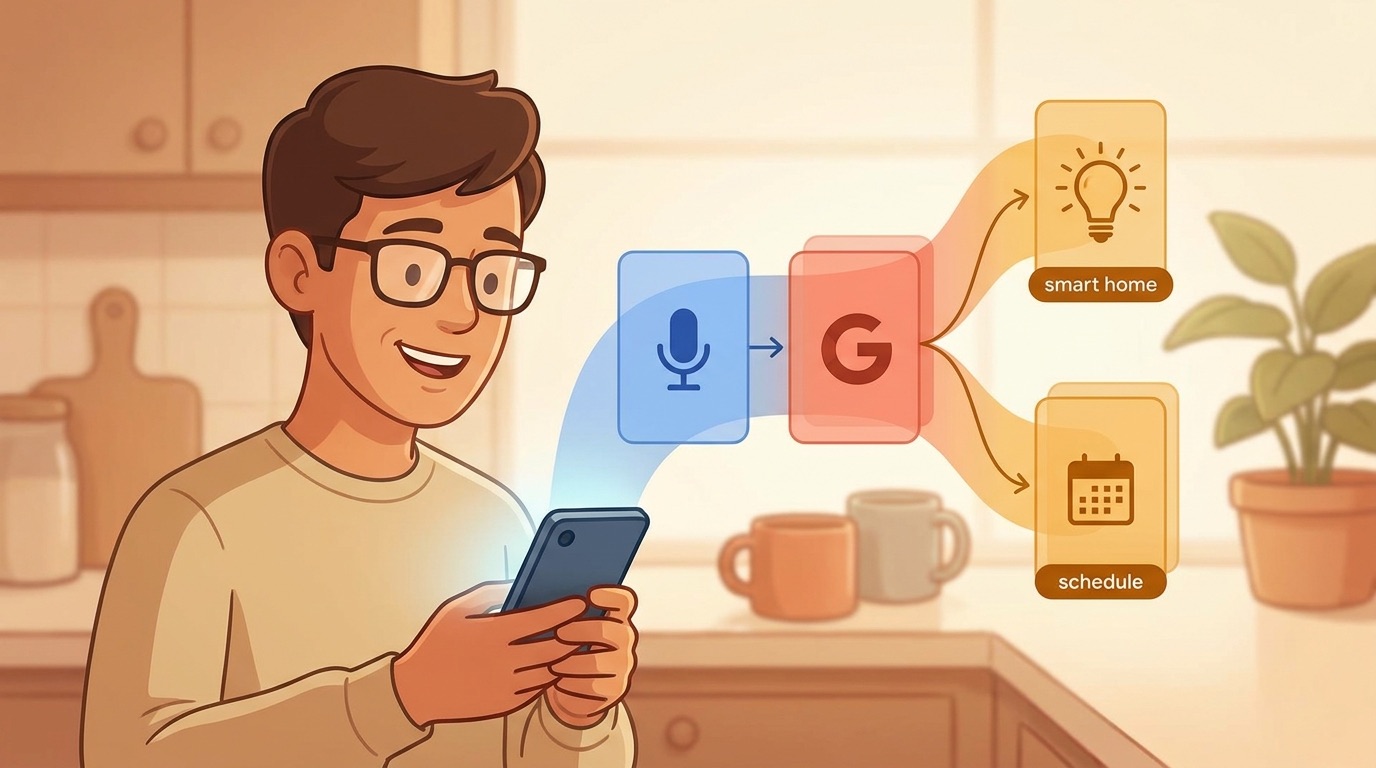
Gemini on Android can handle everyday assistant-style requests: start a call or message, set timers, create reminders, ask about a calendar, control compatible smart-home devices, play media, and answer follow-up questions. But a Google Assistant routine is a different kind of object. It can contain a trigger, ordered actions, device-specific behavior, and smart-home conditions. Gemini does not turn every existing routine into a matching Gemini automation simply because it becomes the default assistant.
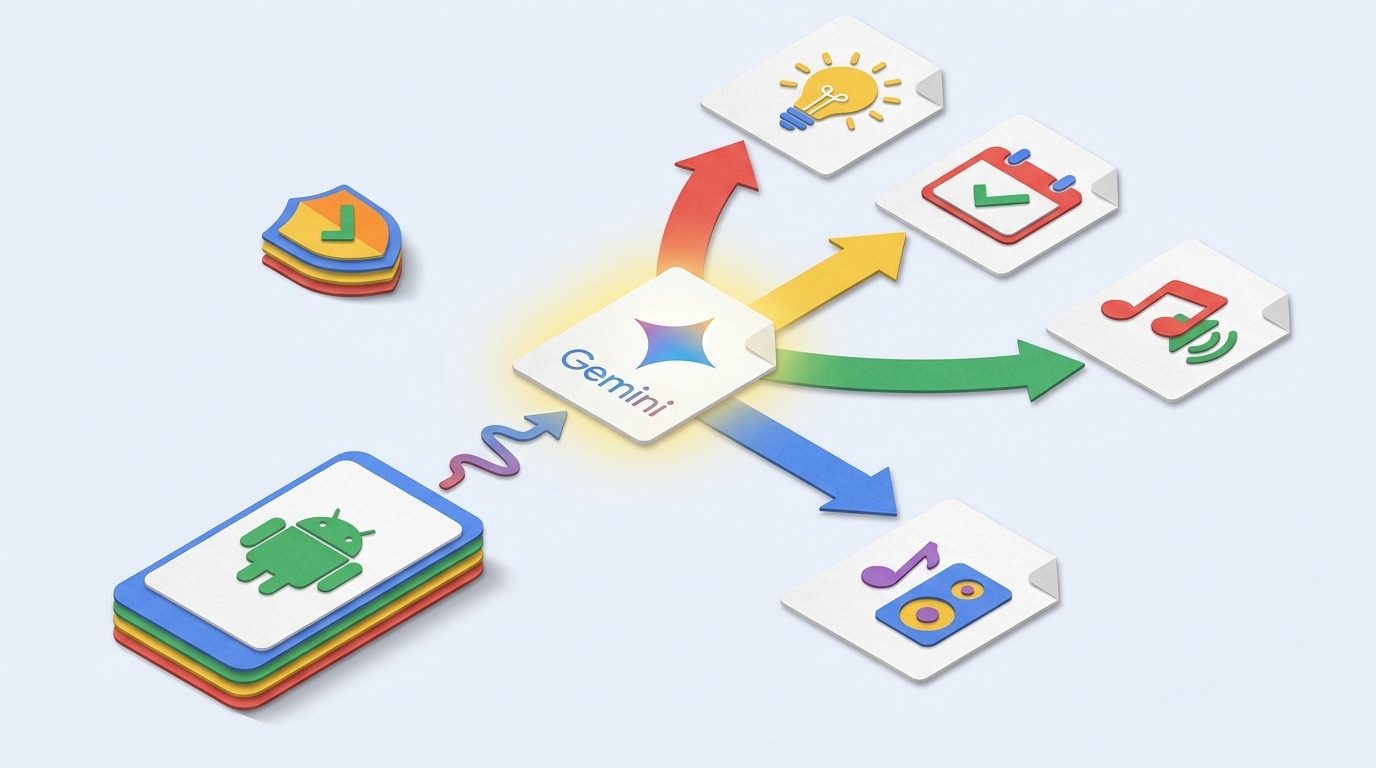
That distinction matters before you switch. A voice command such as “turn off the kitchen lights” may continue to be simple. A chain such as “when I say goodnight, set an alarm, turn off several rooms, change the thermostat, and start white noise” needs testing in the place where it actually runs: Google Home, the device manufacturer’s app, or an Android automation tool. Treat Gemini as the conversational front door and keep dependable automations in the system that owns their trigger and devices.
This is a focused companion to our broader guide, How to Switch from Google Assistant to Gemini on Android Without Losing Your Routine. That article covers the switch itself. This page helps with the narrower question that causes the most friction afterward: what exactly should replace a routine?
First, map each routine by job instead of by its name
Routine names are memorable, but they hide important differences. “Morning” might only report weather and start a playlist. “Leaving home” may lock a door, arm a camera, change a thermostat, and depend on a location trigger. The second workflow has safety, reliability, and device-account implications that a generative assistant should not silently improvise.
| Routine job | Best home after switching | Why |
|---|---|---|
| One-off questions, summaries, drafting, follow-ups | Gemini | Conversation and context are Gemini’s strength. |
| Timer, alarm, reminder, call, text | Gemini or Android system app | Use Gemini for voice entry; verify the created item in its destination app. |
| Single compatible light, plug, speaker, or scene | Gemini / Google Home | Simple device commands are easy to test and reverse. |
| Multi-device goodnight or morning sequence | Google Home household automation | It preserves ordered actions and exposes smart-home controls. |
| Location, battery, Wi-Fi, or app-state trigger | Android settings or trusted automation app | The phone, not the assistant, owns these signals. |
| Door locks, alarms, cameras, purchases | Dedicated provider app with confirmation | Use explicit controls and least privilege for consequential actions. |
This inventory is also a useful antidote to feature confusion. Product pages often describe an assistant’s capabilities in broad language. Your household depends on a smaller, more concrete set of actions. List those actions, note the device that executes each one, and write down the exact phrase or trigger. You will find that a few routine steps are truly assistant-dependent; the rest belong to a smart-home platform or Android service.
Set Gemini as the default assistant without breaking your baseline
Start by checking the assistant setting on the Android device rather than assuming an app install changes the default. Android menus vary by manufacturer and version, but the common path is through Settings, Apps, Default apps, or Digital assistant app. Google’s Gemini mobile app help explains supported mobile-assistant behavior and availability; use it as the current source when labels differ on your phone.
Before changing the setting, make a short baseline list. Ask Google Assistant to run your two most-used commands. Open Google Home and confirm the automations, household membership, rooms, and linked devices you expect to use. Check the Google Calendar and Tasks or reminder destination you rely on. This is not busywork: it gives you a clear way to spot whether a failure is a Gemini issue, a device-link issue, or an automation that was never stored in the assistant itself.
Use a staged switch
For the first few days, use Gemini for low-consequence requests: a timer, a message, an event lookup, a weather question, a simple lamp command. Then test a medium-complexity action such as “turn on the living room scene.” Only after those work consistently should you change the phrase or trigger of a household automation. If a workflow is important in the morning, do not make its first real test happen while you are late for work.
Google’s smart-home documentation remains the best authority for supported controls and linked services. Review the Google Home help center for household and device management, and use the device maker’s support pages for firmware, local-account, or hub-specific behavior. A device appearing in Google Home is not a promise that every custom feature is available through every voice surface.
Build a replacement workflow for the routines people actually miss
Morning briefing: split information from automation
A good morning routine often combines two jobs. The information half—weather, calendar, commute, a short summary—fits Gemini naturally because you may want to ask a follow-up. The automation half—lights, thermostat, speaker volume—belongs in Google Home if it is a stable multi-device scene. Keep the home sequence as a household automation, then use Gemini to ask “what is on my calendar?” after it runs. The result is less magical than one catch-all phrase, but more debuggable.
Bedtime: create an explicit safety boundary
Bedtime sequences commonly touch locks, cameras, alarms, or heating. Make those actions visible and confirmable. Use a named Google Home automation for lights and media, and manage security devices in their approved app when the vendor requires it. Do not rely on a vague conversational request to infer which doors should lock. A secure workflow has a short label, an understandable action list, and a way to verify its final state.
Leaving home: let the phone own phone signals
Location, Bluetooth connection, Wi-Fi presence, charging state, and app events are phone signals. If the desired trigger is “when my phone leaves home,” look first in Android settings, Google Home’s household automations, or the hardware vendor’s app. Gemini can help you understand or create reminders around the routine, but it should not be the only place you expect a location trigger to live. This design also makes troubleshooting easier when location permissions or battery optimization change.
Family commands: prefer household-visible controls
A phrase that only works from one person’s phone creates a support problem for everyone else. For shared lights, speakers, and schedules, use household-level rooms, device names, and automations visible in Google Home. Avoid naming two devices almost the same thing. Keep voice phrases short. If an action must be performed by a specific person because it involves an account or payment, say so in the routine name and avoid disguising it as a shared command.
Workarounds that improve reliability rather than adding cleverness
Workarounds are useful only when they reduce uncertainty. The wrong workaround creates a fragile chain of one app talking to another app, with no obvious place to inspect why it stopped. Start with the least complex option that preserves the outcome.
| If you used Assistant for… | Try this first | Verification step |
|---|---|---|
| Recurring reminder | Create it in Google Calendar or Tasks; use Gemini to add it by voice if supported. | Open the destination app and confirm time, recurrence, and account. |
| Smart-home scene | Create or retain a Google Home automation with clear device names. | Run it from the Home app before relying on voice. |
| Music at a time | Use the media provider’s supported alarm or Google Home routine. | Test at low volume and confirm the target speaker. |
| Message on arrival | Use an Android automation or location-aware app you trust. | Check permissions, notification access, and a dry run. |
| Security action | Use the device maker’s app and confirmation settings. | Inspect device state directly; never assume voice success. |
For a practical test, use a “three-run rule.” Run the workflow once from the visual app, once by voice from the phone, and once from the location where you normally use it. Three successful runs do not guarantee perfection, but they expose common failures: wrong speaker, wrong household, an ambiguous device name, a missing permission, or a command that works only while the phone is unlocked.
When something fails, reduce the request to one action. “Turn on the desk lamp” is a better diagnostic than “start my work routine.” If the one action works, add steps in the automation editor. If it does not, inspect the device connection, account, room assignment, and vendor app before changing Gemini prompts. The assistant cannot repair a device that has lost its cloud link or a smart-home account that is signed in under a different household.
Privacy and permission checklist before you expand Gemini’s role
Switching assistants changes the surface through which you make requests; it does not erase the permissions already granted to Android, Google Home, connected services, or hardware vendors. Review the assistant’s activity and privacy options in your Google Account, then inspect Android permissions for microphone, contacts, calendar, location, and notifications. Google’s My Activity controls are a useful starting point for understanding and managing saved activity.
Use the principle of least privilege. A calendar helper may need calendar access but not location all the time. A smart-home integration may need device control but not contact access. Disable integrations you no longer use, remove stale household members, and choose a device PIN or biometric lock. When a routine has a consequential effect, design it so that an accidental phrase is not enough to create harm.
Be especially cautious with instructions that ask you to install unknown helper apps, paste access tokens, disable Android safeguards, or route commands through unverified websites. A legitimate automation should be understandable from its official app or documentation. If you cannot identify who runs the service, what account it uses, and how to revoke access, do not connect it.
Troubleshooting: diagnose the layer that owns the failure
Gemini hears you but does the wrong thing
Check wording and device names first. Rename duplicate devices, remove filler words, and try a single action. Then compare the result with the Google Home app. If the app works but the spoken request does not, the issue is likely interpretation or supported phrasing. If neither works, troubleshoot the device connection or linked service.
A routine disappeared after the switch
Look in Google Home and the original service, not only the Gemini app. The change of default assistant does not necessarily delete household automations, but availability can vary by device and region. Confirm you are signed into the intended Google account and household. If the routine is absent, rebuild the smallest version first and document its actions as you go.
Gemini cannot access calendar, messages, or calls
Check Android permissions, the default-app setting, and the account selected in the relevant app. On managed work phones, an administrator policy can restrict access. Do not repeatedly grant broad permissions blindly; identify the specific missing capability and review it after testing.
Smart-home control works on a speaker but not on the phone
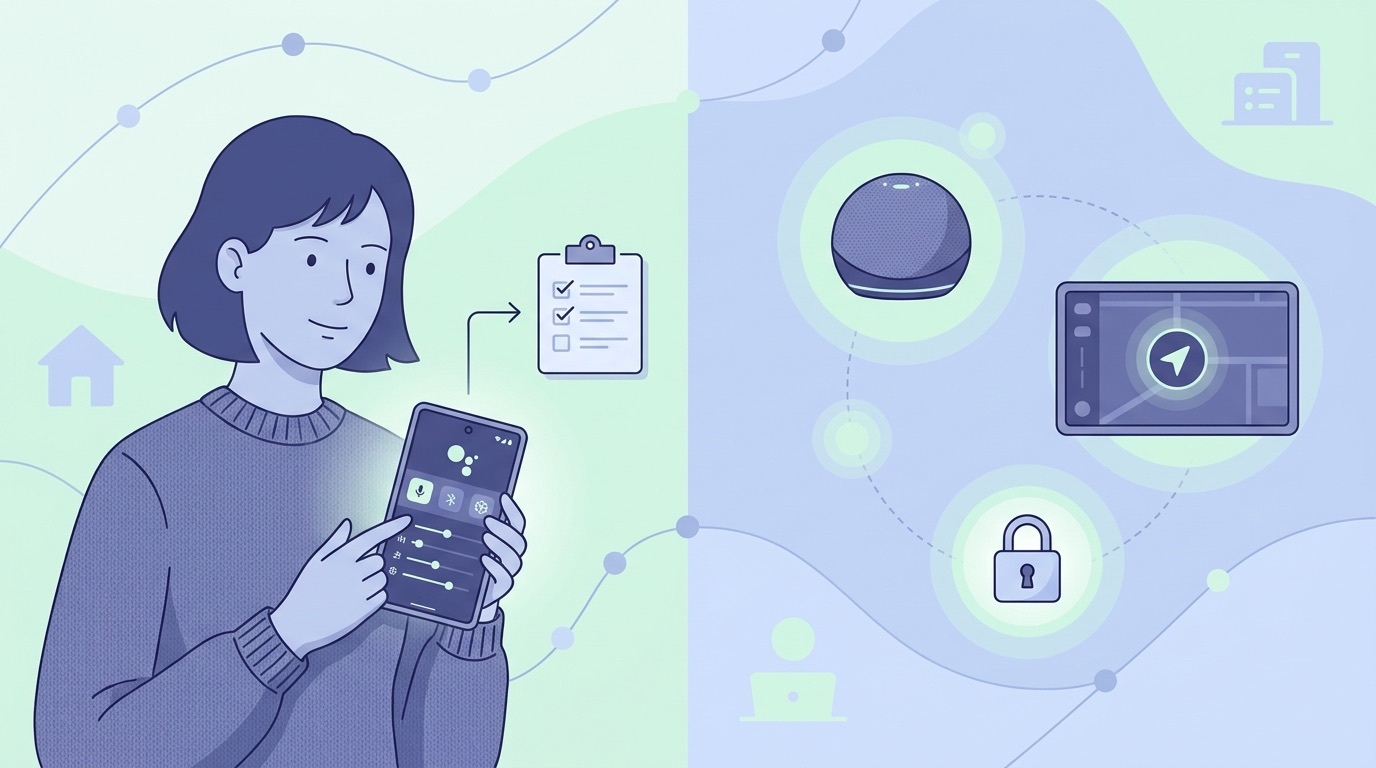
That points to a surface or account mismatch. Confirm the phone’s Google account matches the Google Home household, check whether the phone is using the expected assistant, and test the same short command. A speaker may also have a different voice-match or household configuration from the phone.
A repeatable Gemini routine migration checklist
Use this checklist whenever you replace an Assistant-based habit. It keeps the decision grounded in what the automation must do rather than in which assistant has the newest interface. Start by writing the outcome in one sentence: for example, “at night, leave the kitchen safe, the bedroom comfortable, and tomorrow’s alarm set.” Then list every device, app, account, trigger, and confirmation involved. If you cannot identify a dependency, that is a reason to test before migrating.
- Classify the trigger. Is it a spoken phrase, a schedule, location, a device sensor, or an Android state? Put it in the platform that owns that trigger.
- Classify each action. A calendar question, a light command, a door lock, and a text message have different reliability and permission needs. Do not bundle them just because they share a routine name.
- Choose the authoritative app. Google Home should show shared household actions; the device-maker app should show vendor-specific settings; Android should show phone permissions and default apps.
- Test in a non-critical moment. Run the action visually, then by voice, then from the physical location where it is normally used. Capture a failure before replacing the old workflow.
- Keep an escape hatch. Preserve a manual control, shortcut, or original automation until the replacement has worked repeatedly. This is essential for lights, climate, access, and family routines.
There is a productivity benefit to this method as well. Once an automation is decomposed, Gemini can make the conversational parts better. You can ask for a shorter briefing, a follow-up about an event, a message draft, or a recap of information without overloading a fragile home-control sequence. The deterministic steps stay deterministic; the open-ended steps gain an AI assistant.
Teams and households should also document who owns the accounts. A smart-home action can fail because a phone is signed into a personal account while a speaker belongs to a shared household, or because a vendor link was created by a former member. Review household membership, recovery options, and connected services periodically. This is mundane maintenance, but it prevents a “Gemini routine problem” from masking an account-access problem.
Four real-world routine patterns and how to rebuild them
Pattern one: a short commute setup
Imagine a routine that used to read today’s calendar, announce traffic, open a navigation route, and text a partner that you are leaving. Do not try to recreate this as one opaque command. Put the calendar and conversational request in Gemini, use the navigation app’s own commute setting for routes, and use an explicit message shortcut or Android automation only if you have tested its contact selection. The phrase “I am leaving” is ambiguous when a message has real social consequences; a visible confirmation is usually preferable.
Pattern two: focused work mode
A work routine may silence notifications, open a task list, set a timer, and start a focus playlist. Android’s Focus mode or Digital Wellbeing tools should manage notification policy because they are the system authority. Use Gemini to create a focused task list, summarize an email thread, or set a timer. Let the media service or Google Home handle the speaker. Splitting the workflow lets you change your music provider or task app without breaking the phone’s quiet-hours policy.
Pattern three: a shared family dinner scene
For a shared scene, begin in Google Home: define the room, device names, lights, speaker, and any temperature action. Avoid personal calendar details or personal messages in a shared phrase. Everyone in the household should be able to see the scene and know its effect. If the phrase behaves differently on different devices, inspect household membership and voice-match settings before changing the scene. A household automation should be predictable for guests and family members, not a private prompt with hidden side effects.
Pattern four: a recovery plan when the internet is down
Cloud assistants and connected devices can fail during an outage. Decide what still needs a physical switch, local control, or manual setting. This is especially important for lighting, climate, alarms, and accessibility needs. Your routine has succeeded only when the outcome remains manageable without a perfect voice connection. Keep the manufacturer app installed, label physical controls, and do not build a dependency chain that requires three online services just to turn on a lamp.
These examples all point to the same design principle: a reliable routine has an owner for every action. Gemini is useful when the action benefits from language and context. Google Home is useful when the action is a shared device sequence. Android is useful when the trigger comes from the phone. A vendor app is useful when a device exposes proprietary or safety-sensitive controls. Assigning ownership makes the setup easier to explain, audit, and repair.
Write down the successful version
After a routine passes the three-run test, record its exact phrase, trigger, target devices, and fallback control in a shared note. This tiny documentation step prevents future confusion when a device is renamed, a family member changes an account, or an app update changes an option. It also gives you a clean starting point if you later decide to move the conversational part from one assistant to another. Good automation is not only convenient; it is understandable by the person who has to fix it.
Review this note after every meaningful change.
Why this narrow Gemini routine guide is useful
AI Feature Drop’s current analytics show that practical, task-specific explainers—not generic product news—earn the strongest engagement. In the most recent GA4 window, the site recorded 650 active users and 770 page views, with developer and workflow guides leading page traffic. Search Console is still sparse, but its available data reinforces a simple lesson: detailed questions arrive before broad brand queries mature. A useful cluster page should answer the operational follow-up a reader has immediately after a pillar guide.
The latest Google AI pillar covers the transition from Google Assistant to Gemini on Android. This page deliberately avoids rewriting that guide. Instead, it targets the narrower search intent behind phrases such as “Gemini routines,” “Google Assistant routines replacement,” and “Gemini smart-home automations.” It adds an action-by-action migration map, testing method, safety boundary, and troubleshooting model—information readers can use even when their specific devices differ.
Next step: keep automation deterministic and let Gemini handle conversation
The most durable setup is not “Gemini does everything.” It is a clear division of labor. Use Gemini for questions, follow-ups, summaries, and lightweight voice requests. Use Google Home or a trusted device platform for multi-step household actions. Use Android settings or a purpose-built automation service for phone-state triggers. Keep security-sensitive actions explicit and independently verifiable.
That approach makes the transition less dramatic and far more reliable. You retain the routines that save time, gain Gemini’s conversational strengths, and avoid turning a useful assistant upgrade into a fragile house-wide experiment.
Related reading on AI Feature Drop
- How to Switch from Google Assistant to Gemini on Android Without Losing Your Routine
- Gemini Omni Flash Guide: Build Controllable AI Video Workflows
- Gemini Omni Flash Prompt Guide
- Google Flow and Veo Credits Explained
Sources and references
- Google Gemini Apps Help: use Gemini as a mobile assistant
- Google Home Help Center
- Google Home automations help
- Google My Activity controls
- Android Help Center
Features, supported devices, and availability can change. Confirm the controls and policies displayed in your own Gemini, Google Home, Android, and device-maker apps before relying on an automation.
FAQ: Gemini routines and Google Assistant automations
Can Gemini run Google Assistant routines?
Some simple assistant and smart-home requests may work, but a routine is not automatically converted into an equivalent Gemini automation. Test each workflow and keep multi-device sequences in Google Home or the original supported platform.
Where should I rebuild a missing routine?
Start in Google Home for household devices and scenes. Use Android settings or a trusted automation app for phone-state triggers, and use the hardware vendor’s app for device-specific or security-sensitive actions.
Does switching the default assistant delete my automations?
Changing the default assistant should not be treated as a deletion step, but behavior and availability can differ by device, account, and region. Inventory and test your important automations before changing anything.
Why does a Gemini smart-home request work sometimes but not always?
Common causes include duplicate device names, a mismatched Google Home household, a lost device link, unclear phrasing, or a permission difference between the phone and a speaker. Test one action at a time to isolate the layer that failed.
Should I use voice control for locks and cameras?
Use the approved device app and confirmation requirements for consequential actions. Always verify the resulting device state directly rather than assuming a spoken request completed safely.
Post a Comment