
Gemini Omni Flash Prompt Guide: Better Video Prompts for Scene Extension, Editing, and Keyframes
Gemini Omni Flash is most useful when your prompt behaves like a small production brief, not a loose wish. This focused guide gives you practical templates for text-to-video, image-to-video, scene extension, first-and-last-frame interpolation, editing, audio direction, and review checkpoints.
Gemini Omni Flash Prompt Guide: Quick Answer
The best Gemini Omni Flash prompt tells the model five things clearly: what the viewer should see, what should move, how the camera should behave, what sound or dialogue should happen, and what must stay consistent. If you are extending or editing a video, the prompt also needs one more instruction: what to preserve from the previous clip.
This is different from normal chatbot prompting. A chatbot can ask follow-up questions. A video model turns your ambiguity into pixels, motion, audio, camera cuts, lighting, and sometimes unwanted storytelling choices. If you only write “make a cinematic product video,” the model has to invent the subject behavior, camera path, scene count, lighting, background, timing, and audio. Sometimes that looks impressive. Often it is not what you needed.
Use this guide as the cluster companion to our broader Gemini Omni Flash guide. The pillar explains what the model does and where it fits in Google AI video workflows. This article goes narrower: how to actually write prompts that produce more controllable outputs, especially for scene extension, conversational editing, keyframe transitions, and developer products that need repeatable prompt patterns.
Why Prompting Is the Real Search Gap Around Gemini Omni Flash
Google’s official announcement for Gemini Omni 1.1 Flash focuses on production controls: scene extension, first and last frame interpolation, high-resolution upscaling, faster prototyping, and more controllable generative video through the Gemini API. The developer documentation explains the mechanics: gemini-omni-1.1-flash, the Interactions API, text-to-video generation, image-to-video, stateful editing through previous_interaction_id, URI delivery for larger videos, aspect ratio controls, resolution options, task hints, and documented limitations.
That is useful, but many searchers do not stop at “what launched?” They ask practical questions: How do I write a scene-extension prompt? How do I stop Gemini Omni Flash from changing my character? How do I ask for one continuous shot instead of a few random cuts? How do I describe audio? How do I preserve a product image? How do I avoid wasting generations on vague edits? Those questions are narrower than a pillar article and perfect for a cluster guide.
AIFeatureDrop analytics support the same direction. In the latest GA4 period, practical feature explainers outperformed generic AI news. The strongest pages included hands-on coding and limits guides, while Google AI video coverage around Flow and Veo continued to draw engaged sessions. Search Console data is still sparse for newer GoogleAI content, but it shows early impressions around feature-specific queries rather than broad category terms. That is why this article targets Gemini Omni Flash prompt guide instead of a broad Gemini overview.
The Anatomy of a Strong Gemini Omni Flash Video Prompt
A strong video prompt is not long because it is stuffed with adjectives. It is strong because every detail has a job. The prompt should reduce the number of decisions the model has to invent. For Gemini Omni Flash, that means specifying the scene, subject, motion, camera, lighting, audio, duration cues, continuity rules, and constraints in plain language.
Start with the scene objective. The viewer outcome matters because it keeps the model from drifting into pretty but useless footage. “Show a founder explaining a dashboard” is weaker than “show the moment a founder realizes the launch metrics are improving, without displaying readable numbers.” The second prompt gives an emotional beat and avoids fake statistics. That is especially important for marketing, SaaS, product, finance, healthcare, education, and any setting where generated UI or numbers could mislead viewers.
Next define the subject and action. Tell the model what the main subject is doing, what should remain visible, and what should not change. For image-to-video, explain whether the source image is a strict identity reference, a loose style reference, or only a motion guide. Google’s documentation explicitly warns that vague instructions such as “make it move” are weaker than specific camera and subject motion descriptions.
Then define camera behavior. Gemini Omni Flash can create more than one shot by default because it tries to craft a narrative. If you need continuity, write “single continuous shot,” “one unbroken scene,” or “no scene cuts.” If you want cuts, define the rhythm. Natural timing cues such as “after three seconds” or bracketed ranges like “[0-3s]” can help the model understand sequence.
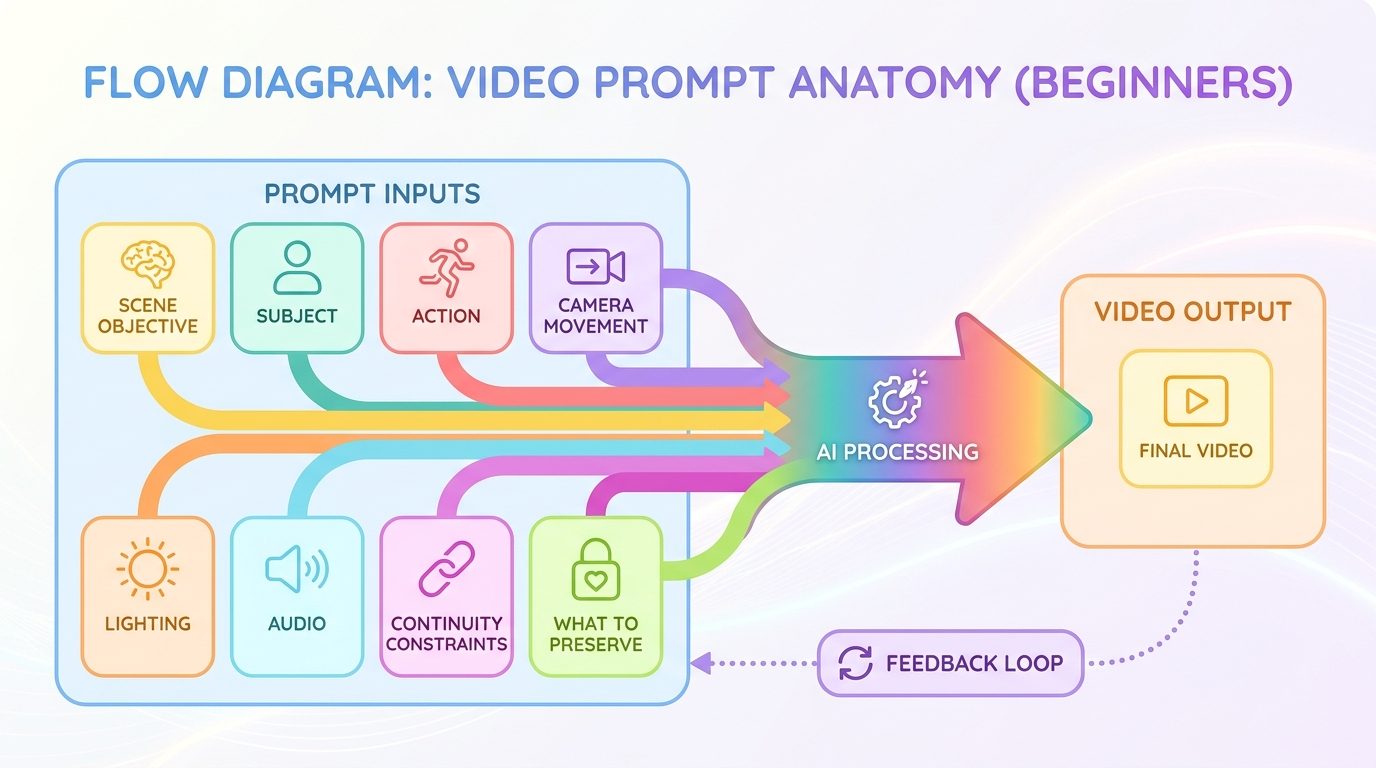
| Prompt part | What it controls | Example phrase |
|---|---|---|
| Scene objective | The purpose of the clip | “Show a calm product reveal for a productivity app.” |
| Subject | Main person, object, creature, or environment | “A small silver desk robot beside a notebook.” |
| Action | What moves or changes | “The robot points to a checklist as sticky notes organize themselves.” |
| Camera | Shot type, movement, continuity | “Slow overhead push-in, single continuous shot, no cuts.” |
| Lighting and mood | Visual tone | “Soft morning light, warm optimistic office mood.” |
| Audio | Music, ambience, dialogue, silence | “Gentle background music, no dialogue, subtle paper sounds.” |
| Preservation rule | What must not change in edits or extensions | “Keep the same character, clothing, camera path, and desk layout.” |
| Negative rule | Unwanted output | “No readable numbers, no logos, no extra characters.” |
Copyable Gemini Omni Flash Prompt Templates
The safest way to prompt Gemini Omni Flash is to start from the workflow you actually need. Do not use a text-to-video prompt for an edit. Do not use an edit prompt for a first-and-last-frame transition. Do not ask for an extension when you really need to regenerate the middle of a clip. Each mode needs a slightly different prompt shape.
Template 1: Text-to-video from scratch
Use this when you do not have source visuals. It works well for first drafts, concept tests, mood boards, hero clips, and social-video ideas. If you need one shot, say so. If you want a sequence, describe the sequence with timing cues instead of hoping the model invents the right edit.
Template 2: Image-to-video for product or character motion
This is the prompt to use when accuracy matters. If the image is a product shot, say that the product form, color, and packaging should remain stable. If the image is concept art, say whether the final should remain illustrated or become realistic footage. If the image is a storyboard, say that it is a guide, not a visible drawing.
Template 3: First-and-last-frame interpolation
Interpolation is best when you know the start and end composition. It is not the same as asking the model to invent a story. The more plausible the path between the frames, the better your odds. For example, a product rotating from front view to side view is a clearer interpolation target than a random jump from a desk to a beach.
Template 4: Stateful editing after a generated clip
Google’s prompt guidance says simple editing prompts work best and recommends “Keep everything else the same” for consistency. That is the right instinct. Editing prompts should be surgical. If you rewrite the whole scene in an edit turn, you increase the chance that the model treats it like a new generation rather than a careful modification.
Template 5: Scene extension
Use this when you need the story to continue after the existing clip. Gemini Omni Flash scene extension appends to the end of a video; it does not insert a new middle section or prepend a beginning. That means your prompt should describe the next beat, not the whole clip again.
How to Write Gemini Omni Flash Scene Extension Prompts
Scene extension is the feature with the most obvious prompt demand because it sounds simple but fails when the instruction is vague. Google’s launch article says Omni 1.1 can analyze up to ten seconds of prior context for better visual consistency and narrative adherence, and can extend videos in ten-second increments up to a cumulative length of forty seconds. That gives creators more room than a single short generation, but the extension still needs direction.
The most common mistake is writing a continuation prompt that restarts the scene. “Make the hero walk into a castle” may cause the model to reinterpret the whole premise. A better extension prompt anchors the new action to the final frame: “Continue from the final moment. The hero takes two cautious steps toward the castle gate while the same fog drifts across the path. Keep the blue cloak, side camera angle, moonlight, and quiet orchestral mood.”
Think in “next beat” language. A beat is the immediate action after the previous clip ends. The beat can be a camera pullback, a reveal, a character reply, a lighting shift, or a small environmental change. It should be specific enough to preserve continuity but not so overloaded that the model tries to cram an entire movie into ten seconds.
Good extension habits
- Refer to the previous clip’s final moment.
- Specify one main action or camera movement.
- Name the continuity details that must stay stable.
- Give a clear ending beat for the new segment.
- Use “no cuts” when the extension must feel seamless.
Risky extension habits
- Repeating the entire original prompt and creating conflicts.
- Adding too many new characters or locations at once.
- Trying to insert footage into the middle of a clip.
- Adding extra dialogue to an uploaded talking video without checking limitations.
- Using vague quality phrases such as “make it cinematic” without motion instructions.
For a creator workflow, write extension prompts in a storyboard table. Column one is the prior final frame. Column two is the next action. Column three is the preservation rule. Column four is the final beat. This makes the prompt easier to review before you spend a generation. For a developer workflow, your app can turn those fields into a single prompt behind the scenes.
Scene extension examples
Camera reveal: “Continue from the final moment of the clip. The camera slowly pulls back in one smooth motion, revealing the small workshop around the inventor. Keep the inventor’s face, brown jacket, desk lamp, warm lighting, and soft mechanical ambience. No cuts.”
Product continuation: “Continue from the product resting on the table. The camera makes a slow clockwise orbit as the screen glows gently and a hand places a notebook beside it. Keep the device size, color, table surface, and morning lighting identical. No readable UI text or fake metrics.”
Educational explainer: “Continue from the final frame of the animated classroom. The teacher points to the second step on the wall diagram while three simple icons slide into place. Keep the same cartoon style, classroom layout, and friendly bright palette. No extra labels beyond simple abstract icons.”
Editing Prompts: Change One Thing Without Breaking the Whole Video
Conversational editing is one of the most important Gemini Omni Flash capabilities because it changes the creative loop. Instead of re-rolling from scratch, you can ask the model to modify a previous output while preserving the parts you liked. In the Gemini API, that workflow uses the Interactions API and previous_interaction_id. Each turn produces a new video, so your review process still matters, but the workflow is more natural than copy-pasting the full prompt every time.
The core editing rule is simple: change one thing at a time when accuracy matters. If you ask for new lighting, a new background, a new outfit, a new camera path, and a new audio mood in one edit, you are not really editing; you are regenerating with extra baggage. Focused edit prompts are easier to evaluate and easier to roll back.
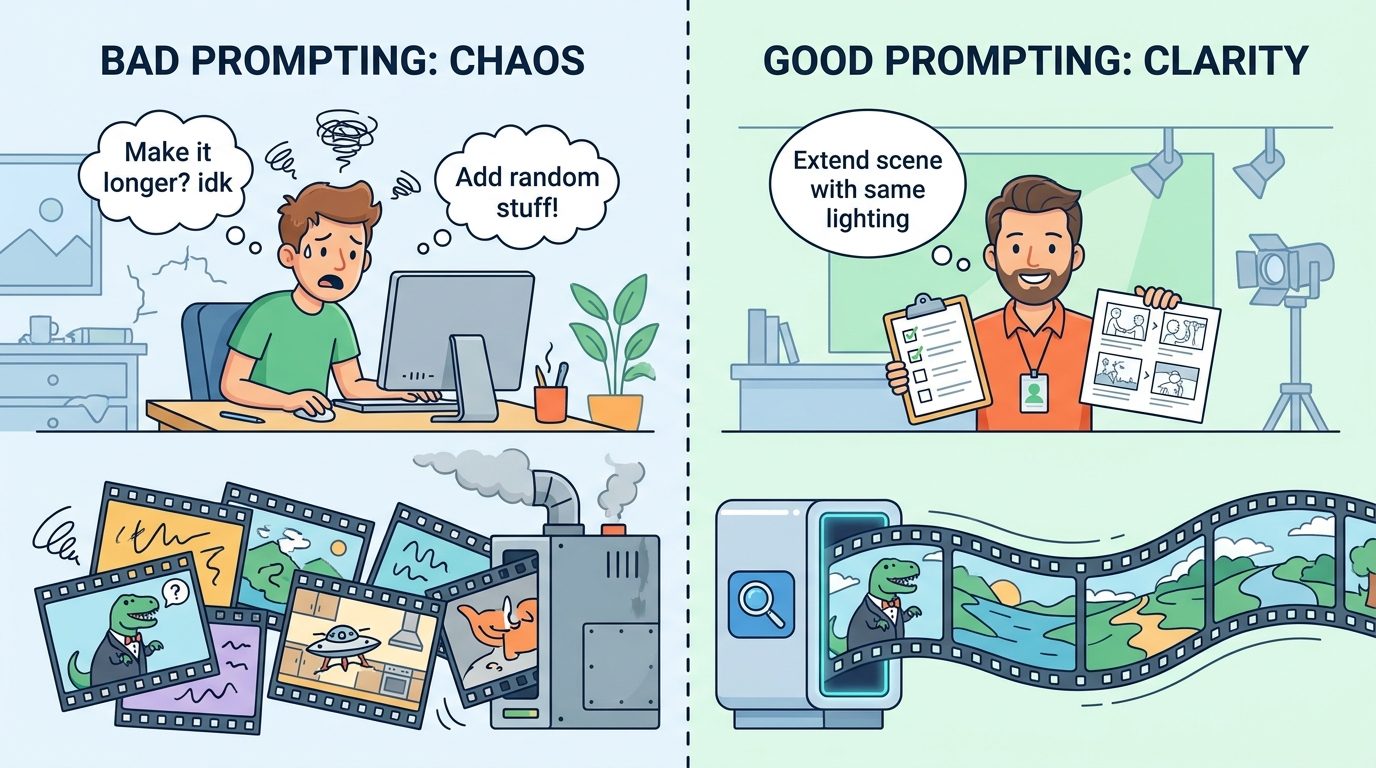
| Goal | Weak edit prompt | Better edit prompt |
|---|---|---|
| Remove an object | “Fix the scene.” | “Make the phone invisible. Keep everything else the same.” |
| Change lighting | “Make it more dramatic.” | “Change only the lighting to a softer sunset look. Keep the camera, actor, outfit, and background the same.” |
| Change style | “Make it cooler.” | “Convert the scene to a clean watercolor animation style. Preserve the character pose, action, and timing.” |
| Preserve product accuracy | “Make this product ad better.” | “Keep the product shape, color, size, and packaging unchanged. Only add a slow camera push-in and warmer desk lighting.” |
| Avoid misleading UI | “Show the analytics going up.” | “Show abstract progress shapes and celebratory motion without readable numbers, fake dashboards, or specific metrics.” |
Product teams should expose editing as structured controls where possible. Instead of a single prompt box, offer edit types: lighting, style, object removal, background, camera feel, audio mood, or extension. Then ask for the preservation rules. This reduces user confusion and makes it easier to protect brand and safety constraints.
Audio, Timing, and Shot Control
Gemini Omni Flash can generate video with audio, and prompt wording matters. If you do not want dialogue, say “no dialogue.” If you want quiet ambience, say what kind: wind, room tone, soft keyboard clicks, distant city noise, gentle music, or no music. If you want music, describe its role instead of naming copyrighted songs or artists. For example: “gentle hopeful background music with soft percussion” is safer than asking for a specific commercial track.
Timing cues are helpful when the clip has multiple beats. Natural language works: “after three seconds, the robot raises its hand.” Bracketed timing can also work for structured sequences: “[0-3s] the camera rests on the closed notebook; [3-6s] the notebook opens; [6-10s] colorful sticky notes arrange into a checklist.” Use timing when sequence matters. Avoid timing when the scene is intentionally simple and continuous.
Shot control is where many outputs become chaotic. If you want one scene, state that directly. If you want cuts, control the cuts. “Every two seconds, cut to a new close-up of a different step” is clearer than “make it dynamic.” For professional workflows, write the shot list first and then convert it into a prompt. That makes the model a production assistant rather than a random montage generator.
Gemini Omni Flash Prompt Limits You Should Plan Around
Prompting cannot override product limitations. Google’s documentation lists important constraints: uploaded-video editing and extension are not available in all regions, uploaded input videos for editing and extension must be short, extension appends to the end only, voice editing is not supported, audio references are unsupported, YouTube videos are not supported as media sources, and separate controls such as system instructions, temperature, top-p, stop sequences, and negative prompts are not supported. If you need a negative prompt, write it in normal language: “Do not add extra characters.”
This matters because a perfect prompt template still fails if the workflow is impossible. If a client asks you to insert a new section into the middle of a video, scene extension is the wrong tool. If they want to clone a voice or edit speech in an uploaded talking clip, check the current policy and limitations before promising anything. If they need exact timeline editing, final captions, brand legal copy, or precise audio mixing, use a traditional editor after generation.
The practical workaround is to design a layered workflow. Use Gemini Omni Flash for draft generation, motion ideas, visual continuations, and rough scene building. Use human review for factual claims, product accuracy, safety, and rights. Use normal video editing tools for exact cuts, captions, overlays, music licensing, compression, and final exports. The model is powerful, but it is not the whole production stack.
Developer Pattern: Turn Prompt Templates Into a Product Workflow
If you are building with the Gemini API, do not simply expose a giant blank prompt box. Blank boxes are flexible, but they also create bad prompts, vague expectations, and support tickets. A better app asks the user what workflow they need: generate, animate an image, transition between keyframes, edit an existing output, or extend a clip. Then it collects the right fields for that workflow.
For text-to-video, collect scene objective, subject, action, camera, mood, and audio. For image-to-video, collect image role and preservation rules. For interpolation, collect first frame, last frame, transition style, and motion path. For editing, collect what to change and what to preserve. For extension, collect the next beat, continuity details, and final state. Then generate a plain-language prompt that the user can review before submission.
Developers should also consider response delivery and review states. Larger videos may need URI delivery and polling. Higher-resolution outputs may take longer. Multi-turn editing requires stored interaction context; if you set storage options for faster generation, you may lose the ability to edit through previous interaction IDs. Build that tradeoff into the interface so users understand why a draft can be editable while a fast disposable preview may not be.
Finally, log prompts responsibly. Do not store sensitive media or prompt contents longer than necessary. Give users a way to delete project assets. Keep provenance and watermarking information in your production notes. Gemini Omni Flash outputs include SynthID watermarking according to Google’s docs, but your product still needs human-readable disclosure and rights workflows when content is published externally.
Gemini Omni Flash Prompt Checklist
Use this checklist before spending time on a video generation, especially if the output is for a client, product page, course, ad, or public post.
Before generation
- Choose the right mode: generate, animate, interpolate, edit, or extend.
- Write the viewer outcome in one sentence.
- Define the subject, action, camera, lighting, and audio.
- Say “single continuous shot” or define cuts if continuity matters.
- Add preservation rules for products, characters, camera path, and environment.
- Add plain-language negative rules for unwanted text, logos, people, cuts, or claims.
During iteration
- Review the whole output before another edit.
- Change one thing at a time when accuracy matters.
- Use lower-resolution drafts for exploration when available.
- Save prompts that worked and note what failed.
- Stop vague “try again” loops and rewrite the prompt instead.
Before publishing
- Verify factual claims outside the video.
- Remove or avoid fake numbers, unreadable text, fake dashboards, or unsupported product proof.
- Check rights for source images, people, logos, music, and client assets.
- Add captions and final edits in a normal editor when precision matters.
- Disclose AI-generated or conceptual content where appropriate.
Practical Prompt Examples by Use Case
Marketing product reveal
“In a single continuous tabletop shot, a minimalist productivity app concept is represented by abstract floating cards organizing themselves into a clean checklist beside a laptop. The camera slowly pushes in from a three-quarter angle. Soft morning light, optimistic startup mood. Audio: gentle ambient music and subtle paper movement. No readable UI text, no logos, no fake metrics, no extra people.”
Educational explainer
“Create a bright cartoon classroom scene explaining AI video prompting. A friendly instructor points to three simple icons: camera, motion, and audio. The camera is locked off with a slight smooth zoom. Warm lighting, beginner-friendly tone. Audio: soft upbeat background music, no dialogue. Keep the diagram simple and avoid small unreadable text.”
Scene extension for a story clip
“Continue from the final moment of the clip. The camera slowly pulls back as the same character turns toward the glowing doorway, takes one cautious step, and pauses. Keep the same coat, hair, blue lighting, fog, and quiet orchestral mood. Single continuous shot, no cutaway, no new characters.”
Editing a generated clip
“Change only the background from a plain studio to a warm workshop with shelves and soft lamps. Keep the product shape, color, camera movement, hand position, and timing the same. No readable text or logos.”
First-and-last-frame transition
“Create a smooth continuous transition from the first frame showing a closed sketchbook on a desk to the second frame showing the sketchbook open with a colorful storyboard. The notebook opens naturally as paper notes slide into place. Overhead camera, warm daylight, gentle paper sounds, no cuts.”
Keep Learning on AI Feature Drop
- Gemini Omni Flash Guide — the broader pillar explaining model capabilities, API workflow modes, and limitations.
- Google Flow and Veo Credits Explained — creator-side AI video workflow and credit planning.
- Gemini 3.6 Flash Guide — related Gemini app and agent model decisions.
- Google ADK Workflows Guide — build reliable AI agent workflows around Google AI tools.
- Google AI Studio Android App Builder — practical AI Studio prototyping coverage.
- NotebookLM Cinematic Video Overviews — another Google AI video workflow explainer.
Sources and References
- Google Blog: Gemini Omni 1.1 Flash lets you build with more control
- Google AI for Developers: Generate and edit videos with Gemini Omni Flash
- Google AI for Developers: Gemini API models
- Google AI for Developers: Gemini API pricing
- Google DeepMind: Gemini Omni model overview
Product availability, API behavior, regional limitations, safety filters, and pricing can change. Verify current Google AI documentation and your active project settings before building production workflows.
FAQ: Gemini Omni Flash Prompting
What is the best Gemini Omni Flash prompt formula?
Use a production-brief formula: scene objective, subject, action, camera movement, lighting, audio, continuity rules, and unwanted changes. For editing and extension, add what must stay the same from the previous clip.
How do I make Gemini Omni Flash create one continuous shot?
Say it directly in the prompt with phrases such as “single continuous shot,” “one unbroken scene,” or “no scene cuts.” Google’s docs note that Omni Flash may naturally create a few shots unless you ask for one scene.
How should I prompt Gemini Omni Flash scene extension?
Describe the next beat after the final frame, not the whole original scene. Mention the action, camera movement, continuity details to preserve, audio mood, and ending beat. Remember that extension appends to the end of a clip.
How do I stop Gemini Omni Flash from changing my character or product?
Add preservation rules: keep the same face, outfit, object shape, color, packaging, camera path, lighting, and background. For edits, use focused prompts and include “Keep everything else the same.”
Can Gemini Omni Flash use negative prompts?
It does not support a separate negative prompt parameter in the documented API controls. Write negative instructions in normal language, such as “no readable text,” “no extra people,” or “do not change the product color.”
What should I include for audio prompting?
State whether you want music, ambience, dialogue, or silence. Use descriptive audio directions such as “gentle ambient music” or “no dialogue.” Avoid requesting copyrighted songs or voice cloning unless you have verified rights and product support.
Is a longer Gemini Omni Flash prompt always better?
No. A useful prompt is specific, not bloated. Include details that control the scene and remove ambiguity. For editing, shorter surgical prompts usually work better than rewriting the whole scene.
Can prompt templates replace human video editing?
No. Prompt templates improve generation and iteration, but final publishing still benefits from human review, precise editing, captions, rights checks, safety review, and factual claim verification.
Post a Comment