
Gemini Omni Flash Scene Extension Guide: Continue Videos Without Breaking Continuity
Scene extension is the Gemini Omni Flash feature creators ask about immediately after the first impressive clip: how do you continue the story without changing the character, camera, room, lighting, audio, or product details? This guide turns that problem into a repeatable workflow.

Gemini Omni Flash Scene Extension: Quick Answer
Gemini Omni Flash scene extension lets you continue an existing video from its final moment instead of starting over from a blank prompt. The best continuation prompt describes the next beat, names the continuity details that must stay stable, and avoids asking the model to reinvent the whole scene. In practice, your prompt should say what happens next, how the camera moves, what audio mood continues, what must remain unchanged, and where the new segment should end.
The simplest working formula is: “Continue from the final moment of the previous clip. In one continuous shot, [next action]. Preserve [character, object, environment, lighting, camera angle, and audio mood]. End with [final beat]. Do not restart the scene, cut away, add new characters, or change the main subject.” That sounds basic, but it solves the most common failure: treating extension like another text-to-video generation instead of a continuation.
This article is a focused cluster companion to our broader Gemini Omni Flash guide and the hands-on Gemini Omni Flash prompt guide. Those explain the wider model and prompting system. Here we go narrow: continuation prompts, continuity anchors, multi-segment planning, creator review, developer UX, and troubleshooting when the follow-up clip breaks.
Why Scene Extension Deserves Its Own Guide
Google’s Gemini Omni 1.1 Flash announcement positioned scene extension as one of the core creative controls. The launch post says the model can analyze up to ten seconds of prior context for better visual consistency and narrative adherence, then extend clips in ten-second increments up to a cumulative forty seconds. That matters because short AI video clips often look good as isolated moments but fall apart when a creator needs a sequence: one more camera move, one more line of action, one more reveal, or one more product shot.
Analytics from AIFeatureDrop also point toward practical, narrow guides rather than broad launch recaps. In the latest 28-day GA4 window, the site recorded 687 active users, 760 sessions, 820 page views, and 442 engaged sessions. Hands-on explainers around Codex setup, usage limits, and Google Flow/Veo credits were among the strongest pages. GoogleAI video content already has a small but useful performance base, especially the Google Flow and Veo credits explainer. That makes a specific Gemini Omni Flash scene extension guide a better cluster topic than another general “what is Gemini Omni” article.
The search gap is easy to understand from the reader’s side. Official docs can tell you the feature exists. News articles can repeat that it extends scenes. But creators and developers still need answers to more operational questions: What exactly should the next prompt say? How do I stop the model from changing the character? What should I include about the final frame? How many beats should I ask for? What if the extension restarts the scene? Should I mention audio again? How do I keep a product accurate? This guide is designed to answer those questions directly.
How Gemini Omni Flash Scene Extension Works in Plain English
Scene extension is an append workflow. You start with a video that already exists, then ask Gemini Omni Flash to continue from the end. The model uses recent visual context from the clip, interprets your continuation instruction, and generates a new segment after the current ending. It is not the same as editing the middle of a clip. It is not the same as stitching two unrelated clips together. It is not a guarantee that every detail will remain identical. It is best understood as “continue this moment forward.”
That distinction is important because prompt wording changes dramatically. If you write a normal text-to-video prompt, the model may decide it is creating a new scene. If you write an edit prompt, it may focus on changing the current clip rather than moving forward. If you write a vague instruction such as “make it longer,” you are asking the model to guess the story, motion, camera, lighting, audio, pacing, and ending. Sometimes the guess will be beautiful. For production work, guessing is not enough.
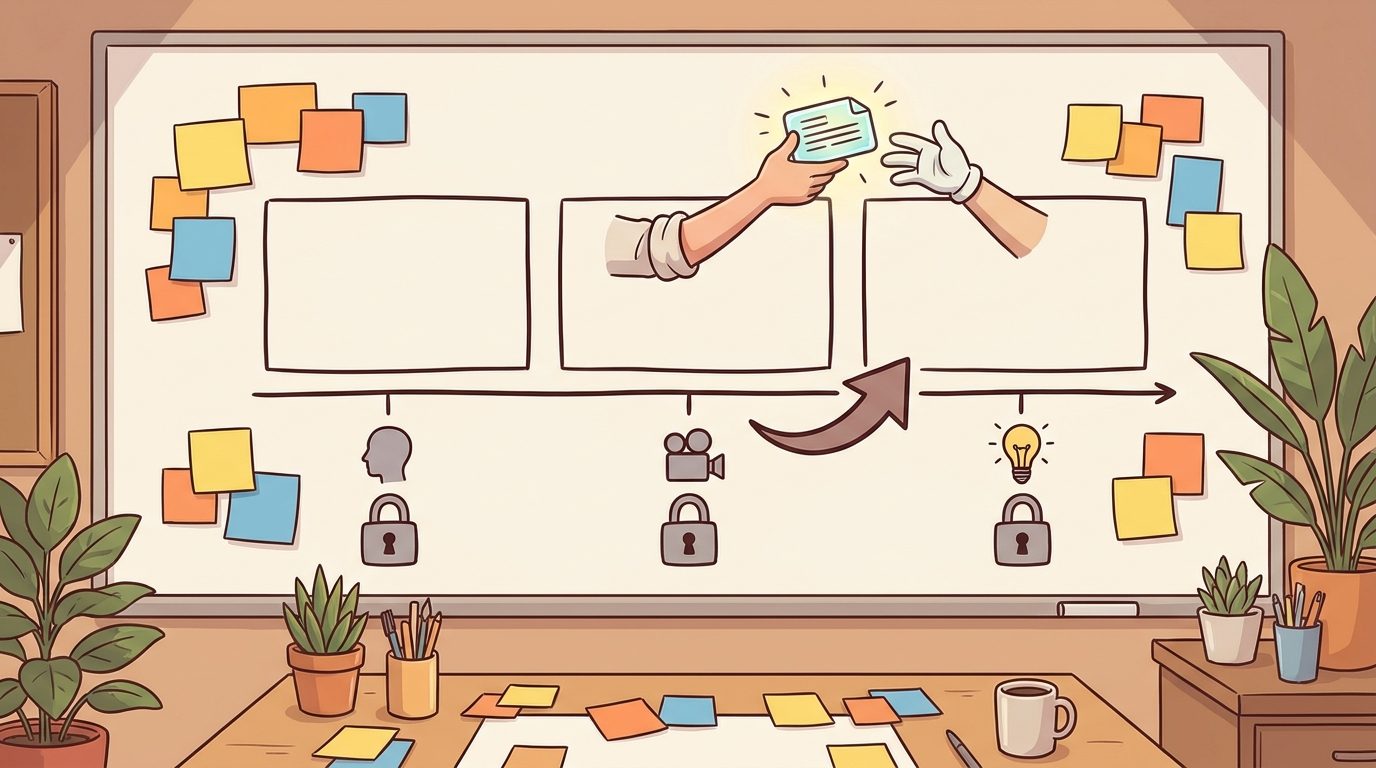
Think of scene extension as a relay race. The previous clip hands the baton to the next clip. Your job is to tell the model how to carry that baton without dropping it. The baton includes visible details like the character’s outfit, object shape, room layout, lighting direction, weather, art style, camera position, and the exact state of action at the final frame. It also includes less visible details like pacing, tone, music intensity, ambient sound, and narrative tension.
Google’s official materials describe scene extension alongside other Gemini Omni Flash controls such as first-and-last-frame interpolation, stateful editing, faster prototyping, and higher-resolution output options. Those modes are related, but they solve different problems. If your current clip is right and you need what happens after it, extension is the natural choice. If your current clip has one wrong detail, use editing. If you have two key images and need movement between them, use interpolation. If none of the current assets match the idea, generate from scratch.
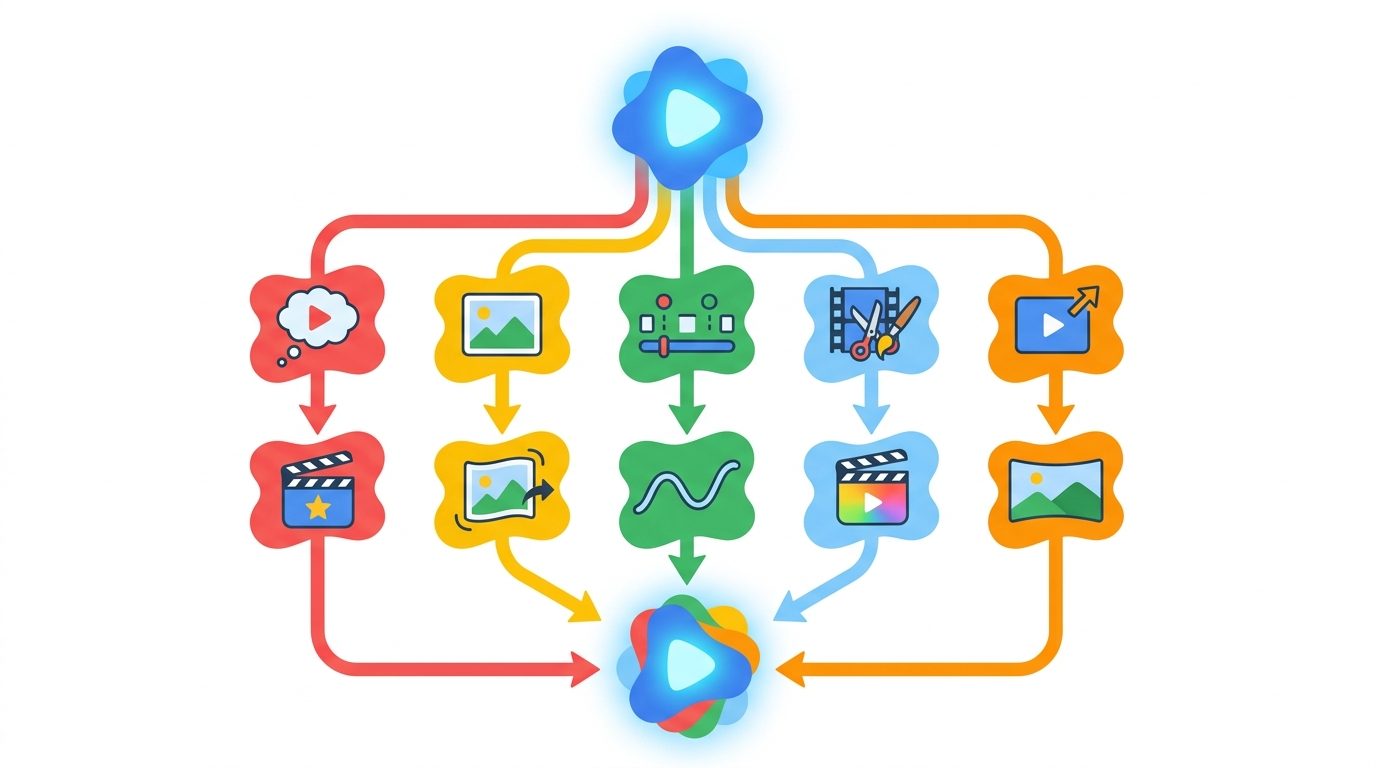
| Workflow | Best for | Prompt focus | Common mistake |
|---|---|---|---|
| Fresh generation | Starting a new idea with no source clip | Scene, subject, action, camera, lighting, audio | Expecting exact continuity from assets that do not exist |
| Image-to-video | Animating a product, character, or reference image | How to use the image and what to preserve | Failing to say whether the image is strict or loose reference |
| Interpolation | Moving from a known first frame to a known last frame | The transition path between the frames | Asking for a whole story instead of a bridge |
| Editing | Changing one thing in a prior output | Specific change plus “keep everything else the same” | Requesting five edits at once and causing drift |
| Scene extension | Continuing the video after the final moment | Next beat, continuity anchors, camera, audio, ending beat | Restarting the scene or describing the whole original prompt again |
The Gemini Omni Flash Scene Extension Prompt Formula
A good extension prompt has six parts: the handoff, the next beat, the continuity anchors, the camera instruction, the audio instruction, and the end state. You do not need fancy vocabulary. You need unambiguous production direction. The goal is to make the next ten seconds feel like a deliberate continuation, not a new roll of the dice.
1. The handoff
Start by telling the model to continue from the final moment. This anchors the instruction to the prior clip. Good phrases include “Continue from the final moment,” “Pick up exactly where the previous clip ends,” or “Extend the scene from the last frame.” Avoid phrases that sound like a new concept pitch, such as “Create a video of…” unless you truly want a fresh generation.
2. The next beat
The next beat is the single main thing that should happen. It can be a character taking a step, a camera pulling back, a product rotating, a door opening, a graphically represented idea moving to the next stage, or a teacher pointing at the second part of a diagram. Keep it tight. Scene extension works better when the model can focus on one continuation rather than juggling a new cast, new location, new shot list, and new ending at the same time.
3. The continuity anchors
Continuity anchors are the details that must stay stable. For people, mention face, outfit, hair, body position, and emotional tone. For products, mention shape, color, material, packaging, size, and visible environment. For animated explainers, mention the illustration style, palette, character design, diagram layout, and icon simplicity. For cinematic scenes, mention lighting, weather, lens feel, camera direction, and music mood. Do not assume the model knows which details matter most to your project.
4. The camera instruction
If you want seamless continuation, say “single continuous shot” or “no cuts.” If you want a deliberate cut, describe it. Camera language is especially useful because extension errors often show up as jarring perspective changes. A slow pullback, gentle push-in, side-tracking shot, locked-off camera, overhead view, or clockwise orbit gives the model a clear visual path.
5. The audio instruction
Audio continuity matters more than many prompts admit. If the previous clip has soft ambient music, say to preserve the soft ambient mood. If there is no dialogue, say no dialogue. If the scene has wind, room tone, office ambience, mechanical hum, or music swelling, name the sound. Avoid requesting copyrighted tracks, celebrity voices, or unsupported voice changes. Use descriptive audio direction instead.
6. The end state
The ending beat tells the model where the extension should land. Without an end state, the model may wander. You can write “end with the character paused at the doorway,” “end with the product centered on the desk,” “end with the camera revealing the full workflow board,” or “end before any text appears.” A clear ending makes the next extension easier too, because the following prompt gets a stronger final moment to continue from.
This template is not magic. It is a checklist. The power comes from deciding what matters before you prompt. If the scene is a casual draft, you can use fewer anchors. If it is a public brand video, product demo, course asset, or client preview, use more explicit preservation rules and review carefully before publishing.
A Better Workflow: Plan Extensions as Storyboard Beats
The fastest way to ruin a scene extension workflow is to improvise every continuation prompt after watching the last output. That creates drift. The second prompt reacts to the first output, the third reacts to the second, and soon the clip has changed style, geography, camera language, and story purpose. A small storyboard keeps each extension tied to the same plan.
You do not need a professional storyboard artist. Use a four-column table: prior final frame, next action, preserve, and end state. The prior final frame describes what is visible at the end of the clip. The next action says what happens in the extension. The preserve column lists continuity anchors. The end state defines where the new segment should stop. This table can be written in a notes app, spreadsheet, production tracker, or app interface.
| Prior final frame | Next action | Preserve | End state |
|---|---|---|---|
| Inventor looks at a glowing prototype on a desk | Camera slowly pulls back as the prototype lights the room | Inventor face, brown jacket, warm desk lamp, workshop layout, quiet music | Prototype centered, inventor smiling, no new characters |
| Product sits on a white table beside a notebook | Hand places a pencil next to the product while camera orbits clockwise | Product shape, color, table material, soft morning light, no readable UI | Product fully visible, pencil stopped, clean background |
| Cartoon teacher points at the first workflow step | Teacher turns to the second step while icons slide into place | Same classroom, character style, bright palette, simple icons, no tiny labels | Second step highlighted, students looking engaged |
| Founder watches abstract progress cards organize | Cards flow into a simple roadmap while founder nods | No fake metrics, no logos, same office lighting, same camera angle | Roadmap visible as abstract blocks, no readable claims |
Once the storyboard is clear, write the extension prompt from the row. For the inventor example, the prompt becomes: “Continue from the final moment where the inventor looks at the glowing prototype on the desk. In one continuous shot, the camera slowly pulls back as the prototype softly lights more of the workshop. Preserve the inventor’s face, brown jacket, desk lamp, warm lighting, workbench layout, and quiet music. End with the prototype centered and the inventor smiling. No new characters, no cutaway, no readable labels.”
This kind of row-based prompting is also helpful for teams. A marketer can approve the storyboard before a designer spends generations. A developer can turn each column into a form field. A content producer can compare the output to the original plan. A client can understand what changed from one segment to the next. The workflow removes mystery from a feature that otherwise feels like creative gambling.
Copyable Gemini Omni Flash Scene Extension Examples
Example 1: Cinematic character continuation
Why it works: it starts from the end, asks for one action, preserves visual and audio anchors, controls the camera, and gives a clear stopping point. It does not repeat the whole original premise or ask for a new scene.
Example 2: Product demo continuation
Product prompts need extra care because generated details can become misleading. If the item is a real product, verify that the output does not alter its shape, imply features it does not have, or show fake dashboards. If it is a concept product, label it as a concept wherever it is published.
Example 3: Beginner education clip
This prompt is useful for explainers because it keeps the style simple. Notice that it asks for icons and arrows rather than detailed text. Generated small text can become unreadable, so use final captions or labels in a traditional editor when precision matters.
Example 4: SaaS marketing sequence without fake metrics
This protects trust. A generated dashboard with invented numbers can look authoritative even when it is fake. For public marketing, keep generated visuals conceptual unless every claim and screen detail has been verified and approved.
Example 5: Extending an atmospheric environment
Environment extensions often work well when the motion is simple and atmospheric. The prompt keeps the scene from becoming crowded and gives the model a strong camera path.
Troubleshooting: When Scene Extension Breaks Continuity
Even a careful Gemini Omni Flash scene extension prompt can drift. That is normal for generative video. The fix is not always “try again.” The fix is usually to diagnose which continuity anchor failed and write a more focused follow-up. Treat bad outputs as feedback about prompt ambiguity.
| Problem | Likely cause | Better next prompt |
|---|---|---|
| The scene restarts from the beginning | The prompt sounded like a new generation instead of an extension | “Continue from the final moment only. Do not restart the scene. The next action is…” |
| The character face or outfit changes | Identity anchors were too weak | “Preserve the same face, hairstyle, coat, backpack, body position, and expression.” |
| The product changes shape | Object preservation was not explicit enough | “Keep the product shape, color, size, material, and visible edges unchanged.” |
| The camera jumps to a new angle | No camera continuity rule | “Use the same camera angle and continue with a slow push-in. No cuts.” |
| The audio mood changes | Audio was omitted in the extension prompt | “Preserve the same soft ambient music and room tone. No dialogue.” |
| Extra people or objects appear | The model filled empty space with invented detail | “No new characters, no extra objects, keep the background simple.” |
| The clip adds fake text or numbers | The prompt asked for dashboards, signs, or success without constraints | “Use abstract shapes only. No readable text, no metrics, no specific claims.” |
| The extension feels boring | The prompt preserved details but gave no new beat | “Add one clear action: the camera pulls back, the door opens, or the object moves.” |
The most useful troubleshooting habit is to rewrite only the failed part. If the character stayed right but the camera jumped, do not rewrite the whole story. Strengthen the camera instruction. If the camera worked but the product changed, strengthen product preservation. If the audio shifted, add audio continuity. This keeps the model from changing the parts it already got right.
Developer Workflow: Make Scene Extension Less Confusing in an App
If you are building a product around Gemini Omni Flash, do not hide scene extension behind a blank prompt box. Blank boxes look flexible, but they transfer all prompt design work to the user. A better interface asks structured questions: Which clip are you extending? What is visible in the final frame? What should happen next? What must stay exactly the same? What camera movement should continue? What audio mood should continue? Where should the extension end?
This structured flow gives users a higher chance of success and gives your app cleaner data. The final-frame description can become a visible note. The next beat can become the core prompt. The preservation fields can become continuity anchors. The ending beat can become a review checkpoint. You can still show an editable generated prompt before submission, but the user no longer starts from a blank page.
For multi-turn workflows, store the relationship between source clip, extension prompt, generated output, and review notes. Users need to know which version they are extending. If they accidentally extend a rejected draft, the whole chain drifts. A simple timeline with “approved for next extension” markers can prevent confusion. You can also let users lock continuity notes across several segments, such as character identity, product rules, art style, and audio mood.
Developers should also plan for delivery behavior. Larger generated videos may be returned through file URIs or require polling. Higher-quality outputs may take longer. Stateful editing and extension may depend on previous interaction context. Build interface states for “generating,” “reviewing,” “approved,” “needs reroll,” and “final edit outside Gemini.” Do not pretend every generation is a final asset.
Safety belongs in the product flow too. Add guardrails for fake metrics, misleading UI, rights-sensitive people, brands, and audio. If a user asks for a product claim, require external verification before publish. If a user uploads client media, explain retention and deletion controls clearly. Gemini Omni Flash can make compelling video; your app needs to make responsible video easier than irresponsible video.
Limits and Practical Boundaries to Remember
Prompting does not override product limitations. Google’s Gemini Omni documentation lists important constraints around video input, editing, extension, regional availability, unsupported controls, media sources, and audio reference behavior. Product capabilities can change, so always verify the current docs inside your Google AI Studio or Gemini API environment before promising a workflow to a client or building it into production.
Scene extension is especially easy to overpromise because the phrase sounds like unlimited video continuation. In practice, the official launch materials describe ten-second increments and a cumulative extension limit. Extension also appends to the end of a clip. If you need to insert three seconds in the middle, that is a different editing task. If you need exact frame-level timing, captions, brand typography, final music mix, or legal copy, use a traditional video editor after generation.
Another practical boundary is consistency. Gemini Omni Flash can use prior context, but generative video still has uncertainty. A strong prompt improves the odds; it does not guarantee perfect object permanence, product fidelity, likeness, or audio continuity. For sensitive work, lower your risk by keeping segments simple, using fewer moving parts, generating drafts before final quality, and reviewing each segment before extending again.
Finally, keep source credibility clean. This article relies on official Google materials and AIFeatureDrop’s live analytics rather than invented benchmarks. We are not claiming specific render speeds, pricing, cost-per-clip, commercial terms, or adoption numbers here because those change and need direct verification. For production planning, check Google’s current documentation, billing pages, regional availability, and project settings before committing budgets.
Scene Extension Checklist Before You Generate
Use this checklist when you are about to extend a clip with Gemini Omni Flash. It is intentionally practical. The goal is to reduce wasted generations and catch continuity risks before they become expensive.
Before the extension
- Watch the final five to ten seconds of the previous clip and describe the final frame in one sentence.
- Decide whether extension is truly the right mode. If you need a change inside the clip, choose editing instead.
- Write one next beat, not a whole new plot.
- List the continuity anchors: subject, clothing, object design, environment, lighting, camera, style, and audio.
- Define the camera movement or say “same camera angle, no cuts.”
- Name the audio mood or say “no dialogue” when speech is not needed.
- State what should not appear: extra people, readable text, logos, fake metrics, or new locations.
After the extension
- Compare the output to the final frame of the source clip.
- Check character identity, product shape, lighting direction, environment layout, camera continuity, and audio mood.
- Reject the segment if it invents claims, fake numbers, misleading UI, or rights-sensitive details.
- If only one detail failed, revise that specific instruction instead of rewriting the full prompt.
- Approve the segment before using it as the source for the next extension.
- Save the prompt and notes if the result worked, so your team can reuse the pattern.
Before publishing
- Add final captions, precise cuts, compression, music licensing, and overlays in normal editing software.
- Verify all factual claims outside the generated video.
- Disclose AI-generated or conceptual content where appropriate.
- Check brand, client, and platform rules before posting.
- Keep originals and prompt logs in case you need to audit or recreate the asset.
Keep Learning on AI Feature Drop
- Gemini Omni Flash Guide — the broader pillar explaining model capabilities, API workflow modes, and limitations.
- Gemini Omni Flash Prompt Guide — practical prompt templates for generation, editing, interpolation, and extension.
- Google Flow and Veo Credits Explained — creator-side AI video workflow and credit planning.
- Google ADK Workflows Guide — build reliable AI agent workflows around Google AI tools.
- Google AI Studio Android App Builder — practical AI Studio prototyping coverage.
Sources and References
- Google Blog: Gemini Omni 1.1 Flash lets you build with more control
- Google AI for Developers: Generate and edit videos with Gemini Omni Flash
- Google AI for Developers: Gemini API models
- Google AI for Developers: Gemini API pricing
- Google DeepMind: Gemini Omni model overview
Product availability, API behavior, regional access, safety filters, and pricing can change. Verify current Google AI documentation and your active project settings before building production workflows.
FAQ: Gemini Omni Flash Scene Extension
What is Gemini Omni Flash scene extension?
It is a Gemini Omni Flash workflow for continuing a video from its final moment. Instead of generating a completely new scene, you provide a continuation prompt that tells the model what happens next and what should remain consistent.
How do I write a good Gemini Omni scene extension prompt?
Start with “Continue from the final moment,” describe one next beat, list continuity anchors, define camera movement, preserve audio mood, add an ending beat, and state unwanted changes such as no new characters or no readable text.
Why does my extension restart the scene?
The prompt may sound like a fresh generation. Anchor it to the previous clip with “Continue from the final moment only” and avoid restating the entire original concept as if it were new.
How do I keep the same character or product?
Name the exact details to preserve. For a character, mention face, hair, outfit, pose, and mood. For a product, mention shape, color, size, material, packaging, and background.
Can Gemini Omni Flash extend a video in the middle?
Scene extension is an append workflow. It continues from the end. If you need to change or insert footage in the middle, treat that as an editing task and verify the current tool capabilities.
Should I mention audio in every extension prompt?
Yes, if audio continuity matters. Say whether to preserve the existing music, ambience, room tone, silence, or dialogue style. If you do not want speech, write “no dialogue.”
Is scene extension better than first-and-last-frame interpolation?
They solve different problems. Scene extension continues after an existing clip. Interpolation creates a transition between two known frames. Use the workflow that matches the asset you already have.
Can I use Gemini Omni scene extension for public marketing videos?
Yes, but treat outputs as drafts until a human reviews product accuracy, rights, safety, captions, final editing, audio licensing, and factual claims. Avoid fake dashboards, fake metrics, and misleading UI.
Post a Comment