
Gemini Omni Flash Guide: Build Controllable AI Video Workflows With Scene Extension and Editing
Gemini Omni Flash is Google’s practical bridge between prompt-based video generation and controllable video production. This guide explains what changed, which workflow mode to choose, where the API fits, and how creators and developers can avoid vague prompts, broken continuity, and costly re-renders.
Gemini Omni Flash: Quick Answer
Gemini Omni Flash is Google’s multimodal AI video model for generating, editing, interpolating, and extending videos through the Gemini API and Google AI Studio. The current developer-facing model name documented by Google is gemini-omni-1.1-flash. The important shift is control. Instead of treating AI video as a one-shot slot machine where you keep re-rolling until the clip looks right, Omni Flash is designed around more directed workflows: start from text, guide motion from an image, transition between first and last frames, edit a generated result conversationally, or extend a scene at the end of the clip.
That sounds like a creative feature, but it is also a product strategy change. AI video becomes more useful when teams can plan scenes, preserve subjects, choose resolution, review outputs, and iterate without rewriting the entire prompt. Google’s official announcement says Gemini Omni 1.1 Flash adds production-focused controls such as scene extension, first and last frame interpolation, faster prototyping, and upscaled higher-resolution output. The Gemini API docs expand that into implementation details: text-to-video, image-to-video, subject reference, stateful editing through the Interactions API, URI delivery for large video files, task hints, and constraints that matter before you build an app or agency workflow around it.
This article is intentionally practical. It does not pretend Gemini Omni Flash replaces every video model or professional editing suite. It explains where it fits, how to choose the right workflow mode, what to verify in the docs, and how to design prompts and review steps that make the model more predictable. If you already read our Google Flow and Veo credits guide, think of this as the developer and production-control companion: Flow helps many creators work visually; Omni Flash matters when you need API-ready generation, conversation-based edits, and repeatable product workflows.
Why Gemini Omni Flash Is a Search Opportunity Right Now
AIFeatureDrop analytics show that practical Google AI video explainers already pull attention. The Google Flow and Veo article was one of the strongest GoogleAI pages in the recent GA4 period, while GoogleAI category pages and related Gemini articles continue to create internal linking paths. Search Console data is still sparse for newer posts, but the pattern is clear: users arrive for feature-specific explainers, pricing/access clarity, and workflow guidance rather than broad AI news. That makes Gemini Omni Flash a good pillar topic because the feature is recent, official, technical enough to cause confusion, and connected to existing Google video coverage on the site.
The early search results also reveal a gap. Google’s blog post explains what is new. The developer docs explain how the API works. Social posts and YouTube reactions show excitement. Thin news summaries repeat the launch. What is missing for many searchers is a practical middle layer: when should I use text-to-video versus interpolation, what does “stateful editing” mean, what breaks if I upload my own clip, what does resolution selection change, how should I brief a creative team, and how do I avoid wasting time on vague prompts? Those are the questions a pillar article can answer better than a short announcement rewrite.
The selected category for this article is GoogleAI because the previous live generated article used the Claude label, and the fixed rotation moves from Claude to GoogleAI. The topic was selected after checking the last published category, reviewing analytics, scanning recent search demand, and validating that a dedicated Omni Flash guide does not duplicate the existing Google Flow, Gemini Flash, Google ADK, or AI Studio articles. The result is a focused pillar: not “everything about Gemini,” not “AI video news,” but a durable workflow guide for Gemini Omni Flash.
What Gemini Omni Flash Actually Does
Gemini Omni Flash is best understood as a controllable video generation and editing model, not just another text-to-video button. Google describes it as a high-performance multimodal model for video generation, editing, and cinematic control. The phrase “multimodal” matters here because the model can work with text, images, audio, and video context. In practice, that means a workflow can begin with a prompt, a product image, a pair of keyframes, a previous generated clip, or an uploaded video, depending on what you need the model to do.
The model’s documented strengths fall into several buckets. First, it can generate video from text with native audio. Second, it can use a reference image to create motion, which is useful for product shots, character concepts, mood boards, and visual prototypes. Third, it can interpolate between a first frame and a last frame, which is especially useful when you know the start and end composition but want the model to fill in the motion. Fourth, it can edit generated videos through follow-up prompts, keeping the parts you did not mention while changing specific elements. Fifth, it can extend a scene by appending new footage to the end of a clip.
For developers, the most important product concept is the Interactions API. Instead of treating each output as a disconnected file, the API can track a prior interaction and let a follow-up prompt build on the previous video state. That is what makes conversational editing more than a marketing phrase. A user can generate a first clip, then ask for a lighting change, object removal, background swap, or continuity adjustment without restating the whole scene. Each turn still produces a new video, so review and storage planning matter, but the experience is much closer to directing than gambling.
For creators, the practical promise is fewer dead ends. Traditional prompt-only video generation often fails because the user cannot easily say “keep the character and camera path, but change the background and make the final shot calmer.” With a stateful workflow, a product can expose that kind of iteration more naturally. It is not magic; limitations still apply. But the direction is important: AI video tools are moving from prompt boxes toward creative systems with memory, assets, revision history, and production controls.
Choose the Right Gemini Omni Flash Workflow Mode
The biggest mistake beginners make with AI video is using the same prompt style for every job. Gemini Omni Flash supports multiple workflow patterns, and each one is good for a different type of task. If you choose the wrong mode, you may get an impressive clip that does not solve the actual problem. If you choose the right mode, the model has a clearer job and you waste fewer generations.
| Workflow | Use it when | What to provide | What to watch |
|---|---|---|---|
| Text to video | You are exploring an idea or need a fresh scene from scratch. | Scene, subject, action, camera motion, mood, lighting, and audio direction. | Vague prompts produce generic multi-shot outputs. Ask for one continuous shot when you need continuity. |
| Image to video | You have a product shot, concept art, character design, or visual reference. | High-resolution image plus specific motion and camera instructions. | Tell the model whether the image is a strict reference or only a guide for motion and style. |
| First and last frame interpolation | You know the beginning and ending composition and want a smooth transition. | Two images and a description of the transition. | Make the motion physically plausible; do not expect it to solve an unclear story beat. |
| Stateful editing | You generated a clip and need targeted changes without restarting. | Previous interaction ID and a focused edit prompt. | Each turn makes a new video, so review outputs before chaining too many edits. |
| Uploaded-video editing | You want to modify your own short clip where supported. | Uploaded video file through the Files API plus a specific edit request. | Region restrictions, clip-length limits, safety rules, and dialogue constraints matter. |
| Video extension | You want to continue the end of an existing generated or uploaded clip. | Prior clip or uploaded video plus continuation prompt. | Extension appends to the tail only; it cannot prepend or extend the middle of a clip. |
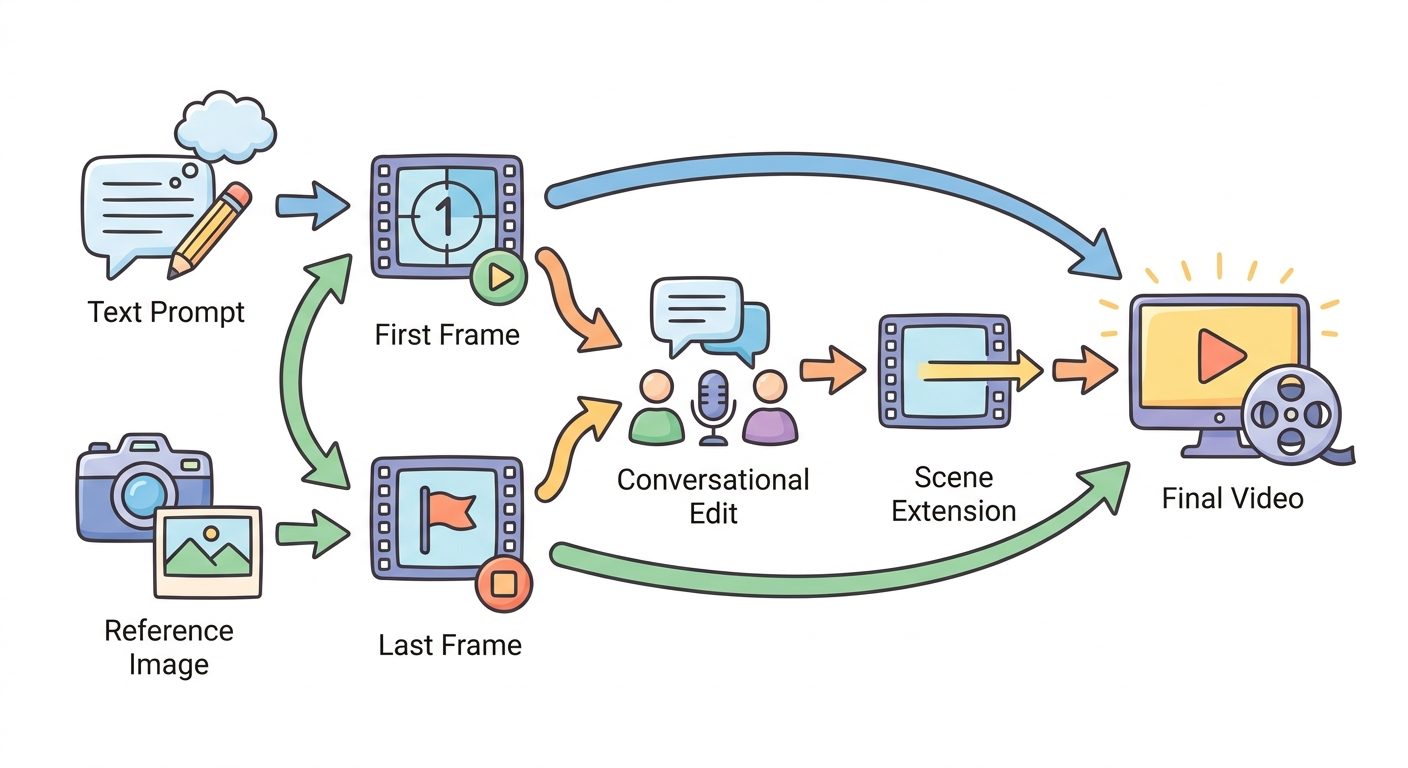
Here is the simple decision rule. If you do not have source visuals, start with text-to-video. If visual identity matters, start with image-to-video or subject reference. If a transition matters, use first and last frame interpolation. If the first output is close but wrong, edit it conversationally. If the scene needs to continue, extend it. If you already have a short clip, verify whether uploaded-video editing or extension is available in your region and within the length limits before promising it to a client.
That decision rule is also useful for product teams. A good Gemini Omni-powered app should not expose only one giant prompt field. It should ask the user what they are trying to do: generate, animate, transition, edit, or extend. Then it should collect the right inputs and display the right warnings. This is how you turn an impressive model into a usable workflow.
How Developers Should Think About the Gemini Omni Flash API
From a developer perspective, Gemini Omni Flash is less about one endpoint and more about workflow design. The Google AI docs show examples using the Gemini API and the Interactions API. A basic generation can be as simple as creating an interaction with model gemini-omni-1.1-flash and a text prompt, then decoding the returned video data. More serious products need to handle response format, delivery mode, file uploads, polling, previous interaction IDs, review screens, storage, and retries.
Resolution selection is one of the first product decisions. The docs list 360p, 720p as the default, 1080p upscaled, and 4K upscaled. For a creative tool, lower-resolution drafts can be useful for quick iteration while higher-resolution output is reserved for approved scenes. That is a better user experience than forcing every attempt to be polished. For a marketing workflow, you might let users storyboard in a cheaper draft mode, lock the approved prompt, then render higher quality only for the final asset. Do not present this as a guaranteed cost calculator unless you have current billing data. Present it as a sensible production habit.
Delivery mode also matters. The docs recommend URI delivery for larger videos to avoid payload size limits. That means your app should be comfortable with asynchronous thinking: create the interaction, receive or extract a file URI, poll until the file is active, download the result, and surface status to the user. If you hide that behind a friendly interface, creators see a normal progress state instead of a confusing stalled request.
The task parameter deserves restraint. Google documents task values such as text-to-video, image-to-video, reference-to-video, edit, and extend, but also recommends relying primarily on prompting and using the task field only when prompting does not make the intended mode clear. That is a subtle but important engineering detail. Hard task hints can improve predictability in some apps, but they can also constrain the model. The right design is to use clear prompts first, then add task hints selectively for workflows where the user intent is explicit.
Safety and provenance should be part of the API plan. Google’s docs state that generated videos include SynthID watermarking and that prompts and outputs are filtered by content safety systems. Your app should still add its own review steps, consent rules for recognizable people, asset ownership checks, and client approval flows. AI video is persuasive media. A responsible workflow is not just “can the model do it?” It is also “should this user be allowed to do it with this source material, and did someone review the output before publication?”
Prompting Gemini Omni Flash Without Re-Rolling Forever
Good Gemini Omni prompts are closer to direction notes than normal chatbot prompts. A weak prompt says, “make a cool video of a city.” A stronger prompt says, “In a single continuous shot, a camera glides slowly above a rainy neon street at night, soft reflections on the pavement, one delivery cyclist crosses frame from left to right, no cuts, calm cinematic mood, subtle ambient street sound.” The difference is not only style. The stronger prompt specifies continuity, camera motion, subject action, lighting, mood, and constraints.
For text-to-video, start with the scene objective. What should the viewer understand after five or ten seconds? Then define the subject, environment, action, camera movement, visual style, and audio. If you need a single scene, say so directly. Google’s docs note that Omni may naturally create a few shots unless you ask for a single unbroken scene or no scene cuts. That one instruction can save several attempts when you are building product loops, transitions, or continuity-sensitive ads.
For image-to-video, explain the role of the image. Should it preserve the exact object? Should it use the image only as a movement guide? Should the final video look photorealistic, illustrated, cinematic, playful, or product-clean? Vague instructions like “make it move” are weak because they force the model to invent motion, camera, and environment. Describe what moves, how fast it moves, how the camera moves, and what should remain stable.
For interpolation, treat the first and last frames as anchors. The prompt should describe the transition between them, not merely restate what the images show. If the first frame is a product on a desk and the last frame is the same product in a backpack, the transition might be a smooth overhead packing shot. If the first frame is a daytime landscape and the last frame is night, describe the lighting change and camera movement. The model needs a believable path.
For editing, be surgical. A good edit prompt says, “Keep the camera movement, character pose, and background composition. Change only the jacket color to warm red and make the lighting softer.” A bad edit prompt says, “make it better.” Stateful editing is valuable because it can preserve context, but it is not an excuse to be vague. The more precise the edit, the easier it is to judge whether the output succeeded.
For extension, write the next beat of the scene. Remember that extension appends to the end; it does not rewrite the beginning or insert a middle section. Good extension prompts describe what happens immediately after the current clip, what camera motion continues, whether dialogue is allowed, and which elements must stay consistent. If the uploaded clip contains someone talking and you want to add more dialogue, check the documented constraints carefully before relying on that behavior.
Gemini Omni Flash Limits You Should Know Before Production
Every AI video model has limits, and this is where many shallow launch posts fail readers. Gemini Omni Flash is powerful, but the limitations determine whether it is safe for your use case. Google’s docs list several constraints around uploaded media, regional availability, video length, voice editing, audio references, multi-video reasoning, provisioned throughput, and unsupported generation parameters. If you build a workflow without reading those details, you may sell a feature your app cannot reliably deliver.
What gets easier
- Iterating on a generated video through follow-up prompts.
- Animating images and product concepts into short clips.
- Using first and last frames to guide transitions.
- Extending the end of a generated scene.
- Choosing draft versus upscaled output paths.
What still needs caution
- Uploaded-video editing and extension are not available everywhere.
- Input videos for uploaded editing or extension have length constraints.
- Voice editing is not supported in the documented limitations.
- Audio references are unsupported in the current version of the API.
- System instructions, temperature, top-p, stop sequences, and negative prompts are not supported as separate controls.
One of the most important constraints is extension behavior. Extension is limited to appending to the end of a video. That means it is great for continuing a story beat but not for inserting a new moment into the middle. If a client asks, “Can we add a shot between seconds four and five?” the answer should not be a careless yes. You may need to regenerate, edit externally, or plan the sequence differently.
Another practical limit is uploaded media. Editing or extending uploaded videos has regional restrictions, and uploaded clips for editing or extension must be short unless you are extending model-generated video through multi-turn context. There are also restrictions involving minors and recognizable people in some regions. These limits are not minor footnotes; they shape what kind of SaaS product, ad workflow, or creative service you can responsibly offer.
Finally, remember that video generation time varies by duration, resolution, and current API load. A production app should not assume instant output. Give users progress states, save drafts, let them leave and return, and explain when a higher-quality render may take longer. If you are building an internal content workflow, schedule review time instead of expecting AI video to behave like an image thumbnail generator.
Gemini Omni Flash vs Veo, Flow, and Traditional Editing
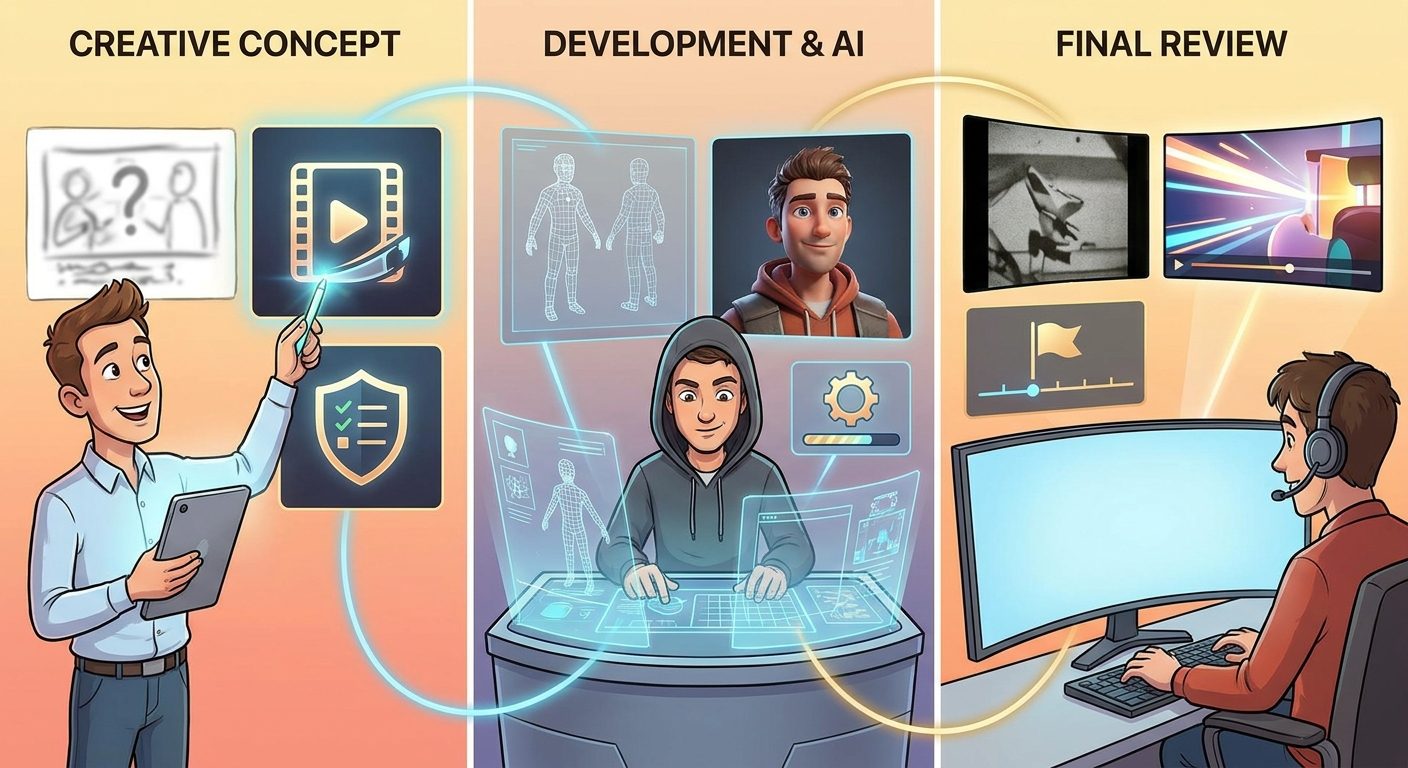
People will naturally ask whether Gemini Omni Flash replaces Veo or Google Flow. The better answer is that these names sit at different layers of the Google AI video ecosystem. Veo is strongly associated with high-quality generative video capabilities. Flow is a creator-facing environment for making and editing AI video projects. Gemini Omni Flash is the API-facing and conversational-control model this article focuses on. The exact product boundaries can evolve, so avoid treating one as a permanent replacement for another. Treat them as workflow choices.
| Tool or layer | Best mental model | When to choose it |
|---|---|---|
| Gemini Omni Flash | API-ready video generation, editing, interpolation, and extension with conversational control. | You are building apps, automations, creative tools, or repeatable video workflows. |
| Google Flow / Veo workflows | Creator-oriented AI filmmaking and video production experience. | You want a visual creative environment or already use Flow for AI video planning. |
| Traditional video editor | Precise timeline, audio, color, compositing, and human-controlled finishing. | You need exact cuts, brand approval, captions, compliance, music mixing, or final polish. |
| Image generation model | Still-image concept art, product frames, thumbnails, and references. | You need keyframes, mood boards, storyboards, or assets before making video. |
A strong workflow may use all of them. A marketer might generate a product keyframe with an image model, animate it with Omni Flash, refine a few clips through stateful editing, assemble the final sequence in a traditional editor, and use Flow for creative exploration. A developer might expose only one slice of that workflow inside a SaaS app: upload product image, pick video style, generate draft, request one edit, export approved clip. The best stack is the one that makes the user’s decision smaller, not the one that shows every possible model setting.
This is also why AIFeatureDrop’s earlier Gemini 3.6 Flash guide and Google ADK workflows guide remain relevant. Modern AI products are increasingly orchestration problems. The model is one piece. The surrounding workflow — prompt design, file handling, human approval, rate limits, storage, safety review, and user education — is what turns the model into a reliable product.
Practical Gemini Omni Flash Use Cases
1. Product videos from static images
A small ecommerce team can start from clean product photos and generate short motion clips for landing pages, ads, or social posts. The safe version of this workflow uses verified product images, clear brand constraints, draft previews, and human review before publishing. The model can help with motion and cinematic feel, but the team should still check product accuracy, claims, packaging details, and any text that appears in the video.
2. Creator tools with conversational editing
A video creation app can let users generate a first draft and then say things like “make the scene warmer,” “remove the extra object,” “keep the camera movement but change the background,” or “continue the shot into a wider view.” This is where stateful editing matters. The product should show each version, allow rollback, and encourage focused edits instead of endless vague retries.
3. Storyboard-to-video workflows
Teams can create first and last frames for each shot, then use interpolation to generate transitions. This fits explainer videos, pitch decks, education content, and early film previsualization. The key is to keep each shot small and intentional. Trying to make a full complex narrative in one prompt usually creates more review work than it saves.
4. Developer demos and UI concept videos
Founders can create conceptual product videos without filming every sequence. The responsible approach is to avoid fake dashboards, fake numbers, or misleading UI claims. If the video represents a product that does not exist yet, label it as a concept. If it shows a workflow, make sure the article, page, or ad explains what is real and what is illustrative.
5. Internal creative prototyping
Agencies and product teams can use Omni Flash to test mood, motion, and story direction before hiring production resources. This is often the best early use case: the output helps people align on direction, but it does not need to be final. Fast drafts are valuable when they reduce meeting time and clarify creative intent.
A Practical Gemini Omni Flash Production Checklist
Use this checklist before building or publishing with Gemini Omni Flash. It is designed for creators, developers, and marketing teams who want more predictable output.
Before generation
- Define the viewer outcome: what should the clip communicate?
- Pick the correct workflow mode instead of defaulting to text-to-video.
- Collect source assets you have rights to use.
- Decide whether the output is a draft, review asset, or final candidate.
- Write camera, lighting, motion, mood, and continuity instructions.
During iteration
- Review each output before chaining another edit.
- Use focused edit prompts rather than broad “make it better” prompts.
- Save useful prompts and version notes.
- Use lower-resolution drafts where appropriate, then render higher quality only after approval.
- Check continuity, product accuracy, unwanted artifacts, and safety issues.
Before publishing
- Verify that the clip does not imply unsupported claims.
- Remove or correct garbled text and misleading UI elements.
- Add captions, legal copy, brand review, and accessibility checks in a normal editor.
- Confirm that source assets, people, music, and logos are cleared for the intended use.
- Keep a record of prompts, approvals, and final exported assets.
Keep Learning on AI Feature Drop
- Google Flow and Veo Credits Explained — understand the creator-side video workflow and credit planning.
- Gemini 3.6 Flash Guide — compare general Gemini app and agent model choices.
- Google ADK Workflows Guide — build reliable agent workflows around Google AI tools.
- Google AI Studio Android App Builder — see how AI Studio fits no-SDK prototyping.
- NotebookLM Cinematic Video Overviews — related Google AI video explanation coverage.
Sources and References
- Google Blog: Gemini Omni 1.1 Flash lets you build with more control
- Google AI for Developers: Generate and edit videos with Gemini Omni Flash
- Google AI for Developers: Gemini API models
- Google AI for Developers: Gemini API pricing
- Google Business: Gemini Omni in Google Ads
Product availability, regional support, API behavior, and pricing can change. Always verify active Gemini API docs, Google AI Studio access, Google Cloud or billing settings, and policy requirements before building production workflows.
FAQ: Gemini Omni Flash
What is Gemini Omni Flash?
Gemini Omni Flash is Google’s multimodal video generation and editing model for workflows such as text-to-video, image-to-video, first and last frame interpolation, conversational editing, and video extension through the Gemini API.
What is the model name for the Gemini Omni Flash API?
Google’s developer documentation refers to gemini-omni-1.1-flash for Gemini Omni Flash workflows. Always check the current model page before shipping code because model names and availability can change.
Can Gemini Omni Flash edit an existing video?
Yes, the docs describe editing generated videos through previous interactions and editing uploaded videos through the Files API where supported. Uploaded-video editing has regional and media constraints, so verify the limitations before relying on it.
Can Gemini Omni Flash extend videos?
Yes. It can extend an existing clip by appending a continuation at the end. Extension does not prepend new footage or insert content into the middle of a video.
Does Gemini Omni Flash support 4K?
The Google AI docs list resolution controls including 360p, 720p default, 1080p upscaled, and 4K upscaled. Use draft resolutions for iteration and higher-resolution output for approved scenes when appropriate.
Is Gemini Omni Flash the same as Veo?
No. Treat Gemini Omni Flash as a controllable API and conversational video workflow model, while Veo and Flow sit in related Google AI video creation contexts. The boundaries can evolve, so check current Google documentation before making product decisions.
What are the main Gemini Omni Flash limitations?
Important documented limitations include regional restrictions for uploaded video editing and extension, uploaded clip length limits, no voice editing, unsupported audio references, no YouTube media source support, and no separate system instructions or negative prompt parameters.
How should beginners prompt Gemini Omni Flash?
Describe the scene objective, subject, action, camera movement, lighting, mood, audio, and continuity requirements. If you need a single continuous scene, say that directly. For edits, specify what to change and what to preserve.
Post a Comment