
NotebookLM Cinematic Video Overviews Explained: 2026 Guide to Google’s AI Video Summaries, Ultra Access, and Best Use Cases
NotebookLM Cinematic Video Overviews are Google’s newest answer to a simple creator problem: turning dense sources into a visual explainer people can actually watch. Instead of only giving you an audio conversation or a slide-like summary, NotebookLM can now create richer, cinematic video summaries from the material in your notebook.
Quick answer: Google says Cinematic Video Overviews use Gemini 3, Nano Banana Pro, and Veo 3 to transform NotebookLM sources into immersive videos. At launch, the feature is available in English for Google AI Ultra subscribers aged 18+ on web and mobile. The biggest opportunity is not “instant viral video.” It is source-grounded education, training, research, internal documentation, and explainer content.
- Best for structured knowledge, lessons, research briefs, SOPs, and product explainers.
- Weakest when your sources are messy, contradictory, too thin, or need precise brand control.
- Worth testing if you already use NotebookLM heavily or create educational video from documents.
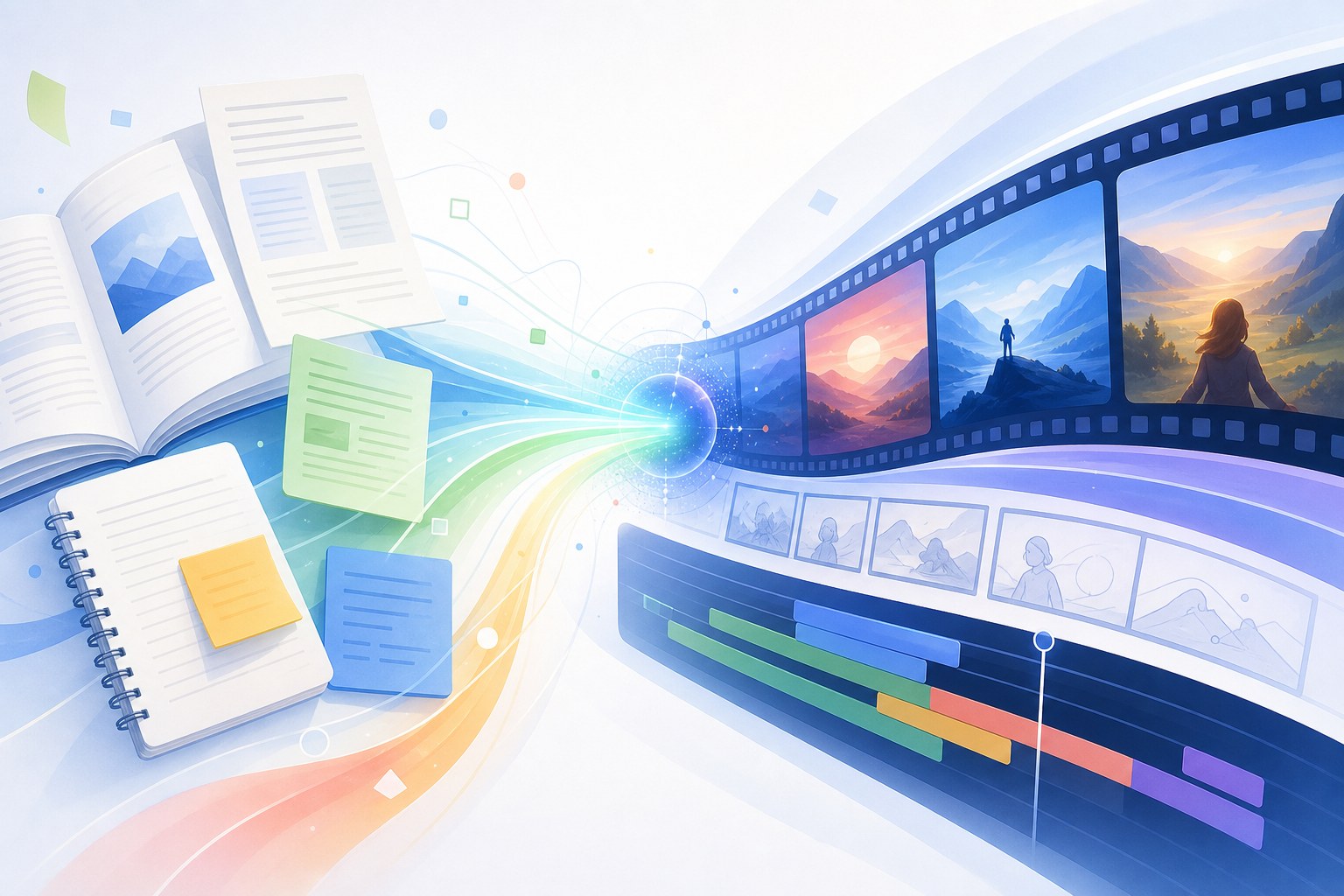
NotebookLM Cinematic Video Overviews: what changed?
NotebookLM has always been strongest when you give it useful sources. Its Audio Overviews made research feel conversational. The earlier Video Overviews made source summaries more visual. Cinematic Video Overviews push the format further by asking Google’s models to act more like a video director than a slide generator.
Google’s announcement describes the feature as a major update that “moves beyond narrated slides.” The model stack matters: Google says the experience combines Gemini 3, Nano Banana Pro, and Veo 3. Gemini acts as a creative director, making structural and stylistic decisions, choosing narrative flow, refining the result, and turning source material into a more cohesive visual story.
That framing is important for users. This is not the same as uploading a prompt to a generic text-to-video tool and hoping it invents a scene. NotebookLM’s value is that your uploaded sources define the knowledge base. A teacher can add lesson materials. A founder can add a product brief. A researcher can add papers and notes. A marketer can add positioning documents. The output should be judged by how well it explains the source material, not by whether it replaces a professional editor.
Notebook sources such as notes, PDFs, research documents, web pages, transcripts, and outlines.
Gemini decides narrative structure, visual style, scene flow, and how to represent the source material.
A more cinematic video summary designed to help viewers understand a topic faster.
Who can use NotebookLM Cinematic Video Overviews?
According to Google’s official launch post, Cinematic Video Overviews are available in English for Google AI Ultra subscribers aged 18 and older, on both web and mobile. That is the key access detail most searchers need immediately because many NotebookLM users will not see the option in their account.
If you do not see the feature, the likely reasons are straightforward: you may not be on Google AI Ultra, the account may not meet the age requirement, the notebook language or account region may not be supported yet, or the rollout may not have reached your account. Workspace and school accounts can also have admin restrictions that differ from personal accounts.
This access model creates a practical buying question: is Google AI Ultra worth it just for NotebookLM video summaries? For most casual users, probably not. For educators, creators, course builders, internal enablement teams, and content marketers who already spend hours turning documents into explainers, it can be worth testing for one billing cycle if the rest of the Ultra bundle also has value.
How to use NotebookLM Cinematic Video Overviews well
The biggest mistake is treating the feature like a magic “make a video” button. Better sources produce better videos. If your notebook is a random pile of long PDFs, duplicated drafts, contradictory notes, and unedited transcripts, the video may become generic or confusing. The best workflow starts before you click the video option.
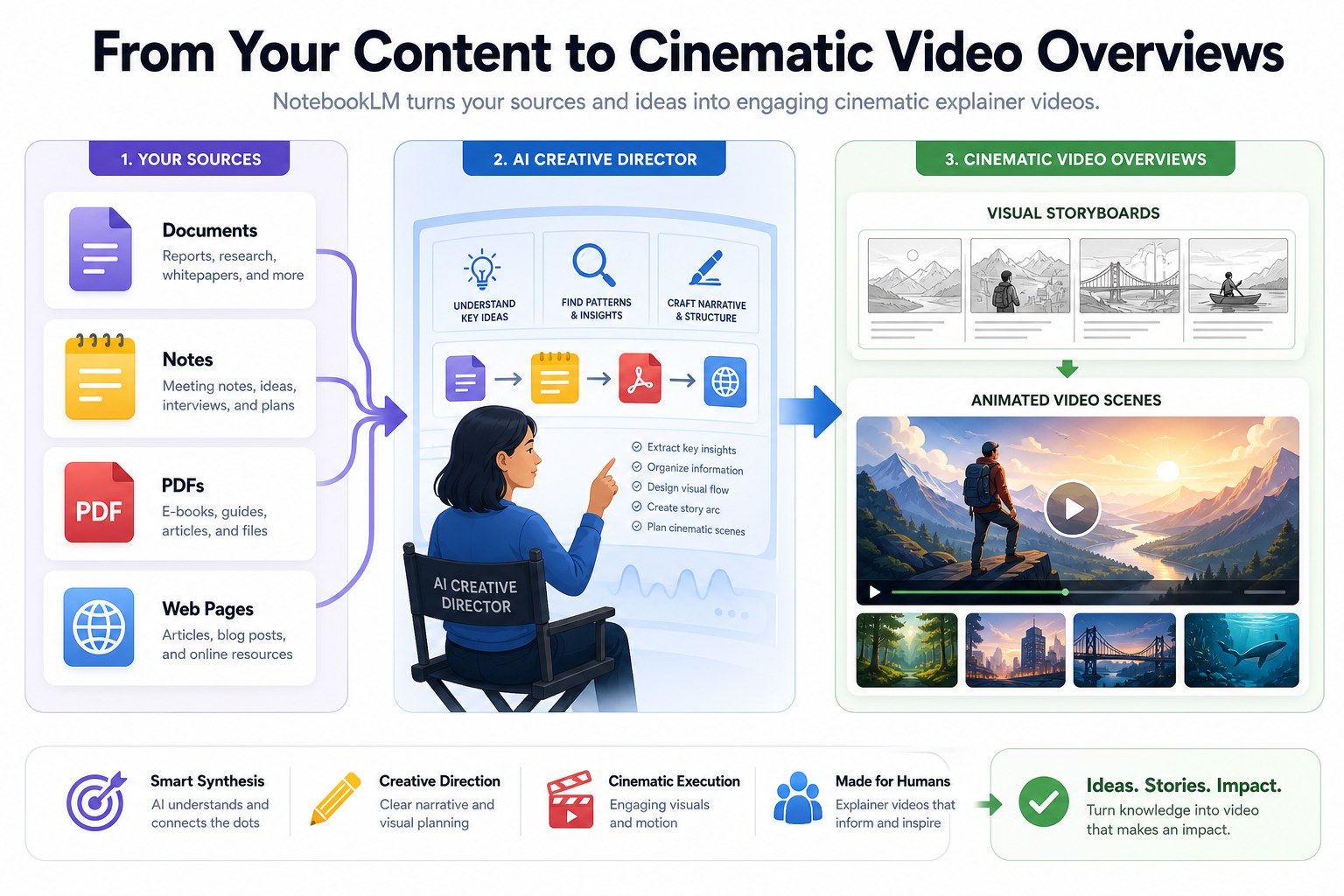
A strong source workflow matters more than the button itself: define the audience, prepare source material, then review the output.
Step 1: choose one clear audience
NotebookLM can summarize a topic, but a useful video needs a viewer. Decide whether the viewer is a beginner student, a busy executive, a customer, a developer, a sales team, or a general audience. The same sources can become very different videos depending on the target viewer.
Step 2: curate your notebook sources
Use sources that directly support the story. A short source set is often better than a massive one. Include a one-page outline, a glossary, a short FAQ, and a few primary documents. If you are making a product explainer, include positioning, use cases, screenshots, and limitations. If you are making an educational video, include learning objectives, examples, and definitions.
Step 3: remove conflicting or stale material
Generative video can make outdated statements feel polished. That is dangerous. Before generating, remove old pricing pages, superseded product notes, rough brainstorming documents, and duplicated content unless you want them considered. This is the same discipline that makes Gemini API File Search Multimodal RAG: Practical Guide for Developers workflows better: clean retrieval material leads to cleaner AI output.
Step 4: generate, then fact-check against the notebook
Watch the video with your sources open. Check definitions, dates, product claims, visuals, and implied causality. If the video says or shows something that is not supported by the source material, revise the notebook and regenerate or treat the video as an internal draft.
Step 5: reuse the output strategically
A Cinematic Video Overview can become a lesson teaser, internal enablement video, product education asset, social explainer, or briefing companion. It should not be your only source of truth. Pair it with written notes, citations, transcripts, and a link back to original materials.
Best use cases for NotebookLM Cinematic Video Overviews
The feature shines when a viewer needs context quickly and the source material is too dense to read casually. That gives it a different role from classic video generators. It is not primarily for fictional scenes, advertising spots, or highly controlled brand campaigns. It is strongest for knowledge transformation.
Turn lesson notes, reading packs, and study guides into visual explainers for students who need a first-pass understanding.
Convert a report, transcript, or market memo into a watchable summary for leaders who need context before a meeting.
Summarize onboarding docs, SOPs, support playbooks, or product documentation into a more engaging training asset.
Use the video as a storyboard draft before recording your own narration, adding brand assets, or editing in a production tool.
Turn product guides or customer education documents into draft explainers — but verify claims before publishing.
Offer another format for users who understand visual narratives better than long documents or audio-only summaries.
For spreadsheet-heavy workflows, an article like ChatGPT for Excel and Google Sheets: Real Spreadsheet Workflows may still be more practical than video. For codebase automation, guides such as OpenAI Codex Pricing and Usage Limits: 2026 Guide to Plans, Credits, and Safe Coding Workflows or How to Reduce Claude Code Usage: 2026 Workflow Checklist for Longer Coding Sessions are better fits. NotebookLM’s cinematic format is strongest when the outcome is learning, briefing, or storytelling around existing sources.
NotebookLM Video Overviews vs Audio Overviews vs Google Vids
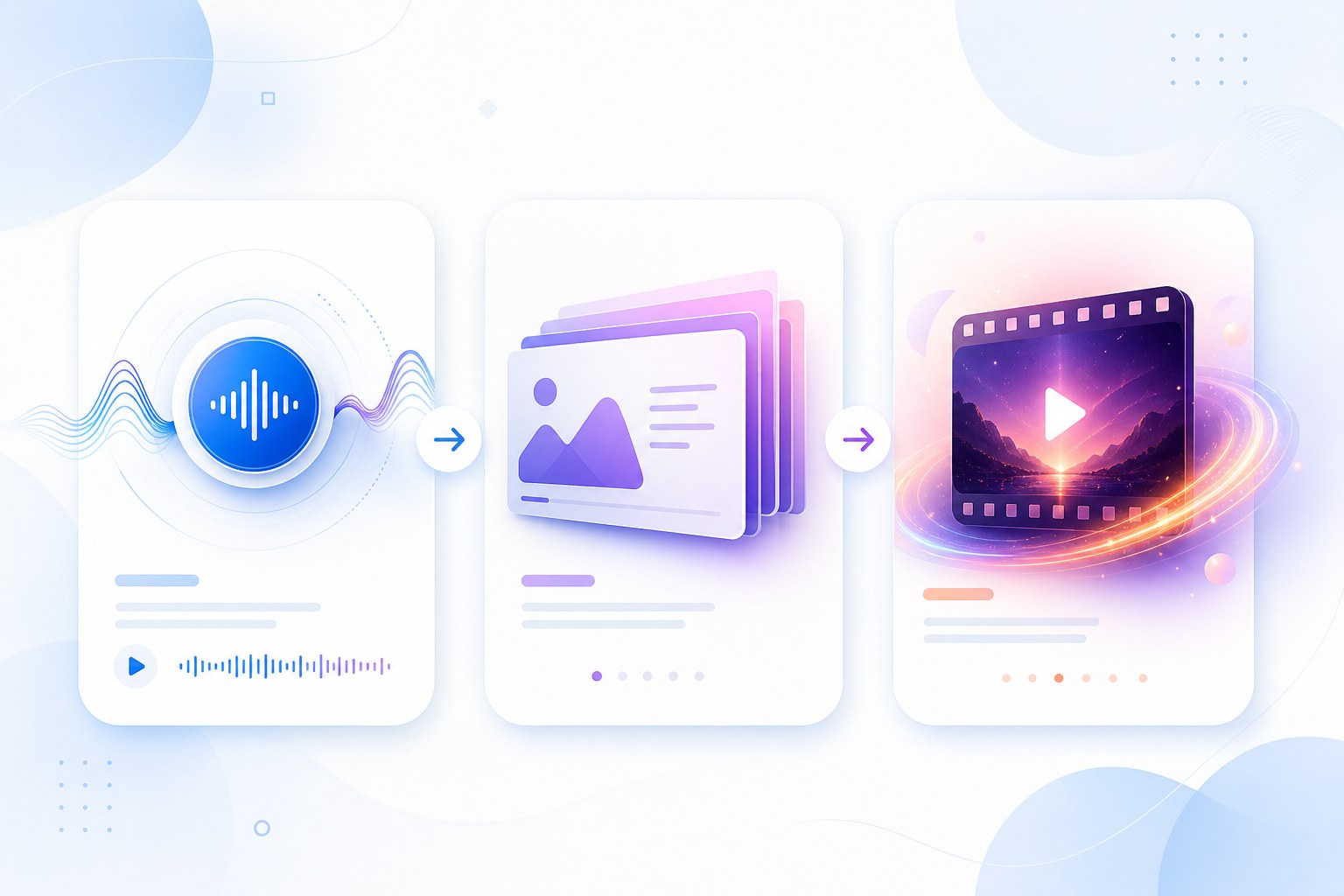
Searchers often group Google’s AI video tools together, but they are not interchangeable. NotebookLM is source-first. Google Vids is production/workspace-first. Audio Overviews are listening-first. The right choice depends on how much control you need and whether the source material matters more than visual polish.
| Format | Best for | Strength | Watch out for |
|---|---|---|---|
| NotebookLM Audio Overviews | Podcast-like summaries, study sessions, commute learning | Fast and conversational | Less visual context; not ideal for diagrams or visual learners |
| NotebookLM Video Overviews | Visual source summaries and slide-style explainers | More visual than audio, still source-centered | Can feel like a narrated deck if the topic needs richer storytelling |
| NotebookLM Cinematic Video Overviews | Animated learning videos, briefings, source-based explainers | Richer narrative and visual treatment powered by Google’s newer models | Limited access at launch; still requires careful fact-checking |
| Google Vids | Creating and editing workplace videos | More direct production workflow | Less specifically built around NotebookLM’s source-grounded notebook model |
| Third-party video tools | Brand-heavy ads, avatars, social clips, custom editing | More style/control options | May be less grounded in your research sources |
If your goal is to explain a source collection, start with NotebookLM. If your goal is to produce a polished brand campaign, start with a dedicated video editor. If your goal is to build an agent or workflow around knowledge retrieval, review AI Feature Drop’s OpenAI AgentKit Guide: Build Better AI Agents with Agent Builder, ChatKit, and Evals and Copilot Cowork Skills and Plugins: Practical Guide for Microsoft 365 Workflows for adjacent automation patterns.
Should you upgrade for NotebookLM Cinematic Video Overviews?
The answer depends on output frequency, audience value, and whether you already need Google AI Ultra. Use this quick decision helper as a starting point.
Limitations and risks to understand before publishing
Cinematic Video Overviews can make knowledge more engaging, but polish can hide weakness. A beautiful generated video can still oversimplify a document, omit caveats, or represent a concept visually in a way the source never intended. This is especially important for medical, financial, legal, scientific, or public policy material.
- Excellent for turning dense material into a watchable explainer.
- Uses NotebookLM’s source-based workflow rather than a blank prompt alone.
- Useful for education, onboarding, briefings, and creator ideation.
- Can save time on first drafts and storyboards.
- Ultra-only access at launch limits who can test it.
- Less control than a full video editor.
- May omit nuance from complex sources.
- Still requires human review before external publishing.
Accuracy risk
The feature may be source-grounded, but it is still generative. If your notebook contains conflicting claims, the output can choose a narrative that sounds cleaner than reality. Review claims line by line if the video will be used externally.
Brand and compliance risk
Teams should avoid uploading confidential information unless their account, admin settings, and policies allow it. For public marketing, generated visuals should be checked for brand safety, unsupported promises, and accidental resemblance to third-party assets.
Editing control
If you need precise lower thirds, legal disclaimers, exact brand typography, or frame-by-frame control, treat NotebookLM as pre-production rather than final production. Export the idea, then finish in a video editor or Google Vids-style workflow.
Why this feature matters for creators, teachers, and AI search
NotebookLM Cinematic Video Overviews are part of a bigger shift: AI tools are turning source material into multiple media formats. A written report can become an audio conversation, a study guide, a mind map, a slide summary, and now a cinematic video. That matters for discoverability because audiences do not all consume information the same way.
For creators, the opportunity is a faster content atomization loop. A research brief can become a written article, a short explainer, a classroom video, and an internal training asset. For teachers, it can make dense readings more approachable before discussion. For businesses, it can turn documentation into onboarding content. For researchers, it can help communicate findings to non-specialist audiences.
AI Feature Drop’s own analytics support the broader GoogleAI opportunity. In the last 28 complete days, GA4 showed 34 active users, 61 sessions, and 578 page views, with the Gemini label page and the existing Gemini API File Search article receiving engagement. That means a GoogleAI pillar should expand the topical cluster without duplicating the already-published Gemini API File Search Multimodal RAG: Practical Guide for Developers. NotebookLM’s cinematic video feature is a cleaner gap because it targets creators and educators rather than only developers.
It also connects naturally to other AI workflow articles. A developer comparing plan limits may read Claude Code CLAUDE.md Template: Save Context, Reduce Limit Burn, and Keep Agent Sessions on Track. A designer or frontend builder may prefer Claude Design to Code Workflow: How to Use Claude Design, Opus 4.7, and Claude Code. A content team evaluating AI video summaries can start here and then build supporting workflows around source preparation, comparison, and publishing checks.
Practical publishing checklist
- State the source set used to generate the video.
- Keep citations or source links near the video.
- Review every factual claim before publishing.
- Add a transcript or written companion for accessibility and SEO.
- Use the video as a supplement, not a replacement for source material.
- Disclose AI assistance when the context requires it.
- Do not upload private documents unless your account policy allows it.
Recommended workflow for your first Cinematic Video Overview
Start with a low-risk topic. Pick a lesson, public report, old webinar transcript, product education brief, or internal training page that you already understand. Create a notebook with five to eight strong sources rather than fifty messy ones. Add a short outline as a source so the model knows the intended structure. Generate the video. Then watch it twice: once as a viewer and once as an editor checking facts.
If the output feels generic, improve the source material. Add examples, definitions, audience notes, and a clearer outline. If the output feels visually impressive but inaccurate, reduce the source set and remove ambiguous material. If the output is accurate but boring, add richer examples, stories, or contrast. The goal is not to trick the model. The goal is to give it enough structured context to tell the story you actually want.
For public content, pair the generated video with a written article or landing page. Written content remains easier to scan, cite, translate, and update. Video is excellent for engagement, but it should not trap important facts inside a format that search engines, accessibility tools, or busy users cannot easily inspect.
Final verdict: who should care about NotebookLM Cinematic Video Overviews?
If you already rely on NotebookLM for learning, research synthesis, or content planning, Cinematic Video Overviews are one of the most interesting GoogleAI feature drops of 2026. They make the most sense for people who repeatedly turn source documents into teaching, briefing, or explainer content.
If you are a casual user, wait unless you already subscribe to Google AI Ultra for other reasons. If you are an educator, creator, course builder, product marketer, or internal training lead, test it with a real source set and measure whether it saves enough time to justify the upgrade. The winning workflow is not “click once and publish.” It is source curation, video generation, human review, and smart reuse.
FAQ: NotebookLM Cinematic Video Overviews
What are NotebookLM Cinematic Video Overviews?
They are a newer NotebookLM output format that turns your notebook sources into richer animated explainer videos. Google says the feature uses Gemini 3, Nano Banana Pro, and Veo 3, with Gemini acting as a creative director for story, style, and consistency.
Who can access Cinematic Video Overviews right now?
Google’s announcement says Cinematic Video Overviews are available in English for Google AI Ultra subscribers aged 18 and older on web and mobile.
Are Cinematic Video Overviews free?
Not at launch according to Google’s announcement. The feature is tied to Google AI Ultra access, while standard NotebookLM features and older overview formats may have different availability.
How are they different from NotebookLM Audio Overviews?
Audio Overviews are conversation-style audio summaries. Cinematic Video Overviews are visual narratives intended to turn the same kind of source material into animated explainer videos.
Can I use NotebookLM Cinematic Video Overviews for marketing videos?
Yes, they can help turn product notes, research, or education material into explainer-style videos. You should still review accuracy, avoid unsupported claims, and treat the result as a draft that may need editing before publishing.
Why do I not see the Cinematic Video Overview option?
Common reasons include not being on Google AI Ultra, being outside the supported language or age requirements, using an unsupported account/workspace, or rollout timing. Check NotebookLM on web/mobile and Google’s latest help pages.
What sources work best?
Clear, structured sources work best: outlines, FAQs, research briefs, product docs, lesson notes, transcripts, and concise reports. Messy source bundles can produce generic or confusing videos.
Is this better than Google Vids?
NotebookLM is source-first: it builds from your notebook content. Google Vids is more like an AI video creation and editing workspace. Use NotebookLM for summarizing knowledge; use Vids when you need more direct production control.
Can the videos be wrong?
Yes. Like any generative AI output, it can simplify, omit context, or visually imply things not in your sources. Always check the final video against the original documents before sharing it publicly.
Sources and further reading
Related AI Feature Drop guides
- Gemini API File Search Multimodal RAG: Practical Guide for Developers
- OpenAI Codex Pricing and Usage Limits: 2026 Guide to Plans, Credits, and Safe Coding Workflows
- How to Reduce Claude Code Usage: 2026 Workflow Checklist for Longer Coding Sessions
- OpenAI AgentKit Guide: Build Better AI Agents with Agent Builder, ChatKit, and Evals
- ChatGPT for Excel and Google Sheets: Real Spreadsheet Workflows
- Copilot Cowork Skills and Plugins: Practical Guide for Microsoft 365 Workflows
- Claude Code CLAUDE.md Template: Save Context, Reduce Limit Burn, and Keep Agent Sessions on Track
- Claude Design to Code Workflow: How to Use Claude Design, Opus 4.7, and Claude Code
Post a Comment