
Claude Code Plugin Troubleshooting: Fix Permissions, Hooks, MCP Servers, and Marketplace Installs
When a Claude Code plugin does not load, asks for permission again and again, breaks a hook, or skips an MCP server, the fix is rarely “install it again and hope.” This guide gives developers and teams a safe troubleshooting path that starts with what actually loaded, then narrows the problem by scope, plugin component, permission rule, and trust boundary.

Claude Code Plugin Troubleshooting: Quick Answer
Claude Code plugin troubleshooting is the process of checking whether a plugin was discovered, whether its skills or agents loaded, whether its hooks are active, whether its MCP servers started, and whether the current settings scope allows the plugin to do what it is trying to do. The mistake is jumping straight to reinstalling. Reinstalling may fix a corrupted local copy, but it will not fix settings precedence, missing marketplace sources, blocked permission rules, disabled customizations, broken hook matchers, invalid MCP transport fields, or a plugin that was installed under a different scope than the session is using.
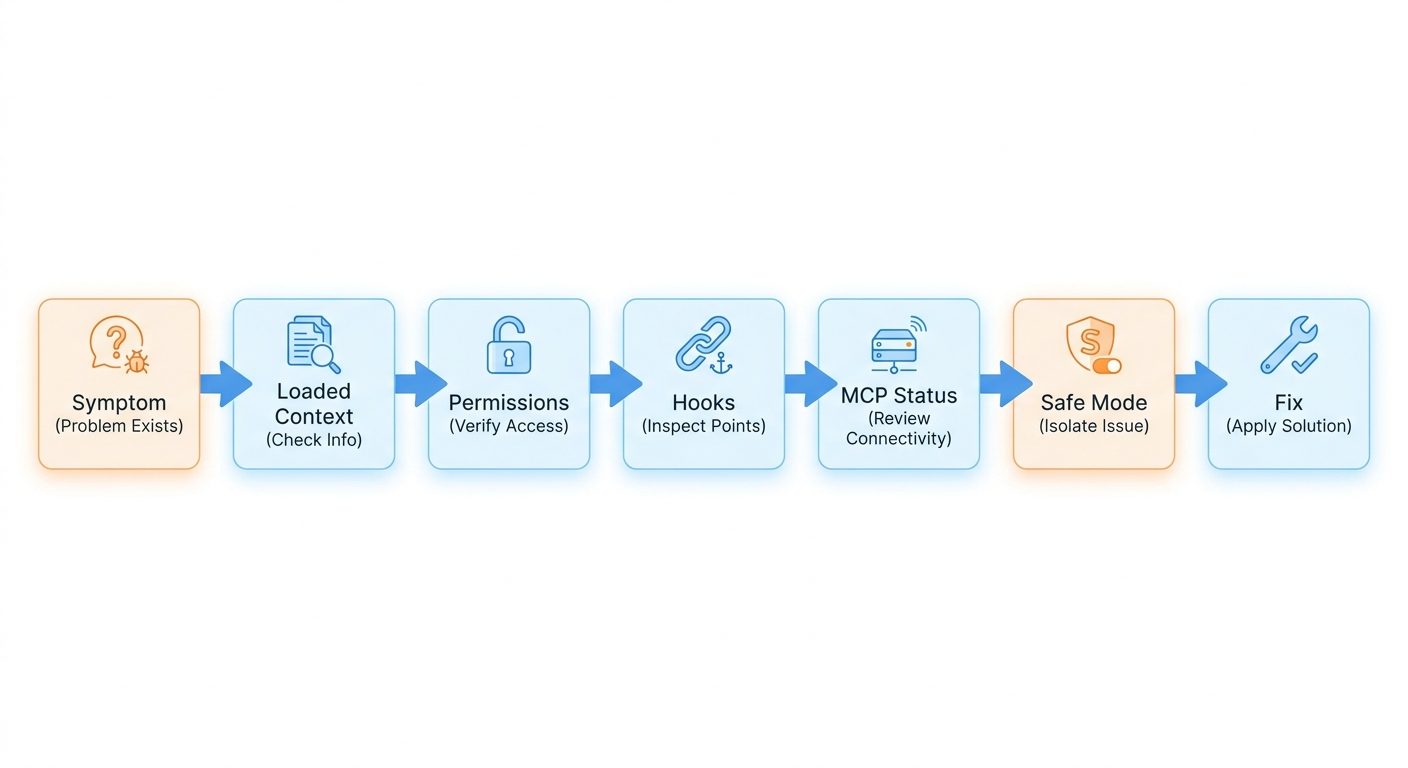
The fastest safe path is: confirm the symptom, inspect what loaded, compare the plugin’s expected components with what Claude Code sees, isolate with a clean or safe-mode session, then change the narrowest setting that explains the failure. That order matters. A plugin can include simple instructions, but it can also package skills, agents, hooks, MCP servers, commands, monitors, LSP configuration, or helper executables. Each component fails differently. A skill that does not appear is a discovery problem. A hook that does not run is a matcher, event, or configuration problem. An MCP server that never appears may be a transport, JSON, authentication, or trust problem. Repeated permission prompts usually mean the current allow rule is too narrow, a deny or ask rule is winning, or the command/tool shape has changed from what the rule matches.
This cluster article supports the broader Claude Code Plugins Guide. That pillar explains how plugins work, why teams package workflows, and how to review plugin trust. This guide goes narrower: what to do when the plugin is already installed or being tested and the behavior is wrong.
Why Claude Code Plugins Break in Real Projects
Most plugin problems are not mysterious. They are boundary problems. Claude Code reads configuration from several places, plugin packages may contain several component types, and a live session may have permissions, managed settings, marketplace sources, MCP servers, and hooks all interacting at once. The plugin name is only the surface. Under it may be a skill namespace, an agent, a hook event matcher, an MCP server definition, and a helper command that depends on the local operating system.
Official Claude Code documentation separates the concerns clearly. Plugins are self-contained directories that can extend Claude Code with skills, agents, hooks, and MCP servers. Hooks are automatic actions that run at lifecycle points such as session start, user prompt submission, pre-tool use, post-tool use, and stop events. MCP servers connect Claude Code to outside tools and data through a protocol boundary. Settings have precedence: managed settings can override command-line, project local, shared project, and user settings. Troubleshooting documentation points developers toward commands such as context inspection, doctor checks, hook inspection, MCP status, permission resolution, and safe mode when customizations may be the cause.
That creates the central troubleshooting rule: do not treat “plugin not working” as one symptom. Break it into a component. Is the plugin not installed? Is the skill missing from the command list? Is the agent absent from context? Is a hook present but not firing? Is an MCP server configured but skipped? Is the session in a mode that allows more or less than you expected? Is a managed setting overriding the local project file? Once you know the component, the fix becomes much smaller.
AIFeatureDrop analytics also point toward this article angle. Recent site traffic is strongest around coding-agent workflow guides, usage-limit explainers, setup tutorials, and safety-focused configuration posts. Google Search Console query volume is still small, but GA4 shows readers repeatedly engage with practical AI coding articles such as Codex setup, Codex pricing, Claude Code usage limits, network allowlists, and plugin guides. The live Google result page for this topic shows official docs and scattered discussions, but not many complete troubleshooting guides that connect plugins, hooks, MCP servers, permissions, and settings scopes in one workflow. That is the gap this article fills.
Start With a Three-Minute Plugin Triage Flow
Before changing anything, write down the exact symptom. “Plugin broken” is too vague. “The plugin skill does not appear,” “the MCP server asks every turn,” “the hook never fires before Bash,” “the marketplace install cannot find the package,” and “the plugin works for me but not for a teammate” are different failures. You want a symptom that can be verified after one change.
| Symptom | Likely area | First useful check |
|---|---|---|
| Plugin command or skill is missing | Discovery, namespace, install scope, plugin manifest | Check loaded skills and plugin source. |
| Agent is not available | Plugin component, context loading, duplicated or overridden agent | Inspect context and custom agents. |
| Hook does not run | Hook matcher, event type, settings file, safe mode, invalid config | Inspect active hook configurations. |
| MCP server not loading | MCP config, transport, auth, command path, JSON shape | Check MCP server status and init errors. |
| Permission prompt repeats | Ask rule, deny precedence, command mismatch, tool parameters | Inspect resolved permission rules. |
| Works locally, fails for team | Settings precedence, managed policy, environment differences | Compare scopes and active settings sources. |
Next, inspect what the current session loaded. Claude Code’s debug documentation recommends using context and related inspection commands to see memory files, tools, custom agents, skills, hooks, MCP servers, and permissions. The exact command names may evolve, so use the product’s current debug page as the source of truth, but the habit stays the same: verify the loaded state before you edit files.
If the loaded state looks messy, isolate. Run a clean session or safe-mode style test that disables customizations. If the problem disappears when plugins, hooks, and MCP customizations are disabled, the cause is in configuration, not in your project code. If the problem remains even without customizations, you may be dealing with installation, authentication, IDE integration, model access, or a general Claude Code issue instead of a plugin issue.
Fix Repeated Permission Prompts Without Making the Plugin Unsafe
Repeated permission prompts are one of the most common plugin complaints because plugins often package workflows that trigger tools. A developer installs a plugin to make a task smoother, then gets asked about the same MCP tool or shell command repeatedly. The tempting fix is a broad allow rule. That may remove friction, but it can also hide the risk the permission prompt was correctly surfacing.
Start by identifying what is asking. Is it a Bash command? An MCP tool? A subagent? A background execution request? A file read? A write operation? A plugin may make these calls indirectly through hooks, commands, agents, or MCP connectors. If the prompt is not identical each time, a narrow allow rule may not match. For example, allowing one exact command does not necessarily allow the same command with different flags, a different working directory, background execution, or a different tool parameter.
Claude Code permission behavior is easier to reason about if you remember the precedence: deny rules should be treated as hard boundaries, ask rules create checkpoints, and allow rules remove prompts only for routine low-risk actions. If an ask rule and an allow rule both seem relevant, do not assume the allow rule wins. If a deny rule is in effect through managed or project settings, changing a local user file will not override it.
{
  "permissions": {
    "allow": [
      "Bash(npm run test)",
      "Bash(git status *)",
      "mcp__issues__get_issue(*)"
    ],
    "ask": [
      "Bash(run_in_background:true)",
      "Agent(model:opus)",
      "mcp__github__create_pull_request(*)"
    ],
    "deny": [
      "Read(./.env)",
      "Read(./secrets/**)",
      "Bash(rm -rf *)",
      "Bash(git push *)"
    ]
  }
}
Treat that example as a pattern, not a drop-in policy. The useful idea is that boring read-only checks can be allowed, expensive or external actions can ask, and dangerous or secret-related actions can be denied. A plugin that only summarizes code should not need broad shell access. A plugin that manages release notes may need repository reads, but it probably should not publish releases automatically. A plugin that uses an issue tracker MCP server may need scoped read access, while write actions deserve a separate checkpoint.
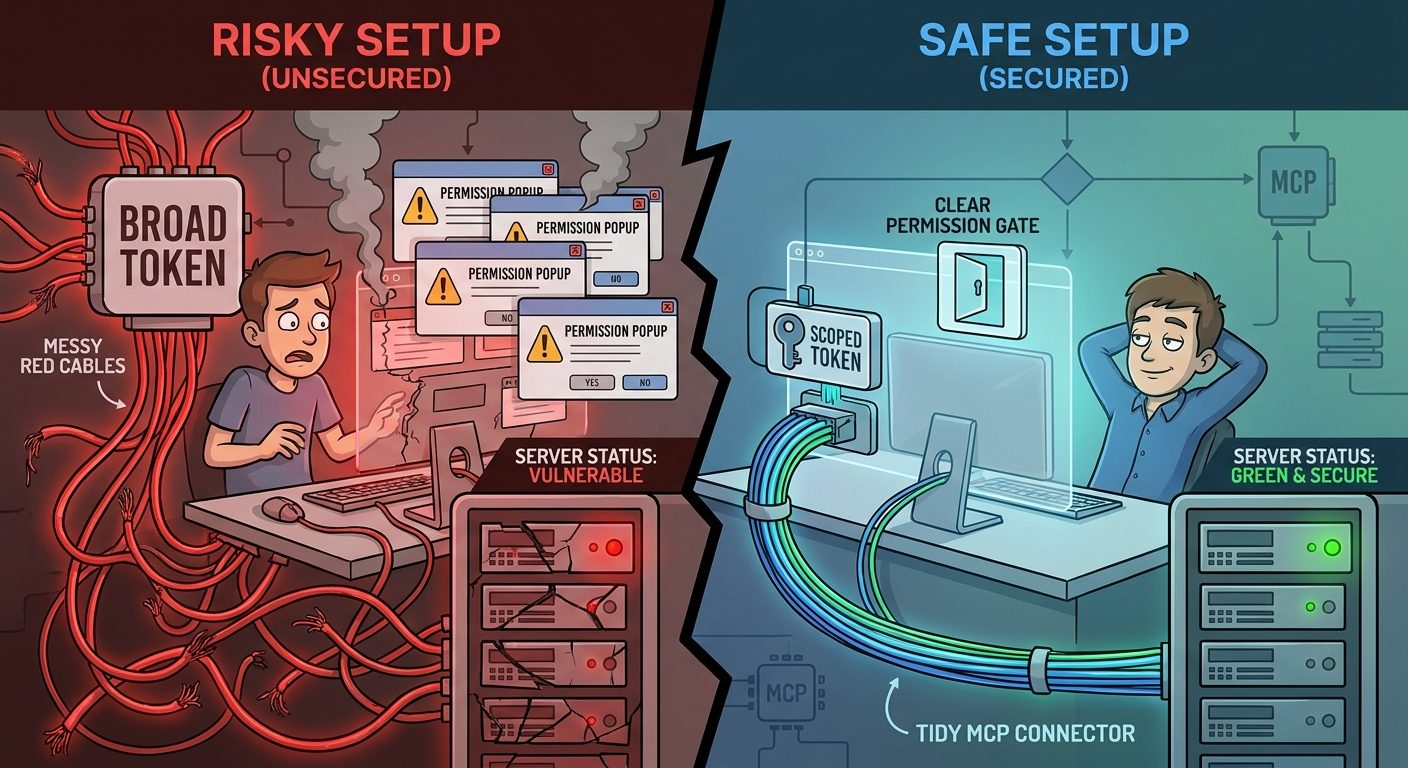
If permission prompts repeat for MCP tools, check whether the MCP server exposes many tool names and whether the plugin is calling a different tool each time. A broad “allow MCP” habit is risky because MCP servers can connect to issue trackers, databases, email, design tools, monitoring systems, or internal APIs. Prefer scoped tools, least privilege tokens, and separate read/write rules. If a plugin instructs you to disable prompts entirely or paste secrets into a prompt to avoid authentication friction, do not include that plugin in a team workflow.
Fix Claude Code Plugin Hooks That Do Not Fire
Hooks are powerful because they run automatically at specific lifecycle events. That also makes them easy to misunderstand. If a hook does not fire, the issue may be the event type, matcher, settings location, shell command, environment, or session mode. A plugin can include hook behavior, but the running session still has to load it correctly and match the event you expect.
First confirm the hook is active. Do not debug the hook command before verifying Claude Code sees the hook configuration. If the hook is not listed in the active configuration, the issue is probably install scope, settings scope, invalid JSON, plugin loading, or safe mode. If the hook is listed but does not run, inspect the event and matcher. A hook meant for pre-tool use will not run on a plain assistant message. A hook that matches Bash may not match an MCP tool. A stop hook may run at a different cadence than a per-tool hook. A prompt hook may not see the same input as a tool hook.
Second, test the hook command outside Claude Code with a minimal JSON input that resembles the event shape. Many hook failures are ordinary shell failures: missing executable, wrong path, permission denied, incompatible Node or Python version, bad shebang, or a command that assumes a working directory. A plugin author may have tested on macOS while a teammate runs Linux, or tested in a terminal while another teammate uses an IDE integration. Hooks run wherever Claude Code runs, so environment differences matter.
Third, make hook output explicit during debugging. A hook that silently exits can look like it never ran. Temporary logging to a local project debug file can help, but do not log secrets, full prompts, tokens, or customer data. If the hook inspects tool input, redact aggressively. Remember that some diagnostic artifacts can contain conversation text and credentials; do not attach raw diagnostic files to public issues unless the official docs say they are safe to share.
| Hook problem | Likely fix | Safety note |
|---|---|---|
| Hook missing from active list | Check plugin install scope, JSON syntax, settings precedence, and whether customizations are disabled. | Do not edit managed policy unless you own it. |
| Hook listed but silent | Verify event type and matcher; add safe temporary logging. | Avoid logging prompt bodies or credentials. |
| Hook command fails | Run the script manually with representative input; fix path, executable bit, runtime, or dependencies. | Do not download unknown binaries to fix a plugin. |
| Hook blocks too much | Narrow the matcher or move hard enforcement into a smaller deny rule. | Guardrails should be understandable, not mysterious. |
| Hook works for one teammate only | Compare operating system, shell, installed runtimes, working directory, and scope. | Document prerequisites in the plugin README. |
A good hook is boring and explainable. It should do one job, expose clear failure messages, and be easy to disable in a test session. If a plugin’s hook runs broad shell commands, reads secret paths, calls unknown network services, or blocks developer work without a clear reason, treat that as a plugin quality problem, not a normal setup inconvenience.
Fix MCP Servers Packaged With Claude Code Plugins
MCP server issues deserve extra care because they cross the boundary between Claude Code and external systems. The official MCP docs describe connecting Claude Code to tools, databases, APIs, monitoring dashboards, design systems, and communication channels. That is useful, but it also means MCP configuration problems can become privacy or security problems if developers try random fixes.
Start with server status. If the MCP server does not appear, inspect whether the plugin actually includes MCP configuration and whether the running settings source includes it. If the server appears but is skipped, look for configuration shape issues. Official docs note that HTTP-style MCP entries need an explicit transport/type field; a URL without the right type can be interpreted incorrectly or skipped. Local stdio servers need a command that exists on the machine, with arguments that work from the session environment. Remote servers need reachable URLs and authentication that does not leak credentials into project files.
Next, separate load failures from permission failures. “Server failed to start” is not the same as “server starts but every tool call asks.” Load failures are about configuration, transport, runtime, path, network, or credentials. Permission failures are about whether Claude Code is allowed to call the MCP tools exposed by that server. A plugin can make both problems happen at once, but you will fix them faster if you diagnose them separately.
If the MCP server starts but behaves incorrectly, reduce scope. Test one read-only tool. Then test one write tool in a non-production workspace. If the plugin bundles a server that talks to GitHub, Jira, Slack, Notion, a database, or an internal API, use least-privilege tokens and avoid broad organization-wide credentials. Do not store secrets inside the plugin package unless the official product explicitly supports a secure managed secret mechanism. A plugin should describe what credentials it expects and why.
Good MCP troubleshooting signs
- The server source is official, internal, or clearly maintained.
- The plugin documents transport, command, environment variables, and scopes.
- Read tools and write tools can be allowed separately.
- Failure messages identify missing auth, bad type, or unavailable command.
- The team can test in a disposable repo or sandbox first.
Warning signs
- The plugin asks for broad credentials without a clear need.
- The server fetches external content without prompt-injection precautions.
- The config hides command arguments or downloads helper binaries.
- The recommended fix is to disable permissions globally.
- No one can explain what tools the server exposes.
For team use, the right answer is often not “make this one developer’s MCP server work.” It is “create an approved MCP connector pattern.” Decide which servers are allowed, which scopes are acceptable, which actions need prompts, how credentials are provided, and where server configuration belongs. Plugins make this easier to package, but they do not remove the need for review.
Fix Marketplace Install Problems Without Trusting the Wrong Source
Marketplace problems usually show up as “marketplace not found,” “plugin not found,” “install succeeded but nothing appears,” or “plugin updates behave differently than expected.” The fix starts with source identity. Confirm the marketplace name, owner, repository, and plugin name. A typo can look like a missing package. A marketplace that was never added can look like a broken plugin. A plugin installed from one source may not be the same plugin your teammate installed from another source with a similar name.
Do not use random search results as a package manager. If a marketplace or plugin source cannot be verified, exclude it from a production workflow. Prefer official repositories, known maintainers, or internal curated catalogs. If a plugin source includes helper scripts, archive download behavior, or update metadata, review those too. Convenience is helpful; invisible update paths are not.
After installation, verify activation. Some plugin changes may require reloading plugins or starting a new session. If the plugin appears only after reload, document that for teammates. If it appears under a namespace, make sure users invoke the namespaced skill instead of the standalone command name. A common human mistake is expecting a plugin skill to appear with the same unprefixed command used by a project-local skill. Plugins intentionally use namespaces to avoid collisions.
If the marketplace install works for one teammate and not another, compare account access, network policy, GitHub access, corporate proxy settings, managed settings, and plugin source allowlists. Teams often blame the plugin when the real difference is an organization policy that blocks custom marketplaces, disables specific components, or overrides local settings.
Team Troubleshooting: When a Plugin Works for One Developer but Not Another
Team plugin issues are usually scope issues. Claude Code settings can live at user, shared project, project local, command-line, and managed levels. Managed settings have higher priority than normal user or project files. That means a developer can believe they “fixed” a plugin locally while the organization policy still overrides the relevant key. It also means two teammates can run the same repository and see different behavior because one has user-level plugins, another has project-local settings, and a third is governed by managed policy.
Build a comparison checklist. Ask each teammate to confirm the same plugin source, version, settings scope, operating system, shell, working directory, Claude Code version, IDE versus terminal entry point, MCP server status, and resolved permissions. Do not ask them to paste secrets or full diagnostic dumps into chat. You want shape, not sensitive content.
For shared plugins, the cleanest fix is documentation plus a narrow policy. The plugin README should say what components it includes, what commands or MCP tools it may invoke, what credentials it needs, where settings should be placed, how to verify installation, and how to remove it. The team policy should distinguish harmless instruction-only skills from hooks, MCP servers, and executables. A plugin with only a documentation skill can have a lighter review path. A plugin with an MCP connector into production data deserves a stronger one.
Use safe mode or clean configuration tests during incidents. If a developer reports high CPU, memory usage, hangs, or strange behavior after installing a plugin, a customization-free session can show whether the plugin, hook, or MCP server is involved. If safe mode fixes the problem, disable components one by one. If safe mode does not fix it, move to general Claude Code troubleshooting, installation, login, IDE, or error-reference guidance.
The team goal is repeatability. A plugin should not require tribal knowledge to install, debug, or remove. If every developer needs a private workaround, the plugin is not ready for broad rollout.
Claude Code Plugin Troubleshooting Checklist
- Name the exact symptom before changing files.
- Confirm whether the plugin, skills, agents, hooks, and MCP servers actually loaded in the current session.
- Check whether the plugin uses a namespace and whether the expected skill name is prefixed.
- Compare user, project, local, command-line, and managed settings sources.
- Inspect active permissions and remember that deny and ask behavior may override your expectations.
- For repeated prompts, allow only specific routine actions; keep risky actions as ask or deny.
- For hooks, verify the event type, matcher, command path, runtime, executable bit, working directory, and safe temporary logging.
- For MCP servers, separate server load problems from MCP tool permission problems.
- Check transport/type fields, command paths, URLs, environment variables, and scoped credentials.
- For marketplace installs, verify the marketplace source, plugin name, owner, activation step, and update path.
- Use a clean or safe-mode session to isolate whether customizations cause the issue.
- Do not paste secrets into prompts, plugin files, GitHub issues, or diagnostic logs.
- Document the fix in the plugin README so the next teammate does not repeat the same debugging session.
Why This Cluster Topic Fits AIFeatureDrop
This article was selected because it is narrower than the latest Claude Code plugin pillar and answers a high-intent troubleshooting need. The pillar explains build, install, marketplace, permissions, and rollout strategy. The earlier cluster articles covered plugin install inspection and plugin component choice. This page targets the next natural query family: what to do when a plugin has already been installed but permissions, hooks, MCP servers, or marketplace activation do not behave as expected.
Analytics supported the direction. In the last complete 28-day reporting window, AIFeatureDrop recorded 695 active users, 780 sessions, and 851 page views. Organic Search generated 174 sessions. The highest-performing content pattern was practical AI coding workflow guidance rather than generic AI announcements. Search Console data was sparse, so the topic selection used GA4 page patterns, the latest pillar topic, official Claude Code documentation, and live SERP observation. Google results for the target theme surfaced official hooks and debug configuration docs, forum discussions about repeated MCP permissions, and video content around scoped MCP access, which indicates a practical guide can add information gain by connecting those fragments.
Sources and References
- Claude Code documentation: Create plugins
- Claude Code documentation: Hooks reference
- Claude Code documentation: Connect Claude Code to tools via MCP
- Claude Code documentation: Settings
- Claude Code documentation: Troubleshooting
- Claude Code documentation: Debug your configuration
Claude Code changes quickly. Verify current plugin, hook, MCP, and permission behavior against official documentation before applying fixes to sensitive repositories or team-managed environments.
FAQ: Claude Code Plugin Troubleshooting
Why is my Claude Code plugin not showing up?
The common causes are install scope, missing activation or reload, invalid plugin manifest, a namespace mismatch, disabled customizations, or settings that are overridden by a higher-precedence source. Check what the current session loaded before reinstalling.
Why do Claude Code plugins keep asking for permission?
The plugin may be triggering Bash commands, MCP tools, agents, background work, or file actions that are not covered by a narrow allow rule. An ask or deny rule may also be taking precedence. Inspect resolved permissions and allow only specific routine actions.
How do I debug a Claude Code hook that does not fire?
Confirm the hook is listed as active, check the event type and matcher, test the hook command manually with representative input, verify paths and runtimes, and add safe temporary logging that does not record secrets or full prompt content.
Why is an MCP server from a plugin not loading?
Possible causes include invalid JSON, missing transport/type field, wrong command path, missing runtime, blocked network access, bad credentials, or settings scope mismatch. Separate server startup failures from permission prompts for MCP tool calls.
Can I fix plugin permission prompts by allowing everything?
You can reduce prompts that way, but it is usually unsafe. Prefer specific allow rules for routine low-risk actions, ask rules for external or expensive operations, and deny rules for secrets, destructive commands, or production-sensitive paths.
What should teams document for Claude Code plugins?
Document plugin source, version, components, expected skills or agents, hooks, MCP servers, required credentials, permissions, settings scope, verification steps, rollback steps, and known troubleshooting fixes.
Post a Comment