
Claude Code Plugin Install Checklist: Inspect Skills, Hooks, MCP Servers, and Permissions Before You Enable Them
Marketplace plugins can make Claude Code dramatically more useful, but they can also add skills, agents, hooks, MCP servers, LSP servers, monitors, and executables to your workflow. This publish-ready checklist shows how to inspect each moving part before you enable a plugin for yourself, a project, or a team.

Quick Answer: The Claude Code Plugin Install Checklist
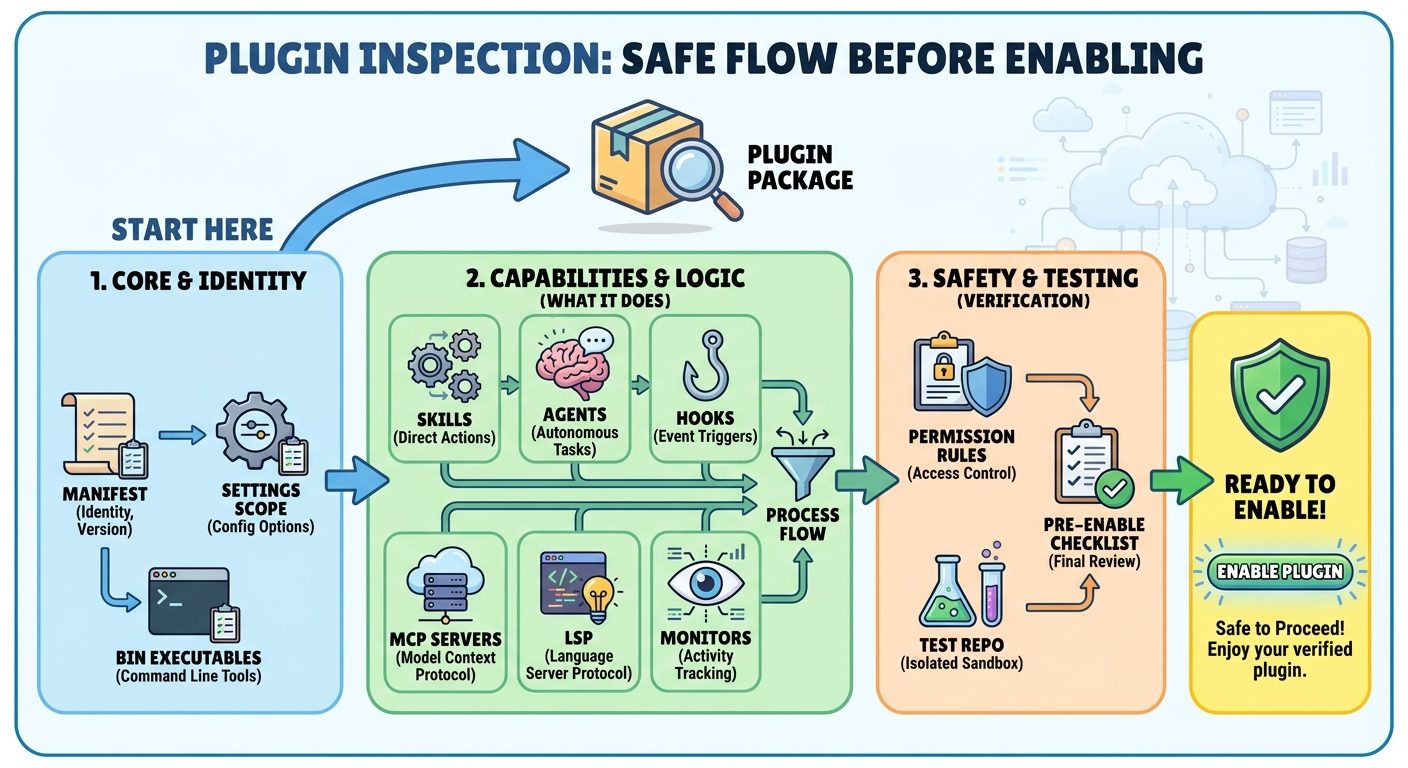
Before you install or enable a Claude Code plugin, inspect the marketplace source, plugin details, install scope, component list, permission impact, hooks, MCP servers, LSP servers, monitors, and any bundled executables. A safe plugin review is not just “does this plugin look useful?” It is “what will this plugin add to Claude Code, when will it run, what can it read, what can it execute, and which actions still require human approval?”
Use this short version when you need a fast decision:
- Confirm the source. Prefer the official Anthropic marketplace for common needs. Treat community, custom, local, and command-backed sources as higher review work.
- Read the plugin detail view. Check the “Will install” section when available: commands, skills, agents, hooks, MCP servers, LSP servers, and context cost.
- Pick the narrowest install scope. Use local or project-local scope for testing before user-wide or shared project rollout.
- Inspect skills and agents. Look for clear purpose, narrow instructions, no hidden credential requests, and no broad automation language.
- Review hooks carefully. Hooks can run automatically at lifecycle events such as before tool use, after tool use, at prompt submission, or when permissions are requested.
- Review MCP servers as external access. Identify the service, data exposed, tool actions, authentication path, and whether the server is trusted.
- Check LSP servers and binaries. LSP plugins may require external language-server binaries;
bin/executables can be added to the Bash tool’sPATH. - Check Claude Code plugins permissions separately. Instructions can shape model behavior, but permission rules, modes, hooks, and settings control what Claude Code may actually do.
- Start read-only or draft-first. Let the plugin assist, summarize, diagnose, or draft before allowing write, publish, deploy, message, or commit workflows.
- Document the decision. Record owner, scope, allowed actions, denied actions, review date, and rollback path.
This guide is a focused companion to our pillar article, Claude Code Plugins Guide: Build, Install, and Secure Team Workflows. The pillar explains the plugin system broadly. This checklist narrows in on the installation review that should happen before a developer or team enables marketplace plugins.
Why AIFeatureDrop Is Covering Plugin Review Now
AIFeatureDrop’s latest analytics show the same pattern we keep seeing around AI coding tools: readers do not just want release summaries, they want operational guidance. In the latest 28-day window, the site saw 665 active users, 757 sessions, and 840 page views. Organic search contributed 192 sessions, and the strongest pages were practical coding-agent workflow guides, especially around ChatGPT Desktop App Codex, Codex banked resets, OpenAI Codex pricing, and Claude Code usage limits.
Search Console also surfaced Claude Code permission-related pages in positions 6 and 13 with low impressions. That is a narrow but promising signal. It suggests people are looking for permission and security answers, yet the opportunity is not a broad “what is Claude Code?” page. It is a specific workflow page: how to inspect Claude Code plugins before enabling them.
The official Anthropic documentation explains the mechanics clearly. It documents plugin marketplaces, plugin structure, plugin components, settings, permissions, hooks, skills, and security posture. But users need a practical install/review checklist that translates those mechanics into a decision process. That is the search gap this article fills: a hands-on, source-grounded review path for the moment before you click install, enable, or approve.
The stakes are higher than a normal editor extension review because Claude Code plugins can contain more than shortcuts. According to the official plugin documentation and reference, plugins can include skills, agents, hooks, MCP servers, LSP servers, monitors, and bin/ executables. Some components are passive until invoked. Others can run automatically. Some improve context. Others connect Claude Code to external services. That mixture is useful, but it deserves a checklist.
What a Claude Code Plugin Can Add
Claude Code plugins are self-contained directories of components that extend Claude Code. The official plugins reference lists the major component types: skills, agents, hooks, MCP servers, LSP servers, and monitors. The create-plugins guide also notes that a plugin root can include skills/, commands/, agents/, hooks/, .mcp.json, .lsp.json, monitors/, and bin/. That means “install a plugin” may mean several different things depending on the package.
| Plugin part | What it can do | Why to inspect it |
|---|---|---|
| Skills | Add reusable task instructions that Claude can invoke directly or when relevant. | A skill can steer Claude’s behavior, load reference material, and include procedural steps. |
| Commands | Legacy/custom command-style markdown files that now work like skills. | They may expose slash-command workflows that look harmless but drive multi-step actions. |
| Agents | Add specialized subagents under scoped names, such as a plugin-specific reviewer. | Agents can change delegation behavior and may include tool restrictions or capabilities. |
| Hooks | Run shell commands, HTTP endpoints, or prompt hooks at lifecycle events. | Hooks are automatic, so they need deeper review than manually invoked skills. |
| MCP servers | Connect Claude Code to external tools, data, and services. | MCP changes the data and actions available to Claude Code. |
| LSP servers | Provide code intelligence such as diagnostics, definitions, references, and symbols. | LSP plugins may depend on installed language-server binaries and may surface diagnostics after edits. |
| Monitors | Add background monitor configurations. | Background behavior should be understood before team rollout. |
bin/ executables | Add executables to the Bash tool’s PATH. | Bundled executables affect what commands can run and deserve code/source review. |
That list is the reason a Claude Code plugin install checklist matters. A plugin is not necessarily dangerous, but it is also not just a theme or a snippet pack. It can alter instructions, available workflows, code intelligence, external integrations, and automatic behavior. Your review should match the plugin’s actual contents.
Step 1: Inspect the Claude Code Plugin Marketplace Source
Start with where the plugin comes from. The official discover-plugins documentation explains that plugin marketplaces are catalogs used to discover and install extensions. The official Anthropic marketplace is added automatically the first time Claude Code starts interactively when available, and it can be browsed through the plugin manager or at Claude’s plugin catalog. Anthropic also documents a community marketplace and custom marketplaces that teams can create and host.
The source matters because each marketplace has different trust assumptions. The official marketplace is curated by Anthropic. The community marketplace is third-party, with automated validation and safety screening described in the official docs, and entries are pinned to specific commit SHAs. Custom marketplaces may be internal and well-governed, or they may simply be a repository someone shared. Local paths and command-backed sources need extra scrutiny because they can be closer to arbitrary code distribution.
| Marketplace/source type | Default posture | Review action |
|---|---|---|
| Official Anthropic marketplace | Lower friction | Still inspect components, scope, MCP access, and hooks before enabling. |
| Community marketplace | Moderate review | Check repository, pinned commit, component list, issue history, and whether the plugin does exactly what you need. |
| Company marketplace | Policy-dependent | Confirm owner, approval process, update policy, and managed marketplace restrictions. |
| Local path plugin | Local trust required | Inspect the full directory before loading. Make sure it does not depend on files outside the plugin unexpectedly. |
| Command-backed or helper-backed source | High review | Review the command, what it fetches, what headers it mints, and when Claude Code asks before using it. |
The official plugin-marketplaces documentation also notes reserved marketplace names designed to prevent third-party marketplaces from presenting themselves as official Anthropic sources. That detail is important for teams: marketplace naming is part of trust. Do not rely on a friendly name alone. Confirm the source location and ownership.
Step 2: Read the Plugin Detail View Before Installing
The discover-plugins documentation says the plugin manager can show details such as context cost, last updated date, and a “Will install” section listing commands, agents, skills, hooks, MCP servers, and LSP servers when those details are available. This is the first practical inspection point because it summarizes the plugin’s blast radius.
Do not skip this panel. A plugin that appears to be a simple workflow shortcut may also include a hook, an MCP server, or an LSP configuration. A plugin that appears to be an external integration may add skills and agents too. The detail view is not a substitute for source review, but it is the fastest way to decide whether the plugin deserves a deeper look.
When the detail view says components will be discovered at installation, treat that as an inspection gap, not as reassurance. The official docs note that not every plugin provides the data behind the detail fields. If a custom marketplace cannot show a complete “Will install” section, your review should move to the plugin source directory or repository before enabling the plugin broadly.
Plugin clearly lists one or two focused skills, no hooks, no MCP servers, no bundled executables, and a narrow purpose.
Plugin includes MCP or LSP integrations that are useful but require external binaries, accounts, tokens, or service access.
Plugin includes automatic hooks, broad Bash behavior, unclear executables, or vague language such as “automates your workflow” without boundaries.
Step 3: Inspect Every Component Type
Once a plugin passes the marketplace and detail-view check, inspect what it actually contains. The official plugins guide warns not to put commands/, agents/, skills/, or hooks/ inside the .claude-plugin/ directory; only plugin.json belongs there. The plugin root is the directory containing the manifest or the directory passed as the plugin directory. For reviewers, that means the root-level folders are the map.
Manifest checklist
The .claude-plugin/plugin.json manifest defines plugin identity: name, description, version, author, and optional metadata such as homepage, repository, and license. The name matters because plugin skills are namespaced. The version matters because marketplace-installed updates depend on version handling. The description matters because it is what users may rely on when browsing.
- Does the plugin name match the repository and marketplace entry?
- Is the description specific enough to explain the workflow?
- Is there a version, and does the project appear to bump it for releases?
- Is there an owner, author, homepage, repository, or license?
- Does the manifest match the files actually present in the plugin root?
Skills and command checklist
Official skills documentation says skills are SKILL.md files with frontmatter and markdown instructions. Skills can be invoked directly, and Claude can use them when relevant. The docs also explain that skills are useful when you keep pasting the same checklist or procedure into chat, and that unlike always-loaded project context, a skill body loads only when used.
For plugin review, this means a skill is usually lower risk than a hook, but it still deserves review. Look for precise instructions, relevant examples, and clear stopping points. Be cautious with skills that instruct Claude to approve actions, ignore warnings, bypass reviews, collect secrets, or perform external writes. A skill should make Claude better at a task, not pressure the user to grant more access.
Agent checklist
The plugins reference says plugin agents can provide specialized subagents with frontmatter fields such as name, description, model, effort, maxTurns, tools, disallowedTools, skills, memory, background, and isolation. It also states that for security reasons, plugin-shipped agents do not support hooks, mcpServers, or permissionMode.
That restriction is helpful, but not a reason to skip review. Agents can still shape how Claude delegates work. Check whether the agent is narrowly scoped, whether tool restrictions make sense, whether max turns are reasonable, and whether the description might cause automatic invocation too broadly.
Step 4: Review Claude Code Plugins Permissions Separately From Instructions
One of the most important distinctions in Claude Code security is that instructions are not permissions. The official permissions documentation states that permission rules are enforced by Claude Code, not by the model. Prompt instructions or CLAUDE.md content can shape what Claude tries to do, but granting or revoking access happens through permission rules, permission modes, settings, or hooks such as PreToolUse.
That distinction is the heart of Claude Code plugins permissions. A plugin skill may say “only draft a recommendation,” but permission rules determine whether Claude Code can edit files, run Bash, use web fetch, search the web, or use MCP tools without asking. A plugin hook may block risky behavior, but you still need to know what permissions are active in the repository and user settings.
The permissions docs describe a tiered system. In Manual mode, read-only file operations inside the working directory do not require approval. Bash commands generally require approval except for built-in read-only commands. File modifications require approval. Web fetch and web search have their own approval behavior. “Yes, and don’t ask again” can save rules in settings, depending on the tool and prompt. Deny, ask, and allow rules are evaluated in that order.
| Permission area | Install review question | Safer default |
|---|---|---|
| Read-only access | Will this plugin need to read only the current project, or additional directories? | Keep working directory boundaries narrow during evaluation. |
| Bash | Does the plugin include hooks, skills, or bin executables that encourage shell commands? | Require prompts for non-read-only commands until reviewed. |
| File modification | Does the plugin create edits, commits, generated files, or project configuration? | Start with edits requiring approval and code review. |
| Web fetch/search | Does the plugin fetch docs, issues, remote content, or untrusted pages? | Approve domains intentionally; avoid broad fetch allowances. |
| MCP tools | What can each MCP server read, write, create, delete, or send? | Prefer read-only and draft-only integration first. |
Also inspect where settings live. The official settings documentation explains precedence from managed settings through command-line settings, project local settings, shared project settings, and user settings. A plugin decision may behave differently for one developer, a repository, or an organization depending on these layers. For team rollout, managed settings and shared project settings deserve special review because they affect more than one person.
Step 5: Treat Hooks as Automatic Code Paths
Hooks need special attention because they run automatically at points in Claude Code’s lifecycle. The official hooks reference describes hooks as user-defined shell commands, HTTP endpoints, or LLM prompts that execute at specific points. Hook events include session, prompt, tool-use, permission, subagent, task, file, directory, and configuration events. Plugin hooks can be placed in hooks/hooks.json or inline in plugin.json.
A skill waits to be used. A hook may run when a condition matches. That difference changes the review. A formatting hook after edits may be reasonable. A hook that runs a broad shell command before every tool use is much more sensitive. A hook that contacts an HTTP endpoint can introduce network and data exposure questions. A permission hook can influence whether a tool call proceeds.
Claude Code hooks plugin review checklist
- List hook events. Identify whether the plugin uses
SessionStart,UserPromptSubmit,PreToolUse,PermissionRequest,PostToolUse,FileChanged, or other events. - Read matchers. A hook matching
Write|Editis different from a hook matching all tool calls. - Inspect commands or endpoints. For command hooks, review the exact command path and arguments. For HTTP hooks, review the destination and payload expectations.
- Check environment assumptions. Does the hook depend on credentials, local binaries, network access, shell behavior, or project-specific files?
- Check blocking behavior. Can the hook block a prompt expansion, block a tool call, or alter the agent’s next step?
- Check failure behavior. What happens if the hook times out, fails, or runs from a deleted directory?
- Confirm ownership. Someone should be responsible for maintaining and debugging automatic behavior.
The changelog reinforces why hooks deserve operational review. Claude Code updates regularly include fixes around hooks, plugin behavior, remote sessions, permission prompts, and tool execution. That is normal for a fast-moving developer tool, but it means teams should review plugin behavior after updates and avoid assuming hook behavior is permanently static.
Step 6: Review Claude Code MCP Plugin Security Like an Integration Review
The official security documentation states that Claude Code allows users to configure MCP servers, and it encourages using MCP servers from providers you trust or writing your own. It also notes that users can configure permissions for MCP servers and that Anthropic reviews connectors against listing criteria before adding them to the Anthropic Directory, but does not security-audit or manage every MCP server. That is the key point for Claude Code MCP plugin security: marketplace inclusion and connector review are not the same as your organization’s security approval.
MCP servers can expose tools and data. In the official discover-plugins documentation, external integration plugins bundle pre-configured MCP servers for services such as source control, project management, design, infrastructure, communication, and monitoring. Those categories are powerful because they map to real work: GitHub, GitLab, Jira, Confluence, Asana, Linear, Notion, Figma, Vercel, Firebase, Supabase, Slack, and Sentry-style workflows. They are also sensitive because they can involve code, tickets, deployment context, design assets, messages, incidents, and customer-facing projects.
| MCP review field | Question to answer before enabling |
|---|---|
| Provider | Who runs the MCP server, and is that provider trusted by your team or organization? |
| Authentication | How does the server authenticate? Are credentials stored securely and scoped narrowly? |
| Data exposed | Can Claude read private repos, tickets, docs, channels, dashboards, files, or customer-related data? |
| Actions exposed | Can Claude create, update, delete, publish, deploy, comment, message, or trigger workflows? |
| Permission prompts | Which MCP tool calls still require human approval, and which are allowed automatically? |
| Audit trail | Can you tell what Claude accessed or changed through the integration? |
| Rollback | How do you disable the server, revoke tokens, and remove cached plugin configuration? |
A safe MCP rollout often starts read-only. Let the plugin summarize issues, inspect docs, find references, or draft a response. Delay write capabilities until you know the plugin is useful and the permission prompts are understandable. Be especially careful with communication and deployment integrations. A draft Slack update is low risk compared with sending a message. A deployment suggestion is low risk compared with triggering infrastructure changes.
Step 7: Check LSP Servers, Monitors, and Bin Executables
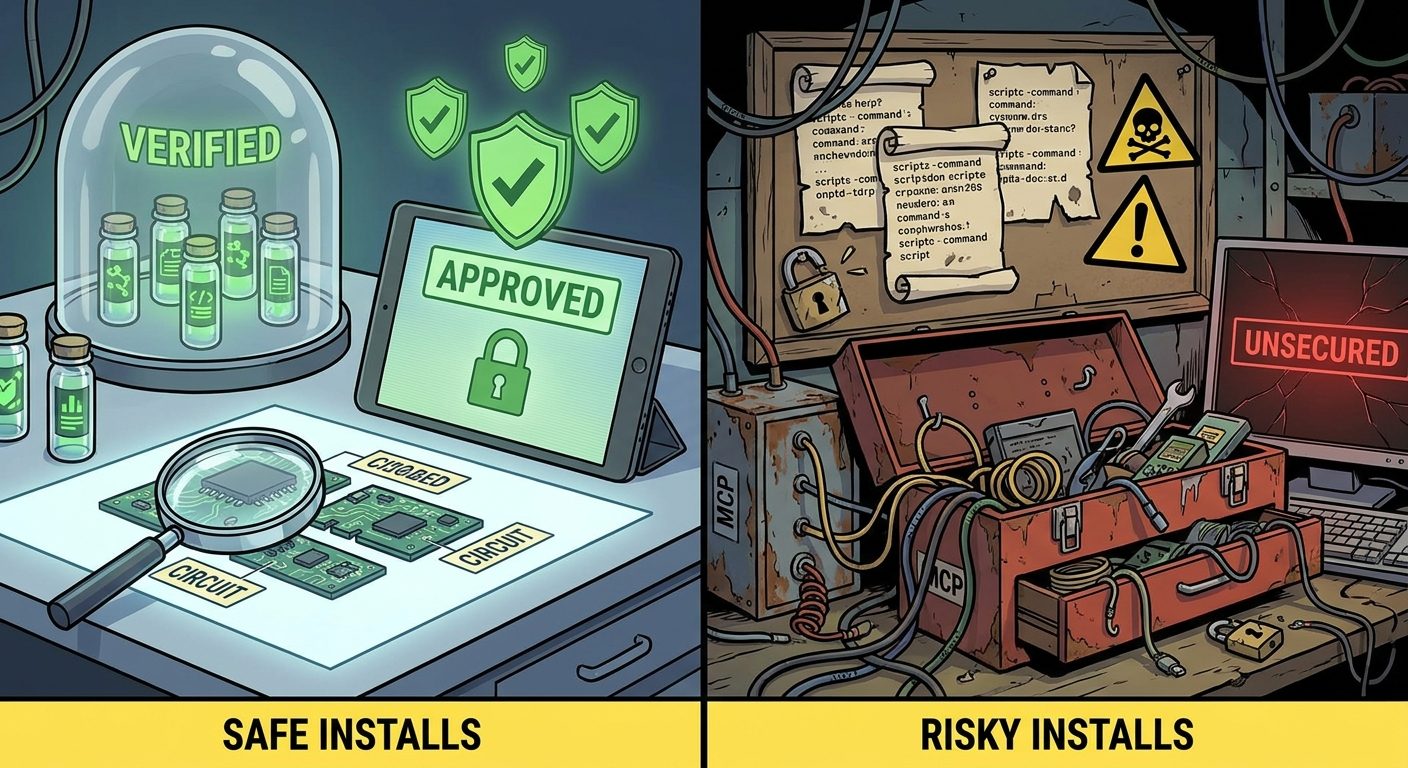
Not every plugin risk is about external services. Some plugin components affect the local development environment. The official discover-plugins documentation explains that code intelligence plugins enable Claude Code’s built-in LSP tool, allowing Claude to jump to definitions, find references, see type errors after edits, inspect type information, list symbols, and trace call hierarchies. It also notes that language-server binaries may need to be installed separately.
LSP plugins can be excellent for code quality. They make Claude’s understanding of a project more precise than grep alone. But they should still be reviewed because they depend on local binaries, project language configuration, and diagnostic behavior after edits. For team rollout, document required binaries and version expectations so developers do not see confusing plugin errors.
Monitors and bin/ executables deserve similar attention. A monitor implies background behavior. A bundled executable added to the Bash tool’s PATH can change what commands are available during a session. Review the code or binary provenance before approving. If the executable is a script, read it. If it is a compiled binary, confirm source, checksum, release process, and whether your organization allows it.
Approve faster when
- The LSP plugin comes from the official marketplace.
- The required language-server binary is already standard for the team.
- No hooks or MCP servers are bundled unexpectedly.
- The plugin only adds diagnostics and code navigation.
- Errors are visible in the plugin manager’s Errors tab.
Pause when
- A plugin adds unknown executables to
bin/. - A monitor runs in the background without clear purpose.
- The plugin requires broad shell access to work.
- The dependency source is unclear or unmaintained.
- The plugin mixes code intelligence with unrelated automation.
Step 8: Choose the Narrowest Install Scope
The official discover-plugins documentation describes three installation scopes in the plugin manager: user scope, project scope, and local scope. User scope installs for you across all projects. Project scope installs for all collaborators on the repository. Local scope installs for you in the repository only. This is not just a convenience choice; it is a risk-control choice.
For unfamiliar plugins, start local. Local scope lets you test value and behavior in one repository without affecting every project or teammate. If the plugin proves useful, move to project scope only after documenting purpose, owner, settings, and permissions. Use user scope for plugins that are clearly personal, broadly useful, and low risk, such as a simple skill you use across repos. Use managed or shared settings only when the organization has agreed on the plugin and rollback process.
| Scope | Best use | Avoid when |
|---|---|---|
| Local | Testing a plugin in one repository for one developer. | You need consistent behavior across a team immediately. |
| Project | Team-approved plugin for a specific repository workflow. | The plugin has not been reviewed for hooks, MCP, or permissions. |
| User | Personal productivity plugin used across projects. | The plugin has project-specific assumptions or broad external access. |
| Managed/shared policy | Organization-approved workflow with central governance. | The plugin owner, update path, or permission boundary is unclear. |
Install scope also interacts with settings precedence. Managed settings override lower levels, command-line settings affect a session, local project settings affect one developer in one project, shared project settings affect collaborators, and user settings affect every project for that user. A plugin may be safe in local scope but inappropriate as a shared project default.
How to Inspect Claude Code Plugins Without Overcomplicating It
Searches for how to inspect Claude Code plugins usually come from one of two people: an individual developer who wants to avoid installing something risky, or a team lead who needs a repeatable approval process. The workflow below works for both.
- Open the plugin manager and inspect the detail view. Record marketplace, plugin name, source, last updated information if shown, context cost if shown, and “Will install” components.
- Find the plugin source. Use the marketplace entry, repository link, local path, or installed cache location when appropriate. Your goal is to review files, not run them.
- Read
plugin.json. Confirm identity, version, owner, description, homepage, repository, and license. Compare the manifest to the marketplace listing. - List root-level folders. Look for
skills/,commands/,agents/,hooks/,.mcp.json,.lsp.json,monitors/, andbin/. - Read every skill and agent markdown file. Check frontmatter, descriptions, invocation patterns, tool restrictions, and whether the instructions align with the plugin’s public purpose.
- Read hook configuration line by line. Identify event, matcher, action type, command or endpoint, blocking behavior, and failure handling.
- Read MCP and LSP config. Identify servers, binaries, endpoints, authentication requirements, data categories, and actions.
- Compare to current permissions. Open your permissions view or settings and see whether the plugin’s likely actions are ask, allow, or deny.
- Run a controlled test. Use a non-critical repository or a branch. Watch prompts carefully. Do not choose “don’t ask again” during the first evaluation unless the rule is intentionally reviewed.
- Write the install note. Summarize what was approved, what was denied, what must be watched, and when to review again.
This process sounds long, but most simple plugins pass through it quickly. The time goes into plugins with hooks, MCP servers, executables, or unclear source. That is exactly where the time should go.
Decision Matrix: Install, Pilot, or Reject
A good checklist should produce a decision. Use this matrix after review:
| Decision | Use when | Next step |
|---|---|---|
| Install | The plugin is from a trusted source, has a clear purpose, lists components, has no surprising hooks or executables, and fits the chosen scope. | Install in the narrowest sensible scope and record the owner. |
| Pilot | The plugin is useful but includes MCP, hooks, monitors, LSP dependencies, or write-capable workflows that need observation. | Test locally or in one repository with prompts enabled and draft-first behavior. |
| Request changes | The plugin is promising but has vague descriptions, missing owner information, overly broad instructions, or undocumented access. | Ask maintainers to clarify purpose, permissions, and component behavior before install. |
| Reject | The plugin hides behavior, impersonates a trusted source, asks for broad access without need, bundles unknown executables, or encourages bypassing permission prompts. | Do not install. Record why, and block via policy if needed. |
A Team Policy Template for Claude Code Plugin Approvals
Teams should not rely on every developer making the same security judgment from memory. A lightweight plugin approval template is enough for most groups. It creates shared language without turning plugin use into bureaucracy.
Plugin approval note

Plugin name:
Marketplace/source:
Owner:
Install scope:
Business purpose:
Components installed:
- Skills:
- Agents:
- Hooks:
- MCP servers:
- LSP servers:
- Monitors:
- Bin executables:

Permissions posture:
- Read:
- Bash:
- File edits:
- Web fetch/search:
- MCP tools:

Approved use:
Denied use:
Required human approval:
Rollback steps:
Review cadence:
Decision: Install / Pilot / Request changes / Reject
This template pairs well with the related AI Feature Drop guides on permission gates and rules. If your review raises permission questions, read Claude Code Hooks Permission Gates, Claude Code Permission Rules Explained, and Claude Code Subagent Permissions. If the plugin depends heavily on project instructions, revisit Claude Code CLAUDE.md Template. If usage cost or limits affect rollout, see Claude Code Usage Limits Explained.
Red Flags Before You Enable a Claude Code Plugin
Some issues should pause installation immediately. They do not always mean the plugin is malicious. Often they mean the plugin is not documented well enough for safe use.
- Unclear source. The marketplace, repository, owner, or release path is not obvious.
- Purpose mismatch. The plugin claims to be a simple skill but installs hooks, MCP servers, monitors, or executables.
- Broad automation language. Instructions say to “finish the workflow,” “do whatever is necessary,” or “avoid bothering the user” without approval boundaries.
- Credential requests in instructions. A skill or agent asks the user to paste tokens or secrets instead of using a documented secure auth path.
- Automatic external writes. The plugin can message, comment, deploy, publish, or update records without a human approval step.
- Unknown
bin/files. The plugin bundles executables you cannot inspect or verify. - Hook overreach. Hooks match broad events or all tool calls without a narrow reason.
- MCP ambiguity. The MCP server’s data access and actions are not documented.
- Scope pressure. The plugin asks for project or user-wide installation before a local pilot.
- No rollback path. Nobody can explain how to disable, remove, or revoke the plugin and related tokens.
Keep Learning on AI Feature Drop
Official Sources and References
- Anthropic Claude Code Docs: Create plugins
- Anthropic Claude Code Docs: Discover and install prebuilt plugins through marketplaces
- Anthropic Claude Code Docs: Create and distribute a plugin marketplace
- Anthropic Claude Code Docs: Plugins reference
- Anthropic Claude Code Docs: Configure permissions
- Anthropic Claude Code Docs: Settings
- Anthropic Claude Code Docs: Security
- Anthropic Claude Code Docs: Hooks reference
- Anthropic Claude Code Docs: Skills
- Anthropic Claude Code Changelog
This article uses official Anthropic Claude Code sources plus AIFeatureDrop analytics and internal editorial context. Product behavior, marketplace contents, permissions, and settings can change, so verify the active Claude Code documentation and your organization’s settings before rollout.
FAQ: Claude Code Plugin Install Checklist
What should I check before installing a Claude Code plugin?
Check the marketplace source, plugin detail view, install scope, manifest, skills, agents, hooks, MCP servers, LSP servers, monitors, bin executables, settings impact, and active permission rules. Start with the smallest install scope and keep write actions behind approval during evaluation.
Are Claude Code marketplace plugins automatically safe?
No plugin should be treated as automatically safe without review. The official marketplace is curated by Anthropic, and the community marketplace has automated validation and safety screening, but your team still needs to inspect components, permissions, MCP access, hooks, and install scope.
Why are hooks riskier than skills?
Skills are usually invoked directly or loaded when relevant. Hooks can run automatically at lifecycle events such as prompt submission, permission requests, before tool use, or after tool use. Because hooks can execute without a user explicitly calling a skill, they deserve deeper review.
How do Claude Code plugins permissions work?
Plugin instructions can guide Claude, but Claude Code permissions are enforced by Claude Code through permission rules, modes, settings, and hooks. Review whether actions such as Bash commands, file edits, web access, and MCP tool calls are ask, allow, or deny.
What is the safest install scope for testing a plugin?
Local scope is usually safest for testing because it applies to one developer in one repository. Move to project or user scope only after confirming the plugin’s purpose, components, permission impact, owner, and rollback path.
How should I review MCP servers in a plugin?
Treat MCP review like an integration security review. Identify the provider, authentication method, exposed data, available actions, permission prompts, audit trail, and rollback path. Prefer read-only or draft-only access before enabling write-capable workflows.
Can a plugin include executables?
Yes. The plugin structure documented by Anthropic includes a bin/ directory for executables added to the Bash tool’s PATH. Review scripts or binaries carefully before enabling them, especially for team-wide use.
When should a team reject a Claude Code plugin?
Reject or pause a plugin when its source is unclear, its purpose does not match its components, it bundles unknown executables, it adds broad hooks, it requires unclear MCP access, it pressures users to grant broad permissions, or it lacks a rollback path.
Post a Comment