
ChatGPT Desktop App Work and Codex Guide: Choose the Right Mode for Real Projects
OpenAI’s desktop app now puts Chat, Work, and Codex into one command center, but the three modes are not interchangeable. This guide explains what changed, when to use each mode, how Projects and Recents behave, what syncs across devices, and how to avoid risky permission mistakes.
Quick Answer: What Are ChatGPT Work and Codex in the Desktop App?
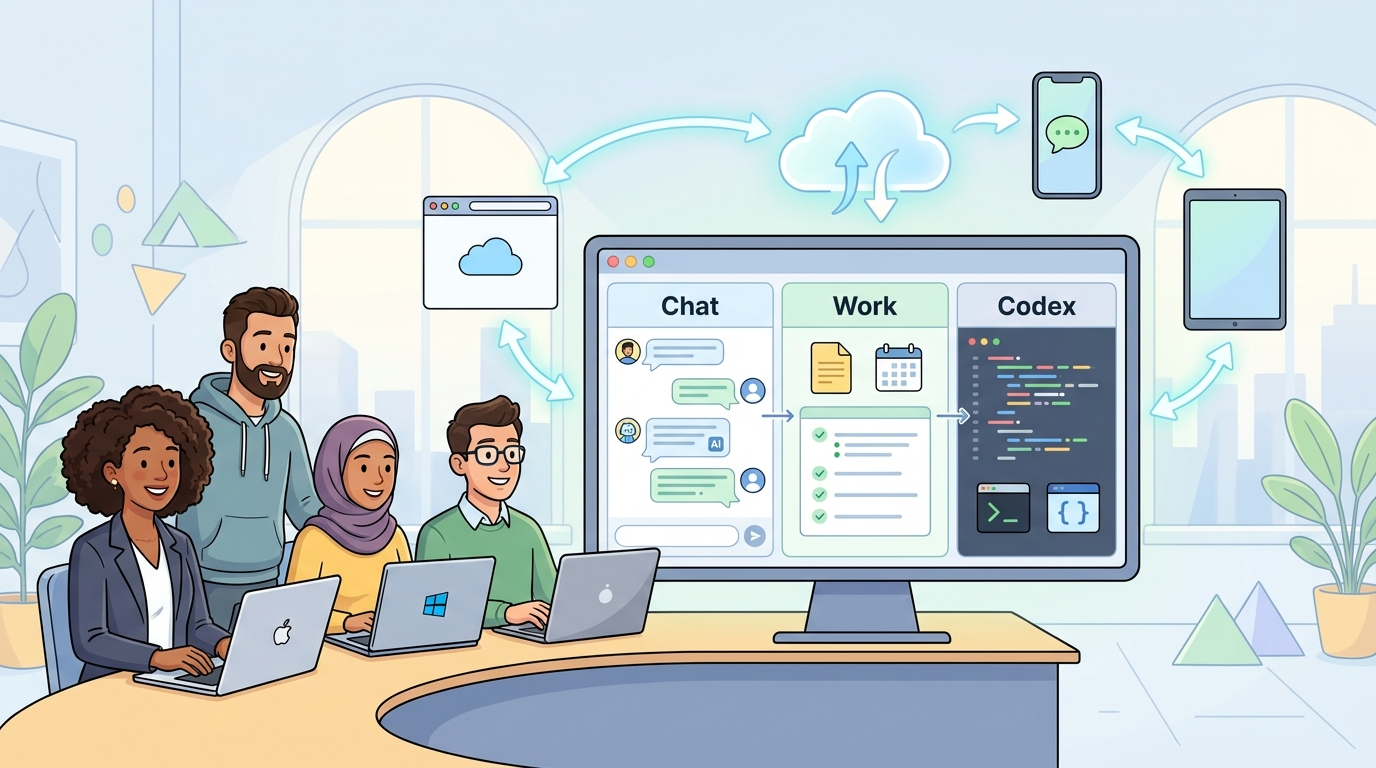
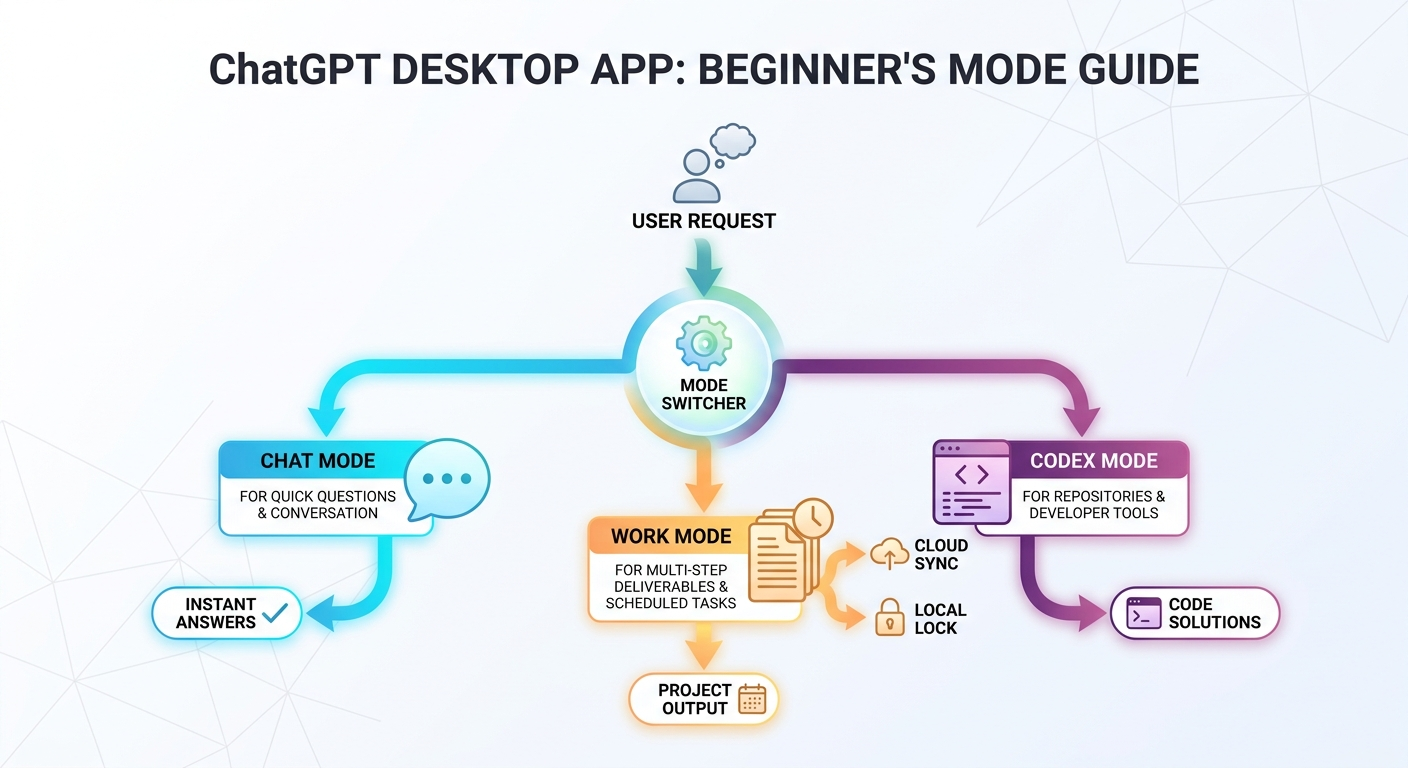
ChatGPT desktop app Work and Codex is the new practical split inside OpenAI’s desktop experience. Chat is still the fast conversational assistant for questions, brainstorming, writing help, and lightweight research. Work is the longer-running agent for multi-step deliverables such as reports, spreadsheets, presentations, Sites, scheduled tasks, and work that may involve connected files or apps. Codex remains the developer-focused coding agent for repositories, terminals, pull requests, code review, tests, local folders, and technical tasks.
The important detail is that OpenAI did not simply rename everything as one generic agent. The product now feels more unified because ChatGPT and Codex sit inside one desktop app, but the boundaries still matter. Work conversations can sync across web, mobile, and desktop when they run in the cloud. Local conversations stay on the computer. Codex remains a separate view with separate history and developer workflows. Codex is not selectable as a normal web or mobile chat mode, although supported desktop Codex sessions can be accessed from the Remote tab in the ChatGPT mobile app.
This article was selected because AI Feature Drop analytics show strong performance for practical OpenAI Codex guides, especially pages about Codex usage, pricing, desktop setup, Windows, permissions, and remote workflows. Search Console also shows long-tail impressions around Codex desktop and computer-use questions. The new desktop app update creates a clear search gap: people need one plain-English guide that explains how Chat, Work, Codex, Projects, Recents, cloud sync, local files, and permissions fit together.
What Changed in the ChatGPT Desktop App?
OpenAI’s recent release notes describe a desktop app update for macOS and Windows that makes it easier to choose between ChatGPT and Codex, then choose between Chat and Work inside the ChatGPT side of the app. The visible product change is a clearer global switcher. The practical workflow change is bigger: the desktop app is becoming the place where everyday conversation, long-running work, and software engineering automation live side by side.
OpenAI says the desktop app now brings together Chat for quick questions, Work for longer tasks and finished deliverables, and Codex for software development. Work can use local files and desktop apps with permission on desktop. It can also run in the cloud on web and mobile. Projects appear in the desktop app, and users can start either a normal Chat conversation or a Work thread using Project context. Chat and Work conversations appear together in Recents, with sorting, filtering, and pinning.
Codex also received practical developer improvements around the same desktop push. OpenAI’s notes mention inline editing inside diffs, pull-request review in a side panel, faster computer use, and support for multiple repositories in one project. The Codex product page positions Codex as an agentic coding command center across ChatGPT, editor, and terminal workflows, with worktrees, cloud environments, skills, scheduled work, and code review.
That combination creates a common misunderstanding: people assume Codex has been swallowed by ChatGPT or that Work replaces Codex. That is not the safest interpretation. Codex remains the right mental model for engineering tasks because its view, history, local developer tooling, repository context, and remote mobile access behave differently from ordinary ChatGPT chats. Work is broader than coding and is designed around deliverables, apps, files, research, analysis, and scheduled tasks.
If you already follow AI coding tools, this distinction should feel familiar. In our OpenAI Codex pricing and usage limits guide, we argued that the real skill is not only choosing a model; it is choosing the right amount of autonomy, context, and supervision. The new desktop app makes that decision more important because three different work styles now sit one click away from each other.
Chat vs Work vs Codex: Which Mode Should You Use?
The easiest way to avoid confusion is to stop asking “Which OpenAI product is best?” and start asking “What type of outcome am I trying to produce?” The new app is not a single feature. It is a routing layer for different kinds of AI work. If you route the task correctly, the experience feels clean. If you route the task incorrectly, you may share too much context, lose track of history, pick the wrong sync behavior, or ask a non-coding agent to behave like a coding workspace.
| Mode | Best for | Avoid using it for | Key behavior |
|---|---|---|---|
| Chat | Quick answers, brainstorming, rewriting, explanations, search, light analysis, everyday questions. | Long multi-step deliverables that need progress tracking, approvals, files, or recurring execution. | Fast conversational help. Familiar ChatGPT flow. |
| Work | Research, analysis, finished documents, spreadsheets, presentations, reports, Sites, scheduled tasks, and multi-step business workflows. | Repository-heavy software work, terminal-driven debugging, pull-request review, and codebase refactors. | Agentic work mode. Cloud Work can sync across web, mobile, and desktop. Desktop Work may use local files and apps with permission. |
| Codex | Writing code, debugging, running commands, editing repositories, reviewing pull requests, using local folders, and working with developer tools. | General reports, marketing briefs, personal planning, or non-technical deliverables where Work is a better fit. | Separate desktop view with separate history. Web and mobile do not expose Codex as a normal chat mode, but mobile Remote can access supported desktop Codex chats. |
Here is the practical version. If you need an explanation of a concept, choose Chat. If you need a finished artifact that may take several steps, choose Work. If you need code changed, tests run, diffs reviewed, or a repository inspected, choose Codex. This seems obvious, but it prevents the most expensive mistakes: giving repository access to a broad task that should have been a document workflow, or asking a document agent to make deep code changes without the right environment.
The Work mode is especially interesting for non-developers because it turns ChatGPT into a more active project assistant. You can ask it to research a topic, compare information, draft a report, create a spreadsheet, build a presentation, or monitor a recurring task. The desktop app matters because it can work with local context when you grant permission. That does not mean you should grant broad access by default. It means you now have a way to combine cloud agent work, local files, and desktop workflows inside one interface.
Codex is still where developers should be more deliberate. A coding agent can inspect files, propose patches, run commands, and review diffs. That is powerful, but it also changes the risk profile. A bad answer in Chat may waste time. A bad Codex action may change files, run a command, or produce a misleading pull request. If you want a deeper safety foundation before using Codex with local permissions, read our Codex computer-use permissions guide and our Codex computer use on Windows setup guide.
How to Start in the ChatGPT Desktop App
The desktop flow is simple, but the choices matter. Open the ChatGPT desktop app on macOS or Windows and sign in. Use the top-left menu to select either ChatGPT or Codex. If you choose ChatGPT, select Chat or Work from the toggle at the top of the page. If you choose Codex, you are entering the developer workspace rather than a normal ChatGPT conversation.
For a normal question, stay in Chat. Ask the question, search, summarize, or brainstorm. For a longer task, switch to Work and describe the outcome you want. Give it review criteria, constraints, files, audience, and the desired format. For technical work, switch to Codex, open the relevant local folder or repository, describe the change, and ask for a plan before edits begin.
A good Work prompt should be outcome-based. Instead of saying “research competitors,” say “Create a two-page comparison brief of these three tools for a founder deciding which one to trial, include pricing caveats, integration risk, and a final recommendation.” A good Codex prompt should be repository-based and testable. Instead of saying “improve this app,” say “Inspect the authentication module, identify why password reset emails fail in staging, propose a minimal patch, and run the relevant tests before editing unrelated files.”
Work and Codex can both feel agentic, but they should not be prompted the same way. Work needs deliverable quality, source discipline, and review checkpoints. Codex needs scope control, repo boundaries, command safety, and diff review. In both cases, vague prompts are the enemy. They encourage the agent to explore too broadly, consume more context, and produce output that is harder to verify.
Projects, Recents, Local Files, and Sync: The Part Users Usually Miss
The most useful part of the desktop update may be less glamorous than the agent features: history and context are becoming easier to find. OpenAI says Chat and Work conversations appear together in Recents, where you can sort, filter, and pin them. Existing ChatGPT Projects now appear in the desktop app. From a Project, you can start a Chat conversation or begin a Work thread using that Project’s context.
This matters because Projects are where ongoing work becomes reusable. A Project can keep related chats, files, and instructions together. If you are building a launch plan, researching a product category, preparing a course, or managing a client project, Work can use that shared context to produce more consistent outputs. If you only use standalone chats, you end up repeating background information every time.
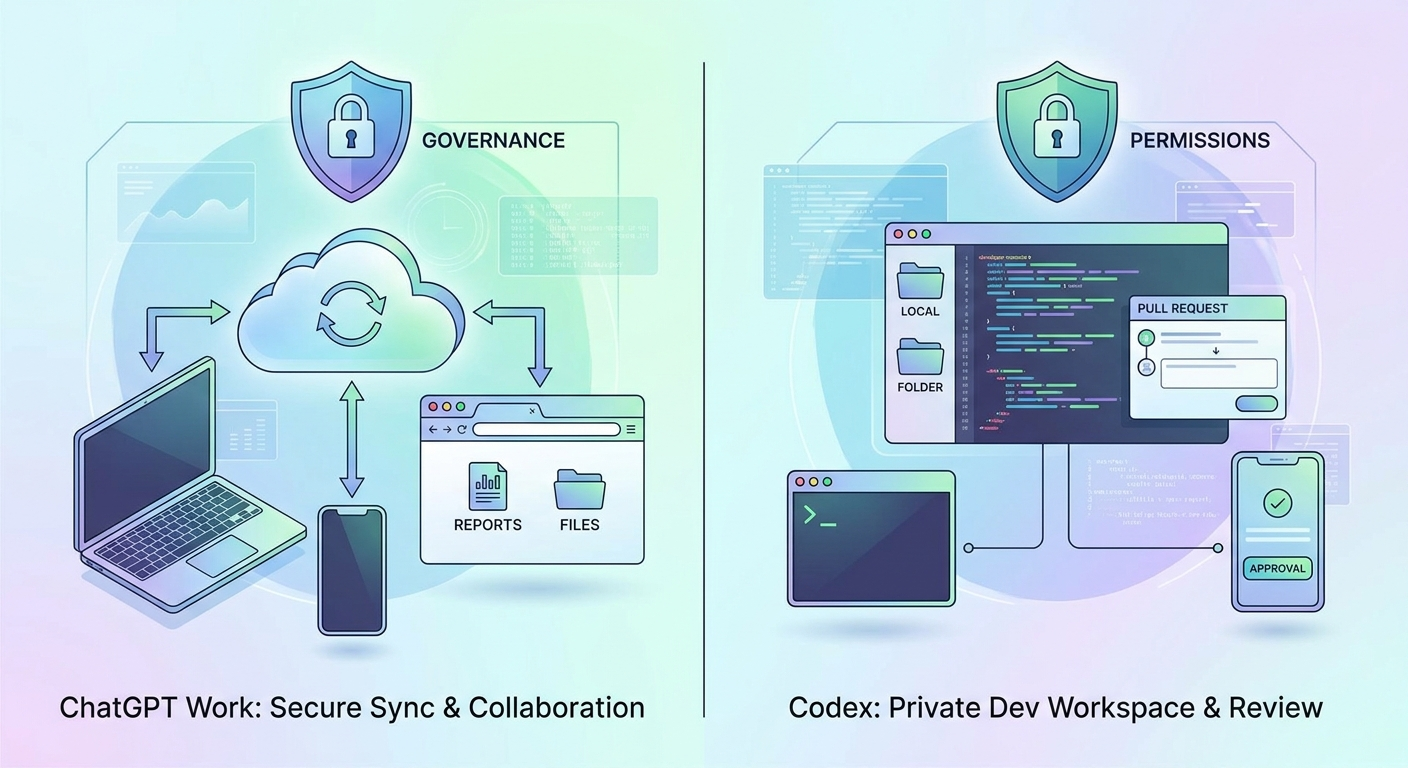
Sync behavior is where users need to slow down. OpenAI says cloud Work chats sync across web, mobile, and desktop. Work chats started on web or mobile can appear in the desktop app, and cloud Work chats started on desktop can be continued on web or mobile. Local chats stay on the computer. Codex remains a separate view, its history remains separate from ChatGPT history, and Codex does not become normal web or mobile chat history.
That is a privacy and workflow distinction, not just a product footnote. If a task must travel across devices, choose cloud Work and avoid assuming local desktop context will follow you. If a task involves private local files or desktop apps, understand that local work behaves differently and should be granted narrowly. If a task is a coding task, do not expect Codex history to behave like normal ChatGPT history. It is intentionally separated because developer work has different context, tools, and risk.
For teams, this is also a governance issue. Enterprise and Edu workspaces may have role-based controls, workspace permissions, EKM-related availability, spend controls, and admin settings that determine what members can use. The release notes say desktop app updates do not change existing workspace access permissions, security settings, governance, or spend controls. In plain English: the UI may look more unified, but your organization’s controls still matter.
Practical Workflow Examples
The best way to understand the new app is through real task routing. Below are examples of what to use and why. The pattern is not complicated: keep lightweight work in Chat, finished non-code deliverables in Work, and codebase work in Codex.
Example 1: Research brief for a founder
Use Work. A founder wants a competitive brief comparing three AI products, summarizing pricing pages, identifying adoption risks, and turning the result into a short memo. Work is the best fit because the goal is a finished business deliverable. Start with the audience, decision criteria, source expectations, and final format. Ask Work to show sources and assumptions before producing the final memo.
Example 2: Debug a failing test in a repository
Use Codex. A developer has a failing test, a stack trace, and a local repo. Codex is the right mode because it can inspect files, propose a patch, run commands, and review the diff. Keep the prompt tight: include the failing command, relevant error, expected behavior, and instruction not to edit unrelated modules. Ask for a plan first if the issue touches multiple files.
Example 3: Rewrite a paragraph for tone
Use Chat. A fast writing rewrite does not need Work or Codex. Chat is lower-friction and avoids unnecessary project or file context. This distinction may sound small, but it keeps the app tidy. Not every task deserves an agent.
Example 4: Turn source notes into a presentation
Use Work. If you have meeting notes, links, files, and a desired slide structure, Work is built for multi-step deliverables. Ask it to create an outline first, then a draft deck, then a revision pass. If your workspace has PowerPoint-related access or plugin support, admins may control how those actions are enabled.
Example 5: Review a pull request
Use Codex. PR review belongs with the coding agent because the context is a diff, repository behavior, tests, and code quality. Ask Codex to prioritize correctness, security, test coverage, backward compatibility, and maintainability. Do not accept every suggestion blindly. AI review is a second reviewer, not a replacement for engineering judgment.
Example 6: Recurring weekly monitor
Use Work if the task is about monitoring research, apps, files, or business signals. OpenAI describes Scheduled Tasks as a way for Work to run once, repeat on a schedule or trigger, or monitor for changes. That makes Work a better fit than Chat for recurring deliverables. For recurring code maintenance, however, Codex may be the better specialized tool.
If you have used Codex Remote before, this is where the new app connects with existing AI Feature Drop coverage. Our Codex Remote explainer and Codex remote mobile approval checklist are useful companion reads when you want to supervise technical work from a phone without treating it like a normal mobile ChatGPT chat.
Safety, Permissions, and Team Governance Checklist
The new desktop app is powerful because it can connect more work surfaces. That is also why it deserves a simple safety routine. The risk is not that ChatGPT can answer questions. The risk is that users may give an agent broad access to local files, desktop apps, repositories, terminals, connected apps, or company data without matching the permission to the task.
Good habits
- Choose the narrowest mode that can complete the task.
- Grant local file or app access only when the task needs it.
- Use Projects for durable context instead of pasting private background repeatedly.
- Ask for a plan before long Work or Codex runs.
- Review sources, deliverables, diffs, commands, and permissions before approving major actions.
- Use workspace controls, role settings, and spend controls where available.
Risky habits
- Using Work or Codex for every small question.
- Opening an entire folder when two files would be enough.
- Letting Codex edit unrelated files during a vague task.
- Assuming cloud Work, local Work, and Codex history sync the same way.
- Publishing a Site, presentation, or report without checking sources and permissions.
- Ignoring admin policies because the desktop UI looks unified.
For individual users, the safest default is “small context first.” Give the agent the minimum it needs, then let it ask for more. For teams, the safest default is “policy before scale.” Decide which roles can use Work, which plugins or connected apps are allowed, which files can be accessed, how Codex is approved for local repositories, and what usage reporting should be reviewed weekly.
There is also a cost dimension. OpenAI says Work follows the same usage structure as Codex, with pricing and included usage explained through Codex pricing materials. That means heavier agentic work deserves the same discipline as AI coding agents: define the outcome, avoid repeated vague iterations, and reserve deep autonomous runs for work that is worth the spend. If you already track Codex usage, do not treat Work as free-form background magic. Treat it as a productive agent whose scope should match the value of the task.
Why This Topic Is a Strong OpenAI Search Opportunity
The search opportunity is not simply “OpenAI released a desktop app update.” That is news, and news gets stale. The evergreen opportunity is that users now have to understand a new decision tree: Chat or Work, ChatGPT or Codex, cloud or local, Project or standalone chat, desktop or mobile, synced history or separate history, broad permissions or narrow permissions.
AI Feature Drop’s recent analytics support this angle. In the last complete 28-day window analyzed for this article, the site recorded 380 active users, 493 sessions, and 762 page views. Organic Search generated 230 sessions, making it one of the strongest acquisition channels. Top OpenAI-related pages included Codex banked resets, OpenAI Codex pricing, Codex computer use on Windows, ChatGPT desktop app Codex setup, Codex PR review, and Codex Remote mobile approval content. That pattern says readers are not looking for generic AI news. They are looking for operational guides that explain access, setup, limits, permissions, and safe usage.
Search Console data also showed early long-tail impressions around Codex computer use, Windows, desktop, and remote-control phrasing. The impressions are small, but they point to specific confusion. People are asking whether Codex works on Windows, how desktop control works, how remote approval works, and how the app relates to ChatGPT. The new Work and Codex desktop update sits directly on top of that demand.
The content gap is visible in search results too. Official OpenAI help pages explain the product accurately, and several early articles summarize the announcement. Fewer pages explain the user decision model in a durable way: which mode to choose, what syncs, what stays local, what happens to Codex history, how Projects fit, how mobile Remote differs from mobile ChatGPT, and which tasks belong in each lane. That is the practical information gain this pillar article targets.
Final Recommendation: Treat the Desktop App Like a Work Router
The best mental model for the new ChatGPT desktop app is not “one app replaced everything.” It is “one app routes different kinds of work to the right agent surface.” Chat remains the conversational assistant. Work becomes the general-purpose agent for deliverables, files, apps, and scheduled tasks. Codex remains the software engineering agent with repository and developer-tool context.
If you are an individual user, the upgrade is useful because it reduces switching. You can ask quick questions, run longer business tasks, and move into coding work without jumping between disconnected apps. But convenience should not erase boundaries. Keep simple tasks simple. Put durable work inside Projects. Understand when cloud Work syncs and when local work stays on your computer. Use Codex for code, not general documents.
If you are a team lead or admin, the upgrade is a governance moment. Decide how members should use Work, which connected apps and plugins are approved, how local file access is handled, how Codex is supervised, and how usage is monitored. A unified desktop app can make adoption faster, which is good only if the rules are clear before everyone starts delegating sensitive tasks.
The exciting part is that OpenAI is making agentic work feel less like a demo and more like a daily operating system for knowledge work and software development. The responsible part is learning the routing discipline. Choose Chat for conversation, Work for deliverables, Codex for code, and a human checkpoint for anything that touches sensitive data, production systems, money, or public publishing.
Keep Learning on AI Feature Drop
- ChatGPT Desktop App Codex Guide — setup, PR review, and AI coding workflow basics.
- OpenAI Codex Pricing and Usage Limits — plan, usage, and credit-style constraints.
- Codex Computer Use on Windows — setup, remote control, limits, and safe workflows.
- Codex Computer Use Permissions — screen recording, accessibility, app approvals, and first setup.
- Codex Remote Explained — phone supervision and cloud workspace basics.
- ChatGPT Codex PR Review Sidebar Guide — safer pull request feedback workflows.
Sources and References
- OpenAI Help Center: ChatGPT release notes
- OpenAI Help Center: ChatGPT Work and Codex
- OpenAI Help Center: ChatGPT Business release notes
- OpenAI Help Center: ChatGPT Enterprise and Edu release notes
- OpenAI Codex product page
- OpenAI Codex developer documentation
Product availability, plan access, usage rules, and workspace controls can change. Always verify the current OpenAI Help Center and your workspace settings before making workflow, security, or purchasing decisions.
FAQ: ChatGPT Desktop App Work and Codex
What is ChatGPT Work?
ChatGPT Work is OpenAI’s agent mode for longer, multi-step tasks and finished deliverables such as research, reports, spreadsheets, presentations, Sites, and scheduled or monitored work. It is different from quick Chat conversations because it is designed to keep work moving through a task.
Is Codex now inside the ChatGPT desktop app?
Yes, Codex is available as a separate view inside the updated ChatGPT desktop app, but its workflows and history remain separate from normal ChatGPT history. Codex is still the coding-focused surface for repositories, terminals, diffs, tests, and pull-request review.
Should I use ChatGPT Work or Codex for coding?
Use Codex for coding tasks that involve repositories, local folders, terminals, tests, diffs, or pull requests. Use Work for broader deliverables such as research reports, spreadsheets, presentations, and scheduled non-code workflows.
Do ChatGPT Work chats sync across devices?
Cloud Work chats can sync across web, mobile, and desktop. Local chats stay on the computer. Codex history remains separate and does not become normal web or mobile chat history, although supported desktop Codex chats can be accessed through mobile Remote.
Can Work use files on my computer?
OpenAI says Work in the desktop app can use local files and desktop apps with your permission when allowed by your plan and workspace. Grant access narrowly and only for the files or apps the task requires.
What is the difference between Projects and Recents?
Projects keep related chats, files, and instructions together. Recents is the combined list where Chat and Work conversations can appear, with sorting, filtering, and pinning. Projects are better for durable ongoing context; Recents is better for finding recent conversations.
Is Codex available on web or mobile?
Codex is not selectable as a normal web or mobile chat mode. OpenAI says supported desktop Codex chats can be accessed from the Remote tab in the ChatGPT mobile app, but those chats do not become normal web or mobile chat history.
Does the desktop update change workspace controls?
OpenAI’s release notes say existing workspace access permissions, security settings, governance, and spend controls are unchanged. Admins should still review role access, plugins, connected apps, local-file rules, and usage reporting.
Post a Comment