
ChatGPT Work Scheduled Tasks Guide: Set Up Recurring Reports, Monitors, and Safe Approvals
ChatGPT Work Scheduled Tasks turn recurring AI help into something you can manage from a dedicated Scheduled page. This guide explains what to automate, what to avoid, how plan limits work, and when a workflow belongs in ChatGPT Work instead of Codex.
Quick Answer: What Are ChatGPT Work Scheduled Tasks?
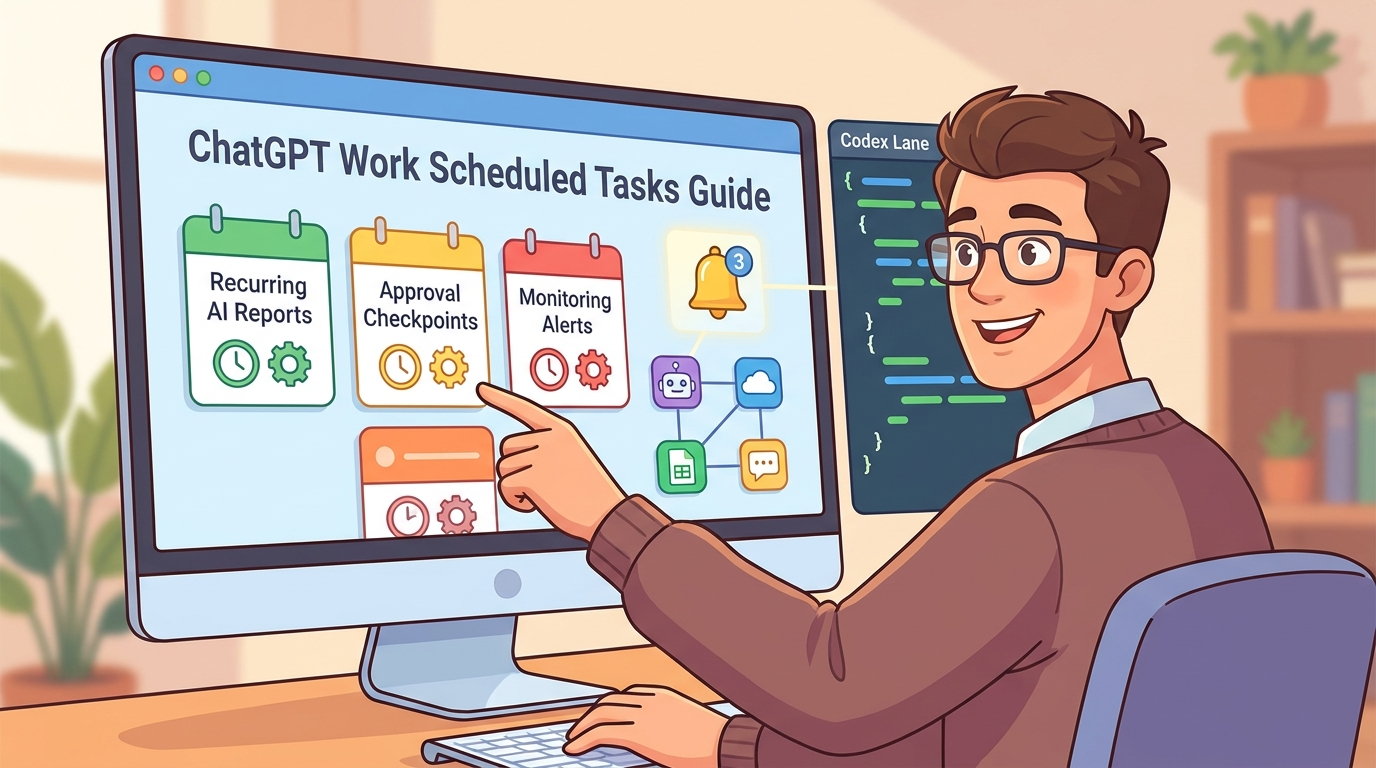
ChatGPT Work Scheduled Tasks are recurring, one-off, or monitoring workflows that ChatGPT can run for you on a schedule. Instead of remembering to ask ChatGPT for the same daily briefing, weekly report, app check, or follow-up research pass, you can create a task, choose when it should run, and manage it from the Scheduled page on web, mobile, or the ChatGPT desktop app.
The important detail is that Scheduled Tasks are not just reminders. OpenAI’s latest Scheduled Tasks help documentation says tasks can also monitor for meaningful changes and notify you when something is worth reporting. That makes the feature useful for workflows such as weekly competitor scans, recurring project status summaries, inbox-style updates, portfolio checks, content monitoring, or research briefs that should run at a predictable cadence.
For the new ChatGPT desktop app experience, Scheduled Tasks sit inside the ChatGPT side of the app. Codex stays separate. That distinction matters because Work and Codex now solve different recurring-work problems. ChatGPT Work is best for documents, reports, analysis, connected-app workflows, and cross-device knowledge work. Codex automations are best for codebase work, repository checks, background coding tasks, tests, worktrees, and developer workflows that need local project context.
This article is a focused cluster guide for readers of our broader ChatGPT Desktop App Work and Codex Guide. The pillar guide explains the mode switcher. This guide goes deeper on one practical question: how should you set up recurring ChatGPT Work tasks without creating noisy, unsafe, or confusing automations?
What Changed in ChatGPT Scheduled Tasks and Work?
OpenAI’s recent release notes describe a larger desktop app update: a clearer layout, a global switcher between ChatGPT and Codex, a Chat and Work toggle inside ChatGPT, unified Recents, project access in the desktop app, and Work conversations that can sync across web, mobile, and desktop. The same release cycle also improved Scheduled Tasks with a dedicated Scheduled page, easier creation and editing, broader scheduling windows, and better notifications.
That combination changes how people should think about ChatGPT. It is no longer only a place to ask a question and close the tab. It is becoming a work router: quick Chat for short help, Work for longer outcomes, Scheduled Tasks for recurring or monitoring work, and Codex for software development. The risk is that users will schedule everything because it feels powerful. The better habit is to schedule only workflows with a clear cadence, a clear output, and a clear review path.
OpenAI’s Work and Codex help page also notes that Work follows the same usage structure as Codex. That means recurring Work should not be treated as magic unlimited background labor. If a scheduled task pulls in lots of context, uses connected apps, creates long reports, or runs often, it can still affect plan usage. A good Scheduled Task is specific enough to be useful and small enough to remain predictable.
Analytics from AI Feature Drop support this topic choice. Over the most recent complete 28-day window, the site’s strongest traffic pattern is practical AI workflow explainers, especially around OpenAI Codex usage, banked resets, desktop setup, and computer-use guidance. GA4 showed Organic Search as the top acquisition channel by sessions, while top landing pages included OpenAI Codex and practical limit-focused articles. The latest pillar article is already about ChatGPT Desktop App Work and Codex, so a Scheduled Tasks cluster article gives that pillar a narrower, high-intent support page instead of another broad overview.
How to Set Up a ChatGPT Work Scheduled Task
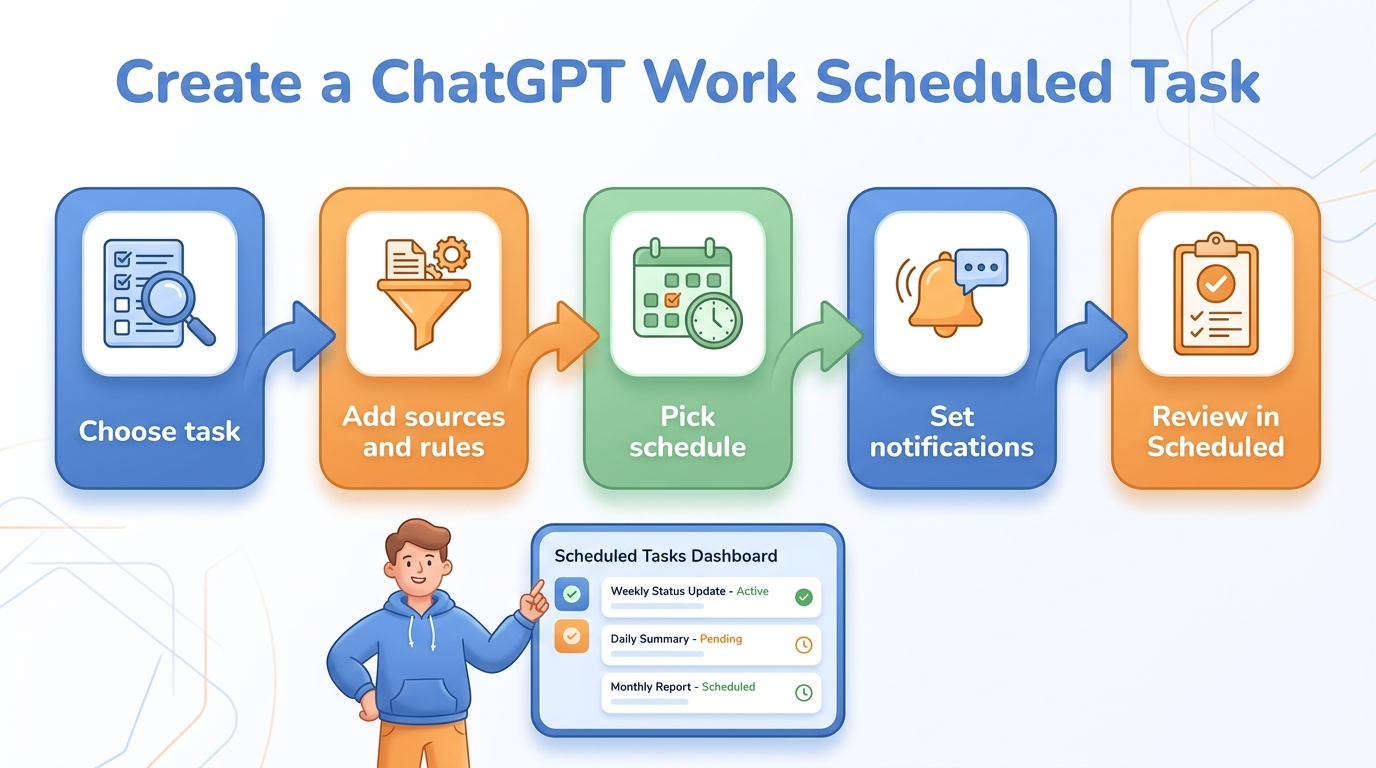
The setup flow is simple, but the decisions around the task are where most of the value lives. You can create tasks from the Scheduled page or by asking ChatGPT to remind you, check something, or run a recurring workflow. On desktop, the Scheduled page is available in the ChatGPT side of the app, not in Codex. On web and mobile, Scheduled Tasks are also available from ChatGPT for eligible plans.
Step 1: Choose the right starting place
Start from ChatGPT when your workflow is conversational or knowledge-focused. Start from a Project when the task should use project context, instructions, or a consistent set of uploaded materials. Be careful, though: OpenAI’s Scheduled Tasks help page notes that if you create a task in a project that has files, the scheduled task will not be able to access those project files. That limitation is easy to miss and can explain why a task produces a generic answer instead of the project-aware response you expected.
Step 2: Write the task like a mini operating procedure
A weak scheduled task says, “Send me a report every Monday.” A strong scheduled task says, “Every Monday morning, review the latest notes in this conversation, summarize open decisions, list blocked items, and ask me to approve any external action before suggesting it.” Scheduled Tasks work best when the instruction includes the source, output format, frequency, success criteria, and escalation rule.
Step 3: Pick a realistic schedule
Tasks can be one-off, recurring, or monitoring based. OpenAI’s help page says tasks cannot run more than once per hour, and plan limits cap the number of active tasks. Use that constraint as a quality filter. If a task feels like it needs to run every five minutes, it may belong in a real automation platform, a monitoring service, or a developer workflow rather than ChatGPT Work.
Step 4: Configure notifications deliberately
Scheduled Tasks can notify you through supported notification settings. The practical question is not whether notifications work. It is whether the notification is worth interrupting you. For recurring briefings, a predictable daily or weekly notification is fine. For monitoring tasks, tell ChatGPT what counts as a meaningful change so it does not ping you for low-value noise.
Step 5: Review, pause, edit, or delete from Scheduled
OpenAI’s updated flow gives Scheduled a more central role. Use it like an inbox for your recurring AI work. Review recent runs, pause tasks that become noisy, edit tasks that are too broad, and delete tasks that no longer map to a real decision. A scheduled task should earn its place every week.
Practical ChatGPT Work Scheduled Task Examples
The best Scheduled Tasks are boring in a good way. They remove repeated coordination work, package information into a useful format, and ask for approval before doing anything sensitive. Here are practical examples you can adapt.
Example prompt: weekly founder report
“Every Monday morning, create a concise founder report from this conversation. Include wins, blocked decisions, risks, and the three highest-leverage next actions. Do not suggest sending messages, changing files, or contacting anyone without asking me first. Keep the report under 500 words and end with one approval question.”
Example prompt: product update monitor
“Every weekday afternoon, check whether there are meaningful updates about ChatGPT Work, Scheduled Tasks, or Codex that affect product teams. Only notify me if there is a capability change, plan/access change, safety implication, or workflow limitation. Include source links and a one-sentence recommendation.”
Example prompt: recurring content checklist
“Every Friday, prepare a content maintenance checklist for this topic cluster. List posts that should be refreshed, internal links to add, questions readers may still have, and sources that need verification. Do not publish or edit anything automatically.”
Notice the repeated pattern: the task has a cadence, a scope, a format, and a safety boundary. That is what separates a reliable recurring assistant from an annoying notification machine.
ChatGPT Work Scheduled Tasks vs Codex Automations
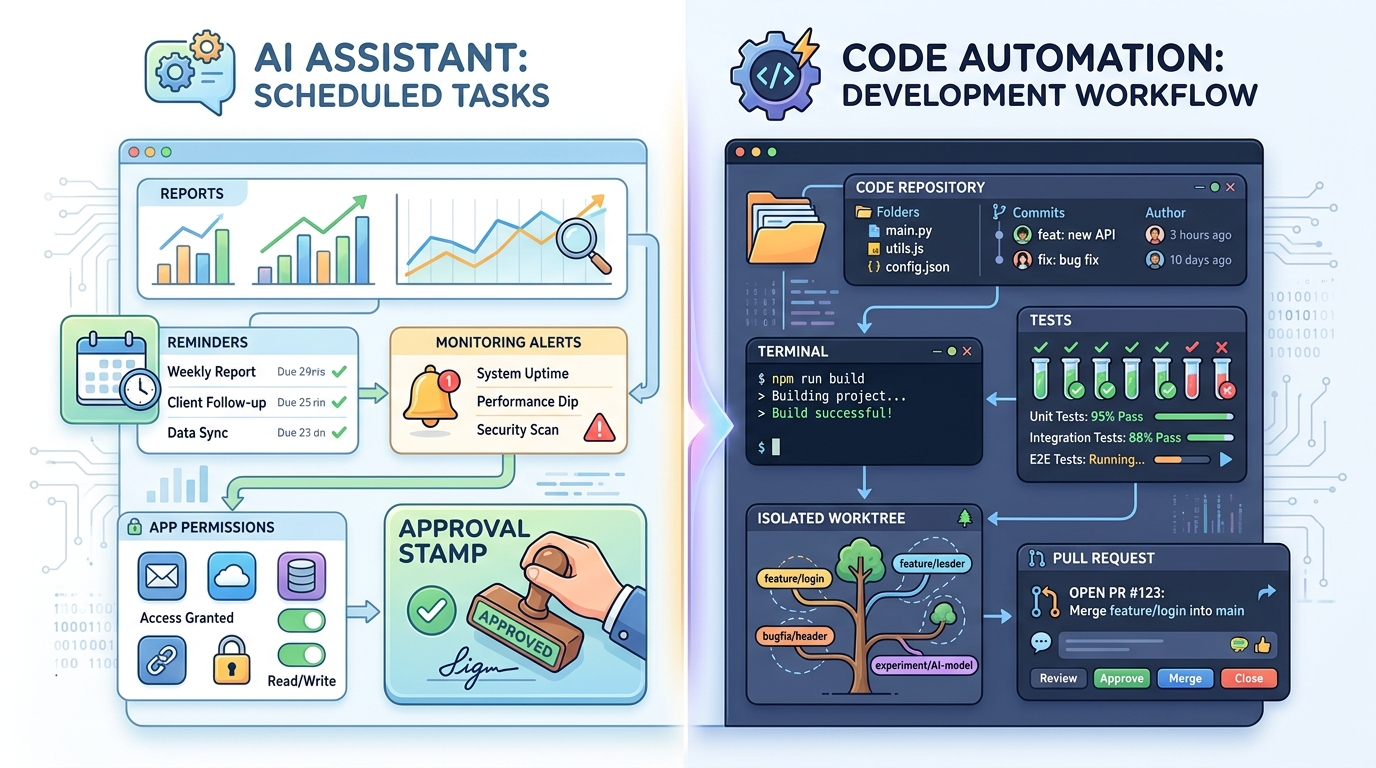
The most important comparison is not ChatGPT Scheduled Tasks versus a calendar reminder. It is ChatGPT Work Scheduled Tasks versus Codex automations. OpenAI’s Scheduled Tasks FAQ says Scheduled Tasks are a ChatGPT feature for proactive work such as reminders, recurring tasks, daily briefings, and monitoring. Codex automations are focused workflows that run in Codex.
Codex scheduled tasks can work with local projects, run in a project directory or an isolated worktree, evaluate telemetry errors, create reports about codebase changes, and keep background work separate from unfinished local work. That is powerful, but it is a developer workflow. ChatGPT Work Scheduled Tasks are better when the output is a briefing, report, document, reminder, or decision support artifact.
| Workflow | Use ChatGPT Work Scheduled Tasks | Use Codex automations |
|---|---|---|
| Daily market or product briefing | Yes. Use a monitoring or recurring report task. | No, unless the report is generated from a code project. |
| Weekly project status report | Yes. Especially if the result is a summary, document, or decision list. | Only if the report depends on repository state or development telemetry. |
| Run tests and open a code fix | No. Work is not the right place for repository execution. | Yes. Use Codex with repository permissions and review the diff. |
| Check app-connected information | Yes, if the app is available and permissions are appropriate. | Usually no, unless the app data feeds a developer task. |
| Recurring codebase health check | Maybe for a human-readable report. | Yes if it needs local files, worktrees, commands, tests, or commits. |
| Reminder to review a decision | Yes. This is a simple ChatGPT Scheduled Task. | No. Codex is unnecessary. |
If you already read our ChatGPT Codex PR Review Sidebar Guide, this distinction should feel familiar. Codex is strongest when the work is tied to code review, local folders, repositories, tests, and pull requests. Work is strongest when the task produces a finished knowledge-work deliverable that you can read, revise, or approve.
Limits, Access, and Plan Details to Know Before You Schedule
Scheduled Tasks are useful, but they are not unlimited. OpenAI’s Scheduled Tasks help page says scheduled tasks are globally available to Plus, Pro, Business, and Enterprise users on web, mobile, and desktop. It also describes active task limits by plan: Go users can have up to 3 active tasks, Plus users up to 5, Business and Edu users up to 10 in one section, and Pro and Enterprise users up to 15 in the FAQ wording. Because plan wording can change, check your own plan page before designing a recurring workflow for a team.
Tasks cannot run more than once per hour. That matters for monitoring. If you need incident-grade uptime monitoring, compliance logging, or near-real-time alerts, ChatGPT Scheduled Tasks are probably not the primary system. They are better for periodic intelligence, reminders, summaries, and meaningful-change notifications.
Tasks are supported by all ChatGPT models except Pro models according to OpenAI’s help page, and plan usage limits apply. Voice chats and GPTs are not supported with Tasks. If you delete a chat associated with a task, the task can automatically pause. Tasks may also pause when they need action from you or after inactivity. Treat paused tasks as a signal: either the task needs a clearer instruction, the source is no longer available, or the workflow no longer matters.
Connected apps deserve extra caution. OpenAI says tasks can use apps like Gmail when available for your account or workspace, but app availability and permissions may depend on personal settings, Business or Enterprise admin controls, and whether persistent permissions or approvals are required. For business workflows, never assume a scheduled task can take external action silently. Design the task to summarize first and request approval before sending, editing, deleting, purchasing, or contacting anyone.
Safety Checklist for Recurring AI Workflows
Recurring AI workflows are convenient because they reduce repeated effort. They are risky for exactly the same reason. A task that runs every week can repeatedly produce stale summaries, over-notify you, use the wrong context, or suggest actions that feel routine even when they deserve review. Use this checklist before turning a one-time prompt into a schedule.
Good recurring-task habits
- Define the output format, word limit, and decision the task supports.
- Tell the task what counts as a meaningful update.
- Require approval before external actions or sensitive app usage.
- Keep each task narrow enough to review in under five minutes.
- Use Scheduled as an inbox and pause noisy tasks quickly.
- Review plan usage when a task is frequent or long-running.
Risky recurring-task habits
- Scheduling vague prompts such as “keep me updated on everything.”
- Letting tasks use broad connected-app permissions without boundaries.
- Assuming project files are available when the task cannot access them.
- Using Scheduled Tasks for critical monitoring that needs instant alerts.
- Creating many overlapping tasks that summarize the same information.
- Allowing generated reports to become decisions without human review.
Use a three-layer approval rule
For most personal productivity tasks, a simple rule is enough: summarize automatically, recommend cautiously, act only after approval. For team workflows, add a second layer: summarize for the owner, route sensitive recommendations to the right reviewer, and require workspace-approved permissions for connected apps. For regulated workflows, Scheduled Tasks should support review, not replace audited systems.
Keep Work and local automation separate
When a task needs local files, desktop apps, or repository state, verify whether it belongs in ChatGPT Work, the desktop app, or Codex. Our Codex computer-use permissions guide and Codex computer use on Windows setup guide cover the coding-agent side of this issue. For Work Scheduled Tasks, the safer pattern is to keep tasks report-first unless you have a clear permission model.
A Simple Template for Better Scheduled Tasks
Use this template whenever you create a new ChatGPT Work Scheduled Task. It keeps the task specific and easier to edit later.
Here is a concrete version for a marketing operator: “Every Tuesday morning, create a one-page content refresh report for the ChatGPT Work topic cluster. Include pages to update, new source changes, internal links to add, and one recommended cluster topic. Use source links where possible. Do not edit or publish anything.”
Here is a concrete version for a product manager: “Every weekday afternoon, monitor for meaningful changes to OpenAI Work, Codex, Scheduled Tasks, and app permissions. Notify me only when there is an access, pricing, safety, or workflow change that affects team rollout. Include source links and a recommended action.”
And here is a concrete version for a founder: “Every Friday, summarize the week’s open decisions from this conversation. Separate decisions, risks, ownerless tasks, and items waiting for my approval. End with the smallest next step.”
Troubleshooting: Why a Scheduled Task Gives Weak Results
If a Scheduled Task produces a vague answer, the problem is usually not the schedule itself. It is usually missing context, an unclear output format, unavailable files, or an instruction that asks ChatGPT to monitor too broad a topic. Start by opening the task from Scheduled and rewriting it as a small operating procedure. Name the audience, the sources, the expected sections, and the action threshold.
If a task stops running, check whether the associated chat was deleted, whether the task paused after inactivity, whether your active-task limit was reached, or whether the task needs an approval that was never granted. For connected apps, confirm that the app is still installed, the permission still exists, and your workspace admin has not disabled the app or limited persistent permissions.
If a monitoring task sends too many notifications, tighten the definition of “meaningful update.” For example, replace “tell me about AI news” with “notify me only when OpenAI changes access, limits, desktop availability, app permissions, or pricing for ChatGPT Work, Scheduled Tasks, or Codex.” If a task sends too few notifications, add explicit examples of changes you care about and ask for a short reason when ChatGPT decides not to notify you.
If a task needs local repository state, tests, or files on disk, move it to Codex rather than stretching ChatGPT Work beyond its natural job. The goal is not to force one mode to do everything. The goal is to route recurring work to the mode that has the right context, permissions, and review workflow.
Why This Topic Is a Strong Cluster Opportunity
This article was selected because it supports an existing OpenAI pillar rather than competing with it. The broader pillar explains Chat, Work, Codex, Projects, Recents, local files, sync, and mode selection. Scheduled Tasks are a narrower subtopic with their own search intent: people want to know how to create them, what they can access, which plans support them, how limits work, and how they differ from Codex automations.
The feature research also showed strong information gain. OpenAI’s docs are useful but split across several locations: release notes for the desktop update, the Work and Codex overview, the Scheduled Tasks help page, Codex pricing, and Codex scheduled task documentation. A focused article that brings those pieces together is more useful than a rewrite of any one source.
Search Console data for AI Feature Drop is still sparse, but it shows impressions around OpenAI/Codex desktop and permission terms, while GA4 shows that practical OpenAI coding and usage-limit explainers already attract traffic. That makes a Work/Scheduled Tasks cluster a logical extension: it serves readers who are moving from “what changed?” to “how do I use this safely every week?”
Keep Learning on AI Feature Drop
- ChatGPT Desktop App Work and Codex Guide — the related pillar article for choosing Chat, Work, or Codex.
- ChatGPT Codex PR Review Sidebar Guide — practical code review workflow for the Codex side of the desktop app.
- Codex Remote Mobile Approval Checklist — safer approvals when supervising Codex remotely.
- OpenAI Codex Pricing and Usage Limits — understand usage, credits, and plan tradeoffs.
- Codex Banked Resets Explained — related OpenAI usage-management guide.
- Codex Computer Use Permissions — permission habits for local and desktop workflows.
Sources and References
- OpenAI Help Center: ChatGPT release notes
- OpenAI Help Center: ChatGPT Work and Codex
- OpenAI Help Center: Scheduled Tasks in ChatGPT
- ChatGPT Learn: Work mode and Codex pricing
- ChatGPT Learn: Codex scheduled tasks
Feature availability, plan limits, usage rules, and workspace controls can change. Verify your ChatGPT plan, workspace settings, and connected-app permissions before relying on a recurring task for important work.
FAQ: ChatGPT Work Scheduled Tasks
What are ChatGPT Work Scheduled Tasks?
They are one-off, recurring, or monitoring tasks that ChatGPT can run on a schedule. They are useful for reminders, briefings, recurring reports, and meaningful-change monitoring.
Where do I find Scheduled Tasks in the desktop app?
In the ChatGPT side of the desktop app, use the Scheduled page in the sidebar. Scheduled is not available inside the Codex view.
Can Scheduled Tasks use project files?
OpenAI’s help page says that if you create a task in a project that has files, the task will not be able to access those project files. Verify file access before relying on a task for file-specific output.
How often can ChatGPT Scheduled Tasks run?
OpenAI says tasks cannot run more than once per hour. They are better for periodic updates and meaningful-change monitoring than real-time alerting.
How many active tasks can I have?
Active task limits vary by plan. OpenAI’s help page lists plan-based caps, so check your current plan page and workspace settings before creating many recurring tasks.
What is the difference between ChatGPT Scheduled Tasks and Codex automations?
ChatGPT Scheduled Tasks are for proactive ChatGPT work such as briefings, reminders, reports, and monitoring. Codex automations are for developer workflows involving repositories, local projects, worktrees, tests, and code changes.
Can Scheduled Tasks use apps like Gmail?
They can use connected apps when available for your account or workspace, but permissions may depend on personal settings, Business or Enterprise controls, and admin policy. Use approval checkpoints for sensitive actions.
Why did my Scheduled Task pause?
A task may pause if the associated chat was deleted, if the task needs action from you, or after inactivity. Review paused tasks from Scheduled and either resume, edit, or delete them.
Post a Comment