
Codex CLI Import Guide: Move Your AI Coding Setup Without Breaking Workflows
OpenAI now gives Codex users a practical import path for moving supported setup and recent work from Claude Code, Cursor, and related agent workflows. This guide explains what to import, what to leave behind, and how to verify the result before you trust it on real code.
Quick Answer: What Codex Import Does
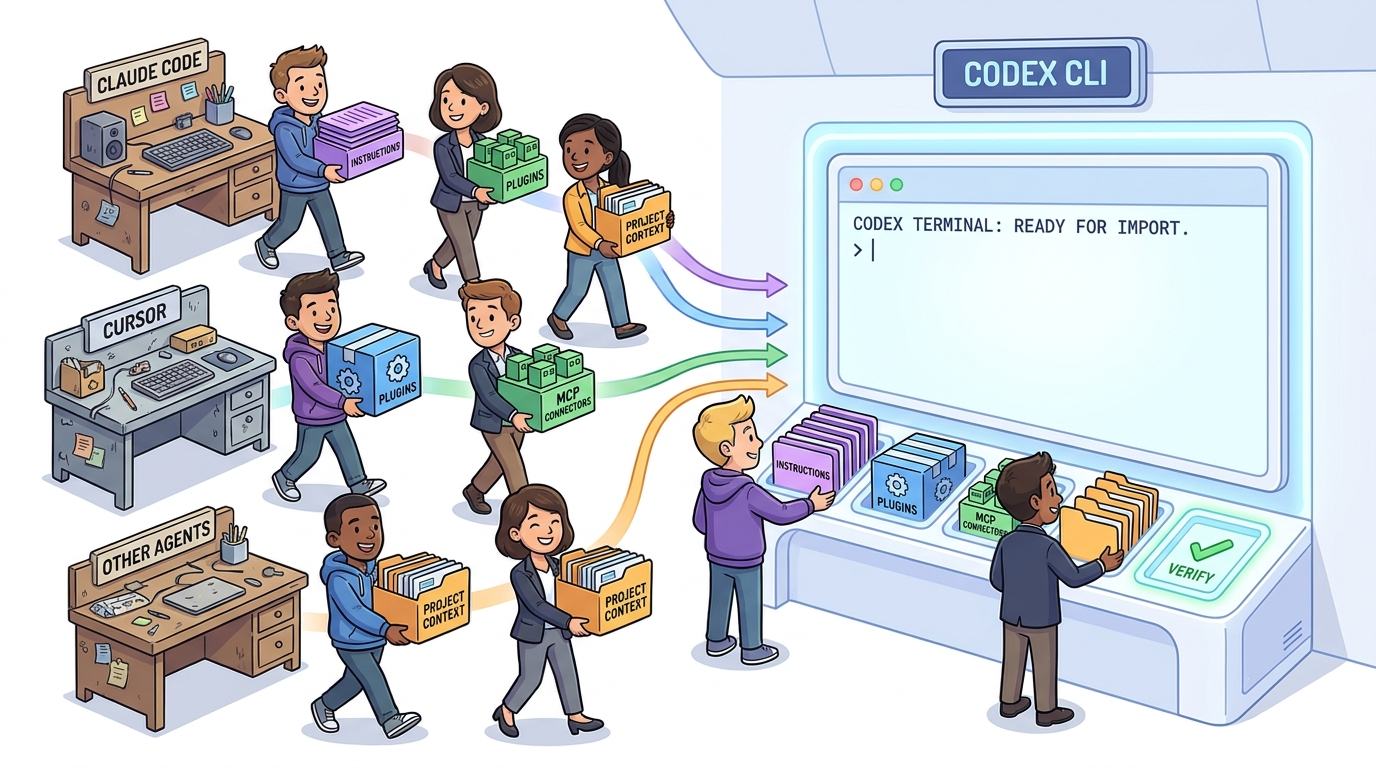
Codex import is the workflow for bringing supported setup and recent work from another AI coding agent into ChatGPT or OpenAI Codex. OpenAI’s documentation says the import flow can bring over instructions, settings, skills, plugins, projects, recent work, MCP configuration, hooks, slash commands, and subagents where supported. The desktop app can import from Claude Code, Claude Cowork, or Cursor. Codex CLI can import from Claude Code or Cursor.
The key phrase is “supported setup.” Import is not a magic compatibility layer that makes every old prompt, hook, server, or permission rule behave exactly the same in Codex. It is a migration assistant. You still need to inspect what came over, finish authorization for plugins or connections, and run a small test task before you let Codex edit important code.
This is a strong topic for AI Feature Drop because current analytics show developer-focused OpenAI Codex content is the site’s clearest traffic pattern. The top GA4 page in the latest report was the ChatGPT desktop app Codex guide, and Search Console impressions are beginning to cluster around Codex computer-use and setup questions. The opportunity is not another generic “what is Codex” explainer. The gap is a concrete migration guide for people who already used Claude Code, Cursor, or another agent and now want Codex without rebuilding every workflow from scratch.
Why Agent Import Matters for Codex Users
AI coding tools are no longer simple chat boxes. A serious developer setup can include repository instructions, project memories, reusable skills, MCP servers, custom hooks, slash commands, allowlists, model defaults, plugin authentication, and dozens of recent agent threads that contain useful decisions. If you move to a new agent without bringing that context, you lose more than convenience. You lose the small pieces of operational knowledge that made the previous tool productive.
That is why the import feature is more important than it looks. It reduces the switching cost between agents. A developer who has spent weeks shaping Claude Code instructions or Cursor rules can evaluate Codex without starting from zero. A team can test Codex on a real repository while preserving the local project structure that already works. A solo founder can keep recent chats close enough to continue a debugging session or refactor plan instead of re-explaining everything.
But import also creates risk. Old agent instructions may assume a different permission model. A hook that made sense in one tool may be too broad in another. An MCP server may depend on headers, environment variables, or account sessions that do not transfer cleanly. A slash command may depend on positional arguments, shell interpolation, or file paths that Codex interprets differently. Import is useful because it saves time; it is risky when users treat it as a substitute for review.
OpenAI’s Codex docs also show that the broader product is expanding across CLI, desktop app, remote, IDE, cloud, plugins, skills, permissions, and MCP. That means migration is not just about one command. It is about building a portable agent workflow: instructions that are clear, tools that are explicit, permissions that are bounded, and test tasks that prove the setup works before the agent touches production work.
What Codex Can Import from Another Agent
According to OpenAI’s import documentation, the import flow checks user-level setup and project-level setup. User-level setup comes from files on your machine. Project-level setup comes from the repositories and folders you select. The import then detects supported setup and recent work, imports the items you choose, leaves the original setup unchanged, and flags plugins or connections that still need setup.
| Imported item | Where it usually lands | What to review |
|---|---|---|
| Instruction files | Codex project instructions such as AGENTS.md | Scope, tone, command rules, test expectations, and unsafe assumptions. |
| Settings | Codex configuration | Model defaults, sandbox settings, approval behavior, and paths. |
| Skills | Reusable Codex skills | Whether the skill instructions still match the new environment. |
| Plugins and marketplaces | ChatGPT or Codex plugin setup | Authorization, workspace policy, app access, and admin controls. |
| Project folders | Projects using the same local folders | Whether repository-level rules are still correct and current. |
| Recent chats | ChatGPT chats or Codex history | Which threads are still valuable and which are stale. |
| MCP configuration | Codex MCP setup | Authentication, transports, custom headers, and server permissions. |
| Hooks, slash commands, subagents | Codex-native equivalents where supported | Behavior differences, arguments, command execution, and safety boundaries. |
The headline limitation is simple: imported items are not automatically safe just because they were useful in the old agent. Treat them like code copied from an old project. Some of it will be reusable. Some of it needs rewriting. Some of it should be retired.
If you are new to Codex itself, start with our ChatGPT desktop app Codex setup guide before importing a complex workflow. If your migration depends heavily on reusable skills, the OpenAI Codex Skills guide will help you understand what a clean Codex-native skill should look like.
Before You Import: Clean the Old Setup First
The biggest mistake is importing everything because it is available. A better approach is to treat migration as a cleanup project. Before you run the import flow, look at the previous agent setup and decide what deserves to follow you into Codex. This prevents Codex from inheriting outdated rules, contradictory instructions, unused tools, and risky permissions.
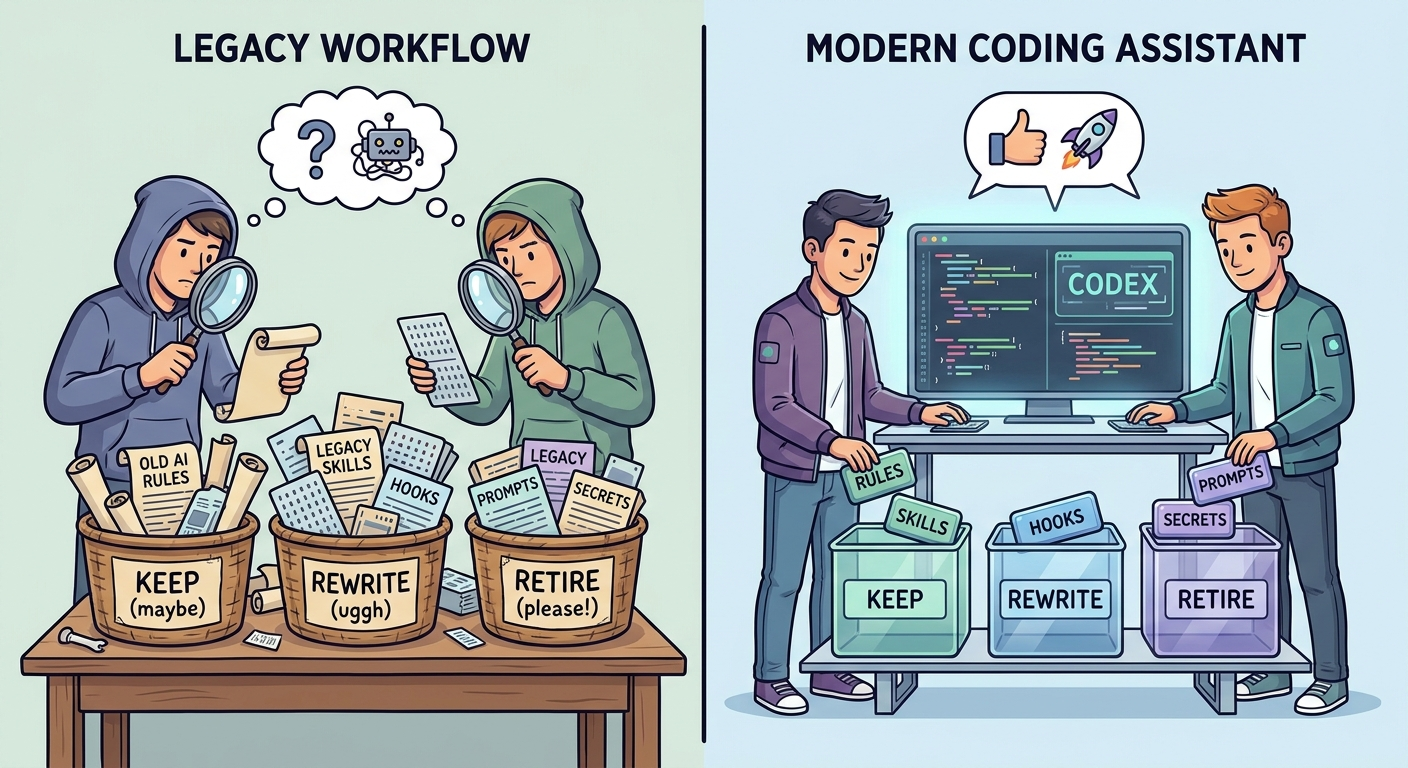
Start with the instruction layer. Agent instructions are powerful because they quietly shape every future task. If your old setup says “always run deployment,” “never ask for approval,” “use this private endpoint,” or “trust this generated file,” do not import it blindly. Codex has its own permission and approval surfaces, and those should be configured intentionally instead of inherited accidentally.
Next, inspect tool connections. MCP servers and plugins often contain the highest productivity gains, but they also carry the highest setup risk. A server may still point at a local path that no longer exists. A connection may need a fresh sign-in. A plugin may require an admin policy change. A custom header may contain environment assumptions. Do not paste secrets into instructions, and do not publish screenshots or logs that reveal tokens.
Finally, trim recent chats. Codex CLI documentation says imports can include up to 50 chats from the last 30 days. That can be helpful, but the most useful recent work is usually a small subset: an active migration, a debugging thread, a design decision, or a repeatable workflow. If you import stale chats, you create clutter that makes the new environment harder to navigate.
How to Import from Claude Code or Cursor in Codex CLI
OpenAI’s documentation describes a simple CLI flow: start a local Codex CLI session, type the import command, choose Claude Code or Cursor, select the supported setup, project files, and recent chats you want to import, then review the imported configuration and continue working in Codex. The command is not available during a running task, in a remote session, or while connected to a local app-server daemon.
That short flow is easy to follow. The harder part is choosing what to bring in. Use this practical sequence when you are migrating a real development setup:
1. Open Codex from the project root
Run Codex from the repository or folder where you actually want the imported setup to work. Project-level setup is only useful when the destination folder matches your real workflow. If you import from the wrong directory, you may end up with rules attached to a context you do not use.
2. Trigger the import flow while no task is running
Do not start a coding task first. Begin with import. This keeps the session clean and avoids mixing migration with active edits. If Codex says the import command is unavailable, check whether you are in a remote session, inside a running task, or connected through an app-server daemon.
3. Choose the source agent carefully
Codex CLI supports imports from Claude Code or Cursor. If you used both, do not merge everything in one pass without a plan. Import the more important source first, verify it, then decide whether the second source still adds value.
4. Select only useful setup and recent work
Bring over stable project instructions, current chats, reusable skills, and tool configuration that you still depend on. Avoid importing old experiments just because they exist. Your goal is a clean Codex workspace, not a museum of every prompt you ever tried.
5. Review imported configuration before coding
After import, inspect instructions, permissions, plugin status, MCP configuration, hooks, and skills. OpenAI’s docs specifically call out tool restrictions, custom authentication, hooks, plugins, prompt templates, command-style prompts, and file-path placeholders as items worth reviewing. That warning matters: these are exactly the places where migrations usually break.
How to Import in the ChatGPT Desktop App
The desktop app flow is designed for people who use ChatGPT Work, Codex, browser context, and local projects together. OpenAI’s documentation says to open Settings, find Import, select Import, choose the agents you want to import from, select items to bring over, and continue. If the Import section is not visible, the docs say to check General for an “Import other agent setup” entry.
The desktop app can import from Claude Code, Claude Cowork, or Cursor. It can also help finish setup for imported plugins or connections that need authorization. After the import completes, the app shows a status card when items need attention. That status card is easy to ignore, but you should treat it as part of the migration, not an optional notification.
Desktop import is especially useful when your work spans more than the terminal. For example, you may want Codex to use project folders, recent chats, website tools, plugins, and ChatGPT Work context in one place. That can be powerful, but it also means the security model is broader. Review which websites, apps, plugins, and local folders contribute context. Then decide which ones should be available by default.
If your main use case is hands-on coding, CLI import may feel cleaner. If your main use case is coordinating projects, browser tasks, plugins, and long-running work, desktop import may fit better. Many advanced users will eventually use both: desktop for orchestration, CLI for focused repository work.
A Safer Codex Import Workflow for Real Teams
Teams should not treat agent import as an individual preference only. A developer can import a personal setup into a local project, but the consequences can touch code quality, secrets, compliance, and repository hygiene. The safe team pattern is to divide migration into discovery, import, review, verification, and standardization.
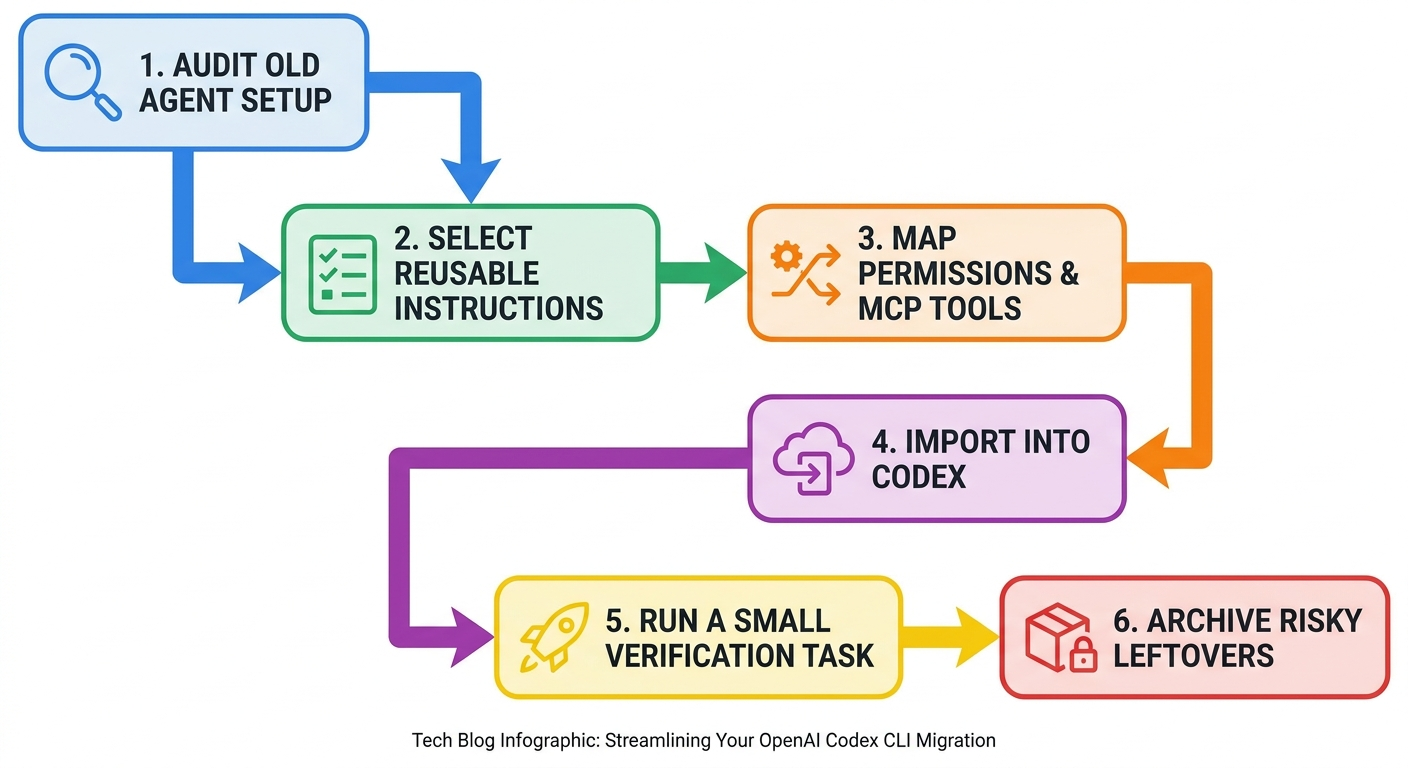
Discovery
Identify the old agent sources in use: Claude Code, Cursor, custom scripts, MCP servers, plugin marketplaces, local memory files, and repository instructions. Document what people actually rely on. Do not import unknown setup from a machine just because it is discoverable.
Selective import
Import one source and one project at a time. Keep the first migration small. If it succeeds, repeat the pattern. If it fails, you know where to look. Broad imports feel faster in the moment but are harder to debug afterward.
Policy review
Check permissions, tool restrictions, hooks, and plugin availability against your team’s rules. If your repository requires human approval before network calls, database changes, or deployment commands, write that rule clearly in the Codex setup instead of assuming an imported instruction covered it.
Verification
Run a harmless task: summarize the repository, update a README typo, explain a test, or propose a plan without editing. Then run a focused edit with a clean diff. This proves that the imported context is helpful and that Codex is not overreaching.
Standardization
Once the setup works, convert fragile imported pieces into team-approved files. A clear AGENTS.md, shared skill library, documented MCP configuration, and explicit permission mode will age better than a hidden pile of personal prompts.
This is also where internal linking matters for readers. If you are building a durable Codex setup, our Codex SKILL.md template explains how to package reusable workflow instructions, while the Codex skills troubleshooting guide helps when imported skills do not behave as expected.
Verification Checklist After Importing into Codex
Do not judge the import by whether it “completed.” Judge it by whether the imported setup improves work safely. Use this checklist before you rely on the new environment:
| Check | What good looks like | Failure sign |
|---|---|---|
| Instruction files | They are current, specific, and do not conflict with Codex behavior. | Rules mention old tools, old paths, or broad unsafe permissions. |
| Permissions | Codex asks for confirmation where you expect it to. | The agent can run sensitive actions too freely or cannot run basic tests. |
| MCP servers | Servers connect only when needed and use valid authentication. | Auth errors, missing environment variables, or unexpected network access. |
| Plugins | Required plugins show as installed, authorized, and policy-approved. | Status cards ask for setup, or plugins appear without necessary access. |
| Hooks | Hooks perform predictable, documented actions. | Hooks fire unexpectedly or depend on old shell assumptions. |
| Recent chats | Useful threads are available and not cluttered by stale work. | Important context is missing or buried under old experiments. |
| Test task | A small task produces a clear plan, clean diff, and expected test behavior. | Codex edits too much, ignores instructions, or cannot find project context. |
After the checklist, write down what you changed. Migration often fails later because nobody remembers which instructions were imported, which were rewritten, and which plugin needed manual authorization. A short note in the repository or team wiki can save hours when another developer repeats the process.
Common Codex Import Problems and Fixes
The import command is not available
OpenAI’s docs say the CLI import command is not available during a running task, in a remote session, or while connected to a local app-server daemon. Start a fresh local CLI session and try again before assuming the feature is missing from your account.
Imported plugins still need setup
This is expected. The import flow can bring over plugin information, but it does not magically authorize every connection. Finish setup from the desktop app status card or the relevant settings area. If you are in a managed workspace, an admin may need to allow the plugin or marketplace.
MCP servers import but do not connect
Check authentication, headers, environment variables, transport type, and local paths. MCP configuration often depends on local machine details. If the old tool loaded secrets from one shell profile and Codex starts from another environment, the server may fail until you standardize the setup.
Hooks behave differently
Hooks are a high-risk migration item because behavior can depend on timing, command execution, and tool-specific assumptions. Disable imported hooks until you understand them. Re-enable one at a time, and test on a toy repository or harmless task.
Imported slash commands feel broken
Slash commands from another agent may depend on arguments, placeholders, or shell interpolation that Codex does not handle the same way. Rewrite important commands as Codex skills when possible. A skill with clear instructions is usually easier to maintain than a clever command string.
Codex uses too much stale context
Trim imported chats and project memories. Recent work is useful only when it still reflects reality. If a thread contains an old plan, an abandoned architecture, or outdated test failures, it can mislead the agent. Keep durable decisions; remove noise.
Codex Import vs Rebuilding Your Setup Manually
Import is fastest when your old setup is already organized. Manual rebuild is safer when the old setup is messy. The right choice depends on how much you trust your existing agent environment.
| Situation | Use import | Rebuild manually |
|---|---|---|
| You have clean repository instructions | Yes, import and review. | Only if you want to simplify wording. |
| You have many experimental prompts | Import only selected items. | Often better. |
| You rely on MCP servers | Yes, but verify auth and permissions. | Better for sensitive production tools. |
| You have old chats with active decisions | Yes, especially recent debugging or planning threads. | No need unless you want a clean summary instead. |
| Your old setup contains broad automation hooks | Be cautious. | Usually safer. |
| You are setting up a team standard | Use import for discovery. | Use manual rebuild for the final approved baseline. |
My recommendation is a hybrid approach. Use import to avoid losing useful context, then convert the imported setup into a clean Codex-native structure. That gives you speed without locking your future workflow to accidental old assumptions.
Why This Is a Strong Search-Gap Topic
The search results around Codex import are still thin compared with the demand. Official documentation explains the feature, but developers need a more practical guide: what to import, what not to import, how to review permissions, how to troubleshoot MCP and hooks, and how to test the result. Recent Google results also show people searching for Codex CLI install, Codex command usage, importing from Claude Code, and moving from Cursor. Those are not purely informational searches; they are workflow searches.
AI Feature Drop’s own data points in the same direction. In the latest 28-day GA4 report, OpenAI Codex articles dominated page-level performance, led by the ChatGPT desktop app Codex guide with 240 page views. Other Codex articles around pricing, banked resets, Windows setup, remote control, PR review, skills, and computer use also received engagement. Search Console currently has limited rows, but the visible impressions cluster around Codex computer-use and setup language. That makes a Codex import pillar a logical next OpenAI article: adjacent to existing winners, specific enough to rank, and useful to readers moving between coding agents.
The content gap is also clear. Most coverage stops at “the import exists.” Developers need an operational playbook. A practical migration checklist gives the article information gain, helps readers avoid unsafe imports, and creates internal linking depth across Codex skills, desktop setup, remote workflows, pricing, and troubleshooting guides.
Practical Import Scenarios
Scenario 1: A solo developer moving from Claude Code to Codex CLI
Keep the project instructions, a few active chats, and stable skills. Rewrite any Claude-specific commands as Codex skills. Retire old debugging chats. Run a tiny edit after import, then compare whether Codex respects the same test command and coding style.
Scenario 2: A Cursor user testing Codex on an existing app
Import the relevant project folder and current setup, but do not assume editor-specific rules map perfectly. Pay attention to path references, environment assumptions, and prompts that mention Cursor-only behaviors. If the import brings over too much noise, summarize the best rules into a clean AGENTS.md.
Scenario 3: A team with MCP servers and custom tooling
Do not let every developer import personal MCP configuration into shared projects without review. Create a team-approved MCP baseline, document authentication, and define which tools can run automatically. Use imported setup as a discovery source, not the final policy.
Scenario 4: A founder with many recent agent chats
Import only chats that contain durable product decisions, active implementation plans, or ongoing bugs. For everything else, write a short summary and leave the old thread behind. A clean Codex environment will help you move faster than a cluttered one.
Final Recommendation
Use Codex import, but do not outsource judgment to it. The feature is valuable because it turns weeks of agent setup into something portable. It is especially useful for developers who have already invested in Claude Code or Cursor and want to evaluate Codex with real project context. But the best results come from selective migration, not bulk copying.
Think of the import flow as the first half of migration. The second half is review: permissions, MCP servers, plugins, hooks, slash commands, skills, recent chats, and a small verification task. If the setup passes that review, you can gradually move larger work into Codex. If it fails, clean the old setup and retry with fewer items.
For most readers, the right next step is simple: pick one non-critical project, import only the setup you understand, run one harmless task, and document what worked. That gives you a safe baseline. From there, Codex can become a stronger coding partner without dragging every old workflow mistake into the new environment.
Keep Learning on AI Feature Drop
- ChatGPT Desktop App Codex Guide — setup, PR review, and desktop workflow basics.
- OpenAI Codex Skills Guide — build reusable instructions that survive migrations.
- Codex SKILL.md Template — a practical format for reusable agent workflows.
- Codex Skills Troubleshooting Guide — fix broken imported skills and setup conflicts.
- OpenAI Codex Pricing and Usage Limits — understand plan and usage boundaries before long agent runs.
- Codex Remote Explained — how remote supervision changes coding-agent workflows.
- ChatGPT Codex PR Review Sidebar Guide — use imported context safely during code review.
- Claude Code Subagent Permissions — useful context if you are migrating agent and subagent ideas from Claude Code.
Sources and References
- OpenAI ChatGPT Learn: Import from another agent
- OpenAI ChatGPT Learn: Codex CLI
- OpenAI ChatGPT & Codex changelog
- OpenAI release notes
- OpenAI Help Center: ChatGPT release notes
- OpenAI Codex repository on GitHub
Product behavior, supported import sources, command availability, and workspace policy can change. Verify your active Codex version, ChatGPT desktop app version, workspace settings, and official documentation before migrating sensitive projects.
FAQ: Codex CLI Import
What does Codex import from another agent mean?
It means bringing supported setup and recent work from another AI coding agent into ChatGPT or OpenAI Codex. OpenAI documents support for items such as instructions, settings, skills, plugins, projects, recent chats, MCP configuration, hooks, slash commands, and subagents where supported.
Which agents can Codex CLI import from?
OpenAI’s documentation says Codex CLI can import from Claude Code or Cursor. The ChatGPT desktop app can import from Claude Code, Claude Cowork, or Cursor.
Does importing delete my old Claude Code or Cursor setup?
No. OpenAI’s import documentation says importing does not change or delete your existing agent setup. You should still back up important configuration before major workflow changes.
How many chats can Codex CLI import?
OpenAI’s documentation says Codex CLI imports up to 50 chats from the last 30 days. Import only the chats that contain useful current context to avoid clutter.
Why is the import command unavailable in Codex CLI?
The documentation says the command is not available during a running task, in a remote session, or while connected to a local app-server daemon. Start a fresh local Codex CLI session and try again.
Should I import hooks and MCP servers?
Only if you understand them. Hooks and MCP servers are powerful but can depend on custom authentication, local paths, network permissions, and tool-specific behavior. Review them carefully after import.
Is Codex import better than rebuilding manually?
Import is faster when your old setup is clean. Manual rebuild is safer when the old setup is cluttered, risky, or tool-specific. A hybrid approach is best: import selectively, then rewrite the important parts as clean Codex-native instructions and skills.
What should I do first after importing?
Review imported instructions and permissions, reconnect plugins or MCP servers that need setup, then run a tiny reversible test task. Do not start with a large production edit.
Post a Comment