
Copilot Notebooks Task Delegation Guide: Edit Office Files and Fix Reference Problems
Copilot Notebooks task delegation turns a curated set of files, chats, pages, and meeting material into a workspace where Copilot can help move a project forward. This guide shows the useful workflow—and the limits, permissions, and reliability checks that launch summaries tend to skip.

Copilot Notebooks Task Delegation: The Quick Answer
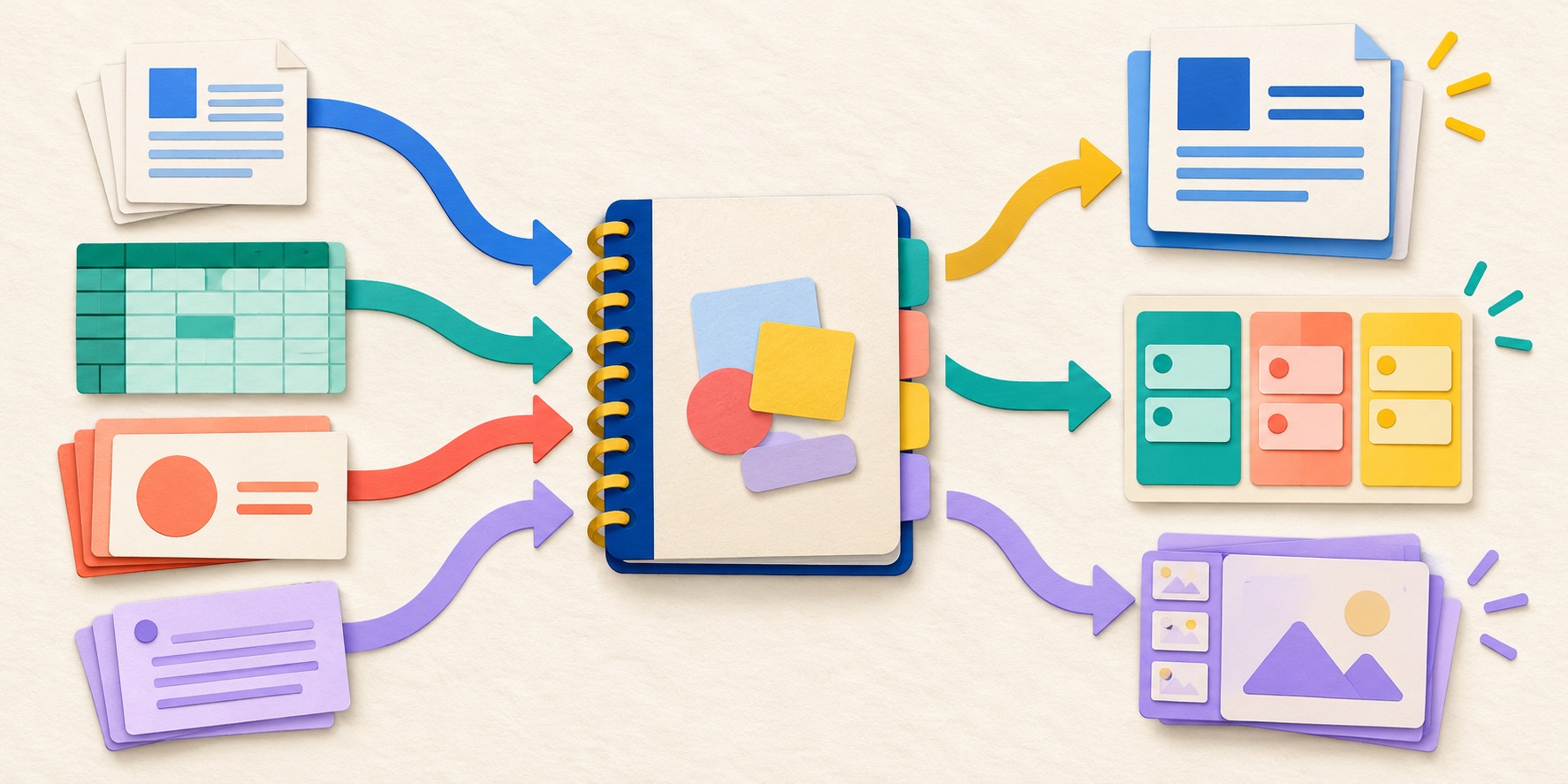
Microsoft Copilot Notebooks is best understood as a curated project workspace, not as an all-knowing search box for your Microsoft 365 tenant. You select the references that define the project, give the notebook standing instructions, ask questions grounded in that material, and—where the October capabilities are available—delegate contained work such as organizing references, synthesizing project information, and creating or editing a Word, Excel, or PowerPoint file.
The strongest use case is not “do my whole job.” It is “take this bounded set of evidence and produce a reviewable work product.” A notebook can turn a brief, research notes, meeting transcripts, an approved spreadsheet, and an old presentation into a new project proposal. It can prepare an executive summary from a defined pack of sources. It can reorganize a messy collection, identify gaps, draft an artifact, and let a human continue editing with familiar Office tools.
That rule matters because “supported” does not mean “every byte will be considered in every response.” Microsoft says the streamlined Copilot Chat experience supports up to 50 sources per notebook, while the fuller Microsoft Copilot experience supports up to 300. When a shared SharePoint location is used, Copilot can select relevant accessible files rather than reading every file on every prompt. Current Reddit discussions show why this distinction matters: users report missing spreadsheet rows, skipped policies, SharePoint links that appear present but are not used, and follow-up prompts that lose earlier context.
This guide treats those reports as troubleshooting signals, not universal product facts. Rollouts, licenses, tenant settings, app versions, and temporary service issues can change what one user sees. The reliable approach is to check your actual interface and license, test with a small known-answer source set, and expand only after the notebook proves it can retrieve the evidence you expect.
What Changed in Copilot Notebooks?
Microsoft’s October Copilot Notebooks update moves the product beyond reading and summarizing a reference collection. The official announcement highlights simple task delegation, richer model choice, direct editing with the power of Word, Excel, and PowerPoint, interactive reports, easier organization, and the ability to describe a goal so Copilot can help create a notebook with relevant work and web references. Some features were announced for staged or Frontier availability, so the right question is not merely “did Microsoft announce it?” but “is it enabled for my account and tenant today?”
This evolution makes Notebooks more useful, but it also raises the quality bar. When a chatbot only drafts a paragraph, a missing source may be easy to notice. When the same system creates a board-ready deck, updates a workbook, or prepares a client report, omissions can travel farther. Treat the generated artifact as a draft whose evidence, calculations, permissions, and formatting must be checked.
If you already work with other agent systems, the pattern may feel familiar. Our guides to OpenAI Dots permissions and safe delegation and GitHub Copilot dynamic workflows make the same core point: more autonomy is useful when the boundary is explicit, the source material is controlled, and a human knows what requires approval.
Copilot Notebooks Plans, Source Limits, and Feature Differences
Copilot Notebooks is available to more than one audience. Microsoft documents access for eligible Copilot Chat users, Microsoft Copilot users, and Microsoft 365 Personal, Family, Premium, and Pro subscribers, but the experience is not identical across those plans. Work and school accounts also need an eligible SharePoint or OneDrive service plan to create notebooks.
| Capability | Copilot Chat experience | Microsoft Copilot experience | Why it matters |
|---|---|---|---|
| Sources per notebook | Up to 50 | Up to 300 | A shared notebook can look the same while having a very different evidence ceiling. |
| Work-data suggestions | Not included | Included with Work IQ | The fuller license can surface likely references from organizational context. |
| One-shot Office creation | Not included in the current comparison | Standard processing | Do not promise artifact creation to every user just because they can open a notebook. |
| SharePoint and OneDrive references | Not supported in the current work/school comparison | Supported | This difference explains many “my coworker can do it” reports. |
| Meeting chats, transcripts, and summaries | Not supported in the current comparison | Supported | Paid work grounding matters for meeting-to-deliverable workflows. |
| Audio Overviews | Not available | Up to 20 per day | A useful convenience, but not a substitute for checking the original evidence. |
Personal subscriptions have their own feature set, and work tenants can control availability. A Windows user in a Targeted Release ring may see a feature before a Mac or mobile user. A paid Microsoft Copilot user may see sources and artifact options that a Copilot Chat user does not. An administrator may disable a feature even if the public release note says it exists. When troubleshooting, record the account type, license, platform, app version, and whether the same notebook works in the web app.
The safest adoption message is therefore conditional: “Here is what our licensed users can do in our tenant today.” Avoid copying a feature list from a launch post into training material without testing it against a representative user account. That simple discipline prevents a large share of support tickets.
A Five-Stage Copilot Notebooks Delegation Workflow
The most reliable workflow separates source preparation, task definition, delegation, evidence review, and final editing. It is slower than pasting “make a report” into chat, but it is much faster than correcting a polished deliverable built on incomplete context.
Define one outcome and one owner
Write a one-sentence outcome: “Prepare a two-page customer renewal brief from the approved account materials.” Name the human who owns the final decision. If the task includes several outputs—a workbook, deck, email, and project plan—split it into stages so each artifact can be reviewed before the next depends on it.
Build a minimum sufficient source pack
Add the smallest set of authoritative references that can answer the task: the current contract, latest usage report, meeting notes, pricing rules, and approved presentation template. Do not begin by linking an entire department site. Large, mixed libraries increase the chance that retrieval selects plausible but secondary material. Add critical files directly.
Write standing instructions and task acceptance criteria
Standing instructions should define tone, evidence rules, boundaries, and output format. Task acceptance criteria should define what must be present in this deliverable. For example: cite the source file next to every renewal risk, do not invent missing numbers, list unresolved questions, and create a draft Word document without sending it.
Delegate in checkpoints
Ask for an evidence map before the final artifact. Then request an outline. Only after those pass should Copilot draft or edit the Office file. A checkpoint costs an extra interaction but catches retrieval failures before they are disguised by good writing or design.
Review the artifact in its native app
Open the generated file in Word, Excel, or PowerPoint. Check calculations, citations, permissions, hidden sheets, slide notes, tracked changes, and links. Compare high-impact claims against the source. Rename and move the file to the correct governed location before sharing.
For teams already using Work IQ, add a sixth habit: inspect the sources attached to important Copilot answers. Our Work IQ control guide explains how to choose work context and check citations, while the Microsoft 365 Copilot Search and Chat guide shows how search context and conversation context interact. Those practices transfer directly to a notebook.
How Copilot Notebooks References Really Work
A notebook reference is not a guarantee that every sentence in every file will be placed into the model’s context on every turn. It is an eligible source. The system still has to retrieve relevant content within practical context and grounding limits. The larger and less structured the source set, the more important it becomes to state exactly which documents and sections matter.
Direct files versus shared locations
When you add a direct file, you are giving the notebook an explicit object to use. When you add a SharePoint site, folder, or library, Microsoft says Copilot considers the files you can access and selects up to 300 that are most relevant to the prompt. That is useful for discovery, but it is not exhaustive audit behavior. If a policy, appendix, or workbook must be included, add it directly and mention it by name.
Why spreadsheets are a common failure point
Spreadsheet grounding is sensitive to structure. A clean Excel table with a single header row, consistent data types, descriptive column names, and no merged cells is much easier to retrieve than a visually formatted workbook with multiple title rows, blank separators, decorative merged ranges, formulas spread across sheets, or hundreds of records intended for exact row-by-row matching. Current users report cases where the notebook sees metadata or only part of a workbook.
For a large exact-match task, first ask the notebook to state the sheet names, row range, column headers, and a few known values. If it cannot, do not proceed to analysis. Clean the source or use Copilot in Excel, a SharePoint agent, a proper database/search layer, or an analysis tool designed for exhaustive structured-data processing. A notebook is strong at bounded synthesis; it should not be treated as a database query engine.
A retrieval test that takes five minutes
This is a retrieval acceptance test. It does not prove every future answer will be complete, but it tells you whether the notebook can find known evidence before you trust it with higher-stakes work.
Create and Edit Word, Excel, and PowerPoint Files Safely
The October update makes the Office handoff more interesting because users can move from grounded project context to editable deliverables. The best pattern is to let the notebook assemble content and structure, then let the native Office app handle detailed editing and human review.
| Artifact | Good delegated task | Required review | Poor first task |
|---|---|---|---|
| Word | Draft a project brief with evidence-linked risks and open questions. | Claims, citations, confidential content, tracked changes, tone. | Final legal or policy language without subject-matter approval. |
| Excel | Create a clean tracker or summarize a well-structured table. | Formulas, units, dates, hidden rows/sheets, totals, source coverage. | Exhaustive analysis of a messy multi-sheet workbook with no validation. |
| PowerPoint | Turn an approved outline and source pack into an editable first draft. | Charts, speaker notes, brand template, claims, image rights, accessibility. | A board-ready deck built directly from a broad SharePoint site. |
Use a two-prompt handoff. First ask: “Show the proposed document structure and the source each section will rely on. Do not create the file yet.” Review that map. Then ask: “Create the editable Word draft using only the approved outline and sources. Put unresolved evidence in a clearly marked questions section.” This prevents the file generator from making silent editorial decisions.
For Excel, ask for formulas and assumptions to be visible. For PowerPoint, ask for a slide-by-slide claim ledger before visual polish. For Word, require headings, source notes, and an explicit “draft for review” label when the content will influence a business decision. Microsoft itself advises users to review generated Office files for accuracy before sharing.
If you also use GitHub Copilot for engineering work, the review discipline mirrors the approach in our managed AI code review guide: configure the reviewer, define what deserves deeper inspection, and measure false confidence rather than counting how many suggestions the system produced.
Copilot Notebooks Not Reading Files? Use This Troubleshooting Ladder

When a notebook misses a fact, start with the simplest explanation and move upward. Do not repeatedly rewrite the prompt without checking whether the source is readable.
1. Confirm entitlement and rollout
Compare the affected user’s license with Microsoft’s current Notebooks licensing table. Open the same notebook in the Microsoft Copilot web app. If the feature works there but not in OneNote, desktop, or mobile, you likely have a client or rollout difference rather than a content problem. Update the app, sign out and back in, and document the exact surface where it fails.
2. Confirm source eligibility and permission
Open the source as the affected user outside Copilot. A link that appears in the notebook does not override Microsoft 365 permissions. Check sensitivity labels, restricted access, guest sharing, and whether the account can download or view the source. If a shared location fails, add one small file from that location directly as a control.
3. Reduce the evidence set
Create a test notebook with two or three direct files. Ask known-answer questions. If the small set works, the issue is probably retrieval scope or source complexity. Reintroduce files in groups, keep critical sources direct, and separate unrelated projects into different notebooks.
4. Normalize the file
For Excel, convert the relevant range to a formal table, remove merged cells, use one header row, delete decorative blank rows, and move essential data to a dedicated sheet. For scanned PDFs, confirm OCR quality. For very long documents, create a concise authoritative index or split the material by topic without destroying the source-of-truth link.
5. Make the prompt evidence-aware
Tell Copilot which source to use, what evidence to return, and what to do when evidence is missing. A good request says: “Use the renewal workbook and the signed order form. List the account ID and renewal date you found in each source before drafting. If the two disagree, stop and show the conflict.” This makes retrieval visible.
6. Reset context deliberately
If follow-up turns lose context, ask for a compact checkpoint summary that includes the goal, approved facts, source names, decisions, and unresolved questions. Save that checkpoint to a page or document, start a fresh notebook chat, attach or reference the checkpoint, and continue. Do not assume a very long conversation will preserve every earlier instruction indefinitely.
7. Escalate service-like failures
If the same known-answer test worked and then fails without source changes, capture the time, tenant, account type, app surface, notebook ID or link, source type, prompt, expected answer, and actual answer. Submit in-product feedback. A reproducible case is far more useful than “Notebooks is broken.”
Copilot Notebooks vs SharePoint Agents vs Copilot Studio
Many reference problems are really tool-selection problems. A notebook is not automatically the right answer just because the work involves documents. Choose the surface based on scale, action, ownership, and governance.
| Choose | When it fits | Strength | Watch out for |
|---|---|---|---|
| Copilot Notebook | A person or small team is working on a bounded project with a curated source pack. | Fast setup, persistent project context, chats plus artifacts, Office handoff. | Selective grounding, personal ownership, edit-only sharing, rollout differences. |
| SharePoint agent | A team needs ongoing answers or actions across a managed SharePoint site or library. | Closer to the governed content location; better fit for shared knowledge at scale. | Site governance, permissions, usage-based features, and less project-centric organization. |
| Declarative agent | You need repeatable instructions, knowledge, skills, and controlled actions in Microsoft 365 Copilot. | Reusable behavior and organization-wide sharing with admin controls. | Packaging, testing, licensing, deployment, and change management. |
| Copilot Studio | You need workflows, connectors, actions, custom orchestration, or external channels. | Greater automation and integration depth. | More governance, build effort, and consumption/billing complexity. |
Use a notebook for a campaign plan, customer account, research sprint, or policy review. Use a SharePoint agent when many people need durable access to a living library. Use an agent when instructions should behave consistently across repeated requests. Use Copilot Studio when the system must call services, update records, or orchestrate a business process.
This helper is a starting point, not a licensing recommendation. If your workflow spans categories, use a hybrid: a governed SharePoint library as the source of truth, a reusable agent for repeatable behavior, and a notebook for a time-bounded project that produces a reviewable deliverable.
Sharing, Storage, Privacy, and Deletion
Notebook convenience can hide important lifecycle details. Microsoft’s current FAQ says that sharing a notebook can also give recipients access to files inside it. Read-only members are not currently supported; invited notebook members receive editing access. Group membership is not currently supported because notebooks are stored in a personal SharePoint Embedded container owned by the creator, though Microsoft says group-managed notebooks are being developed.
Before sharing, inventory each reference. Is it a live link to an existing governed file, an uploaded copy, or a notebook-created artifact? Who currently has access? Who will gain access? Which sensitivity labels or retention policies apply? Does the intended recipient have the license required to use that source type? Test with a normal recipient account, not only the notebook owner.
Deletion deserves similar care. Microsoft currently warns that deleting a notebook is permanent and cannot be undone, while a recycle-bin experience is in development. That does not mean every external source or uploaded copy will automatically disappear with the notebook. Treat the container, its references, and source files as separate lifecycle objects until your own tenant testing proves otherwise.
Pre-share checklist
Review every reference, remove unnecessary confidential material, verify recipients, test effective permissions, label the draft, confirm artifact location, and document the owner.
Do not assume
Do not assume notebook sharing is read-only, a source link grants access correctly, deletion is recoverable, every member sees the same features, or copied files follow the original lifecycle.
Microsoft says Copilot Notebooks does not use user data to train the underlying large language model. Enterprise data-protection claims are still not a substitute for least privilege. The main risk is often ordinary oversharing or accidental reliance on the wrong source—not model training.
Teams managing several AI systems can borrow the usage and governance habits in our GitHub Copilot Usage Metrics API guide and GitHub Copilot MCP allowlists guide: define ownership, record changes, monitor adoption, and make the safe default explicit.
Copilot Notebooks Prompts That Expose Evidence and Reduce Rework
Good notebook prompts do more than ask for an attractive output. They force the system to reveal what it found, what it did not find, and which decisions still belong to a person.
Evidence map before drafting
Prompt: “Using only the references in this notebook, create an evidence map for the customer renewal brief. For each required section—usage, commercial terms, risks, open actions, and recommendation—list the source file, exact evidence found, conflicts, and missing information. Do not draft the brief yet.”
Safe delegation with a stopping rule
Prompt: “Prepare a draft Word brief from the approved evidence map. Do not infer missing prices, dates, owners, or commitments. Put uncertain items in a section called Questions for Review. Stop if the signed agreement conflicts with the planning workbook.”
Large spreadsheet coverage check
Prompt: “Before analyzing this workbook, state the sheet names, table names, row and column ranges you can use, and the values found in the first and last populated record of the target table. If you cannot verify those boundaries, do not calculate or summarize.”
Source comparison
Prompt: “Compare the policy document with the meeting decision log. Create a table of agreements, conflicts, and items mentioned by only one source. Cite the file name and section for every row. Do not resolve conflicts; assign them to human review.”
Checkpoint for a fresh conversation
Prompt: “Create a continuation checkpoint containing the goal, approved facts, source names, decisions made, rejected options, current outline, and unresolved questions. Keep it under 700 words so I can start a fresh notebook chat without losing essential context.”
These prompts are intentionally procedural. They make the notebook show its work before it produces a polished deliverable. That is the difference between convenient text generation and a workflow you can supervise.
What Copilot Notebooks Still Should Not Be Trusted to Do Alone
Copilot Notebooks can accelerate preparation, synthesis, and artifact creation, but it is not an exhaustive audit system, legal approver, financial controller, database engine, or records-management policy. Avoid delegating a decision whose correctness depends on reading every row, every clause, or every file unless you have an independent completeness check.
Do not use a notebook as the sole control for regulatory interpretation, final contract language, employment decisions, medical guidance, or financial approval. Do not let a generated deck convert tentative analysis into a confident executive claim. Do not assume that a formula is correct because the workbook looks polished. Do not share a notebook as a substitute for setting permissions on the underlying data.
The feature is at its best when it reduces coordination cost: gathering known material, creating a first structured view, surfacing conflicts, drafting an artifact, and helping a qualified person finish the work. That is valuable. It just is not the same as unsupervised authority.
For a broader pattern of approval gates and bounded autonomy, see our Microsoft Copilot Autopilot rollout guide and Copilot Autopilot blueprint guide.
Frequently Asked Questions
What is Copilot Notebooks task delegation?
It is the ability to give Copilot a bounded work outcome inside a notebook, using the notebook’s selected references and instructions. Good delegated tasks include organizing project material, synthesizing evidence, and creating or editing a reviewable Office artifact. Availability can depend on rollout, license, and tenant settings.
How many sources can I add to a Copilot Notebook?
Microsoft’s current work/school licensing table lists up to 50 sources for eligible Copilot Chat users and up to 300 for Microsoft Copilot users. When you add a shared SharePoint location, Copilot may select up to 300 relevant accessible files. Check the live licensing page because limits can change.
Why does Copilot Notebooks ignore some files?
Common causes include plan limits, selective retrieval from a shared location, insufficient permission, unsupported or poorly structured content, OCR problems, a prompt that does not name the needed source, context pressure, client rollout differences, or a temporary service issue. Test a small known-answer source set before scaling.
Can Copilot Notebooks read every row in Excel?
Do not assume exhaustive row coverage. Clean the workbook into a formal table with one header row and consistent data types, then ask Copilot to report the table boundaries and known values before analysis. Use Copilot in Excel or a structured data tool when exact row-by-row processing is required.
Can Copilot Notebooks search the web?
Microsoft’s current Notebooks limitations page says notebook responses use the references added to the notebook rather than automatically accessing the web. The October announcement also describes prompt-created notebooks that can suggest work and web references, so distinguish notebook creation from a grounded chat response and verify the behavior in your rollout.
Can I choose a model in Copilot Notebooks?
Microsoft announced model choice for Notebooks, but availability may be staged. If a picker is missing, compare the web and desktop experiences, confirm your license and tenant release settings, and avoid assuming another user’s interface should match yours.
Does sharing a notebook give people access to its files?
It can. Microsoft warns that sharing a notebook can also grant access to files inside it. Current notebook membership is edit access rather than read-only. Audit references and test recipient permissions before sharing confidential or regulated material.
Can I recover a deleted Copilot Notebook?
Microsoft currently says deletion is permanent and cannot be undone; a notebook recycle bin is in development. Preserve important deliverables in the correct OneDrive or SharePoint location and follow your organization’s retention rules before deleting a notebook.
When should I use a SharePoint agent instead?
Use a SharePoint agent when the durable source of truth is a managed site or document library and many users need recurring access. Use a notebook when a person or small team needs a curated, time-bounded project workspace with chats and artifacts.
Is my notebook data used to train the model?
Microsoft’s current FAQ says Copilot Notebooks does not use user data to train the large language model. You should still apply normal data classification, least-privilege sharing, retention, and human-review practices.
Can Copilot Notebooks replace OneNote?
No. Microsoft describes Copilot Notebooks as AI-powered workspaces for grounded project work, while OneNote is a long-term note repository for notes, ink, and organized knowledge. They overlap in the OneNote interface but serve different primary purposes.
What is the best first project for Copilot Notebooks?
Choose a low-risk, bounded project with five to fifteen clean references and a verifiable output—such as a meeting-to-project brief or a research pack-to-draft presentation. Avoid beginning with a sensitive enterprise library or a calculation-heavy workbook.
Build a Reviewable Workflow, Not a Bigger Prompt
Copilot Notebooks becomes genuinely useful when it shortens the path from scattered project context to a reviewable deliverable. The October update makes that path more capable: users can delegate contained work, create or edit Office files, choose deeper reasoning where available, organize evolving project material, and produce richer outputs without abandoning the notebook.
The competitive advantage is not asking Copilot to do more at once. It is designing better boundaries. Keep the source pack small enough to understand. Add critical documents directly. Ask for an evidence map. Split delegation into checkpoints. Review generated files in the native Office app. Test sharing with a real recipient. Preserve important artifacts outside the notebook container. Escalate reproducible retrieval failures with evidence.
If you follow that pattern, Copilot Notebooks can be a practical project workspace instead of another place where files, chats, and expectations accumulate. Start with one contained workflow, measure the time saved and corrections required, then expand only when the notebook earns trust.
Post a Comment