
ChatGPT Computer History Guide: Find Past Work, Protect Privacy, and Help Codex Pick Up Context
Computer History is one of the most useful and most sensitive ChatGPT desktop features OpenAI has shipped for Codex users. This guide explains what it records, how it helps you recover previous work, when to keep it off, and how to scope it safely before giving Codex more context.
ChatGPT Computer History: Quick Answer
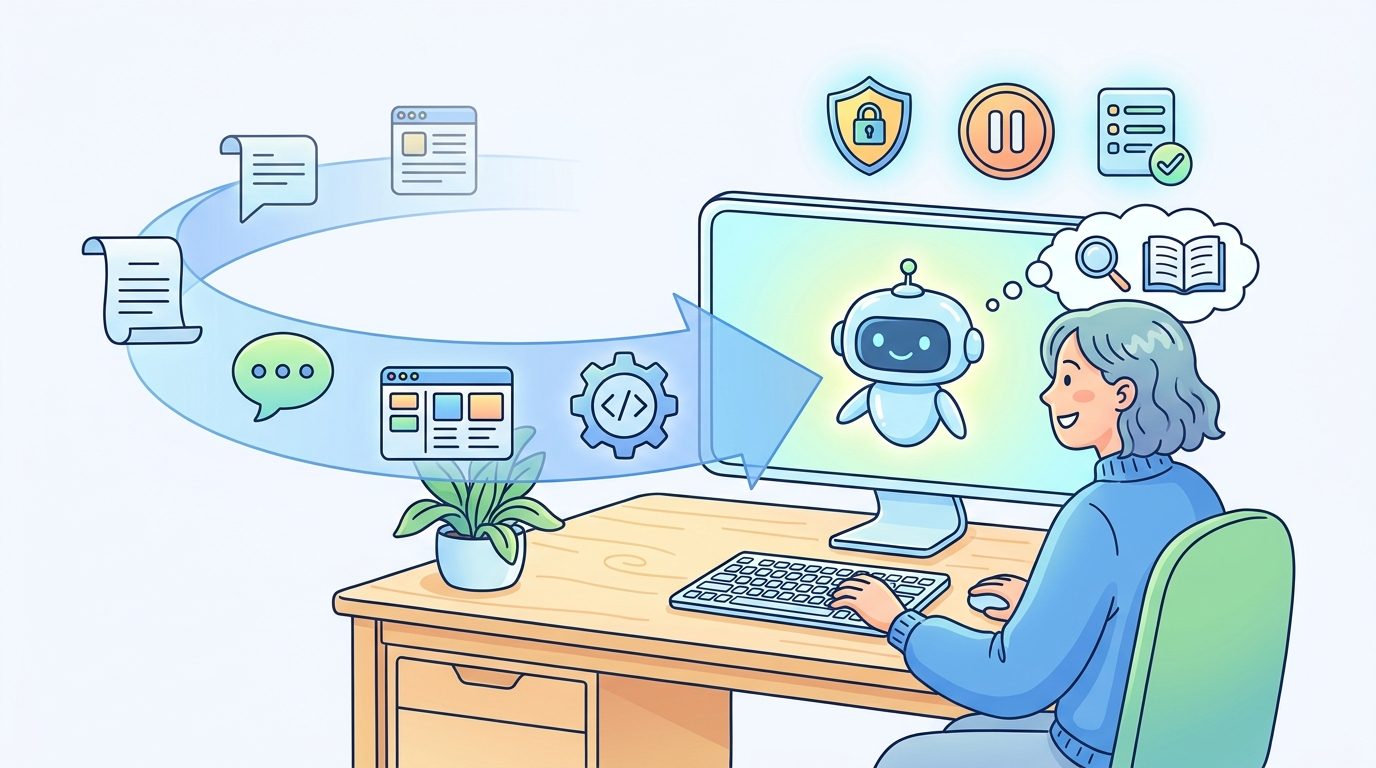
ChatGPT Computer History is an opt-in feature in the ChatGPT desktop app on macOS that turns allowed app and website activity into a searchable timeline and local memories that ChatGPT and Codex can reference. It is designed to answer questions like “what was I working on before my last break?” or “find the document and Slack thread I reviewed earlier,” without forcing you to reconstruct every tab, file, and conversation by hand.
The feature matters because Codex and ChatGPT Work are becoming less like one-off chat boxes and more like long-running work partners. A coding agent can be much more useful when it knows which proposal you were editing, which pull request you reviewed, which design note you compared, and which browser tab contained the answer. Computer History is OpenAI’s attempt to make that recent work context available in a controlled way.
Computer History is not the same as normal ChatGPT memory. It is also not the same as browser history, screen recording, or a full surveillance log. According to OpenAI’s documentation, it uses interaction events such as clicks, typing, keyboard shortcuts, app switches, and accessibility context. The docs say it does not include screenshots in your history, does not record microphone input or system audio, and does not include private-mode browsing activity. That still leaves plenty of sensitive context, so the right setup is privacy-first, not convenience-first.
What Is ChatGPT Computer History?
Computer History is a recent ChatGPT desktop feature that creates a timeline from activity across apps and websites you permit. ChatGPT and Codex can then use that timeline to recover context, find previous work, summarize your day, and notice repeatable workflows that could become skills or automations. OpenAI describes it as a way to turn recent computer activity into memories and a timeline that ChatGPT and Codex can use.
That sounds simple, but the product shift is bigger than the phrase suggests. Traditional chat assistants rely on what you paste into the box. Coding agents rely on files, repository state, terminal output, and project instructions. Work agents rely on documents, meetings, spreadsheets, browser tabs, and messages. Computer History sits between those worlds: it helps the assistant identify the sources you touched recently so it can ask for or use the right context instead of making you explain everything from scratch.
The feature arrived alongside a broader OpenAI push around ChatGPT Work and Codex. OpenAI’s July product announcement framed ChatGPT as a partner for more ambitious work, with Codex technology built in and desktop capabilities that can use files, apps, browsers, and longer-running workflows. The August ChatGPT Learn update then highlighted Computer History, Linux desktop preview, import from other coding agents, and related Codex improvements. In practical terms, Computer History is part of the same trend: AI agents are becoming more useful when they can carry context across tasks.
For AIFeatureDrop readers, the reason this topic is worth a pillar guide is clear from the data. Recent GA4 traffic shows strong interest in OpenAI Codex desktop setup, Codex banked resets, Codex pricing, and computer-use related articles. Search Console also shows impressions around terms like “chatgpt codex computer use,” “codex computer use,” and “openai codex computer use windows.” Computer History is adjacent to those queries but newer and less explained by practical third-party content.
What Computer History Records — and What It Does Not
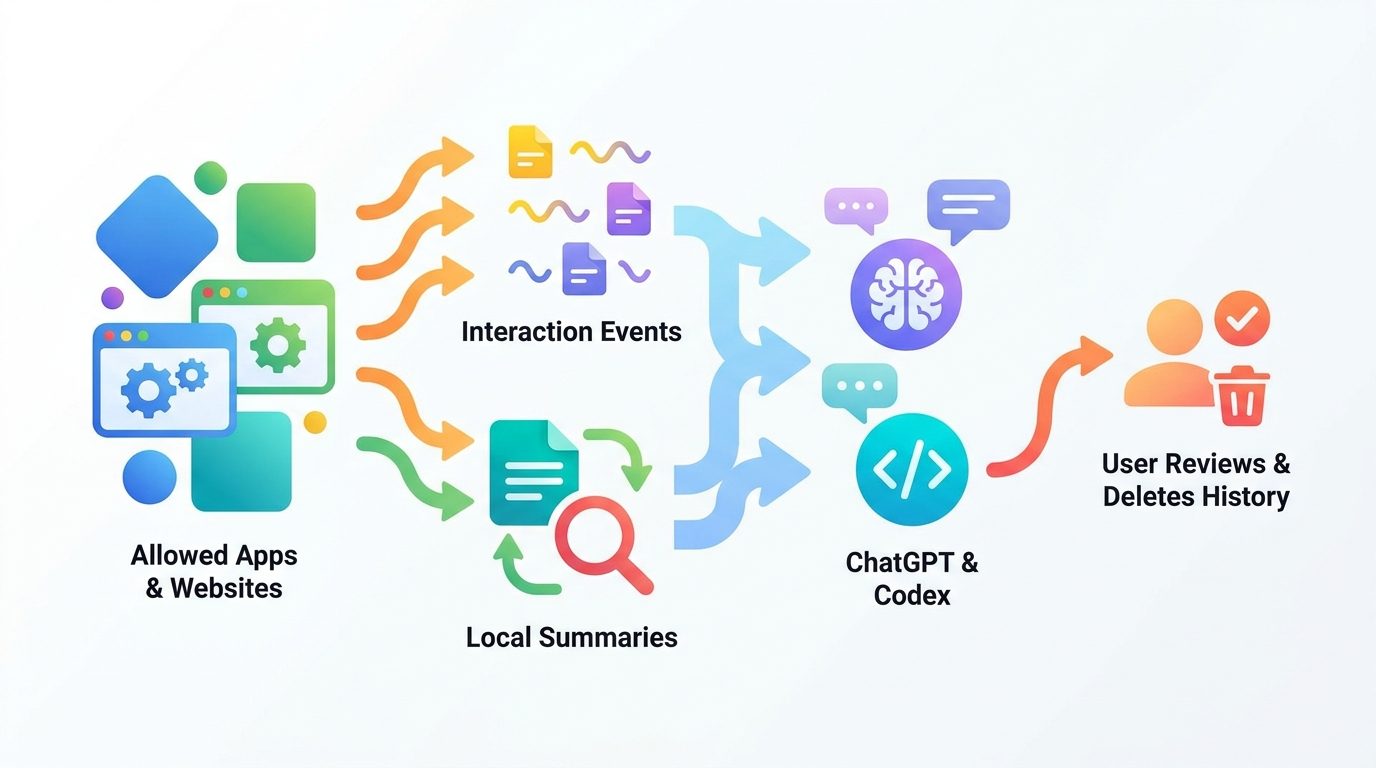
The most important question is not “is Computer History powerful?” It is “what am I allowing it to observe?” OpenAI’s documentation says Computer History creates an interaction-event stream from allowed apps and websites. Events can include clicks, typing, keyboard shortcuts, app switches, and text or other context that macOS exposes through accessibility features. Those events are periodically turned into text summaries and local memory files.
OpenAI also states several boundaries: Computer History does not include screenshots in your history, does not record microphone input or system audio, and never includes private-mode web browsing activity. It does not require Screen Recording permission. Your history begins only after you turn it on, and you can pause collection, choose apps and websites, inspect history, delete timeline items, or clear recent time ranges.
| Area | What the official docs say | Why it matters |
|---|---|---|
| Default state | Off by default. | No one should assume it is silently enabled; each user must opt in. |
| Plans | Available for ChatGPT Pro, Business, and Enterprise users in the macOS desktop app, with admin access required for Business and Enterprise. | Team members may not see the setting until admins grant access. |
| Regions | Not currently available in the EEA, Switzerland, or the United Kingdom. | Rollout and compliance expectations differ by region. |
| Signals | Clicks, typing, shortcuts, app switches, and accessibility context from allowed sources. | Even without screenshots, the text and interaction stream can be sensitive. |
| Excluded by docs | No screenshots in history, no microphone or system audio, no private-mode browsing. | These are useful boundaries, but they do not remove the need for careful app scoping. |
| Storage | Temporary events are retained up to 48 hours; generated memory files remain until deleted. | Users should review and clear history, especially after sensitive work. |
The key nuance is that “not screenshots” does not mean “not sensitive.” Text visible through accessibility, typed snippets, application names, website names, document titles, and summarized activity can reveal client names, unreleased products, personal messages, medical terms, financial details, or legal context. If you would not paste a source into ChatGPT manually, you should be cautious about allowing it into Computer History.
How Computer History Helps Codex
Codex is an AI agent for writing, reviewing, and shipping code. Its quality depends on context: files, repo structure, prior decisions, current bugs, test failures, project rules, design notes, and the human intent behind the task. Computer History can help Codex recover that surrounding context when the work happened outside the current prompt.
Imagine you spent the morning reading a GitHub issue, comparing an internal design document, checking a Slack thread about a customer bug, and editing a branch in your IDE. Later, you ask Codex to finish the fix. Without Computer History, you may need to paste links, summarize decisions, and find the exact file again. With a carefully scoped Computer History timeline, you can ask ChatGPT or Codex to identify the issue, document, thread, and file you were using, then summarize the decisions that should shape the next coding task.
This does not mean Codex should blindly act on everything in your history. A safer workflow is: use Computer History to find sources, ask for a summary, verify the summary, then give Codex a scoped task. That pattern keeps you in control and avoids turning vague history into broad agent authority.
Computer History also connects with newer Codex setup features. The August digest mentions importing instructions, settings, skills, plugins, projects, and recent work from tools like Claude Code or Cursor. That means OpenAI is trying to lower switching cost between agent environments. If you already use project instructions, AGENTS.md-style repo rules, plugin permission boundaries, or local memory files, Computer History becomes another context layer. The best setup uses each layer for the right job: repository instructions for stable rules, project files for source truth, plugins for approved tools, and Computer History for recent activity you might otherwise forget.
If you are new to this ecosystem, start with our ChatGPT desktop app Codex setup guide, then read the OpenAI Codex Agent Plugins guide for safe tool packaging. Computer History is most useful after those basics are in place.
Safe Setup: How to Turn Computer History On Without Over-Sharing
OpenAI’s setup flow lives in the ChatGPT desktop app on macOS under Settings and Integrations. Business and Enterprise users need an administrator to grant workspace access first. That admin step does not turn the feature on for members; it only makes personal opt-in possible. Pro users can choose to enable it themselves when available in their region.
A safe setup is not just clicking Turn on. Treat it like giving a new tool access to a work journal. The goal is to include enough context to be useful while excluding everything that is private, confidential, unrelated, or hard to explain later.
- Confirm you actually need it. If you only use ChatGPT for isolated questions, normal project files and chat memory may be enough.
- Check plan and region. Computer History is documented for Pro, Business, and Enterprise on macOS, and is not available in several regions.
- Enable Memories deliberately. Computer History requires Memories. Review whether memories are appropriate for your work style.
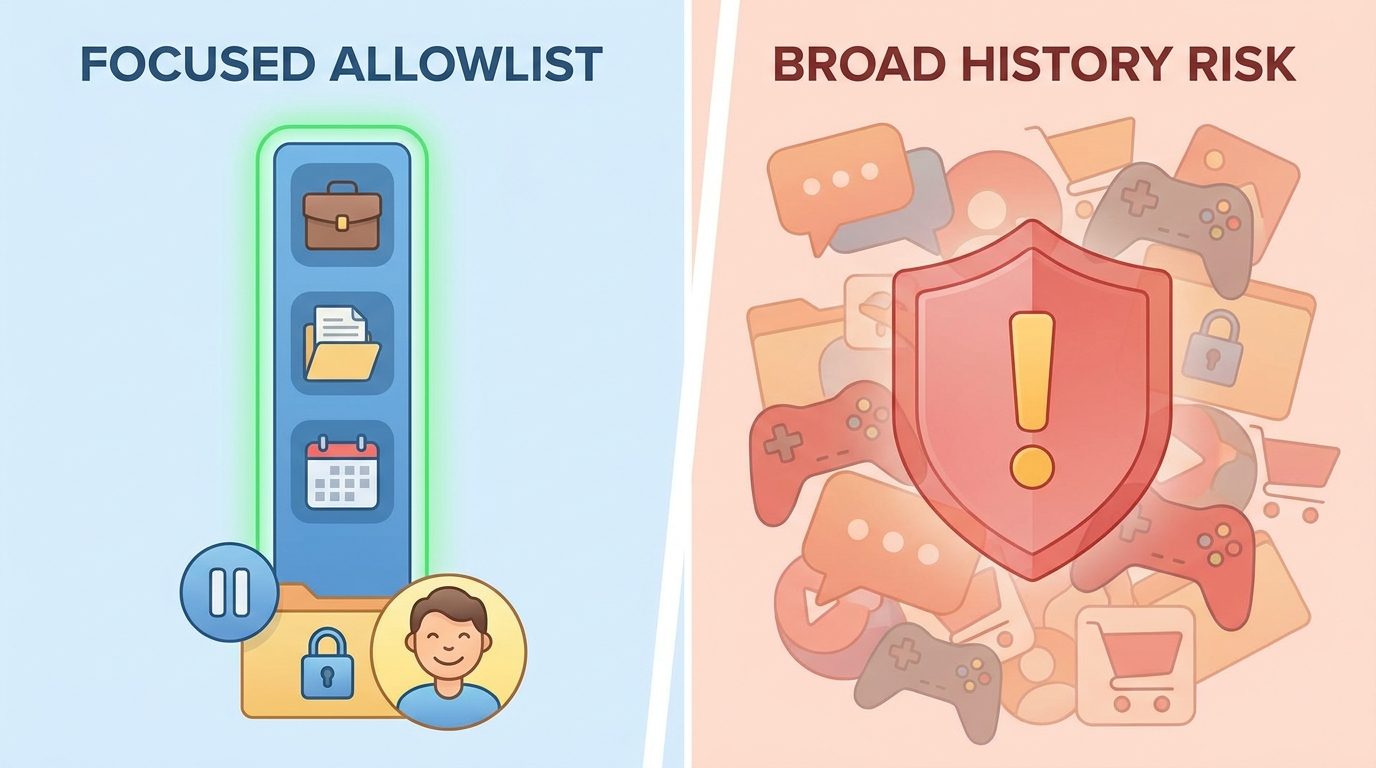
- Use include-only permissions first. Add your editor, terminal, project docs, issue tracker, and a small set of work websites.
- Exclude sensitive apps. Keep personal messaging, password managers, banking, health, legal, HR, and client-confidential apps out unless there is a clear approved reason.
- Pause during human communications. OpenAI’s docs explicitly advise turning it off during communications with other people unless you have prior express consent.
- Review the timeline daily at first. Inspect summaries and delete anything that should not be retained.
- Clear after sensitive sessions. Use the last 10 minutes, last hour, last day, or all-history clear controls when needed.
- Document team rules. If you are an admin, explain who may use it, which apps are allowed, and what data categories are prohibited.
For developers, a narrow initial allowlist might include VS Code or Cursor, Terminal, your local docs folder, GitHub, your issue tracker, and one browser profile dedicated to work. It should usually exclude personal email, personal chat, password managers, payment apps, healthcare portals, payroll systems, and unrelated browser profiles. Agencies should be even stricter: create client-specific browser profiles and pause history when switching clients unless the client has approved that workflow.
Do not confuse “available in Enterprise” with “automatically safe for enterprise.” Enterprises need admin policy, role-based access, retention expectations, employee notice, and clear exclusion rules. Computer History can be helpful for internal engineering productivity, but it can also create discoverable work records if used casually. Legal, compliance, and security teams should review it before broad rollout.
Practical Computer History Use Cases
The strongest use cases are specific, recent, and easy to verify. Computer History is not a replacement for your knowledge base, project tracker, or repository. It is a recovery layer for the messy context around work.
1. Resume a coding task after a break
Prompt: “What was I working on before lunch in my editor and GitHub? Summarize the branch, issue, changed files, and next test I should run.” This is useful when you were interrupted and do not want to scan tabs and terminal history manually. Ask for a summary first, verify it, then let Codex continue with a precise task.
2. Find a document you remember vaguely
Prompt: “Find the proposal document I was reviewing earlier that mentioned the onboarding checklist and summarize the unresolved decisions.” This works because humans often remember a topic but not the exact file title. Computer History can use the activity timeline to identify the source.
3. Turn repeated work into a skill
Prompt: “Look at the release checklist workflow I repeated today. Draft a Codex skill that validates the steps, asks for approval before publishing, and never touches production without confirmation.” This is where Computer History becomes more than recall: it can help identify repeated workflows that deserve automation. Pair that with strict permission boundaries from our Codex plugin permission boundaries guide.
4. Prepare a standup update
Prompt: “Give me a concise standup summary of the coding, docs, and review tasks I worked on yesterday. Separate completed work, in-progress work, and blockers.” This is a good example because the output is a summary, not an action. You can edit it before sharing.
5. Reconstruct a bug investigation
Prompt: “Find the error page, issue, and log excerpt I compared earlier. Create a short debugging brief for Codex with suspected cause, files to inspect, and tests to run.” This helps prevent the common agent mistake of starting from zero with a vague bug report.
6. Review attention drift
Prompt: “Show me the main context switches in my work session and suggest one way to reduce interruptions tomorrow.” This is more personal analytics than coding, but it can be helpful for people who spend the day between IDEs, docs, chats, dashboards, and browser tools.
Risks, Limitations, and Who Should Keep It Off
Computer History is not for everyone. If your work involves highly sensitive client data, regulated health or financial information, privileged legal communications, confidential HR issues, unreleased M&A activity, security investigations, or personal communications with people who have not consented, you should be conservative. The feature can be off by default and still risky if a user enables it broadly without understanding what apps and websites contribute.
Where it helps
- Recovering recent work context quickly.
- Helping Codex understand the source trail behind a task.
- Finding docs, threads, issues, and browser pages by memory.
- Suggesting repeatable workflows that can become reviewed skills.
- Reducing prompt friction for complex desktop work.
Where it can hurt
- Accidentally summarizing sensitive app or website activity.
- Creating local memory files that other programs under your user account might access.
- Blurring consent boundaries in conversations with other people.
- Giving agents stale or misleading context if you do not verify summaries.
- Encouraging broad collection because it feels convenient.
The limitation most people miss is that Computer History is a context finder, not a truth engine. It can help locate what you touched, but it may not know whether that source was final, approved, or superseded. If it summarizes a Slack thread, you still need to check whether the decision changed later. If it points Codex to a file, you still need tests and review. If it suggests an automation, you still need permission gates.
Another limitation is platform availability. The documented rollout is macOS desktop for eligible plans, with exclusions in the EEA, Switzerland, and the United Kingdom. Linux desktop preview exists for ChatGPT and Codex, but the August digest says some features, including Computer Use, are not yet available in the Linux preview. Do not assume Computer History behavior is identical across platforms until OpenAI documents it.
Finally, there is cost and usage context. OpenAI’s Codex help docs say Codex, ChatGPT Work, ChatGPT for Excel, and Workspace Agents can share allowances and credit pools where available, and usage depends on model, task complexity, context, reasoning, speed, and tools. Computer History itself is about context, but richer context can encourage bigger tasks. If you use Codex heavily, pair Computer History with the usage habits in our OpenAI Codex pricing and usage limits guide.
Computer History vs Memories, Browser History, Project Instructions, and Plugins
Computer History is easiest to understand when you compare it with other context systems. Each one solves a different problem. The safest AI workflow does not dump everything into one giant memory. It uses stable instructions for stable rules, explicit files for source truth, plugins for approved actions, and Computer History for recent activity recovery.
| Context layer | Best for | Risk to manage |
|---|---|---|
| ChatGPT Memories | Persistent preferences and useful facts across chats. | Over-retaining personal or work details that should be temporary. |
| Computer History | Recent app and website activity, timeline recall, finding past work. | Capturing sensitive activity from included sources. |
| Browser history | Finding visited pages and tabs. | Mixing personal browsing with work context. |
| Project instructions / AGENTS.md | Stable repo rules, coding standards, test commands, constraints. | Outdated instructions causing agents to follow old rules. |
| Plugins and MCP tools | Approved actions across apps, databases, documents, and workflows. | Overbroad permissions or unsafe actions without review gates. |
| Repository files | Source code, docs, tests, configuration. | Giving agents too much unrelated context and increasing cost or mistakes. |
For most Codex users, the best pattern is layered. Use project instructions to tell Codex how to behave. Use repository context to show the actual code. Use plugins only when they are necessary and permissioned. Use Computer History to find what you were doing recently, then convert that into a brief you can verify. This keeps the agent helpful without making recent activity an unchecked command source.
Why This Topic Has a Search Gap
The current search results are early. Google shows OpenAI’s official Computer History documentation, an OpenAI video result, several fresh third-party explainers, and Reddit discussions focused on privacy concerns. That means the feature is being discovered now, but most pages either repeat the announcement or focus narrowly on whether the feature is creepy. There is room for a practical guide that answers the real user questions: what does it record, who can use it, how do I set it up safely, when should I keep it off, and how does Codex actually benefit?
AIFeatureDrop’s analytics support the angle. In the last 28 complete days, GA4 recorded 660 active users, 755 sessions, and 839 page views. Organic Search accounted for 195 sessions. The top page was the ChatGPT desktop app Codex setup guide, followed by Codex banked resets and other OpenAI/Codex explainers. Search Console volume is still small, but the queries are highly relevant: Codex computer use, ChatGPT Codex computer use, and related setup questions. A focused Computer History guide can internally link to proven OpenAI Codex content while covering a new search surface.
Final Recommendation
Use ChatGPT Computer History as a narrow, reviewed context layer — not as a blanket memory of your whole computer. It can make ChatGPT and Codex much more useful for resuming work, finding recent sources, summarizing decisions, and turning repeated tasks into skills. But the feature is powerful precisely because it observes the context around your work. That deserves explicit boundaries.
If you are an individual Pro user, start with one controlled experiment: allow only your coding workspace and one work browser profile, use it for a day, review the timeline, then decide whether the benefit is worth expanding. If you are on Business or Enterprise, do not enable this across a team without policy. Start with a small pilot, document allowed sources, require user opt-in, and write down when people must pause collection.
The practical future of AI agents is not “give the model everything.” It is “give the model the right context, with the right permission, for the right task.” Computer History can help with that future if you treat it as a tool for recall and workflow design, not as a shortcut around privacy judgment.
Keep Learning on AI Feature Drop
- ChatGPT Desktop App Codex Guide — set up Codex workflows before adding Computer History.
- OpenAI Codex Agent Plugins Guide — package skills, MCP tools, and safer agent workflows.
- Codex Plugin Permission Boundaries — build safe scopes and review checks.
- OpenAI Codex Computer Use Explained — understand desktop automation boundaries.
- OpenAI Codex Pricing and Usage Limits — manage credits, context, and longer tasks.
Sources and References
- OpenAI ChatGPT Learn: Computer History
- OpenAI ChatGPT Learn: What’s new
- OpenAI: ChatGPT is now a partner for your most ambitious work
- OpenAI Help Center: Using Codex with your ChatGPT plan
Feature availability, plan access, region support, retention behavior, and admin controls can change. Verify the current OpenAI documentation and your workspace policy before enabling Computer History.
FAQ: ChatGPT Computer History
What is ChatGPT Computer History?
It is an opt-in ChatGPT desktop feature that turns allowed app and website activity into a timeline and local memories that ChatGPT and Codex can reference for recent work context.
Does Computer History record screenshots or audio?
OpenAI’s documentation says Computer History does not include screenshots in your history and does not record microphone input or system audio.
Is Computer History on by default?
No. OpenAI documents it as off by default. Pro users can opt in where available, while Business and Enterprise workspaces need admin access before members can opt in.
Can Codex use Computer History?
Yes. OpenAI says Computer History creates memories and a timeline that ChatGPT and Codex can use. The safest approach is to use it to find and summarize sources, then verify the brief before asking Codex to act.
Where is Computer History available?
OpenAI documents it for the ChatGPT desktop app on macOS for Pro, Business, and Enterprise users. It is not currently available in the EEA, Switzerland, or the United Kingdom.
Does Computer History include private browsing?
OpenAI’s documentation says private-mode web browsing activity is never included.
How long is Computer History stored?
OpenAI says temporary event files are retained for up to 48 hours, while generated local memory files remain until you delete or clear them.
Who should avoid Computer History?
People handling highly sensitive, regulated, privileged, or non-consented communications should keep it off or use a very strict allowlist after policy review.
Post a Comment