
Learn how OpenAI Codex Record & Replay turns a demonstrated Mac workflow into a reusable skill, when to use it, what to avoid recording, and how to make replayed AI workflows safer and more reliable.
Codex Record & Replay: Quick Answer
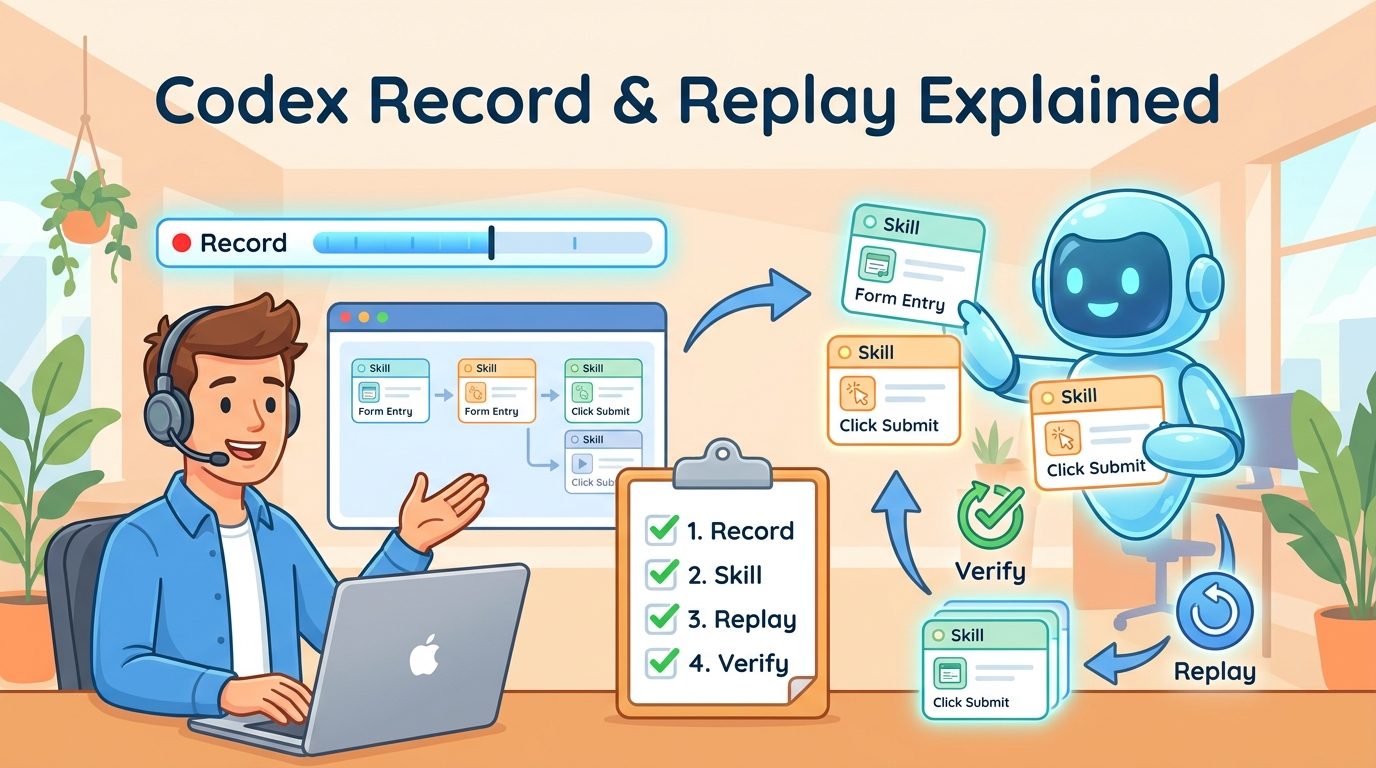
Codex Record & Replay is an OpenAI Codex app feature that lets you demonstrate a repetitive workflow on your Mac once, then turn that demonstration into a reusable skill that Codex can run again later. Instead of explaining every click, menu, preference, and verification step in a long prompt, you show Codex the workflow and let it draft a structured skill from the recording.
The simplest mental model is this: Record & Replay is a bridge between “I know how to do this manually” and “I want my AI coding assistant to do this reliably next time.” It is not magic background automation, and it is not a replacement for judgment. It works best when the task is stable, repetitive, and easy to verify, such as creating a configured issue, downloading a recurring report, publishing a routine asset, filing an expense, preparing a release checklist, or opening a known web app flow.
OpenAI’s documentation says the feature is available on macOS, requires Computer Use to be available and enabled, and initial availability excludes the European Economic Area, the United Kingdom, and Switzerland. That availability detail matters because many early searches for this feature are not about the feature’s theory; they are about why the button is missing, whether a user’s region is supported, and how recording interacts with privacy and screen context.
Why Record & Replay Matters for AI Coding Workflows
AI coding assistants are becoming less like autocomplete and more like operating partners. Codex can inspect code, use a browser, run local workflows, work with plugins, and coordinate tasks across a development environment. The bottleneck is no longer only model intelligence. The bottleneck is repeatability: can the assistant remember the exact way you prefer a workflow to be done?
Saved prompts help, but prompts often fail to capture the tiny details that make a workflow real. Which menu item do you choose? Which field gets which naming convention? Which checkbox should stay disabled? Which confirmation screen proves the task succeeded? Which internal page is the source of truth? Record & Replay addresses that gap by letting you demonstrate the path rather than writing a giant instruction manual.
This is especially important for teams that already use AI coding tools heavily. A developer might know how to cut a release, prepare a project issue, update a staging dashboard, generate a customer report, or publish documentation. If that workflow is repeated weekly, the team can turn the human demonstration into a reusable skill and refine it over time. That is more durable than asking everyone to remember a private checklist in a chat thread.
For AIFeatureDrop readers, this also fits a pattern we have seen in other AI coding features. Our guides on OpenAI Codex pricing and usage limits, Codex Computer Use, and GitHub agentic workflows all point to the same lesson: AI agents become more valuable when the work is scoped, repeatable, permissioned, and verifiable.
Availability, Requirements, and Setup Checklist
Before you plan a workflow around Record & Replay, check the practical requirements. OpenAI’s current developer documentation says Record & Replay is available on macOS, and Computer Use must be available and enabled. Initial availability excludes the European Economic Area, the United Kingdom, and Switzerland. If you do not see the feature, do not assume you are doing something wrong; availability, managed settings, app version, and regional rollout can all affect the UI.
| Requirement | What it means | What to check |
|---|---|---|
| macOS | The feature is documented for the Codex app on Mac. | Use the desktop Codex app rather than expecting the same flow in every web or mobile context. |
| Computer Use | Codex needs permission to observe and operate the workflow environment. | Confirm Computer Use is available, enabled, and allowed by your organization. |
| Region support | Initial availability excludes EEA, UK, and Switzerland. | If the menu is missing, check region and organizational policy first. |
| Stable workflow | The feature works best when steps and success criteria are clear. | Avoid recording a task that changes every time or requires sensitive judgment. |
| Safe recording context | Codex observes window content needed to learn the workflow. | Close unrelated apps, remove secrets, and prepare sample inputs before recording. |
The setup flow from OpenAI’s docs is straightforward: open Plugins in the Codex app, open the plus menu, select Record a skill, review the suggested prompt, provide helpful context, approve recording when you are ready, perform the workflow, then stop recording from the menu bar, overlay, or by telling Codex you are done. Codex then inspects the captured workflow and drafts a skill that explains when to use the workflow, inputs it needs, steps to follow, and verification criteria.
How Codex Record & Replay Works Step by Step
The best way to use Record & Replay is to treat it like teaching a careful junior teammate, not like filming a random screen recording. The quality of the resulting skill depends on the clarity of the goal, the stability of the demonstrated steps, and the verification signal at the end.
Step 1: Pick one narrow workflow
Do not start with “handle all release work.” Start with “create a correctly configured release issue from this template,” “download the weekly analytics report,” or “publish this video with these fixed settings.” A narrow workflow gives Codex a clean pattern to learn and reduces the chance that the generated skill becomes vague.
Step 2: Tell Codex what should vary next time
Before recording, explain which values are inputs. Examples: the issue title, date range, customer name, file path, project name, report period, or publishing destination. This helps Codex distinguish between fixed steps and variable values.
Step 3: Record the task cleanly
Perform the workflow at a normal pace, but avoid detours. If you accidentally open the wrong page or expose unrelated content, stop and restart rather than saving a messy pattern. Recording should continue only until the workflow is complete.
Step 4: Stop recording at the success point
End the recording when the task has a clear completion signal: a created issue, downloaded file, confirmation page, saved setting, published item, or generated artifact. The verification point matters because a skill without a success signal is hard to trust.
Step 5: Review and refine the generated skill
After the recording, Codex drafts a skill. Read it like documentation. Add hidden preferences, naming conventions, fallback steps, known exceptions, safety notes, and verification criteria. This review step is where the raw demonstration becomes a reusable workflow asset.
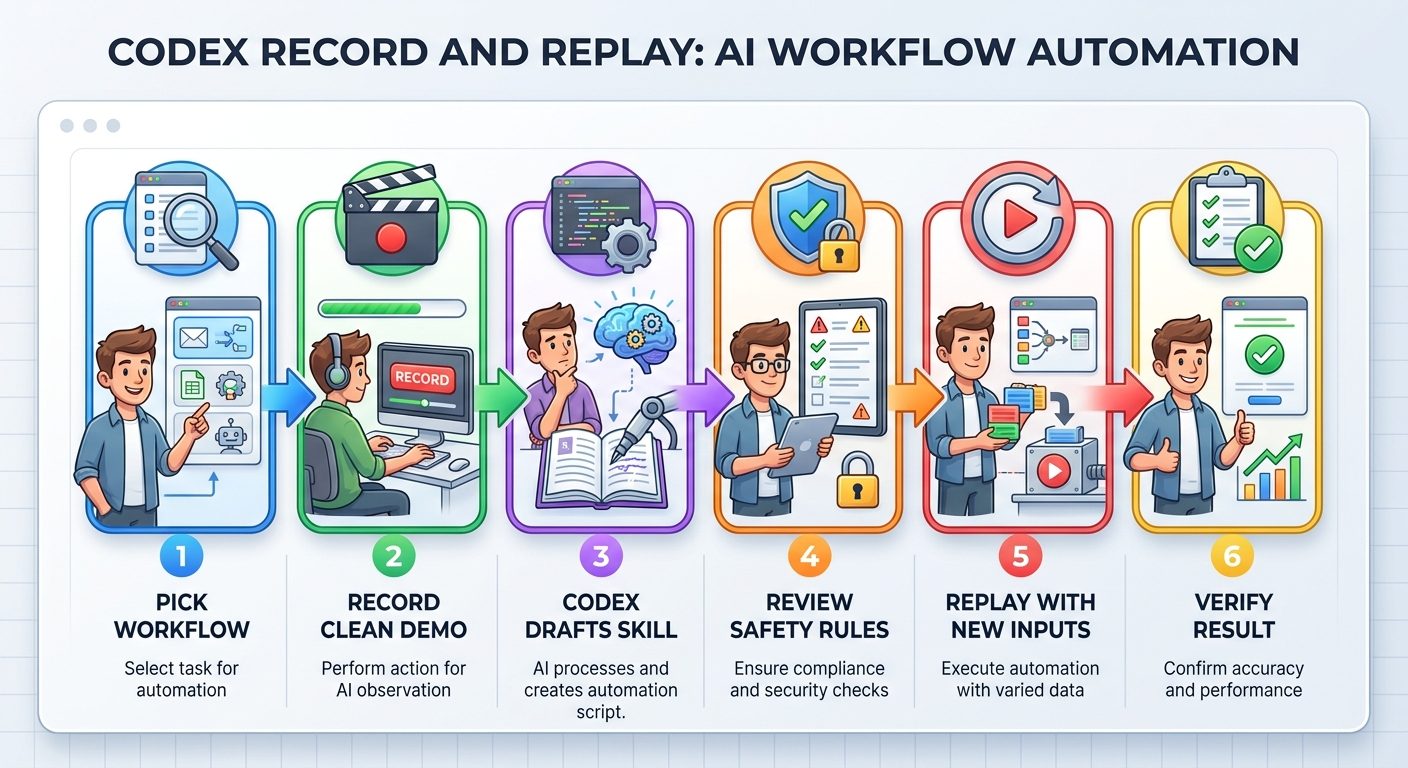
A good recorded skill should answer four questions: when should Codex use this skill, what inputs are needed, what exact steps should it follow, and how should it verify that the workflow succeeded?
Best Workflows to Record: Practical Examples
Record & Replay is strongest when the human contribution is knowing the path, not making a complex decision every time. Below are practical examples where recording can save real time without turning the workflow into a fragile black box.
Some workflows are poor candidates. Do not record tasks that depend on confidential data, unpredictable judgment, changing legal language, one-time customer decisions, or sensitive access approvals. If the main value is human responsibility rather than repeated mechanical execution, keep the human in control and use Codex only for drafting or summarizing.
| Good candidate | Why it works | Risk to manage |
|---|---|---|
| Weekly analytics export | Stable steps, repeated schedule, clear downloaded-file result. | Do not expose credentials or private customer rows during recording. |
| Issue creation from template | Repeats often and benefits from consistent labels and fields. | Make variable inputs explicit so Codex does not reuse sample text. |
| Publishing checklist | Many small UI choices are easier to show than describe. | Require a final confirmation before public publishing if stakes are high. |
| Expense filing | Repetitive form workflow with predictable fields. | Avoid recording real payment data or personal identifiers. |
Record & Replay vs Saved Prompts, Plugins, and Automations
One source of confusion is where Record & Replay fits among Codex skills, plugins, saved prompts, browser actions, and traditional automation. The answer is that it sits in the middle: more structured than a saved prompt, faster to create than a full plugin, and more human-demonstration-based than a hand-coded automation.
| Option | Best for | Weakness |
|---|---|---|
| Saved prompt | Text-heavy tasks, repeatable instructions, drafting, analysis. | Hard to capture exact UI paths and hidden preferences. |
| Record & Replay skill | Stable workflows that are easier to demonstrate than explain. | Can be fragile if the interface changes or the recording includes messy context. |
| Plugin | Team-distributed, stable integrations with formal packaging. | Requires more engineering and maintenance. |
| Cron or background automation | Exact recurring schedules and system-level repeatability. | Less flexible for workflows that need visual UI interaction or human variation. |
| Manual checklist | High-stakes work requiring judgment and accountability. | Slow and easy to perform inconsistently. |
OpenAI’s docs also point out that if you want a stable package across a team, multiple bundled skills, app integrations, MCP servers, or install metadata, you should package the workflow as a plugin. That distinction is useful. Record & Replay is excellent for quickly capturing a personal or small-team pattern. A plugin is better when the workflow becomes a productized internal tool.
Privacy and Safety: What to Avoid Recording
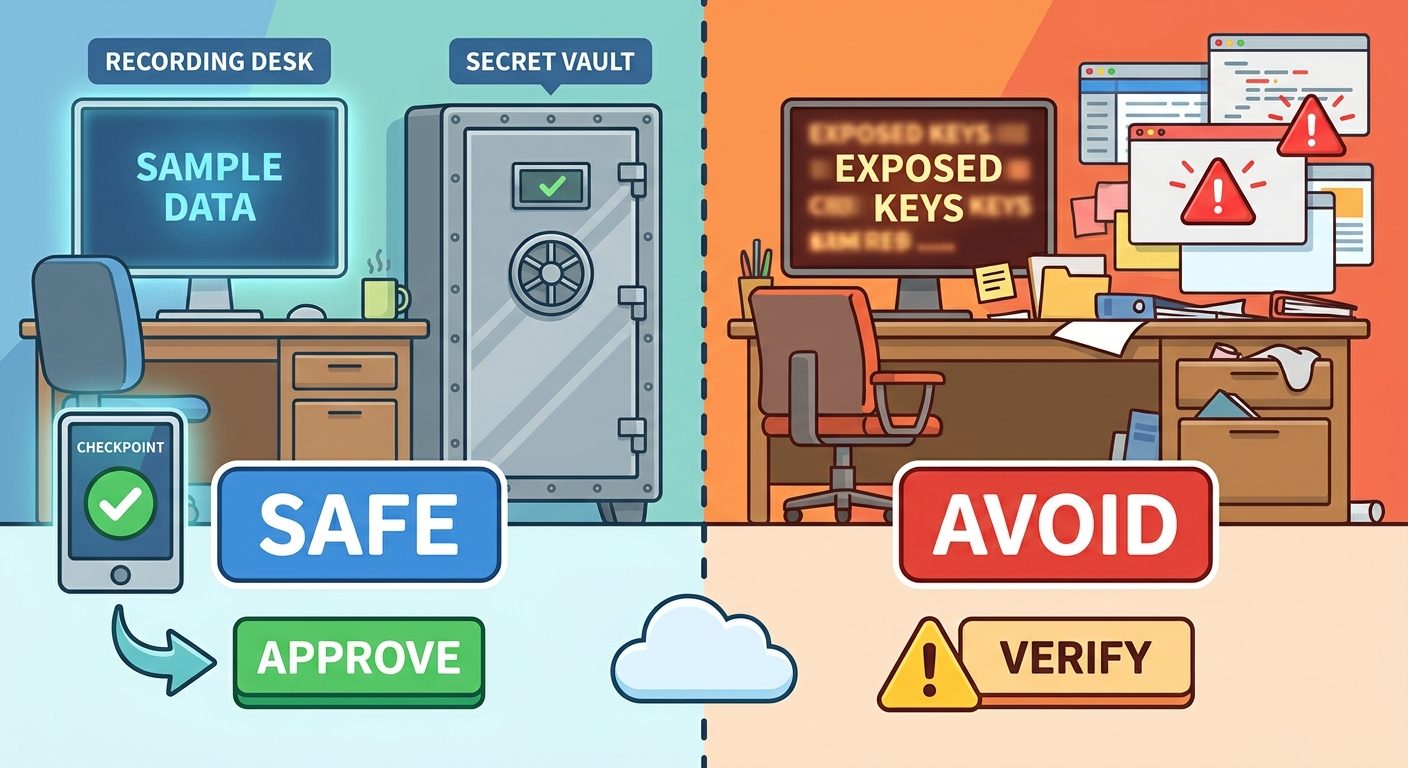
Because Record & Replay observes your workflow, the safety rules are practical rather than theoretical. Treat the recording session like a focused screen-share with a tool that is learning your procedure. Prepare the environment first, remove unrelated windows, and use placeholder values when possible.
Safe recording habits
- Use sample inputs that look realistic but are not sensitive.
- Close unrelated windows, chats, inboxes, terminals, and dashboards.
- Explain which values are placeholders and which steps are fixed.
- Stop recording immediately after the workflow succeeds.
- Review the generated skill before relying on it.
- Add a verification step and a “pause for human approval” step where needed.
Avoid recording
- Passwords, API keys, recovery codes, or secret tokens.
- Private customer records, medical, legal, or financial details.
- One-time approval flows where human accountability is required.
- Unrelated browsing, chats, or personal windows.
- Fragile workflows where the UI changes daily.
- Public posting flows without a confirmation checkpoint.
For public publishing, financial, customer, or account-management workflows, add a deliberate approval gate. A recorded skill can prepare the work, fill fields, or collect information, but the final irreversible action should often remain human-reviewed. This is especially important if the replay could post publicly, spend money, delete data, or send messages.
Troubleshooting: Why You May Not See Record & Replay
If you do not see Record & Replay, start with availability rather than obscure debugging. The feature is documented for macOS, depends on Computer Use, and initial availability excludes EEA, UK, and Switzerland. Organization-managed Codex settings can also disable Computer Use, which can make Record & Replay unavailable.
| Symptom | Likely cause | What to try |
|---|---|---|
| No “Record a skill” option | Region, app version, or managed policy. | Check macOS app, update Codex, confirm Computer Use availability, and review organization settings. |
| Recording starts but workflow is messy | Goal was too broad or demonstration included detours. | Restart with a narrower task and prepare inputs first. |
| Generated skill is vague | Codex did not know what should vary or how success is verified. | Add inputs, naming rules, success criteria, and examples after recording. |
| Replay fails later | UI changed, permissions changed, or the task depends on hidden state. | Update the skill, add fallback steps, or rebuild as a plugin if the workflow needs stronger integration. |
The most common user mistake is recording too much. A long recording that includes setup, detours, unrelated navigation, and cleanup teaches Codex a noisy pattern. A short, clean recording teaches a skill.
Why This Is a Strong AIFeatureDrop Topic
The selected category for this run is OpenAI because the last published pillar article used the Microsoft label. In the fixed sequence, Microsoft cycles back to OpenAI. Within OpenAI, Record & Replay is the strongest topic because it is a recent official Codex feature, has clear tutorial intent, and fits the site’s existing organic pattern around AI coding assistants.
GA4 data for the latest 28 complete days shows that AIFeatureDrop’s traffic is still young but meaningful: 305 active users, 375 sessions, 683 page views, and Organic Search as the second-largest channel behind Direct. The top article pages include Copilot Cowork Skills and Plugins, Codex Computer Use on Windows, Codex banked resets, GitHub Copilot AI credits, and other practical AI coding workflow guides. That data suggests a focused Codex workflow article is more aligned with existing reader behavior than a generic OpenAI model-update article.
Search Console query data could not be used in this run because the configured property returned a 403 permission error. That is a limitation, but the topic was still validated through official OpenAI release notes, OpenAI developer documentation, the Codex changelog, and live SERP inspection. The content gap is clear: official docs explain the feature, but most users need a beginner-friendly guide that explains when to use it, how to record safely, what not to record, and how it compares with plugins and saved prompts.
Recommended Record & Replay Workflow Template
Use this template before creating your first recorded skill. It keeps the task narrow and makes the generated skill easier to trust.
Pre-recording checklist
- Write one sentence describing the workflow outcome.
- List the inputs that change each time.
- Prepare sample values that are safe to record.
- Close unrelated windows and sensitive pages.
- Know exactly what success looks like.
- Decide whether final approval should remain manual.
Post-recording checklist
- Read the generated skill from start to finish.
- Add missing naming conventions, field defaults, and exceptions.
- Remove accidental details that should not be reused.
- Add verification steps.
- Run one safe replay with test inputs before trusting it in production.
Final Recommendation
Codex Record & Replay is most useful when you treat it as workflow documentation with an execution layer. The recording captures the path, but the reviewed skill should capture the reasoning, inputs, safety boundaries, and success criteria. That combination is what makes a repeatable AI workflow reliable.
If you are an individual developer, start with one harmless repetitive task. Record it, refine the skill, replay it with different inputs, and decide whether it genuinely saves time. If you are part of a team, define rules before people record high-stakes workflows: what data can be captured, who reviews shared skills, which tasks require approval, and when a quick recorded skill should graduate into a plugin.
The feature is early, but the direction is important. AI coding tools are moving from answering prompts to learning workflows. Record & Replay gives OpenAI Codex a practical way to turn human demonstration into reusable assistant behavior. Used carefully, it can reduce repetitive work. Used carelessly, it can capture messy patterns or sensitive context. The difference is preparation.
Keep Learning on AI Feature Drop
- OpenAI Codex Computer Use Explained — understand the desktop-control foundation behind Record & Replay.
- OpenAI Codex Pricing and Usage Limits — plan agent workflows with usage constraints in mind.
- Codex Banked Resets Explained — related Codex usage-limit coverage.
- Codex Computer Use on Windows — platform-specific setup considerations for computer-use workflows.
- GitHub Agentic Workflows Explained — compare Codex-style workflow delegation with GitHub’s agentic automation.
- Claude Code Permission Rules Explained — learn how permissions and boundaries matter for agent tools.
Sources and References
- OpenAI Help Center: ChatGPT release notes
- OpenAI Developers: Codex changelog
- OpenAI Developers: Record & Replay documentation
- OpenAI Developers: Codex Computer Use
- OpenAI Developers: Codex plugins overview
Feature availability, regional support, and managed settings can change. Always verify current OpenAI Codex documentation and your organization’s Codex policy before relying on Record & Replay for production workflows.
FAQ: Codex Record & Replay
What is Codex Record & Replay?
Codex Record & Replay is an OpenAI Codex feature that lets you demonstrate a workflow on macOS and turn that demonstration into a reusable skill for future replay.
Is Record & Replay available everywhere?
No. OpenAI documentation says it is available on macOS, requires Computer Use, and initial availability excludes the EEA, UK, and Switzerland.
What should I record first?
Start with a narrow, low-risk, repetitive workflow such as creating a configured issue, downloading a recurring report, or preparing a checklist.
Can Record & Replay replace plugins?
Not always. It is faster for personal or small-team demonstrated workflows. A plugin is better for stable team distribution, integrations, bundled skills, or install metadata.
Is it safe to record sensitive workflows?
Use caution. Avoid recording passwords, API keys, private customer data, financial information, or irreversible public actions without approval checkpoints.
Why is the Record a skill button missing?
Common causes include unsupported region, missing macOS app context, disabled Computer Use, outdated app version, or organization-managed settings.
How do I improve a generated skill?
Review it after recording, add inputs, naming conventions, fallback steps, safety notes, and verification criteria before relying on it.
Does Record & Replay work for one-time tasks?
It is usually not worth it for one-time tasks. It is best for stable workflows that repeat often enough to justify recording and maintaining a skill.
What is the main SEO keyword for this topic?
The main keyword is Codex Record and Replay, with related terms such as Codex record a skill and OpenAI Codex reusable skills.
Post a Comment