
GitHub Mobile Copilot Merge Conflict Guide: Fix Pull Requests With Cloud Agent
GitHub Mobile can now start Copilot cloud-agent sessions to resolve pull request merge conflicts. Here is when to use it, how to prompt it, what to review before merging, and when to move the fix back to desktop.
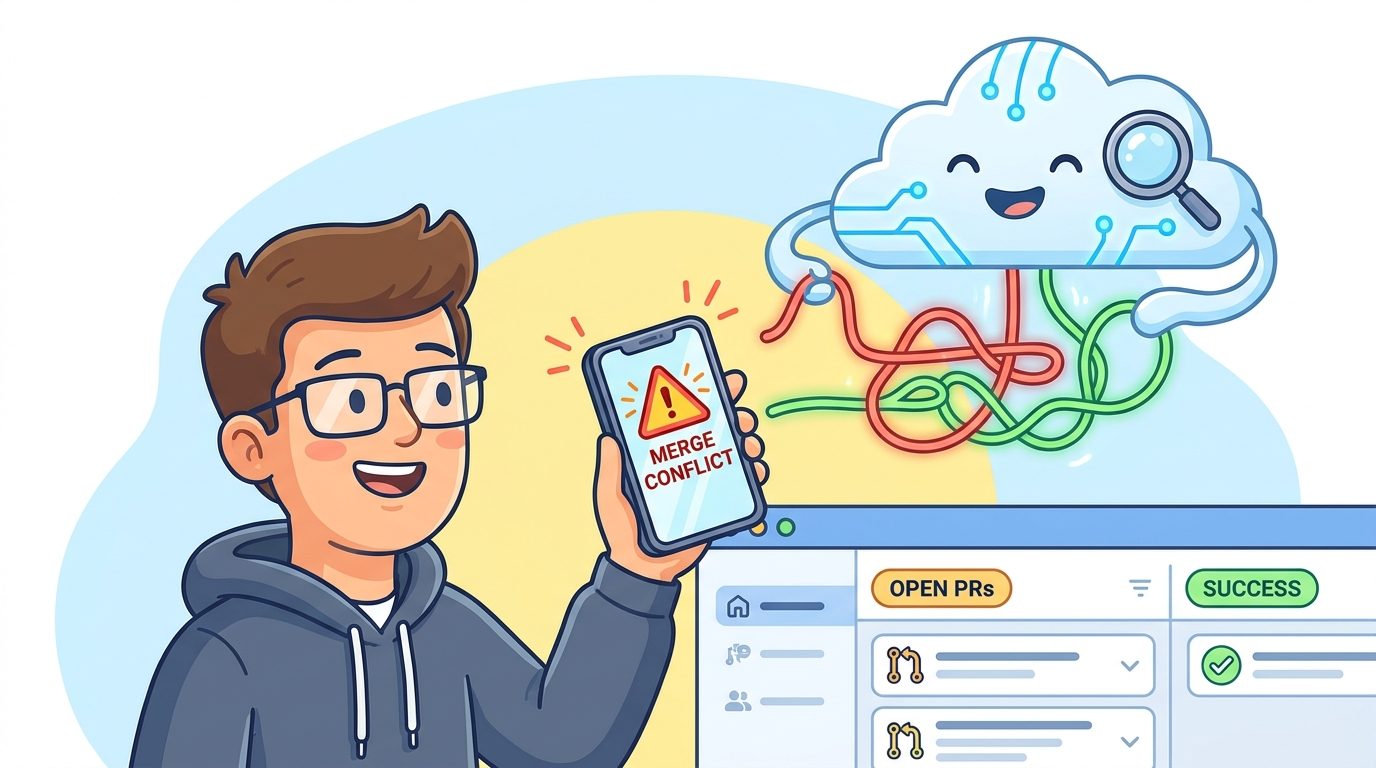
Quick Answer: What GitHub Mobile’s Fix with Copilot Actually Does
GitHub Mobile Copilot merge conflicts support means you can now start a Copilot cloud-agent workflow from a pull request merge box inside the GitHub Mobile app. When a pull request is blocked by conflicts, the app can prefill a request that asks Copilot to resolve the conflict, then launch Copilot cloud agent so the work can continue without waiting until you are back at your laptop.
The important detail is that this is not a magic “merge anything safely” button. It is a mobile handoff into an AI coding agent. The agent can inspect the pull request, reason about the conflicting files, propose a fix, and return changes. You still need to review the diff, run or inspect checks, and decide whether the result preserves the intent of both branches. Think of it as a fast unblocker for low-to-medium risk conflicts, not a replacement for engineering judgment.
This cluster guide supports our broader GitHub Copilot app guide. The pillar explains the Copilot app as a control center for sessions, credits, BYOK, cloud agents, and mobile fixes. This article zooms into one practical workflow: using GitHub Mobile and Copilot cloud agent to resolve pull request conflicts safely.
Why Mobile Merge-Conflict Fixes Matter for AI Coding Workflows
Merge conflicts are small on paper and expensive in real life. A pull request can pass review, pass tests, and still sit blocked because another branch changed the same area. If the person who understands the branch is away from the workstation, the team loses time. GitHub Mobile’s new Copilot conflict workflow exists for that exact moment: a developer sees the conflict from a phone and can start an agent-assisted fix instead of letting the pull request wait.
GitHub’s July changelog says the mobile app can surface merge conflict alerts, launch Copilot cloud agent from the pull request merge box, prepopulate a prompt asking Copilot to resolve the conflicts, and give clear feedback if the request succeeds or fails. The same announcement also notes that users can still mention @copilot in pull request comments for adjacent tasks such as failing GitHub Actions workflows, code review comments, tests, or follow-up edits.
That makes GitHub Mobile more than a notification app. It is becoming a lightweight operator console for coding agents. The developer does not need to write the whole patch on a phone keyboard. The developer decides whether the agent should start, checks the result, and keeps the pull request moving.
This is also why the feature needs a practical guide. Official announcements tell you the feature exists. They do not fully answer when to use it, what to check afterward, how to avoid risky merges, or how it fits with Copilot sessions, AI credits, and team policy. That is the search gap this article targets.
When You Should Use Fix with Copilot on GitHub Mobile
Use the mobile workflow when the conflict is clear enough for an agent and important enough to unblock quickly. The best conflicts are mechanical or localized: import order changes, dependency file updates, documentation conflicts, test snapshot refreshes, small API naming overlaps, or two branches editing nearby lines with obvious intent.
A useful rule is: if you would be comfortable asking a teammate to make the conflict resolution based on the pull request and surrounding code, Copilot cloud agent may be a reasonable assistant. If you would need a design discussion, a local debugger, or domain context that is not in the repository, defer the fix until someone can handle it deliberately.
Mobile approval can be tempting because it feels fast. Do not let speed hide risk. A conflict is not only a text collision. It can represent two incompatible assumptions. For example, one branch may rename a field while another branch changes validation logic. The conflict markers are easy to remove, but the correct behavior may require understanding why both changes happened.
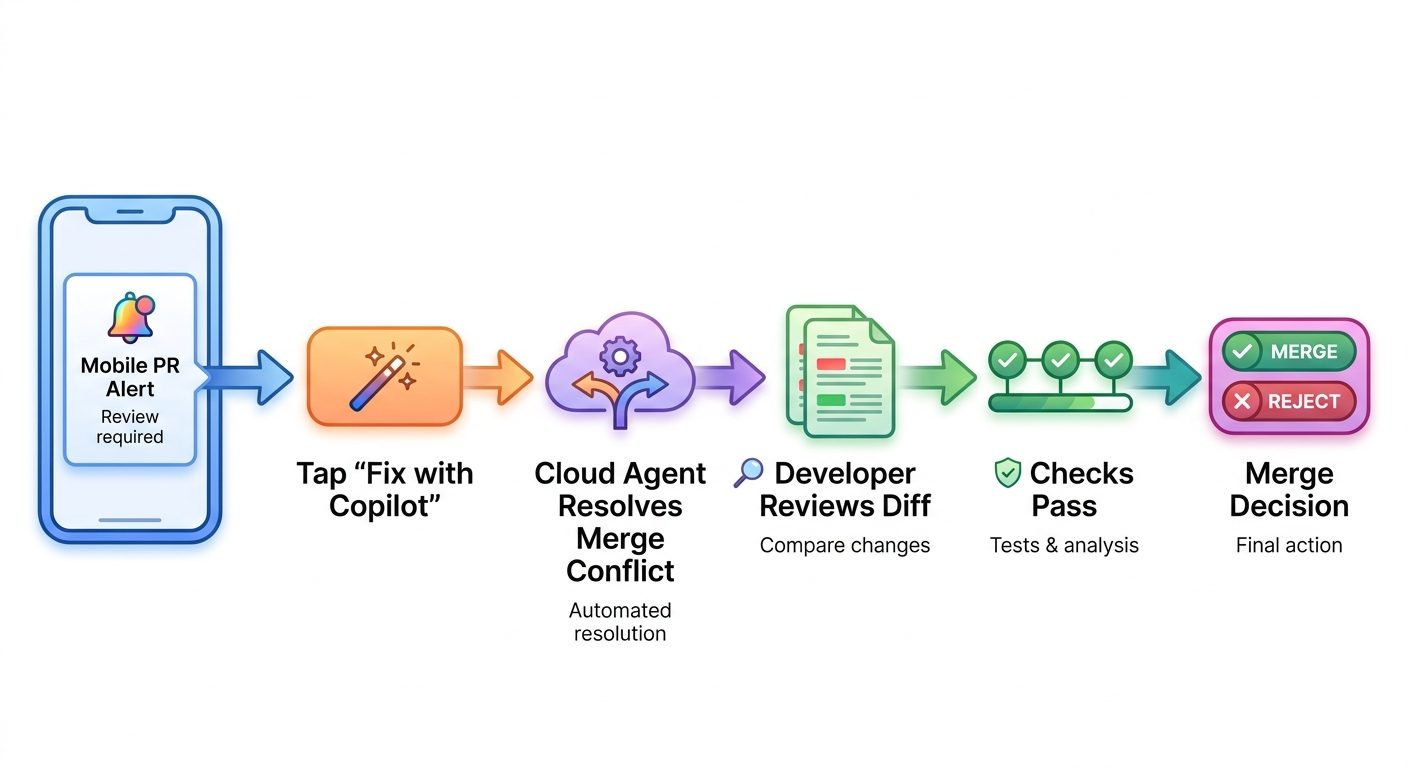
How to Fix Pull Request Merge Conflicts with Copilot on GitHub Mobile
The exact interface may evolve, but the workflow described by GitHub is straightforward. Open the pull request in the latest GitHub Mobile app on iOS or Android. If the pull request has merge conflicts, look for the merge box alert. From there, choose the Fix with Copilot action. GitHub Mobile prepopulates a request asking Copilot to resolve the conflicts, and submitting it starts a Copilot cloud-agent session.
| Step | What to do | What to verify |
|---|---|---|
| 1. Open the blocked PR | Review the title, description, branch, reviewers, and conflict warning. | Confirm this is the right pull request and the conflict is not part of a release freeze or urgent incident. |
| 2. Tap Fix with Copilot | Use the pull request merge box action to prefill the agent request. | Read the prompt before submitting. Add context if the branch has a non-obvious goal. |
| 3. Start Copilot cloud agent | Submit the request and let the remote agent inspect the conflict. | Watch for success or failure feedback in GitHub Mobile. |
| 4. Monitor the session | Use mobile session updates or notifications where available. | Look for states such as in progress, waiting for input, idle, or finished. |
| 5. Review the patch | Inspect changed files, comments, and checks before merging. | Confirm the patch preserves both branches’ intent and does not sneak in unrelated rewrites. |
| 6. Merge or escalate | Merge only after checks and review make sense. | If the agent guessed wrong, leave a steering comment, request review, or resolve locally. |
Do not skip the prompt review. The prefilled request is helpful, but context improves agent behavior. A short sentence such as “prefer the validation behavior from this branch, but keep the renamed field from main” can prevent a generic resolution from choosing the wrong side.
You can also use @copilot in pull request comments for related work. GitHub’s announcement mentions failing GitHub Actions workflows, code review comments, tests, and follow-up code changes. That matters because conflicts often reveal another issue: after the text conflict is resolved, tests may fail because behavior changed. In that case, a second focused request can be better than one vague request that asks Copilot to “fix everything.”
The Mobile Review Checklist Before You Merge
The safest way to use Copilot from a phone is to separate starting the fix from approving the merge. Starting a cloud-agent session can be low risk if the branch is blocked and the agent will return a diff. Merging the result is higher risk. Use this checklist before you approve or merge a Copilot-generated conflict fix.
Look specifically for unrelated edits. An agent resolving a conflict may touch nearby code, update tests, or “clean up” something that was not part of the conflict. Sometimes that is useful; sometimes it creates review noise. If the patch is bigger than expected, ask Copilot to explain why each file changed or request a smaller resolution that only addresses the conflict markers and failing checks.
Also verify that generated files and lockfiles make sense. Mobile review is weak for large diffs, minified files, binary assets, or complex dependency changes. If the conflict involves package lockfiles, schema output, protobufs, generated clients, or compiled assets, it is usually safer to wait for a desktop workflow where someone can regenerate and test locally.
Prompt Templates for Safer Copilot Conflict Resolution
The prefilled mobile prompt is a starting point. Better prompts give Copilot enough intent to avoid choosing the wrong side of a conflict. You do not need a long essay. You need constraints.
| Situation | Prompt you can add | Why it helps |
|---|---|---|
| One branch renamed a variable and another changed behavior | Resolve the conflict by preserving the new variable name from main and the validation behavior from this PR. Keep the patch minimal. | Prevents Copilot from blindly choosing one branch. |
| Conflict in tests | Resolve the test conflict so it matches the current expected behavior in this pull request. Do not update product code unless a failing test requires it. | Limits unnecessary product-code edits. |
| Config or dependency conflict | Resolve only the conflicting config entries. Explain any version choice and avoid unrelated dependency upgrades. | Protects against broad dependency churn. |
| Action failure after conflict fix | Inspect the failing GitHub Actions job and propose the smallest follow-up fix. Explain which file caused the failure. | Turns a second agent run into a focused debugging task. |
| Reviewer asked for changes | Address only the latest reviewer comment. Do not refactor nearby code unless required. | Keeps review cycles clean. |
Notice the repeated pattern: preserve this, avoid that, keep the patch minimal, explain choices. These constraints are especially important when you are operating from a phone because you have less screen space and fewer tools for deep inspection.
How This Connects to Copilot Sessions and AI Credits
GitHub has been adding clearer cost visibility across Copilot sessions, including total session cost, delegated work, and subagent usage in VS Code. Enterprise admins also have more budget controls, including per-user budgets for cost centers in the billing UI. Even if the mobile conflict workflow does not show every cost detail in the moment, it belongs to the same broader shift: agentic coding work needs session awareness.
For individuals, that means you should avoid starting repeated cloud-agent runs for the same vague conflict. If Copilot fails once, improve the prompt. If it fails twice, stop and move to desktop or ask a teammate. The waste pattern is not one focused conflict-resolution session. The waste pattern is five agent attempts caused by unclear intent, failing tests, and no human inspection between runs.
For teams, mobile agent workflows should be covered by policy. Decide whether developers can start Copilot cloud-agent sessions from mobile, whether certain repositories require desktop review, and whether protected branches need extra approval after AI-generated conflict fixes. Teams already make rules for CI minutes, deployments, and production access. AI coding agents deserve the same practical governance.
Limitations and Failure Cases to Watch For
Copilot cloud agent can be useful, but merge conflicts are one of the places where confidence can be misleading. The agent may resolve syntax while misunderstanding product intent. It may produce a patch that compiles but drops an edge case. It may choose one side of a conflict because that side is simpler, not because it is correct. It may also be blocked by permissions, repository policy, branch protection, or missing context.
Where it shines
- Localized conflicts in familiar files.
- Documentation and test conflicts.
- Simple imports, formatting, or dependency metadata.
- PRs with clear descriptions and passing checks.
- Follow-up tasks where
@copilotcan address a specific reviewer comment.
Where to slow down
- Authentication, payments, permissions, data migrations, or production infrastructure.
- Large conflicts across many modules.
- Generated files that should be recreated by tooling.
- Branches with unclear product decisions.
- PRs where checks are missing, flaky, or unrelated to the changed behavior.
One practical failure case is the “green but wrong” patch. The tests pass because they do not cover the exact behavior affected by the conflict. This is why review context matters. If the conflict touches business logic, ask: what behavior did branch A want, what behavior did branch B want, and did the final patch preserve both?
Another failure case is over-editing. Copilot may try to improve the surrounding code. That can be helpful during a planned refactor, but it is dangerous during a conflict fix because reviewers expect a narrow patch. If you see unrelated changes, ask the agent to revert non-conflict edits or move the extra improvement to a separate pull request.
A Simple Team Policy for Mobile Copilot Conflict Fixes
If your team uses Copilot cloud agent seriously, write down a policy before the first awkward merge. It does not need to be bureaucratic. A few rules can prevent most mistakes.
- Allow mobile starts, not blind mobile merges: developers may start Copilot conflict sessions from GitHub Mobile, but merging requires passing checks and human diff review.
- Protect critical paths: security, billing, migrations, infrastructure, and release branches require desktop review or senior approval after AI conflict resolution.
- Keep prompts narrow: conflict-resolution prompts should name what to preserve and what not to change.
- Require explanation for non-trivial patches: if more than a few lines change, Copilot should summarize the resolution and why each file changed.
- Escalate after repeated failure: after one or two failed agent attempts, switch to local resolution instead of continuing to spend sessions.
- Track usage: admins should monitor Copilot usage reports and budgets, especially while teams adopt mobile and remote agent workflows.
This policy mirrors the broader trend in AI coding tools: autonomy is useful when the scope is clear and the review loop is strong. The goal is not to stop developers from using Copilot. The goal is to make mobile agent work boring, predictable, and reviewable.
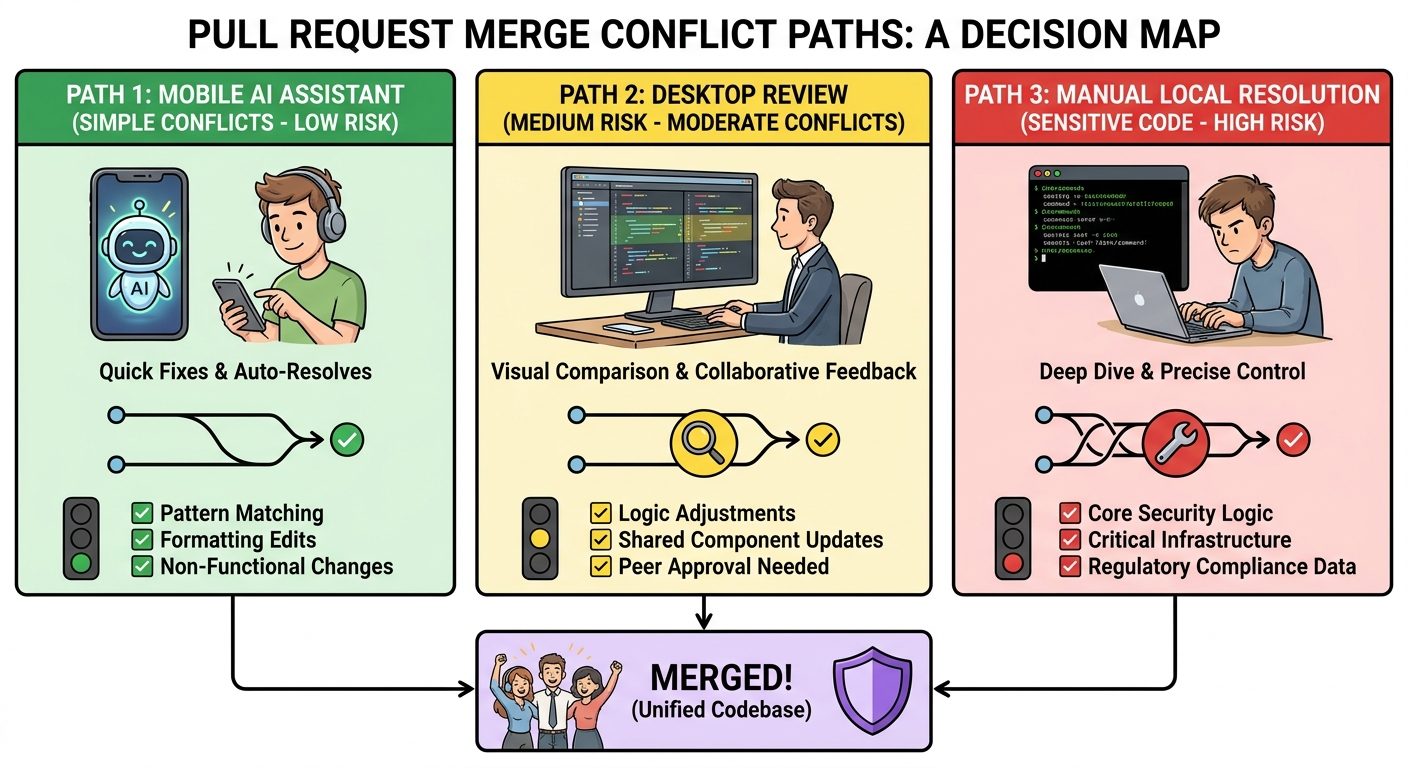
GitHub Mobile Fix with Copilot vs Manual Conflict Resolution
| Option | Best for | Weakness |
|---|---|---|
| Fix with Copilot on GitHub Mobile | Fast unblock when you are away from your workstation and the conflict is localized. | Limited screen space and weaker inspection tools make blind merging risky. |
@copilot PR comment | Specific follow-up tasks such as tests, failing Actions, or reviewer comments. | Can become messy if the request is broad or the branch needs human product judgment. |
| Desktop Copilot app / CLI / VS Code | More involved agent sessions where you want logs, context, cost visibility, and easier review. | Requires being at a proper workstation or remote environment. |
| Manual local resolution | Complex conflicts, sensitive code, generated files, and changes that need full test runs. | Slower when the conflict is simple and the owner is away. |
The best workflow is often hybrid. Start the agent from mobile to avoid blocking the team. Then review on desktop before merging if the patch is not obviously safe. For low-risk documentation or test conflicts, mobile review may be enough. For application logic, treat mobile as the kickoff surface, not the final approval surface.
Three Realistic Scenarios
Scenario 1: Documentation conflict in a launch branch
A docs pull request updates a setup guide, while the release branch changes the same paragraph to mention a new command. This is a good mobile Copilot task. The correct resolution is usually to keep both pieces of information, make the paragraph coherent, and let the reviewer confirm the wording. The risk is low because the conflict does not change runtime behavior.
Scenario 2: Test snapshot conflict after UI copy changes
A snapshot conflict is a medium-risk task. Copilot may be able to resolve the file, but the correct answer depends on the intended UI text. Ask the agent to preserve the copy from the current pull request unless the target branch introduced newer product language. Then wait for checks. If snapshots are generated by a command, desktop regeneration may be safer.
Scenario 3: Payment validation conflict
This is not a good blind mobile merge. Even if Copilot removes conflict markers, the merged behavior could affect billing, refunds, or access control. Start a session only if your team accepts that workflow, but require desktop review, test evidence, and possibly a second human reviewer before merge.
The Practical Mental Model: Start, Steer, Verify, Merge
The cleanest way to think about this feature is a four-part loop. Start the agent only when the task is scoped. Steer the agent with the branch intent. Verify the returned patch using checks and human review. Merge only when the conflict resolution is boring. If any step feels ambiguous, do not compensate by trusting the agent more. Slow down.
This mental model also helps teams compare GitHub Copilot with other AI coding products. OpenAI Codex, Claude Code, Cursor, and Copilot are all moving toward agents that can work across files and sessions. The differentiator is not simply which model writes the patch. The differentiator is the control surface around the patch: mobile notifications, session logs, budgets, policy controls, branch protection, and review workflows.
GitHub has an advantage because the pull request, checks, reviews, mobile app, and Copilot agent live close together. That integration is useful. It also means developers may feel tempted to compress the whole decision into one mobile tap. Resist that. The tap should start the work, not replace the review.
Keep Learning on AI Feature Drop
- GitHub Copilot App Guide — the broader pillar for Copilot app sessions, AI credits, BYOK, cloud agents, and mobile fixes.
- How to Reduce GitHub Copilot AI Credits — practical cost-control habits for agentic coding.
- Copilot Cowork Skills and Plugins — related Microsoft Copilot workflow coverage.
- OpenAI Codex Pricing and Usage Limits — compare AI coding usage models.
- Claude Code Usage Limits Explained — compare coding-agent limits and workflow tradeoffs.
Sources and References
- GitHub Changelog: GitHub Mobile fix merge conflicts with Copilot cloud agent
- GitHub Changelog: live notifications for Copilot CLI sessions
- GitHub Changelog: improved filters and sorting for Copilot sessions
- GitHub Changelog: GitHub Copilot app available to all
- GitHub Changelog: Copilot in Visual Studio Code releases
- GitHub Changelog: per-user budgets for cost centers
GitHub product behavior, billing controls, and mobile interfaces can change. Verify your active Copilot plan, organization policy, branch protection rules, and GitHub Mobile version before relying on a workflow for production branches.
FAQ: GitHub Mobile Copilot Merge Conflicts
Can GitHub Mobile really fix merge conflicts with Copilot?
GitHub says the mobile app can start a Copilot cloud-agent workflow from the pull request merge box when a PR has merge conflicts. The app prepopulates a request asking Copilot to resolve the conflict, then launches the cloud agent.
Should I merge a Copilot conflict fix directly from my phone?
Only for low-risk changes after you have reviewed the diff and required checks pass. For application logic, security-sensitive code, migrations, infrastructure, or large conflicts, use mobile to start the fix but review on desktop before merging.
What is the difference between Fix with Copilot and mentioning @copilot?
Fix with Copilot is the mobile merge-box workflow for conflicts. Mentioning @copilot in pull request comments can request related tasks such as fixing failing Actions workflows, addressing review comments, adding tests, or making follow-up changes.
Does this use Copilot cloud agent?
Yes. GitHub’s changelog describes the mobile conflict workflow as launching Copilot cloud agent to work on the pull request.
What conflicts are safest for Copilot to resolve?
Localized conflicts in docs, tests, imports, config, or simple code paths are safest. Conflicts in business logic, auth, payments, migrations, infrastructure, or generated files need more caution.
How do I reduce risk when using Copilot from mobile?
Add a short constraint to the prompt, ask for a minimal patch, inspect changed files, wait for checks, and avoid merging from mobile when the patch is large or sensitive.
Can I monitor Copilot sessions from GitHub Mobile?
GitHub has added live notifications for remote Copilot CLI sessions and mobile session improvements, including states such as in progress, waiting for input, idle, and finished. Availability depends on platform and version.
Does this affect AI credit usage?
Agentic workflows belong to the broader Copilot usage and cost-visibility ecosystem. Treat each conflict fix as a scoped session and avoid repeated vague agent attempts.
Post a Comment