
The GitHub Copilot app is no longer just another way to chat with AI. It is becoming a control center for desktop agents, CLI sessions, mobile pull-request fixes, worktrees, BYOK experiments, and AI-credit guardrails. This guide explains how to use it without losing track of cost, code review, or control.
GitHub Copilot App: Quick Answer
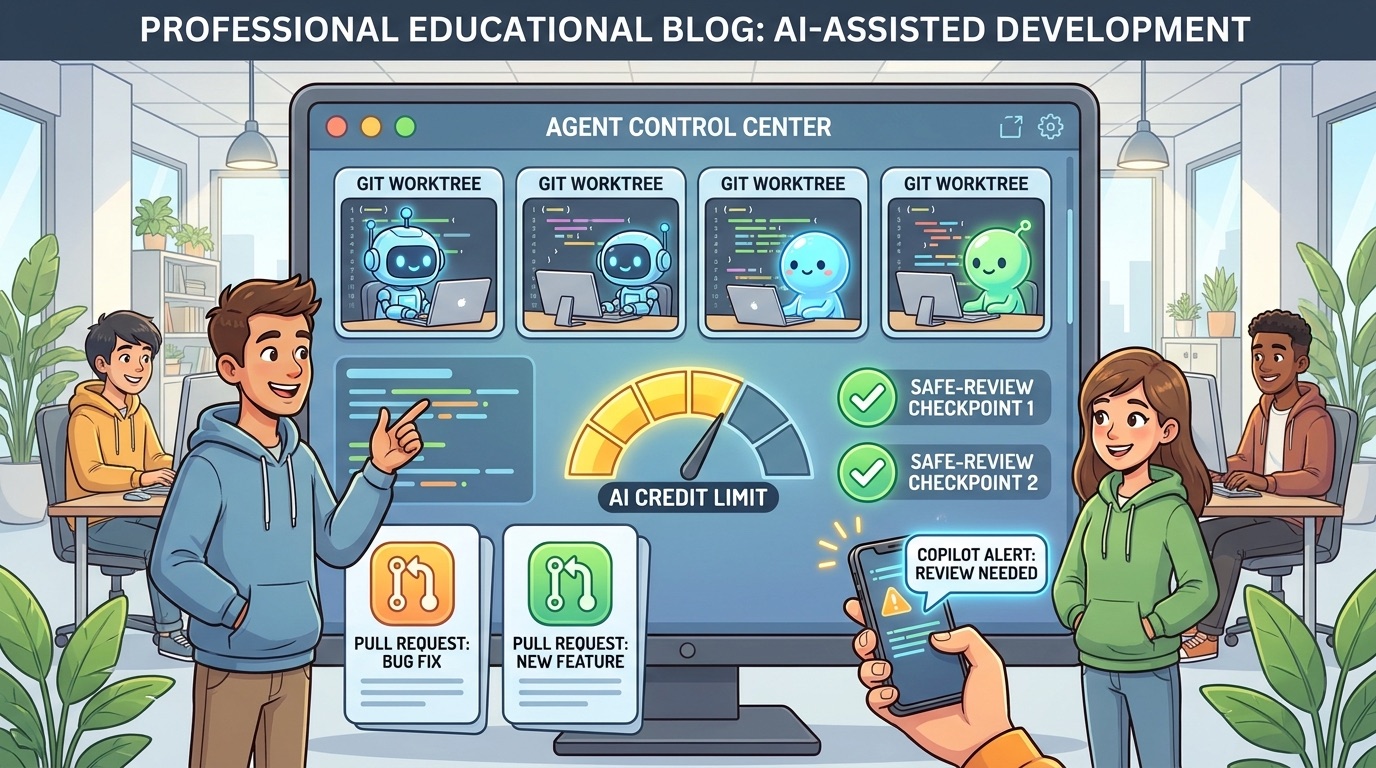
The GitHub Copilot app is GitHub’s agent-native desktop experience for starting, watching, steering, and reviewing Copilot agent work across repositories. Instead of treating AI coding as a single chat window inside an editor, the app gives agent sessions their own workspace: active work, issues, pull requests, plans, worktrees, cloud sessions, and review status can be managed from one place.
The reason this matters now is that Copilot has quickly become more than autocomplete. In the last few weeks, GitHub has expanded the Copilot app to every Copilot plan, added AI credit session limits to Copilot CLI and the SDK, opened enterprise session streaming, improved cloud-agent mobile workflows, and pushed deeper agent customizations in JetBrains IDEs. Those changes create a new practical question: how should a developer actually run Copilot agents without creating runaway credit spend, messy pull requests, or invisible automation?
This article is deliberately practical. It is not a launch recap. It explains the decisions you need to make: when to use the app, when to stay in VS Code or JetBrains, when to use mobile, how to cap AI-credit usage, how to avoid vague agent prompts, and how teams should review agent logs.
What Is the GitHub Copilot App?
The GitHub Copilot app is a desktop surface for agent-driven development. GitHub describes it as an agent-native desktop experience built around the way developers increasingly work: assign an issue, let an agent investigate, inspect the plan, review changes, fix failing checks, and carry a pull request through feedback. The app is available on macOS, Windows, and Linux, and GitHub says it now supports every Copilot plan, including Free and Education users. It also supports a bring-your-own-key path for people who want to run sessions against their own model provider.
The important shift is not the existence of another desktop app. The important shift is that GitHub is separating the management of agent work from the place where you type code. A code editor is excellent when you are editing a file. It is less excellent when three autonomous sessions are each investigating different issues, generating different diffs, waiting on different checks, and asking for decisions at different times. The app is meant to make that multi-agent work visible.
That visibility matters because agentic coding has a hidden failure mode: the agent can look productive while the human loses the thread. You may forget what prompt started a session. You may miss which files changed. You may approve a broad diff because the agent sounded confident. You may keep asking for another attempt while AI credits accumulate. A control-center interface does not solve those problems automatically, but it gives you a better place to notice them.
The app also aligns with GitHub’s broader product direction. Copilot can run locally, in the cloud, in the CLI, in IDEs, in pull requests, and on mobile. The app gives those surfaces a shared operational story: what is running, what changed, what needs review, and what should happen next.
What Changed Recently?
Several recent Copilot changes are worth reading together because they all point toward the same future: AI agents are becoming a normal part of software delivery, and GitHub is adding controls around them.
/limits or --max-ai-credits, including model calls, subagents, and background work.Individually, each update sounds like a feature note. Together, they create a workflow stack. The app gives a place to coordinate agents. Session limits reduce the fear of unattended work. Streaming gives enterprises auditability. Mobile fixes let cloud agents unblock pull requests away from the desk. IDE updates bring agent customization closer to everyday coding.
The search gap is obvious: official docs explain these pieces separately, but developers need a combined operating model. You do not only need to know that /limits exists. You need to know when to set it, how high to set it, when to stop a session, which surface to use, and what to review before merging.
Why This Topic Fits AI Feature Drop Right Now
Recent analytics for AI Feature Drop show that practical AI coding workflow content continues to perform better than generic AI news. In the last complete 28-day window, GA4 recorded 316 active users, 399 sessions, and 651 page views. Organic Search contributed 158 sessions, while Direct and Organic Social also remained meaningful traffic sources. Top pages included OpenAI Codex usage content, Google Flow credit guidance, Copilot workflow posts, and GitHub Copilot AI credit pages.
That pattern matters. Readers are not only asking “what launched?” They are asking how credits, limits, agents, and workflows affect real work. Existing posts like GitHub Copilot AI Credits Calculator, How to Reduce GitHub Copilot AI Credits, and GitHub Agentic Workflows Explained create a strong internal-link cluster for this guide.
Search Console data is still limited, but indexed page performance shows the site can surface for narrow AI tool topics. The opportunity here is not to outrank GitHub for “Copilot app.” It is to satisfy the mixed-intent searcher who wants the product explained, the new credit controls translated into daily habits, and the mobile or enterprise features placed into a practical workflow.
Copilot App vs CLI vs IDE vs Mobile: Which Should You Use?
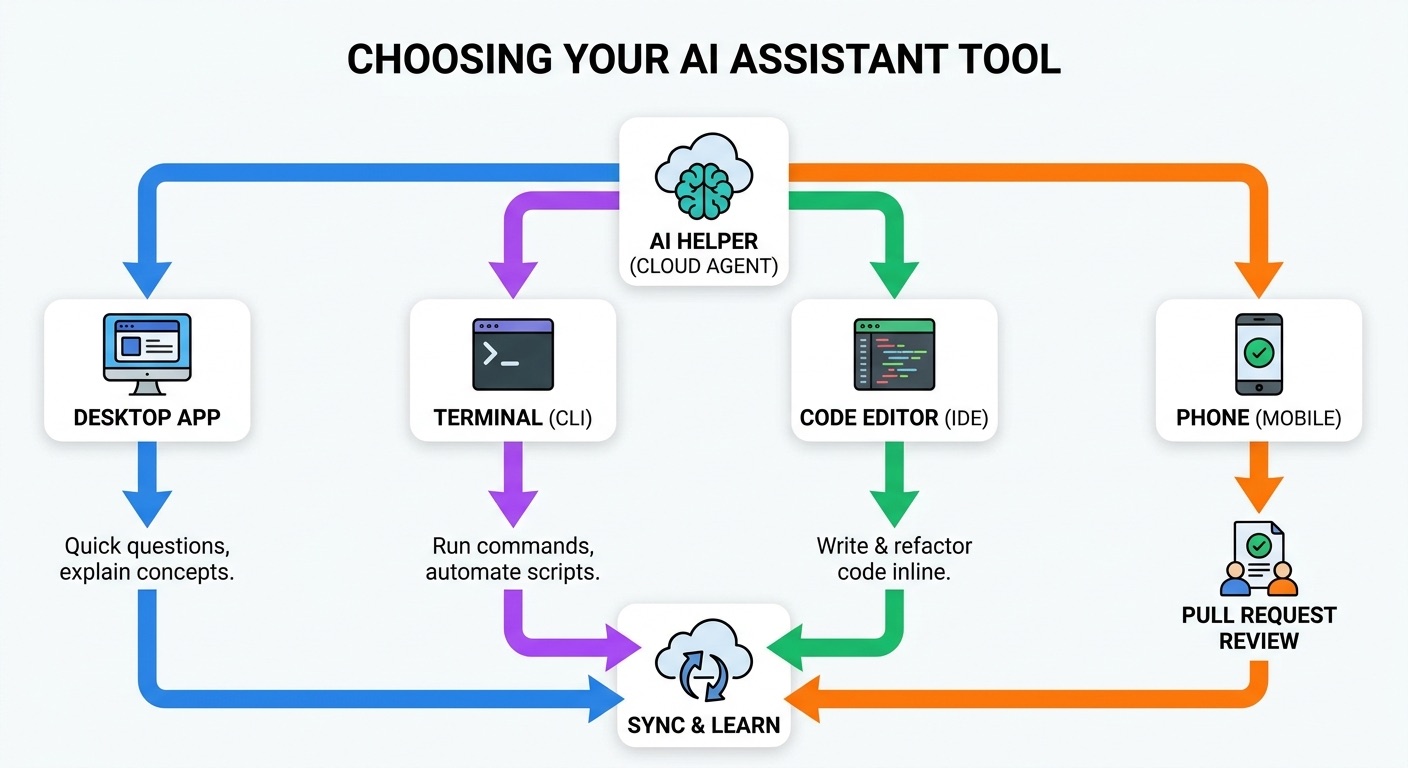
The easiest mistake is to treat every Copilot surface as interchangeable. They overlap, but they are not the same tool. Choosing the right surface reduces friction and keeps agent behavior easier to inspect.
| Surface | Best for | Watch out for | Good default rule |
|---|---|---|---|
| GitHub Copilot app | Managing multiple agent sessions, work in motion, issues, pull requests, cloud sessions, and review status. | Starting too many broad sessions just because they are easy to see. | Use it when visibility and orchestration matter more than typing code. |
| Copilot CLI | Terminal-first tasks, scripts, automation, noninteractive jobs, local repo operations, and explicit AI-credit session caps. | Unattended runs without a limit or unclear stopping condition. | Set a session limit before long or automated work. |
| VS Code / JetBrains IDE | Focused coding, inline edits, local context, model/agent choice, hooks, MCP servers, approval settings, and debugging. | Letting chat sprawl into unrelated files and repeated “try again” loops. | Use the IDE when you are actively reviewing every file-level change. |
| GitHub Mobile | Quick pull-request unblocking, merge-conflict prompts, simple @copilot follow-ups, and status checks while away from the desk. | Approving complex changes from a small screen without later desktop review. | Use mobile to start or steer, not to blindly merge high-risk code. |
| GitHub.com pull requests | Review comments, CI failures, merge conditions, and visible collaboration with teammates. | Long agent threads hidden in PR comments without a clear summary. | Ask Copilot for concise change summaries and test evidence. |
A mature workflow will use more than one surface. For example, you might create an issue on GitHub, start an agent from the Copilot app, set a CLI credit limit for a local verification job, inspect the diff in your IDE, and use mobile only to restart a failed merge-conflict attempt. That sounds complicated, but it is actually clearer than doing everything inside one giant chat thread.
How AI Credit Session Limits Change Copilot Agent Safety
AI credit session limits are one of the most useful recent Copilot changes because they address the exact anxiety developers have with agentic workflows: “What if the agent keeps running?” GitHub says session limits can be set in Copilot CLI and the GitHub Copilot SDK. In an interactive CLI session, /limits lets you view, set, or remove the limit. In noninteractive runs, --max-ai-credits can bound a single run.
The limit applies across the session, including model calls, subagents, and background work such as compaction. When the cap is reached, Copilot wraps up and tells you rather than continuing forever. GitHub also notes the cap is soft: usage is known after a response returns, so a response already in progress may slightly exceed the number you set.
When should you set a Copilot session limit?
Set one whenever the task is long, automated, unattended, exploratory, or likely to call tools repeatedly. If you are asking Copilot to explain one function while you watch, a hard session cap is less important. If you are asking it to investigate a flaky test suite, create a pull request, run multiple checks, or use subagents, a cap is responsible.
How high should the limit be?
There is no universal number because plans and credit values can change. The better habit is to classify the job. A small inspection should have a small cap. A focused bug fix can have a moderate cap. A broad migration should be split into phases, each with its own cap and checkpoint. Do not give one agent a giant budget to “figure it out.” Make it plan, stop, and ask for approval before spending more.
What should happen when the limit is reached?
Do not immediately raise the cap. First ask what the agent completed, what it tried, what remains uncertain, what files changed, and what evidence supports the next step. If the agent hit the cap because the task was too broad, split the task. If it hit the cap because tests were slow, decide whether a human should inspect logs. If it hit the cap after useful progress, raising the limit may be justified.
A Safe GitHub Copilot App Workflow for Real Projects
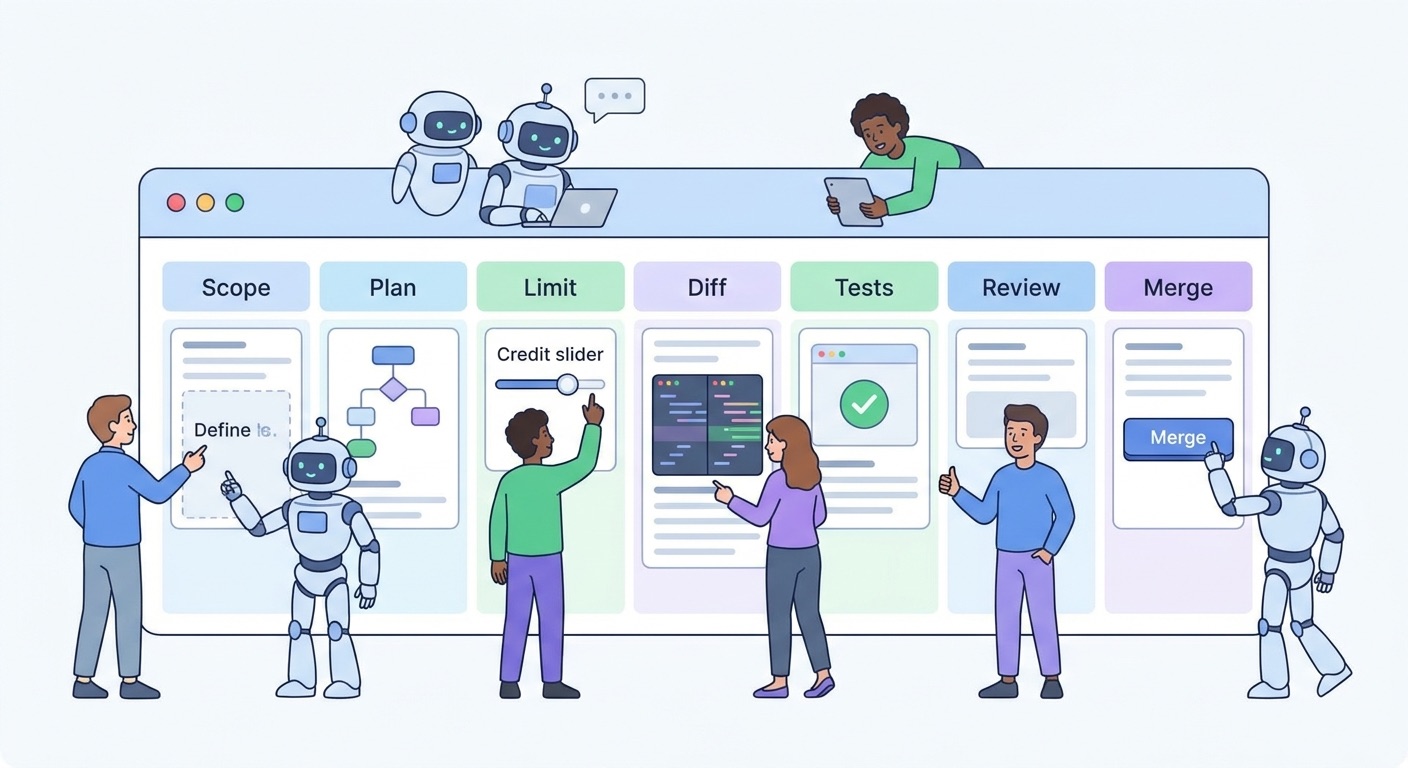
The safest way to use the GitHub Copilot app is to treat agents like junior teammates with strong typing speed and uneven judgment. They can move quickly, but they still need scope, review, and boundaries. Here is a practical workflow you can use for bugs, small features, docs, and refactors.
1. Start with a narrow issue or task
Do not begin with “clean up the repo” or “improve the app.” Create a task that has a definition of done: fix the failing test, update this component, add validation to this endpoint, resolve these merge conflicts, or draft a migration plan for this package only. Agents perform better when success is verifiable.
2. Ask for a plan before edits
Before Copilot changes files, ask it to summarize the goal, list affected files, identify risks, and propose test commands. This forces the agent to reveal its assumptions and gives you a chance to catch overreach. If the plan is vague, the execution will likely be vague too.
3. Choose the right surface
If the work needs orchestration, use the Copilot app. If it needs terminal automation, use the CLI with a session cap. If it needs close file-level review, stay in the IDE. If you are away from your desk, use mobile to unblock a narrow PR action but save complex approval for later.
4. Set a session limit for tool-heavy work
Any agent that may call tools, run tests, compact context, or use subagents deserves a per-session spending boundary. The point is not to starve the agent; the point is to force natural review checkpoints.
5. Inspect the worktree and diff
GitHub’s app model emphasizes isolated worktrees, which is helpful because parallel sessions should not stomp on each other. Still, isolation does not equal correctness. Review the changed files, generated tests, removed code, new dependencies, and error-handling paths.
6. Ask for evidence, not confidence
Do not accept “the issue is fixed” as proof. Ask which commands ran, what failed, what passed, which files changed, which assumptions remain, and what a human should inspect. Agent summaries are most useful when they are tied to evidence.
7. Merge only after a human checkpoint
Even if Agent Merge or cloud-agent workflows can carry a pull request through checks, a human should still own the final judgment for meaningful changes. Let Copilot reduce friction; do not let it erase accountability.
What BYOK Means in the Copilot App
Bring your own key is attractive because it lets developers experiment with model providers without needing the same Copilot subscription path for every session. GitHub says users can bring their own key to run sessions against their own model provider, even without a Copilot subscription. That is useful for developers who want provider choice, teams testing model quality, or organizations with existing provider agreements.
But BYOK does not make agentic work free or risk-free. It changes where some model usage is billed and which provider is responsible for the model call. You still need to track cost, secrets, data exposure, permissions, and approval behavior. A session that uses your provider key can still be expensive if it sends large context, loops on tool calls, or runs broad tasks without checkpoints.
BYOK also adds a governance question. If a team allows every developer to connect arbitrary provider keys, you may lose centralized visibility. If a team forbids BYOK entirely, you may slow legitimate experiments. The practical middle ground is policy: approved providers, allowed repositories, clear secrets handling, and a requirement that BYOK sessions follow the same review checklist as Copilot-billed sessions.
GitHub Mobile and Copilot Cloud Agent: Useful, but Keep It Narrow
GitHub Mobile now supports starting a Copilot cloud agent workflow to fix pull-request merge conflicts. When a PR has merge conflicts, you can launch the workflow from the mobile merge box with a prefilled prompt. You can also continue using @copilot in PR comments for follow-up tasks like fixing failing GitHub Actions workflows, addressing review comments, adding tests, or making small code changes.
This is genuinely useful. Merge conflicts often block simple progress while you are away from your laptop. A mobile “Fix with Copilot” action can get the agent started, notify you whether the request succeeded, and keep the pull request moving. But mobile should not become your default review surface for complex changes.
Use mobile for narrow actions: resolve conflicts, restart a cloud-agent attempt, ask for a status summary, or request a small follow-up. For anything involving security-sensitive code, dependency changes, large diffs, or architecture decisions, wait until you can inspect the diff on a larger screen. The best mobile Copilot workflow is “unblock now, verify properly later.”
Enterprise Controls: Session Streaming, Usage Records, and Policy
Enterprise teams have a different problem from individual developers. The problem is not only whether an agent helped one developer. The problem is whether the organization can see what agents are doing, enforce policy, and investigate mistakes. GitHub’s Copilot agent session streaming and usage records API are meant to help enterprise owners capture session data across clients, including prompts, responses, and tool calls.
That visibility creates several useful governance patterns. Security teams can stream records to a SIEM or audit pipeline. Engineering leaders can review which repositories use agents most heavily. Platform teams can detect runaway automation or broad prompts. Compliance teams can investigate whether sensitive workflows are being handled appropriately.
| Control | Why it matters | Practical use |
|---|---|---|
| Session records | Shows prompts, responses, and tool calls across Copilot clients. | Audit what an agent was asked to do and how it acted. |
| Streaming endpoint | Sends records to enterprise monitoring or SIEM systems. | Centralize Copilot activity with other security and compliance logs. |
| AI credit budgets | Controls monthly or organizational spending. | Prevent surprise cost spikes from broad agent adoption. |
| Session limits | Caps one task or automation run. | Keep an unattended agent from continuing without a checkpoint. |
| Managed settings | Standardizes allowed behavior across clients. | Control MCP servers, approval modes, model choice, and extension behavior. |
| Review requirements | Preserves human accountability. | Require tests and human review before merge, especially for production code. |
The best enterprise approach is layered. Use budgets for broad cost control, session limits for task-level guardrails, streaming for auditability, and review policy for code quality. Do not rely on any one control to solve all risk.
Where MCP Fits Into the Copilot App Story
Model Context Protocol support is important because it lets Copilot agent mode reach external tools and data sources without constant context switching. GitHub’s docs describe MCP as a way to extend agent capabilities with external resources, APIs, and tools. Example workflows include using GitHub MCP for repository issues and pull requests, Figma MCP for design context, and Playwright MCP for testing.
MCP makes agents more useful, but also more consequential. A plain chat answer can be wrong. An MCP-enabled agent can be wrong while also opening issues, reading external systems, running workflows, or changing files. That is why GitHub’s own MCP guidance emphasizes specific goals, boundaries, confirmations, relevant servers, simple starting configurations, limited permissions, and monitoring.
If you combine the Copilot app with MCP servers, use a phased approach. First, let Copilot research and plan. Second, approve the exact tool access needed. Third, implement a small slice. Fourth, validate with tests. Fifth, update issues or pull requests. Avoid giving a newly configured MCP agent broad access to everything on the first run.
Common Mistakes to Avoid
Good Copilot app habits
- Start from a specific issue, failing test, or pull-request problem.
- Ask for a plan before edits.
- Use AI credit session limits for unattended or tool-heavy work.
- Keep separate sessions in separate worktrees.
- Review diffs and test evidence before merge.
- Use mobile for narrow unblock actions, not final approval of risky code.
- Audit MCP servers and provider keys regularly.
Risky Copilot app habits
- Launching several broad agents because the app makes it easy.
- Letting “try again” loops burn credits without new information.
- Using BYOK without provider cost visibility.
- Auto-approving tools in production repositories without boundaries.
- Trusting agent summaries without inspecting the actual diff.
- Merging from a small mobile screen after a complex cloud-agent fix.
- Treating enterprise streaming as a substitute for code review.
Practical Examples
Example 1: Fixing a failing CI workflow
Open the pull request in the Copilot app and ask the agent to inspect the failing job only. Require a plan before edits. If the fix may involve package versions or workflow permissions, set a session limit and ask for a summary of changed YAML, test commands, and potential security impact. Review the diff in the IDE before pushing or merging.
Example 2: Resolving a mobile merge conflict
You are away from your laptop and a small documentation PR has conflicts. Use GitHub Mobile’s Copilot cloud-agent action to start the merge-conflict fix. Ask it to keep content changes minimal. When the agent finishes, review the changed files later on desktop before merging. This is a good mobile use case because the task is narrow and reviewable.
Example 3: Running an unattended refactor
Do not ask Copilot to “modernize the codebase.” Ask it to update one deprecated API in one package. Run it in the CLI with a session cap. Tell it to stop after the first working diff and test result. If it hits the cap, read the summary before deciding whether to continue.
Example 4: Enterprise audit of agent adoption
An engineering organization turns on session streaming for enterprise managed users. Instead of using it only after incidents, the platform team reviews weekly patterns: which repositories use agents most, which tasks trigger long tool chains, where prompts are vague, and whether session limits are being used. The goal is coaching and policy improvement, not surveillance theater.
How This Compares With Earlier Copilot Credit Guidance
Earlier Copilot AI credit guidance focused on a core billing problem: developers needed to understand which workflows could consume credits and how to avoid waste. The Copilot app adds a workflow layer on top of that. You are no longer only counting prompts. You are managing sessions, worktrees, cloud agents, mobile actions, BYOK sessions, MCP tool access, and review stages.
That means the best cost-saving advice is also the best engineering advice. Scope the work. Use the right surface. Limit unattended runs. Inspect diffs. Avoid vague loops. Reserve more capable models or broader tool access for work that truly needs them. A session limit is not just a billing feature; it is a forcing function for better agent management.
If you want deeper cost planning, start with the GitHub Copilot AI Credits Calculator. If you want practical reduction habits, read How to Reduce GitHub Copilot AI Credits. If you want a broader agent workflow view, use GitHub Agentic Workflows Explained as the companion piece.
Final Recommendation
Use the GitHub Copilot app when you need to coordinate agent work, not just ask a coding question. It is best for sessions, issues, pull requests, worktrees, and cloud-agent visibility. Keep the CLI for terminal-native automation and session caps. Keep the IDE for close code review and local edits. Keep mobile for narrow unblock actions.
The most important new habit is simple: do not start a serious agent session without a stopping rule. That stopping rule can be a session limit, a test checkpoint, a plan-only phase, a maximum file scope, or a pull-request review boundary. Agents are most valuable when they accelerate work inside clear constraints.
The GitHub Copilot app is a sign that AI coding is moving from “assistant in the editor” to “agent operations layer.” That is powerful, but it requires a new kind of developer discipline. The teams that win will not be the ones that let the most agents run. They will be the ones that design the safest, clearest, and most cost-aware agent workflows.
Keep Learning on AI Feature Drop
- GitHub Copilot AI Credits Calculator — estimate credit-risk before long coding-agent sessions.
- How to Reduce GitHub Copilot AI Credits — practical habits for controlling agent usage.
- GitHub Agentic Workflows Explained — broader setup, security, billing, and automation ideas.
- MAI-Code-1-Flash Explained — understand a fast Copilot model option for agentic coding.
- Copilot Cowork Skills and Plugins — related Microsoft 365 and Copilot workflow coverage.
Sources and References
- GitHub Blog: GitHub Copilot app, the agent-native desktop experience
- GitHub Changelog: GitHub Copilot app available to all
- GitHub Changelog: Set AI credit session limits in Copilot CLI and SDK
- GitHub Changelog: Copilot agent session streaming public preview
- GitHub Changelog: GitHub Mobile fixes merge conflicts with Copilot cloud agent
- GitHub Changelog: Codex as agent provider and JetBrains agentic enhancements
- GitHub Docs: Enhancing Copilot agent mode with MCP
Copilot plans, AI-credit behavior, BYOK details, preview availability, and enterprise policies can change. Verify your active GitHub documentation, admin settings, and billing page before making purchasing or production workflow decisions.
FAQ: GitHub Copilot App, AI Credits, and Agent Sessions
Is the GitHub Copilot app free?
GitHub says the Copilot app is available on every Copilot plan, including Free and GitHub Education. Users can also bring their own model-provider key for sessions. Business and Enterprise users may still need organization policy enabled before they can access it.
What is the GitHub Copilot app best used for?
It is best used as a control center for agentic development: managing sessions, issues, pull requests, worktrees, cloud agents, and review progress across repositories.
What are Copilot AI credit session limits?
AI credit session limits let you cap the amount a Copilot CLI or SDK agent spends in one session. They can include model calls, subagents, and background work. In the CLI, use /limits interactively or --max-ai-credits for noninteractive runs.
Do session limits replace Copilot budgets?
No. Session limits are task-level guardrails. They complement broader plan limits, cost-center budgets, and organizational spending controls.
Should I use the Copilot app or my IDE?
Use the app when you need to coordinate agent work across sessions, issues, and pull requests. Use the IDE when you are actively editing and reviewing files. Use the CLI for terminal-native automation and explicit session caps.
Can GitHub Mobile really fix merge conflicts with Copilot?
GitHub Mobile can start a Copilot cloud-agent workflow from a pull request merge-conflict box. It is useful for narrow unblock actions, but complex code changes should still be reviewed on desktop before merging.
What does BYOK mean in the Copilot app?
BYOK means bring your own key. It lets you run sessions against your own model provider. It can help experimentation, but you still need to monitor provider cost, permissions, secrets, and review quality.
How should enterprises audit Copilot agent sessions?
Enterprise managed users can use Copilot usage records streaming or REST API access to capture session activity such as prompts, responses, and tool calls. This should be combined with policy, budgets, session limits, and human code review.
Does MCP make Copilot agent mode riskier?
MCP makes agent mode more capable because Copilot can access external tools and data sources. That also means you should limit permissions, choose relevant servers, request confirmations, and monitor activity carefully.
Post a Comment